Note
Access to this page requires authorization. You can try signing in or changing directories.
Access to this page requires authorization. You can try changing directories.
In this quickstart, you set up a local development environment for Azure SQL Database with a Dev Container Template. When you finish, you have an application container for your language, a local SQL Server 2025 container, and a Library sample database in a SQL Database project that targets Azure SQL Database.
The following video walks you through setting up a development environment with Dev Container Templates for Azure SQL Database. The video shows an earlier release of the templates, so some tool versions and options differ from the steps in this article. Follow the written steps.
Prerequisites
Install the following prerequisites on the machine where you develop:
- Git: for version control. Download Git
- Docker Desktop, or another container runtime that the Dev Containers extension supports. Give the runtime at least 4 GB of memory: the database container alone needs 2 GB. Download Docker
- Visual Studio Code: the editor for this quickstart. Download Visual Studio Code
- Dev Containers extension for Visual Studio Code: enables working with dev containers. Install the extension
You can also use these templates in GitHub Codespaces, which needs none of the local prerequisites.
Note
On an Arm64 host, such as a Mac with Apple Silicon, the application container runs natively and the database container runs under emulation, because SQL Server runs on x64 only. Microsoft doesn't test or support SQL Server under emulation. For more information, see Dev Container Templates for Azure SQL Database overview.
Steps to set up the development environment
Open a local folder that contains your application project, or clone an existing repository into Visual Studio Code. This step prepares your project for integration with a development container, whether you're starting from scratch or working on an existing application.
In Visual Studio Code, press
F1orCtrl+Shift+Pto open the command palette. Select the Dev Containers: Add Dev Container Configuration Files... command.
Select Add configuration file to workspace to add the dev container configuration file to your current local repository.
- Alternatively, choose Add configuration file to user data folder.
- For this quickstart, select Add configuration file to workspace.
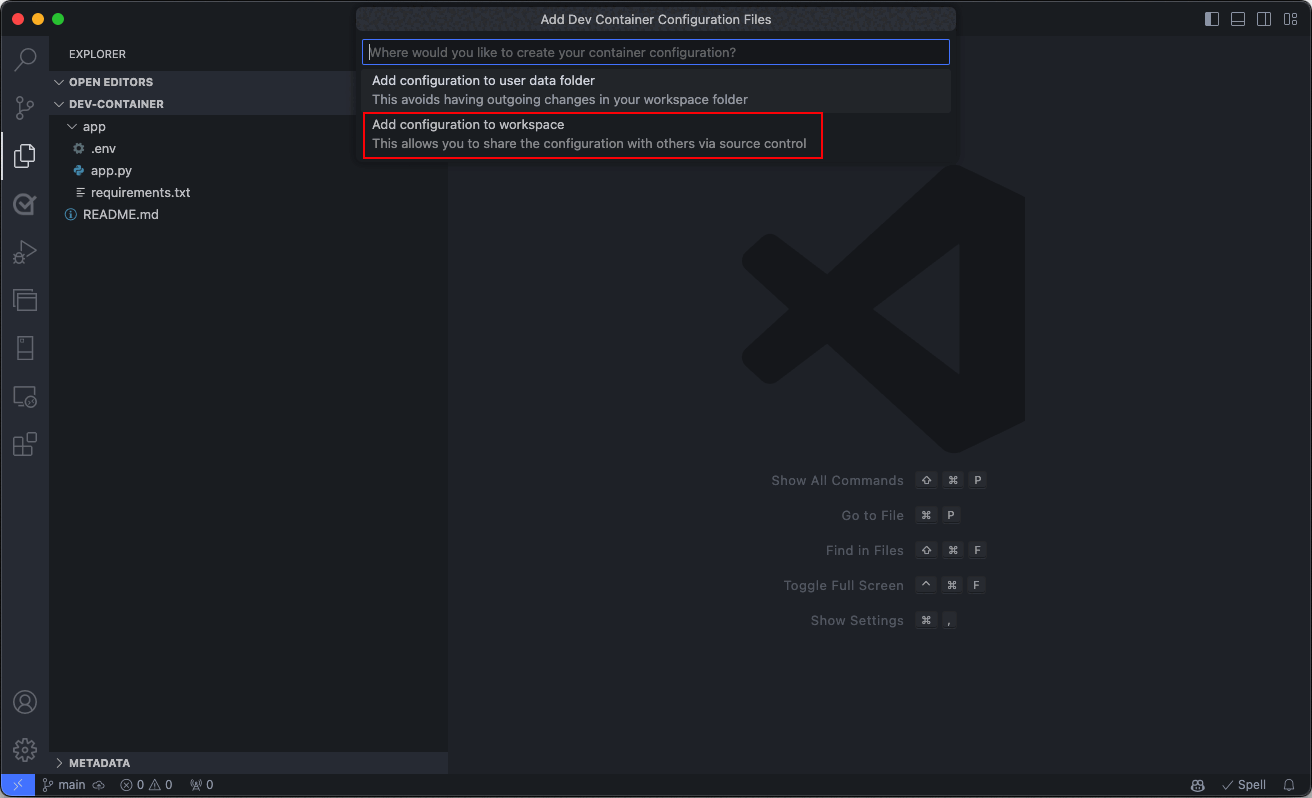
Visual Studio Code prompts you to select a Dev Container Template. The available templates are based on the tools and dependencies required for the specific development environment. Select Show All Definitions to view all available templates.

Select a Dev Container Template for Azure SQL Database by typing Azure SQL in the command palette. This action displays a list of available templates for development with Azure SQL Database.

After you select a template, the extension generates the configuration files for it. These files include settings for the development environment, extensions to install, and Docker configuration details. They're stored in a
.devcontainerfolder in your project directory, which ensures a consistent, reproducible development environment.
After the configuration files are generated, Visual Studio Code prompts you to transition your project into the new Dev Container environment. Select Reopen in Container. This step moves your development into the container and applies the predefined environment settings for development with Azure SQL Database.
If you haven't already, you can also start this transition manually from the Dev Containers extension. Use the Reopen in Container command from the command palette or select the blue icon at the bottom left corner of Visual Studio Code and select Reopen in Container.
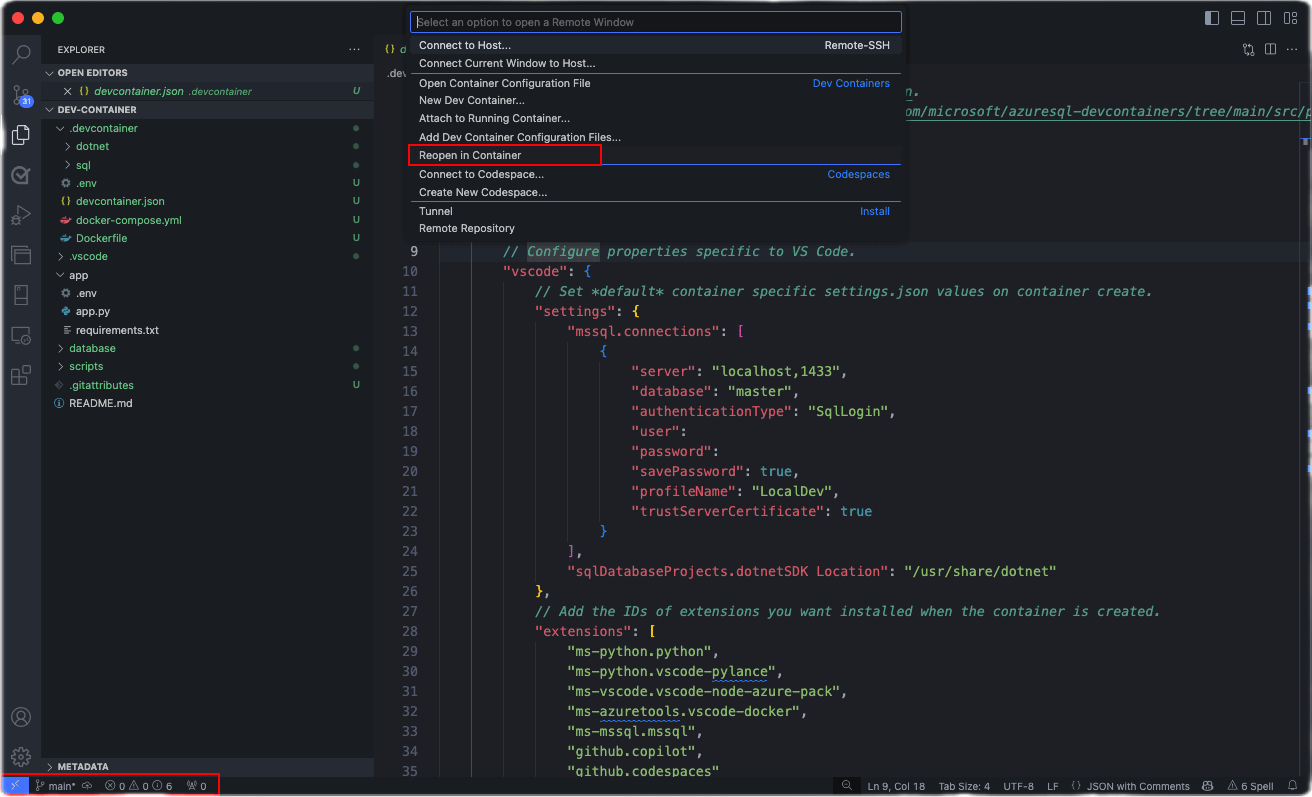
This screenshot shows the Dev Containers command palette option to Reopen in Container, in Visual Studio Code.

Visual Studio Code builds the containers and creates the environment.
The first build takes several minutes. It pulls both container images, installs the tools, builds the SQL Database project, and publishes the result to the local SQL Server container, which creates the
Librarydatabase and its sample data. Later builds are faster because the images are cached.
The build log shows the features that the template installs: the .NET SDK, the Azure CLI, the Azure Developer CLI, and the Docker CLI.
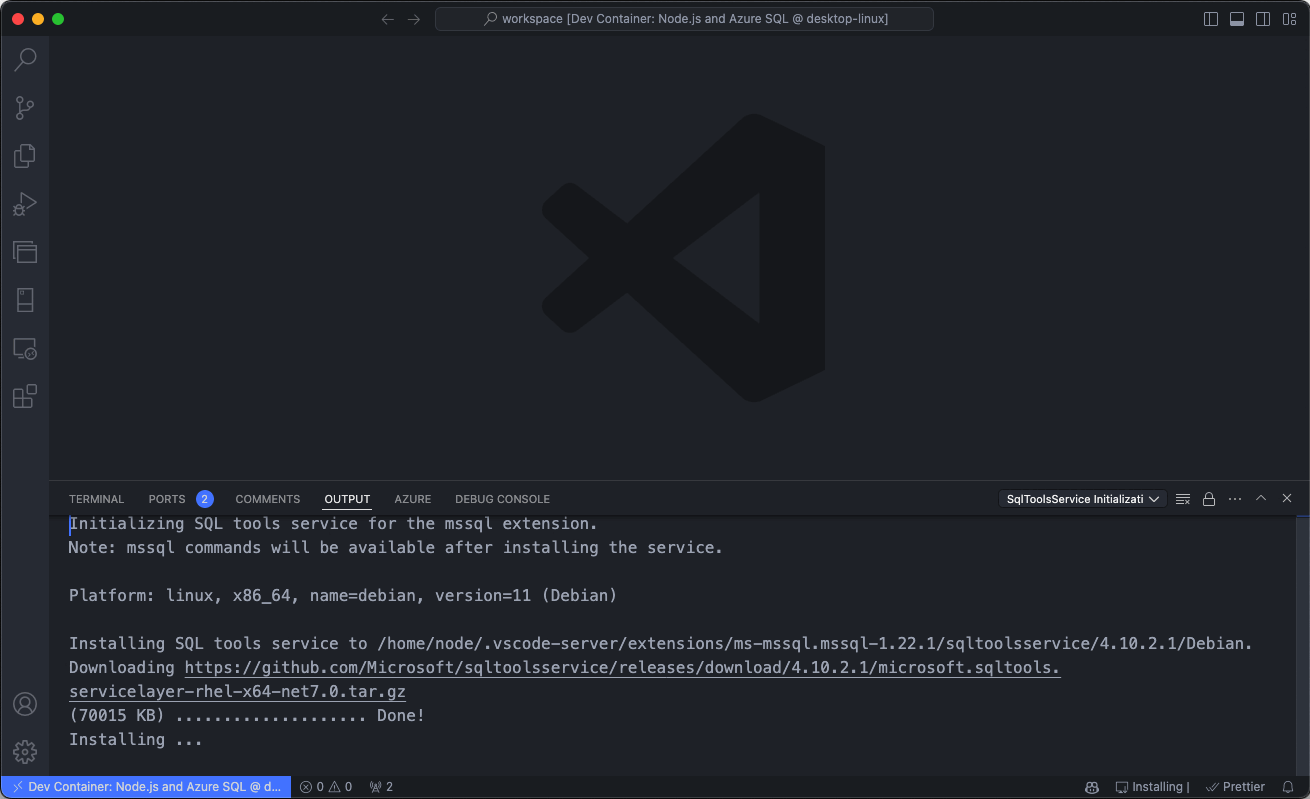
When the build finishes, open a terminal in Visual Studio Code and confirm that the environment is ready:
sqlcmd -S localhost,1433 -U sa -P "$MSSQL_SA_PASSWORD" -C -d Library -Q "SELECT COUNT(*) AS books FROM dbo.books;"The query returns 24 books. If it returns an error, the database container might still be starting. Wait a few seconds and run the command again.
To check the tools, run
dotnet --version,sqlpackage /version, andsqlcmd --version.
Run the template's tasks. Press F1, select Tasks: Run Task, and select a task:
- 1. Verify database schema and data opens a script that queries the sample tables.
- 2. Build SQL Database project builds the project and fails if the schema isn't compatible with Azure SQL Database.
- 3. Publish SQL Database project applies the project to the local database.
The .NET and .NET Aspire templates add 4. Trust .NET HTTPS certificate.
If Visual Studio Code asks about scanning the task output, select Continue without scanning the task output.
This screenshot shows the Visual Studio Code command palette, with the option to run predefined tasks.

This screenshot shows the list of predefined tasks in Visual Studio Code for Dev Containers.


Troubleshoot
The container build fails and the database service never becomes healthy. SQL Server sometimes fails while it starts in the database container. Run Dev Containers: Rebuild Container.
Task 2 fails right after the container is created, with a message that the .dacpac file is in use by another process. The publish that runs during container creation didn't finish. Run the task again.
The build fails while it installs packages. Some networks block the public package registries that the templates use, such as api.nuget.org, files.pythonhosted.org, and registry.npmjs.org. Point the tools at the feeds your organization allows, and then rebuild the container. For details, see the notes for the template you're using in the template repository.
The connection prompts for a password. The LocalDev connection profile reads the password from the container's environment, which is set in .devcontainer/.env. If you change that file, rebuild the container so that the profile picks up the new value.