Note
Access to this page requires authorization. You can try signing in or changing directories.
Access to this page requires authorization. You can try changing directories.
After deploying the Azure VMware Solution, you can create more Tier-1 Gateways from the NSX Manager. Once configured, the added Tier-1 Gateway is visible in the NSX Manager. NSX comes pre-provisioned by default with an NSX Tier-0 Gateway in Active/Active mode and a default Tier-1 Gateway in Active/Standby mode.
In this tutorial, you learn how to:
- Create an additional NSX Tier-1 Gateway in the NSX Manager
- Configure the High Availability (HA) mode on a Tier-1 Gateway
Prerequisites
You have an Azure VMware Solution private cloud with access to the NSX Manager interface. For more information, see the Configure networking tutorial.
Use NSX Manager to create a Tier-1 Gateway
A Tier-1 Gateway is typically added to a Tier-0 Gateway in the northbound direction and to segments in the southbound direction.
With the CloudAdmin account, sign in to the NSX Manager.
In NSX Manager, select Networking > Tier-1 Gateways.
Select Add Tier-1 Gateway.
Enter a name for the gateway.
Select the HA Mode for the Tier-1 Gateway. Choose between Active/Standby, Active/Active, or Distributed Only:
HA Mode Description Active Standby One active instance and one standby instance. The Standby takes over is the active fails. Active Active Both instances are active and can handle traffic simultaneously. Distributed Only No centralized instances; routing is distributed across all transport nodes. Select a Tier-0 Gateway to connect to the Tier-1 Gateway to create a multi-tier topology.
Select an NSX Edge cluster if you want this Tier-1 Gateway to host stateful services such as NAT, load balancer, or firewall.
After you select an NSX Edge cluster, a toggle gives you the option to select NSX Edge Nodes.
If you selected an NSX Edge cluster, select a failover mode or accept the default.
Option Description Preemptive If the preferred NSX Edge node fails and recovers, it preempts its peer and becomes the active node. The peer changes its state to standby. Nonpreemptive If the preferred NSX Edge node fails and recovers, it checks if its peer is the active node. If so, the preferred node doesn't preempt its peer and becomes the standby node. The default option.
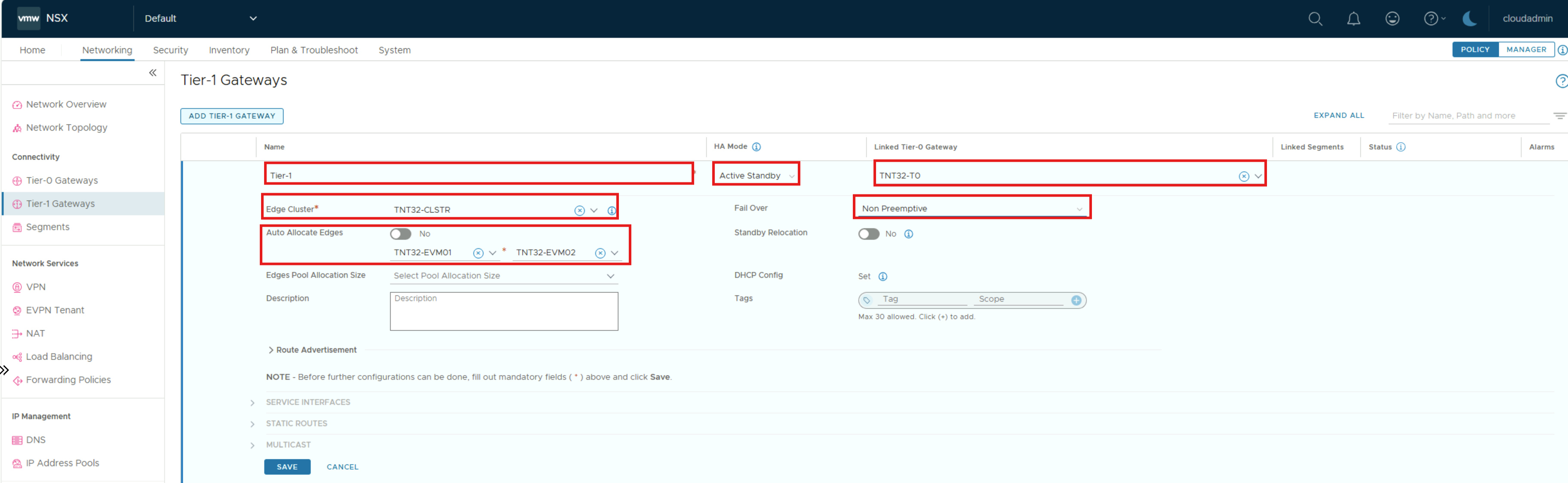
- Select Save.
Next steps
This tutorial showed you how to create an extra Tier-1 Gateway to use in your Azure VMware Solution private cloud.