Note
Access to this page requires authorization. You can try signing in or changing directories.
Access to this page requires authorization. You can try changing directories.
Create an operational backup policy to define the schedule and retention duration for Azure Elastic SAN volume recovery points.
This quickstart describes how to create an operational backup policy for Azure Elastic SAN volume by using Azure portal. After completing these steps, you can configure and manage backup settings for your Elastic SAN resources.
Prerequisites
Before you start creating an operational backup policy for Azure Elastic SAN volume by using the Azure portal, ensure that you meet the following prerequisites:
- Use an existing Backup vault, or create one.
- Reviewed the supported scenarios and limitations.
Create an operational backup policy by using the Azure portal
In the Azure portal, go to Resiliency > Protection policies.
Select + Create Policy > Create Backup Policy.
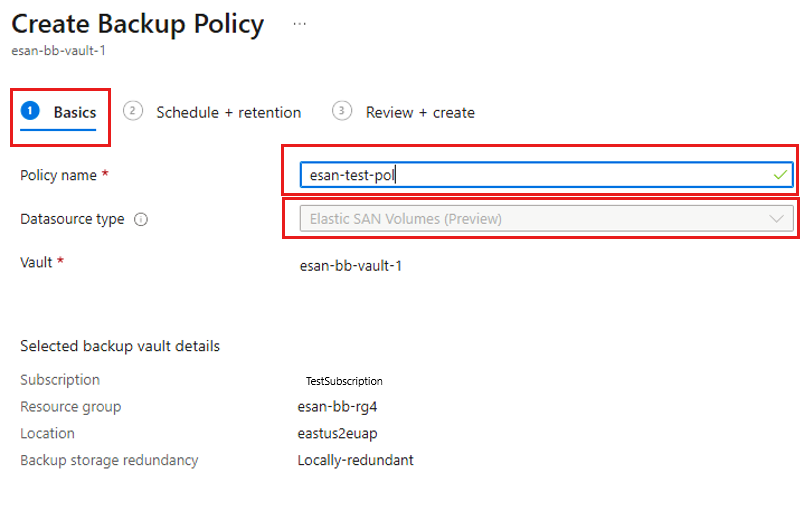
On the Create Backup Policy pane, on the Basics tab, enter a name for the policy, and then select Elastic SAN volumes as the datasource type.
On the Schedule + retention tab, under the Backup schedule section, set the schedule for creating recovery points for backups.
Note
Azure Backup supports Daily and Weekly backup frequency. Daily backup is selected by default.
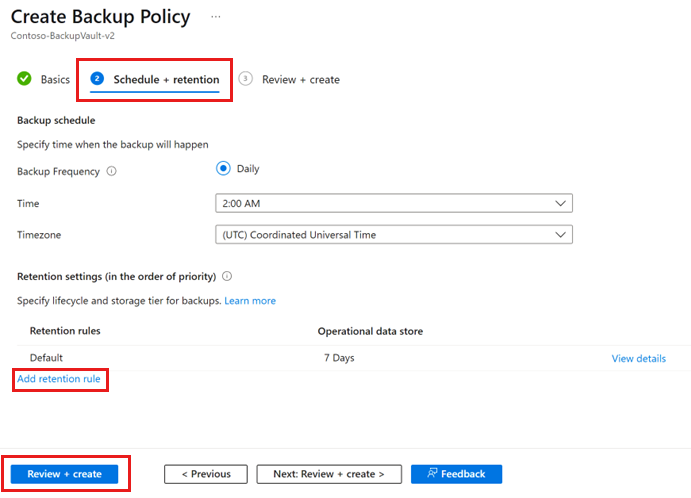
Under Retention settings, edit the default retention rule or add a new rule to specify retention for recovery points.
Note
- The default retention duration for recovery points is 7 days.
- A maximum of 450 recovery points are retained at any point in time across your retention rules.
Select Review + create.
After validation succeeds, select Create.
This quickstart describes how to create an operational backup policy for Azure Elastic SAN by using Azure CLI. After completing these steps, you can configure and manage backup settings for your Elastic SAN resources.
Prerequisites
Before you start creating an operational backup policy for Azure Elastic SAN volume by using Azure CLI, ensure that you meet the following prerequisites:
- Use an existing Backup vault, or create one.
- Reviewed the supported scenarios and limitations.
- Verify that you use the Azure CLI and the dataprotection extension 1.12.0 or later.
Install Azure CLI and dataprotection extension
To install or update the dataprotection extension, run the following command:
az extension add --name dataprotection --upgrade
Sign in to Azure CLI
To sign in to the Azure CLI and select the subscription, run the following command:
az login
az account set --subscription "<subscription_id>"
Set variables to create a backup policy for Azure Elastic SAN volume by using Azure CLI
To set the resource group, Backup vault, and Elastic SAN backup policy values for your environment, update the corresponding variables and run the following command:
resourceGroupName="<resource_group>"
vaultName="<backup_vault_name>"
policyName="<esan_policy_name>"
Create an operational backup policy for Azure Elastic SAN volume by using Azure CLI
To create an operational backup policy for Azure Elastic SAN, run the following commands:
Generate the default Elastic SAN backup policy template.
az dataprotection backup-policy get-default-policy-template \
    --datasource-type AzureElasticSAN \
    > esan_policy.json
Create the backup policy in the Backup vault.
az dataprotection backup-policy create \
    --resource-group $resourceGroupName \
    --vault-name $vaultName \
    --name $policyName \
    --policy esan_policy.json