Note
Access to this page requires authorization. You can try signing in or changing directories.
Access to this page requires authorization. You can try changing directories.
This article describes how Azure Backup uses built-in Azure Policy definitions to automate auditing and enforce backup configurations for Azure Managed Disks. These built-in policies ensure compliance with your organization’s retention requirements for business-critical machines.
As a Backup and Compliance admin, choose the policy that best fits your team’s structure and resource organization to automatically configure backups for Azure Managed Disks.
Azure Policy types for Azure Managed Disk backup
The following table lists the various policy types that allow you to manage Azure Managed Disk instances backups automatically:
| Policy type | Description |
|---|---|
| Policy 1 | Identify Azure Managed Disks that don't have backup enabled. |
| Policy 2 | Configures backup for Azure Managed Disks with a given tag to an existing backup vault in the same region. |
| Policy 3 | Configures backup for Azure Managed Disks without a given tag to an existing backup vault in the same region. |
Policy 1 - Azure Backup should be enabled for Managed Disks
Use an audit-only policy to identify disks, which don't have backup enabled. However, this policy doesn't automatically configure backups for these disks. It's useful when you're only looking to evaluate the overall compliance of the disks but not looking to take action immediately.
Policy 2 - Configure backup for Azure Disks (Managed Disks) with a given tag to an existing backup vault in the same region
A central backup team of an organization can use this policy to back up Azure Managed Disks to an existing central Backup vault in the same subscription and location. You can choose to include Disks that contain a certain tag, in the scope of this policy.
Policy 3 - Configure backup for Azure Disks (Managed Disks) without a given tag to an existing backup vault in the same region
This policy works the same as Policy 2 above, with the only difference being that you can use this policy to exclude Disks that contain a certain tag, from the scope of this policy.
Supported and unsupported scenarios for Azure Managed Disk backup using Azure Policy
Before you audit and enforce backups for Azure Managed Disk, review the following supported and unsupported scenarios:
| Policy type | Supported | Unsupported |
|---|---|---|
| Policy 1, 2, 3 | Supported for Azure Managed Disk only. Ensure that the Backup vault and backup policy specified during assignment is a Disk backup policy. |
Management group scope is currently unsupported. |
| Policy 2 and 3 | Can be assigned to a single location and subscription at a time. To enable backup for Disks across locations and subscriptions, multiple instances of the policy assignment need to be created, one for each combination of location and subscription. The specified vault and the disks configured for backup can be under different resource groups. |
Assign built-in Azure Policy for Azure Managed Disk backup
This section describes the end-to-end process of assigning Policy 2: Configure backup on Managed Disks with a given tag to an existing backup vault in the same location to a given scope . Similar instructions apply for the other policies. Once assigned, any new Managed Disk created in the scope is automatically configured for backup.
To assign Policy 2, follow these steps:
Sign in to the Azure portal and navigate to the Policy Dashboard.
Select Definitions in the left menu to get a list of all built-in policies across Azure Resources.
Filter the list for Category=Backup and select the policy named Configure backup on Managed Disks with a given tag to an existing backup vault in the same location to a given scope.
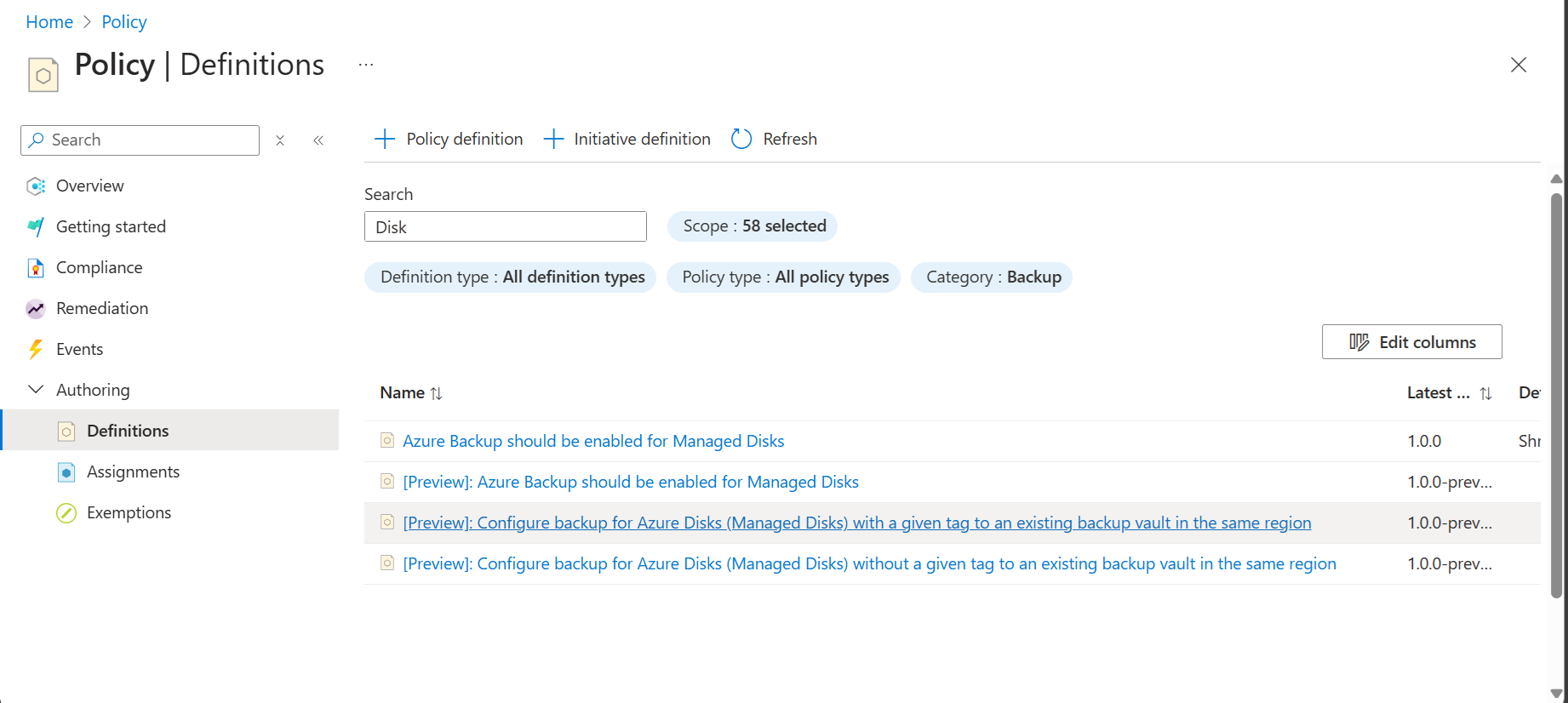
- Select the name of the policy. You're then redirected to the detailed definition for this policy.
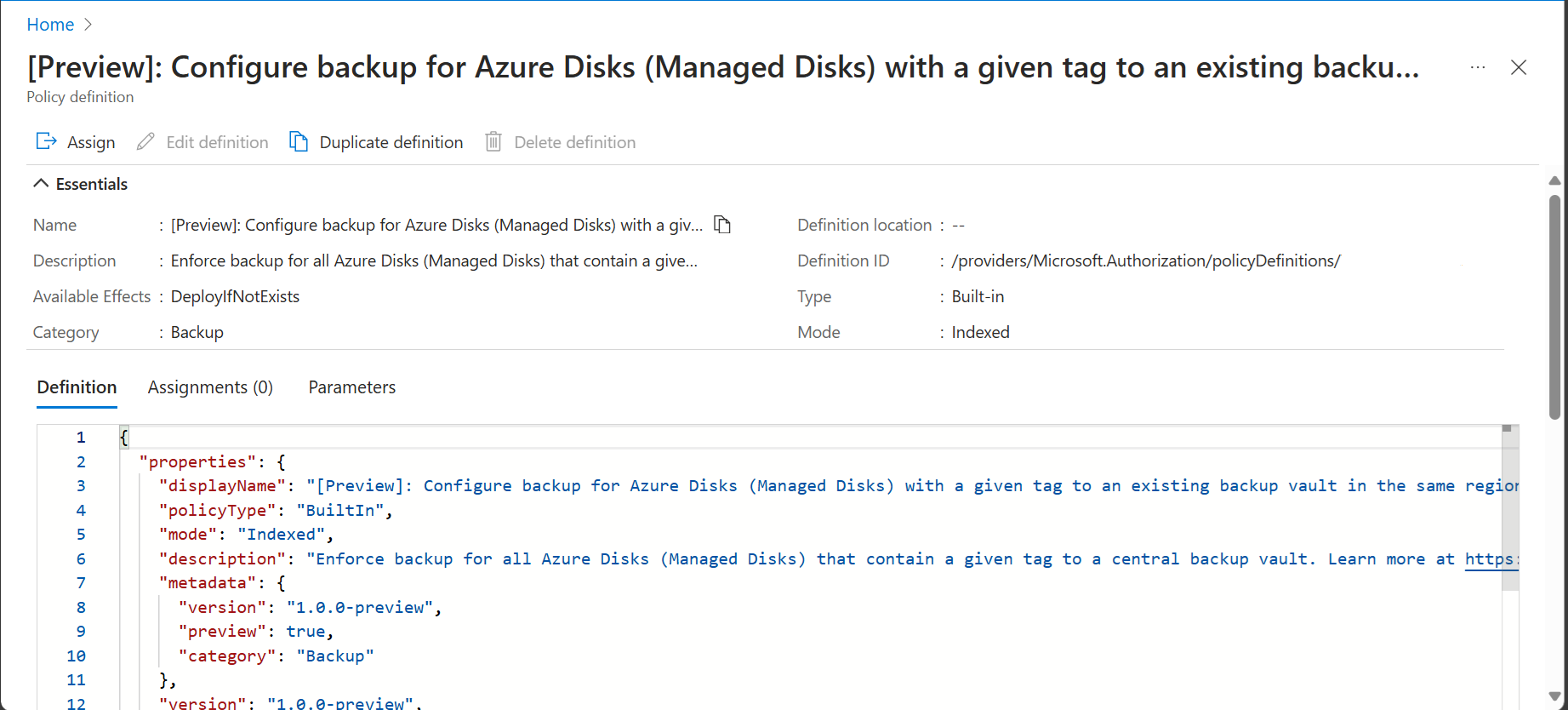
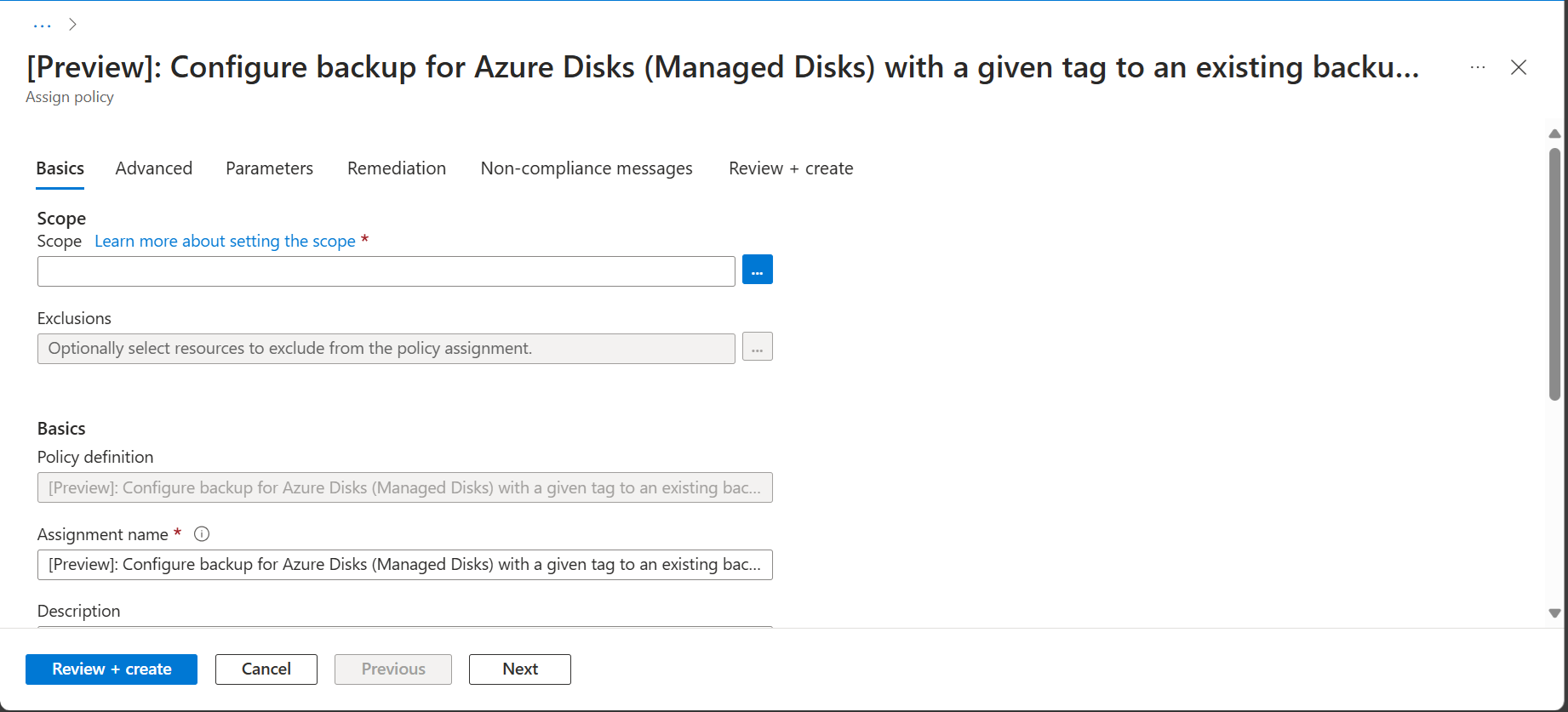
Select the Assign button at the top of the pane. This redirects you to the Assign Policy pane.
Under Basics, select the three dots next to the Scope field. It opens up a right context pane where you can select the subscription for the policy to be applied on. You can also optionally select a resource group, so that the policy is applied only for Disks in a particular resource group.
- In the Parameters tab, choose a location from the drop-down, and select the vault, backup policy to which the Disks in the scope must be associated, and resource group where these disk snapshots are stored. You can also choose to specify a tag name and an array of tag values. A Disk that contains any of the specified values for the given tag is included in the scope of the policy assignment.
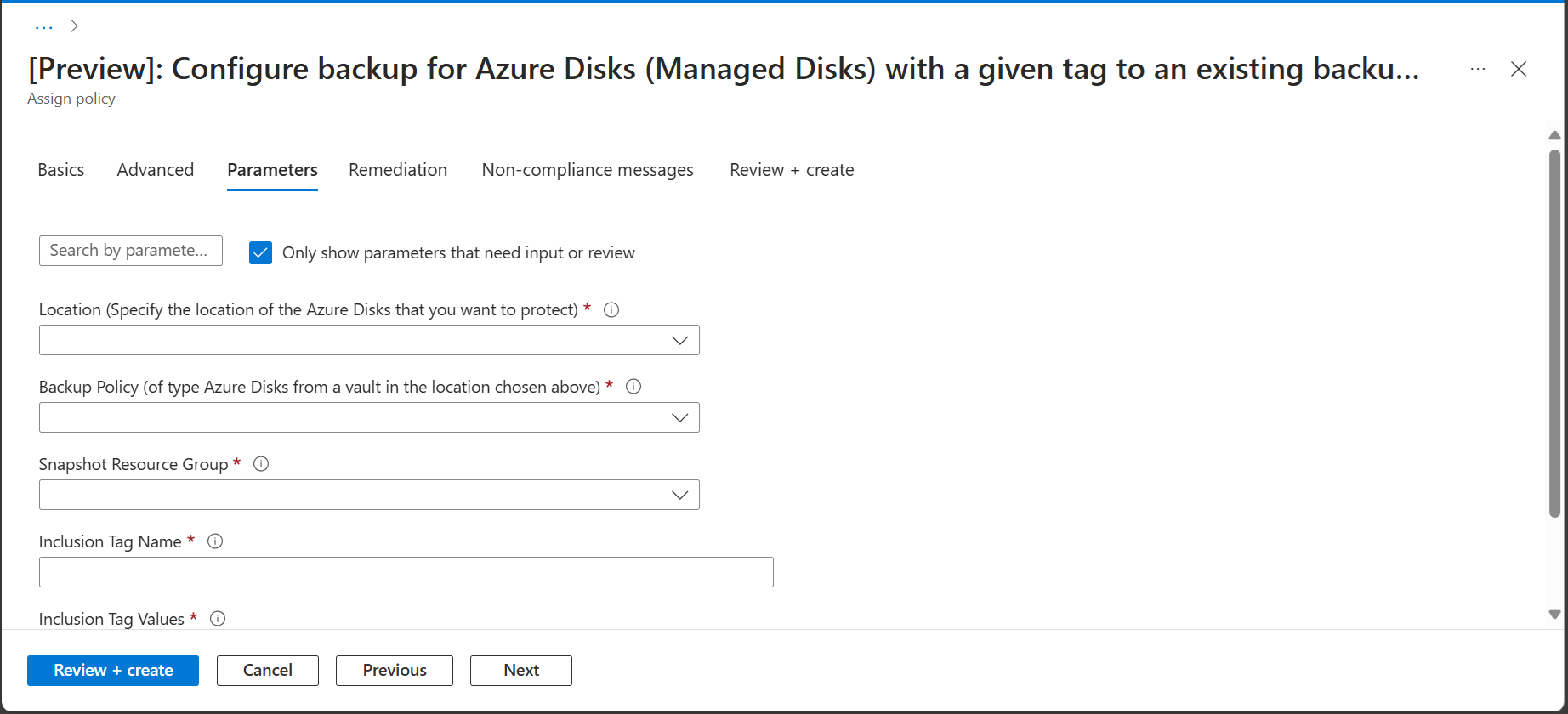
Ensure that Effect is set to deployIfNotExists.
Navigate to Review+create and select Create.
Note
- Use remediation to enable policy of existing Managed Disks.
- We recommend that you don’t assign this policy to more than 200 disks. Otherwise, backup operation delays by several hours beyond the scheduled time.