Note
Access to this page requires authorization. You can try signing in or changing directories.
Access to this page requires authorization. You can try changing directories.
This article describes how to stop protection for workloads that Microsoft Azure Backup Server (MABS) already protects by using the MABS Administrator Console.
Prerequisites
Before you stop protection for a workload, ensure that:
- You have access to the MABS Administrator Console with MABS Administrator permissions.
- The workload is currently in an active protection group.
Stop protection by using MABS Administrator Console
You can stop protection by selecting the Protection Group to stop protection for all associated workloads. Alternatively, you can also stop protection for an individual workload by selecting the workload instead of the protection group.
To stop protection for a workload, follow these steps:
On the MABS Administrator Console, select Protection.
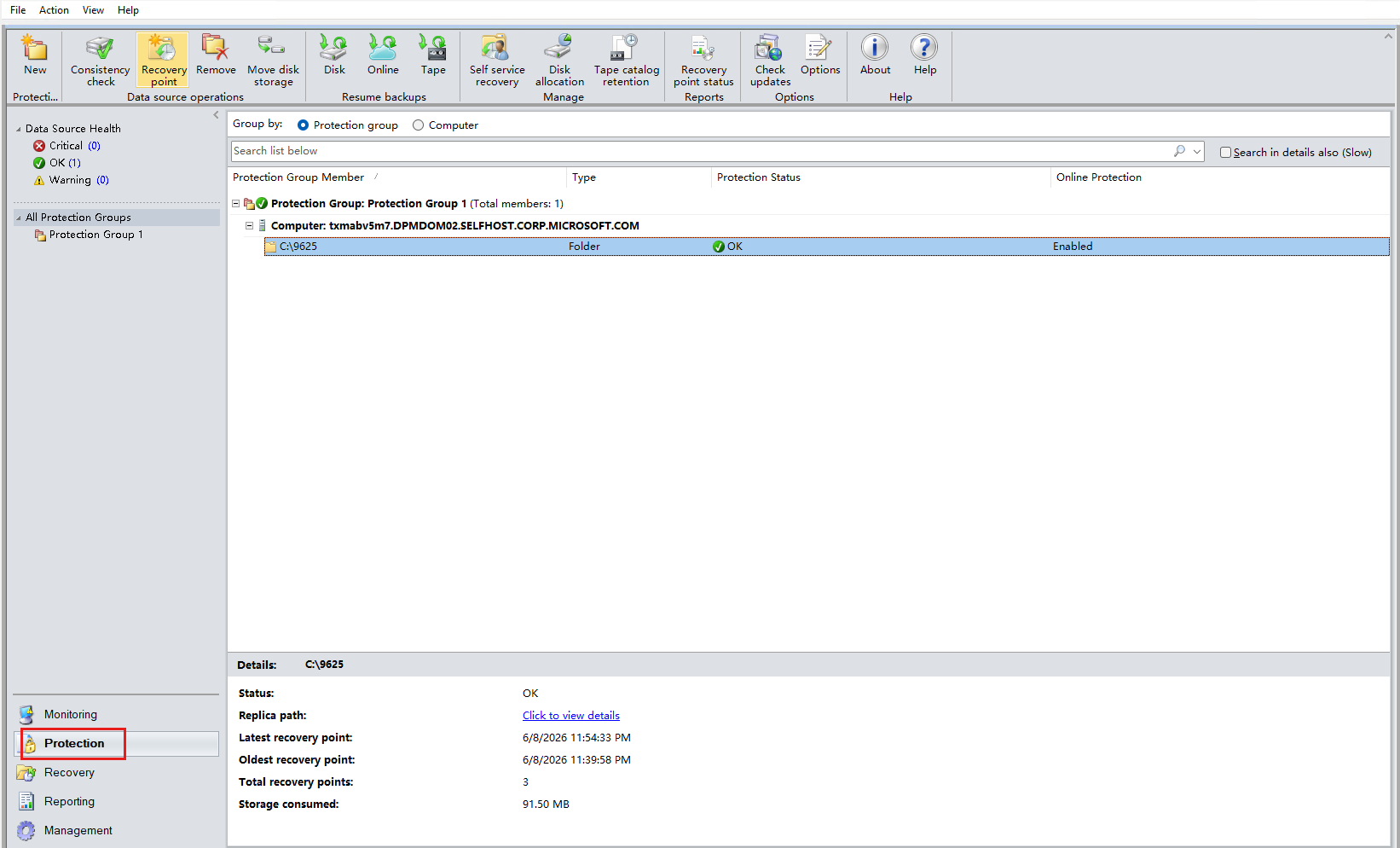
On the Protection view, locate the protection group (containing the workload) for which you want to stop protection.
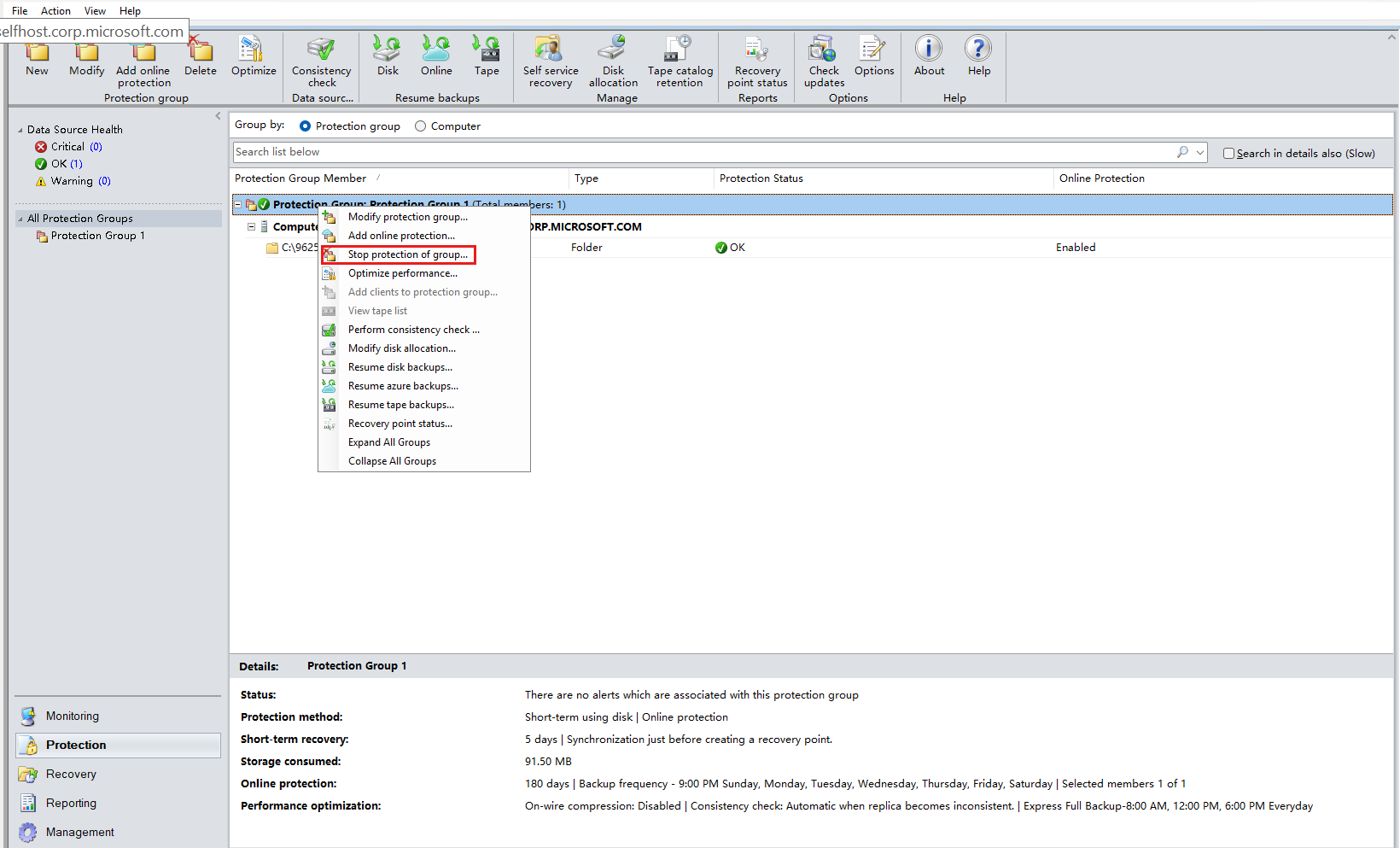
To stop protection at the Protection Group level, right‑click the protection group, and then select Stop protection of group that stops protection for all associated workloads.
If you want to stop protection for an individual workload, select the specific workload instead of the Protection Group.
On the Stop Protection pane, choose the appropriate data retention option.
Disk data retention configurations
Option Description Retain replicas on disk Keeps the existing replica data (full copy of protected data) on the Data Protection Manager (DPM) storage pool. You can use this data for recovery later. Delete data source replicas from disk Permanently removes the replica from the DPM storage pool, freeing up disk space. Recovery from local disk is no longer possible. Online data retention configuration
Option Description Retain forever Cloud recovery points are kept indefinitely in the Recovery Services Vault, regardless of any retention policy. Data remains recoverable from Azure at any time. Retain online recovery points by policy Cloud recovery points are kept according to the existing retention policy (daily, weekly, monthly, or yearly). Recovery points expire naturally as the policy dictates. Delete Storage Online All cloud recovery points are deleted immediately or during the next housekeeping task. No online recovery is possible after deletion. 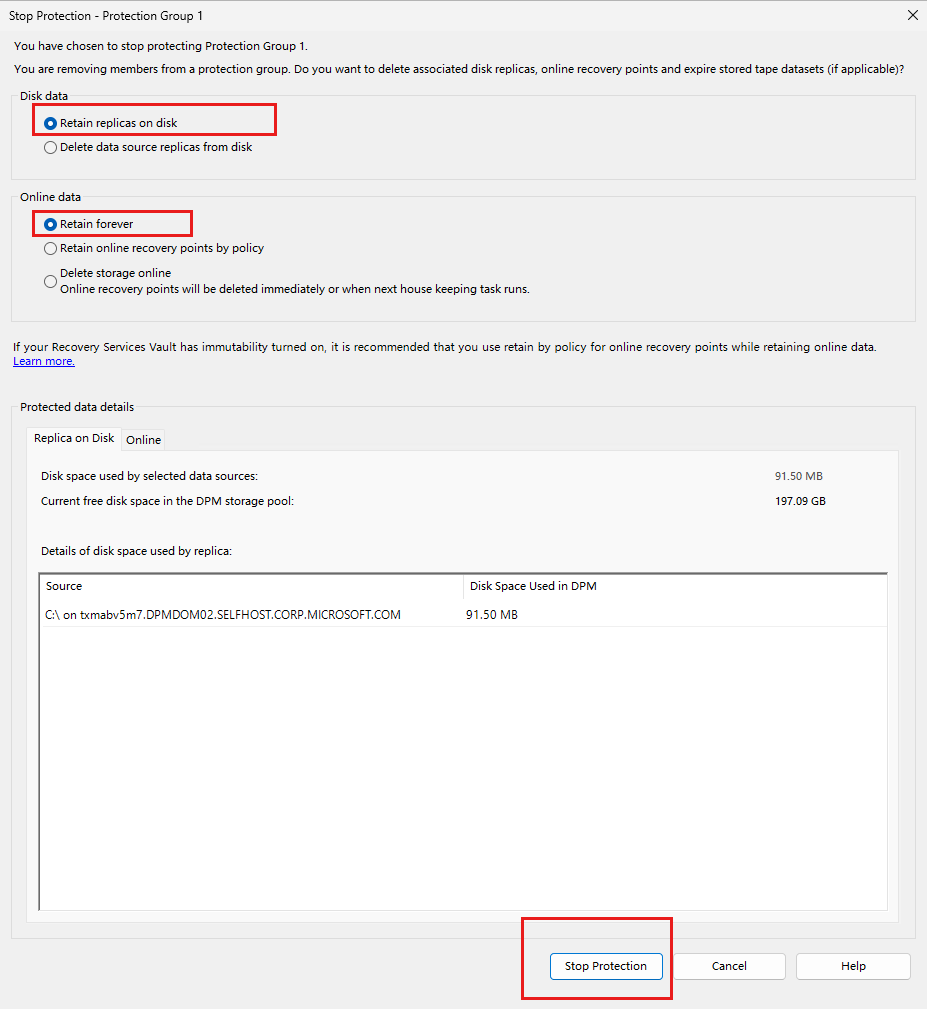
Review the selected parameters and select Stop Protection to confirm the operation.
Verify the stop protection operation
Verify the stop protection operation in the following ways:
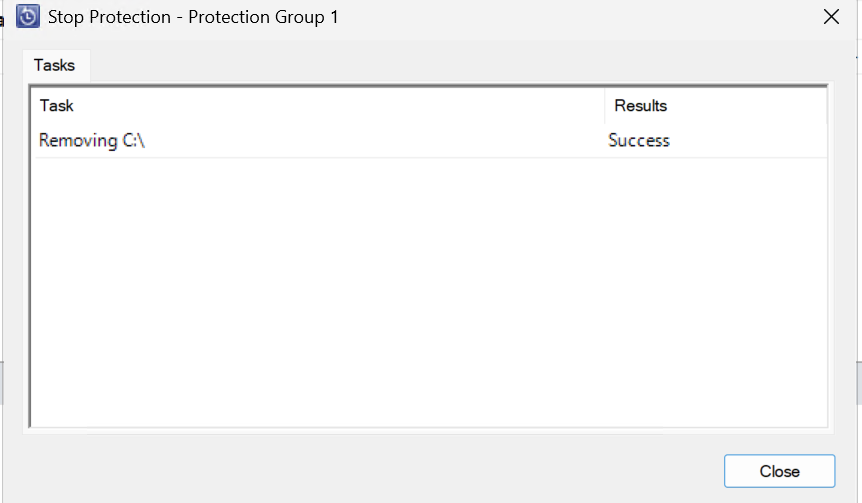
After the successful completion of stop protection operation, a confirmation message appears to indicate that protection is stopped.
The protection group moves to an Inactive state.
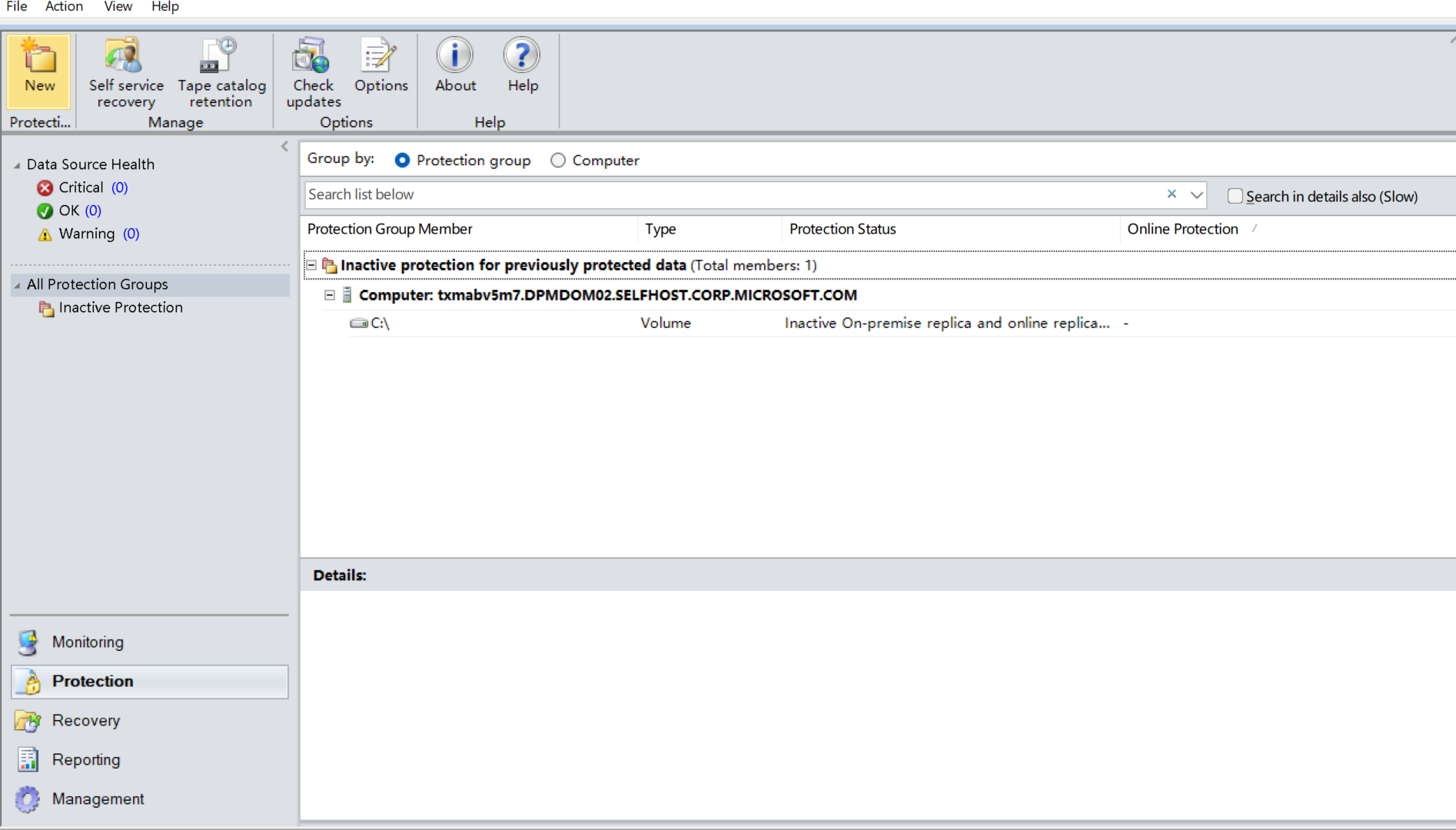
Note
If you select the retain option, the existing recovery points remain available for restore operations. Inactive protection groups retain their data based on the retention options you selected. You can resume protection on an inactive protection group later.
Recover data after stopping protection
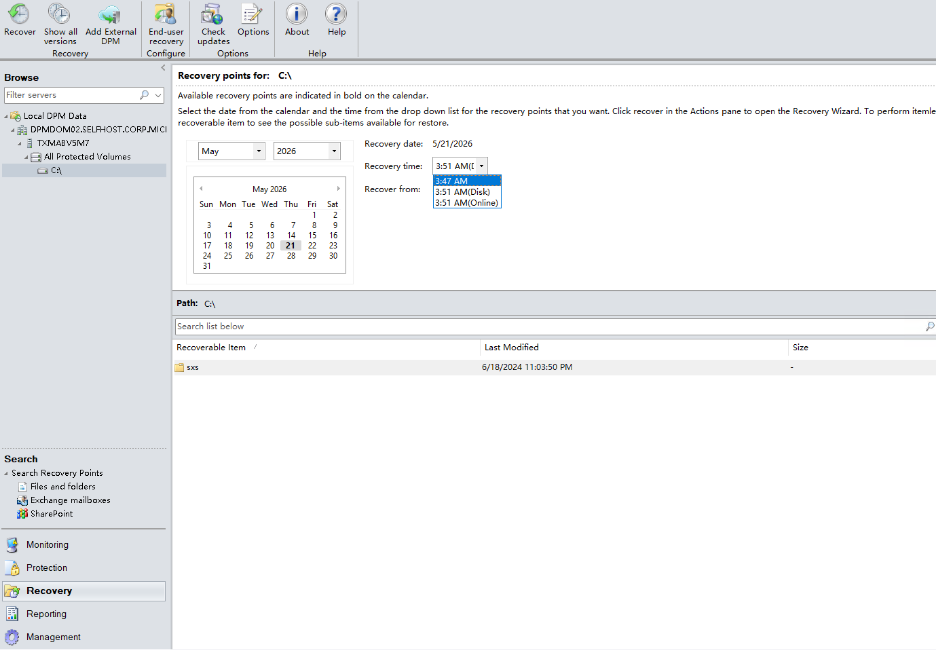
If you retain disk replicas or online recovery points during the stop protection process, the Recovery view of the MABS Administrator Console shows the retained recovery points.
When you recover data, select Disk or Online as the recovery source.
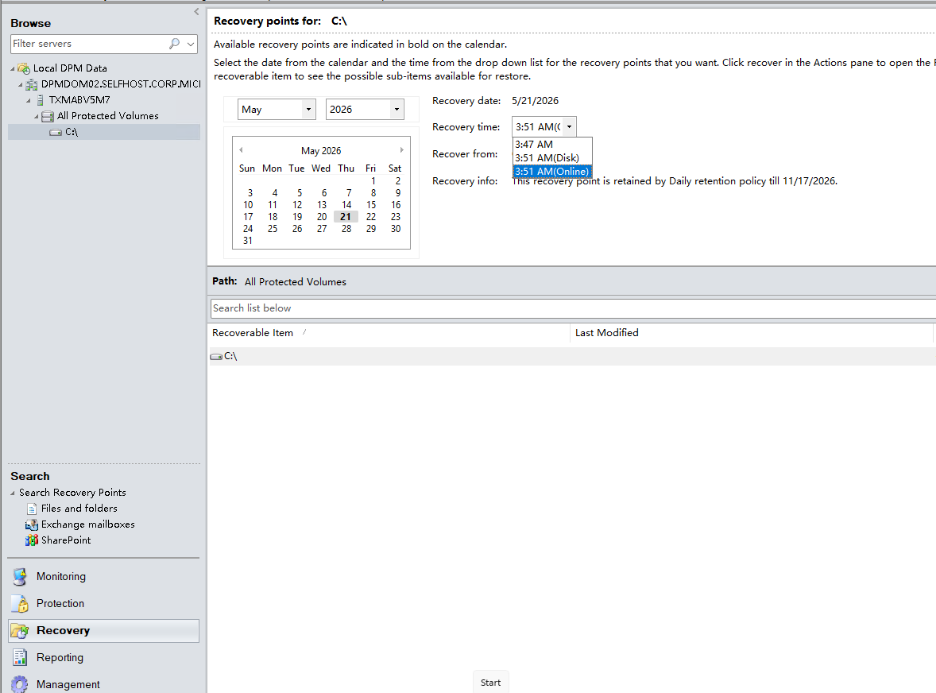
If you select Retain Online recovery points by policy, the console shows the applicable retention policy and expiry date for the selected online recovery point.
To restore data from recovery points, see Restore data from recovery points in Microsoft Azure Backup Server (MABS).
Delete inactive protected data
When you no longer need the retained data for restore, delete the local and online recovery points permanently from the inactive protection group to free disk and cloud storage.
To delete inactive protection data, follow these steps:
On the MABS Administrator Console, select Protection.
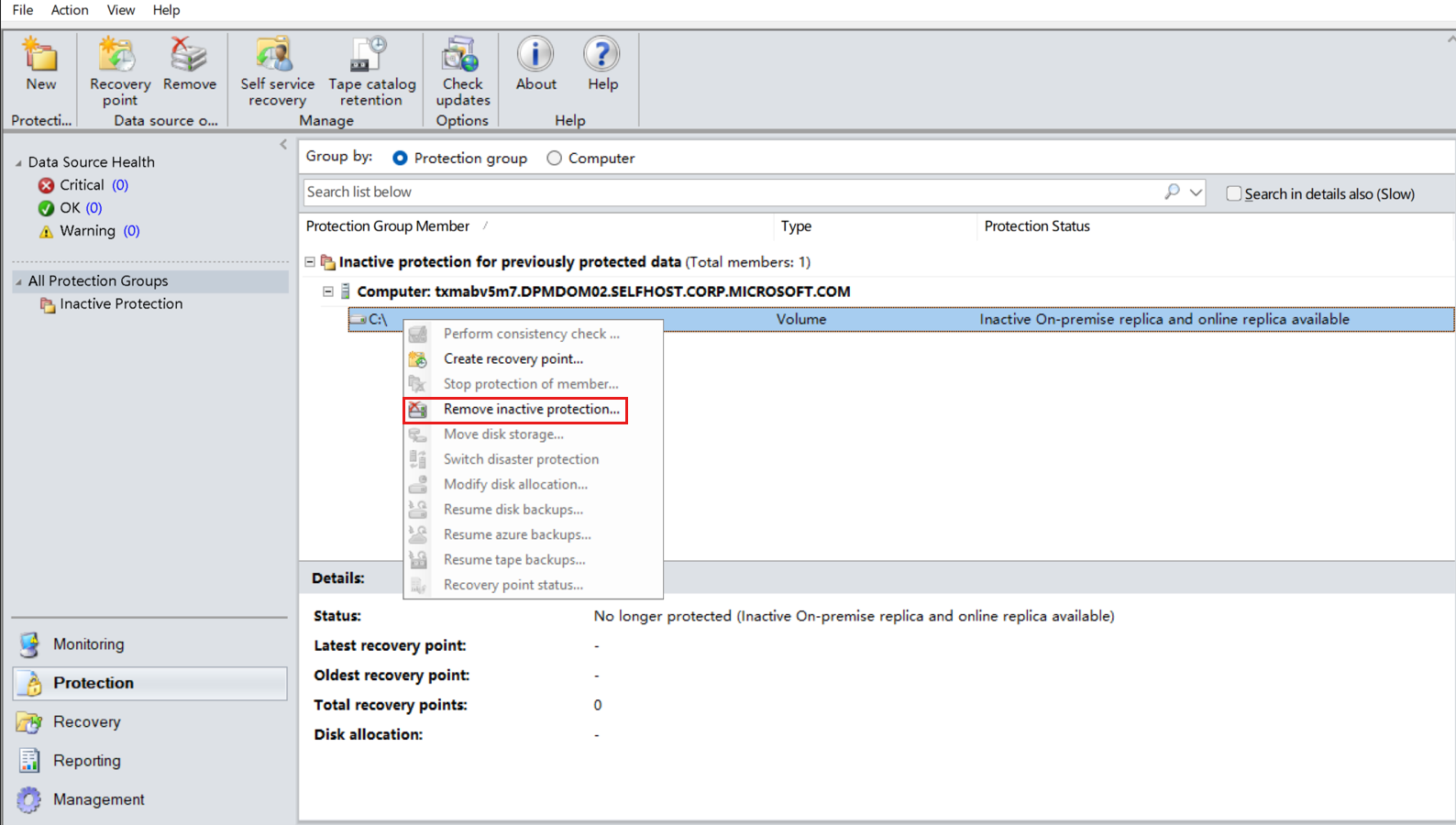
Under All Protection Groups, select Inactive Protection.
Right-click the data source and select Remove inactive protection.
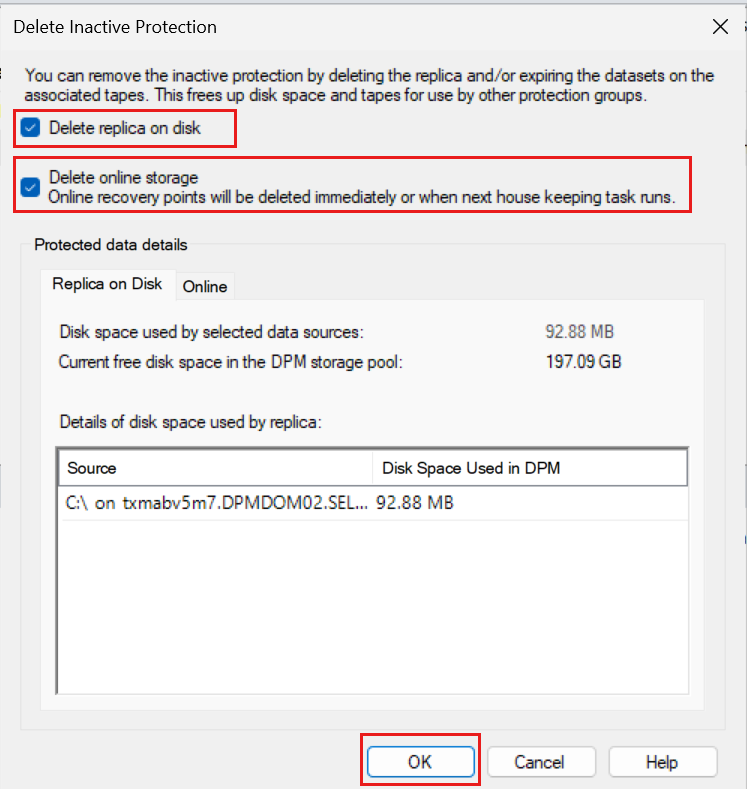
On the Delete inactive protection dialog, select Delete replica on disk and Delete online storage, then select OK.
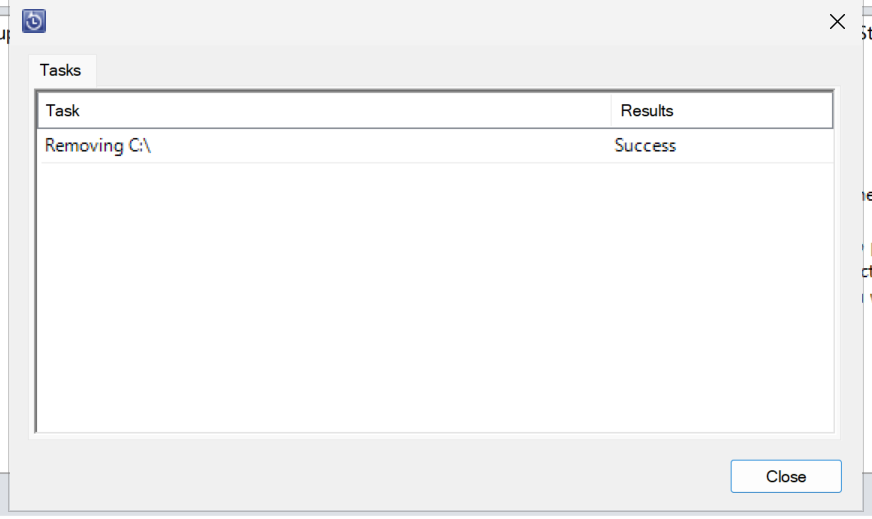
The removal task runs and shows a success confirmation.