Note
Access to this page requires authorization. You can try signing in or changing directories.
Access to this page requires authorization. You can try changing directories.
SAP HANA databases are critical workloads that require a low recovery-point objective (RPO) and long-term retention. This article describes how you can back up SAP HANA databases with scale-out topology that are running on Azure virtual machines (VMs) to an Azure Backup Recovery Services vault by using Azure Backup via the Azure portal.
In a scale-out configuration, a single SAP HANA system is distributed across multiple nodes. The scale-out primary node hosts the system database, while worker nodes host tenant databases and other services. Azure Backup provides a unified backup chain across all nodes in the scale-out system, so you don't need node-level management.
To learn about the supported SAP HANA database backup and restore scenarios, region availability, and limitations, see the support matrix. For common questions, see the frequently asked questions.
Key concepts
- Scale-out primary: The VM on which the HANA system database runs.
- Worker nodes: Other VMs in the scale-out system that host tenant databases and services but don't run the active system database.
- Virtual hostname: A virtual network name that automatically resolves to the scale-out primary node (use this name instead of the physical hostname).
Prerequisites
Before you back up an SAP HANA scale-out database on Azure VMs, make sure that you:
- Identify or create a Recovery Services vault in the same region and subscription as all VMs in your HANA scale-out system.
- Ensure all VMs (primary and worker nodes) have connectivity to the internet for communication with Azure.
- Run the scale-out preregistration script on all VMs (both primary and worker nodes) in your scale-out system. Download the latest preregistration script from here.
- Use a unique scale-out identifier (SUV) that's the same across all nodes (SAP recommends an alphanumeric value).
- Use the system database port number (typically
3<instance-number>13, such as30013for instance 00). - Ensure that the combined length of the SAP HANA Server VM name and the resource group name doesn't exceed 84 characters for Azure Resource Manager VMs and 77 characters for classic VMs. This limitation exists because the service reserves some characters.
Create a Recovery Services vault
A Recovery Services vault is a management entity that stores recovery points that are created over time. It provides an interface to perform backup-related operations. These operations include taking on-demand backups, performing restores, and creating backup policies.
To create a Recovery Services vault:
Sign in to the Azure portal.
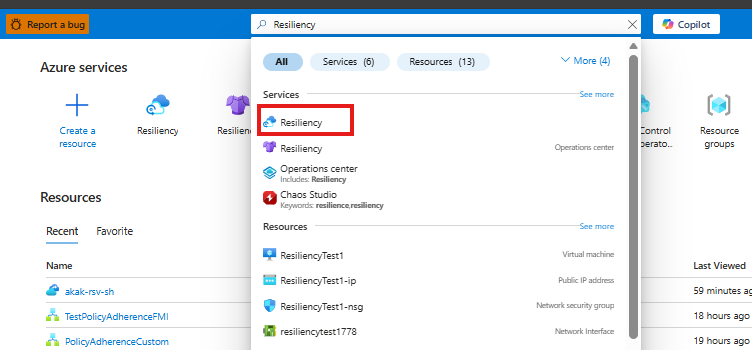
Search for Resiliency, and then go to the Resiliency dashboard.
On the Vault pane, select + Vault.

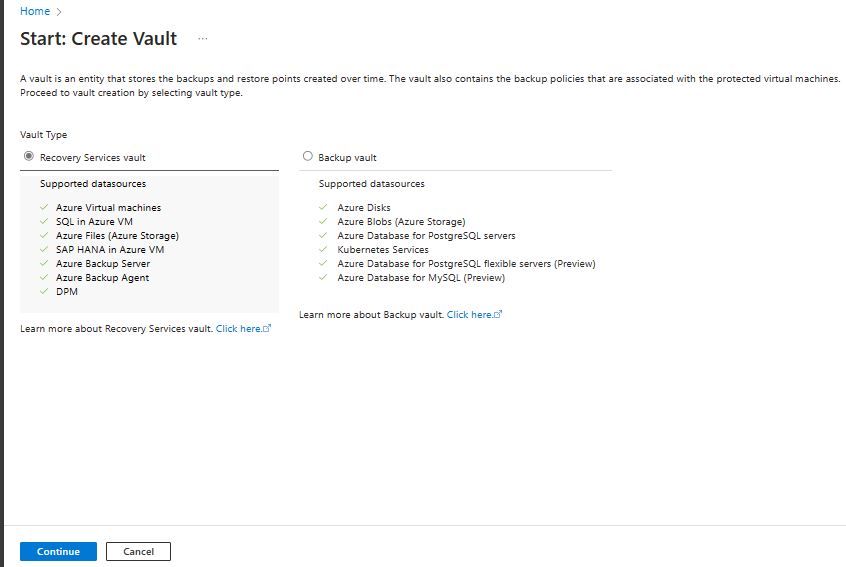
Select Recovery Services vault > Continue.
On the Create Recovery Services vault pane, enter the following values:
Subscription: Select the subscription to use. If you're a member of only one subscription, you see that name. If you're not sure which subscription to use, use the default subscription. Multiple choices appear only if your work or school account is associated with more than one Azure subscription.
Resource group: Use an existing resource group or create a new one. To view a list of available resource groups in your subscription, select Use existing. Then select a resource in the dropdown list. To create a new resource group, select Create new, and then enter the name. For more information about resource groups, see Azure Resource Manager overview.
Vault name: Enter a friendly name to identify the vault. The name must be unique to the Azure subscription. Specify a name that has at least 2 but not more than 50 characters. The name must start with a letter and consist only of letters, numbers, and hyphens.
Region: Select the geographic region for the vault. For you to create a vault to help protect any data source, the vault must be in the same region as the data source.
Important
If you're not sure of the location of your data source, close the window. Go to the list of your resources in the portal. If you have data sources in multiple regions, create a Recovery Services vault for each region. Create the vault in the first location before you create a vault in another location. You don't need to specify storage accounts to store the backup data. The Recovery Services vault and Azure Backup handle that step automatically.
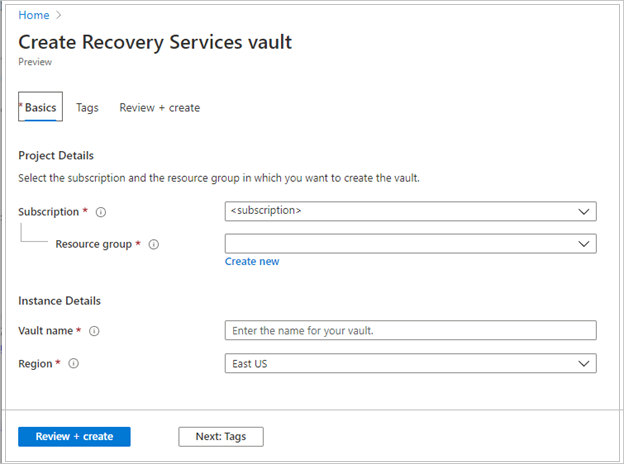
After you provide the values, select Review + create.
To finish creating the Recovery Services vault, select Create.
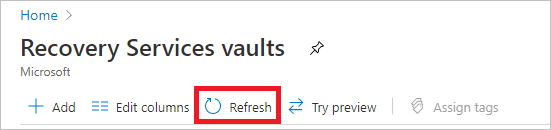
It can take a while to create the Recovery Services vault. Monitor the status notifications in the Notifications area at the upper right. After the vault is created, it appears in the list of Recovery Services vaults. If the vault doesn't appear, select Refresh.

Azure Backup now supports immutable vaults that help you ensure that after recovery points are created, they can't be deleted before their expiry according to the backup policy. You can make the immutability irreversible to help protect your backup data from various threats, including ransomware attacks and malicious actors. Learn more about Azure Backup immutable vaults.
Prepare HANA scale-out nodes for backup using the preregistration script
The preregistration script prepares your HANA scale-out system for backup by creating the necessary database user and userstore entries. You must run the script on all nodes in the scale-out system.
Create a custom backup user for the script execution
On the primary node only, create a custom backup user in the HANA system:
Connect to the HANA database as the SYSTEM user.
hdbsql -t -U SYSTEMKEYRun the following SQL queries to create the backup user:
CREATE USER AZUREWLBACKUPHANAUSER PASSWORD "<password>" NO FORCE_FIRST_PASSWORD_CHANGE
ALTER USER AZUREWLBACKUPHANAUSER DISABLE PASSWORD LIFETIME
ALTER USER AZUREWLBACKUPHANAUSER RESET CONNECT ATTEMPTS
ALTER USER AZUREWLBACKUPHANAUSER ACTIVATE USER NOW
Replace
<password>with a secure password that you use for backup operations.
Set up user store entries on each node
To set up the required user store entries, run the following commands on each node in the scale-out system using the virtual hostname (or primary node hostname) and the primary node's system database port.
Note
If your scale-out system uses a virtual hostname for the primary node, use the virtual hostname in the commands below. Otherwise, use the physical hostname of the primary node.
Create a SYSTEMKEY entry:
hdbuserstore SET SYSTEMKEY <primary-hostname>:<system-db-port> SYSTEM <password>Example:
hdbuserstore SET SYSTEMKEY jgaikjpeso1-m1:30013 SYSTEM MyPassword123Where:
<primary-hostname>: The virtual or physical hostname of the scale-out primary node<system-db-port>: The system database port (for example,30013for instance 00)<password>: The system database password
Create a backup key entry on each node:
hdbuserstore SET AZUREWLBACKUPHANAUSER <primary-hostname>:<system-db-port>@SYSTEMDB AZUREWLBACKUPHANAUSER "<backup-password>"Example:
hdbuserstore SET AZUREWLBACKUPHANAUSER jgaikjpeso1-m1:30013@SYSTEMDB AZUREWLBACKUPHANAUSER "MyBackupPassword123"Use the same password that you created for the
AZUREWLBACKUPHANAUSERdatabase user on the primary node.
Run the preregistration script on all nodes
Download the scale-out preregistration script and run it on each node in your scale-out system as the root user.
./msawb-plugin-config-com-sap-hana-scale-out.sh -a --sid <instance-name> -n <instance-number> --system-key SYSTEMKEY -suv <scale-out-unique-id> -p <system-db-port> -bk AZUREWLBACKUPHANAUSER
Example:
./msawb-plugin-config-com-sap-hana-scale-out.sh -a --sid HN1 -n 00 --system-key SYSTEMKEY -suv hn1Scaleoutysuid1 -p 30013 -bk AZUREWLBACKUPHANAUSER
Where:
<instance-name>: The SAP HANA system identifier (SID), such asHN1<instance-number>: The instance number, such as00<scale-out-unique-id>: A unique alphanumeric identifier for your scale-out system (same on all nodes)<system-db-port>: The system database port number, such as30013SYSTEMKEY: The name of the system key entry in hdbuserstore (use as-is)AZUREWLBACKUPHANAUSER: The name of the backup key entry in hdbuserstore (use as-is)
Register VMs and discover databases
To register VMs and discover databases for each node in your scale-out system, follow these steps:
In the Azure portal, go to Resiliency, and then select +Configure protection.
On the Configure protection pane, select Datasource type as SAP HANA in Azure VM, and then select Continue.
On the Start: Configure Backup pane, select Select vault to choose the Recovery Services vault, and then select Continue.
For each VM in your scale-out system (both primary and worker nodes):
Select Add to register the VM.
In the Register VMs pane, select the VM, and then select Register.
After the VM is registered, select Discover DBs to discover the HANA databases on that VM.
Note
The discovery process deploys the Azure Backup workload extension on each node. Allow a few minutes for the discovery to complete on each node.
Configure backup for the scale-out system
After you register all nodes and discover databases, configure backup protection for your scale-out system.
In the Azure portal, go to Resiliency and open the same Recovery Services vault where nodes were discovered.
In the Backup Goal pane, select Configure Backup.
In Select items to backup, select the HANA scale-out system. The system appears as a single logical unit representing all nodes.
In Backup Policy, select an existing backup policy or create a new one. For scale-out systems, use the following settings:
- Full backup: Once per week
- Differential backup: Daily
- Incremental backup: Multiple times per day (as needed)
- Log backup: Every 15 minutes (minimum)
Note
For scale-out systems, Azure Backup automatically coordinates backups across all nodes. You don't need to configure backups for each node.
Review your selections, and then select Enable backup.
When you enable backup, Azure Backup manages the backup schedule across all nodes in your scale-out system.
Run an on-demand backups
After the initial scheduled backup finishes, you can run on-demand full backups from the Azure portal following these steps:
In the Azure portal, open your Recovery Services vault.
Under Protected items, select Backup items, then select SAP HANA in Azure VM.
Select your scale-out HANA system.
In the Backup Items pane, select Backup now.
Choose the backup type (Full, Differential, or Incremental), then select OK to trigger the backup.
Once the initial full backup completes, log backups will be triggered automatically by the HANA backup engine on a schedule based on your policy.
Monitor and manage backups
For information about monitoring backup jobs, managing backup configurations, and stopping protection for your scale-out HANA system, see Manage SAP HANA databases backed up by Azure Backup.
Next steps
- Restore SAP HANA databases on Azure VMs.
- Manage SAP HANA databases backed up by Azure Backup.
- Troubleshoot SAP HANA backup issues.
- See the SAP HANA Backup support matrix for supported configurations and limitations.