Note
Access to this page requires authorization. You can try signing in or changing directories.
Access to this page requires authorization. You can try changing directories.
This article helps you understand how Azure VMware Solution integrates into your Azure landing zone and enterprise architecture. Discover the platform decisions for networking, security, identity, and integration that affect cost and operations.
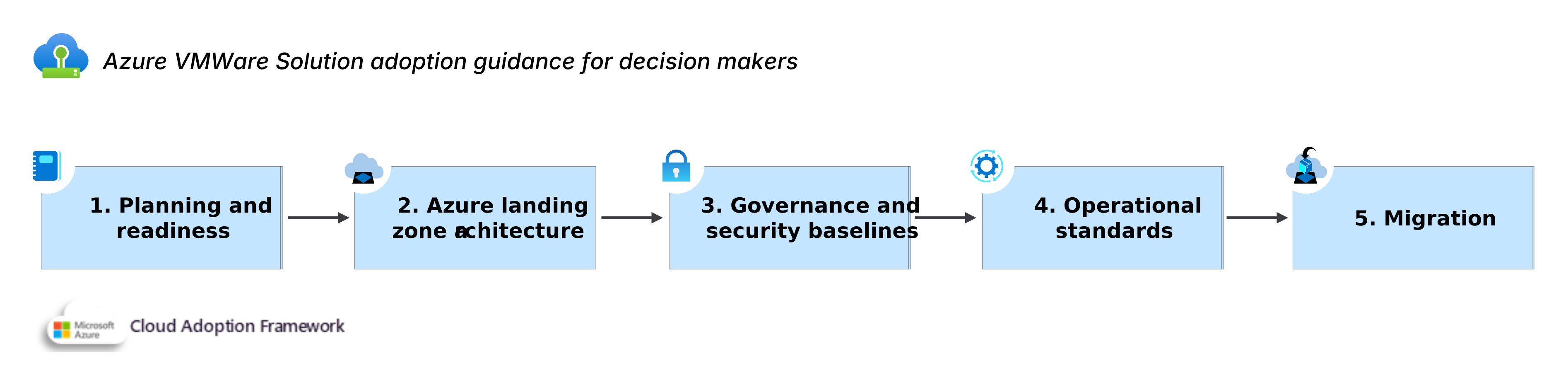
Azure VMware Solution runs your existing VMware environment on dedicated Azure infrastructure. By using Azure VMware Solution, your teams can continue using familiar VMware tools and processes and integrate with Azure services natively. This guidance focuses on the platform decisions that apply to every Azure VMware Solution workload, not the design of any single application. Use it before you request a deployment, because a few early choices about networking, addressing, identity, and integration shape cost, security, and operations for years.
Recommendation: Decide how Azure VMware Solution integrates with your existing landing zone, including where its private clouds sit in your management group hierarchy, how they connect to your Azure and on-premises networks, and which enterprise services extend to their workloads.
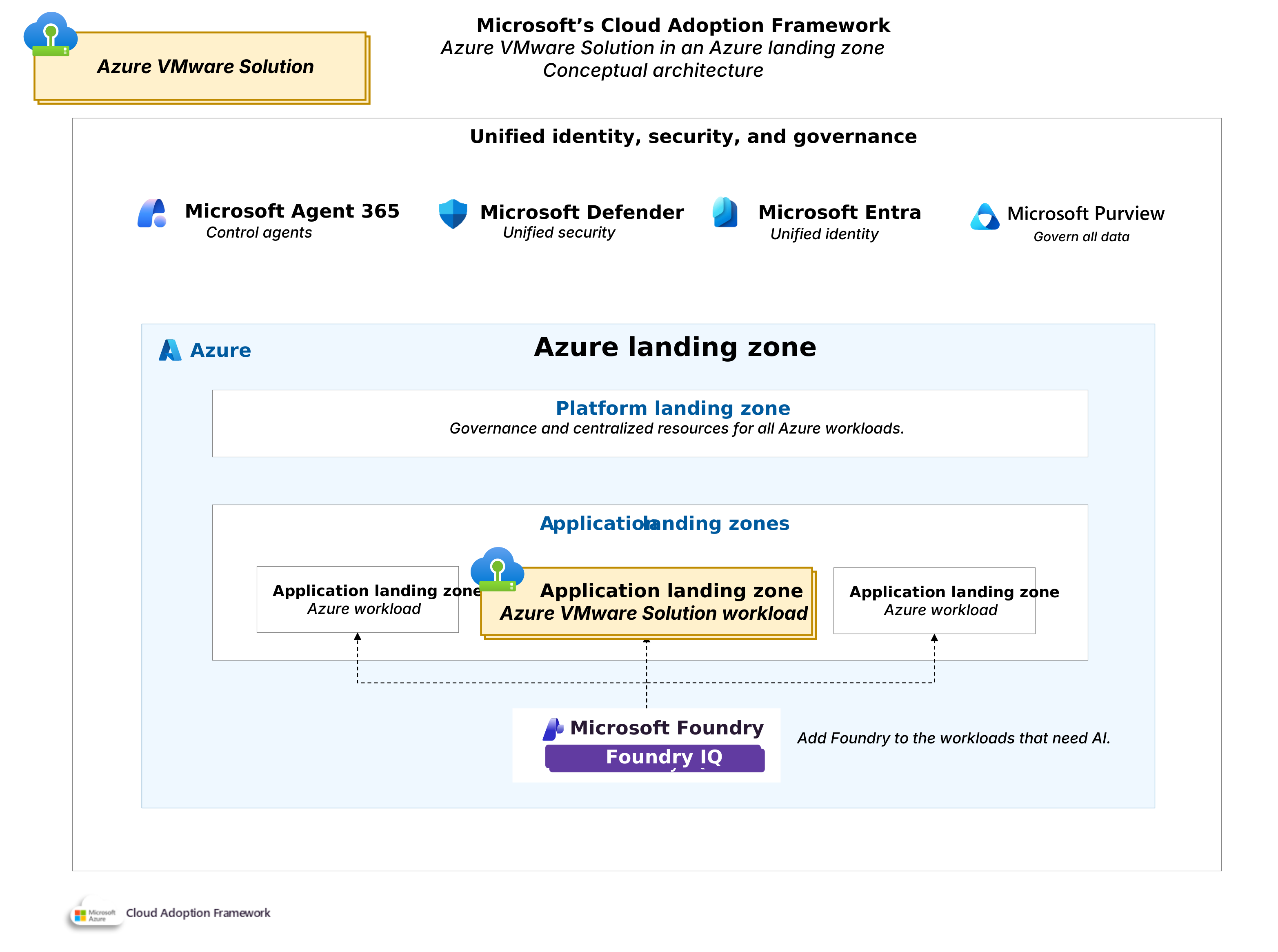
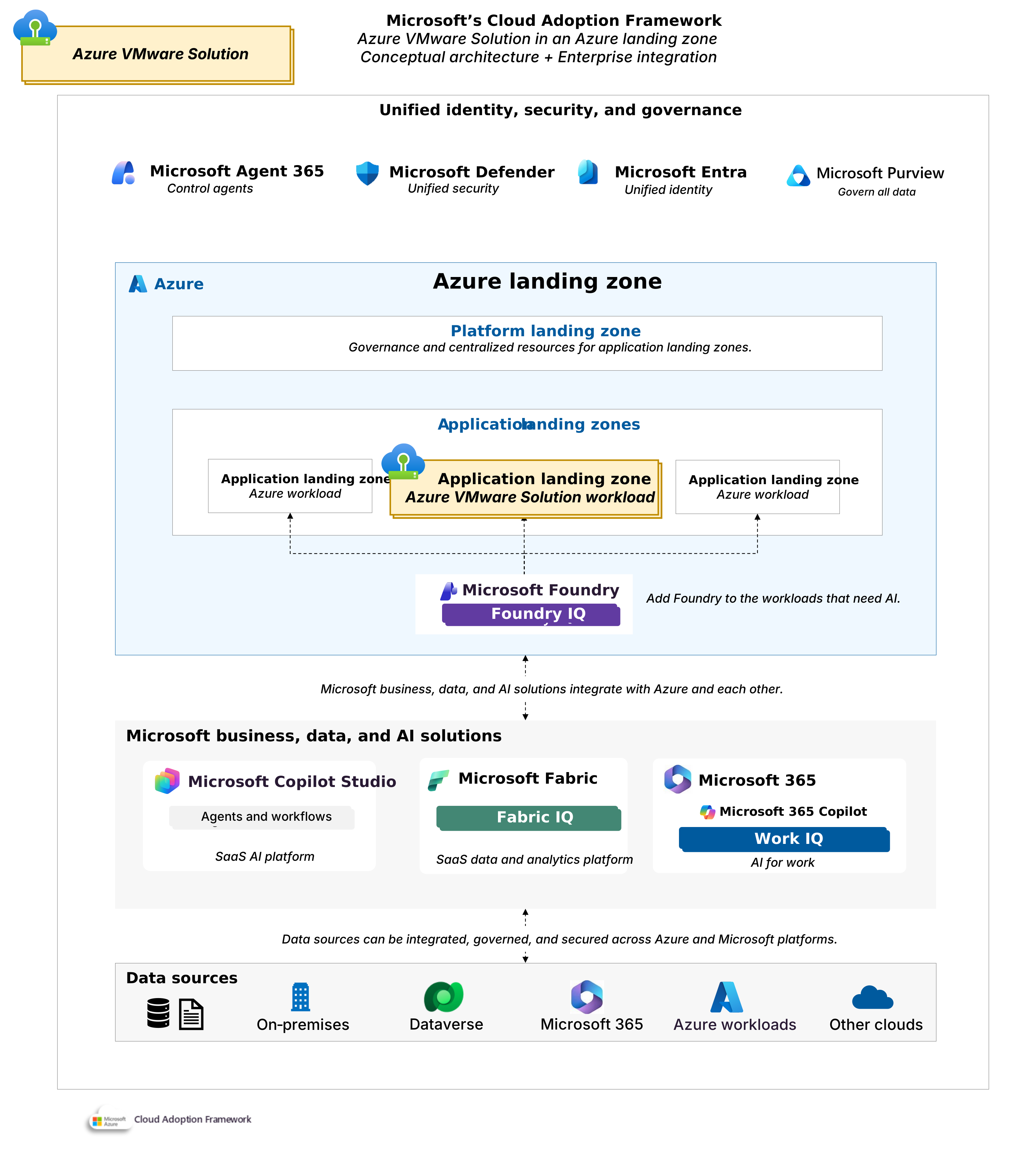
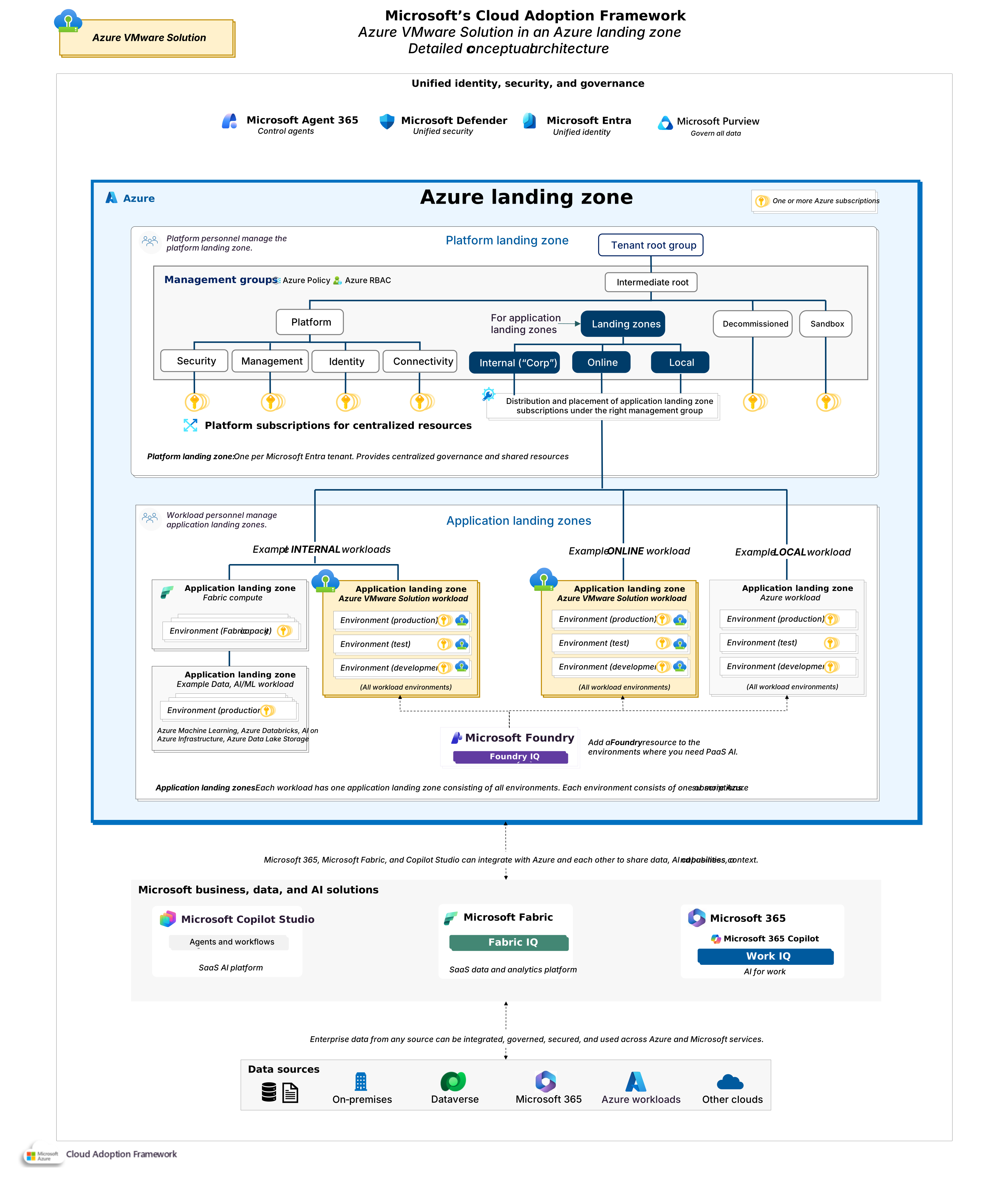
Conceptual view of Azure VMware Solution in an Azure landing zone architecture. Download a PowerPoint file of this architecture.
1. Platform landing zone
Your platform landing zone provides the shared foundation that every workload relies on, such as networking, identity, and monitoring. Azure VMware Solution depends on this foundation, and the setup work depends on the generation you choose. Gen 2 needs less platform plumbing because it lives inside your virtual network. Plan the following items before you request a deployment.
1.1 Azure virtual network connectivity
Decide how the private cloud reaches your Azure virtual networks and your on-premises datacenters. Your platform landing zone must supply this connectivity, and the effort depends on the generation you selected.
Gen 2 requirements: Gen 2 connects natively. A Gen 2 private cloud deploys inside an Azure virtual network, so it reaches your other Azure networks through standard virtual network peering with no extra connectivity to build. This is the main reason Gen 2 simplifies networking design.
Gen 1 requirements: Gen 1 uses a managed ExpressRoute connection. A Gen 1 private cloud connects to your Azure virtual networks over a Microsoft-managed ExpressRoute connection that belongs to the Azure VMware Solution service. Treat this as a separate design decision from the ExpressRoute you use for on-premises traffic. For many Gen 1 workloads, the High Performance SKU is sufficient. For workloads with very high throughput requirements, use the Ultra Performance SKU with FastPath enabled, and create a second ExpressRoute circuit for external storage connectivity. A single gateway supports up to four private cloud connections from one location.
Use Gen 2 for new private cloud deployments where possible. Use Gen 1 when you are extending an existing Azure VMware Solution Gen 1 environment, or in regions where Gen 2 is not available.
1.2 On-premises connectivity
Many organizations run Azure VMware Solution in a hybrid model where some applications, users, or data stay in their datacenters. Plan this path early, because it affects both migration and daily operations.
VMware HCX Network Extension supports stretching a single network across on-premises and Azure VMware Solution private clouds, so you can share IP ranges and preserve IP addresses when moving to Azure. Network Extension introduces its own constraints and scalability limits. Use it for workloads where IP preservation is important, but don't assume it is required for every workloads.
Gen 2: Gen 2 connects on-premises through your own gateway. With Gen 2, you connect your datacenter to the private cloud the same way you connect any Azure virtual network to on-premises, using a standard ExpressRoute connection or a Site-to-Site VPN through your virtual network gateway. Your existing hybrid connectivity often already covers this.
Gen 1: Gen 1 uses ExpressRoute Global Reach. With Gen 1, you connect on-premises to the private cloud with ExpressRoute Global Reach, which peers your on-premises ExpressRoute circuit directly with the Azure VMware Solution-managed circuit at the Microsoft network edge. This path gives you low latency and avoids routing through Azure virtual networks. In regions where Global Reach is not available because of local regulations, you build a routing solution with Azure virtual machines, which adds cost and operational overhead.
1.3 Network address space
Your connectivity works only if you reserve the right addresses in advance. Address overlaps and quota delays are the most common causes of slow or failed rollouts.
Private cloud address block: Reserve a dedicated /22 block for each private cloud. Every private cloud needs its own /22 address block for management functions such as vCenter Server and vMotion, the technology that moves running virtual machines between hosts. Azure provisions these management subnets automatically inside the block. The block must not overlap any range you already use on-premises or in Azure, and it must come from private address space (RFC 1918).
Gen 2 subnets: Gen 2 also asks you to set aside two additional /24 subnets for VMware HCX management and migration traffic, on top of the /22. Your virtual machines connect to network segments that sit outside the management block, so identify at least one non-overlapping segment for initial workloads and expand from there. See Azure VMware Solution Generation 2 private cloud design considerations.
1.4 Identity architecture
Reuse your existing identity services. Most deployments authenticate through Active Directory and Microsoft Entra ID. Point Azure VMware Solution authentication to the right domain controllers the same way you do for other Azure workloads, using Active Directory Sites and Services. Deploy domain controllers in the Azure identity subscription, and do not rely on on-premises domain controllers for Azure VMware Solution.
1.5 Monitoring architecture
Send Azure VMware Solution logs and metrics to Azure Monitor and Log Analytics. Align your Log Analytics deployment to your VMware administrative responsibilities. For a single platform team maintaining both Azure and VMware, a shared Log Analytics workspace improves visibility. Where VMware administration is delegated to specialist teams, a dedicated Log Analytics workspace supports autonomy. Create alerts and dashboards on the metrics that matter most to operations, and enable guest monitoring for the virtual machines that run in Azure VMware Solution by using Azure Arc. High-volume log forwarding adds Log Analytics ingestion cost, so collect what your teams act on. Ensure that Microsoft Sentinel is enabled on Log Analytics workspaces with security logs, such as identity and NSX firewall logs.
2. Application landing zones
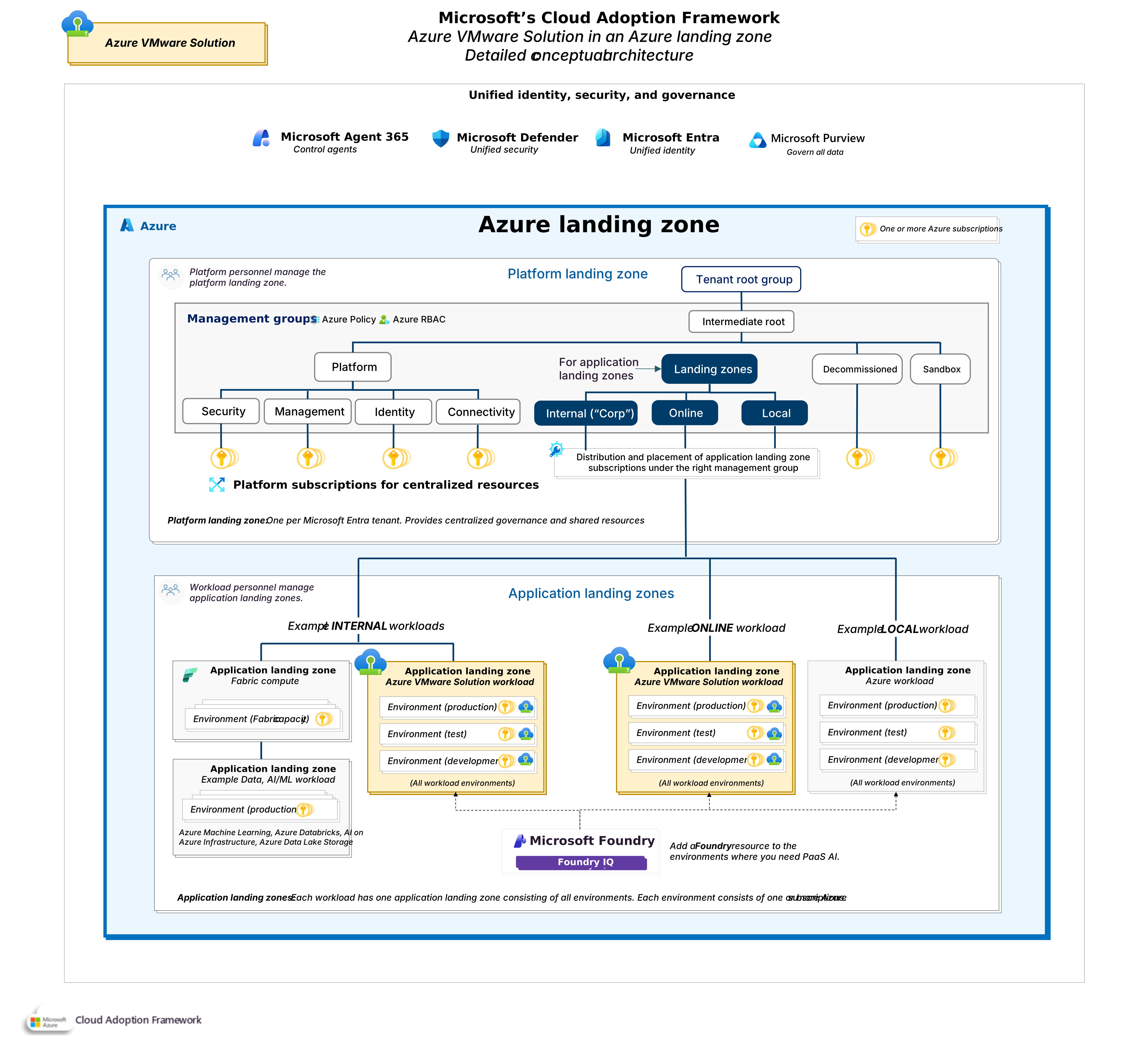
Place every Azure VMware Solution private cloud in an application landing zone, regardless of your operating model or ownership structure. Don't group an Azure VMware Solution private cloud under your "Platform" management group as a centralized platform resource. It's a workload resource, and you should govern and manage it that way.
If you're deploying multiple application workloads onto the same private cloud, you should still treat it as a workload resource. Maintain workload isolation for other application components in their own application landing zone subscriptions, as if they were self-contained. For example, you might choose to co-locate applications X and Y on the same VMware private cloud for cost efficiency reasons. Deploy SQL databases and other resources belonging to application X in the application X landing zone, and application Y in its own landing zone. Don't place other application resources in the same subscription as an Azure VMware Solution private cloud unless it's dedicated to a single workload.
Internet-facing vs. internal workloads. As a best practice, deploy separate private clouds for internet-facing and internal workloads. This separation strengthens security boundaries and simplifies governance. It also lowers the risk of unintended exposure. Internet-facing workloads and internal-only workloads carry different risks, so they shouldn't share the same private cloud. Combine workloads only as a cost exception. Organizations with cost constraints might host both workload types in one private cloud. When you make this exception, apply strong network segmentation and security controls between the workload groups. This choice lowers cost, and you should treat it as an exception rather than the preferred design.
3. Enterprise integration
Running VMware workloads on Azure VMware Solution gives your teams direct access to Azure services. Because Gen 2 sits inside your virtual network, Azure VMware Solution workloads reach these services over your Azure network without redesigning the applications. Decide early which enterprise services extend to Azure VMware Solution workloads, so your security, data, AI, and operations tooling cover them from day one.
3.1 Security and compliance
Azure VMware Solution should integrate with the same security, governance, and compliance capabilities that protect the rest of your cloud estate. Extending existing security operations and compliance processes to Azure VMware Solution helps maintain consistent controls, improve visibility across environments, and reduce the operational burden of managing separate security platforms.
Microsoft Defender for Cloud and Defender for Endpoint: Use Azure Arc to onboard Azure VMware Solution VMs into Defender for Cloud. Once Arc-enabled, you can deploy Defender for Endpoint to Azure VMware Solution VMs the same way as Azure VMs.
Microsoft Sentinel: Forward security log data from NSX, vCenter, and ESXi to a Log Analytics workspace and use Sentinel's analytics rules to detect threats across Azure and VMware workloads. If you already use Sentinel, extending it to Azure VMware Solution avoids introducing a separate SIEM.
Microsoft Purview: If your Azure VMware Solution workloads are subject to data governance requirements, integrate with Purview Data Map with your VMware-hosted database services.
3.2 Integrating with Azure services
Azure VMware Solution enables organizations to adopt AI services and modern data platforms without requiring immediate application modernization. By connecting VMware-hosted workloads to Azure AI, data, and integration services, organizations can accelerate innovation, enhance business insights, and modernize at a pace that aligns with operational and business requirements.
Microsoft Foundry: Azure VMware Solution-hosted applications can connect to AI models deployed through Foundry over the low-latency path between Azure VMware Solution and Azure virtual networks.
Microsoft Fabric: Connect Azure VMware Solution-hosted databases to Microsoft Fabric for AI readiness, analytics, and business intelligence, with the data tier staying on VMware. See Data for AI and Analytics - Guidance to set your organization's data strategy for Ai and analytics.
Integration services: Use services such as Azure API Management (APIM) and Azure Service Bus to expose VMware-hosted APIs securely, decouple components with messaging, and integrate Azure VMware Solution workloads with Azure-native applications.
App Service: Modernize specific application components by moving web apps or APIs to Azure App Service while keeping dependent tiers on Azure VMware Solution. Use VNet integration so App Service can reach Azure VMware Solution-hosted back ends with low latency.
Containers: Replatform selected services to containers using Azure Kubernetes Service (AKS) or Azure Container Apps, while keeping other components on Azure VMware Solution. This supports incremental modernization and can reduce operational overhead for application components.
Azure database services: Azure VMware Solution workloads can connect to Azure SQL Database, Azure Database for PostgreSQL, Cosmos DB, and other managed database services for incremental data tier modernization.
Azure Storage: Workloads in Azure VMware Solution can use Azure Files and Azure Blob Storage, in addition to the storage provisioned in vSAN and as external Azure VMware Solution data stores. Connecting to Azure storage accounts can reduce the demand for storage within the Azure VMware Solution private cloud, and help minimize costs.
Azure VMware Solution workloads access Azure services through ExpressRoute (Gen 1) or the virtual network directly (Gen 2). Ensure your network design provides adequate bandwidth and low latency for these connections. For high performance access to Azure services, Gen 1 Azure VMware Solution private clouds may require more than one ExpressRoute circuit.
3.3. On-premises integration
Some applications, integration points, and user endpoints stay on-premises during and after migration. Design for hybrid operations from the start, so you run workloads consistently across Azure VMware Solution and the rest of your estate.
On-premises connectivity: Use the connectivity you established in the platform landing zone as the single path between your datacenter and Azure VMware Solution. For Gen 2 that is your standard ExpressRoute or VPN through the virtual network gateway. For Gen 1 that is ExpressRoute Global Reach.
Unified management: Manage both estates from one place. Use Azure Arc-enabled VMware vSphere to manage your on-premises VMware estate and Azure VMware Solution together, giving you one consistent view of inventory, policy, and security. If you use VMware Aria Operations for monitoring, you can configure one console to cover both on-premises and Azure VMware Solution. The same applies to your backup and configuration management tools.
3.4 Lifecycle integration
Azure VMware Solution should become part of existing operational and governance processes rather than being managed as a separate platform. Integrate Azure VMware Solution into established IT service management, asset management, automation, and configuration management practices. It improves operational consistency, reduces administrative overhead, and simplifies ongoing platform operations.
ITSM integration: Connect alerts to your ITSM platform. Integrate Azure Monitor with ServiceNow or your IT service management platform, so Azure VMware Solution alerts create incidents in existing workflows automatically.
Asset management: Track Azure VMware Solution assets in your CMDB. Use Azure Arc to register Azure VMware Solution virtual machines in your configuration management database alongside Azure and on-premises assets.
IaC and platform automation: Automate with infrastructure as code. Include Azure VMware Solution in your platform automation approach, so you deploy and change it the same way as the rest of your estate.
Image management: Plan for image management. Check the product documentation for the latest options to share virtual machine templates between on-premises vCenter and Azure VMware Solution vCenter. You might need to maintain images separately in each environment. Content libraries help within each environment, and cross-environment sync might need manual effort or custom automation.