Note
Access to this page requires authorization. You can try signing in or changing directories.
Access to this page requires authorization. You can try changing directories.
Use the Azure Data AI SDK's InferenceClient to generate embeddings from text and images through an inference endpoint configured in Azure Cosmos DB. This guide shows you how to set up the endpoint, grant access, call it from Python or .NET, and read the returned vectors.
The examples use Microsoft Embedding 1 and pass its required model name, microsoft-embedding-1-large, with each request. For model capabilities, specifications, supported dimensions, and request limits, see the separate Microsoft Embedding 1 overview.
The Azure Data AI SDK returns embeddings to your application; it doesn't write them to your Azure Cosmos DB containers. The optional storage and search example uses the separate Azure Cosmos DB SDK. For a database-managed embedding workflow, see integrated embeddings.
| Starting point | Where to start |
|---|---|
| You already have an inference endpoint and the Embedding User role. | Generate a text embedding. You don't need image storage for this example. |
| You need an inference endpoint or access to it. | Register the resource provider, enable embedding generation, and grant permissions. |
| You also want to embed images. | Prepare image inputs, and then generate text and image embeddings. |
Note
Use the same embedding model, vector kind, and dimensions for documents and queries that you compare. Regenerate stored vectors when you change to an incompatible model configuration.
Prerequisites
Prepare the following items before setup:
- An Azure subscription and an existing Azure Cosmos DB account.
- The Azure CLI for resource-provider registration, local sign-in, and role assignment. The resource setup commands use Bash; the local SDK and image-SAS commands use PowerShell 7.3 or later.
- Permission to create the companion inference account in the Azure Cosmos DB account's resource group. Granting access also requires permission to create Azure role assignments at the inference-account scope. Ask an administrator to perform setup if you don't have these permissions.
- A Microsoft Entra identity for the application or user that calls the embedding endpoint.
- Python 3.10 or later, or .NET 8 or later, for your selected example.
- For image inputs in Azure Blob Storage, permission to read the blobs and generate user-delegation shared access signature (SAS) tokens. Text-only requests don't need Blob Storage or SAS tokens.
You don't need a database, container, or vector index until you store and search the vectors.
Register the inference resource provider
Sign in and select the subscription that contains your Azure Cosmos DB account:
az login
az account set --subscription "<subscription-id>"
az provider show --namespace Microsoft.InferenceService --query registrationState --output tsv
If the registration state isn't Registered, use an identity with subscription-level provider-registration permission to run:
az provider register --namespace Microsoft.InferenceService --wait
Enable embedding generation
Enable embedding generation by using the Azure CLI, the Azure portal, or a Bicep or ARM template.
Azure CLI
Run these commands in Bash after registering the resource provider. Use the resource group that contains your Azure Cosmos DB account and a region from the model specifications.
set -euo pipefail
az account set --subscription "<subscription-id>"

resourceGroupName="<resource-group-name>"
inferenceAccountName="<inference-account-name>"

az resource create \
  --resource-group "$resourceGroupName" \
  --name "$inferenceAccountName" \
  --location "eastus2" \
  --resource-type "Microsoft.InferenceService/inferenceAccounts" \
  --api-version 2026-08-01-preview \
  --properties '{}'

EMBEDDING_ENDPOINT=$(az resource show \
  --resource-group "$resourceGroupName" \
  --name "$inferenceAccountName" \
  --resource-type "Microsoft.InferenceService/inferenceAccounts" \
  --api-version 2026-08-01-preview \
  --query properties.endpoint \
  --output tsv)

if [ -z "$EMBEDDING_ENDPOINT" ]; then
  echo "No inference endpoint was returned. Confirm that provisioning completed." >&2
  exit 1
fi

export EMBEDDING_ENDPOINT
printf '%s\n' "$EMBEDDING_ENDPOINT"
Save this inference endpoint for the SDK examples, not your Azure Cosmos DB document endpoint. Then assign the Embedding User role to the identity that calls it.
Azure portal
Open your Azure Cosmos DB account in the Azure portal.
Under AI Capabilities, select Embedding generation (Preview).
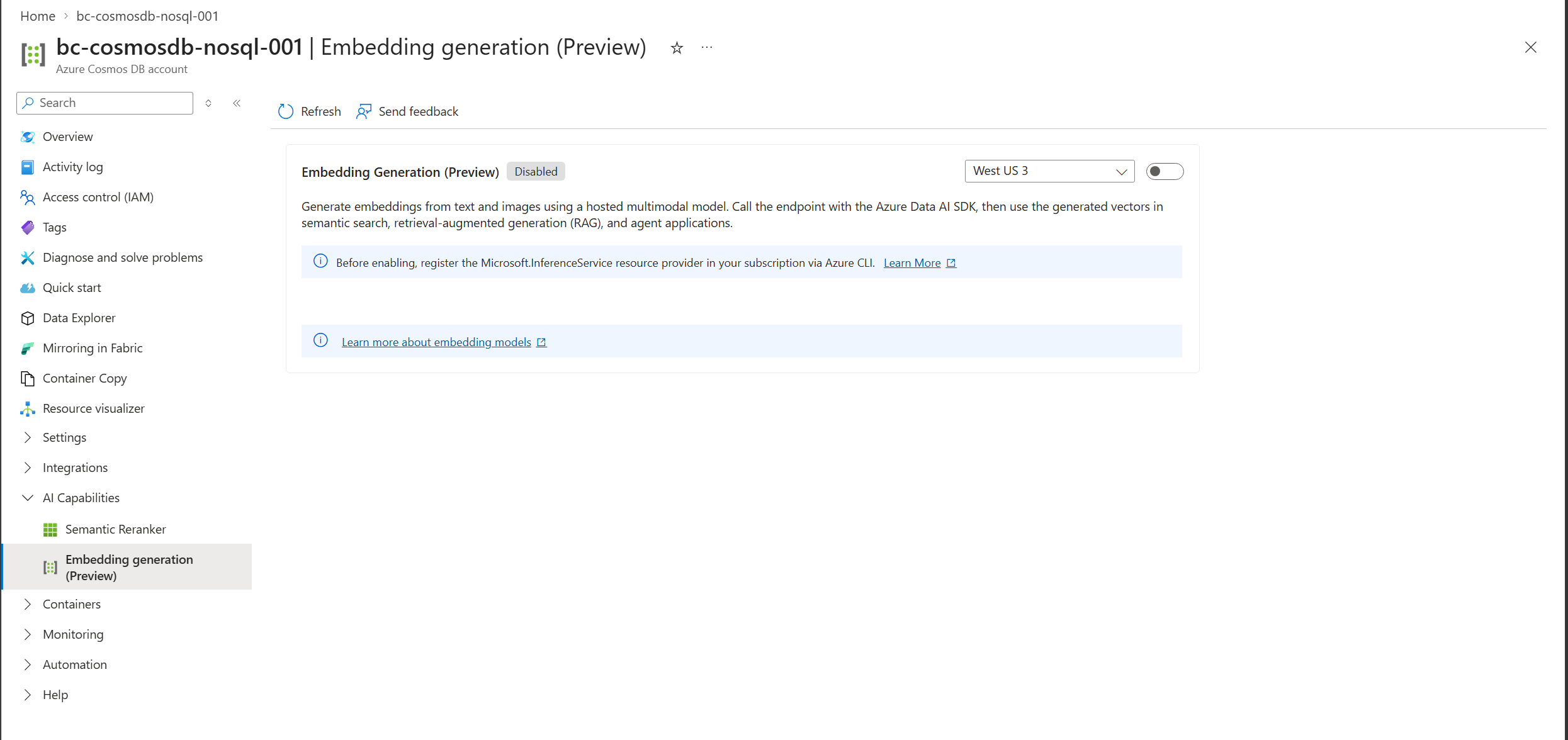
In the region list, select the region where you want the endpoint deployed.
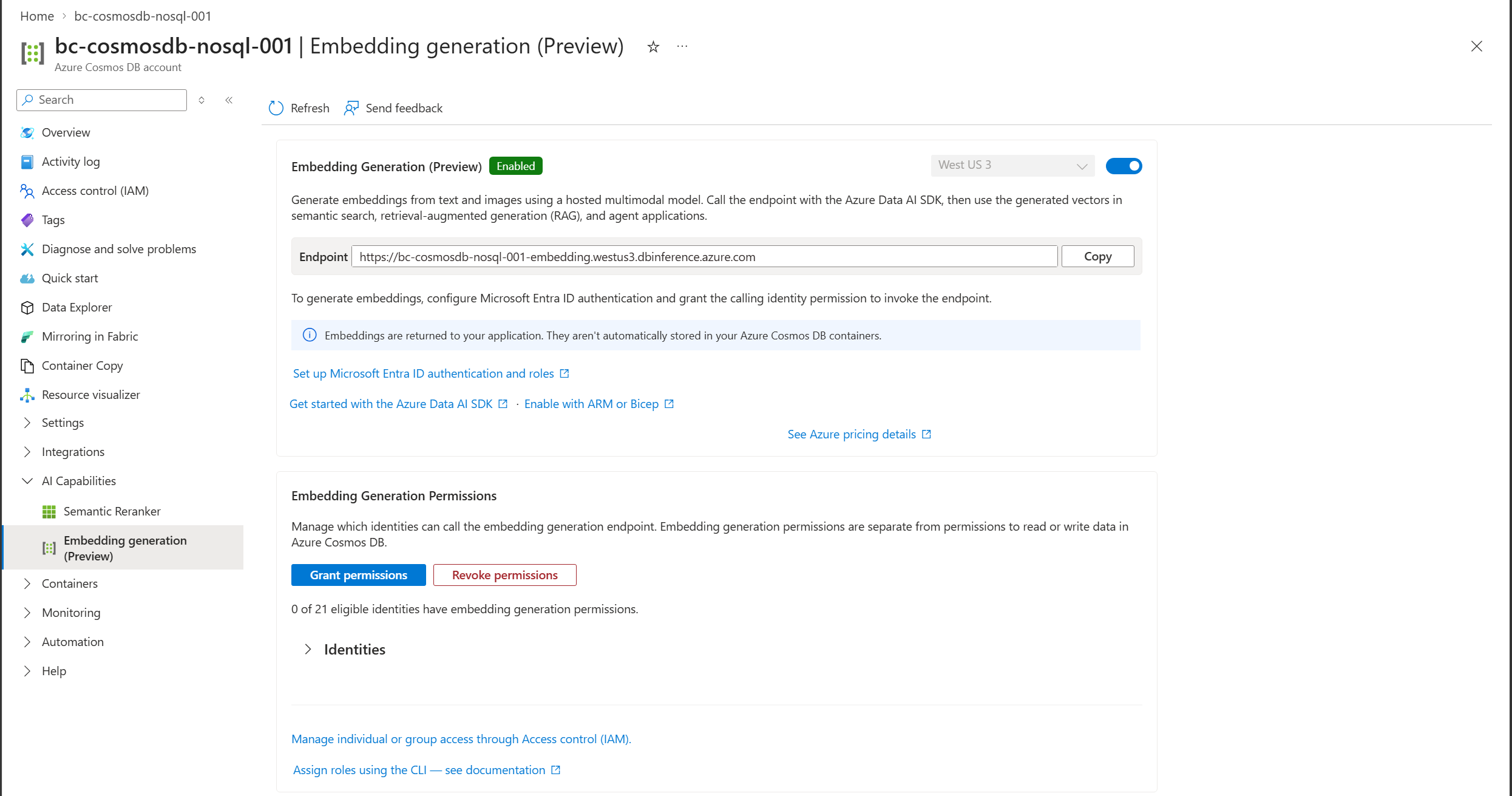
Turn on Embedding Generation (Preview). Provisioning can take a few minutes. When it finishes, the status changes to Enabled.
Next to Endpoint, select Copy to copy the inference endpoint for your application.
Enable with Bicep or an ARM template
To enable embedding generation from code, deploy a template that creates the inference account and assigns the Embedding User role to one identity. Deploy it to the resource group that contains your Azure Cosmos DB account.
| Parameter | Description |
|---|---|
inferenceAccountName |
A name for the inference account. |
inferenceAccountLocation |
eastus, eastus2, northcentralus, westcentralus, westus2, westus3, or polandcentral. |
principalId |
The object ID of the user, managed identity, or service principal that calls the endpoint. |
principalType |
ServicePrincipal for managed identities and service principals, or User for a Microsoft Entra user. |
embeddingUserRoleId |
The built-in Embedding User role ID returned by the following lookup. |
Sign in to the target subscription and look up the built-in role ID. Don't use a sample or invented GUID for a role definition:
set -euo pipefail
az login
az account set --subscription "<subscription-id>"

embeddingUserRoleId=$(az role definition list \
  --name "Embedding User" --query "[0].name" --output tsv)
if [ -z "$embeddingUserRoleId" ]; then
  echo "The Embedding User role wasn't found. Check the subscription and permissions." >&2
  exit 1
fi
Run the deployment commands in the same Bash session.
Save the following template as enable-embedding-generation.bicep:
@description('Name of the inference account to create.')
param inferenceAccountName string

@description('Region for the inference account.')
@allowed([
  'eastus'
  'eastus2'
  'northcentralus'
  'westcentralus'
  'westus2'
  'westus3'
  'polandcentral'
])
param inferenceAccountLocation string

@description('Object ID of the identity that calls the embedding endpoint.')
param principalId string

@description('Built-in Embedding User role ID returned by Azure CLI.')
param embeddingUserRoleId string

@description('Use ServicePrincipal for managed identities and service principals, or User for a Microsoft Entra user.')
@allowed([
  'ServicePrincipal'
  'User'
])
param principalType string = 'ServicePrincipal'

var embeddingUserRoleDefinitionId = subscriptionResourceId(
  'Microsoft.Authorization/roleDefinitions',
  embeddingUserRoleId
)

resource inferenceAccount 'Microsoft.InferenceService/inferenceAccounts@2026-08-01-preview' = {
  name: inferenceAccountName
  location: inferenceAccountLocation
}

resource embeddingRoleAssignment 'Microsoft.Authorization/roleAssignments@2022-04-01' = {
  name: guid(inferenceAccount.id, principalId, embeddingUserRoleDefinitionId)
  scope: inferenceAccount
  properties: {
    principalId: principalId
    roleDefinitionId: embeddingUserRoleDefinitionId
    principalType: principalType
  }
}
Deploy the template:
az deployment group create \
  --resource-group "<resource-group-name>" \
  --template-file enable-embedding-generation.bicep \
  --parameters inferenceAccountName="<inference-account-name>" \
               inferenceAccountLocation="eastus2" \
               principalId="<principal-object-id>" \
               principalType="ServicePrincipal" \
               embeddingUserRoleId="$embeddingUserRoleId"
After either deployment finishes, run the following command in the same Bash session to set EMBEDDING_ENDPOINT for the SDK examples. Replace the resource group and inference account placeholders with the values you used for deployment.
EMBEDDING_ENDPOINT=$(az resource show \
  --resource-group "<resource-group-name>" \
  --resource-type "Microsoft.InferenceService/inferenceAccounts" \
  --name "<inference-account-name>" \
  --api-version 2026-08-01-preview \
  --query properties.endpoint \
  --output tsv) || exit 1

if [ -z "$EMBEDDING_ENDPOINT" ]; then
  echo "No inference endpoint was returned. Confirm that deployment completed successfully." >&2
  exit 1
fi

export EMBEDDING_ENDPOINT
Use the inference endpoint, not the Azure Cosmos DB document endpoint. If you run the SDK examples in a different session, set EMBEDDING_ENDPOINT there to this endpoint.
To give more identities access later, see Assign the Embedding User role.
Grant permissions
Assign roles on the companion inference account. Give each identity only the role it needs.
| Role name | What it allows |
|---|---|
| Embedding User | Generate embeddings and read inference-account metadata. Assign this role to applications and users that only call the endpoint. |
| Inference Account Operator | Create, read, update, and delete inference accounts. Doesn't allow embedding calls. |
| Inference Account Owner | Manage inference accounts and generate embeddings. |
Keep these boundaries in mind:
- These roles don't grant access to Azure Cosmos DB data. To read or write container data, also assign Azure Cosmos DB data-plane permissions.
- These roles don't grant access to images. Image inputs need separate Azure Blob Storage permissions.
- To assign roles, you need Owner, User Access Administrator, Role Based Access Control Administrator, or equivalent permissions at the inference-account scope. Inference Account Owner can't assign roles.
Assign the Embedding User role
Choose one method:
- Azure portal: On the Embedding generation (Preview) page, expand Identities in the Embedding Generation Permissions card, review the list, and select Grant permissions. Revoke permissions removes these assignments but leaves embedding generation turned on.
- Access control (IAM): Assign the role on the companion inference account.
- Azure CLI or Bicep: Use the following examples to add access to an existing inference account.
Role assignments can take a few minutes to take effect.
Use the principal's object ID, not an application (client) ID. Set principalType to ServicePrincipal for managed identities and service principals, or User for a Microsoft Entra user.
az login

subscriptionId="<subscription-id>"
resourceGroupName="<resource-group-name>"
inferenceAccountName="<inference-account-name>"
principalId="<principal-object-id>"
principalType="ServicePrincipal"  # Or "User"
roleDefinitionName="Embedding User"
scope="/subscriptions/${subscriptionId}/resourceGroups/${resourceGroupName}/providers/Microsoft.InferenceService/inferenceAccounts/${inferenceAccountName}"

az account set --subscription "$subscriptionId"
az role assignment create \
  --assignee-object-id "$principalId" \
  --assignee-principal-type "$principalType" \
  --role "$roleDefinitionName" \
  --scope "$scope"
Generate embeddings
Start with a text-only request, and then add image inputs if needed. The Python and .NET examples use an inference endpoint and an identity with the Embedding User role. Both request 1,536-dimensional dense vectors with numeric float32 output.
InferenceClient gets a Microsoft Entra token for the scope https://dbinference.azure.com/.default and sends it with each request.
Generate a text embedding
This example embeds one text input. It doesn't require Azure Blob Storage, an image, or a SAS token.
Set model to microsoft-embedding-1-large. For model capabilities, supported dimensions, and limits, see Microsoft Embedding 1.
Set the inference endpoint and sign in as the identity that has the Embedding User role. Use the inference endpoint, not your Azure Cosmos DB document endpoint:
$env:EMBEDDING_ENDPOINT = "<inference-endpoint-from-cli-portal-or-template>"
az login
Install the SDK and the authentication library:
python -m pip install --upgrade --pre azure-data-ai azure-identity
The embedding-enabled release is azure-data-ai==1.1.0b1. Install that version if you need to reproduce these examples with a fixed SDK release.
Save this complete example as generate_text_embedding.py, and then run python .\generate_text_embedding.py:
import os

from azure.data.ai import InferenceClient
from azure.identity import DefaultAzureCredential

with DefaultAzureCredential() as credential:
    with InferenceClient(
        endpoint=os.environ["EMBEDDING_ENDPOINT"],
        credential=credential,
    ) as client:
        response = client.get_embeddings(
            model="microsoft-embedding-1-large",
            dimensions=1536,
            encoding_format="float",
            output_data_kind="float32",
            inputs=[
                {"content": "The lakeside walking route is accessible throughout the year."}
            ],
        )

embedding = response.data[0].embedding
print(f"{len(embedding)} dimensions")
Expected output for either language:
1536 dimensions
The vector values can vary; the requested dimension count is 1,536. The SDK returns the vector to your application and doesn't store it in Azure Cosmos DB.
Generate text and image embeddings
This optional example embeds one text input and one image in the same request. It uses the SDK packages from Generate a text embedding and adds image-storage permissions and a SAS token.
Before you run the text-and-image examples, create a SAS token for the image by following Prepare image inputs. Then set these environment variables and sign in as the identity that has the Embedding User role:
$env:EMBEDDING_ENDPOINT = "<inference-endpoint-from-cli-portal-or-template>"
$env:IMAGE_BLOB_URL = "https://<storage-account>.blob.core.windows.net/<container>/<image-blob-name>"
$env:IMAGE_SAS_TOKEN = "<user-delegation-sas-token-without-leading-question-mark>"
az login
Azure Data AI can return vectors inline or a result-file reference for requests with images. The Python and .NET examples handle either response without setting a delivery argument. They require an HTTPS Azure Blob Storage result URL, disable redirects, limit downloads, and verify the file size and SHA-256 before parsing it. The 16-MiB download cap is an application limit for this small walkthrough, not a service limit. Don't log signed result URLs or SAS tokens.
Save the following complete example as generate_embeddings.py, and then run python .\generate_embeddings.py. The read_dense_embeddings helper handles inline and linked results:
import hashlib
import http.client
import json
import math
import os
import re
import urllib.error
import urllib.parse
import urllib.request

from azure.data.ai import InferenceClient
from azure.data.ai.models import EmbeddingResult, MultimodalDenseEmbedding
from azure.identity import DefaultAzureCredential


class NoRedirect(urllib.request.HTTPRedirectHandler):
    def redirect_request(self, req, fp, code, msg, headers, newurl):
        return None


def read_dense_embeddings(
    result: EmbeddingResult, expected_count: int
) -> list[list[float]]:
    if result.output is not None:
        output = result.output
        url = urllib.parse.urlsplit(output.url)
        if (
            url.scheme != "https"
            or not (url.hostname or "").endswith(".blob.core.windows.net")
            or url.username is not None
            or url.password is not None
            or url.port not in (None, 443)
            or url.query
            or url.fragment
            or not output.sas_token
            or not 0 < output.size_in_bytes <= 16 * 1024 * 1024
            or output.record_count != expected_count
            or re.fullmatch(r"[0-9a-fA-F]{64}", output.sha256) is None
        ):
            raise ValueError("Invalid embedding result-file metadata.")
        signed_url = f"{output.url}?{output.sas_token.lstrip('?')}"
        opener = urllib.request.build_opener(NoRedirect())
        try:
            with opener.open(signed_url, timeout=60) as download:
                payload = download.read(output.size_in_bytes + 1)
        except (urllib.error.URLError, OSError, http.client.HTTPException):
            raise RuntimeError(
                "Result download failed. Repeat the embedding request; don't log its URL."
            ) from None
        if (
            len(payload) != output.size_in_bytes
            or hashlib.sha256(payload).hexdigest() != output.sha256.lower()
        ):
            raise ValueError("The embedding result file failed its integrity check.")
        downloaded = EmbeddingResult(json.loads(payload))
        if downloaded.model != result.model or downloaded.output is not None:
            raise ValueError("Unexpected embedding result-file contents.")
        result = downloaded

    if len(result.data) != expected_count:
        raise ValueError("Expected one embedding per input.")
    vectors = []
    for index, item in enumerate(result.data):
        if (
            not isinstance(item, MultimodalDenseEmbedding)
            or item.index != index
            or not isinstance(item.embedding, list)
            or len(item.embedding) != 1536
            or not all(
                isinstance(value, (int, float))
                and not isinstance(value, bool)
                and math.isfinite(value)
                for value in item.embedding
            )
        ):
            raise ValueError("Expected ordered, numeric, 1,536-dimensional dense vectors.")
        vectors.append(item.embedding)
    return vectors


with DefaultAzureCredential() as credential:
    with InferenceClient(
        endpoint=os.environ["EMBEDDING_ENDPOINT"],
        credential=credential,
    ) as client:
        response = client.get_embeddings(
            model="microsoft-embedding-1-large",
            dimensions=1536,
            encoding_format="float",
            output_data_kind="float32",
            inputs=[
                {
                    "content": "The lakeside walking route is accessible throughout the year.",
                },
                {
                    "kind": "image",
                    "url": os.environ["IMAGE_BLOB_URL"],
                    "sasToken": os.environ["IMAGE_SAS_TOKEN"],
                },
            ],
        )

source_embeddings = read_dense_embeddings(response, expected_count=2)
for index, vector in enumerate(source_embeddings):
    print(f"Input {index}: {len(vector)} dimensions")
Keep source_embeddings and response. The Azure Cosmos DB example uses them.
Expected output for either language:
Input 0: 1536 dimensions
Input 1: 1536 dimensions
Input 0 is the text; input 1 is the image. Match the vectors to their inputs by order or index, not an input ID.
Text is the default input kind, so omit kind for text documents. For a search query, send a separate request with "kind": "query" (.NET: ContentKind = EmbeddingContentKind.Query). For images, set "kind": "image" (.NET: ContentKind = EmbeddingContentKind.Image).
Keep model in each call. The dimensions value controls the vector width; the walkthrough uses 1,536 dimensions to match the container policy. It requests numeric float32 output so you can use the vectors directly in the storage example.
For other output configurations and the complete parameter reference, see the Microsoft Embedding 1 API reference.
Read the response
Azure Data AI returns inline vectors in response.data (.NET: response.Value.Data), one result per input in request order. When output (.NET: Output) contains a file reference, read and verify that file before using its vectors, as Generate text and image embeddings demonstrates.
Check warnings (.NET: Warnings) for successful requests that need attention, such as truncated text. Treat the result-file SAS as a credential and don't log it. For the complete response schema, see the model response reference.
Prepare image inputs
The service doesn't accept image bytes in the request. Instead, it reads each image from Azure Blob Storage. You provide two values for each image:
url: the plain HTTPS blob URL, without a query string.sasToken(.NET:SasToken): a read-only, user-delegation SAS token for that blob.
Follow these rules:
- Sign the SAS with the same identity that calls the endpoint. Don't create a token as a developer and use it from an application's managed identity.
- Keep the SAS short-lived. Use HTTPS only, read-only permission, and an expiry of about 15 minutes. Create a new token if one expires before a retry.
- Grant storage access separately. Storage Blob Data Reader at the storage-account scope lets the caller read blobs and create user-delegation keys. If read access is limited to a container, also assign Storage Blob Delegator at the storage-account scope.
- Keep tokens secret. Don't put SAS tokens in logs, telemetry, source code, or error messages.
- Check network access. The blob must exist and be reachable by the service. A SAS doesn't bypass storage firewall rules.
Create a SAS token in the Azure portal
Use this method when you call the endpoint as the same user who's signed in to the portal.
- Open your storage account in the Azure portal.
- Under Data storage, select Containers, open the container, and select the image blob.
- Select Generate SAS.
- Set Signing method to User delegation key.
- Under Permissions, select only Read.
- Set Start to about five minutes ago and Expiry to about 15 minutes from now.
- Set Allowed protocols to HTTPS only.
- Select Generate SAS token and URL.
- Copy Blob SAS token into
IMAGE_SAS_TOKEN. Remove a leading?if present. - Copy the blob's URL from its Properties into
IMAGE_BLOB_URL. Don't use Blob SAS URL.
If User delegation key isn't available, check your storage roles. Don't switch to account-key signing or a container SAS.
Create a SAS token with Azure CLI
Run this PowerShell script as the identity that calls the endpoint. It sets IMAGE_BLOB_URL and IMAGE_SAS_TOKEN for the Generate embeddings examples. Use the full blob path, such as catalog/trail-map.png.
$ErrorActionPreference = "Stop"
$PSNativeCommandUseErrorActionPreference = $true

az login

$storageAccountName = "<storage-account-name>"
$containerName = "<container-name>"
$blobName = "<image-blob-name>"
$now = (Get-Date).ToUniversalTime()
$startsOn = $now.AddMinutes(-5).ToString("yyyy-MM-ddTHH:mm'Z'", [Globalization.CultureInfo]::InvariantCulture)
$expiresOn = $now.AddMinutes(15).ToString("yyyy-MM-ddTHH:mm'Z'", [Globalization.CultureInfo]::InvariantCulture)

$env:IMAGE_SAS_TOKEN = az storage blob generate-sas `
    --account-name $storageAccountName `
    --container-name $containerName `
    --name $blobName `
    --permissions r `
    --start $startsOn `
    --expiry $expiresOn `
    --https-only `
    --auth-mode login `
    --as-user `
    --output tsv `
    --only-show-errors

$env:IMAGE_BLOB_URL = az storage blob url `
    --account-name $storageAccountName `
    --container-name $containerName `
    --name $blobName `
    --auth-mode login `
    --output tsv `
    --only-show-errors
--as-user and --auth-mode login create a user-delegation SAS. --permissions r makes it read-only.
Create SAS tokens in application code
Managed identities and service principals must create their own SAS tokens. Your application can get one user-delegation key, reuse it until it expires, and sign a fresh token for each blob locally.
Install the Storage client library:
python -m pip install azure-storage-blob
Create the blob URL and SAS token, and then pass them as the image input's url and sasToken:
import datetime as dt
import os

from azure.identity import DefaultAzureCredential
from azure.storage.blob import BlobSasPermissions, BlobServiceClient, generate_blob_sas

storage_account = os.environ["STORAGE_ACCOUNT_NAME"]
container_name = os.environ["STORAGE_CONTAINER_NAME"]
blob_name = os.environ["IMAGE_BLOB_NAME"]

with DefaultAzureCredential() as credential:
    now = dt.datetime.now(dt.timezone.utc)
    starts_on = now - dt.timedelta(minutes=5)
    expires_on = now + dt.timedelta(minutes=15)

    with BlobServiceClient(
        account_url=f"https://{storage_account}.blob.core.windows.net",
        credential=credential,
    ) as storage_client:
        delegation_key = storage_client.get_user_delegation_key(starts_on, expires_on)
        blob_url = storage_client.get_blob_client(
            container=container_name, blob=blob_name
        ).url
        sas_token = generate_blob_sas(
            account_name=storage_account,
            container_name=container_name,
            blob_name=blob_name,
            user_delegation_key=delegation_key,
            permission=BlobSasPermissions(read=True),
            start=starts_on,
            expiry=expires_on,
            protocol="https",
        )
For more information, see Create a user delegation SAS for a blob with Python.
Store and search vectors in Azure Cosmos DB
Store the vectors in a container, then embed a search query and find the closest matches. You can then apply semantic reranking to the results.
This optional Python example continues from Generate text and image embeddings, not the text-only starter. Keep response, source_embeddings, and the read_dense_embeddings helper from that example in generate_embeddings.py. It uses an existing products container with:
- Partition key
/id. - A vector policy on
/embeddingwithfloat32, 1,536 dimensions, and cosine distance. - A vector index on
/embedding.
For setup, see Index and query vectors in Python.
Set COSMOS_ENDPOINT to your Azure Cosmos DB account endpoint, not the inference endpoint, and COSMOS_DATABASE to your database name. The calling identity needs data-plane permissions to write and query items.
Set these variables in the same PowerShell session and install the Azure Cosmos DB Python SDK:
$env:COSMOS_ENDPOINT = "<azure-cosmos-db-account-endpoint>"
$env:COSMOS_DATABASE = "<database-name>"
python -m pip install azure-cosmos
Embed the search query
Append this code to generate_embeddings.py after the text-and-image example. It uses the same model, dimensions, and numeric output configuration as the stored content:
with DefaultAzureCredential() as credential:
    with InferenceClient(
        endpoint=os.environ["EMBEDDING_ENDPOINT"],
        credential=credential,
    ) as client:
        query_response = client.get_embeddings(
            model="microsoft-embedding-1-large",
            dimensions=1536,
            encoding_format="float",
            output_data_kind="float32",
            inputs=[
                {
                    "kind": "query",
                    "content": "Which walking route follows the lake?",
                }
            ],
        )

query_vector = read_dense_embeddings(query_response, expected_count=1)[0]
Store the vectors and search
Append this code after the query-embedding code in generate_embeddings.py. It writes two sample items to the products container, using application-owned Azure Cosmos DB item IDs rather than embedding input IDs.
The code stores each vector with its model, dimensions, and vector kind, and filters on those fields when searching. VectorDistance ranks items by similarity, and TOP 5 limits the results. Regenerate stored vectors if you change to an incompatible model configuration; matching model names and dimensions alone doesn't prove compatibility.
from azure.cosmos import CosmosClient

if response.model != query_response.model:
    raise ValueError("Use the same model for stored content and search queries.")
if len(query_vector) != 1536 or any(len(v) != 1536 for v in source_embeddings):
    raise ValueError("The vectors must match the container's 1,536-dimensional policy.")

source_items = [("trail-guide", "text"), ("trail-map", "image")]

query = """
SELECT TOP 5 c.id, c.kind, VectorDistance(c.embedding, @vector) AS distance
FROM c
WHERE c.model = @model AND c.dimensions = @dimensions AND c.vectorKind = @vectorKind
ORDER BY VectorDistance(c.embedding, @vector)
"""
parameters = [
    {"name": "@vector", "value": query_vector},
    {"name": "@model", "value": query_response.model},
    {"name": "@dimensions", "value": 1536},
    {"name": "@vectorKind", "value": "dense"},
]

with DefaultAzureCredential() as credential:
    with CosmosClient(
        os.environ["COSMOS_ENDPOINT"], credential=credential
    ) as cosmos:
        db = cosmos.get_database_client(os.environ["COSMOS_DATABASE"])
        container = db.get_container_client("products")
        for (item_id, kind), vector in zip(source_items, source_embeddings, strict=True):
            container.upsert_item({
                "id": item_id,
                "kind": kind,
                "model": response.model,
                "dimensions": 1536,
                "vectorKind": "dense",
                "embedding": vector,
            })

        for item in container.query_items(
            query=query,
            parameters=parameters,
            enable_cross_partition_query=True,
        ):
            print(item["id"], item["kind"], item["distance"])
The output lists text and image items together, closest match first.
Troubleshooting
Python raises HttpResponseError. .NET raises RequestFailedException.
| Error | Likely cause | Fix |
|---|---|---|
| HTTP 403 | The calling identity doesn't have Embedding User, or the assignment didn't take effect. | Check the identity, endpoint, and role scope. Wait a few minutes after assigning the role. |
| HTTP 429 | The request rate exceeded the limit. | Wait for the time in the Retry-After header, then retry. Cap the number of retries. |
EMBEDDING_INPUT_INVALID |
The request exceeds a model limit or has invalid content. | Check the inputs against the model API reference and request limits. |
EMBEDDING_BLOB_READ_FAILED |
The service can't read an image. | Confirm that the blob exists, the SAS didn't expire, the calling identity signed the SAS, and storage network rules allow access. |
Empty Data with an output reference |
The service returned a result file. | Read it with the helper in the walkthrough before processing the vectors. |
| Result-file integrity failure | The downloaded bytes don't match the service metadata. | Don't use the file. Repeat the request and investigate repeated failures without logging signed URLs or SAS tokens. |
Don't log request bodies, signed result URLs, or SAS tokens.
Limitations
- Each request must stay within the model request limits.
- Check
warningsand each result'struncatedindicator before storing vectors. - The storage and search example uses dense vectors. Don't use multi-vector output with that container policy or query.
- Your application stores the vectors, regenerates them when source data changes, and configures the vector index. To have Azure Cosmos DB handle this task, use integrated embeddings.
Disable embedding generation
In the Azure portal, go to AI Capabilities > Embedding generation (Preview) and turn off Embedding Generation (Preview).
Turning off the feature deletes the companion inference account, and the endpoint stops accepting calls. Before you turn it off, check for applications that still use the endpoint. Vectors that you already stored in Azure Cosmos DB stay in place.