Note
Access to this page requires authorization. You can try signing in or changing directories.
Access to this page requires authorization. You can try changing directories.
The Azure Cosmos DB model context protocol (MCP) toolkit (AzureCosmosDB/MCPToolKit) is an open-source solution that enables AI agents and agentic applications to interact securely with Azure Cosmos DB through the Model Context Protocol (MCP). This toolkit provides enterprise-grade authentication, comprehensive database operations, and seamless integration with AI platforms like Azure AI Foundry.
The MCP Toolkit helps AI systems work with your Azure Cosmos DB data. It lets AI understand your database using everyday language queries. This functionality makes it perfect for building smart apps that need to read and study database content.
Key Features
Enterprise-Grade Security
- Azure Entra ID Authentication - Token-based security with role-based access control
- Managed Identity Support - No credential management required in production
- Role-Based Access - Automatic validation of
Mcp.Tool.Executorpermissions - Secure Communication - HTTPS endpoints with proper authentication headers
Production-Ready Deployment
- Container Apps Hosting - Scalable, managed container deployment on Azure
- One-Click Deployment - Automated infrastructure provisioning with Bicep templates
- Health Monitoring - Built-in health checks and logging integration
- Web Testing Interface - Browser-based tool for validation and testing
Capabilities
This toolkit provides:
- Secure MCP Server: JWT-authenticated endpoint for AI agents
- Azure Cosmos DB Integration: Full CRUD operations, vector search, and schema discovery
- AI Foundry Ready: Optional one-step integration with Azure AI Foundry projects
- Enterprise Security: Microsoft Entra ID, Managed Identity, role-based access control
- Production Ready: Container Apps hosting
- Local Development: Docker Compose and .NET dev options
Available Tools
The toolkit provides seven core tools for interacting with Cosmos DB:
| Tool Name | Description | Use Cases |
|---|---|---|
list_databases |
Lists all databases in the Cosmos DB account | Database discovery, environment exploration |
list_collections |
Lists containers within a specific database | Schema exploration, data organization |
get_recent_documents |
Retrieves the most recent documents (1-20) | Data freshness checks, recent activity analysis |
find_document_by_id |
Finds a specific document by its ID | Direct record retrieval, data validation |
text_search |
Full-text search within document properties | Content discovery, keyword-based queries |
vector_search |
Semantic search using AI embeddings | Similar content discovery, contextual search |
get_approximate_schema |
Analyzes document structure by sampling | Schema understanding, data modeling |
Vector Search Requirements
For vector search functionality, you need:
- Azure OpenAI service with embedding deployment
- Vector embeddings stored in your Cosmos DB documents
- Vector indexing policy configured on your containers
Prerequisites
Before deploying the Azure Cosmos DB MCP Toolkit:
- Azure Subscription with Contributor or Owner access (Free account)
- Azure CLI (Install) installed and authenticated
- PowerShell 7+ (Install) for deployment scripts
- Existing Azure Cosmos DB account with data (the toolkit connects to your existing Cosmos DB)
- Azure Entra ID permissions for app registration
- Azure Container Apps quota in your region
- Azure OpenAI service for enabling vector search capabilities
- Optional: Docker Desktop (Install) for local development
- Optional: .NET 9.0 SDK (Install) for local development
- Optional: Azure AI Foundry project
Deployment Overview
To deploy and use the Azure Cosmos DB MCP Toolkit:
- Deploy Infrastructure: Use the Deploy to Azure button
- Deploy MCP Server: Run the automated deployment script
- Test: Access the built-in test UI
- Integrate: Connect with Azure AI Foundry or Visual Studio Code
For detailed deployment instructions, testing guides, and configuration options, see the Azure Cosmos DB MCP Toolkit README.
Validate the Deployment
Using the Built-In Test UI
The MCP server includes a web-based test interface accessible at your Container App URL:
Navigate to:
https://YOUR-CONTAINER-APP.azurecontainerapps.ioAuthenticate: Select "Sign In with Microsoft Entra ID" (no token copy/paste required)
Test MCP Tools: Use the interactive forms to explore your Cosmos DB data
Example Test Scenarios
- List databases: Select
list_databases→ Then select "Invoke Tool" - Explore containers: Enter database name → Select
list_collections - Recent documents: Enter database + container → Select
get_recent_documents - Search content: Configure search parameters → Select
text_search - Vector search: Provide search text and vector property → Select
vector_search
Connect to Azure AI Foundry
To connect your MCP server to an Azure AI Foundry project, run the setup script:
.\scripts\Setup-AIFoundry-RoleAssignment.ps1 `
  -AIFoundryProjectName "YOUR-PROJECT-NAME" `
  -ResourceGroup "YOUR-RESOURCE-GROUP"
This script assigns the necessary roles for AI Foundry to call your MCP server.
Configuring the Connection in AI Foundry
- Navigate to Azure AI Foundry
- Open your AI project
- Go to Tools → Add Custom Tool
- Configure the connection:
- Tool Name: "Azure Cosmos DB"
- Endpoint URL: Your Container App URL (from
deployment-info.json) - Authentication: Microsoft Entra ID
- Identity: Project Identity or User Identity
- Client ID: From your deployment (found in
deployment-info.json)
Using with AI Agents
Once connected, you can prompt your AI agents with natural language:
- "List all databases in my Cosmos DB account"
- "Find recent orders in the ecommerce database"
- "Search for products containing 'electronics' in the description"
- "What's the schema of the products container?"
AI Foundry translates these requests into MCP tool calls, executing them securely against your Cosmos DB.
Python Client Example
For a complete example of using the MCP server with Azure AI Foundry agents, see the Python Client README.
How it Works
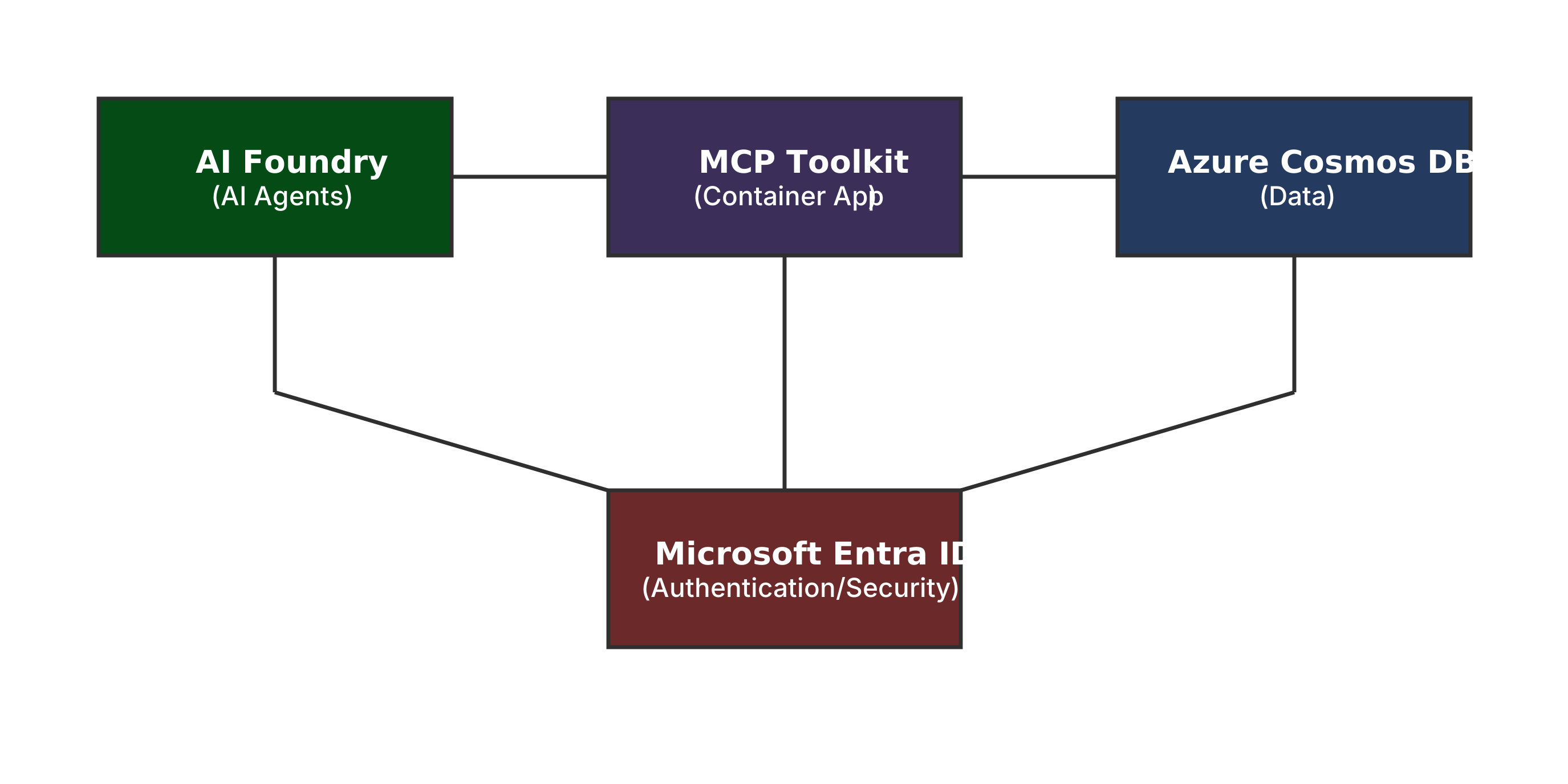
Key Components:
- AI Foundry: Hosts AI agents that need database access
- MCP Toolkit: Translates AI requests to Cosmos DB operations
- Microsoft Entra ID: Provides enterprise authentication and authorization
- Cosmos DB: Your existing database with business data
Security
Authentication
- JWT Bearer Tokens: All requests require valid Microsoft Entra ID tokens
- Audience Validation: Tokens must be issued for your Microsoft Entra App
- Managed Identity: Container App uses managed identity for Cosmos DB access
- RBAC: Least-privilege role assignments
Authentication Flow
- AI Foundry requests database operation via MCP protocol
- MCP Toolkit validates Microsoft Entra token and role membership
- Cosmos DB access uses managed identity (no stored credentials)
- Results returned securely to AI agent
Configuration
Visual Studio Code Integration
To use with GitHub Copilot or other Visual Studio Code MCP clients:
- Get your MCP server URL from
deployment-info.json - Add to Visual Studio Code settings (
settings.json):
{
  "mcp.servers": {
    "cosmosdb": {
      "url": "https://YOUR-CONTAINER-APP.azurecontainerapps.io/mcp",
      "headers": {
        "Authorization": "Bearer YOUR-JWT-TOKEN"
      }
    }
  }
}
Considerations
- Read-only operations - Toolkit provides query and search capabilities only
- Azure OpenAI dependency - Vector search requires Azure OpenAI service
- Regional deployment - Best performance when deployed in same region as Cosmos DB
- Container Apps quotas - Subject to Azure Container Apps service limits
Best Practices
- Deploy close to data - Use same Azure region as your Azure Cosmos DB
- Monitor usage - Review Container Apps metrics and Azure Cosmos DB RU consumption
- Secure endpoints - Use private endpoints for production deployments
- Regular updates - Keep the toolkit updated for latest features and security
- Resource group organization - Keep all resources in the same resource group for simplified management