Note
Access to this page requires authorization. You can try signing in or changing directories.
Access to this page requires authorization. You can try changing directories.
Learn to use vector search in Azure Cosmos DB to store and query vector data efficiently. This quickstart provides a guided tour of key vector search techniques using a .NET sample app on GitHub.
The app uses a sample hotel dataset in a JSON file with calculated vectors from the text-embedding-3-small model. The hotel data includes hotel names, locations, descriptions, and vector embeddings.
Prerequisites
- An Azure subscription
- If you don't have an Azure subscription, create a free account
- .NET 8.0 SDK or later
- Azure Developer CLI (azd)
- Visual Studio Code
App dependencies
The app uses the following NuGet packages:
Azure.Identity: Azure Identity library for passwordless authentication with Microsoft Entra IDAzure.AI.OpenAI: Azure OpenAI client library to communicate with AI models and create vector embeddingsMicrosoft.Extensions.Configuration: Configuration management for app settingsMicrosoft.Azure.Cosmos: Azure Cosmos DB client library for database connectivity and operationsNewtonsoft.Json: Popular JSON serialization and deserialization library
Authenticate to Azure
The sample app uses passwordless authentication via DefaultAzureCredential and Microsoft Entra ID. Sign in to Azure using a supported tool such as the Azure CLI or Azure PowerShell before you run the application so it can access Azure resources securely.
Note
Ensure your signed-in identity has the required data plane roles on both the Azure Cosmos DB account and the Azure OpenAI resource.
az login
Provision and configure the app resources
To run the .NET app, you'll need to provision the required Azure resources and configure the sample app to connect to them. This project is configured to use the Azure Developer CLI (azd) to provision the required Azure resources for you automatically.
Provision the resources
To provision resources:
In a terminal, clone the sample repository:
git clone https://github.com/Azure-Samples/cosmos-db-vector-samples.gitNavigate to the root folder of the cloned repository (where
azure.yamlis located), for example:cd cosmos-db-vector-samplesRun the following command:
azd up
Follow the prompts to select your Azure subscription and environment.
What is provisioned:
- Azure Cosmos DB: Serverless account with the
Hotelsdatabase and containers - Azure OpenAI: Resource with deployments for:
- Embedding model:
text-embedding-3-small - Chat model:
gpt-4.1-mini
- Embedding model:
- Managed Identity: User-assigned identity for secure access.
- Azure RBAC role assignments that enable Microsoft Entra ID (passwordless) access for the managed identity to Azure Cosmos DB and Azure OpenAI.
Configure the app
Update the appsettings.json placeholder values with your own:
{
  "AzureOpenAI": {
    "EmbeddingModel": "text-embedding-3-small",
    "ApiVersion": "2023-05-15",
    "Endpoint": "https://<your-openai-endpoint>.openai.azure.com"
  },
  "DataFiles": {
    "WithoutVectors": "../../../../data/HotelsData_toCosmosDB.JSON",
    "WithVectors": "../../../../data/HotelsData_toCosmosDB_Vector.json"
  },
  "Embedding": {
    "FieldToEmbed": "Description",
    "EmbeddedField": "DescriptionVector",
    "Dimensions": 1536,
    "BatchSize": 16
  },
  "CosmosDb": {
    "Endpoint": "https://<your-cosmosdb-endpoint>.documents.azure.com:443/",
    "DatabaseName": "Hotels"
  },
  "VectorSearch": {
    "Query": "quintessential lodging near running trails, eateries, retail",
    "TopK": 5
  }
}
Build and run the project
The sample app populates vectorized sample data in an Azure Cosmos DB database and lets you run different types of search queries. Each query uses a different container within the database.
Use the
dotnet runcommand to start the app:dotnet runThe app prints a menu for you to select database and search options:
=== Cosmos DB Vector Samples Menu ===
Please enter your choice (0-5):
1. Create embeddings for data
2. Show all database indexes
3. Run Flat vector search
4. Run Quantized Flat vector search
5. Run DiskANN vector search
0. Exit
Type
3and press Enter.After the app populates the database and runs the search, you see the top five hotels that match the selected vector search query and their similarity scores.
The app logging and output show:
- Container creation and data insertion status
- Vector index creation confirmation
- Search results with hotel names, locations, and similarity scores
Example output (shortened for brevity):
Starting Flat vector search workflow
Container 'hotels_flat' checked
Vector index ready.
Executing Flat vector search for top 5 results

Search Results (5 found using Flat):
1. Royal Cottage Resort (Similarity: 0.4991)
2. Country Comfort Inn (Similarity: 0.4786)
3. Nordick's Valley Motel (Similarity: 0.4635)
4. Economy Universe Motel (Similarity: 0.4461)
5. Roach Motel (Similarity: 0.4388)
Explore the app code
The following sections provide details about the most important services and code in the sample app. Visit the GitHub repo to explore the full app code.
Explore the search service
The VectorSearchService orchestrates an end‑to‑end vector similarity search using Flat, QuantizedFlat, and DiskANN search techniques with Azure OpenAI embeddings.
using Azure.AI.OpenAI;
using Azure.Identity;
using CosmosDbVectorSamples.Models;
using Microsoft.Azure.Cosmos;
using Microsoft.Extensions.Logging;
using Newtonsoft.Json;
using System.Reflection;

namespace CosmosDbVectorSamples.Services.VectorSearch;

/// <summary>
/// Service for performing vector similarity searches using Cosmos DB NoSQL.
/// </summary>
public class VectorSearchService
{
    private readonly ILogger<VectorSearchService> _logger;
    private readonly AzureOpenAIClient _openAIClient;
    private readonly CosmosDbService _cosmosService;
    private readonly AppConfiguration _config;

    public VectorSearchService(ILogger<VectorSearchService> logger, CosmosDbService cosmosService, AppConfiguration config)
    {
        _logger = logger;
        _cosmosService = cosmosService;
        _config = config;

        _openAIClient = new AzureOpenAIClient(new Uri(_config.AzureOpenAI.Endpoint), new DefaultAzureCredential());
    }

    /// <summary>
    /// Executes a complete vector search workflow: data setup, index creation, query embedding, and search
    /// </summary>
    public async Task RunSearchAsync(VectorIndexType indexType)
    {
        try
        {
            _logger.LogInformation($"Starting {indexType} vector search workflow");

            // Setup container (simulating collection behavior)
            var collectionSuffix = indexType switch
            {
                VectorIndexType.Flat => "flat",
                VectorIndexType.QuantizedFlat => "quantizedflat",
                VectorIndexType.DiskANN => "diskann",
                _ => throw new ArgumentException($"Unknown index type: {indexType}")
            };
            var containerName = $"hotels_{collectionSuffix}";

            // Create/Update Vector Index (Ensure container exists first)
            await _cosmosService.CreateVectorIndexAsync(
                _config.CosmosDb.DatabaseName, containerName,
                _config.Embedding.EmbeddedField, indexType, _config.Embedding.Dimensions);

            // Get Container
            var container = await _cosmosService.GetContainerAsync(_config.CosmosDb.DatabaseName, containerName);

            // Load data from file if collection is empty
            var assemblyLocation = Path.GetDirectoryName(Assembly.GetExecutingAssembly().Location) ?? string.Empty;
            var dataFilePath = Path.Combine(assemblyLocation, _config.DataFiles.WithVectors);
            await _cosmosService.LoadDataIfNeededAsync(container, dataFilePath);

            _logger.LogInformation($"Vector index ready. Waiting for indexing to catch up...");
            await Task.Delay(5000);

            // Create embedding for the query
            var embeddingClient = _openAIClient.GetEmbeddingClient(_config.AzureOpenAI.EmbeddingModel);
            var queryEmbedding = (await embeddingClient.GenerateEmbeddingAsync(_config.VectorSearch.Query)).Value.ToFloats().ToArray();
            _logger.LogInformation($"Generated query embedding with {queryEmbedding.Length} dimensions");

            // Execute Cosmos NoSQL Vector Search
            var queryText = $@"
                SELECT TOP @topK
                    c AS Document,
                    VectorDistance(c.{_config.Embedding.EmbeddedField}, @embedding) AS Score
                FROM c
                ORDER BY VectorDistance(c.{_config.Embedding.EmbeddedField}, @embedding)";

            var queryDef = new QueryDefinition(queryText)
                .WithParameter("@topK", _config.VectorSearch.TopK)
                .WithParameter("@embedding", queryEmbedding);

            using var iterator = container.GetItemQueryIterator<SearchResult>(queryDef);
            var results = new List<SearchResult>();

            _logger.LogInformation($"Executing {indexType} vector search for top {_config.VectorSearch.TopK} results");
            while (iterator.HasMoreResults)
            {
                var response = await iterator.ReadNextAsync();
                results.AddRange(response);
            }

            // Print the results
            if (results.Count == 0)
            {
                _logger.LogInformation("❌ No search results found. Check query terms and data availability.");
            }
            else
            {
                _logger.LogInformation($"\n✅ Search Results ({results.Count} found using {indexType}):");
                for (int i = 0; i < results.Count; i++)
                {
                    var result = results[i];
                    var hotelName = result.Document?.HotelName ?? "Unknown Hotel";
                    _logger.LogInformation($"  {i + 1}. {hotelName} (Similarity: {result.Score:F4})");
                }
            }
        }
        catch (Exception ex)
        {
            _logger.LogError(ex, $"{indexType} vector search failed");
            throw;
        }
    }
}
In the preceding code, the VectorSearchService performs the following tasks:
- Determines the container and index names based on the requested algorithm
- Creates or gets the Azure Cosmos DB container and loads JSON data if it's empty
- Builds the algorithm-specific index options (Flat / QuantizedFlat / DiskANN) and ensures the vector index exists
- Generates an embedding for the configured query via Azure OpenAI
- Constructs and runs the aggregation search pipeline
- Deserializes and prints the results
Explore the Azure Cosmos DB service
The CosmosDBService manages interactions with Azure Cosmos DB to handle tasks like loading data, vector index creation, index listing, and bulk inserts for hotel vector search.
using Azure.Identity;
using CosmosDbVectorSamples.Models;
using Microsoft.Azure.Cosmos;
using Microsoft.Extensions.Configuration;
using Microsoft.Extensions.Logging;
using Newtonsoft.Json;
using System.Net;
using System.Collections.ObjectModel;

namespace CosmosDbVectorSamples.Services;

public class CosmosDbService
{
    private readonly ILogger<CosmosDbService> _logger;
    private readonly AppConfiguration _config;
    private readonly CosmosClient _client;

    public CosmosDbService(ILogger<CosmosDbService> logger, IConfiguration configuration)
    {
        _logger = logger;
        _config = new AppConfiguration();
        configuration.Bind(_config);

        var options = new CosmosClientOptions
        {
            SerializerOptions = new CosmosSerializationOptions
            {
                PropertyNamingPolicy = CosmosPropertyNamingPolicy.Default,
                IgnoreNullValues = true
            },
            // Allow bulk execution for data loading
            AllowBulkExecution = true
        };

        _client = new CosmosClient(_config.CosmosDb.Endpoint, new DefaultAzureCredential(), options);
    }

    public Task<Container> GetContainerAsync(string databaseName, string containerName)
    {
        return Task.FromResult(_client.GetContainer(databaseName, containerName));
    }

    public async Task CreateVectorIndexAsync(string databaseName, string containerName, string vectorField, VectorIndexType indexType, int dimensions)
    {
        var database = _client.GetDatabase(databaseName);

        _logger.LogInformation($"Ensuring container '{containerName}' exists with vector index '{indexType}'...");

        var properties = new ContainerProperties(containerName, "/HotelId");

        // Define Vector Embedding Policy
        var embeddings = new Collection<Embedding>
        {
            new Embedding
            {
                Path = "/" + vectorField,
                DataType = VectorDataType.Float32,
                DistanceFunction = DistanceFunction.Cosine,
                Dimensions = dimensions
            }
        };

        properties.VectorEmbeddingPolicy = new VectorEmbeddingPolicy(embeddings);

        // Define Indexing Policy
        properties.IndexingPolicy.VectorIndexes.Clear();

        var cosmosIndexType = indexType switch
        {
            VectorIndexType.Flat => Microsoft.Azure.Cosmos.VectorIndexType.Flat,
            VectorIndexType.QuantizedFlat => Microsoft.Azure.Cosmos.VectorIndexType.QuantizedFlat,
            VectorIndexType.DiskANN => Microsoft.Azure.Cosmos.VectorIndexType.DiskANN,
            _ => Microsoft.Azure.Cosmos.VectorIndexType.Flat
        };

        properties.IndexingPolicy.VectorIndexes.Add(new VectorIndexPath
        {
            Path = "/" + vectorField,
            Type = cosmosIndexType
        });

        // Use CreateContainerIfNotExistsAsync to behave like TS app (matches on GET if exists)
        await database.CreateContainerIfNotExistsAsync(properties);
        _logger.LogInformation($"Container '{containerName}' checked/created.");
    }

    public async Task<int> LoadDataIfNeededAsync(Container container, string dataFilePath)
    {
        try
        {
            // TypeScript app does NOT check 'SELECT COUNT(1)' first.
            // It simply tries to load data and relies on 409 Conflict for existing items.
            // Removed the pre-check to match TypeScript behavior.

            _logger.LogInformation($"Loading data from {dataFilePath}...");
            var jsonContent = await File.ReadAllTextAsync(dataFilePath);
            var items = JsonConvert.DeserializeObject<List<HotelData>>(jsonContent);

            if (items == null || items.Count == 0)
            {
                _logger.LogWarning("No data found in file.");
                return 0;
            }

            var tasks = new List<Task>();
            foreach (var item in items)
            {
                // Ensure ID is set
                if (string.IsNullOrEmpty(item.Id))
                {
                    item.Id = !string.IsNullOrEmpty(item.HotelId) ? item.HotelId : Guid.NewGuid().ToString();
                }

                // Matches TypeScript behavior: Try Create, assume failure on conflict (409) means "already exists"
                tasks.Add(container.CreateItemAsync(item, new PartitionKey(item.HotelId))
                    .ContinueWith(t =>
                    {
                        if (t.IsFaulted)
                        {
                            var cosmosEx = t.Exception?.InnerException as CosmosException;
                            if (cosmosEx?.StatusCode == HttpStatusCode.Conflict)
                            {
                                // Item already exists (409 Conflict), which is fine.
                                // We swallow this error to match TypeScript "try/catch -> continue" behavior
                            }
                            else
                            {
                                _logger.LogError($"Failed to insert item {item.HotelId}: {t.Exception?.InnerException?.Message}");
                            }
                        }
                    }));
            }

            await Task.WhenAll(tasks);
            _logger.LogInformation($"Loaded {items.Count} items (skipping existing).");
            return items.Count;
        }
        catch (Exception ex)
        {
            _logger.LogError(ex, "Failed to load data");
            throw;
        }
    }

    public async Task ShowAllIndexesAsync()
    {
        // Simple implementation to list databases and containers
        // Not implemented fully for brevity but good to have signature match
        try {
            var iterator = _client.GetDatabaseQueryIterator<DatabaseProperties>();
            while (iterator.HasMoreResults)
            {
                foreach (var db in await iterator.ReadNextAsync())
                {
                    _logger.LogInformation($"Database: {db.Id}");
                    var containerIterator = _client.GetDatabase(db.Id).GetContainerQueryIterator<ContainerProperties>();
                    while (containerIterator.HasMoreResults)
                    {
                        foreach (var container in await containerIterator.ReadNextAsync())
                        {
                            _logger.LogInformation($"\tContainer: {container.Id}");
                            if (container.VectorEmbeddingPolicy != null)
                            {
                                foreach(var embed in container.VectorEmbeddingPolicy.Embeddings)
                                {
                                    _logger.LogInformation($"\t\tVector Embedding: {embed.Path} ({embed.Dimensions}, {embed.DistanceFunction})");
                                }
                            }
                            if (container.IndexingPolicy.VectorIndexes != null)
                            {
                                foreach(var idx in container.IndexingPolicy.VectorIndexes)
                                {
                                    _logger.LogInformation($"\t\tVector Index: {idx.Path} ({idx.Type})");
                                }
                            }
                        }
                    }
                }
            }
        }
        catch(Exception ex)
        {
             _logger.LogError(ex, "Error listing indexes");
        }
    }
}
In the preceding code, the CosmosDBService performs the following tasks:
- Reads configuration and builds a passwordless client with Azure credentials
- Provides database or container references on demand
- Creates a vector search index only if it doesn't already exist
- Lists all non-system databases, their containers, and each container's indexes
- Inserts sample data if the container is empty and adds supporting indexes
View and manage data in Visual Studio Code
- Install the Azure Cosmos DB extension and C# extension in Visual Studio Code.
- Connect to your Azure Cosmos DB account using the Azure Cosmos DB extension.
- View the data and indexes in the Hotels database.
Clean up resources
When you no longer need the API for NoSQL account, you can delete the corresponding resource group.
Navigate to the resource group you previously created in the Azure portal.
Tip
In this quickstart, we recommended the name
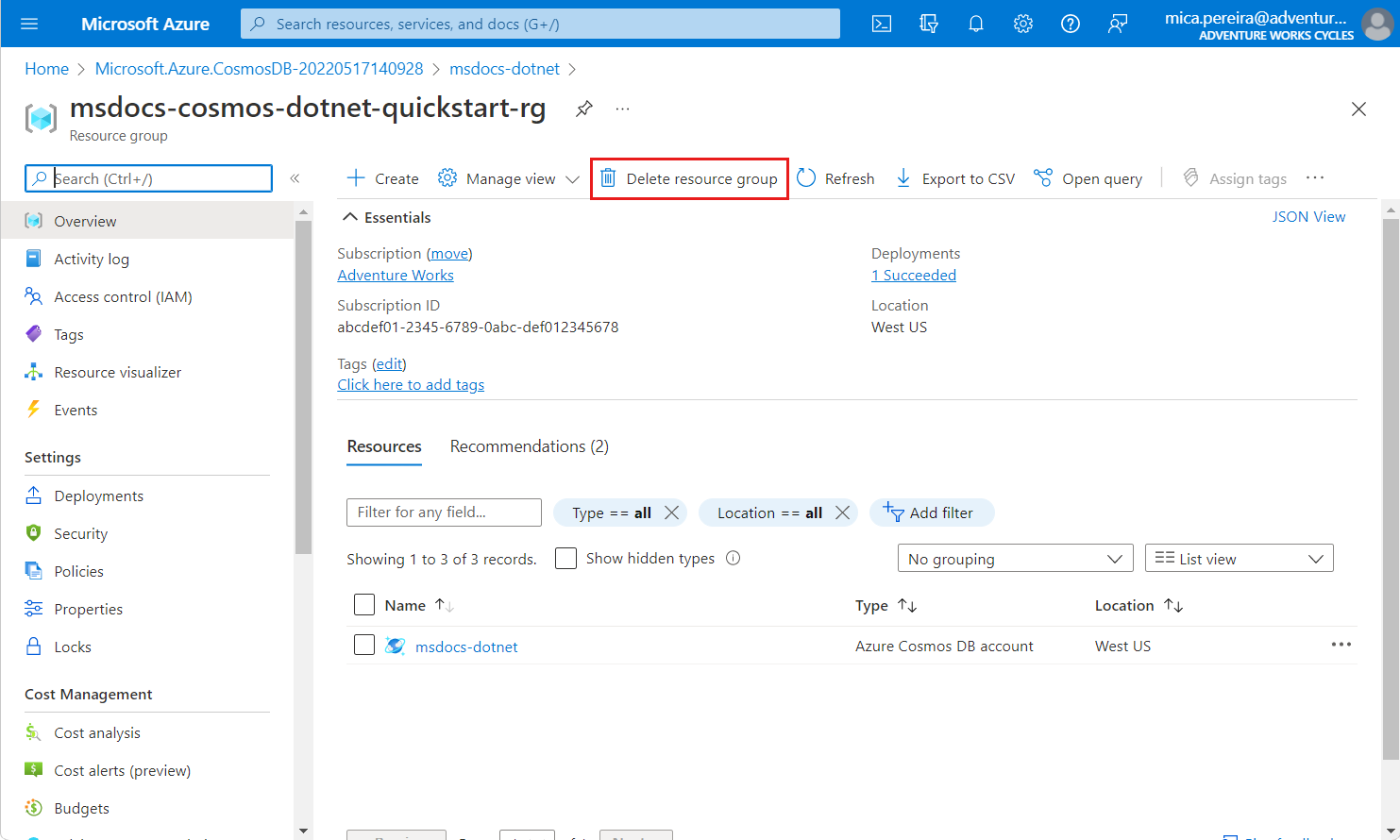
msdocs-cosmos-quickstart-rg.Select Delete resource group.
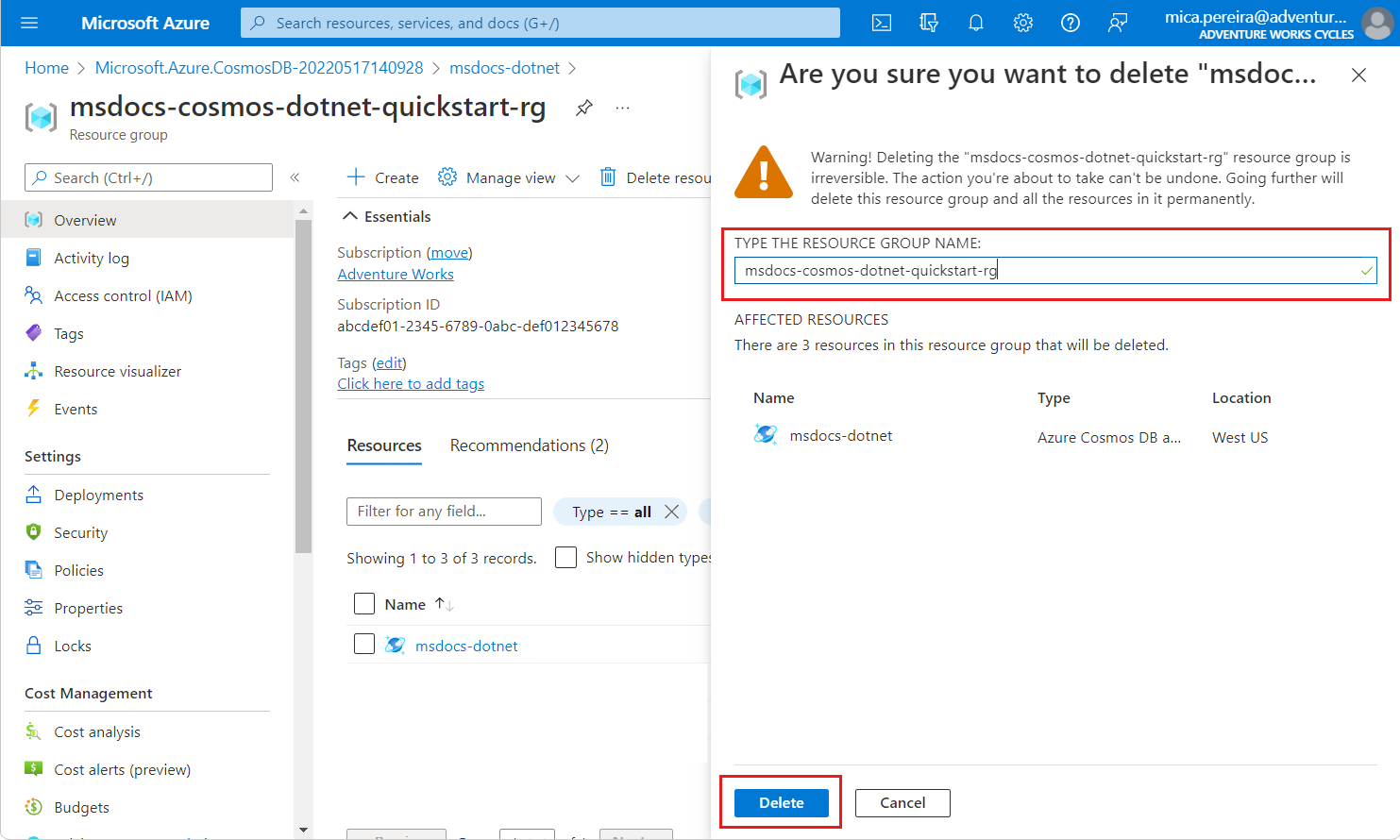
On the Are you sure you want to delete dialog, enter the name of the resource group, and then select Delete.