Note
Access to this page requires authorization. You can try signing in or changing directories.
Access to this page requires authorization. You can try changing directories.
Note
Because Windows 2016 hosted runners were fully removed on April 1, 2022, this method of using the Azure Cosmos DB emulator with build task in Azure DevOps is no longer supported. Alternative solutions are in development. Meanwhile, you can complete the following instructions to use the Azure Cosmos DB emulator, which comes pre-installed when you use the windows-2019 agent type.
The Azure Cosmos DB Emulator provides a local environment that emulates the Azure Cosmos DB service for development purposes. The emulator allows you to develop and test your application locally, without creating an Azure subscription or incurring any costs.
PowerShell Task for Emulator
You can script a typical PowerShell-based task that starts the Azure Cosmos DB emulator as follows:
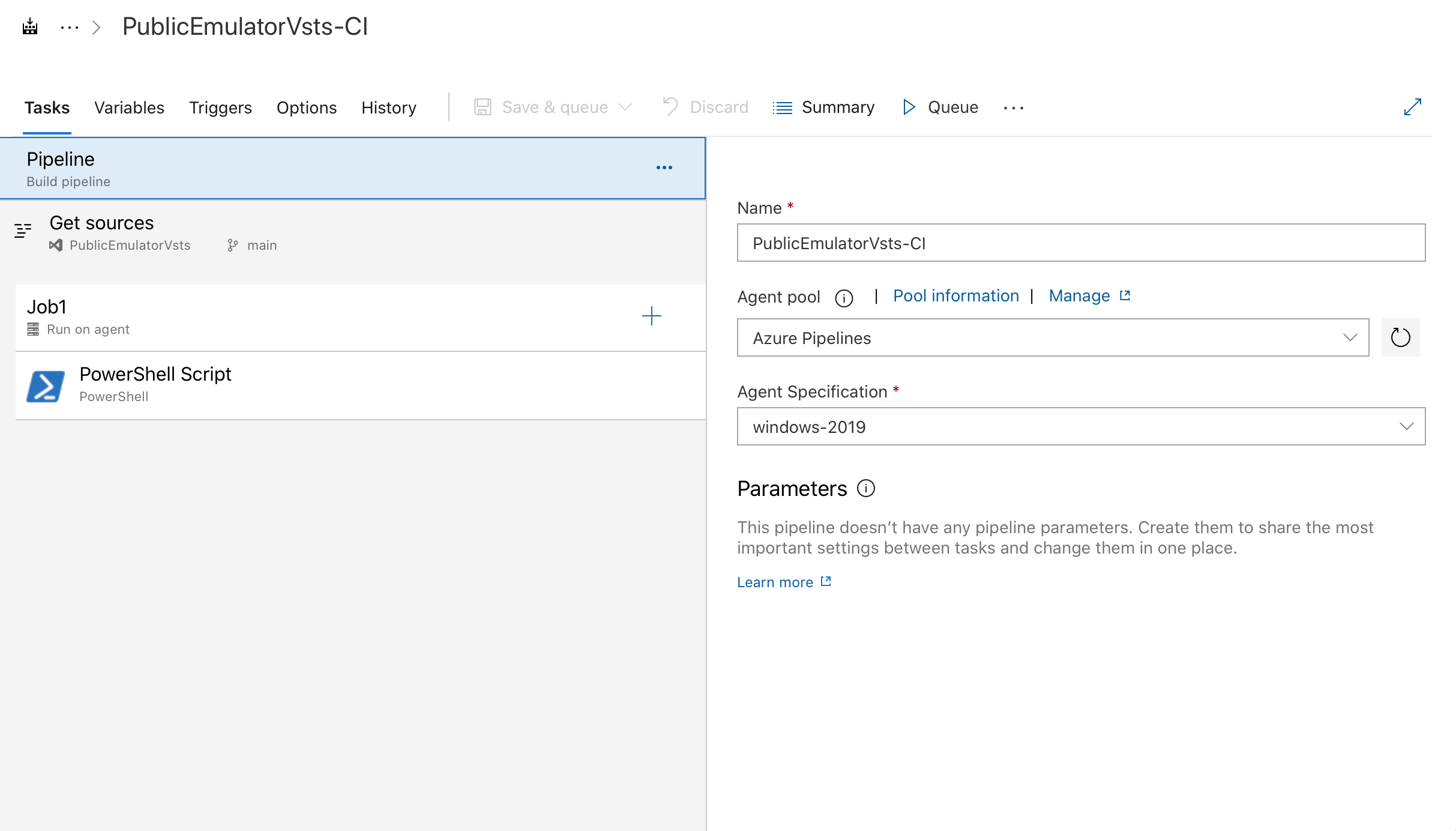
Example of a job configuration, selecting the windows-2019 agent type.
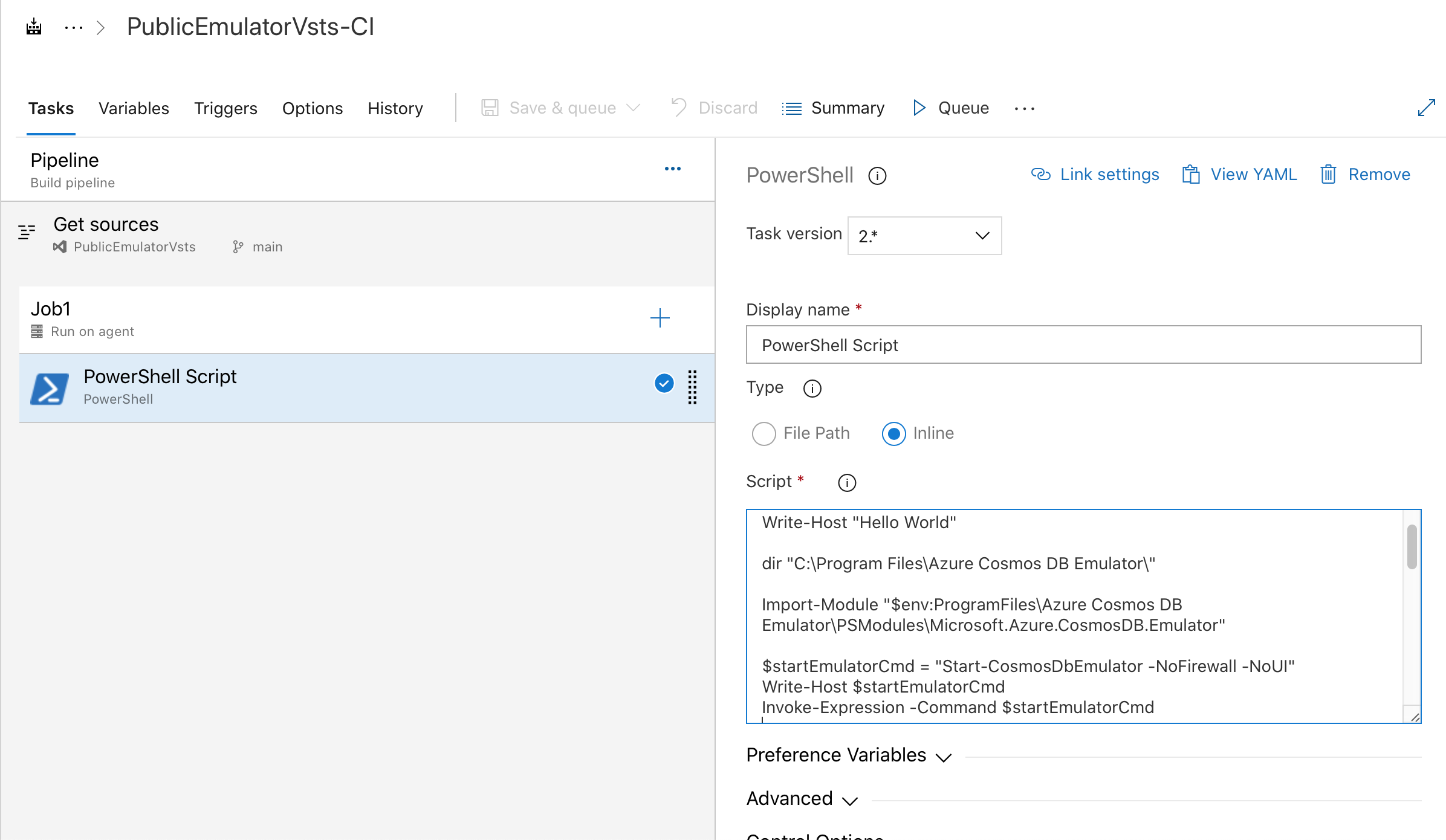
Example of a task executing the PowerShell script needed to start the emulator:
# Write your PowerShell commands here.

dir "$env:ProgramFiles\Azure Cosmos DB Emulator\"

Import-Module "$env:ProgramFiles\Azure Cosmos DB Emulator\PSModules\Microsoft.Azure.CosmosDB.Emulator"

$startEmulatorCmd = "Start-CosmosDbEmulator -NoFirewall -NoUI"
Write-Host $startEmulatorCmd
Invoke-Expression -Command $startEmulatorCmd

# Pipe an emulator info object to the output stream

$Emulator = Get-Item "$env:ProgramFiles\Azure Cosmos DB Emulator\Microsoft.Azure.Cosmos.Emulator.exe"
$IPAddress = Get-NetIPAddress -AddressFamily IPV4 -AddressState Preferred -PrefixOrigin Manual | Select-Object IPAddress

New-Object PSObject @{
Emulator = $Emulator.BaseName
Version = $Emulator.VersionInfo.ProductVersion
Endpoint = @($(hostname), $IPAddress.IPAddress) | ForEach-Object { "https://${_}:8081/" }
MongoDBEndpoint = @($(hostname), $IPAddress.IPAddress) | ForEach-Object { "mongodb://${_}:10255/" }
CassandraEndpoint = @($(hostname), $IPAddress.IPAddress) | ForEach-Object { "tcp://${_}:10350/" }
GremlinEndpoint = @($(hostname), $IPAddress.IPAddress) | ForEach-Object { "http://${_}:8901/" }
TableEndpoint = @($(hostname), $IPAddress.IPAddress) | ForEach-Object { "https://${_}:8902/" }
IPAddress = $IPAddress.IPAddress
}
You can also build your own self-hosted Windows agent if you need to use an agent that doesn't come with the Azure Cosmos DB emulator pre-installed. On your self-hosted agent, you can download the latest emulator's MSI package from https://aka.ms/cosmosdb-emulator by using curl or wget. Then, use msiexec to install it silently. After the install, you can run a PowerShell script that's similar to the one earlier in this article to start the emulator.
Related content
To learn more about using the emulator for local development and testing, see Use the Azure Cosmos DB Emulator for local development and testing.
To export emulator TLS/SSL certificates, see Set up a CI/CD pipeline with the Azure Cosmos DB Emulator build task in Azure DevOps.