Note
Access to this page requires authorization. You can try signing in or changing directories.
Access to this page requires authorization. You can try changing directories.
Important
This feature is in Beta. Azure Databricks enables code security scanning for eligible workspaces during the beta.
Important
Security scans may produce false positives and may not identify all security bugs.
Databricks Apps scans your app's source code for common security issues each time you deploy a source code change. Scanning doesn't block or fail a deployment. Findings appear on the app's Security page, where an app manager can review and triage them.
How code security scanning works
Code security scanning runs static analysis on your app's source code as part of deployment:
- Runs on source code changes: A scan runs automatically when you deploy a source code change. A deployment that reuses an existing build without a source code change isn't scanned.
- Reads your source only: The scanner analyzes your source code without running it, and never modifies your app.
- Non-blocking: The scanner reports security findings but doesn't block or fail the deployment. Review and address findings based on their severity and your security requirements.
- Fails safe: If a scan can't complete, the result is recorded as unavailable rather than clean, so a missing scan is never mistaken for a passing one.
What scanning detects
Code security scanning analyzes your app's source code only. It doesn't scan your app's dependencies and doesn't perform dynamic analysis of the running app.
The scanner uses detection rules selected, created, and tuned by Azure Databricks for Databricks Apps. Azure Databricks may add, remove, or update rules over time to improve detection coverage and accuracy. The rules detect common classes of vulnerabilities, including:
- Hardcoded credentials and secrets
- SQL injection
- Cross-site scripting (XSS)
- Server-side request forgery (SSRF)
- Path traversal
- Unsafe deserialization
- Permissive cross-origin resource sharing (CORS) configuration
- Unsafe YAML loading
- Exposure of user (on-behalf-of) tokens
Note
A clean scan doesn't guarantee that your app is secure. The scanner checks for a specific set of issues, so problems that its rules don't cover aren't detected. Keep your own code review and security practices in place, especially for apps that handle sensitive data. For more security guidance, see Security best practices.
View security findings
You must have the CAN MANAGE permission on an app to view its security findings. See Configure permissions for a Databricks app.
To view findings:
- In your workspace, open the app. See View the details for a Databricks app.
- Select the Security tab.
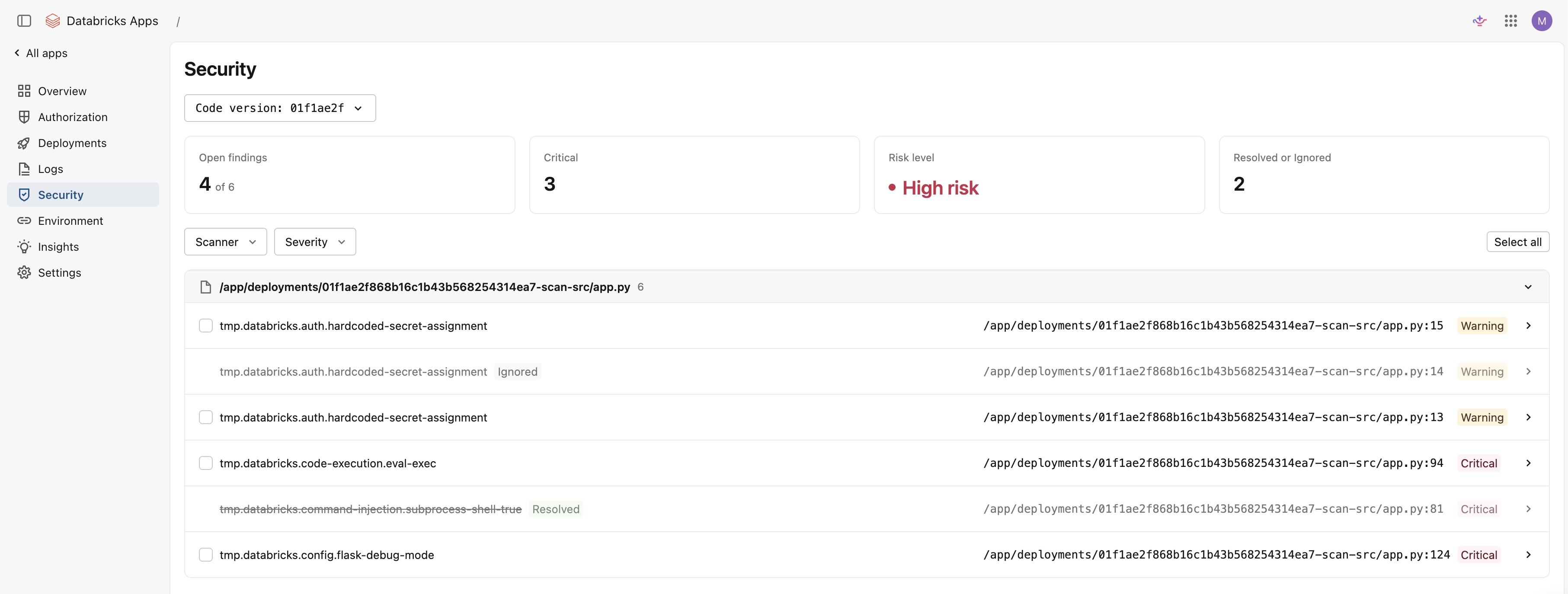
The Security page shows findings for the selected deployment, grouped by file. Each finding includes:
- The check that matched
- The file path and line number
- A severity level
- A description of the issue
Findings use the following severity levels:
- Critical: A high-severity issue, such as a likely vulnerability, that you should address before you rely on the app.
- Warning: A potential issue that you should review and fix if it applies to your app.
- Info: A lower-risk observation or secure-coding suggestion to be aware of.
A summary at the top of the page shows the number of open findings, the number of critical findings, an overall risk level, and the number of findings you've resolved or ignored. The risk level reflects your open findings and their severity; findings that you resolve or ignore don't count toward it. Filter findings by severity to focus on the issues that matter most.
To review the results of an earlier deployment, use the code version picker to select a previous deployment.
Triage findings
Triage lets you track which findings you've addressed. As with viewing findings, you must have the CAN MANAGE permission on the app to triage them.
Each finding has one of the following states:
- Open: The default state for a new finding.
- Resolved: Mark a finding resolved after you fix the underlying issue.
- Ignored: Ignore a finding that doesn't apply to your app or that you've accepted as a known risk.
To triage a finding, select Mark resolved or Ignore on the finding. To move a finding back to open, select Reopen. To triage several findings at once, select multiple findings and apply an action in bulk.
Triage state is saved per finding and persists across deployments. If the same issue appears in a later deployment, it keeps the state you set, so you don't re-triage issues you've already reviewed.
Scan results
The Security page reflects the outcome of the deployment's scan. The scan outcome describes what the scan found, and the scan status describes whether the scan completed.
Results reflect the detection rules that were in effect when the scan ran. Azure Databricks doesn't re-scan an existing deployment when rules change, so an earlier result (including No security findings) might not reflect the current rules. A new scan runs automatically on your next source code change.
The following outcomes describe what the scan found:
| Outcome | Description |
|---|---|
| No security findings | The scan completed and found no issues from the current rule set. |
| Findings | The scan found one or more issues to review and triage. |
The following statuses describe the state of the scan itself:
| Status | Description |
|---|---|
| Scanning this deployment | The scan is in progress. The page updates automatically when the scan finishes. |
| Scan incomplete | The scan ran but skipped some files or rules, so results may be partial. |
| Scan results unavailable | The scan couldn't complete for this deployment. |
| This deployment was not scanned | The deployment reused an existing build without a source code change. Redeploy after a code change to scan it. |