Note
Access to this page requires authorization. You can try signing in or changing directories.
Access to this page requires authorization. You can try changing directories.
Important
This feature is in Public Preview.
Note
The Azure Databricks Excel Add-in is not available in Azure Government or Azure China regions.
This page describes how the Azure Databricks Excel Add-in connects to your Azure Databricks workspace and which network security features apply to its traffic.
Network traffic and architecture
The Azure Databricks Excel Add-in runs in Excel on the user's computer. Requests from the add-in to your workspace come from that computer's IP address, the same as when a user opens the workspace in a browser. The add-in therefore works with the existing security features of your Azure Databricks workspace, such as IP access lists and front-end Private Link.
When users connect to your workspace through front-end Private Link, traffic between the add-in and your workspace uses your private network. This includes workspace sign-in, browsing data, running queries, returning query results to Excel, and writing data back to Azure Databricks.
When front-end Private Link is enabled and public access to the workspace is disabled, users must connect to your corporate network or VPN to use the add-in. If a user isn't connected, the workspace blocks their requests, including sign-in.
The following diagram shows how the add-in communicates with your workspace:
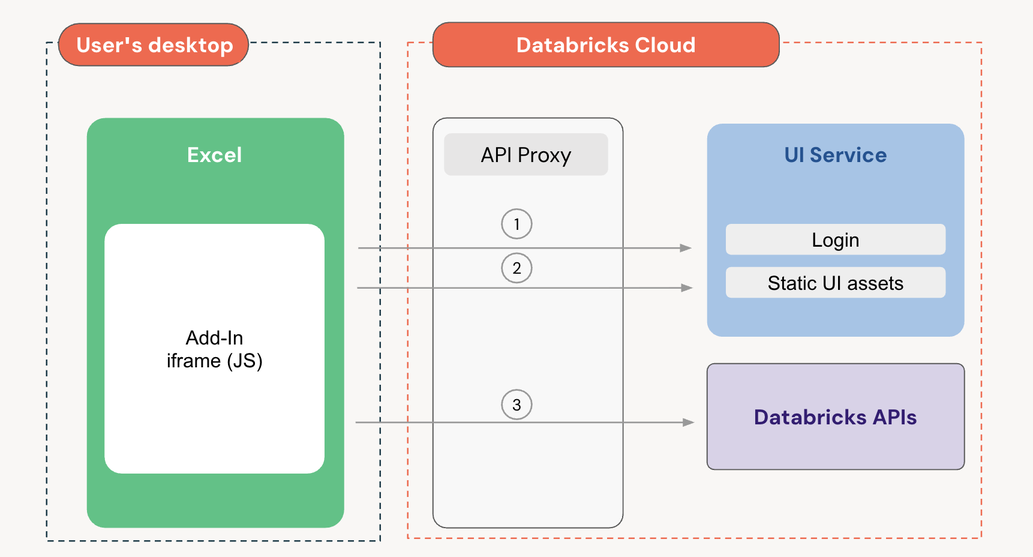
- The user signs in to the Azure Databricks workspace.
- The workspace serves the add-in's UI to Excel, where it runs in an iframe.
- The add-in calls the Azure Databricks APIs it needs.
Scheduled refresh
Scheduled refresh runs within Azure Databricks as a job, not in Excel. To update the workbook, Azure Databricks makes an outbound call to the public Microsoft Graph API endpoint (graph.microsoft.com).