Note
Access to this page requires authorization. You can try signing in or changing directories.
Access to this page requires authorization. You can try changing directories.
To use the Databricks Connector for Google Sheets, you must first connect to your Azure Databricks workspace and select a SQL warehouse. This page describes how to set up the initial connection and how to switch to a different workspace.
Prerequisites
- Create an Azure Databricks workspace. See Create a workspace.
- Create an Azure Databricks SQL warehouse. See Create a SQL warehouse.
- Have access to Google Sheets.
- Install the Databricks Connector for Google Sheets.
- If your Azure Databricks workspace has IP access lists enabled, the account admin must add the Google Cloud IP list to the allow list.
- To learn more about IP access lists, see Configure IP access lists for the account console.
- For the Google Cloud IP list, see this IP list.
Connect to Azure Databricks workspace
After installing the Databricks Connector for Google Sheets, import data from Azure Databricks into Google Sheets by connecting to an Azure Databricks workspace:
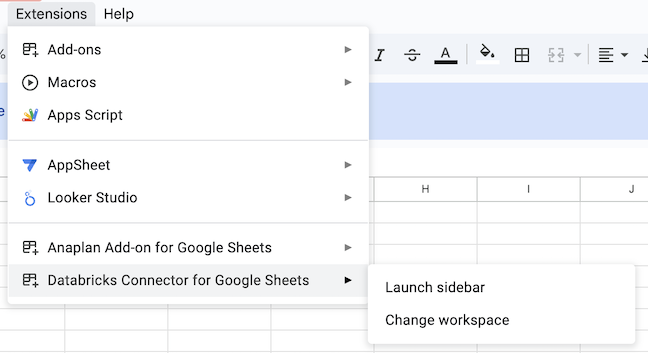
In the Google Sheets menu bar, click Extensions > Databricks Connector > Launch sidebar to open the connector.
In the Login dialog, enter your Azure Databricks workspace URL, including the
?o=<workspace-id>parameter. For information about finding your workspace URL and workspace ID, see Get identifiers for workspace objects.- Per-workspace URL:
https://adb-<workspace-id>.<random-number>.azuredatabricks.net/?o=<workspace-id> - Custom URL:
https://<custom-url>.azuredatabricks.net/?o=<workspace-id>
- Per-workspace URL:
Click Sign in.
A dialog prompts you to sign in or shows your login status.
After logging in, select which SQL warehouse to use. In the Databricks Connector sidebar, under the New import tab, choose a Databricks SQL warehouse by clicking the circle in the upper right of the connector sidebar and selecting your preferred Databricks SQL warehouse. The connector starts the chosen SQL warehouse.

Change Azure Databricks workspace
To change the Azure Databricks workspace you are connected to:
- Select Extensions > Databricks Connector > Change workspace.
- Enter the new workspace URL, including the
?o=<workspace-id>parameter, and authenticate to the workspace.