Note
Access to this page requires authorization. You can try signing in or changing directories.
Access to this page requires authorization. You can try changing directories.
Use Microsoft Entra ID to authenticate access to Azure Databricks Git folders from your Azure DevOps automation. This page explains how to configure an Azure Databricks service principal with Microsoft Entra for authorization.
Requirements
Before you begin, verify that you have the following:
- Workspace admin privileges in your Azure Databricks account
- Service principal user privileges in your Azure Databricks account
- A Microsoft Entra application ID for your Azure DevOps application, and permissions to modify its credentials.
If you don't have a Microsoft Entra application ID, see Authenticate to Azure DevOps with Microsoft Entra and Register an application in Microsoft Entra ID.
Configure a Microsoft Entra service principal
After you meet the requirements, configure your service principal in Azure Databricks and set up the federated credentials in Microsoft Entra ID.
As a workspace admin, log in to the Azure Databricks workspace.
Click your username in the top bar and select Settings.
Click the Identity and access tab.
Next to Service principals, click Manage.
Click Add service principal or select an existing service principal to reconfigure. If you select an existing service principal, skip the next step.
To create a new Microsoft Entra ID managed service principal:
- Select the Microsoft Entra ID managed radio button.
- Enter your Microsoft Entra ID application ID in the Microsoft Entra application ID field.
- Enter a name in the Service principal name field.
- Select the entitlements that your Azure DevOps automation requires, including Workspace access.
- If your service principal runs Lakeflow Jobs that access artifacts from Git folders, select Unrestricted cluster creation.
- Click Add. Your new service principal appears in the Service principals list.
In the Service principals list, find and select your Microsoft Entra ID service principal.
Click the Git integration tab and select Add Git credential.
From the Git provider menu, select Azure DevOps Services (Microsoft Entra ID).
Copy the federated credential information. You use this information in the next step.
Important
Don't select I've done the steps above or click Save yet.
In a new browser window or tab, open the Microsoft Entra ID portal for your Azure subscription.
Find your Azure application.
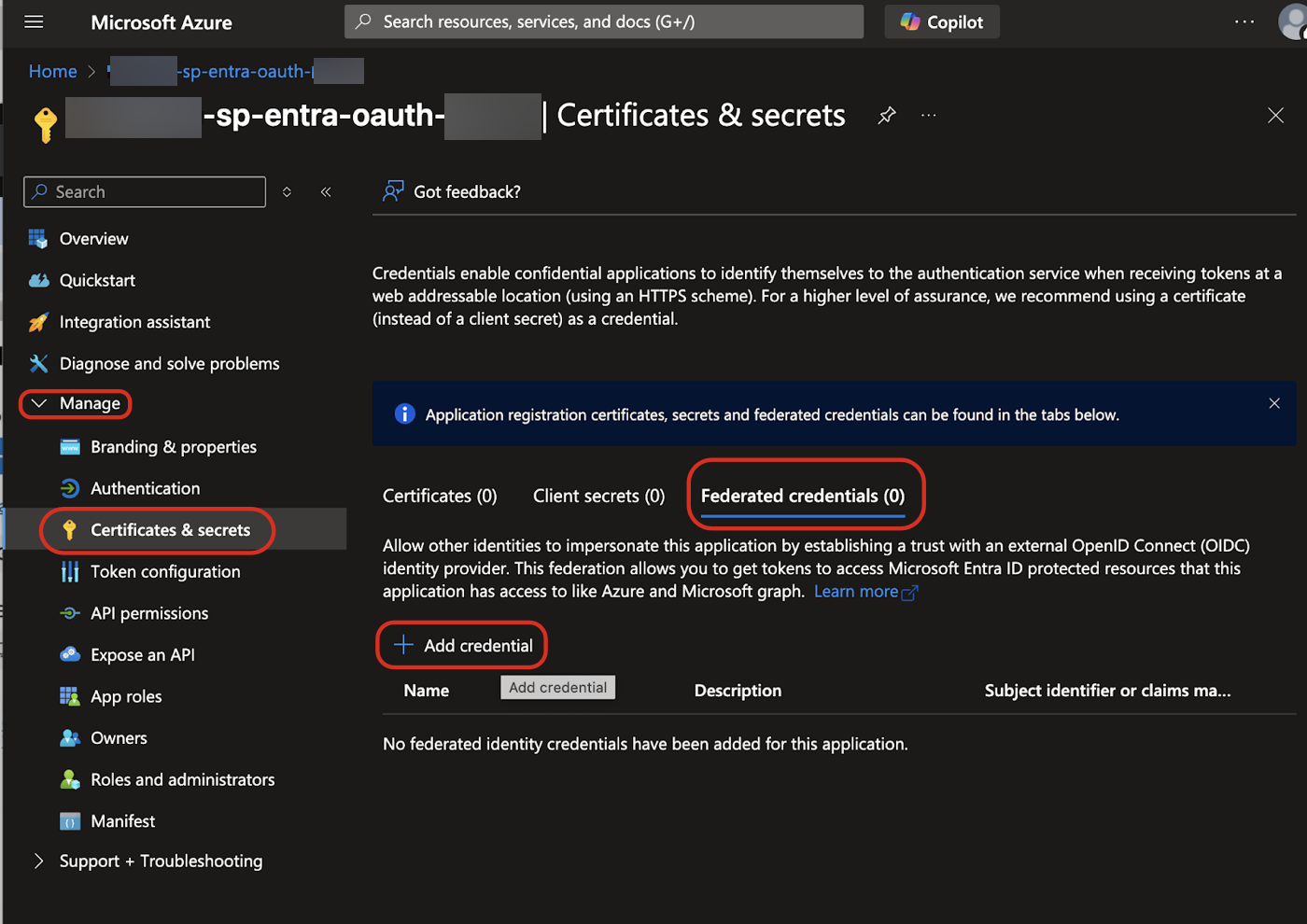
Select Manage > Certificates & secrets.
Click the Federated credentials tab.
Click Add credential.
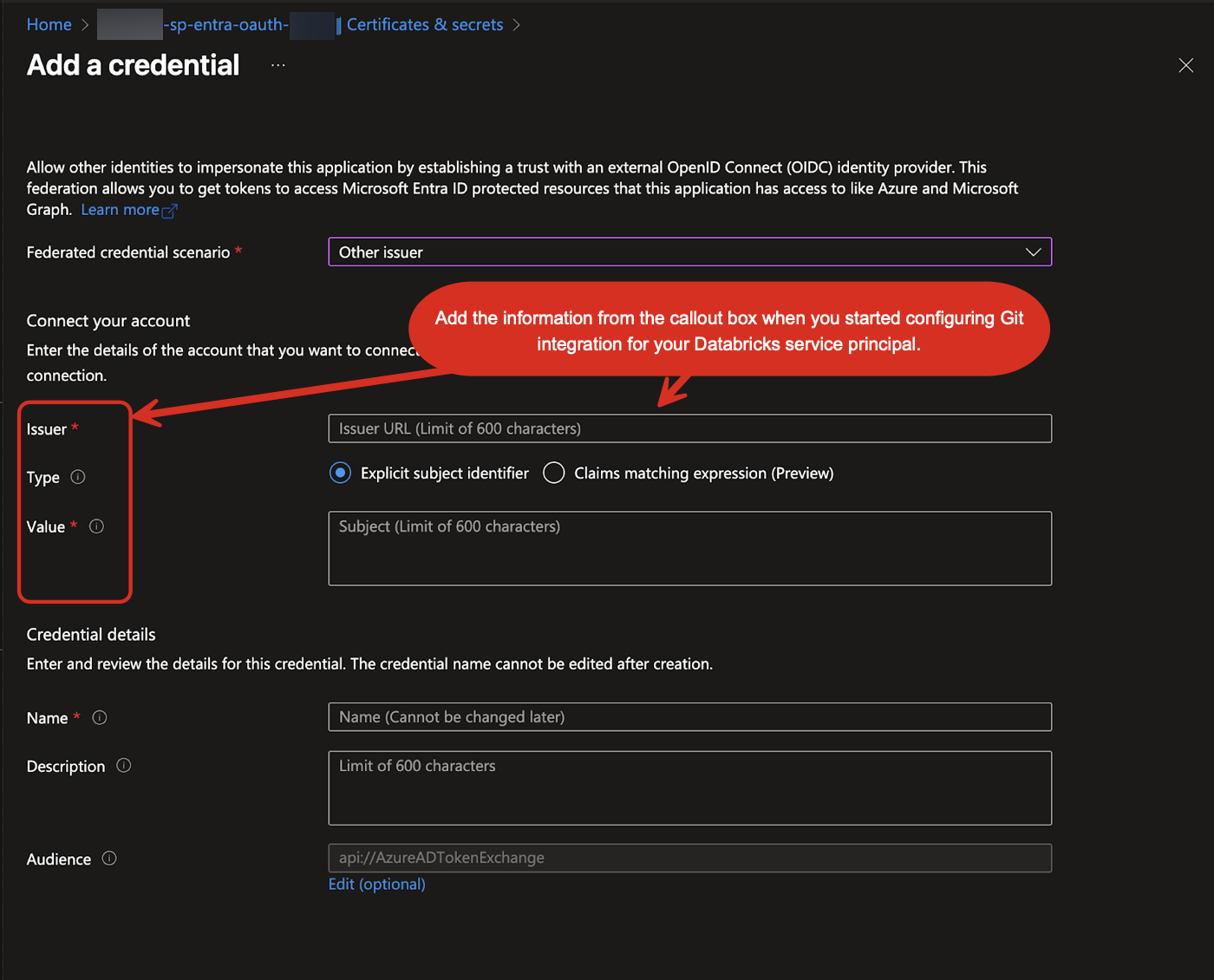
In the Microsoft Entra ID portal, use the federated credential information you copied from Azure Databricks to populate the Issuer, Type, and Value fields under Connect your account.
Return to the Azure Databricks browser window with your service principal Git integration configuration.
Select I've done the steps above.
Click Save.
Your service principal is now configured to access Azure Databricks Git folders through Azure DevOps. When you share this service principal, grant Service Principal User access to any workspace users who need it. This includes users who run Git jobs or use automation code that accesses the Repos API.
Troubleshooting
If you encounter issues with your service principal configuration, check the following common problems.
Service principal access level in Azure DevOps
Your service principal must have an access level of Basic or higher in the Azure DevOps organization of the target repository. To configure this:
- In your Azure DevOps subscription, go to Organization Settings > Users > Add Users.
- Copy and paste your service principal's application (client) ID into the Users or Service Principals search box.
- Select your service principal account.
For more information, see Change access levels in the Azure DevOps documentation.
Service principal permissions
Your service principal must be added to your Azure workspace. Other users on your Azure account must have permissions to use it. See Service principals.