Note
Access to this page requires authorization. You can try signing in or changing directories.
Access to this page requires authorization. You can try changing directories.
Note
The approach above is provided as general guidance. Network connectivity between Azure and your on-premises environment is outside of the Databricks platform scope. Customers are responsible for designing and implementing connectivity that aligns with their security, availability, and performance requirements.
If you must configure an NCC private endpoint rule for your on-premises Git server, you cannot directly add the Git server to the Azure Standard Load Balancer (SLB) backend pool. This is because IP-based backend resources must be VMs or Virtual Machine Scale Sets in the same VNet as the SLB (see Azure reference at Backend pool management).
To achieve this, the following additional configurations are required:
- Deploy a proxy server: Launch a VM (or a Virtual Machine Scale Set if autoscaling and high availability are required) to act as a proxy. This server forwards traffic from the SLB to your on-premises Git server.
- Establish private connectivity: Ensure that private connectivity exists between your Azure VNet and your on-premises network.
- Configure DNS: Make sure the proxy server can resolve the fully qualified domain name (FQDN) of your on-premises Git server to the correct IP address.
The following diagram is a high-level reference architecture of these configurations:

Step 1. Establish private connectivity
Work with your networking team to connect your Azure VNet to your on-premises network. Choose one of the following:
- Azure ExpressRoute (recommended for high performance and reliability)
- Site-to-site VPN (suitable for smaller or test environments)
Tip: Before continuing, confirm that traffic between the Azure VNet and your Git server’s network flows correctly.
Step 2. Configure DNS resolution
The proxy server in Azure must resolve your Git server’s FQDN. You can configure this in the following ways:
- Custom DNS server – Use your organization’s DNS infrastructure.
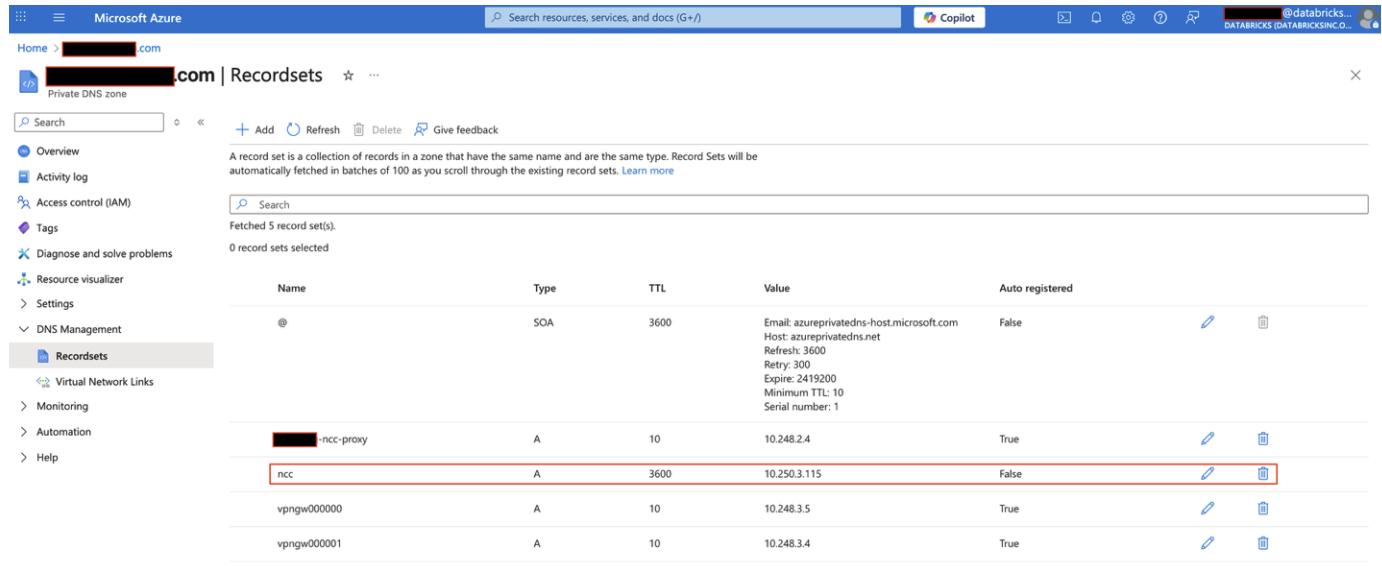
- Azure Private DNS zone – Create a private DNS zone, add records for your Git server, and link the zone to your VNet.
Example using a private DNS zone:
Step 3. Deploy and configure the proxy server
- Launch a VM (or Virtual Machine Scale Set) in the same VNet as the SLB.
- Install a proxy service of your choice on the VM.
Example using Red Hat Enterprise Linux 9.4 with HAProxy 2.4.22
Linux commands:
sudo yum update -y
sudo yum install haproxy -y
sudo vim /etc/haproxy/haproxy.cfg
sudo systemctl start haproxy
sudo systemctl status haproxy
sudo systemctl enable haproxy
Configuration file (/etc/haproxy/haproxy.cfg):
global
    log /dev/log local0
    chroot /var/lib/haproxy
    pidfile /var/run/haproxy.pid
    maxconn 4000
    user haproxy
    group haproxy
    daemon
    # turn on stats unix socket
    stats socket /var/lib/haproxy/stats
    # utilize system-wide crypto-policies
    ssl-default-bind-ciphers PROFILE=SYSTEM
    ssl-default-server-ciphers PROFILE=SYSTEM

defaults
    mode http
    log global
    option httplog
    option dontlognull
    option http-server-close
    option forwardfor except 127.0.0.0/8
    option redispatch
    retries 3
    timeout http-request 10s
    timeout queue 1m
    timeout connect 10s
    timeout client 1m
    timeout server 1m
    timeout http-keep-alive 10s
    timeout check 10s
    maxconn 3000

frontend main
    bind *:443
    mode tcp
    option tcplog
    default_backend git

backend git
    mode tcp
    server  onprem_git git.company.com:443 check # <-- REPLACE this with your Git server hostname/IP and port
Important: Do not leave git.company.com:443 as-is. Replace it with your actual Git server’s hostname or IP and port, otherwise HAProxy will not be able to route traffic.
- Test connectivity from the proxy server to your on-premises Git server (for example, curl, netcat).
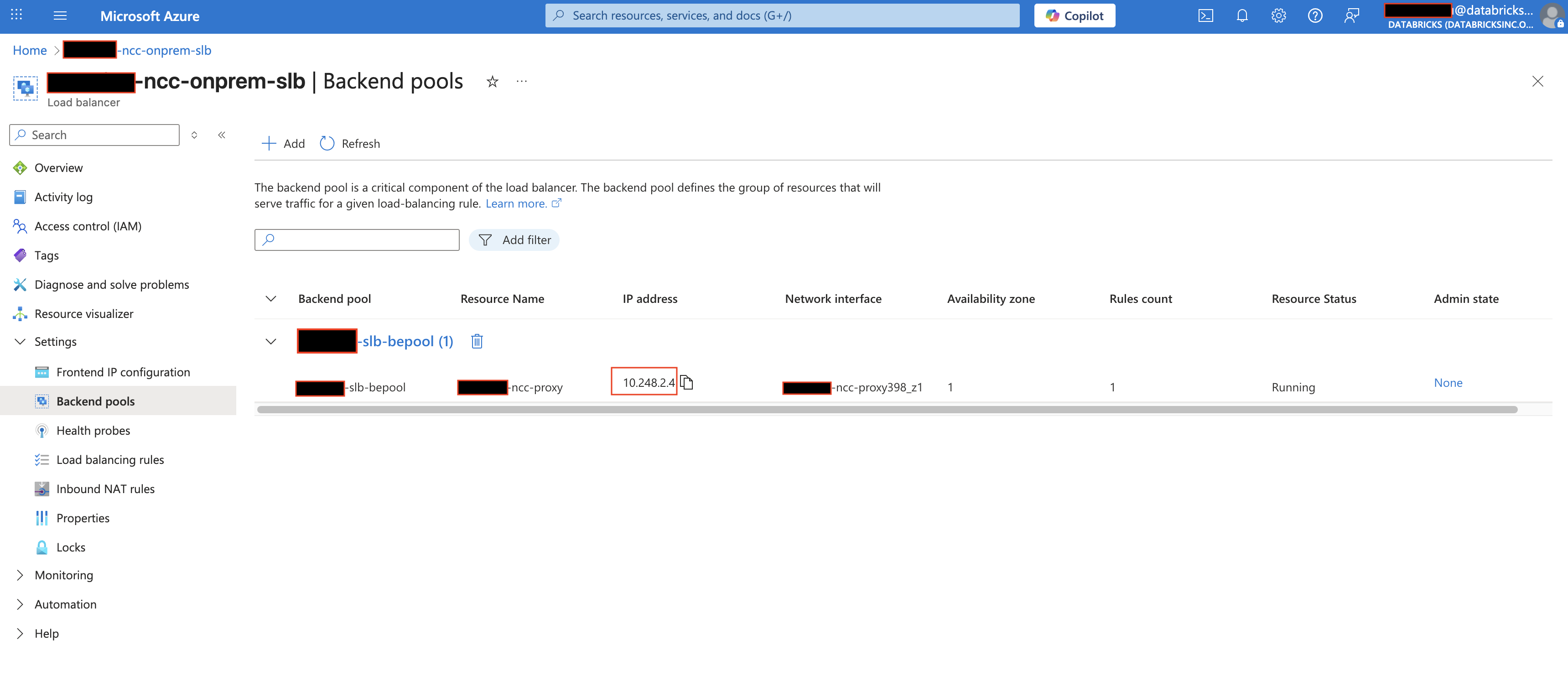
- Add the proxy server’s private IP to your SLB backend pool.
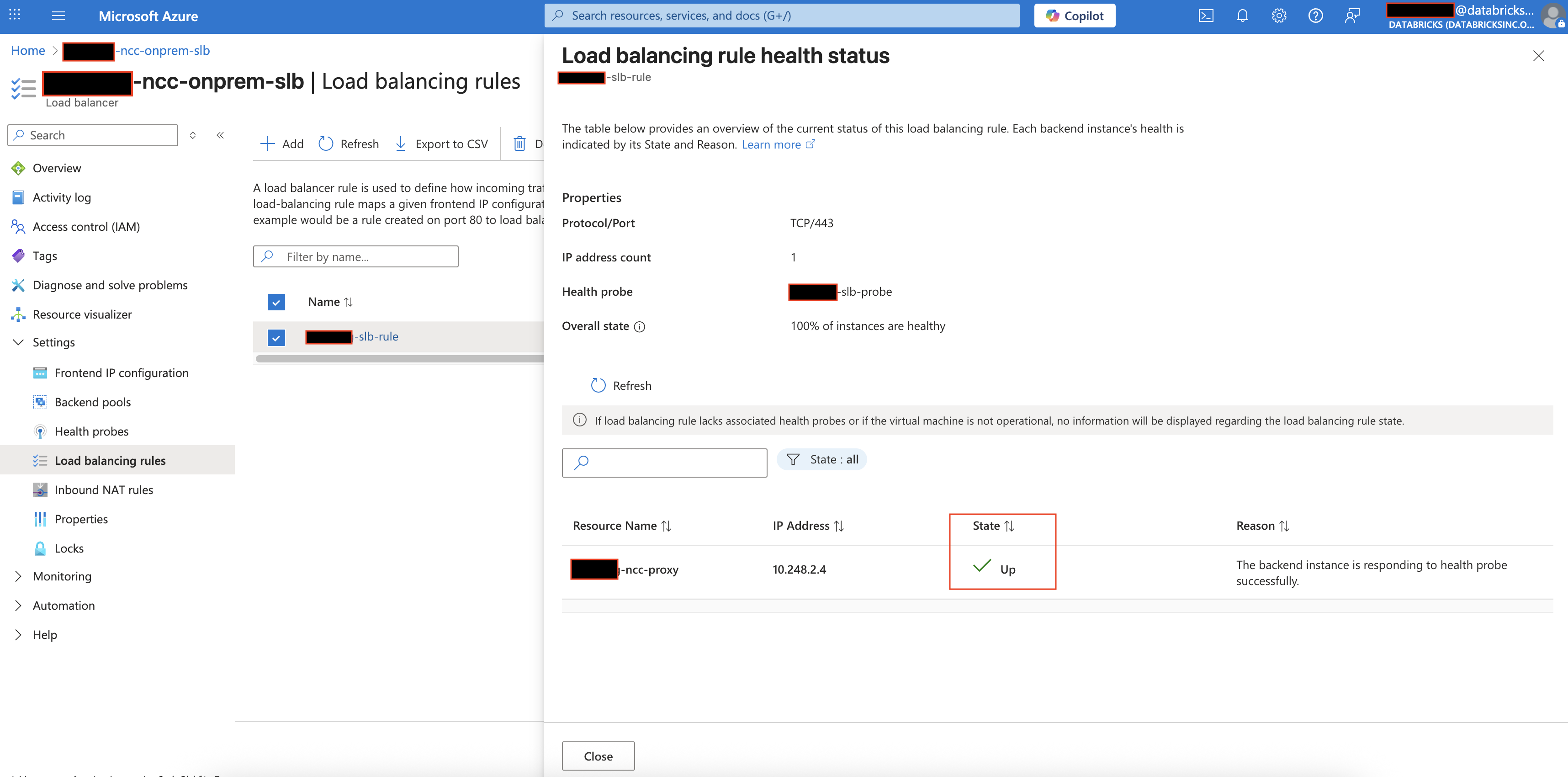
- Verify that the SLB load balancing rule reports a healthy state.