Note
Access to this page requires authorization. You can try signing in or changing directories.
Access to this page requires authorization. You can try changing directories.
After you create an alert, you can find it on the alerts listing page, share it with collaborators, transfer ownership, and track changes with Azure Databricks Git folders. This page covers each of those ongoing management tasks.
View and organize alerts
Click  Alerts in the sidebar to open the alerts listing page.
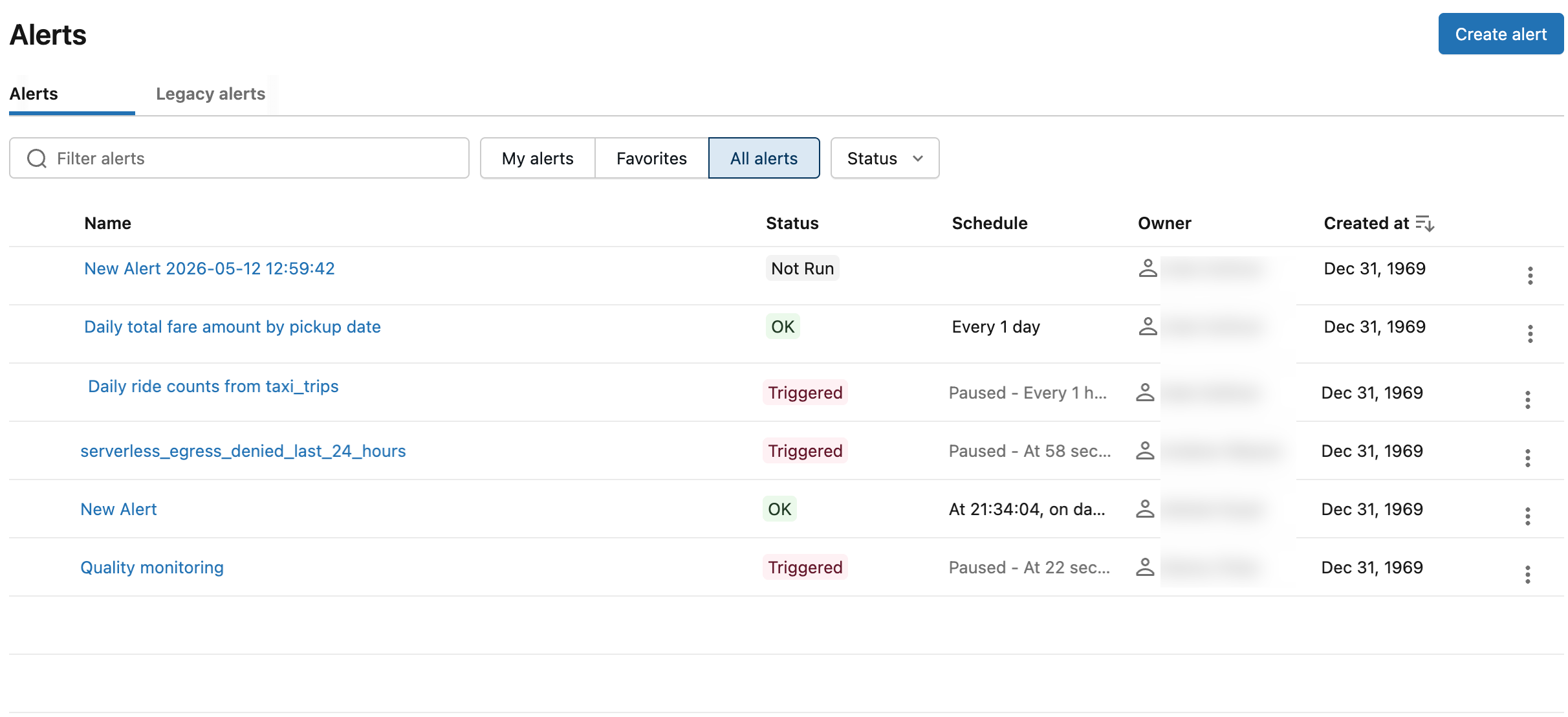
- The Alerts tab is open by default and shows all alerts in the workspace. Enter text to filter by name. Use the buttons to filter the list by owner or favorites.
- The Legacy alerts tab shows alerts that you created using the previous alerts system.
- Name shows the string name of each alert.
- Status shows whether the alert status is
TRIGGERED,OK, orERROR. - Schedule shows the last updated time or date.
- Owner shows the username of the person who owns the alert.
- Created at shows the date and time the alert was created.
TRIGGEREDmeans that on the most recent execution, the Value column in your target query met the Condition and Threshold you configured. If your alert checks whether "cats" is above 1500, your alert will be triggered as long as "cats" is above 1500.OKmeans that on the most recent query execution, the Value column did not meet the Condition and Threshold you configured. This doesn't mean that the Alert was not previously triggered. If your "cats" value is now 1470, your alert will show asOK.ERRORindicates that an error occurred during alert evaluation.
How Git integration works with alerts
You can use Azure Databricks Git folders to track and manage changes to alerts. To track alerts with Git, place them in a Azure Databricks Git folder. Newly cloned alerts only appear on the alerts list page or API after a user interacts with them. Their schedules are paused, and users must explicitly resume them.
Databricks Git folders provide a centralized way to manage common Git operations for alerts and other workspace objects. To learn more, see Azure Databricks Git folders.
Configure alert permissions and transfer alert ownership
Alert permissions determine who can view, run, and edit an alert. Workspace admins can also transfer ownership when an alert's original owner leaves the workspace.
For alert permission levels, see Alerts ACLs.
In the sidebar, click Alerts.
Click an alert.
Click Share in the alert detail page to open the Sharing dialog.
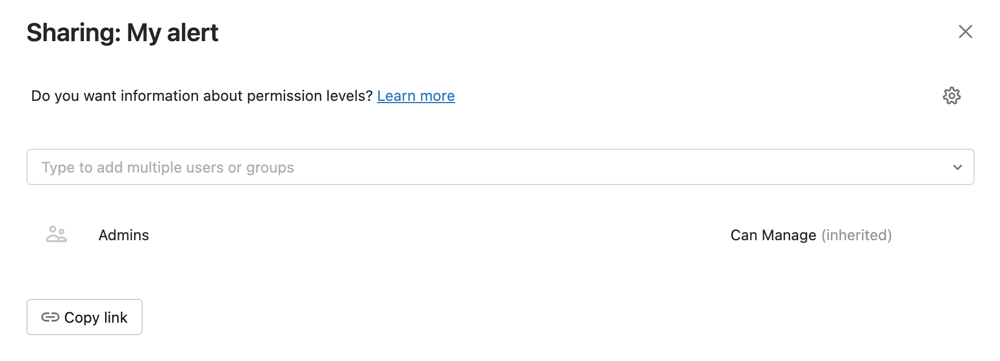
Search for and select the groups and users, and assign the permission level.
Click Add.
Transfer ownership of an alert
When you save an alert, you become the alert's owner. If an alert's owner is removed from a workspace, the alert no longer has an owner. A workspace admin user can transfer ownership of an alert to a different user. You can also transfer ownership using the Permissions API.
As a workspace admin, log in to your Azure Databricks workspace.
In the sidebar, click Alerts.
Click an alert.
Click the Share button at the upper right to open the Sharing dialog.
Click the gear icon at the upper right and click Assign new owner.

Select the user to assign ownership to.
Click Confirm.