Note
Access to this page requires authorization. You can try signing in or changing directories.
Access to this page requires authorization. You can try changing directories.
The new Databricks SQL editor lets you view, visualize, download, copy, and filter query results, with CSV, TSV, and Excel exports up to 5GB.
View query results
You can compare the output from each statement with multiple result statements. When you run multiple SQL statements from a single edit window, you can use the UI in the Output pane near the bottom of the page to scroll through the different result sets.
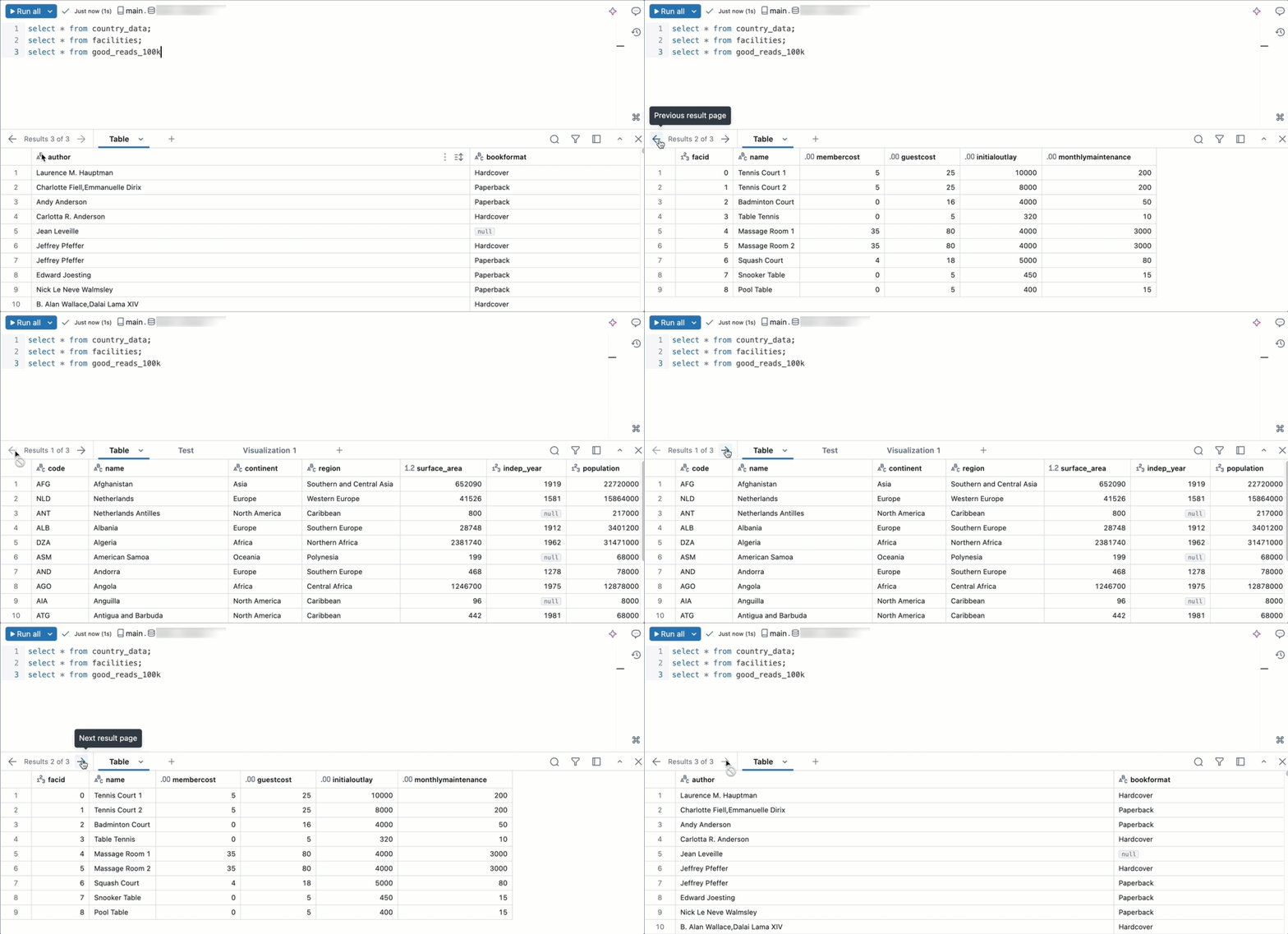
You can interact with and explore your query results using the result pane. The result pane includes the following features for exploring results.
Visualizations
Click the  to open the Visualization Editor. Visualizations can help explore the result set. See Notebook and SQL editor visualization types for a complete list of available visualization types.
Click the  on a visualization tab to show additional options.
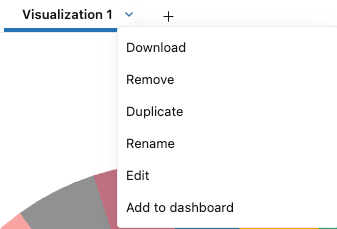
- Click Download to download the data represented in the visualization as a CSV, TSV, or Excel file.
- Click Remove to delete the visualization.
- Click Duplicate to clone the results tab.
- Click Rename to retitle the visualization.
- Click Edit to edit the visualization.
- Click Add to dashboard to copy the query and visualization to a new AI/BI dashboard.
- Select Create new dashboard or Add to existing dashboard.
- Create new dashboard: Creates a new dashboard that includes all the visualizations associated with the query. You are prompted to choose a name for the new dashboard. The new dashboard is saved to your Home folder.
- Add to existing dashboard: Adds your query and associated visualizations to an existing dashboard. Use the drop-down menu to choose the dashboard that the data set and visualization should be added to.
Preview files in FILE columns
In the results table, a value in a FILE type column appears as a clickable link that shows the file's path. Click the link to open a preview pane.
To view a value's full metadata as JSON instead of a link, click the kebab menu  in the column header and select Format > None.
Images and text-based files, such as JSON, display inline in the pane. If the editor can't display a file's type, download the file from the pane instead.
Previewing reads the file's contents, so you need access to both the file and the table. For a FILE EXTERNAL column, you need the READ VOLUME privilege on the underlying volume. For how file access is governed, see Metadata and contents access.
Download and copy results
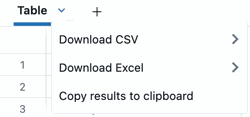
You can download results as a CSV or Excel file. Click the in a Table tab to view download options. You can also copy results to your clipboard using this menu.
You can download up to approximately 5GB of results data in CSV, TSV, or Excel format. The downloaded file might be slightly larger or smaller than 5GB, because Databricks applies the limit before generating the final file.
Note
If you cannot download a query, your workspace administrator has disabled download for your workspace.
To copy a smaller selection of rows from your query results, select the rows in the results table, right-click, and select Copy.
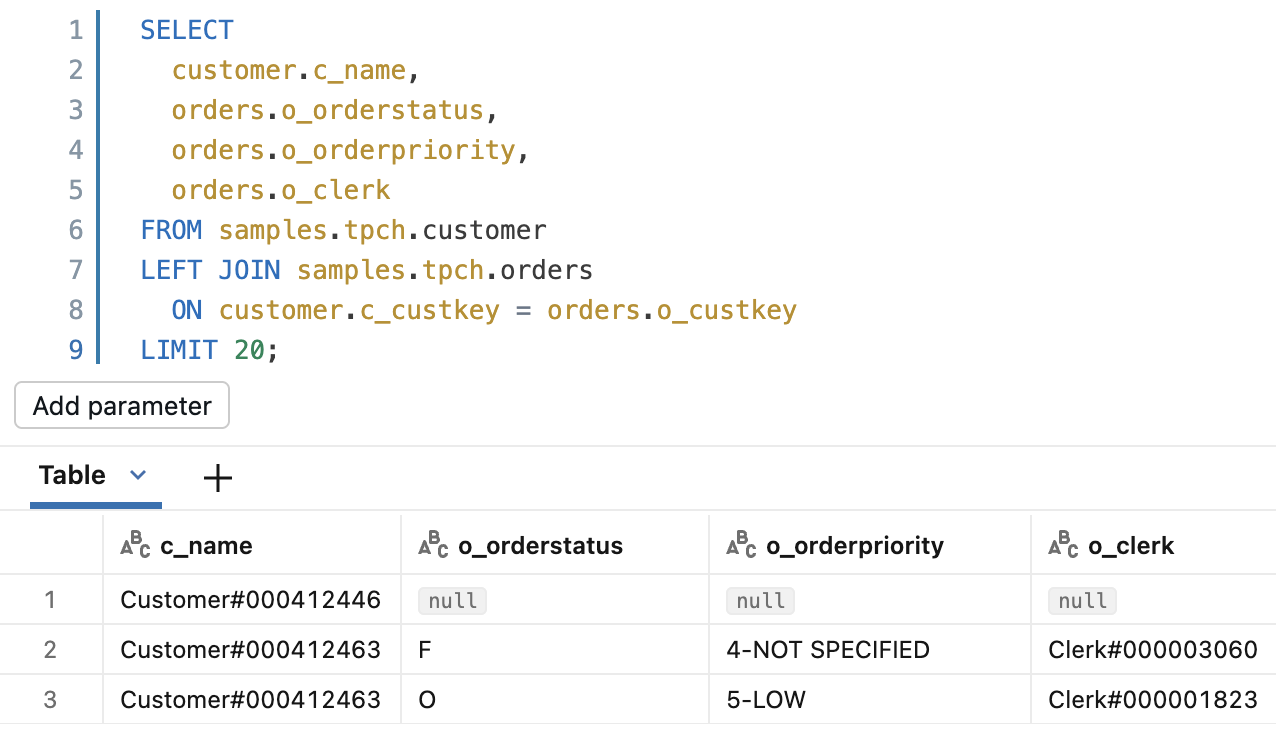
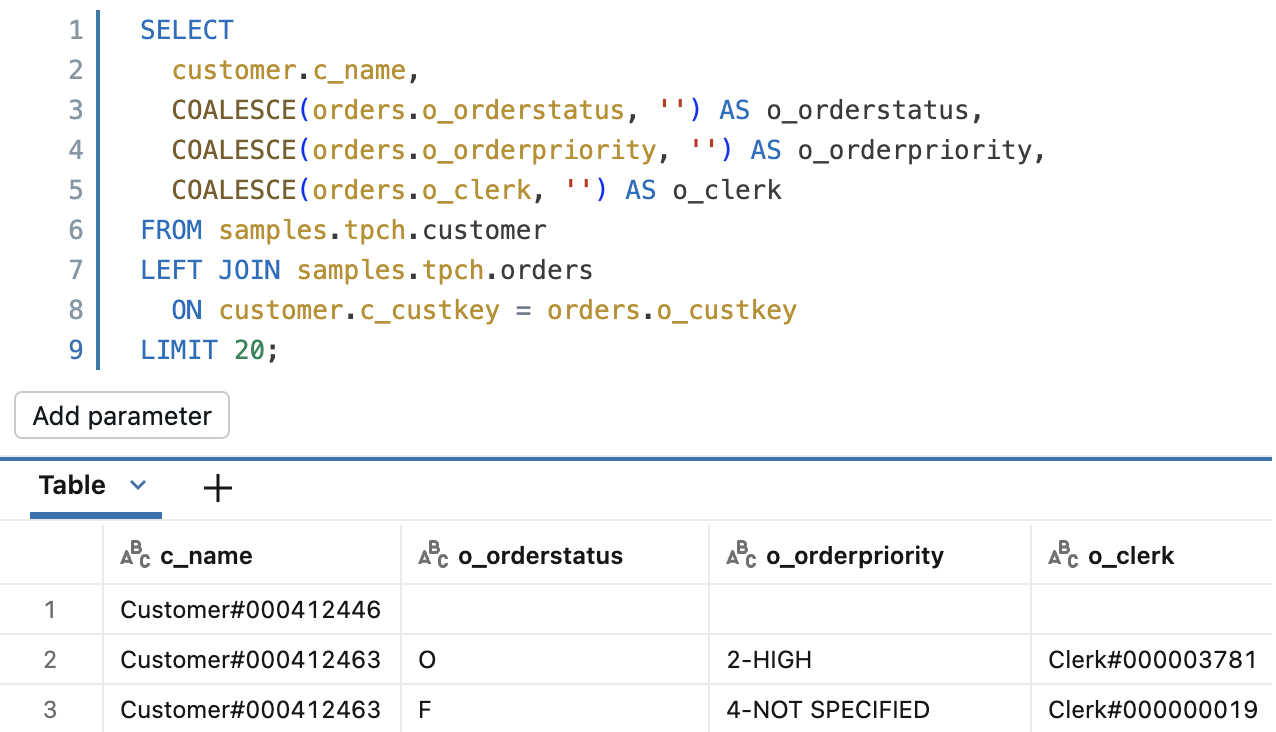
When you display, download, or copy query results, NULL values appear as the literal string null rather than as empty cells. To represent NULL values as empty cells instead, wrap columns in COALESCE with an empty string, for example COALESCE(column_name, ''). Non-string columns must be cast to a string first, for example COALESCE(cast(column_name as string), '').
Before COALESCE |
After COALESCE |
|---|---|
 |
 |
Filters
Filters allow you to limit the result set after a query has run. You can apply filters to selectively show different subsets of the data. Use Genie Code to help you add a filter for results.
To add a filter:
- Click
 the filter icon.
 - Enter text to describe the kind of filter you want to apply. A named filter is applied to the result set.
To edit a filter:
- Click the name of the filter.
- Use the drop-down menus and text fields to adjust the filter settings.
- (Optional) Select Case senstitive to make the filter case sensitive.
- (Optional) Click Add OR condition to add an additional filter.
Supported filter types
The following table shows filter types supported in the new SQL editor. The second column indicates whether the filter also works in the legacy SQL editor.
| Filter type | Supported in legacy editor |
|---|---|
| Is equal to | Yes |
| Is not equal to | No |
| Is one of | Yes |
| Is not one of | No |
| Contains | Yes |
| Does not contain | No |
| Starts with | Yes |
| Does not start with | No |
| Ends with | No |
| Does not end with | No |
| Is null | No |
| Is not null | No |
| Greater than | No |
| Greater than or equal to | No |
| Less than | No |
| Less than or equal to | No |
| Between | Yes |
| Before | No |
| After | No |
| Is true | Yes |
| Is false | Yes |
| OR conditions | No |