Note
Access to this page requires authorization. You can try signing in or changing directories.
Access to this page requires authorization. You can try changing directories.
Brokered authentication collects user credentials using the system authentication broker to authenticate an app. A system authentication broker is an app running on a user's machine that manages the authentication handshakes and token maintenance for all connected accounts.
Brokered authentication offers the following benefits:
- Enables Single Sign-On (SSO): Enables apps to simplify how users authenticate with Microsoft Entra ID and protects Microsoft Entra ID refresh tokens from exfiltration and misuse.
- Enhanced security: Many security enhancements are delivered with the broker, without needing to update the app logic.
- Enhanced feature support: With the help of the broker, developers can access rich OS and service capabilities.
- System integration: Applications that use the broker plug-and-play with the built-in account picker, allowing the user to quickly pick an existing account instead of reentering the same credentials over and over.
- Token Protection: Ensures that the refresh tokens are device bound and enables apps to acquire device bound access tokens. See Token Protection.
Windows provides an authentication broker called Web Account Manager (WAM). WAM enables identity providers such as Microsoft Entra ID to natively plug into the OS and provide secure login services to apps. Brokered authentication enables the app for all operations allowed by the interactive login credentials.
Personal Microsoft accounts and work or school accounts are supported. On supported Windows versions, the default browser-based UI is replaced with a smoother authentication experience, similar to built-in Windows apps.
macOS doesn't natively include a built-in authentication broker. The Azure Identity client library implements brokered authentication features using platform-specific mechanisms and may integrate with apps like Microsoft Company Portal when devices are managed. For more information, see Microsoft Enterprise SSO plug-in for Apple devices.
Linux uses Microsoft single sign-on for Linux as its authentication broker.
Configure the app for brokered authentication
To enable brokered authentication in your application, follow these steps:
In the Azure portal, navigate to Microsoft Entra ID and select App registrations on the left-hand menu.
Select the registration for your app, then select Authentication.
Add the appropriate redirect URI to your app registration via a platform configuration:
Under Platform configurations, select + Add a platform.
Under Configure platforms, select the tile for your application type (platform) to configure its settings, such as mobile and desktop applications.
In Custom redirect URIs, enter the following redirect URI for your platform:
Platform Redirect URI Windows 10+ or WSL ms-appx-web://Microsoft.AAD.BrokerPlugin/{your_client_id}macOS msauth.com.msauth.unsignedapp://authfor unsigned appsmsauth.{bundle_id}://authfor signed appsLinux https://login.microsoftonline.com/common/oauth2/nativeclientReplace
{your_client_id}or{bundle_id}with the Application (client) ID from the app registration's Overview pane.Select Configure.
To learn more, see Add a redirect URI to an app registration.
Back on the Authentication pane, under Advanced settings, select Yes for Allow public client flows.
Select Save to apply the changes.
To authorize the application for specific resources, navigate to the resource in question, select API Permissions, and enable Microsoft Graph and other resources you want to access.
Important
You must also be the admin of your tenant to grant consent to your application when you sign in for the first time.
Assign roles
To run your app code successfully with brokered authentication, grant your user account permissions using Azure role-based access control (RBAC). Assign an appropriate role to your user account for the relevant Azure service. For example:
- Azure Blob Storage: Assign the Storage Account Data Contributor role.
- Azure Key Vault: Assign the Key Vault Secrets Officer role.
If an app is specified, it must have API permissions set for user_impersonation Access Azure Storage (step 6 in the previous section). This API permission allows the app to access Azure storage on behalf of the signed-in user after consent is granted during sign-in.
Implement the code
The following example demonstrates using an InteractiveBrowserBrokerCredential to authenticate with the BlobServiceClient:
Install the packages.
pywin32will be used in Windows to retrieve the window currently in the foreground.pip install azure-identity-broker pywin32Get a reference to the parent window on top of which the account picker dialog should appear. In the code example below, that will be the line:
current_window_handle = win32gui.GetForegroundWindow()Create an instance of
InteractiveBrowserBrokerCredentialpassing in the parent window reference. In the final code example, that will be the line:credential = InteractiveBrowserBrokerCredential(parent_window_handle=current_window_handle)Use the
credentialto access the Azure service, which is Blob Storage in this example.
Here's the final code example:
import win32gui
from azure.identity.broker import InteractiveBrowserBrokerCredential
from azure.storage.blob import BlobServiceClient

# Get the handle of the current window
current_window_handle = win32gui.GetForegroundWindow()

# To authenticate and authorize with an app, use the following line to get a credential and
# substitute the <app_id> and <tenant_id> placeholders with the values for your app and tenant.
# credential = InteractiveBrowserBrokerCredential(parent_window_handle=current_window_handle, client_id=<app_id>, tenant_id=<tenant_id>)
credential = InteractiveBrowserBrokerCredential(parent_window_handle=current_window_handle)
client = BlobServiceClient("https://<storage-account-name>.blob.core.windows.net/", credential=credential)

# Prompt for credentials appears on first use of the client
for container in client.list_containers():
    print(container.name)
For more exact control, such as setting a timeout, you can supply specific arguments to InteractiveBrowserBrokerCredential such as timeout.
For the code to run successfully, your user account must be assigned an Azure role on the storage account that allows access to blob containers like Storage Account Data Contributor. If an app is specified, it must have API permissions set for user_impersonation Access Azure Storage (step 6 in the previous section). This API permission allows the app to access Azure storage on behalf of the signed-in user after consent is granted during sign-in.
The following screenshot shows the alternative interactive, brokered authentication experience:

Important
macOS support exists in azure-identity-broker versions 1.3.0 and later.
The following example demonstrates using an InteractiveBrowserBrokerCredential to authenticate with the BlobServiceClient.
Install the packages.
msal(Microsoft Authentication Library) is used to provide a constant for theparent_window_handleparameter.pip install azure-identity-broker msalCreate an instance of
InteractiveBrowserBrokerCredentialpassing in the parent window reference. This requires you to get a reference to the parent window on top of which the account picker dialog should appear (provided by themsalmodule). In the code example below, that will be the line:credential = InteractiveBrowserBrokerCredential( parent_window_handle=msal.PublicClientApplication.CONSOLE_WINDOW_HANDLE )Use the
credentialto access the Azure service, which is Blob Storage in this example.
Here's the final code example:
from azure.identity.broker import InteractiveBrowserBrokerCredential
from azure.storage.blob import BlobServiceClient
import msal
credential = InteractiveBrowserBrokerCredential(
    parent_window_handle=msal.PublicClientApplication.CONSOLE_WINDOW_HANDLE
)
client = BlobServiceClient("https://<storage-account-name>.blob.core.windows.net/", credential=credential)
# Prompt for credentials appears on first use of the client
for container in client.list_containers():
print(container.name)
For more information about using MSAL Python with authentication brokers on macOS, see Using MSAL Python with an Authentication Broker on macOS.
For more exact control, such as setting a timeout, you can supply specific arguments to InteractiveBrowserBrokerCredential such as timeout.
For the code to run successfully, your user account must be assigned an Azure role on the storage account that allows access to blob containers like Storage Account Data Contributor. If an app is specified, it must have API permissions set for user_impersonation Access Azure Storage (step 6 in the previous section). This API permission allows the app to access Azure storage on behalf of the signed-in user after consent is granted during sign-in.
The following screenshot shows the alternative interactive, brokered authentication experience:

Important
Linux support exists in azure-identity-broker versions 1.3.0 and later.
The following example demonstrates using an InteractiveBrowserBrokerCredential to authenticate with the BlobServiceClient:
Install the packages.
msal(Microsoft Authentication Library) is used to provide a constant for theparent_window_handleparameter.pip install azure-identity-broker msalCreate an instance of
InteractiveBrowserBrokerCredentialpassing in the parent window reference. This requires you to get a reference to the parent window on top of which the account picker dialog should appear (provided by themsalmodule). In the code example below, that will be the line:credential = InteractiveBrowserBrokerCredential( parent_window_handle=msal.PublicClientApplication.CONSOLE_WINDOW_HANDLE )Use the
credentialto access the Azure service, which is Blob Storage in this example.
Here's the final code example:
from azure.identity.broker import InteractiveBrowserBrokerCredential
from azure.storage.blob import BlobServiceClient
import msal

credential = InteractiveBrowserBrokerCredential(
    parent_window_handle=msal.PublicClientApplication.CONSOLE_WINDOW_HANDLE
)

client = BlobServiceClient("https://<storage-account-name>.blob.core.windows.net/", credential=credential)

# Prompt for credentials appears on first use of the client
for container in client.list_containers():
    print(container.name)
Make sure you have the Linux dependencies installed on your Linux distribution before running this code example. Also, there are separate instructions for WSL depending on the distribution.
For more exact control, such as setting a timeout, you can supply specific arguments to InteractiveBrowserBrokerCredential such as timeout.
For the code to run successfully, your user account must be assigned an Azure role on the storage account that allows access to blob containers like Storage Account Data Contributor. If an app is specified, it must have API permissions set for user_impersonation Access Azure Storage (step 6 in the previous section). This API permission allows the app to access Azure storage on behalf of the signed-in user after consent is granted during sign-in.
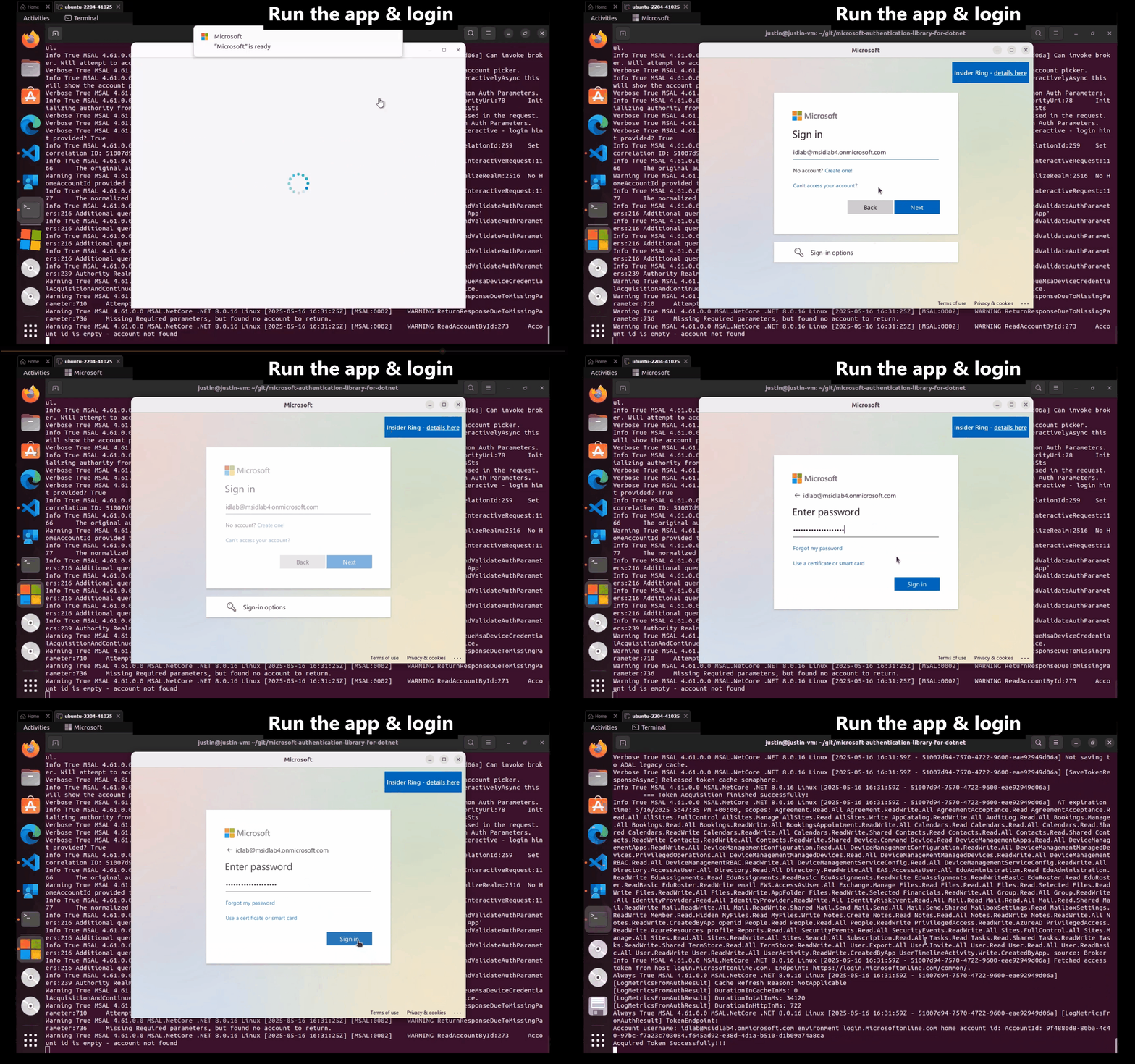
The following video shows the alternative interactive, brokered authentication experience: