Note
Access to this page requires authorization. You can try signing in or changing directories.
Access to this page requires authorization. You can try changing directories.
Apps hosted outside Azure, such as on-premises servers or data centers, should use an application service principal to authenticate to Azure resources. Register your app in Azure to create the service principal. When you create one, Azure generates a client ID and client secret. Store the client ID, client secret, and tenant ID in environment variables so your app can pass them to ClientSecretCredential at runtime.
Create a different app registration for each environment where you host the app. This setup lets you configure environment-specific resource permissions for each service principal and ensures that an app deployed to one environment doesn't access Azure resources in another environment.
Register the app in Azure
Application service principal objects are created through an app registration in Azure using either the Azure portal or Azure CLI.
In the Azure portal, use the search bar to navigate to the App registrations page.
On the App registrations page, select + New registration.
On the Register an application page:
- For the Name field, enter a descriptive value that includes the app name and the target environment.
- For the Supported account types, select Accounts in this organizational directory only (Microsoft Customer Led only - Single tenant), or whichever option best fits your requirements.
Select Register to register your app and create the service principal.

On the App registration page for your app, copy the Application (client) ID and Directory (tenant) ID and paste them in a temporary location for later use in your app code configurations.
Select Add a certificate or secret to set up credentials for your app.
On the Certificates & secrets page, select + New client secret.
In the Add a client secret flyout panel that opens:
- For the Description, enter a value of Current.
- For the Expires value, leave the default recommended value of 180 days.
- Select Add to add the secret.
On the Certificates & secrets page, copy the Value property of the client secret for use in a future step.
Note
The client secret value is only displayed once after the app registration is created. You can add more client secrets without invalidating this client secret, but there's no way to display this value again.
Assign roles to the application service principal
Next, determine what roles (permissions) your app needs on what resources and assign those roles to the service principal you created. Roles can be assigned at the resource, resource group, or subscription scope. This example shows how to assign roles at the resource group scope, since most apps group all their Azure resources into a single resource group.
In the Azure portal, navigate to the Overview page of the resource group that contains your app.
Select Access control (IAM) from the left navigation.
On the Access control (IAM) page, select + Add and then choose Add role assignment from the drop-down menu. The Add role assignment page provides several tabs to configure and assign roles.
On the Role tab, use the search box to locate the role you want to assign. Select the role, and then choose Next.
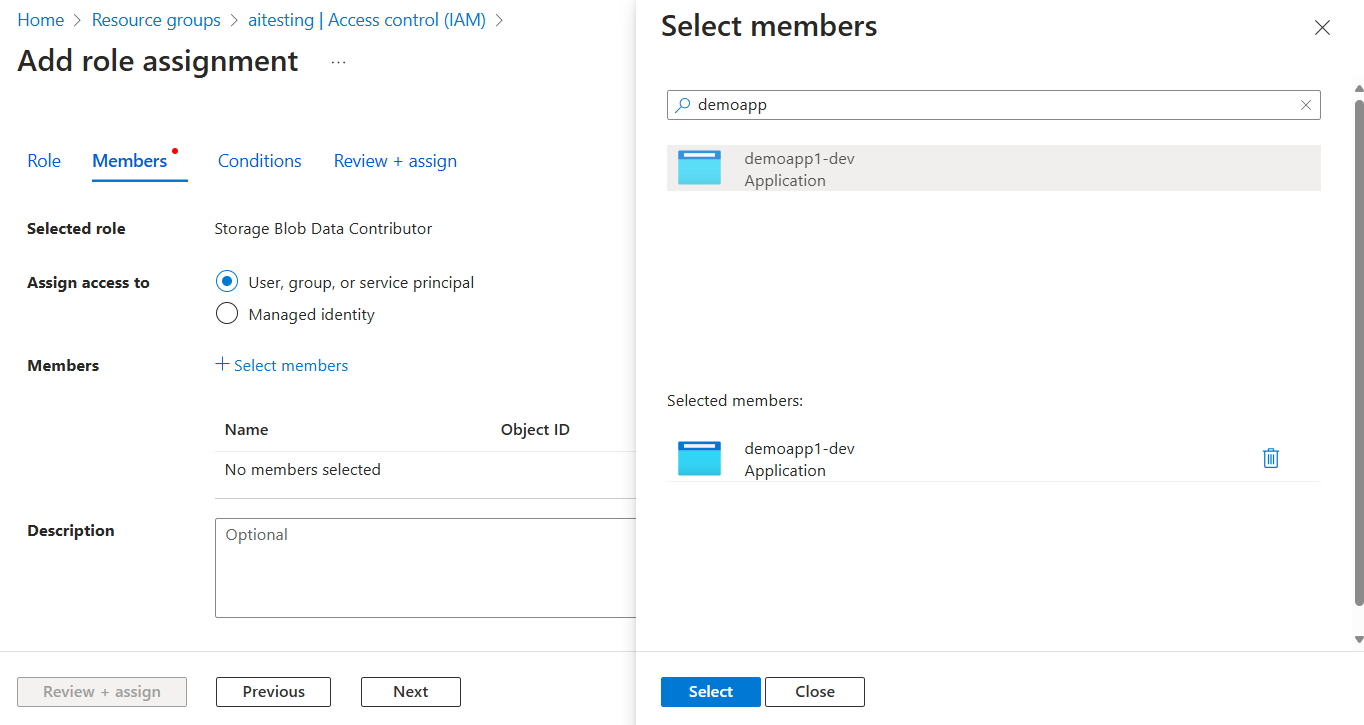
On the Members tab:
- For the Assign access to value, select User, group, or service principal .
- For the Members value, choose + Select members to open the Select members flyout panel.
- Search for the service principal you created earlier and select it from the filtered results. Choose Select to select the group and close the flyout panel.
- Select Review + assign at the bottom of the Members tab.
On the Review + assign tab, select Review + assign at the bottom of the page.
Set environment variable
ClientSecretCredential takes the tenant ID, client ID, and client secret as
constructor arguments. Set these values in environment variables and read them
in your app, as shown in the following example.
Set the following environment variables with values you get from the app registration process:
AZURE_CLIENT_ID: Identifies the registered app in Azure.AZURE_TENANT_ID: The ID of the Microsoft Entra tenant.AZURE_CLIENT_SECRET: The secret credential that you generate for the app.
export AZURE_CLIENT_ID=<your-client-id>
export AZURE_TENANT_ID=<your-tenant-id>
export AZURE_CLIENT_SECRET=<your-client-secret>
Implement the code
To authenticate Azure SDK client objects to Azure, your application should use the ClientSecretCredential type from the azure_identity crate.
Start by adding the azure_identity crate to your application:
cargo add azure_identity
Next, for any Rust code that instantiates an Azure SDK client in your app, follow these steps:
- Import the
azure_identitycrate. - Create an instance of
ClientSecretCredential. - Pass the instance to the Azure SDK client constructor.
The following code segment shows an example:
use azure_identity::ClientSecretCredential;
use azure_core::credentials::Secret;
use azure_security_keyvault_secrets::SecretClient;

#[tokio::main]
async fn main() -> Result<(), Box<dyn std::error::Error>> {
    let tenant_id = std::env::var("AZURE_TENANT_ID")?;
    let client_id = std::env::var("AZURE_CLIENT_ID")?;
    let client_secret = std::env::var("AZURE_CLIENT_SECRET")?;

    // Create a credential using the service principal
    let credential = ClientSecretCredential::new(
        &tenant_id,
        client_id,
        Secret::new(client_secret),
        None,
    )?;

    // Create a client for the specified Key Vault
    let client = SecretClient::new(
        "https://<your-key-vault-name>.vault.azure.net/",
        credential.clone(),
        None,
    )?;

    // Use the client to interact with Azure Key Vault
    // let secret = client.get("secret-name", None).await?;

    Ok(())
}
The example reads the AZURE_TENANT_ID, AZURE_CLIENT_ID, and
AZURE_CLIENT_SECRET environment variables, then passes their values to
ClientSecretCredential.