Note
Access to this page requires authorization. You can try signing in or changing directories.
Access to this page requires authorization. You can try changing directories.
Azure DevOps Services | Azure DevOps Server | Azure DevOps Server 2022
NuGet.org is the public package repository for .NET that enables developers to share reusable code. A NuGet package is a compressed file with a .nupkg extension that contains compiled code and related metadata that you can reuse in other projects. When you publish your package to NuGet.org, you make it available to developers worldwide.
Prerequisites
| Product | Requirements |
|---|---|
| Visual Studio & .NET | - Visual Studio with a .NET workload. - The latest .NET SDK. |
| NuGet.org | - A free NuGet.org account |
Create a project
You can use an existing .NET project to build and generate a NuGet package, or create a new class library project for this tutorial:
In Visual Studio, select File > New > Project.
Select the Class Library template, and then select Next.
Enter a name for your project and solution, choose a local folder, and then select Next.
Select your Framework, and then select Create when you're ready.
The default class library template is sufficient to create a NuGet package, so this tutorial uses the generated project without making any code changes.
Set up and generate a package
In Solution Explorer, right-click your project, and then select Properties > Package.
Enter your package details, and make sure your Package id is unique so it doesn't conflict with existing packages on NuGet.org. A common naming pattern is
Company.Product.Feature. To generate the package each time you build the project, select Generate NuGet package on build.In Solution Explorer, right-click your project, and then select Pack to generate the
.nupkgfile.Check the status of the pack command in the output window.
Generate an API key
Now that you created your .nupkg package, generate an API key so you can publish it to NuGet.org.
Sign in to your NuGet.org account or create one if you haven't.
Select your user icon, and then select API Keys.
Select Create, enter a name for the key, set the scope to Push new packages and package versions, and enter
*in the glob pattern to allow all packages. When you're done, select Create.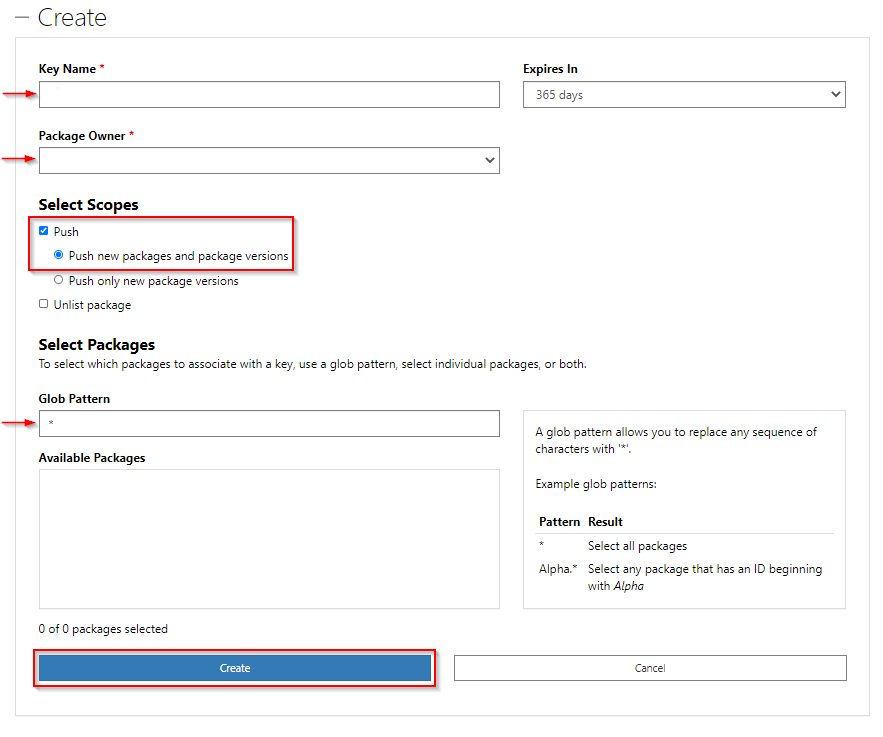
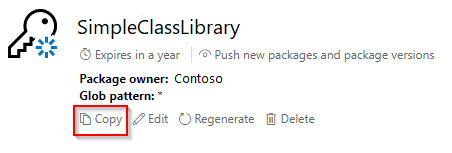
Select Copy, and store the API key in a secure location. You use this key when you publish the package.
Publish a package to NuGet.org
You can publish your package by using the NuGet.org web UI, the dotnet CLI, or nuget.exe. This tutorial uses the dotnet CLI. To publish, you need the package file name, your API key, and the NuGet.org source URL.
In a command prompt window, go to the folder that contains your
.nupkgfile.Run the following command to publish the package to NuGet.org. Replace the placeholders with your package file name and API key.
dotnet nuget push <packageName> --api-key <APIKey> --source https://api.nuget.org/v3/index.jsonCheck that the command output shows the package was pushed successfully.
