Note
Access to this page requires authorization. You can try signing in or changing directories.
Access to this page requires authorization. You can try changing directories.
Roadmap
The following section describes new features that are in development for Azure Boards integration with GitHub.
- Model selection for Cloud Agent: When using the Copilot cloud agent from a work item, users can select from a list of models.
Delivered features
Remote MCP Server (public preview)
This hosted endpoint enables seamless integration with Azure DevOps without the need to manage a local server. Visual Studio and Visual Studio Code currently support this feature, and support for other clients and services, including Microsoft Foundry and Copilot Studio, is coming soon.
Depending on the tools that you're using, you only need to add the following server information to your mcp.json.
{
  "servers": {
    "ado-remote-mcp": {
      "url": "https://mcp.dev.azure.com/{organization}",
      "type": "http"
    }
  },
  "inputs": []
}
You can customize your setup with more configuration options. Learn more.
Limit increase
The per-connection limit when linking GitHub repositories to an Azure DevOps project is now higher. The new maximum limit in the web experience is now 2,000, matching the limit already available through the Update REST API.
Support for custom agents
Azure Boards integration with GitHub Copilot now supports the selection of custom agents. When you create a custom agent at the repository or organization level, it automatically appears in Azure DevOps. When you create a pull request from a work item, you see a new agent selection control next to the repository list.
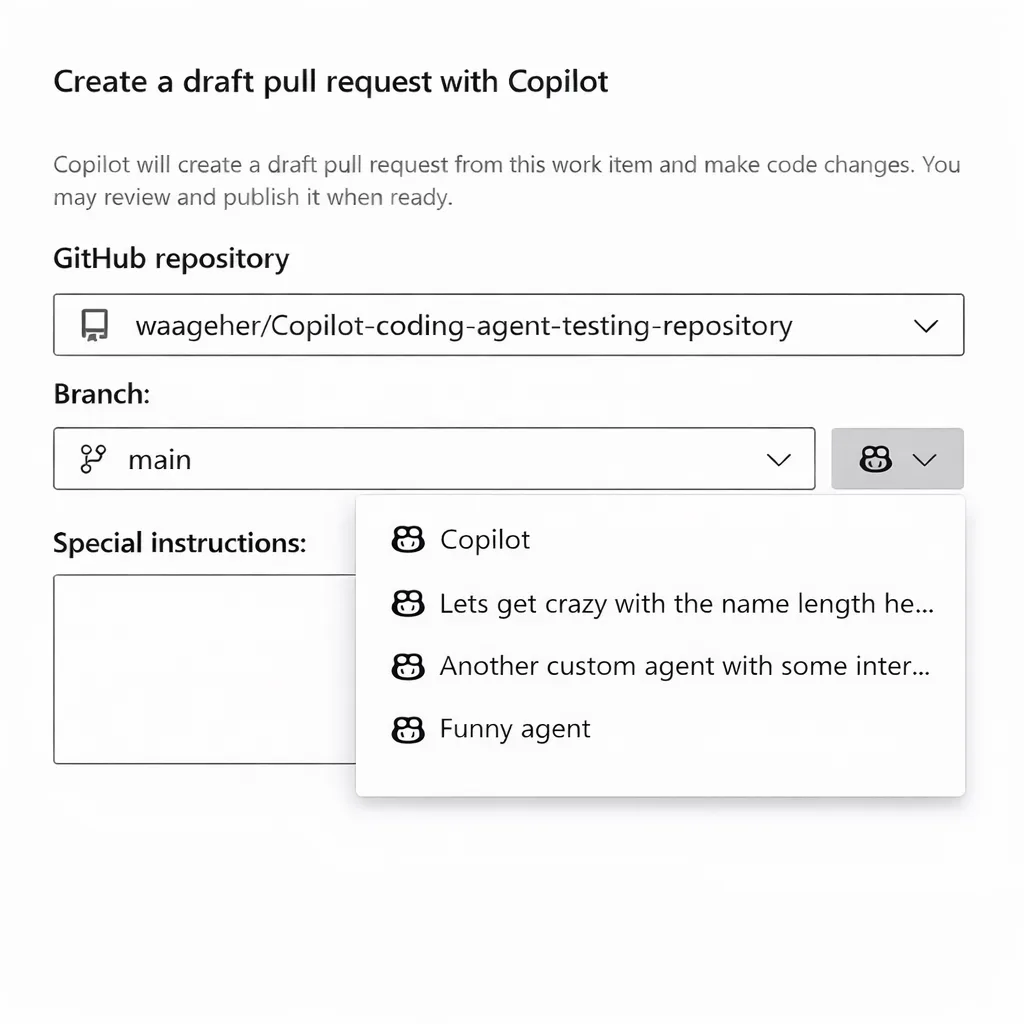
After selecting a custom agent and selecting Create, the agent generates the code changes and creates the pull request in the selected repository.
GitHub Copilot Cloud Agent for Azure Boards
The GitHub Copilot integration for Azure Boards enables teams to move more seamlessly from planning to implementation by generating code changes directly from Azure Boards work items.
From a work item, developers can invoke Copilot, select a target GitHub repository and branch, and create a draft pull request that remains linked to the original work item, providing end-to-end traceability from work tracking to code.
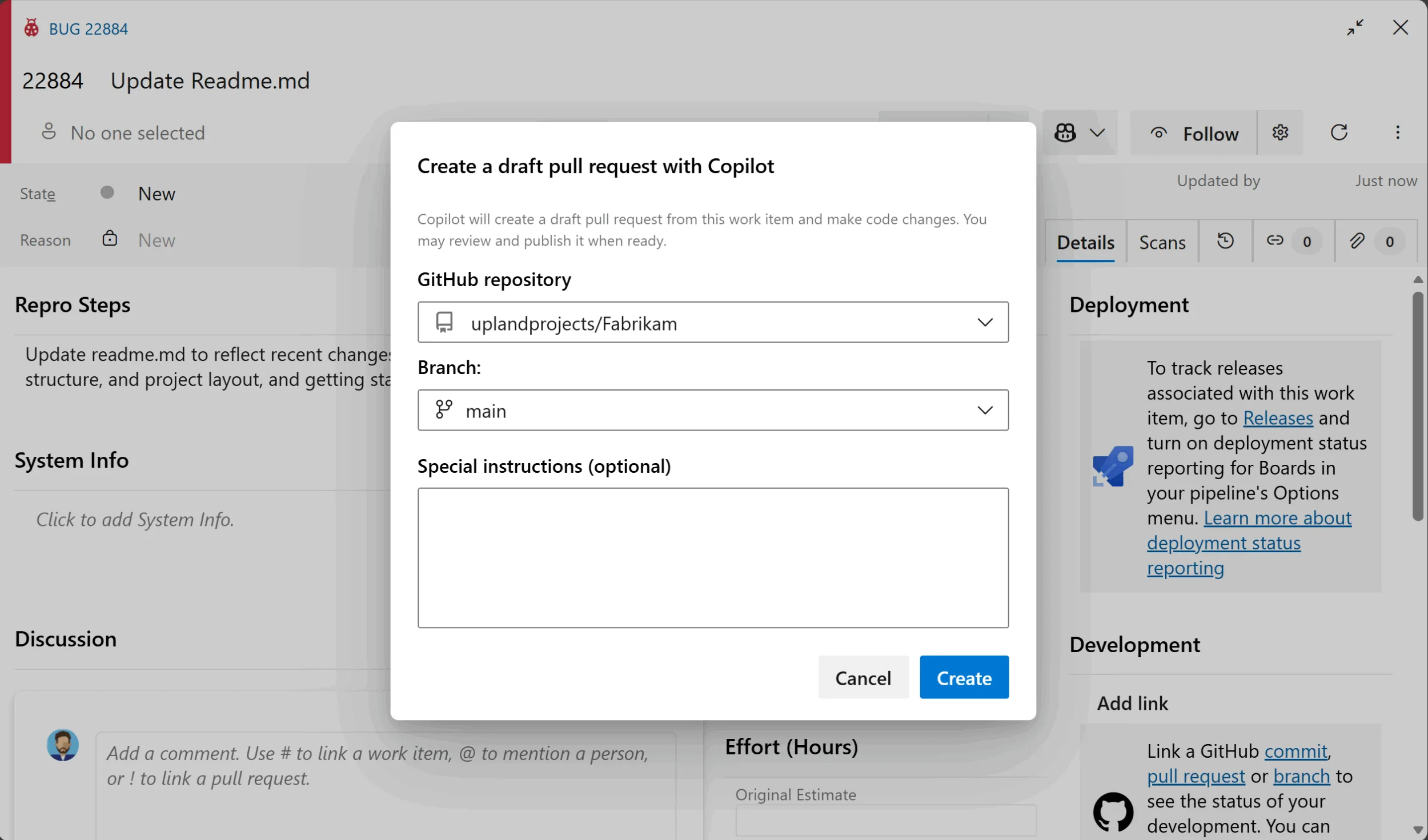
Azure DevOps local MCP Server
The local MCP Server for Azure DevOps provides enhanced authentication and authorization, new and refined tools, and introduces "domains" to help scope tools and manage client limits.
The MCP Server bridges AI assistants like GitHub Copilot and Azure DevOps, letting you securely access and interact with work items, wikis, test plans, and more from your own environment.
For installation instructions, examples, and contribution guidelines, visit the Azure DevOps MCP Server repository.
Bug fixes improving GitHub integration and security
This sprint, the team resolved several critical bugs to improve the security and reliability of Azure Boards GitHub integrations:
- Fixed multiple problems related to access token handling, including inability to revoke tokens, use of over-permissive scopes, and lack of token verification
- Addressed privilege escalation vulnerabilities in both the GitHub connection and branch creation flows
- Removed persistent storage of GitHub PATs after disconnection to prevent unintended access
- Eliminated use of wildcard origins in CORS configuration to enforce stricter security controls
- Improved secret management by rotating GitHub client secrets and stopping global sharing across organizations
- Enhanced logging and auditability when removing service connections
- Resolved potential information leaks caused by misconfigured webhooks
GitHub Integration: Pull Request Mentions
You can now use ! mentions to reference and discuss GitHub pull requests directly from any large text field or comment.

GitHub Integration: State Transition Support
The integration now supports linking GitHub pull requests to Azure Boards work items. Previously, only the Fixes AB#{ID} keyword was supported. With this update, you can now use {State or Category} AB#{ID} to automatically transition work items to the desired state on merge.
If the GitHub pull request description includes a state name (for example, Validate AB#1234), the linked work item's state is updated as a result. If the state name isn't recognized, the system checks if it matches a state category (like Resolved). If it does, the work item is transitioned to the first available state within that category.
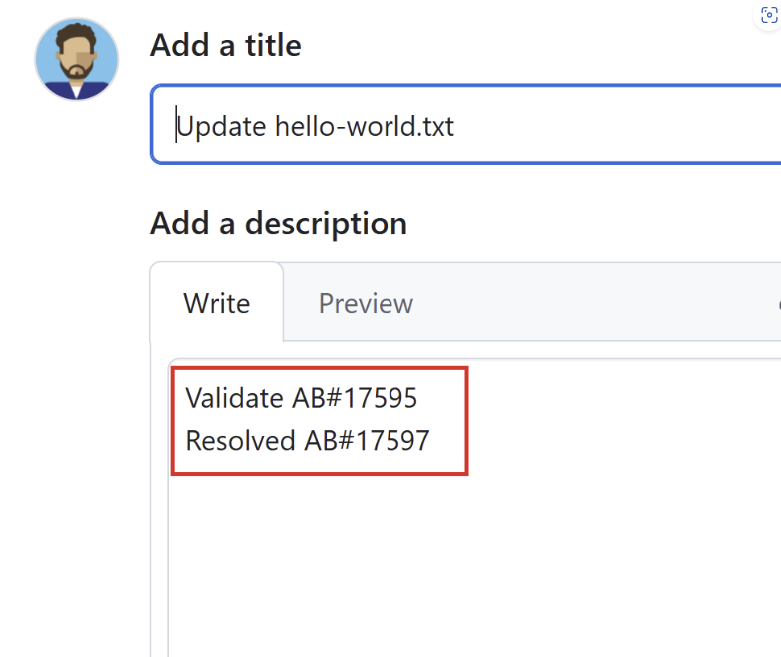
If no matching state or category is found, the keyword is ignored and the state on the work item isn't updated.
Finally, the Fixes AB#{ID} keyword continues to work as expected, defaulting to the "Closed" state value.
GitHub Integration: Improvements linking to commits, branches, and pull requests
The Azure DevOps team is continuously improving the Boards + GitHub integration to close usability gaps and align with the experience you're familiar with in Azure Repos.
With this update, the team introduced several improvements to streamline how branches, pull requests, and commits are linked to work items:
When you link a GitHub branch to a work item, any associated pull requests are automatically linked. No need to manually use AB#.
Once a pull request is merged, the merge commit is automatically linked to the work item.
If you delete the branch after the pull request is merged, the branch link is automatically removed from the work item.
These improvements make it easier to track your development progress and maintain clean, up-to-date work item associations.
GitHub Integration: Show build status for YAML pipelines
Microsoft is committed to achieving feature parity between YAML and Classic Pipelines. One key missing feature was the ability to provide an "Integrated in build" link when your repository is hosted in GitHub. The latest release addresses this gap by adding an option in YAML pipeline settings for you to check:
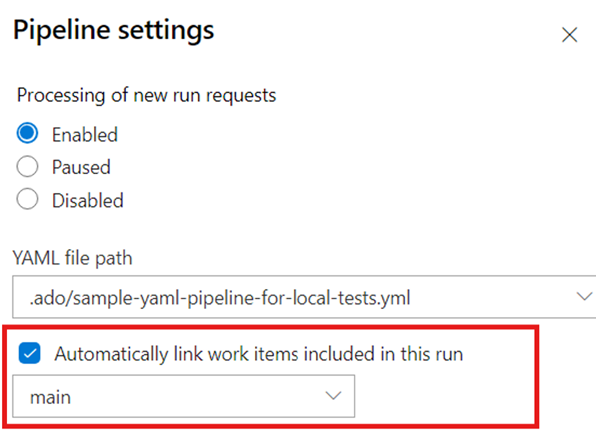
When the build finishes, the corresponding link automatically appears on the associated work items, improving the overall traceability story.
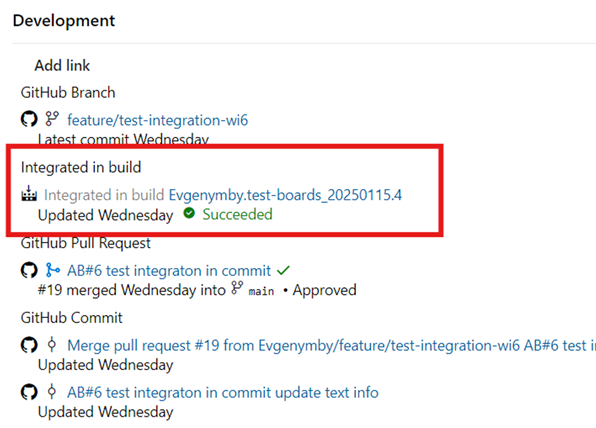
GitHub Integration: Linking the Merge Commit
The system now automatically links the merge commit to its corresponding work item when a pull request is completed.
Increase limit of connected GitHub repositories
Over the past several months, the product team enhanced both the user experience and scalability of connecting your GitHub repositories to an Azure DevOps project. In this sprint, the team raised the maximum limit from 500 to 1,000 repositories, giving you even greater capacity to manage your projects.
GitHub pull request insights
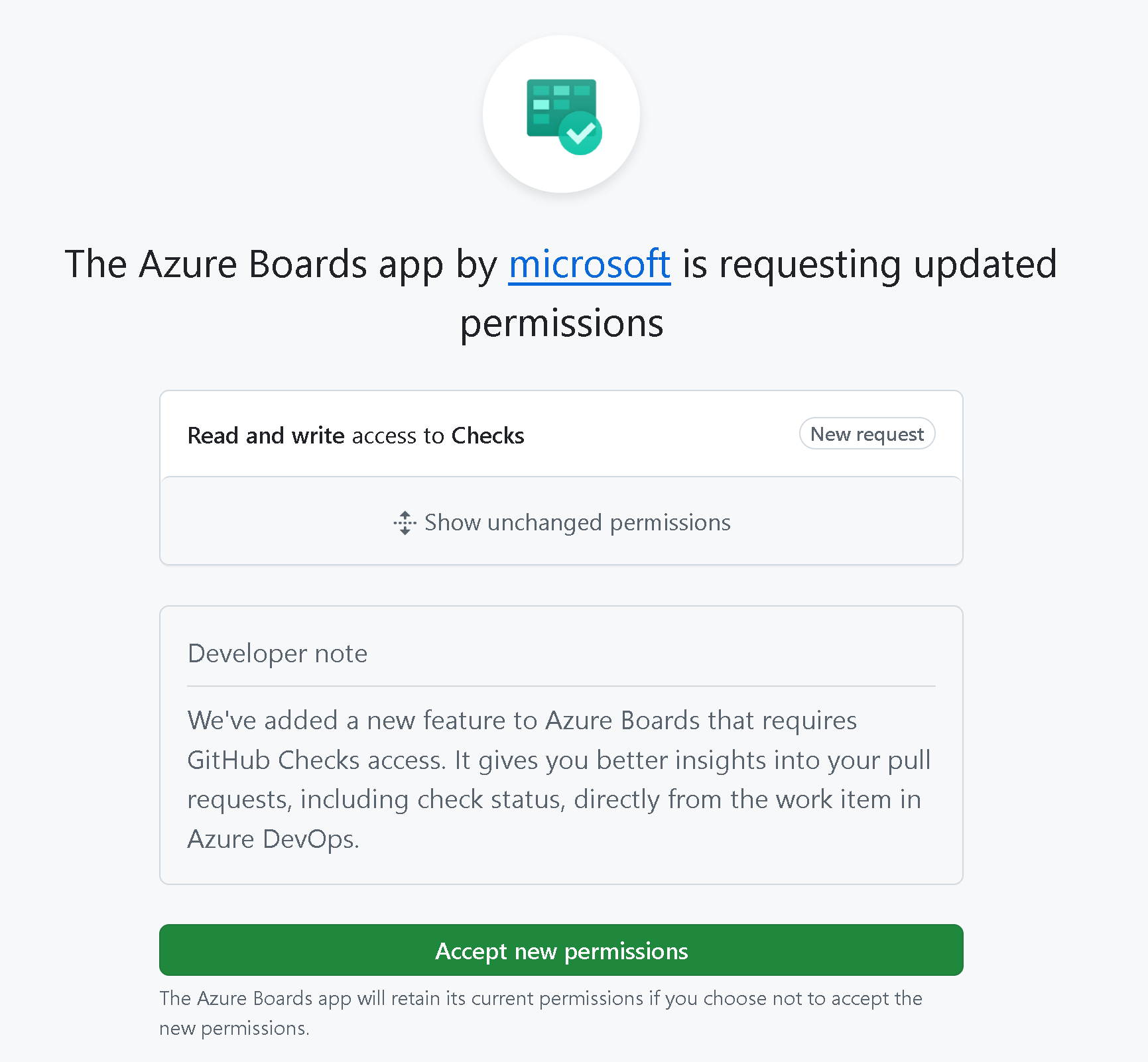
The product team enhanced the integration between GitHub pull requests and Azure Boards. In addition to showing open and closed statuses, you can now see if a pull request is in draft mode, needs review, and Checks status. All without needing to open the pull request.

To enable this feature, make sure you go the Boards App in GitHub to accept the requested updated permissions for read and write access to Checks.
Connect to GitHub repository search improvements
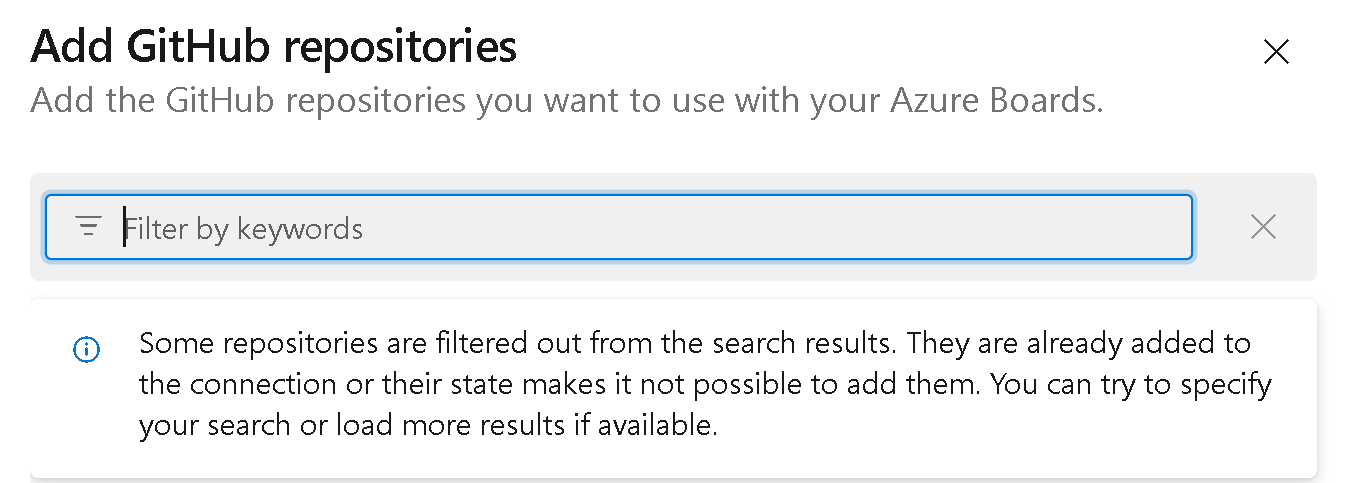
Connecting an Azure DevOps project to a GitHub organization is now optimized, especially for those with thousands of repositories. The search and selection experience eliminates the risk of timeout errors and makes the connection process smoother and more efficient.
Create GitHub branch from work item
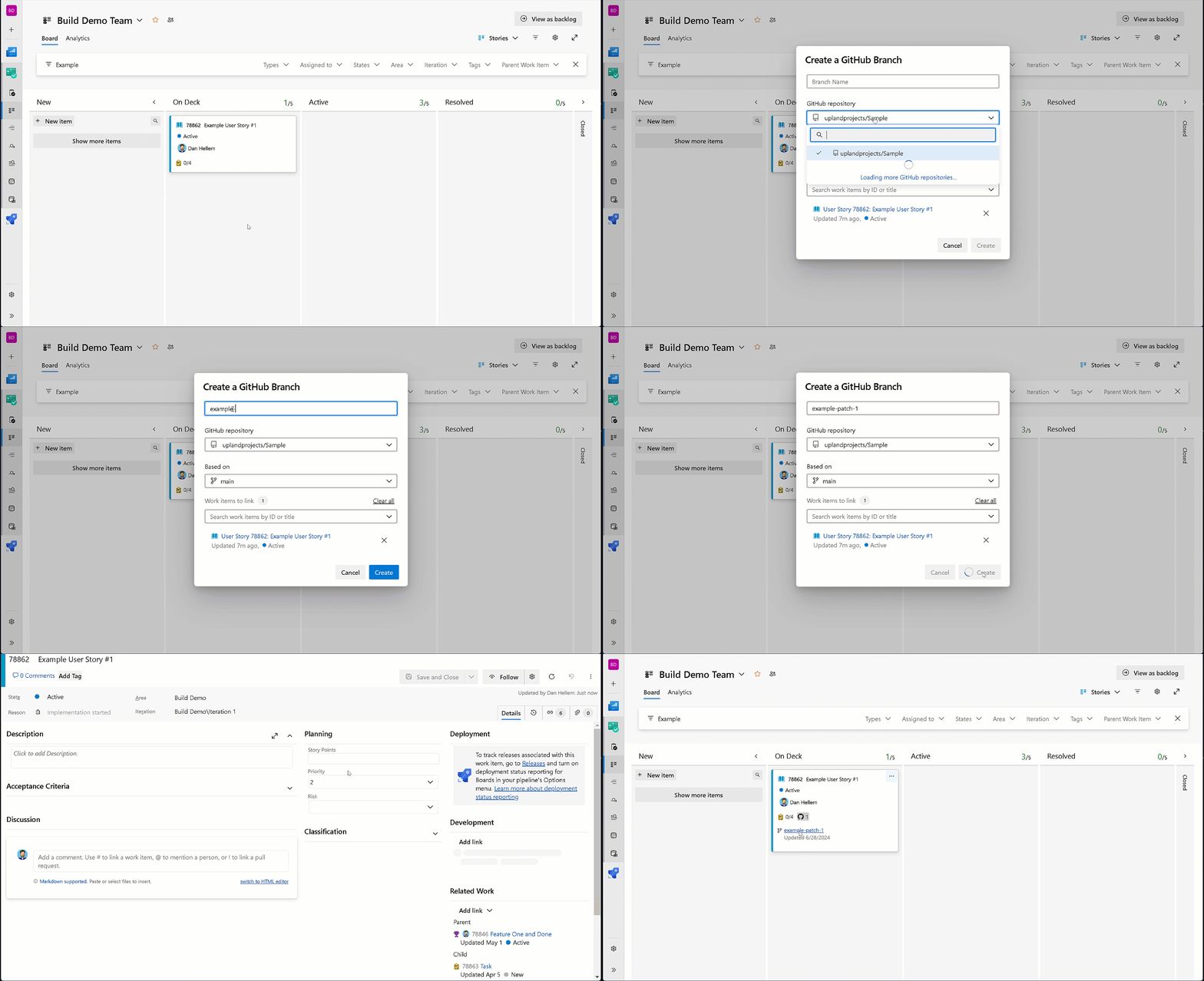
Now, you can create a GitHub branch directly from a work item within Azure DevOps. The "New GitHub Branch" link is available whenever a GitHub connection is configured for your project. This link is available in all work item context menus, including the work item form, card, backlog, and queries. To create a new branch, enter the branch name and select the desired repository and base branch.
Add link to GitHub commit or pull request
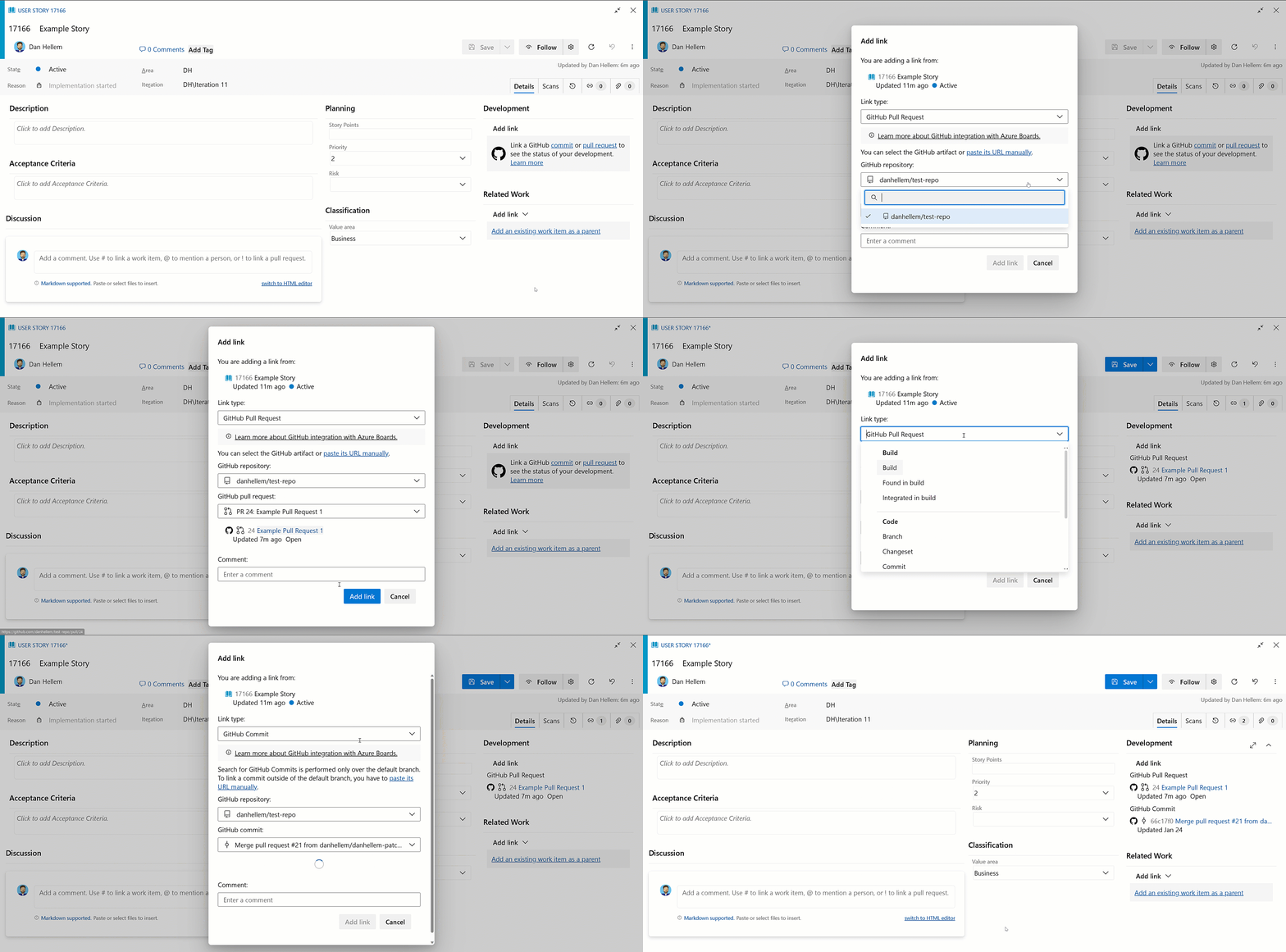
Link work items to GitHub by searching and selecting the desired repository, then drill down to find and link to the specific pull request or commit. You no longer need multiple window changes and copy/paste (although you still have that option).
AB# links on GitHub pull requests
As part of ongoing enhancements to the Azure Boards + GitHub integration, a preview feature improves experience with AB# links. With this update, your AB# links now appear directly in the Development section of the GitHub pull request. You can view the linked work items without the need to navigate through description or comments, providing easier access to those AB# links.
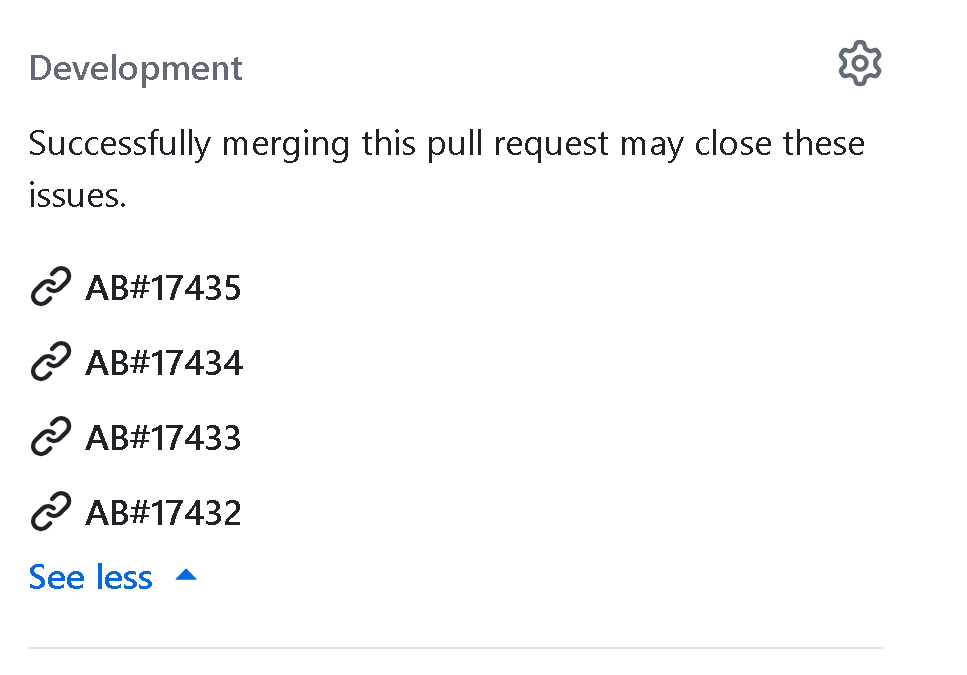
These links are only available when you use AB# in the pull request description. They don't appear if you link directly from the pull request from the work item. Removing the AB# link from the description also removes it from the Development control.