Note
Access to this page requires authorization. You can try signing in or changing directories.
Access to this page requires authorization. You can try changing directories.
Do you need more disk space for your agents? Managed DevOps Pools supports attaching an empty data disk to the agents in your pool. When you attach a data disk, you get more storage space without incurring the potentially greater cost of moving your virtual machine (VM) size to a more expensive size that has more built-in storage. You can attach an empty data disk to all agents at the Managed DevOps Pool level, or you can use demands to configure an attached data disk at the individual pipeline level.
Attach an empty data disk
To attach an empty data disk at the pool level, configure the storage settings when you create your pool on the Storage tab. The default setting is no empty data disk.
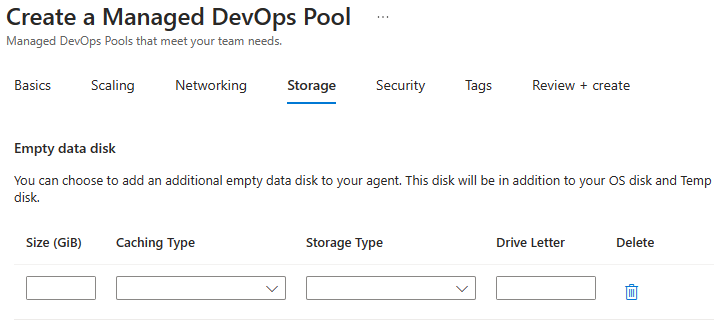
To configure more storage for an existing pool, go to the pool in the Azure portal as described in the following steps:
- Sign in to the Azure portal.
- Search for Managed DevOps Pools and select it from the available options.
- Select your pool from the list.
- Go to Settings > Storage to configure the Empty data disk settings for your pool.

Configure the properties in the following table for your disk, and select Apply (or Next if you're creating a pool) to save your changes. You can add a single empty data disk configuration for your pool. All agent instances have an empty data disk attached that matches the configuration you specify.
To delete the data disk configuration for an existing pool, select Delete.
Attached data disk properties
Configure the following properties for your attached data disk.
| Property | Description |
|---|---|
Size (GiB) or diskSizeGiB |
Specify the size of your data disk. The maximum size depends on the storage type. Must be an integer in the range of 1 through 32767. For more information, see Disk type comparison. |
| Caching type | Specify the caching type for your disk. Select from Default, None, ReadOnly, or ReadWrite. The default for data disks that support caching is ReadOnly. For more information, see Virtual machine and disk performance. |
| Storage type | Select from the following storage types: Standard_LRS (default), Premium_LRS, StandardSSD_LRS, Premium_ZRS, or StandardSSD_ZRS. For more information about these types, see SKU types and Azure managed disk types. |
| Drive letter | If you have any Windows agent images in your pool, choose a drive letter for your disk. If you don't specify a drive letter, F is used for VM sizes with a temporary disk. Otherwise, E is used. The drive letter must be a single letter except A, C, D, or E. If you're using a VM size without a temporary disk and want E as your drive letter, leave the Drive Letter field empty to get the default value of E. If you're configuring your storage by using an ARM template or an Azure CLI script, omit the drive letter parameter if you don't want a drive letter. |
Note
For Linux agents, Managed DevOps Pools mounts the data disk as /mnt/storage/sdc.
Attach a data disk by using demands
To attach an empty data disk on a per-pipeline basis, configure the following demands. For more information about the properties that these demands configure, see Configure storage: Attached data disk properties.
| Demand | Description |
|---|---|
DiskSizeGiB |
Required. Set this demand to attach an empty data disk. |
Caching |
The caching type. Omit this demand to use the default caching type for the storage type you select. |
StorageAccountType |
Omit this demand to use the default Standard_LRS storage type. |
DriveLetter |
(Windows only) Omit this demand to use the default drive letter for your VM size. If you want to use a specific drive letter, set this demand to the letter you want to use. |
In the following example, a Windows pipeline specifies an attached empty data disk with a size of 128 GB and a drive letter of L. The caching type and storage type are omitted, so the default values are used.
pool:
  name: fabrikam-managed-pool # Name of pool
  demands:
  - DiskSizeGiB -equals 128
  - DriveLetter -equals L
Use the data disk for your agent working directory
To configure your agents to use a working directory on the data disk, specify a folder from the data disk in a WorkFolder demand at the pipeline level, or configure the Work folder pool setting. The following examples show how to configure the WorkFolder demand in your pipeline to use a folder on the attached data disk. For information on configuring the Work folder pool setting, see Configure advanced settings: Work folder.
In the following example, the agent working directory on a Windows agent is configured to use a folder on an attached data disk with the drive letter F.
pool:
  name: fabrikam-managed-pool # Name of pool
  demands:
  - WorkFolder -equals f:\custom-work-folder # Windows agent example
For more information about how to configure the agent work directory, see Demands: WorkFolder.