Note
Access to this page requires authorization. You can try signing in or changing directories.
Access to this page requires authorization. You can try changing directories.
Azure DevOps Services
As roles and responsibilities change, you can change the owner for your Azure DevOps organization. Any member of the Project Collection Administrators (PCA) group can make this change - it's not restricted to the current owner. Use this article when the current owner is still active and available. If the current owner and all other PCAs are inactive, see Assign an owner to an orphaned organization.
Prerequisites
| Category | Requirements |
|---|---|
| Permissions | Member of the Project Collection Administrators group. Any PCA can change the owner - not only the current owner. Organization owners are automatically members of this group. |
| New owner tasks (required before you start) | The user you want to make the new owner must first do all of the following, or they won't appear in the picker: - Sign in to the organization at https://dev.azure.com/{yourorganization} at least once.- Create their user profile. - Accept the Azure DevOps Terms of Service. - Have an active access level (Basic, Basic + Test Plans, or Visual Studio subscriber) assigned in the organization. Stakeholder access isn't sufficient. |
Important
The most common cause of "the user I want isn't in the dropdown" is that the target user didn't sign in to the organization and accept the Terms of Service yet. Have them complete the sign-in step first, then refresh the Change owner page.
Tip
For organizations connected to Microsoft Entra ID, if your organization owner and all other Project Collection Administrators are no longer active, an Azure DevOps Administrator in Microsoft Entra ID can claim ownership and assign it to an active user.
Change organization owner
To change the organization owner, complete the following steps:
Sign in to your organization (
https://dev.azure.com/{yourorganization}) as a member of the Project Collection Administrators group.Select
 Organization settings.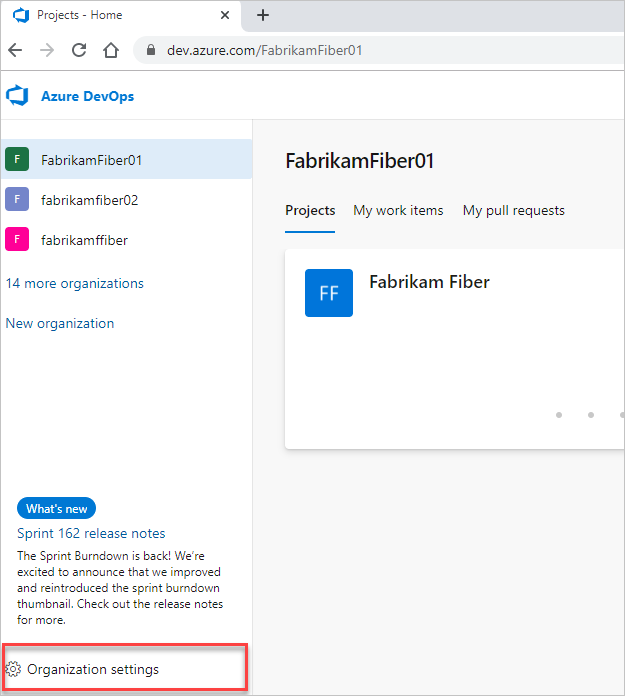
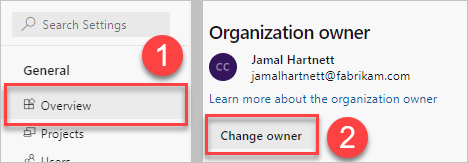
Select Overview > Change owner.
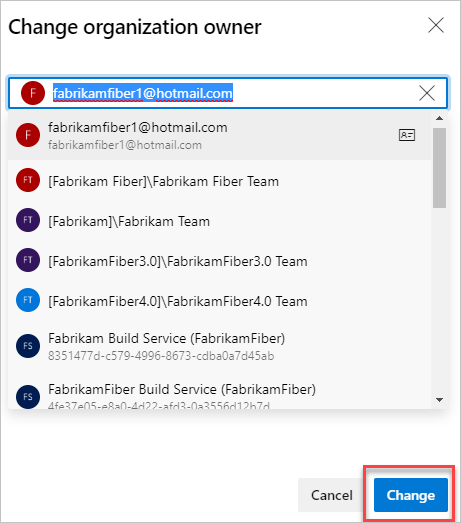
Select a user from the dropdown menu, or search for a user by entering the user's name, and then select Change.
Your organization has a new owner. The new owner has full administrative control over the organization, including the ability to manage users, projects, and settings. They can also configure security policies, access levels, and billing information. Inform the new owner of their administrative responsibilities.
Remove the previous owner from Project Collection Administrators
Changing the owner doesn't remove the previous owner from the Project Collection Administrators group. If the previous owner should no longer have administrative access - for example, they left the team or the company - remove them explicitly:
- Sign in as the new owner or another PCA.
- Go to Organization settings > Permissions.
- Select the Project Collection Administrators group.
- On the Members tab, find the previous owner, select More options (...), and then select Remove.
If you also want to revoke all access to the organization, remove the user from the organization on the Users page. For details, see Remove users from your organization.
Organizations backed by Microsoft accounts (MSA)
If your organization isn't connected to Microsoft Entra ID and the current owner left the company, is no longer available, or lost access to their Microsoft account, you can't use the self-service Claim ownership flow described in Assign an owner to an orphaned organization. That flow requires an Azure DevOps Administrator in Microsoft Entra ID.
For an MSA-backed organization without an available owner or PCA, do one of the following steps:
- Another PCA is still active – Have that PCA sign in and follow the steps in Change organization owner. Any PCA can make the change.
- No active owner or PCA exists – File a support request with Azure DevOps support. Include the organization URL, the current (inactive) owner's sign-in address, and proof of your relationship to the organization (for example, billing records, tenant admin evidence, or business justification). Support can't transfer ownership without this verification.
- You want to prevent this in the future – Consider connecting the organization to Microsoft Entra ID. Entra-connected organizations support self-service recovery through the Azure DevOps Administrator role.
Troubleshoot
The user I want isn't in the dropdown
The picker shows only users who already signed in to the organization, created a profile, and accepted the Terms of Service, and who have an eligible access level (not Stakeholder).
To fix it:
- Send the target user the direct organization URL:
https://dev.azure.com/{yourorganization}. - Have them sign in, create their profile, and accept the Terms of Service.
- Verify their access level on Organization settings > Users is Basic, Basic + Test Plans, or a Visual Studio subscriber level.
- Refresh the Change owner page and search for the user again.
The "Change owner" button is missing
You're not a member of the Project Collection Administrators group. Ask a current PCA or the organization owner to add you, or ask them to make the change. To find current PCAs, see Look up Project Collection Administrators.
I get an error when I select Change
- "User not found" or a similar validation error – The target user didn't complete the sign-in and Terms of Service steps, or was recently removed from the organization. Follow the steps in The user I want isn't in the dropdown.
- The organization is connected to Microsoft Entra ID and the user isn't in the tenant – The new owner must be a member of the same Microsoft Entra tenant the organization is connected to. Add them to the tenant, add them to the organization, have them sign in once, then retry.
- You see a generic failure – Refresh the page and try again. If the problem persists, file a support ticket with the organization URL, the current owner's sign-in address, and the target owner's sign-in address.