Note
Access to this page requires authorization. You can try signing in or changing directories.
Access to this page requires authorization. You can try changing directories.
Features
- Auto-complete pull requests by default
- New repository setting for pull request ID in commit messages
Auto-complete pull requests by default
We’ve added a new repository setting: Set PRs to auto-complete on creation by default.

This setting controls the default state of the Set auto-complete toggle for newly created pull requests.
When this setting is enabled, every new PR will automatically have Set auto-complete turned on. When it’s disabled, new PRs will start with Set auto-complete turned off, and authors can choose to enable it manually.

To turn on this setting, go to Project settings → Repositories → Settings. You can enable it for the entire project so all repositories use the same configuration, or update it directly within an individual repository’s settings.
New repository setting for pull request ID in commit messages
We have introduced a new repository level setting that allows teams to control whether the pull request (PR) ID is automatically prefixed to commit messages generated during PR completion.

Previously, commit messages created during PR completion always included the PR ID at the beginning of the message. With this update, repository administrators can choose whether this prefix is included.

By default, the setting remains enabled to preserve existing behavior. When enabled, commit messages generated during PR completion will continue to include the PR ID prefix. When disabled, commit messages created during PR completion will no longer include the PR ID.
This setting applies only to commits generated during PR completion actions such as merge, squash, or rebase. It does not affect manual commits and only applies to commits created after the setting is changed.
This is feature is addressing a Developer Community suggestion ticket.
Next steps
Note
These features will roll out over the next two to three weeks.
Head over to Azure DevOps and take a look.
How to provide feedback
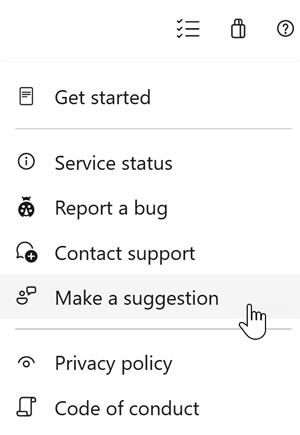
We would love to hear what you think about these features. Use the help menu to report a problem or provide a suggestion.
You can also get advice and your questions answered by the community on Stack Overflow.