Note
Access to this page requires authorization. You can try signing in or changing directories.
Access to this page requires authorization. You can try changing directories.
Azure DevOps Services
Important
This feature is in limited public preview and requires sign-up. To request access for your organization, sign up for the public preview.
Functionality might change or be removed without notice. Preview features have no Service Level Agreement (SLA) and limited support.
Use GitHub Copilot to review pull requests in Azure Repos. Copilot acts as an automated reviewer that posts comments and suggestions on changed code, so you get feedback before a human reviewer signs off.
To use the feature, a Project Collection Administrator turns it on for the organization, a repository owner turns it on for each repository, and individual users opt in through Preview features (unless the administrator enables the preview for everyone).
Prerequisites
| Category | Requirements |
|---|---|
| Organization | An organization in Azure DevOps. |
| Repository | A Git repository in Azure Repos. TFVC isn't supported. |
| Organization permissions | Project Collection Administrator to enable the feature at the organization level. |
| Repository permissions | Repository owner or administrator to enable the feature for a repository. |
| Billing | An Azure subscription linked to your Azure DevOps organization. Copilot code review usage is billed through Azure Cost Management. For details, see Billing. |
Enable Copilot code review at the organization level
A Project Collection Administrator must enable Copilot code review for the organization before repository owners can turn it on for individual repositories.
Sign in to your Azure DevOps organization (
https://dev.azure.com/{yourorganization}).Select Organization settings > Repos > Repositories.
Under GitHub Copilot code review, toggle Allow repositories in this organization to use Copilot code review to On.

Enable Copilot code review at the repository level
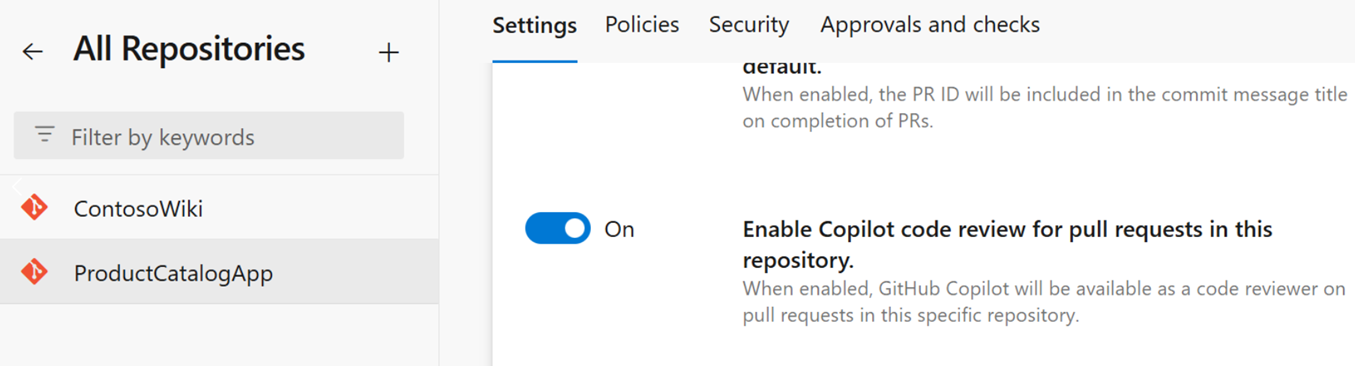
After organization-level access is enabled, a repository owner turns on Copilot code review for each repository that should use it.
Select Project settings > Repos > Repositories.
Select the repository you want to enable.
On the Settings tab, toggle Enable Copilot code review for pull requests in this repository to On.
Enable Copilot code review for individual users
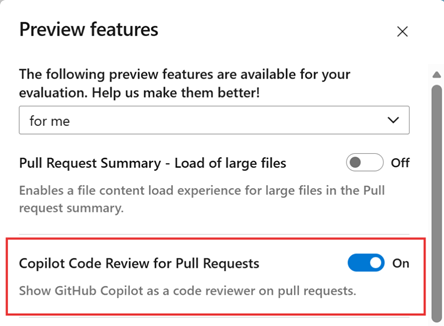
After you enable the feature at the organization and repository levels, individual users can opt in through Preview features.
Select your user avatar in the top right, and then select Preview features.
Set the scope to for me.
Locate Copilot Code Review for Pull Requests and toggle it to On.
Tip
A Project Collection Administrator can set the scope to for this organization to enable the preview for all users at once.
To verify the feature is enabled, open any pull request in the repository. GitHub Copilot should now appear as an available reviewer in the Reviewers list.
Use Copilot code review
With the feature enabled at all three scopes, you can ask Copilot to review a pull request. The following sections describe what to expect.
Request a review
By default, GitHub Copilot reviews a pull request only when you ask for one:
- Open a pull request.
- In the Reviewers section, select Request next to GitHub Copilot.
- Wait for the review to complete. The review might take a few moments, depending on the size of the repository and the number of changes in the pull request. When the review finishes, the status changes to Review completed.
If Copilot identifies potential issues, it adds comments and suggestions directly to the pull request for you to examine and address.
Read Copilot's comments
- Copilot posts its feedback as a regular reviewer named GitHub Copilot on the pull request.
- Each comment appears on the line of code it applies to and, where possible, includes a suggested change that you can apply with one click.
- Copilot always leaves a Comment review. It never approves the pull request or requests changes, so its review doesn't satisfy required-reviewer policies and doesn't block merging.
- Copilot's comments behave like comments from a human reviewer. You can reply to them, react to them, resolve them, or hide them. Copilot doesn't read replies and doesn't follow up.
Re-review after new commits
Copilot doesn't automatically re-review a pull request when you push new commits. To get a fresh review after a commit, select Request again next to GitHub Copilot in the Reviewers list.
Give feedback on a review
Each Copilot comment includes thumbs-up and thumbs-down controls. Use them to tell the Copilot team whether a specific comment was helpful. If you select thumbs-down, you can optionally choose a reason and add details before you submit.
Requirements and limits
The following requirements and limits apply during the preview and can change.
Copilot reviews a pull request only when it meets these requirements:
| Requirement | Value |
|---|---|
| Pull request status | Active |
| Pull request merge status | No merge conflicts (Merge Succeeded) |
| Repository size | 10 GB or less |
| Pull request changed files | 100 files or fewer |
These concurrency and rate limits also apply:
| Limit | Value |
|---|---|
| Duplicate review on the same pull request version | 1 completed review per merge commit |
| Concurrent reviews per pull request | 1 |
| Concurrent reviews per organization | 5 |
| Concurrent reviews per user | 2 |
Billing
Each completed code review consumes tokens, including input tokens sent to the model, output tokens generated by the model, and cached tokens that reuse existing context. Tokens used for each review are converted into a standard billing unit called a GitHub AI credit, where 1 credit equals $0.01 USD.
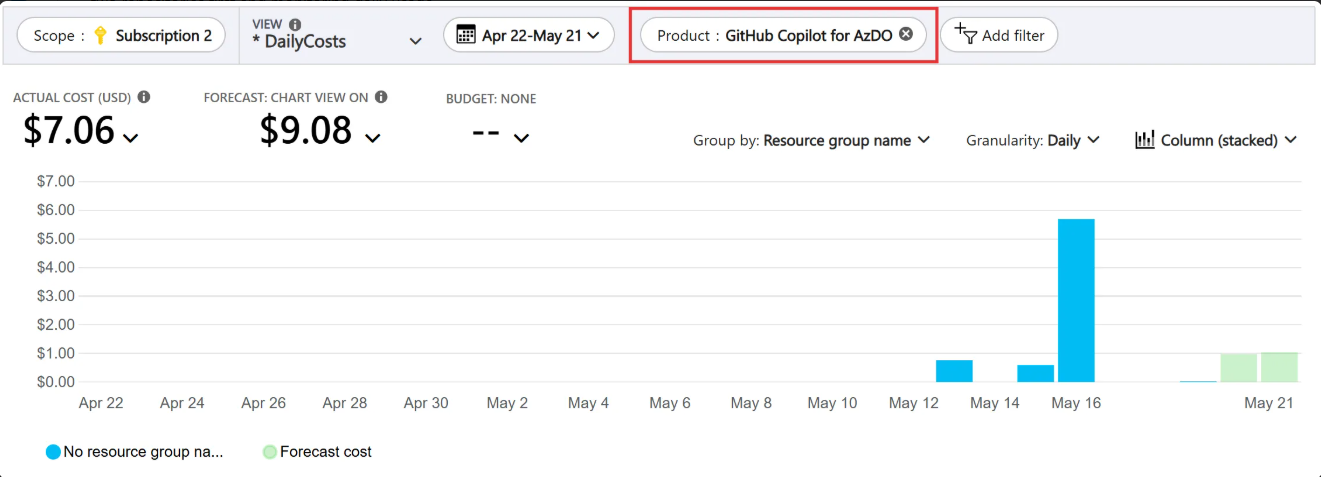
Charges go to the Azure subscription linked to your Azure DevOps organization and appear as a separate meter in Azure Cost Management. The cost of each review varies based on factors like pull request size and the number of lines changed. To estimate expected costs in your environment, enable the feature for one or two repositories first and monitor daily usage.
To monitor your daily charges:
In the Azure portal, go to your subscription.
Select Cost Management > Cost analysis.
Filter by product to view the organization's daily costs.
Frequently asked questions (FAQs)
Where can I find the list prices that I'm charged for tokens?
See Models and pricing in the GitHub Copilot documentation.
What factors influence the number of tokens consumed by a code review?
Token consumption depends on factors such as the size of the repository, the size of the change, and the complexity of the code being reviewed.
Do credits I purchased with Copilot subscriptions count toward code review usage in Azure DevOps? Can I use AI credits from a GitHub Copilot plan?
No, usage in Azure DevOps doesn't draw down AI credits from GitHub Copilot plans.
Turn off Copilot code review
To stop using Copilot code review, set the toggle to Off at the scope you want to disable:
- For one user: Turn off the Preview features toggle in your user settings.
- For one repository: Turn off the repository toggle in Project settings > Repos > Repositories.
- For the entire organization: Turn off the organization toggle in Organization settings > Repos > Repositories. This action disables the feature for all repositories.
Share feedback
To report issues or share feedback about this preview, visit the Azure DevOps Developer Community.