Note
Access to this page requires authorization. You can try signing in or changing directories.
Access to this page requires authorization. You can try changing directories.
Copilot Autofix is an AI-powered feature of GitHub Advanced Security for Azure DevOps that generates suggested fixes for code scanning alerts. When CodeQL identifies a vulnerability or coding error, you can generate a fix for the alert directly from the Advanced Security tab. Copilot Autofix uses the Copilot coding agent to produce the fix and opens a pull request with the proposed change, so you can review, edit, and merge it through your normal pull request workflow.
Note
This feature is in limited public preview. Not everyone who signs up for the preview receives access.
You need either GitHub Advanced Security for Azure DevOps or, if you're using the standalone experience, GitHub Code Security for Azure DevOps enabled, along with code scanning configured for your repository.
GitHub Advanced Security for Azure DevOps works with Azure Repos. To use GitHub Advanced Security with GitHub repositories, see GitHub Advanced Security.
Prerequisites
| Category | Requirements |
|---|---|
| Permissions | - To view a summary of all alerts for a repository: Contributor permissions for the repository. - To dismiss alerts in Advanced Security: Project administrator permissions. - To manage permissions in Advanced Security: Member of the Project Collection Administrators group or Advanced Security: manage settings permission set to Allow. |
For more information about Advanced Security permissions, see Manage Advanced Security permissions.
- Code scanning configured for your repository, using either default setup or advanced setup.
- At least one CodeQL code scanning alert.
About Copilot Autofix
Copilot Autofix combines the analysis power of CodeQL with the large language model that powers the Copilot coding agent. When you generate a fix for a supported code scanning alert, Copilot Autofix analyzes the alert and the surrounding code, then opens a pull request that contains:
- A suggested code change that addresses the underlying vulnerability.
- A description of the alert being fixed, including the alert ID, severity, and a summary of the change.
Because the suggested fix considers the broader context of your code base, the change can span more than the single line where the alert was raised, and can include changes to other files where needed.
Important
Copilot Autofix suggestions are generated by an AI model and aren't guaranteed to be correct, complete, or secure. Always review the pull request carefully, validate that it resolves the alert without introducing new issues, and test your changes before you merge them.
Supported languages
Copilot Autofix supports the same languages that CodeQL analyzes for code scanning, including C/C++, C#, Go, Java/Kotlin, JavaScript/TypeScript, Python, Ruby, and Swift. For the current list of CodeQL-supported languages, see Language and query support.
Enable Copilot Autofix
Enable Copilot Autofix per repository as part of your Code Security settings.
- Sign in to your Azure DevOps organization (
https://dev.azure.com/{yourorganization}). - Select Project settings > Repositories, and then select the repository you want to configure.
- In the Advanced Security section, open the Code Security features panel.
- Select the Autofix for code scanning alerts checkbox to create automatic fixes for code scanning alerts, generated by the Copilot coding agent.
- Select Apply to save your changes.
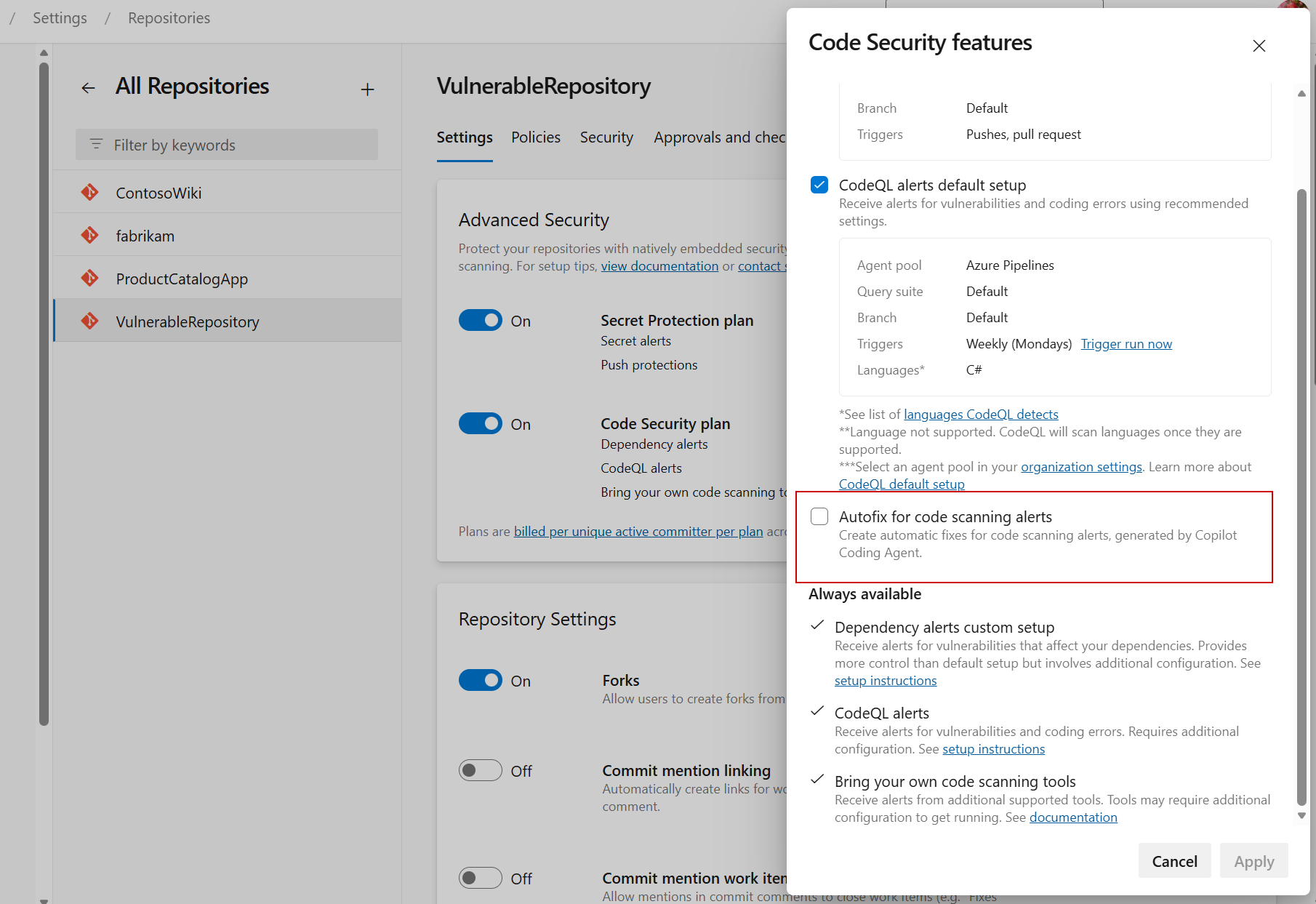
CodeQL must already be running and generating alerts for the repository. For more information, see Set up code scanning and Configure GitHub Advanced Security features.
Generate a fix for an alert
After you enable Copilot Autofix, you can generate a fix from any supported code scanning alert.
- Select Repos > Advanced Security.
- Select the Code scanning tab, and then select an alert to open its detail view.
- Review the alert's Location, Description, and Recommendation to understand the finding.
- Select Generate fix.
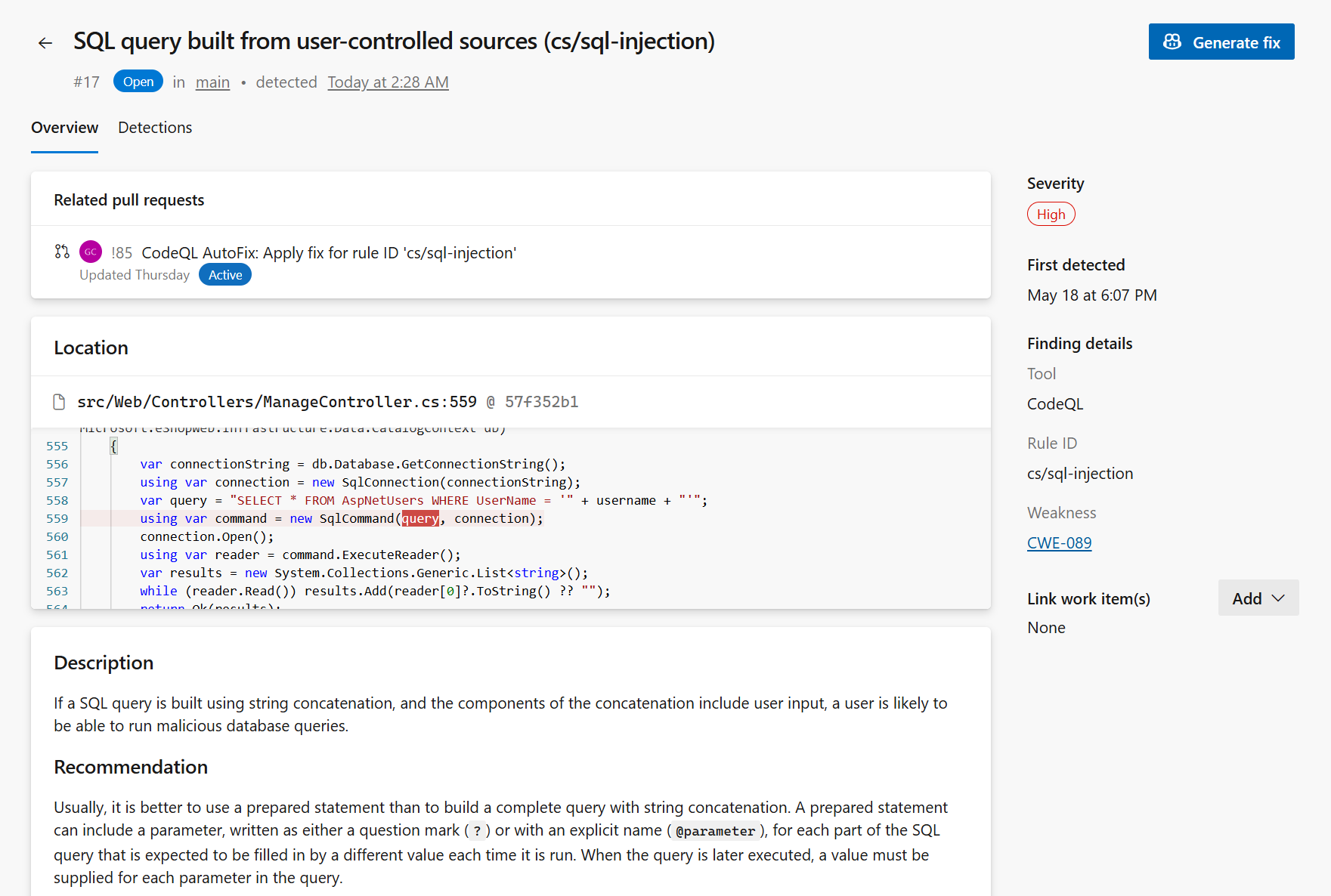
Copilot Autofix generates the fix and opens a pull request from a branch named copilot-autofix/.... After the fix is generated, the pull request appears under Related pull requests on the alert detail view.
Review and merge the fix
The pull request that Copilot Autofix opens behaves like any other Azure Repos pull request. Its description summarizes the alert that the fix addresses.
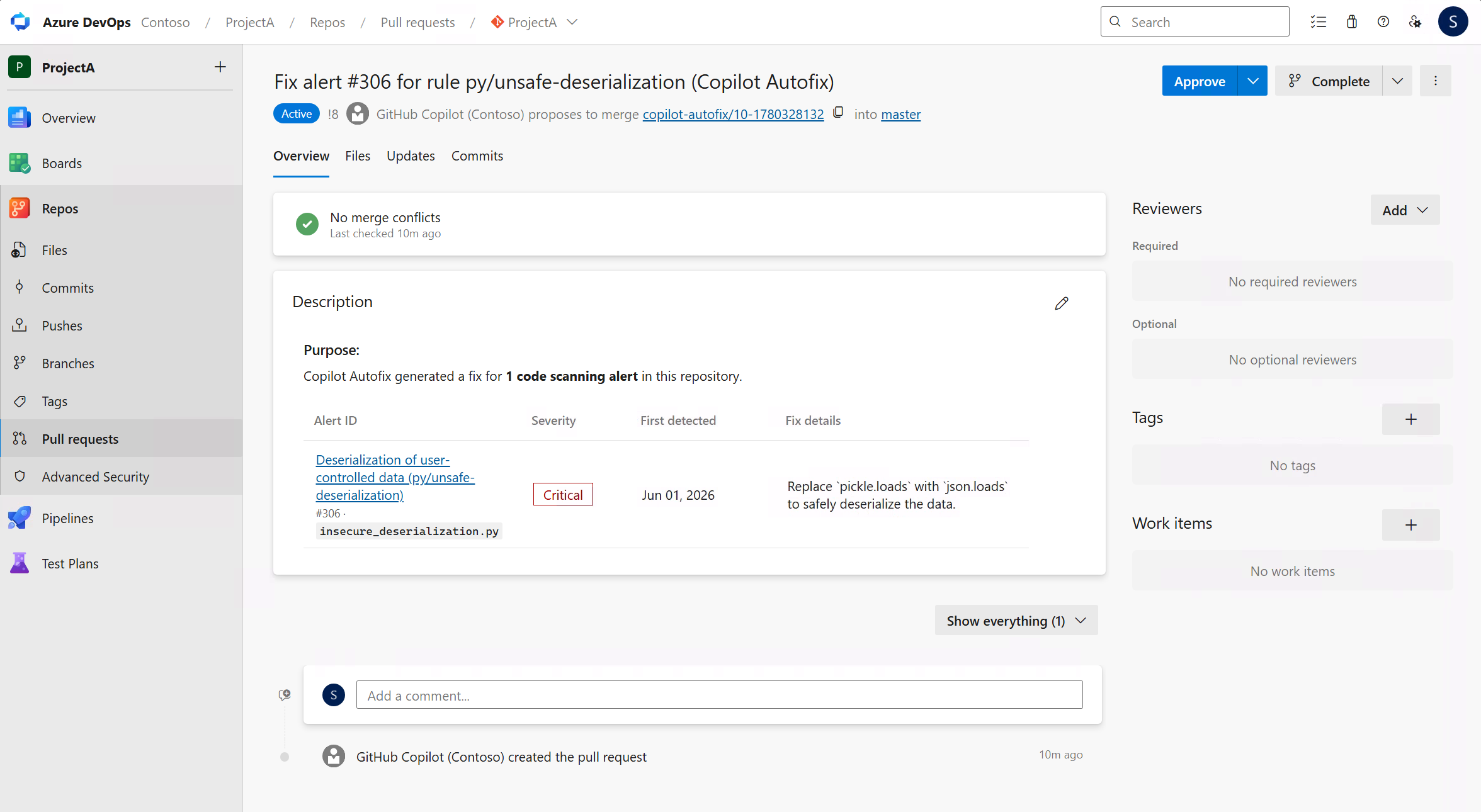
- Open the pull request from the alert's Related pull requests section, or from Repos > Pull requests.
- Review the proposed change in the Files tab across all affected files.
- Edit the change if you need to match your code style, naming conventions, or project requirements.
- Approve and complete the pull request through your normal review workflow.
After the pull request merges and the next code scanning run completes, the alert closes automatically if the fix removes the underlying vulnerability.
Tip
A generated fix is a starting point, not a final answer. Treat the pull request like any other change: review it, test it, and request additional reviewers as needed before you merge.
When a fix isn't available
Copilot Autofix can't generate a fix for every alert. A fix might not be available when:
- The alert type isn't currently supported by Copilot Autofix.
- Copilot determines that the alert is a false positive.
- A custom query or a third-party tool, rather than CodeQL, generates the alert.
When a fix isn't available, use the Recommendation and Example sections of the alert to remediate it or dismiss the alert manually. For more information, see Alert details.