Note
Access to this page requires authorization. You can try signing in or changing directories.
Access to this page requires authorization. You can try changing directories.
| Developer Community | System Requirements and Compatibility | License Terms | DevOps Blog | SHA-256 Hashes |
In this article, you will find information regarding the newest release for Azure DevOps Server.
To learn more about installing or upgrading an Azure DevOps Server deployment, see Azure DevOps Server Requirements.
To download Azure DevOps Server products, visit the Azure DevOps Server Downloads page.
Direct upgrade to Azure DevOps Server is supported from Azure DevOps Server 2019 or Team Foundation Server 2015 or newer. If your TFS deployment is on TFS 2013 or earlier, you need to perform some interim steps before upgrading to Azure DevOps Server 2022. Please see the Install and Upgrade pages for more information.
Azure DevOps Server RC (26H2) Release Date: October 27, 2026
General
Manage high privilege scopes, pipeline decorators, and unpublished extensions
Azure DevOps extensions improve product functionality and workflows, but those with high privilege scopes may pose various risks. We've added a new feature that flags these scopes on each collection's admin page and the Visual Studio Marketplace installation page, helping administrators make informed decisions. Unpublished extensions and pipeline decorators are also flagged for administrator awareness and appropriate actions.
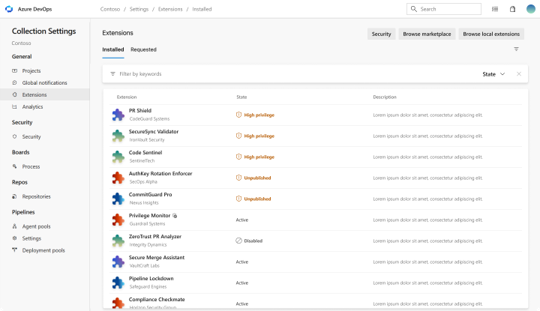
For more information, visit the public documentation page.
Boards
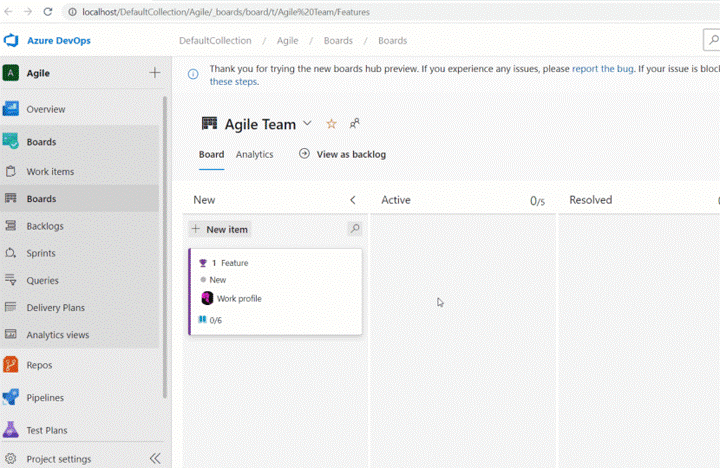
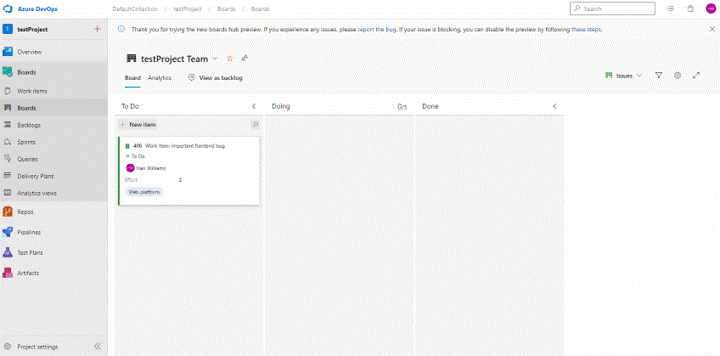
The UI for Azure Boards has been updated to provide a faster user interface, consistency with other parts of the product, and improved accessibility. While the functionality remains the same, you can expect the following: • Modern design • Responsive reflows • Improved performance • Accessibility compliance
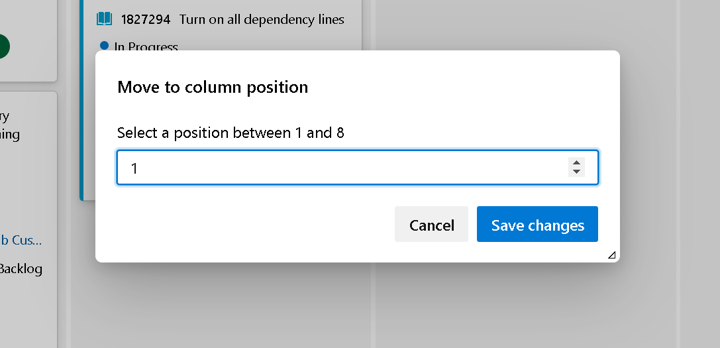
Move to column position on Kanban Board
The Kanban board helps you visualize your team's flow of work. Each column in the Kanban board represents a work stage. Each card represents a backlog item, user story, or bug at that stage of work. Now, you can re-order the work items within a Kanban board column by using Move to position. This will make it easier to re-order work items in columns that contain a lot of work items. To move a work item, click the actions icon (***), and select Move to position.
Assigned To children in Kanban cards
We have added the Assigned To avatar to all child items on the Kanban board cards. This now makes it easier to understand what items have been assigned and to whom. You can also use the context menu to quickly assign the work item.
Filter on work item history
Work items are designed with collaboration in mind. They also keep track of every change for full traceability. This can create a long revision history making it difficult to understand when changes happen to specific fields. In this sprint, we have added a filter option to the work item history tab. This allows you to quickly find revisions made to individual fields by specific people.
We prioritized this feature based on one of the top suggestion from the Developer Community.
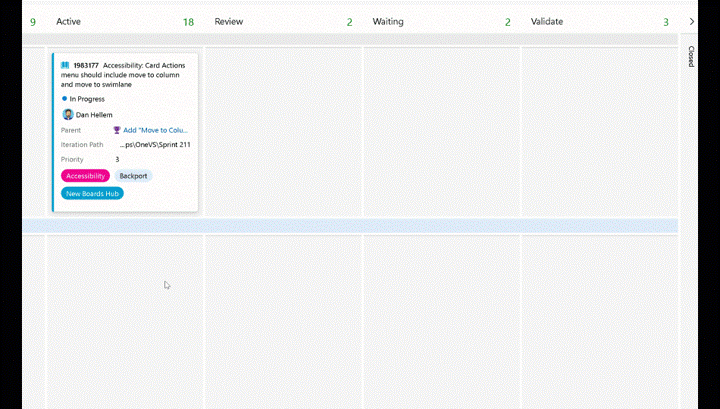
Move to column and move to swimlane
As part of our accessibility improvements, we have added a Move to column and Move to swimlane option to the card actions on the Kanban board. These actions give users with accessibility needs the ability move cards around the Kanban board with ease.
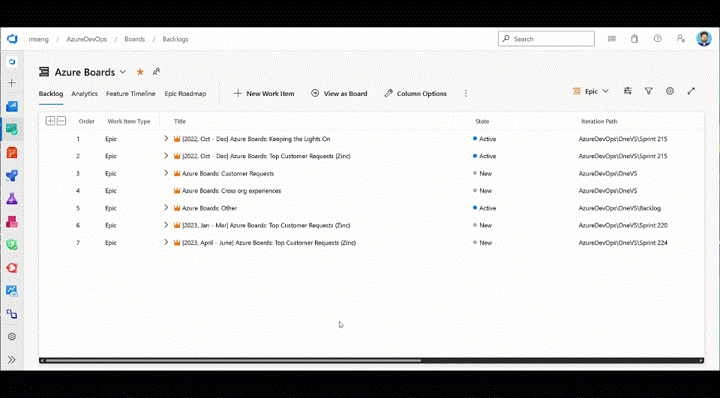
Option to maintain hierarchy with filters
When filtering on the backlog, your hierarchy gets flattened out in the results and you see just one long list of items. This is a painful experience for folks who want to filter and continue to see the hierarchy. In this sprint, we are releasing a new option for you to maintain the hierarchy when filtering on the backlog. When the filter is applied, we start at the bottom of the hierarchy and work our way back up. If there is match, the work item is highlighted (bold) and you can then see the parent chain above.
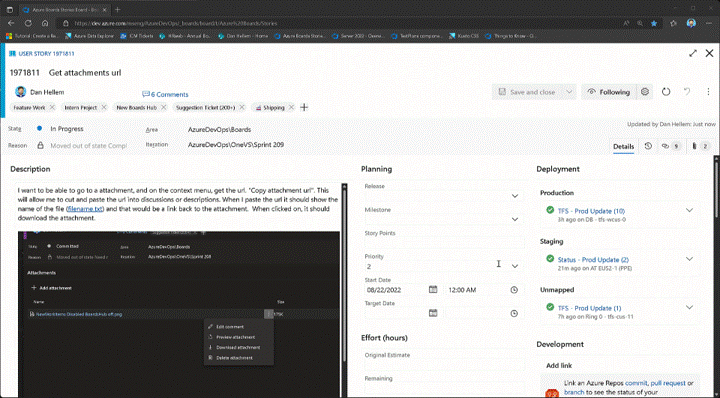
Copy work item attachment URL
We have added the ability to copy the URL for a work item attachment so that it can be cut and pasted in the description and discussions. When you click on the link, it will download the attachment.
Edit work item link types
Previously, changing a work item link requires at least three steps to complete. For example, to change a parent link to a related link, you need to copy the work item id, remove the parent link, add a new existing link of type related, and finally paste the copied id and save. It is a cumbersome process.
We solved the problem by allowing you to edit and change the link type directly. You can quickly change the link type in just one step.
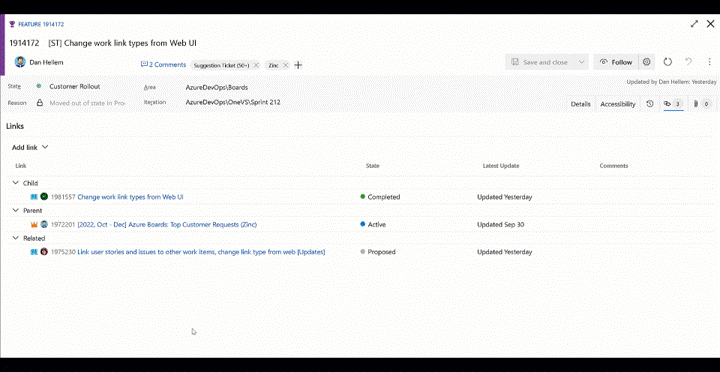
Copy comment links
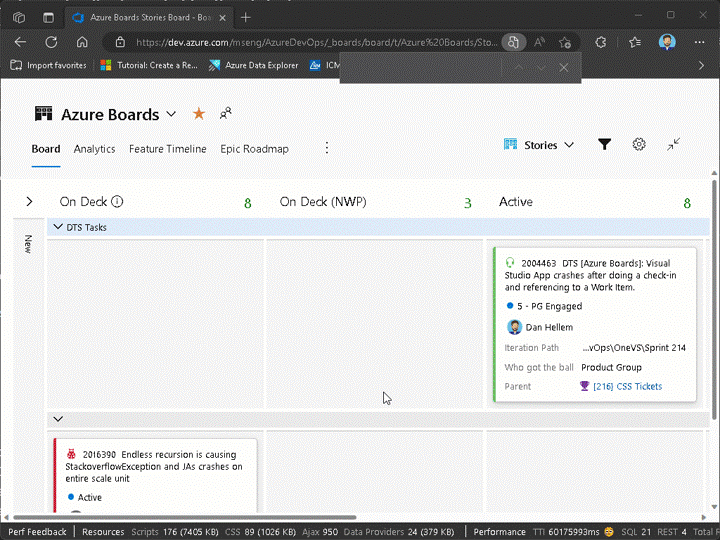
You can now use the Copy link action to copy a link to a specific work item comment. You can then paste that link into another work item comment or description. When clicked on, the work item will be opened, and the comment is highlighted.
This feature was prioritized based on this community suggestion ticket.
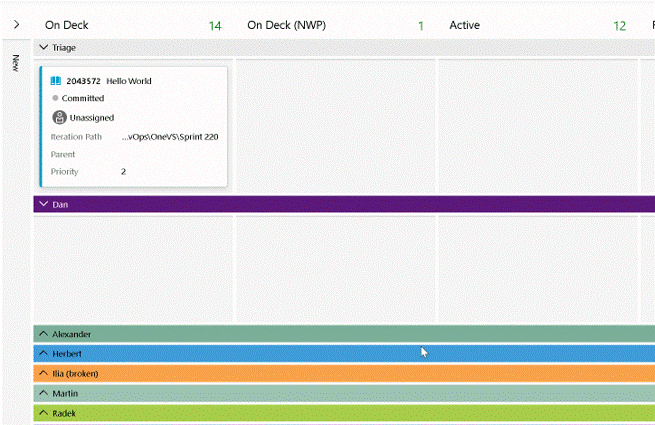
Swimlane colors
In your Kanban board, swimlanes help you visualize the status of work that supports different service level classes. Now, you can add color to swimlanes to make them easier to identify in your board.
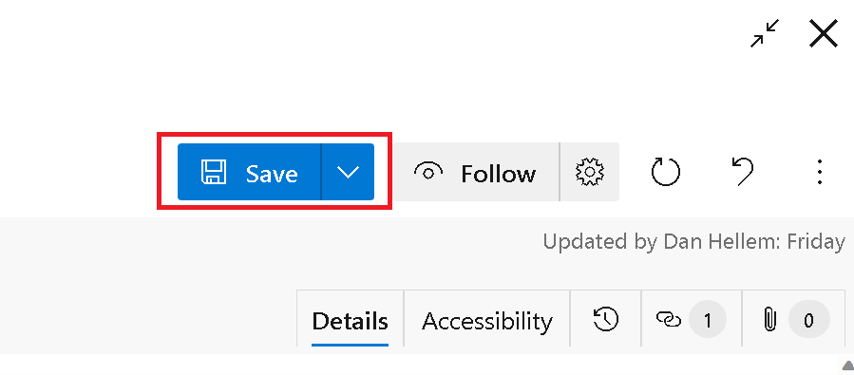
Sticky Save and Save and Close button
We added a small usability feature to the work item save button. The button choice between Save and Save and Close is now sticky for the next time you save a work item. This prevents making an extra click if you prefer Save over Save and Close.
Swimlane Rules
Swimlane rules are similar to style rules, but instead, they allow you to setup conditions on your Kanban board to automatically move work items into specific lanes.
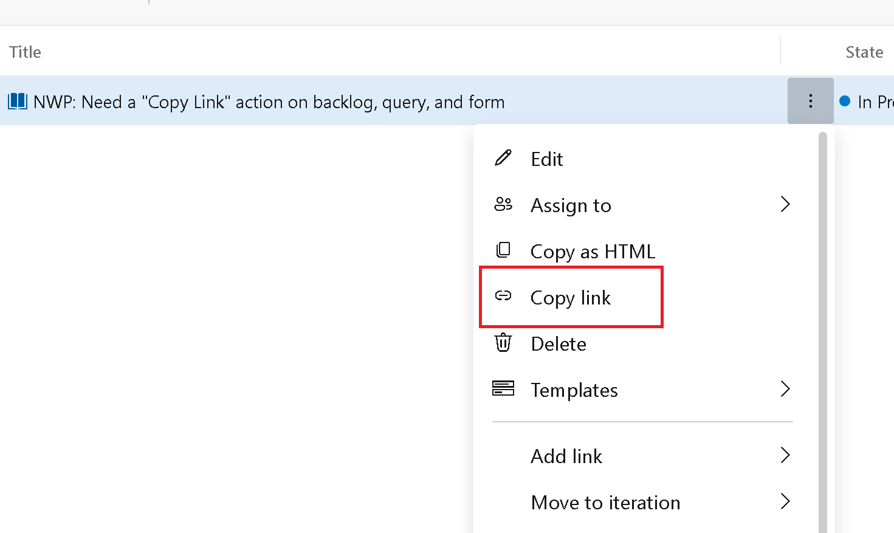
Copy link to work item
We made a small improvement to copy the work item url from several areas in Azure Boards. Making it easier to get the direct link to a specific work item.
Team Automation Rules
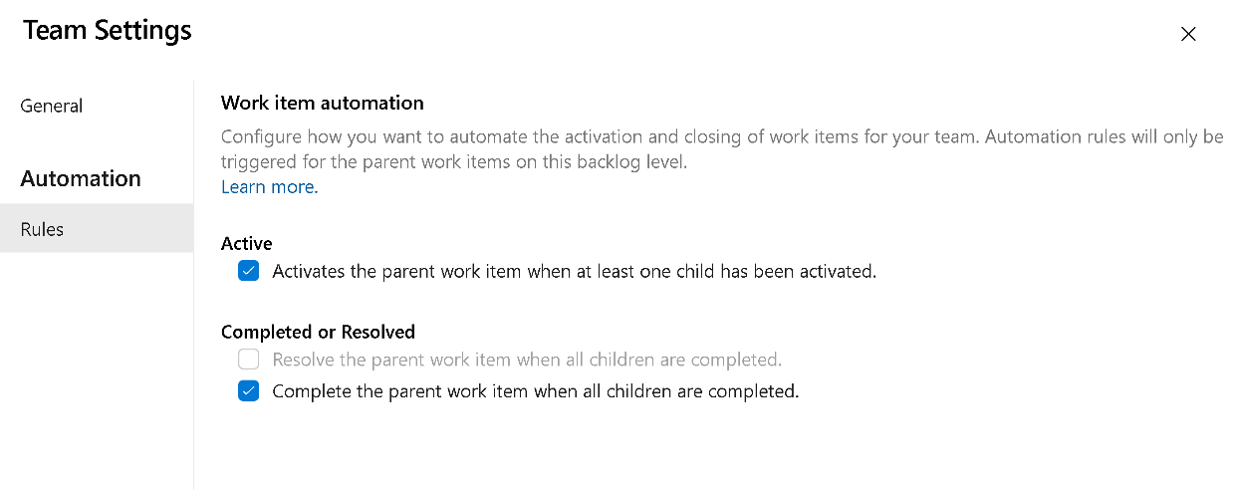
You can now configure each backlog level to automate the opening and closing/resolving of work items based on the state(s) of their children. There are two main scenarios we are attempting to solve.
- When a single child item is activated, then activate the parent.
- When all child items are closed, then close the parent (or resolve it).
To enable these settings, you click on the backlog level configuration for your team. Then go to the Automation > Rules tab to see the two different rules you can apply to your backlog. Each backlog level (requirements, features, epics) can be configured for how your team wants to work.
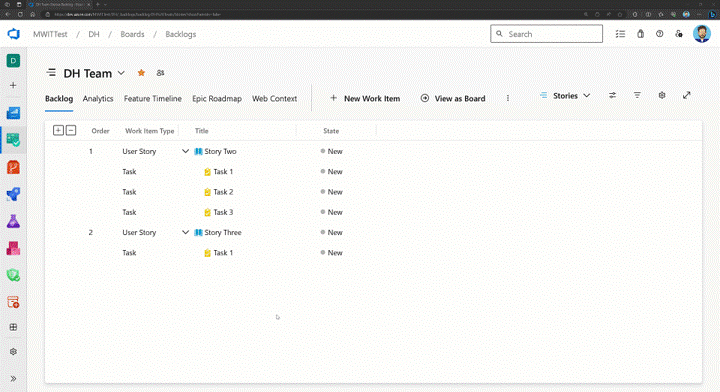
For example, when any child Task is set to Active, make the parent User Story active. Then, when all Tasks are completed, set the User Story to Closed.
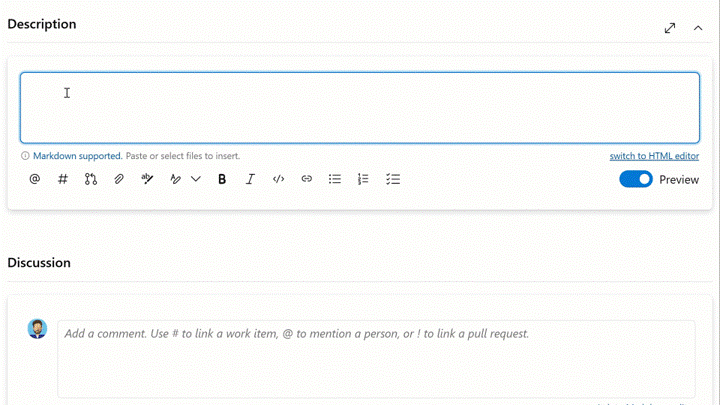
Markdown support for comments and large text fields
Users can now use either Markdown or HTML when creating and editing work item comments and other large text fields. The editor used for the last comment created is remembered and becomes the default for future comments. Existing HTML comments can be converted to Markdown, but once a comment is created or updated in Markdown, it can no longer be converted back to HTML.
Markdown fields in work items also support interactive checklists. Quickly check or uncheck items without leaving the field, just like in pull request descriptions. This feature is automatically available in any large text field or comment with Markdown enabled.
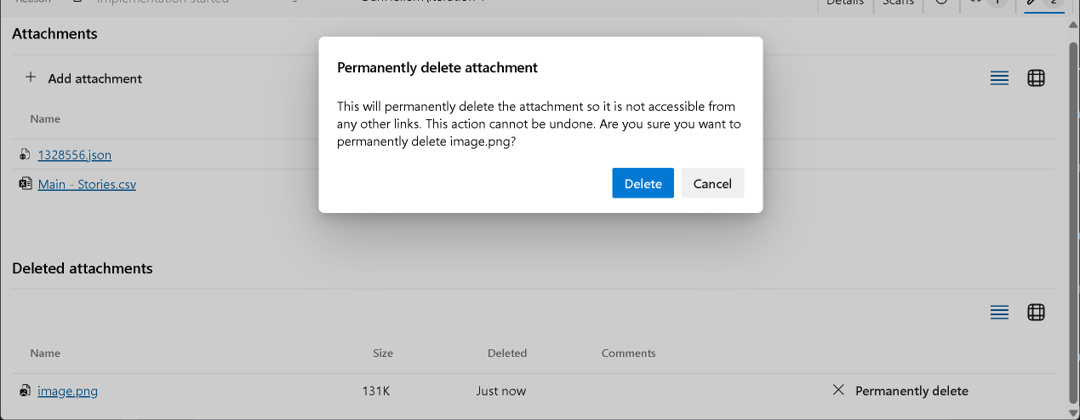
Permanently delete attachments
In some cases, simply removing an attachment from a work item may not fully resolve security risks, especially if the file is flagged as malicious. Shared links to the attachment could still be accessible across other work items, comments, or external channels. To address this, we added a feature that allows users with "Permanently delete work items" permissions to permanently remove attachments.
Increased maximum limit for connected GitHub repositories
We’ve increased the per-connection limit when linking GitHub repositories to an Azure DevOps project. The new maximum limit in the web experience is now 2,000, matching the limit already available through the Update REST API.
Increased inherited process limit
To better support organizations with complex process customization needs, we’ve doubled the limit on inherited processes. Organizations can now create up to 256 inherited processes, increased from the previous limit of 128.
Delivery Plans limit increased
We have increased the maximum Delivery Plans per project to 1,500. You can learn more about adding and editing Delivery Plans in the documentation here.
Deprecating clone work item
We have removed the Clone Work Item feature from the product. You can continue using Copy Work Item, which also allows you to edit the work item before saving.
GitHub Integration Improvements
State Transition Support
We’ve expanded our support for linking GitHub pull requests to Azure Boards work items! Previously, only the Fixes AB#{ID} keyword was supported. With this update, you can now use {State or Category} AB#{ID} to automatically transition work items to the desired state on merge.
If the GitHub pull request description includes a state name (e.g., Validate AB#1234), the linked work item's state will be updated as a result. If the state name isn’t recognized, we check if it matches a state category (like Resolved). If it does, the work item is transitioned to the first available state within that category.
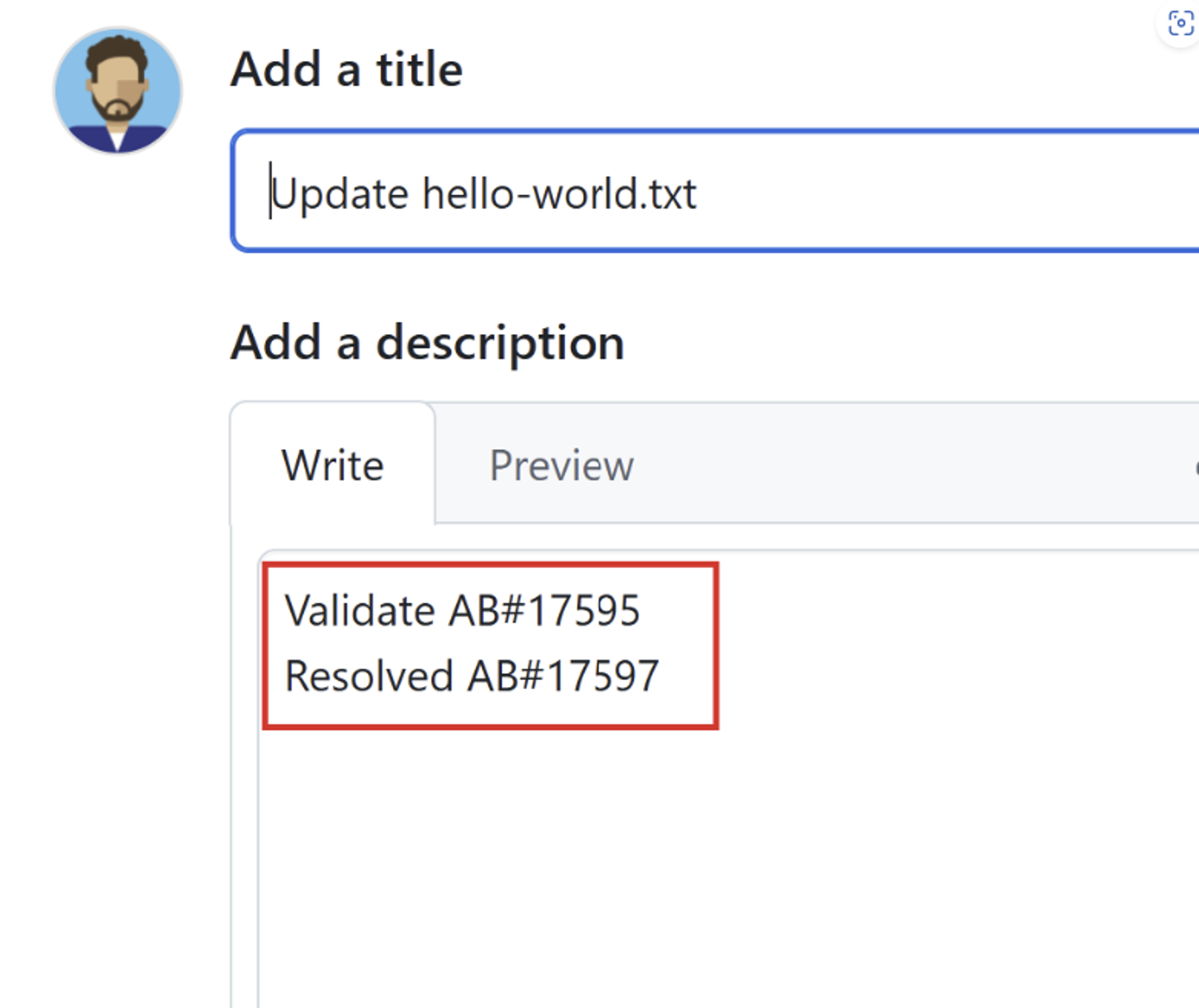
If no matching state or category is found, the keyword is ignored and the state on the work item won't be updated.
Finally, the Fixes AB#{ID} keyword continues to work as expected, defaulting to the "Closed" state value.
AB# links on****GitHub pull requests
AB# links now appear directly in the Development section of GitHub pull requests, making it easier to access linked work items without searching through descriptions or comments.
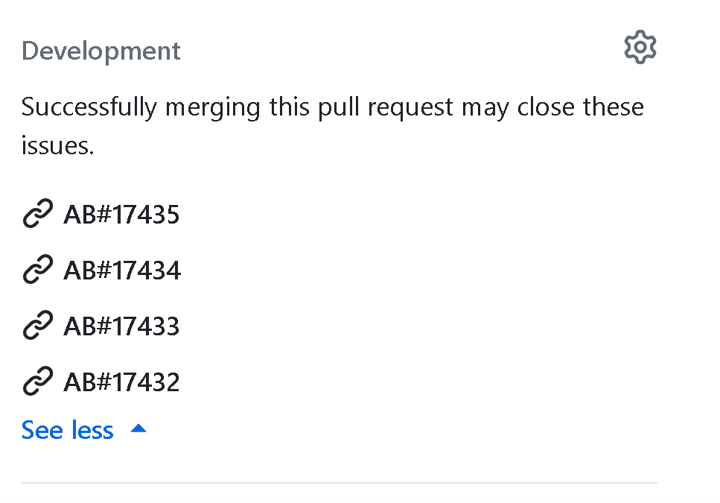
These links will only appear when AB# is included in the pull request description. If you link directly from a work item, they won’t be displayed in the Development section. Additionally, removing the AB# link from the description removes it from the Development control.
Improvements linking to commits, branches and pull requests
We're continuously improving the Boards + GitHub integration to close usability gaps and align with the experience you're familiar with in Azure Repos.
With this update, we've introduced several improvements to streamline how branches, pull requests, and commits are linked to work items:
- When a GitHub branch is linked to a work item, any associated pull requests will now be automatically linked. No need to manually use AB#.
- Once a pull request is merged, the merge commit will be automatically linked to the work item.
- If the branch is deleted after the pull request is merged, the branch link will be automatically removed from the work item.
- Automatically link the merge commit to its corresponding work item when a pull request is completed.
These improvements make it easier to track your development progress and maintain clean, up-to-date work item associations.
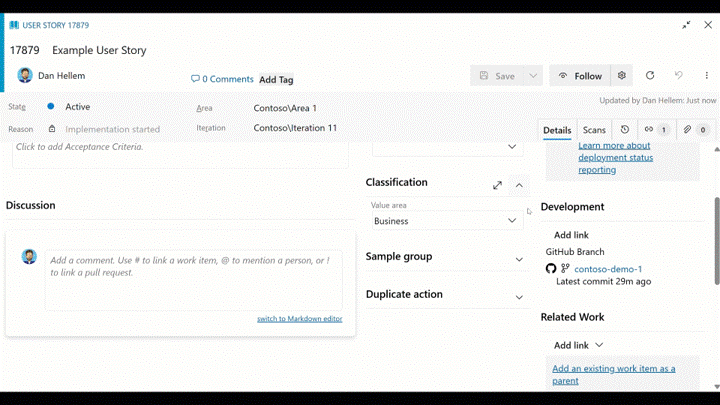
Pull Request Mentions
You can now use ! mentions to reference and discuss GitHub pull requests directly from any large text field or comment.
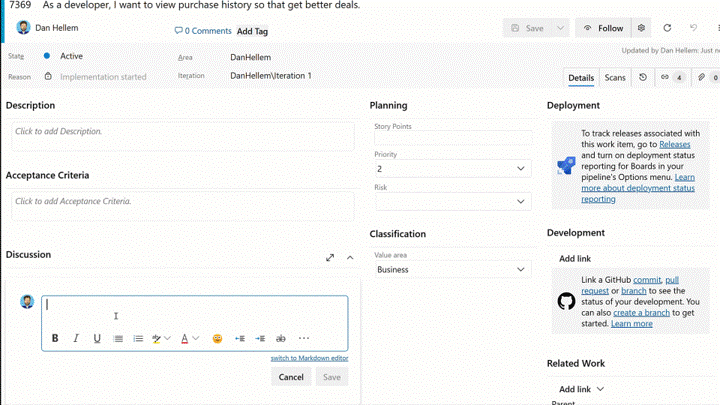
Show build status for YAML pipelines
We're committed to achieving feature parity between YAML and Classic Pipelines. One key missing feature was the ability to provide an "Integrated in build" link when your repository is hosted in GitHub. With our latest release, we've addressed this gap by adding an option in YAML pipeline settings for you to check:
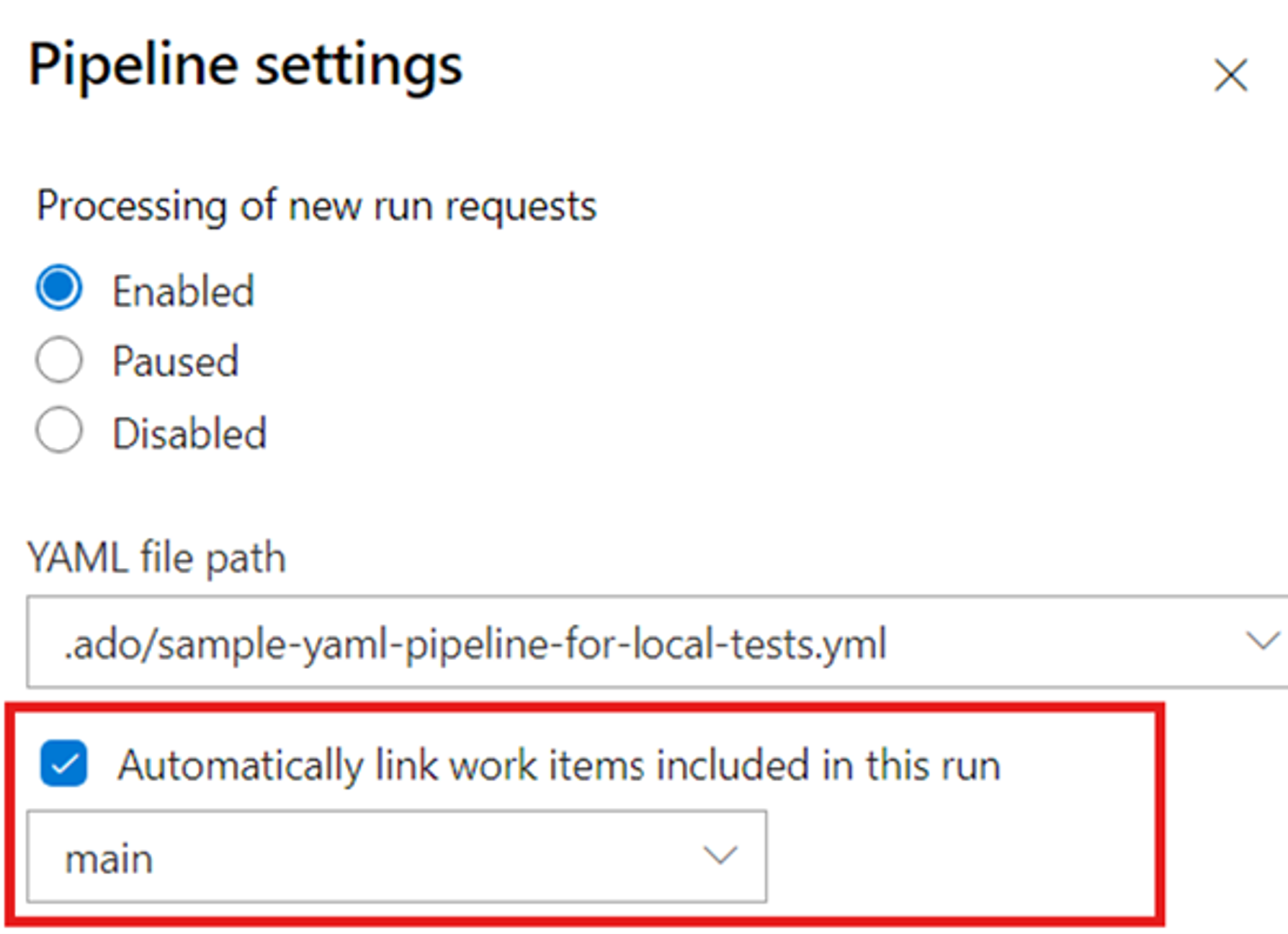
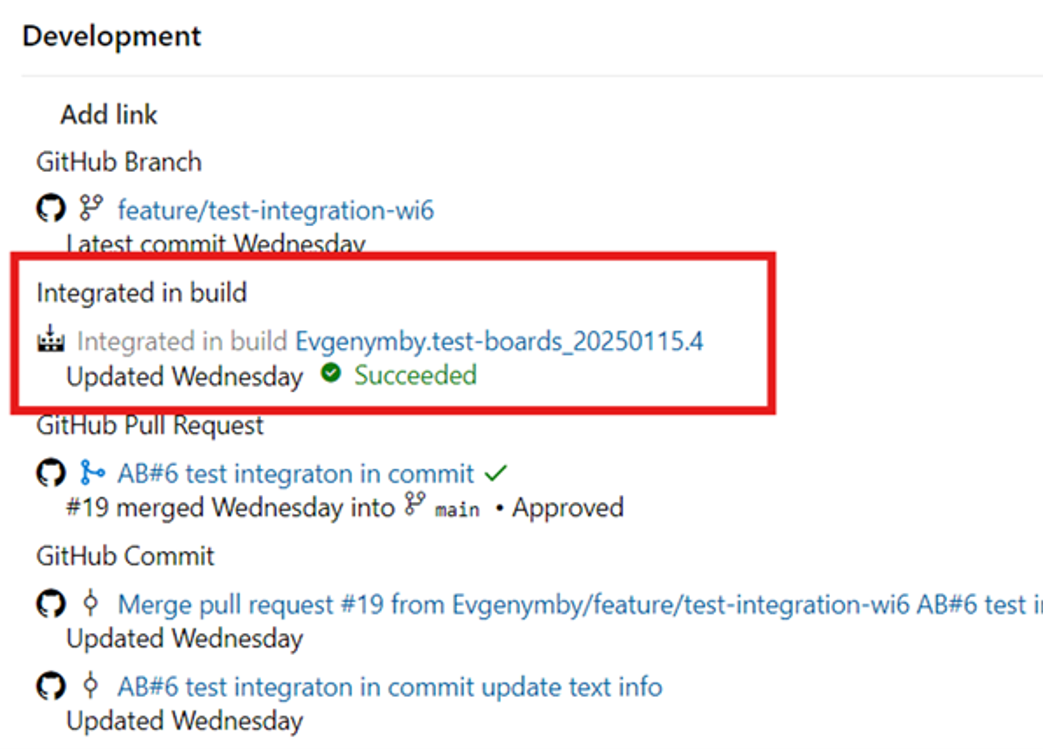
Once the build is complete, the corresponding link will automatically appear on the associated work items, improving the overall traceability story.
Increase limit of connected GitHub repositories
We are raising the maximum limit from 500 to 2,000 repositories, giving you even greater capacity to manage your projects.
Repos
Improved Git policy configuration API
The policy configuration APIs are improved to make it easier and more efficient to retrieve all policies that apply to a specific repository. You can now query policies defined at the repository level and policies applied to any branches or ReFS within that repository, without needing to scan the entire project. This enhancement reduces unnecessary API calls and improves performance for services that manage policies at scale. Existing policy behavior remains unchanged.
Policy Configurations - Get - REST API (Azure DevOps Git)
Breaking Change: Disabling of obsolete TFVC check-in policies
In April 2025, we announced changes to how TFVC check-in policies are stored. These changes affect any TFVC projects that use check-in policies such as Build (require the last build to succeed), Work Item (require an associated work item), Changeset Comments (require users to add a comment to their check-in), and others.
Over the past year, we have provided guidance on migrating your existing, obsolete check-in policies to the new storage format and have disabled the creation of new obsolete policies.
In this release, any remaining check-in policies that are still using the old format will be disabled. These policies will no longer function, and you will be required to migrate them to the new format for check-in policies to continue working.
For full details and step-by-step migration guidance, see our blog post.
Pull request notification improvements
To help teams focus on the most relevant pull request activity, we’ve improved Azure DevOps email notifications to reduce noise and highlight meaningful changes. Several low-value notifications, including draft transitions and auto-complete updates, have been removed entirely. For remaining notifications, we’ve simplified the content to emphasize what changed, such as affected files, while removing redundant details like full reviewer and commit lists. These updates are designed to make pull request emails easier to scan, more actionable, and better aligned with how teams review and collaborate together.
Pull request templates for multi-level branches
Pull request templates will now support a nested folder structure corresponding with multi-level branches. If you open a PR against a branch called feature/foo/december, a template will be searched for in the following locations in order of preference:
<pull request template path>/branches/feature/foo/december.md<pull request template path>/branches/feature/foo.md<pull request template path>/branches/feature.md
The most specific template will be applied to the PR, in this case feature/foo/december.md if it exists. If not, feature/foo.md will be applied, and if that doesn't exist, feature.md will be used.
Disabling the save operation for obsolete TFVC policies
As previously outlined in our plan published on the DevOps Blog, we are disabling the creation and modification of obsolete TFVC policies as part of a phased deprecation. Existing obsolete policies remain available for use and viewing in their current state. We recommend migrating to the new policy type before the next phase of this process begins.
For questions or feedback, please reach out via the Developer Community.
Improved comment navigation by the link in pull requests
We’ve improved the behavior of comment navigation within the pull request experience. When accessing a specific comment via a direct link, the system now handles focus better for pull requests with a large number of comments.
Target branches now available in pull request branch dropdown
Customers using Pull Request Targets will now have their target branches highlighted in the new Targets section in the branch dropdown, appearing between the Mine and All section.
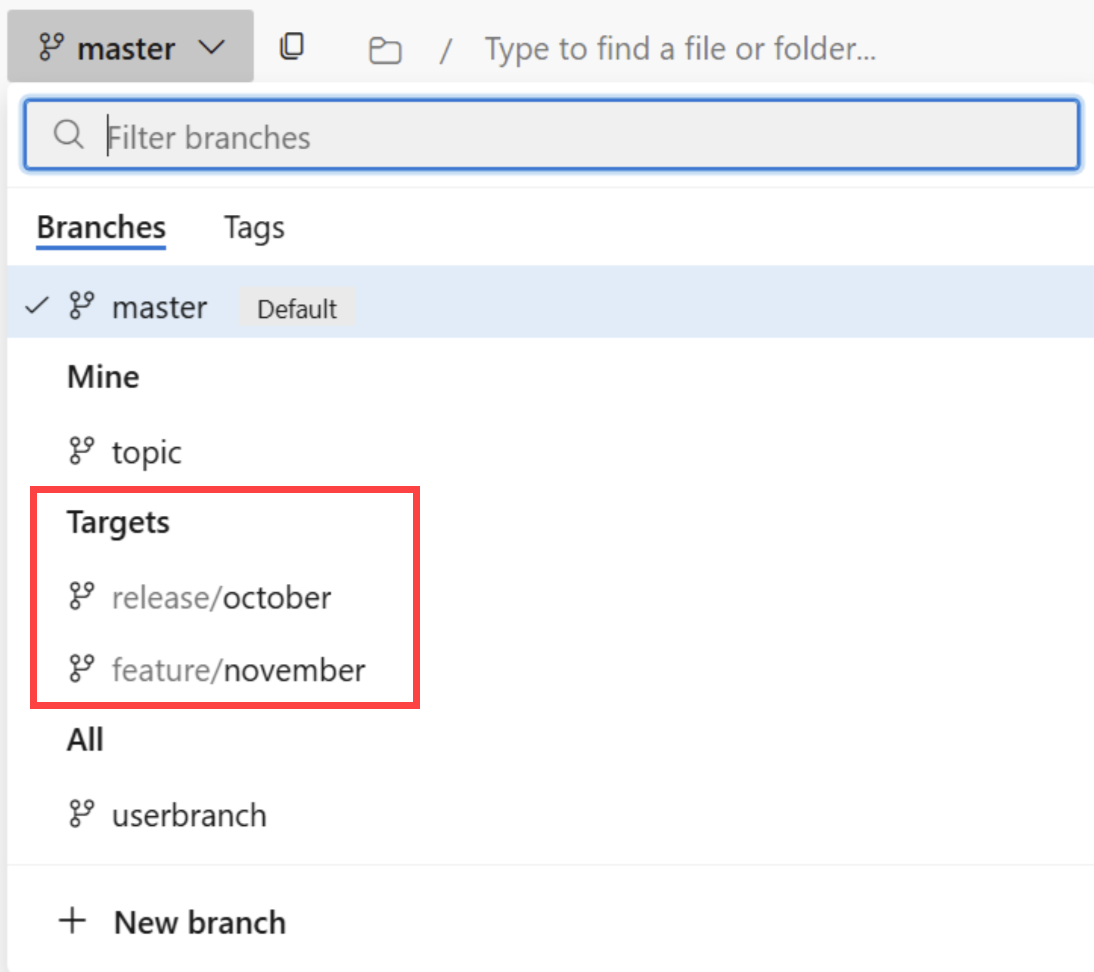
Visit the configure target branches for pull requests documentation to learn how to get started with target branches.
Improved navigation for pull request threads and discussions
We introduced new keyboard shortcuts that allows navigate through pull request discussions and threads:
- Move to the previous discussion - ctrl+alt+w
- Move to the next discussion - ctrl+alt+s
- Collapse selected thread - ctrl+alt+c
- Expand selected thread - ctrl+alt+e
More information about available keyboard shortcuts n Azure DevOps can be found in official documentation: Keyboard shortcuts for web portal and Team Explorer.
Improved screen reader support for pull request experience
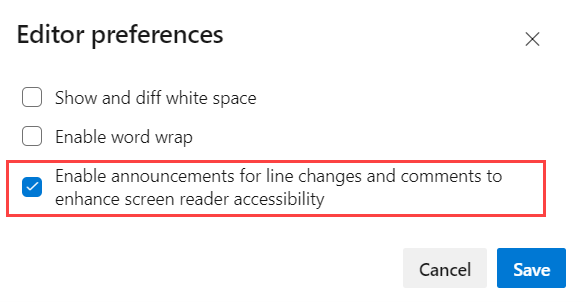
We improved support for screen readers in the pull request experience. The new option in built-in code editor will let you enable announcements for line changes and comments.
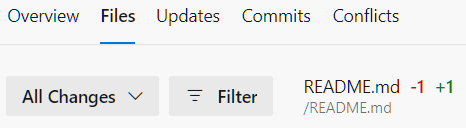
To enable the new option, from the pull request page click on the File tab.
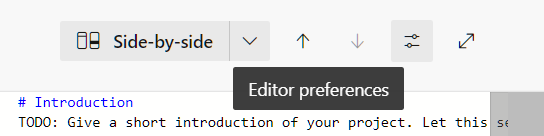
Then, click on the Editor preferences button.
On the popup menu, select the Enable announcements for line changes and comments to enhance screen reader accessibility option and Save.
Azure DevOps remote index support in VSCode
Azure DevOps now supports remote indexes for IDE workspaces that are linked to Azure DevOps repos. This enables #codebase to search for relevant snippets almost instantly without any initialization. This even works for larger repos with tens of thousands of indexable files. Support for remote workspaces has released starting with the July updates to Visual Studio and VS Code. For more info please see the VS Code Release Notes.
Remote indexes are used automatically when working in a workspace that is linked to Azure DevOps through git. Make sure you are also logged into Visual Studio or VS Code with the Microsoft account you use to access the Azure DevOps repo.
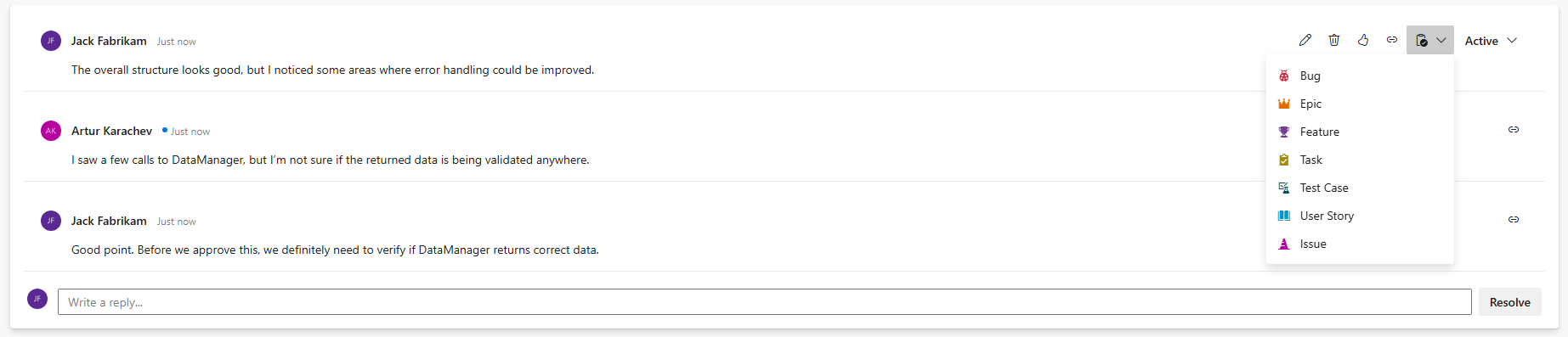
Create work items from pull request comments
You can now create a work item directly from a comment in your pull request. Simply open a PR, add a comment, and click the new Create Work Item button. Then, choose the desired work item type from the dropdown menu.
Enhanced diagram support in wiki pages and file preview
We brought expanded support for a variety of Mermaid diagram types and visualizations, enhancing your documentation and project planning capabilities. The newly supported diagram types that we have included this sprint are: Entity relationship and Timeline diagram.
You can find more information about Mermaid support in the work with Mermaid diagrams documentation.
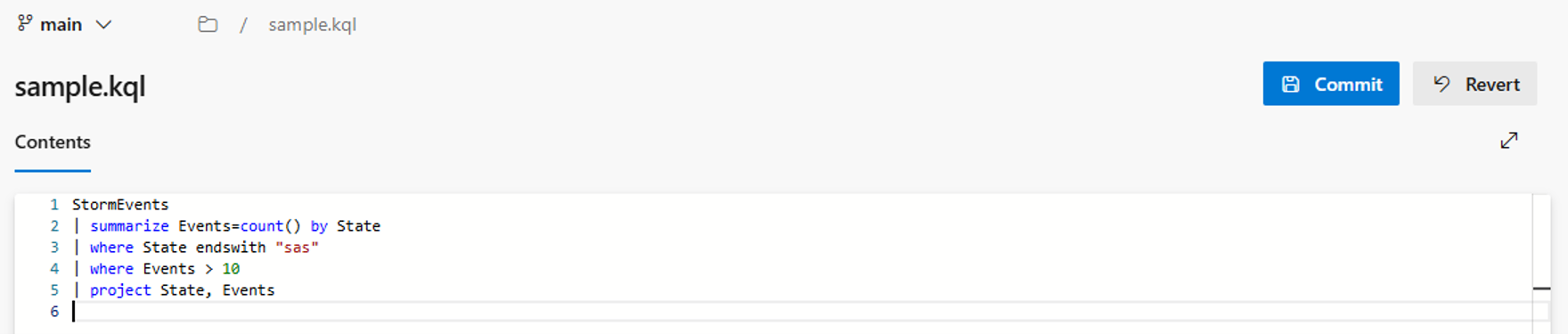
Syntax highlighting support for Kusto Query Language
Azure DevOps now supports syntax highlighting for Kusto Query Language in the file view and edit experience. This enhancement applies to files with .csl, .kql, and .kusto extensions, making it easier to read and edit KQL scripts directly within the platform.
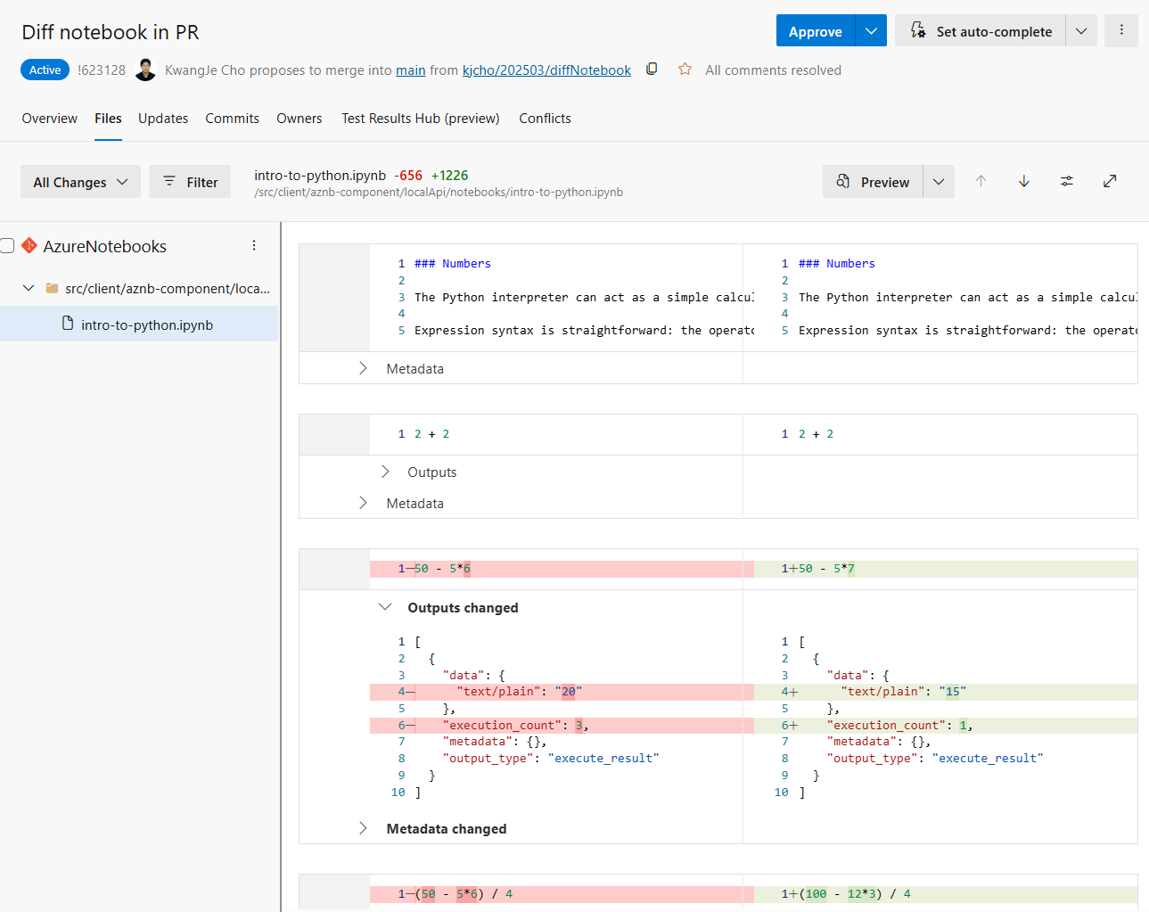
Support for Jupyter Notebook diffing in PR
In response to customer feedback, we’ve added support for diffing .ipynb files in PRs in the Jupyter Notebook extension. Instead of parsing raw JSON, you’ll now get a side-by-side notebook view that highlights changes in code and Markdown cells. Outputs and metadata are shown in collapsible sections, and any changes in those sections are marked in bold.
TFVC check-in policies changes
New version (19.255.0-preview) of Microsoft.TeamFoundationServer.ExtendedClient NuGet package
NuGet Microsoft.TeamFoundationServer.ExtendedClient package was updated with new TFVC policy classes and methods.
Policy changes
We're making changes to how TFVC check-in policies are stored in Azure DevOps, which also means updates to how the NuGet Microsoft.TeamFoundationServer.ExtendedClient communicates with the service.
If your TFVC project uses check-in policies, migrate those policies to the new format. There are two ways to do this:
- Using Visual Studio.
Warning
Dangerous certain consequences of an action.: Ensure you updated Visual Studio to the latest version before proceeding (VS 2022, VS 2019, and VS 2017 with minimal versions 17.14 Preview 3, 17.13.6, 17.12.7, 17.10.13, 17.8.20, 16.11.46, 15.9.72 are supporting the new policies).
To create new policies using Visual Studio project administrator should open Settings -> Team Project -> Source Control -> Check-in Policy and add new policy (without "Obsolete" mark) with the same parameters as old one:
- If you're using custom implementation of Microsoft.TeamFoundationServer.ExtendedClient to communicate with server, please follow the migration guide.
The migration is required for keeping TFVC check-in compatible with the future Azure DevOps versions. For the time being, both old (Obsolete) and new policies remain valid and functional. For information on the Future Plans, see our blog post.
Enhancement to GetRepository API
We have added creationDate property to the response of Repositories - Get Repository API returning repository creation date. The property is available on the API versions 7.2-preview and higher.
Enhancement to Pull Requests Query API
We have introduced a new Label property in the response of Pull Request Query - Get API. You can now specify whether to include labels (tags) for related pull requests in every query. A new Include property is available - if set to Labels, the response includes labels for the specified PRs. If left as null, labels won't be included. To prevent unintended errors, ensure that NotSet isn't explicitly assigned - this will result in Bad Request.
Note
Label enrichment resource utilization depends on the number of assigned labels and their length. Requesting labels can impact throttling and increase network load. To optimize the performance, we recommend avoiding unnecessary label requests.
Request payload example:
{
"queries": [
{
"type": "lastMergeCommit",
"include": "Labels",
"items": [
"0d6c9b2b524113113fced41aecbf8631a4649dec"
]
},
{
"type": "lastMergeCommit",
"items": [
"b524113113f0dd41aecbf8631a4649dec6c9b2ce"
]
}
]
}
Pipelines
Improvements to Service Connections
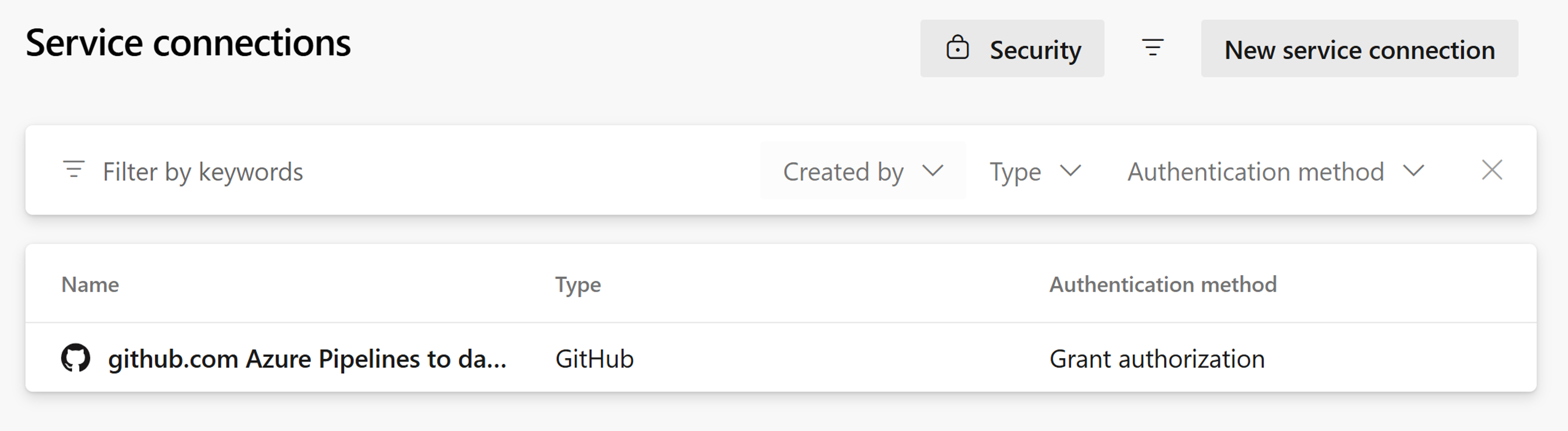
We’ve enhanced the Service Connections administration page to provide greater visibility into your connections. You can now view additional details, including connection type and authentication method.
We’ve also added filtering support for these fields, making it easier to quickly find, organize, and understand the purpose of your service connections.
Note
Additional service connection details are only available for newly created service connections.
Improved continuous deployment visibility in YAML pipelines
Previously it was difficult to determine which artifacts were deployed in a give run while using YAML based Azure Pipelines for continuous deployment (CD) scenarios. In this sprint, we’ve improved artifact visibility across pipeline runs.
On the pipeline runs overview page, you can now see the artifact used by each run, making it easier to understand what was deployed at a glance.
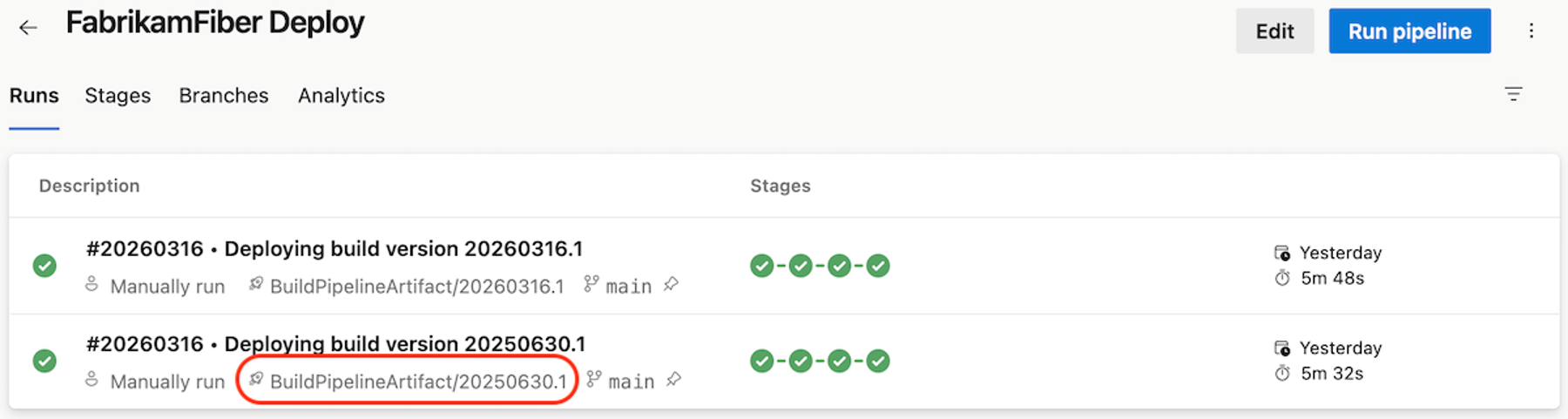
When viewing an individual run, Azure Pipelines now surfaces the artifacts used by that run at the top of the run details page.
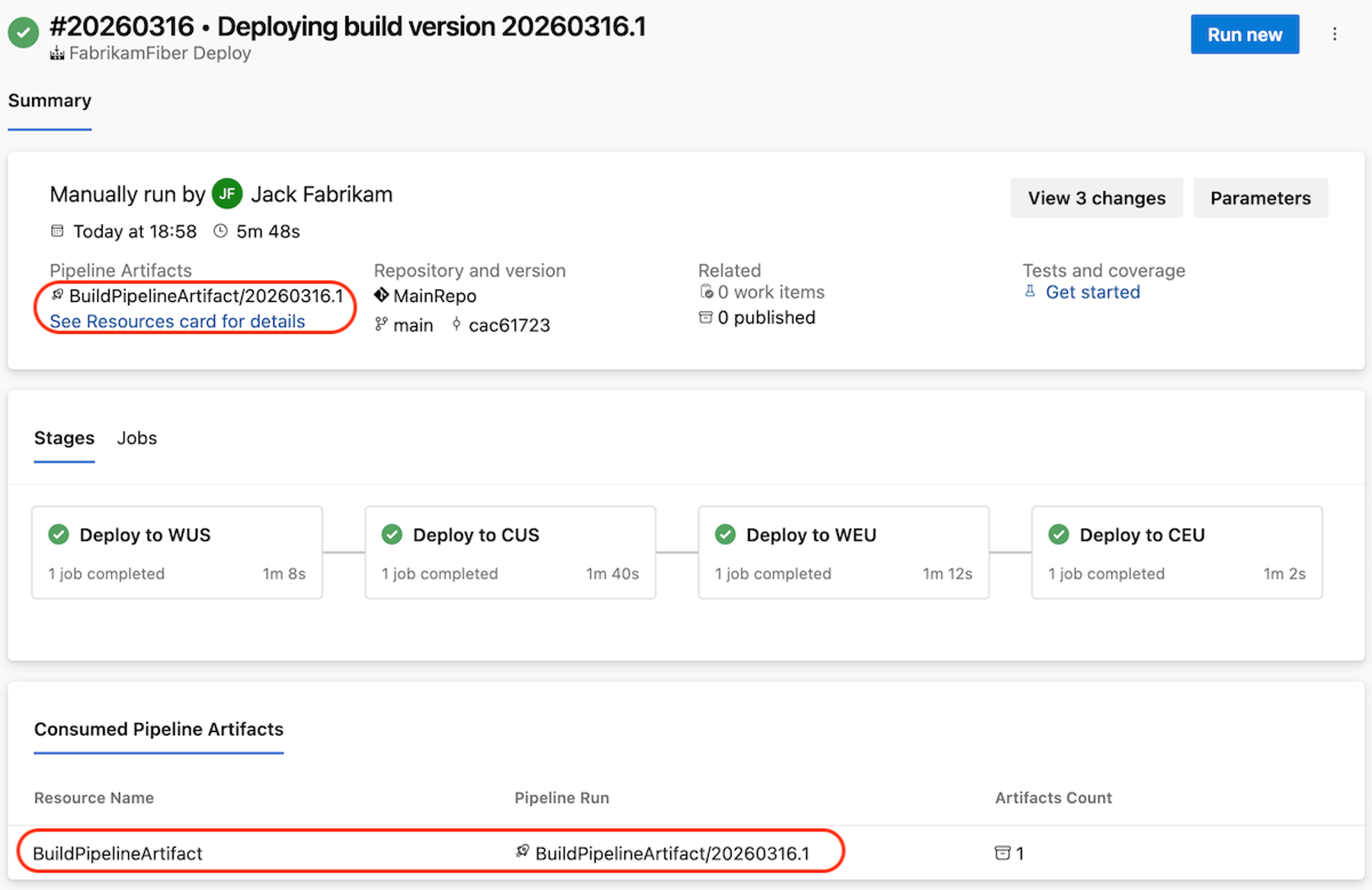
This functionality works with pipeline artifacts defined as pipeline resources. If multiple artifacts are defined, Azure Pipelines displays the first artifact listed.
Deployment history for stages
When deploying the same service to multiple instances, it can be difficult to understand which version of the system is currently deployed to each instance.
With this sprint, we’re introducing a new Stages experience in Azure Pipelines that provides clear deployment visibility at the pipeline level. The Stages view shows the most recent pipeline run that is currently deployed, or in the process of deploying to each stage in your pipeline.
For example, consider the following YAML pipeline with multiple deployment stages grouped by region:
stages:
- stage: deploy_WUS
 group: US Deployment
 displayName: Deploy to WUS
 jobs:
 - job:
 steps:
 - script: ./deploy.sh WUS
- stage: deploy_CUS
 group: US Deployment
 displayName: Deploy to CUS
 jobs:
 - job:
 steps:
 - script: ./deploy.sh CUS
- stage: deploy_WEU
 group: EU Deployment
 displayName: Deploy to WEU
 jobs:
 - job:
 steps:
 - script: ./deploy.sh WEU
- stage: deploy_CEU
 group: EU Deployment
 displayName: Deploy to CEU
 jobs:
 - job:
 steps:
 - script: ./deploy.sh CEU
After you run your pipeline a couple of times, and you come to the Stages tab, this is what you see.
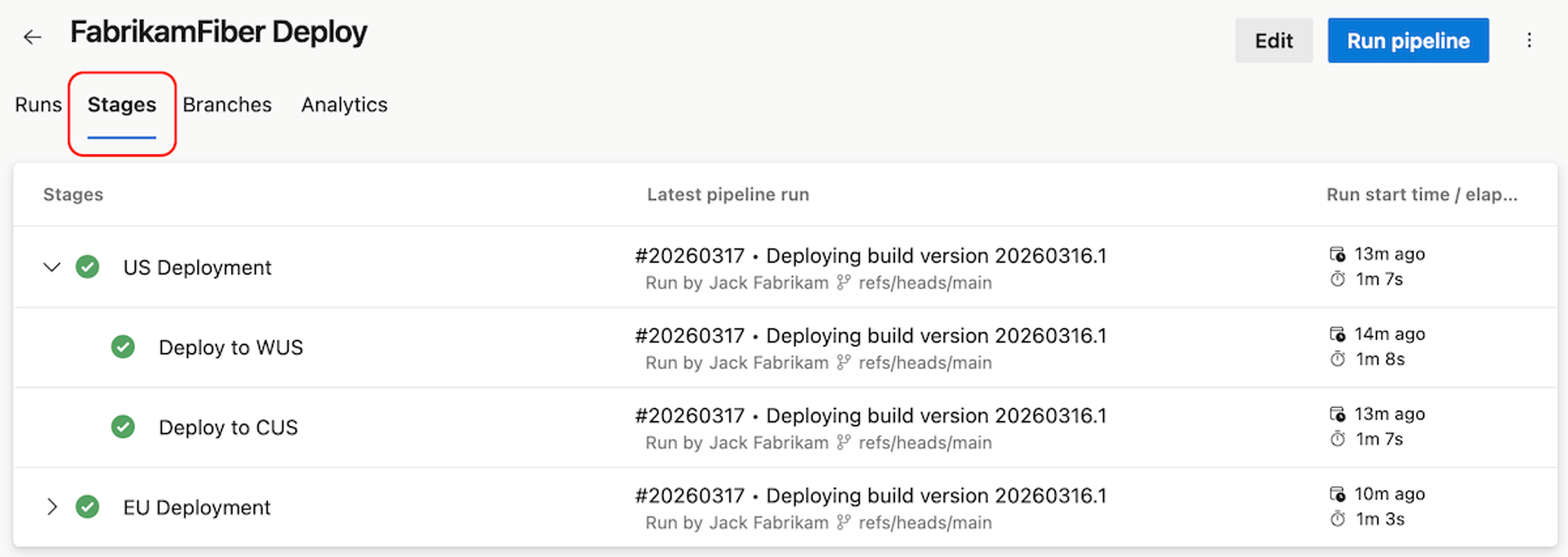
You can see that the latest run that touched the stage named Deploy to WUS was #20260317 that deployed the system version 20260316.1. For a stage, you see successful or in progress pipeline runs that run that stage.
If you click on the stage name, for example, Deploy to WUS, you will get to the stage's logs. If you click on #20260317 • Deploying build version 20260316.1, you will get to that pipeline run.
If you click on the row of a stage, you get its deployment history. The history contains completed and in-progress runs that reference the stage.
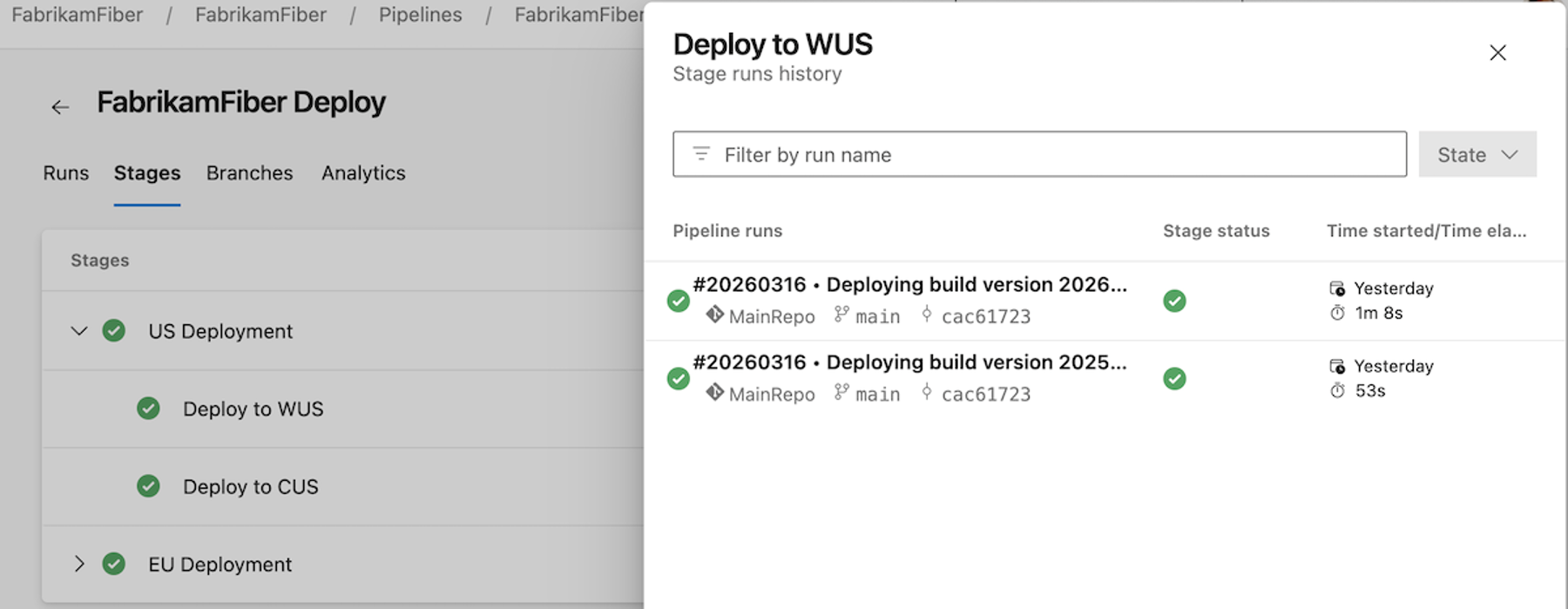
Deployment pipelines can have hundreds of stages organized in various groups, for example, in a ring structure. We're adding support for specifying a stage's group. In the previous screenshot, you can see two groups, US Deployment and EU Deployment.
The group stage property supports multiple levels of nesting. That is, you can have a group whose name reads EU Deployment\Italy, like in the following case.
- stage: deploy_IT
 group: EU Deployment\Italy
 displayName: Deploy to Italy
 jobs:
 - job:
 steps:
 - script: echo ./deploy.sh IT
When you run this stage, the Stages view gets updated like in the following screenshot.
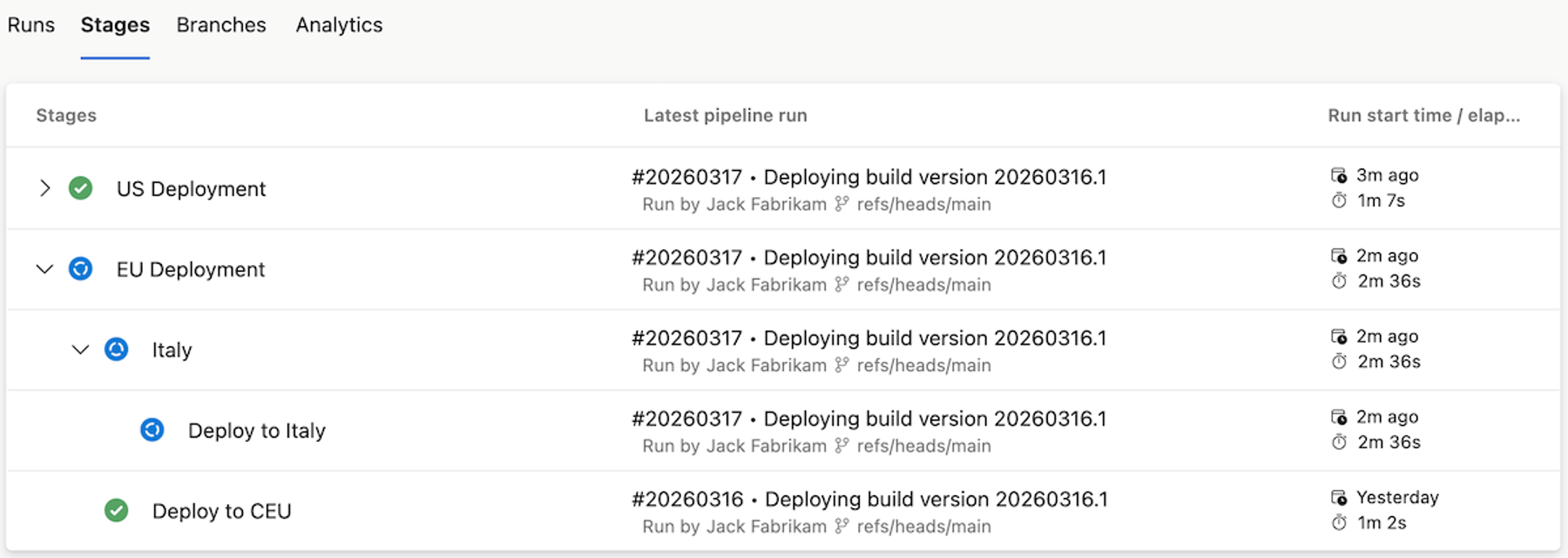
Stages are shown as long as there is a run that references them.
A stage needs to have a name to show up in the Stages tab. That is, - stage: deploy_WUS will show up, while - stage: will not.
Improved pipeline run debugging
In this sprint, we are improving your ability to debug pipeline runs.
It may happen that you need to cancel your run, but the job or stage continue to run, and you are confused. We've added warning messages to let you know when and why this is the case.
Imagine you have the following YAML:
stages:
- stage: WUS1
 jobs:
 - job: DeployWUS1
 condition: eq(variables['Build.SourceBranchName'], 'main')
 steps:
 - task: CmdLine@2
 inputs:
 script: echo "Deploying $(System.StageName)"
 - task: CmdLine@2
 inputs:
 script: sleep 60
- stage: WUS2
 condition: eq(variables['Build.SourceBranchName'], 'main')
 jobs:
 - job: DeployWUS2
 steps:
 - task: CmdLine@2
 inputs:
 script: echo "Deploying $(System.StageName)"
Now, imagine you cancel the run when running job DeployWUS1. The job will continue to run, and so will stage WUS2. Azure Pipelines tells you why the job and the stage continue running.
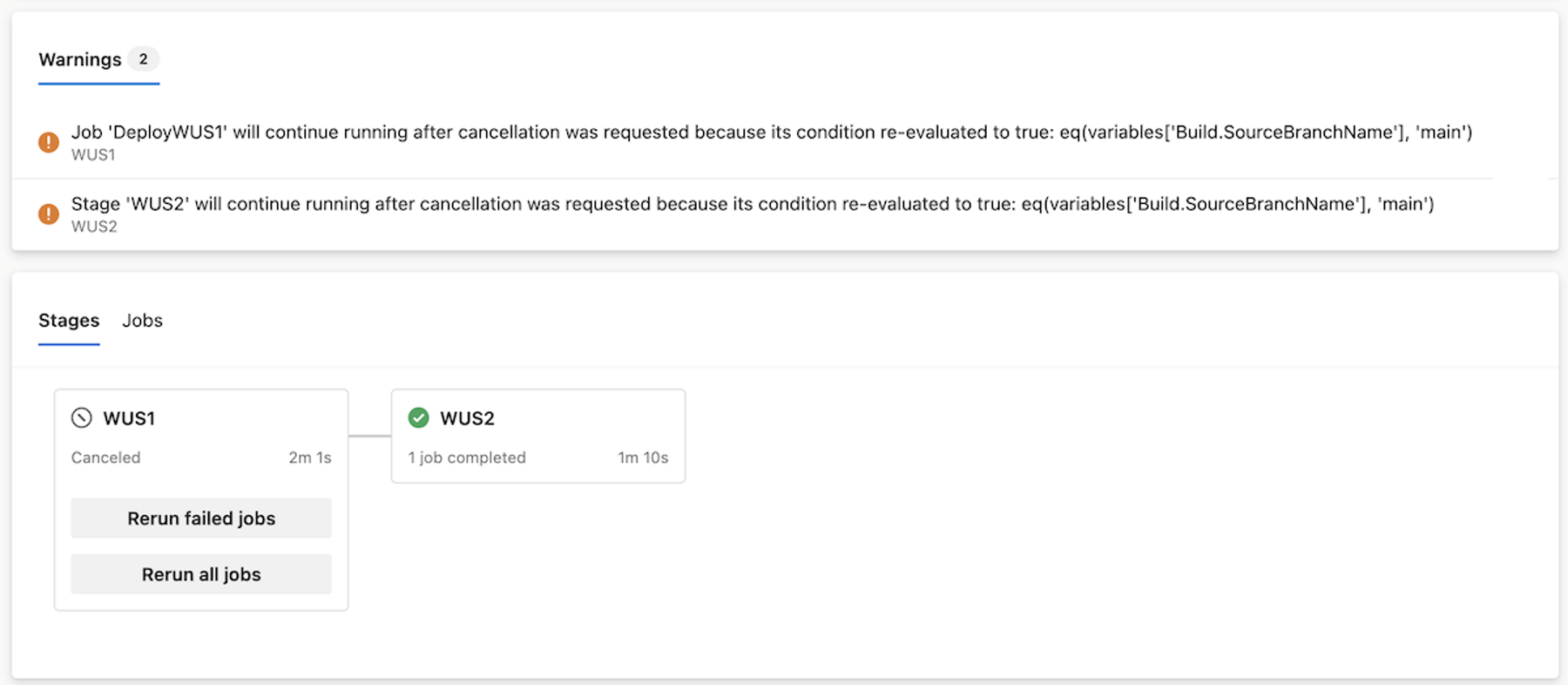
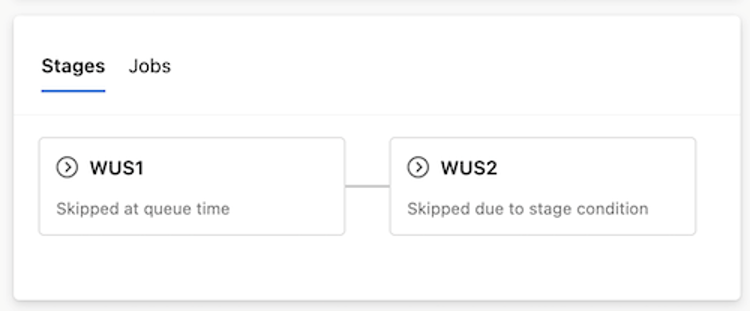
Another improvement we're bringing is letting you know why a stage is skipped.
Imagine you run the same YAML from a different branch, say, release_123, and you choose to only run stage WUS2. Previously, both WUS1 and WUS2 stages had the same status, Skipped, but it wasn't clear why each of the stages were skipped. Now, you know if the stage was skipped because you deselected it at queue run time or because of its runtime conditions.
Clearer artifact selection for YAML CD deployments
We enhanced the security and deployment experience for YAML pipelines in CD scenarios. Previously, managing the pipeline artifact to deploy was tedious and error prone. It wasn’t always clear which run would be deployed by default, and selecting a different artifact such as by run branch was not supported.
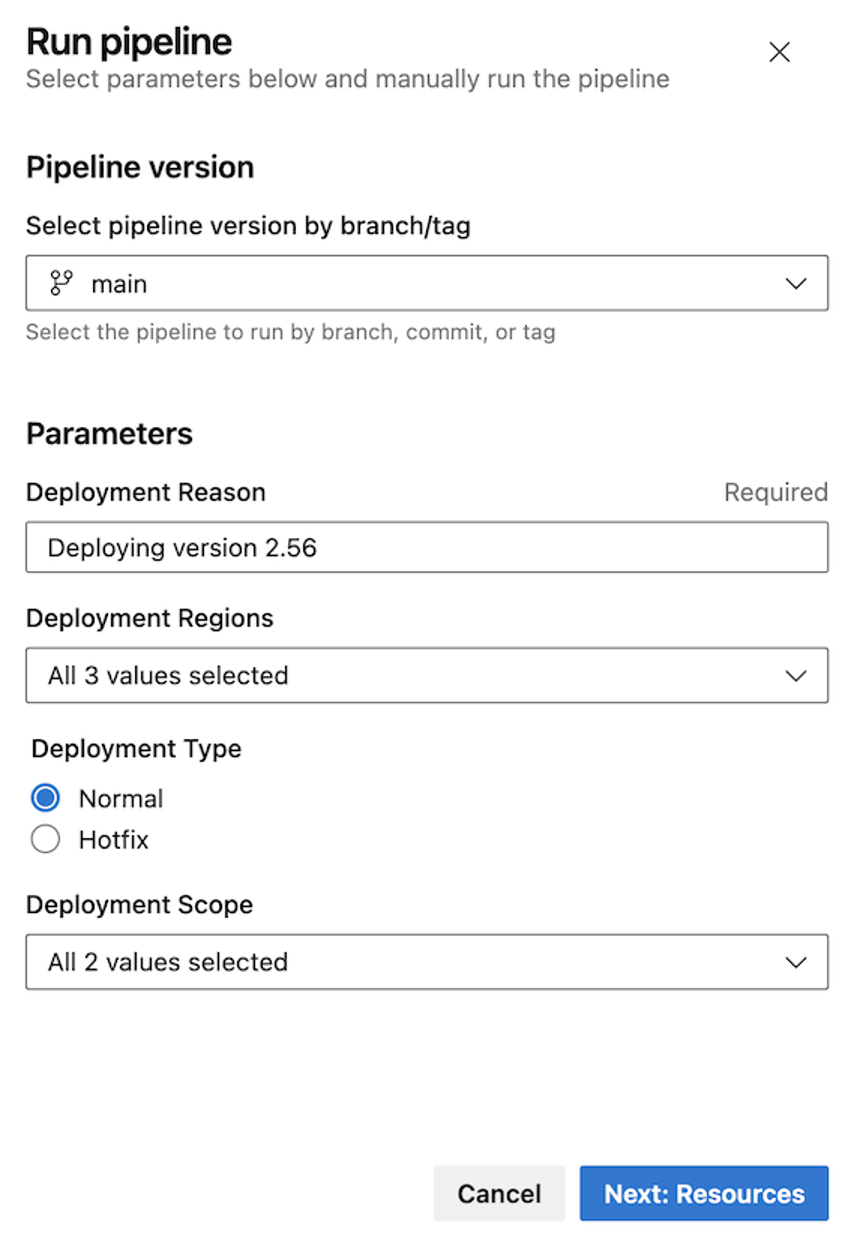
The updated deployment panel now guides you to configure parameters first, ensuring they are applied before determining the pipeline artifact to deploy. This reduces deployment errors and makes artifact selection more predictable and secure.
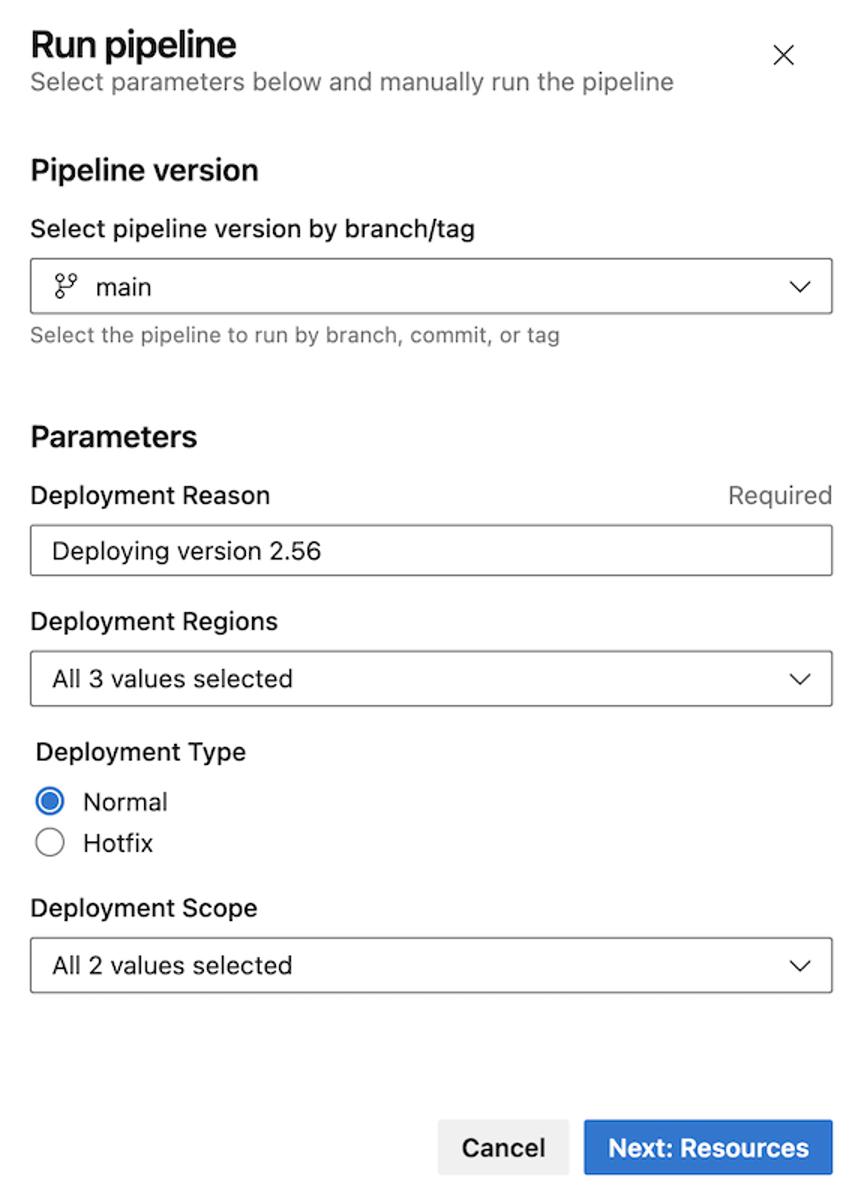
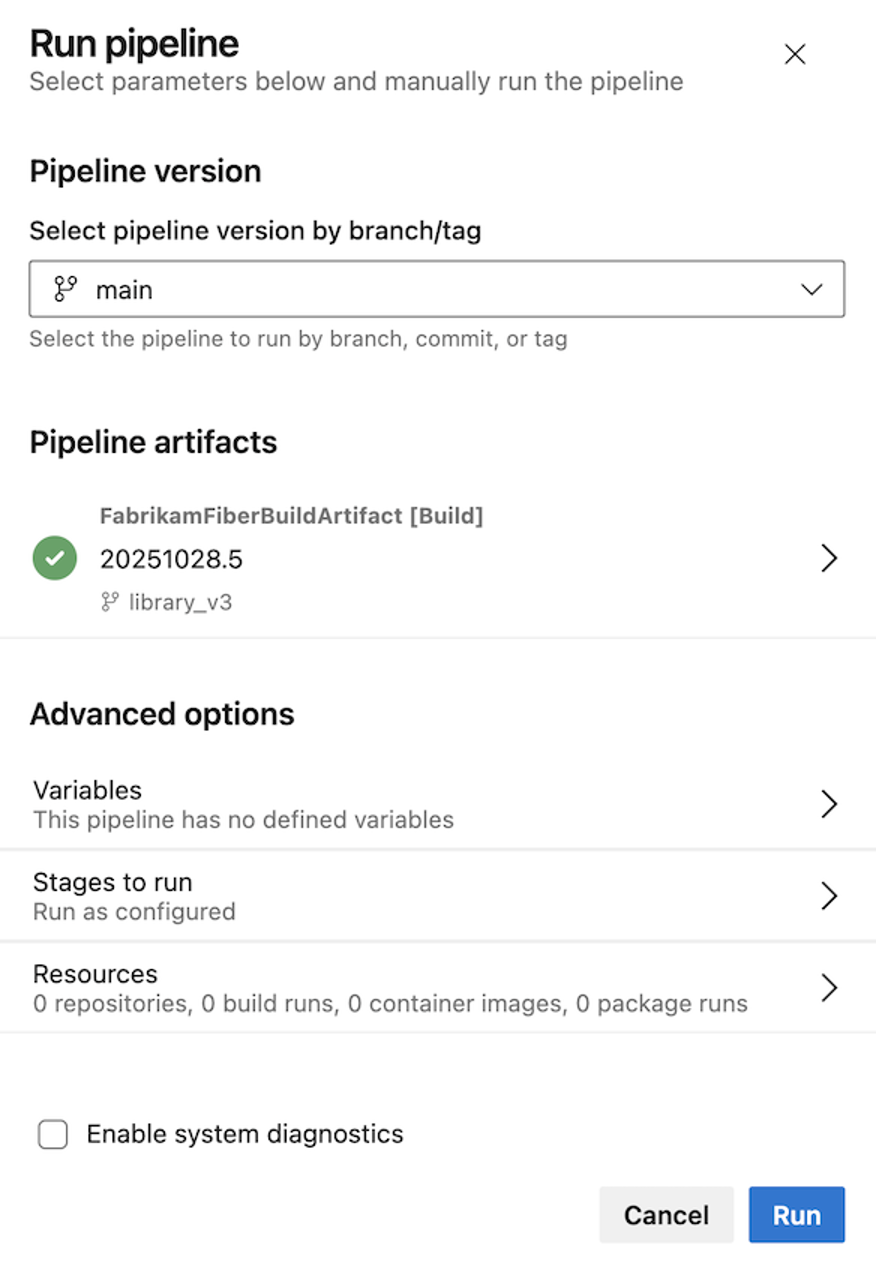
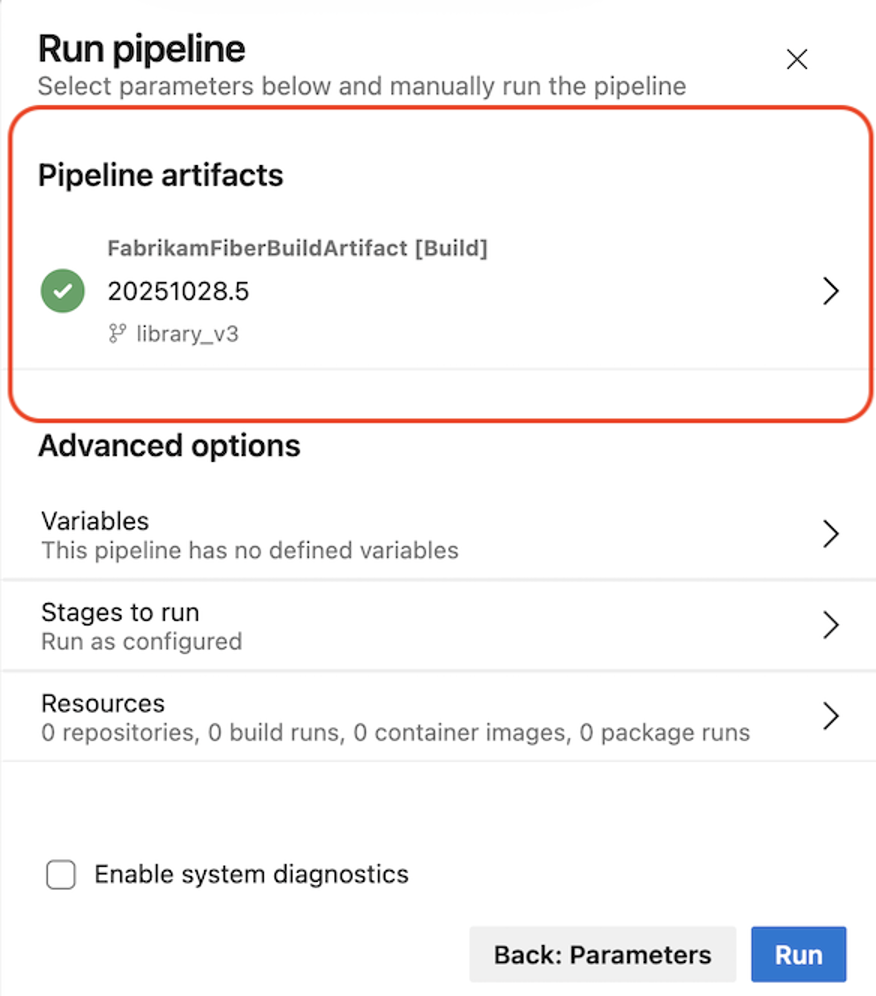
After selecting Next: Resources, the deployment panel clearly shows which pipeline artifact has been selected, giving confidence in exactly what will be deployed.
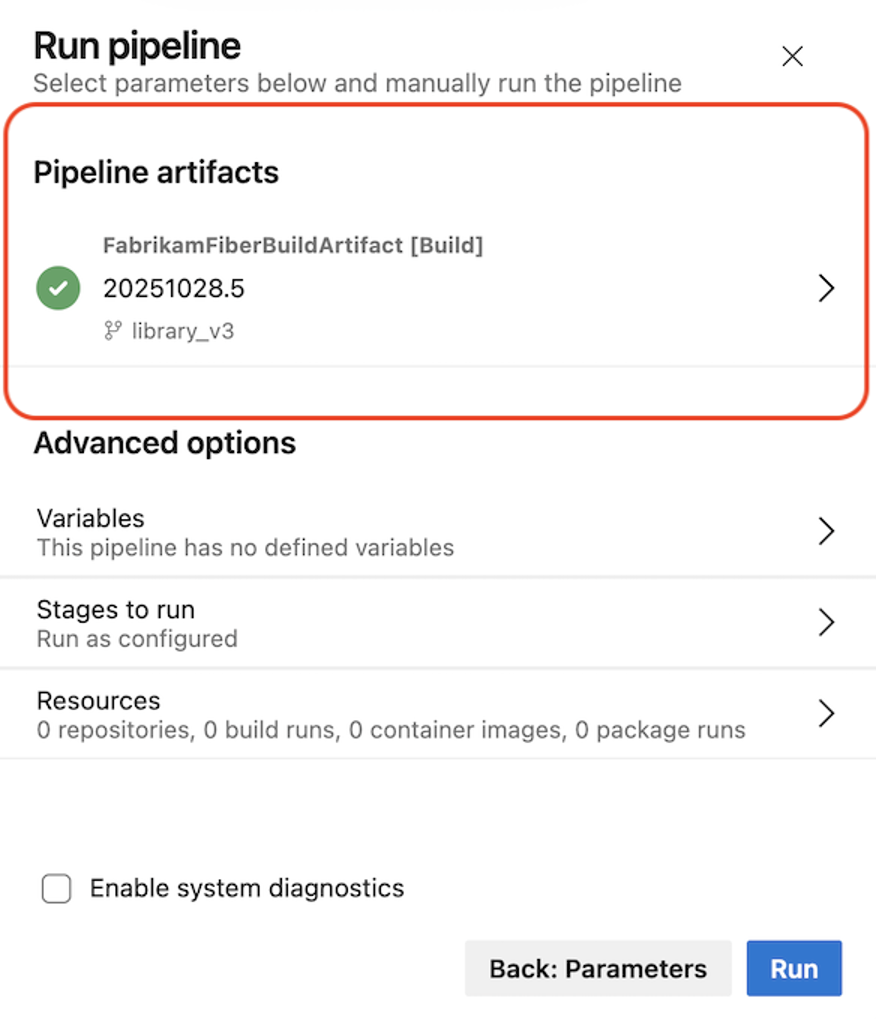
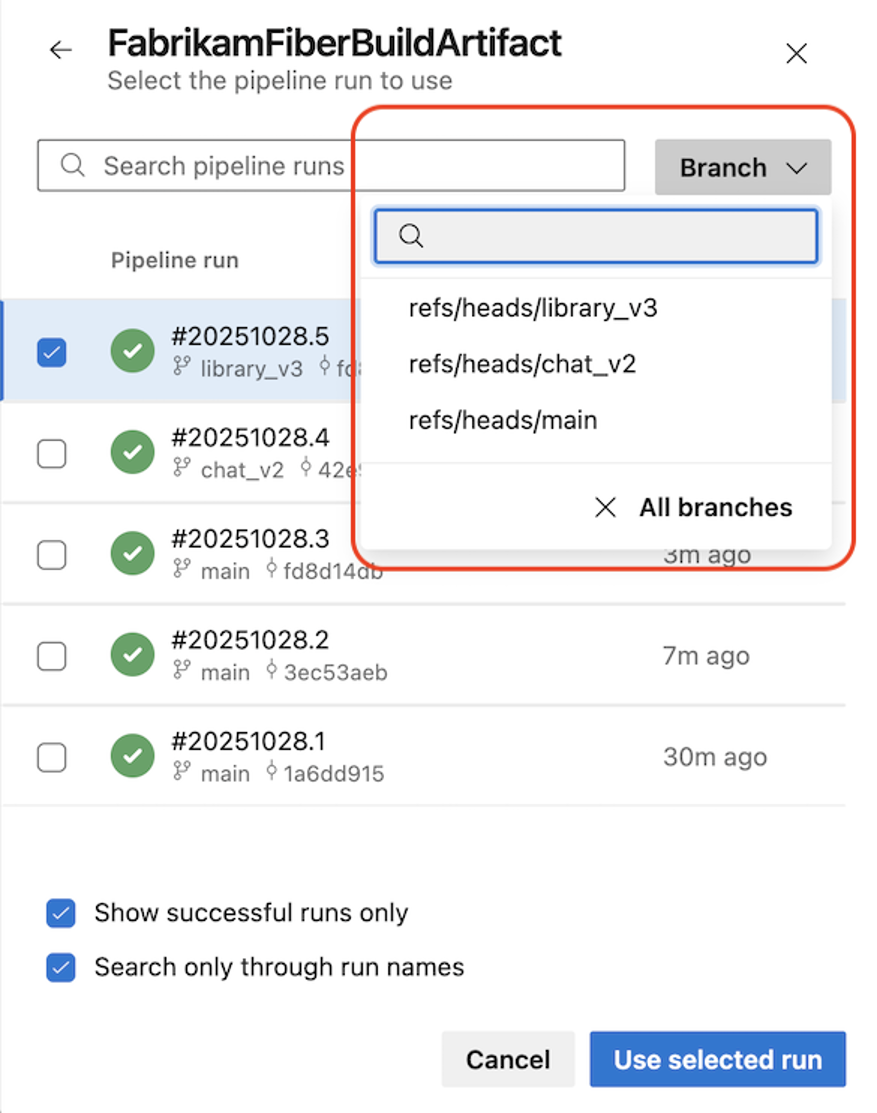
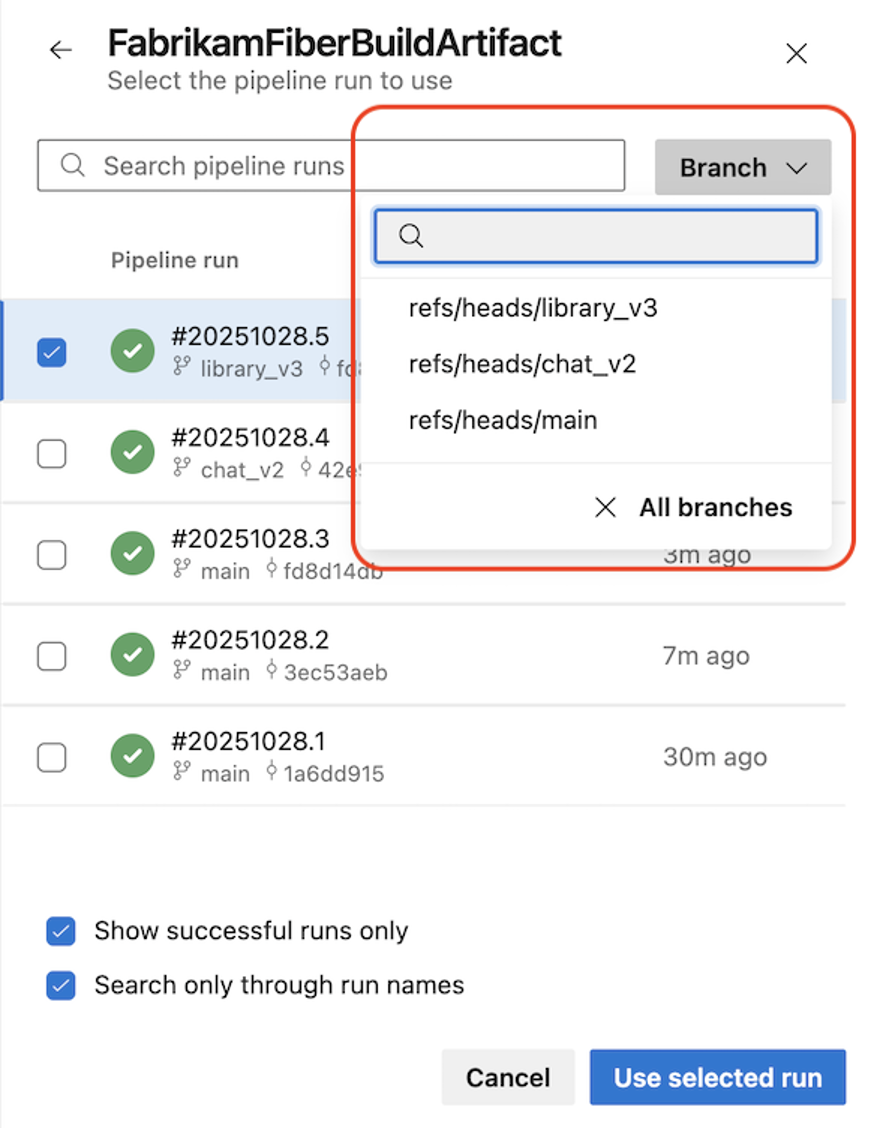
If you want to change the pipeline artifact, you can use the branch selector to narrow down your search.
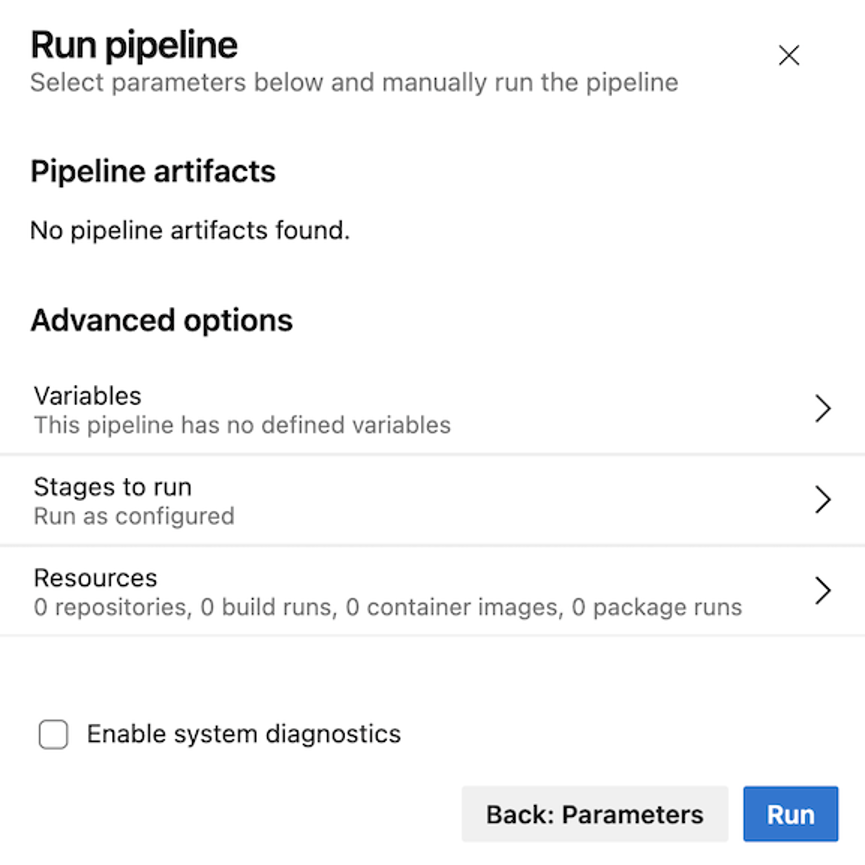
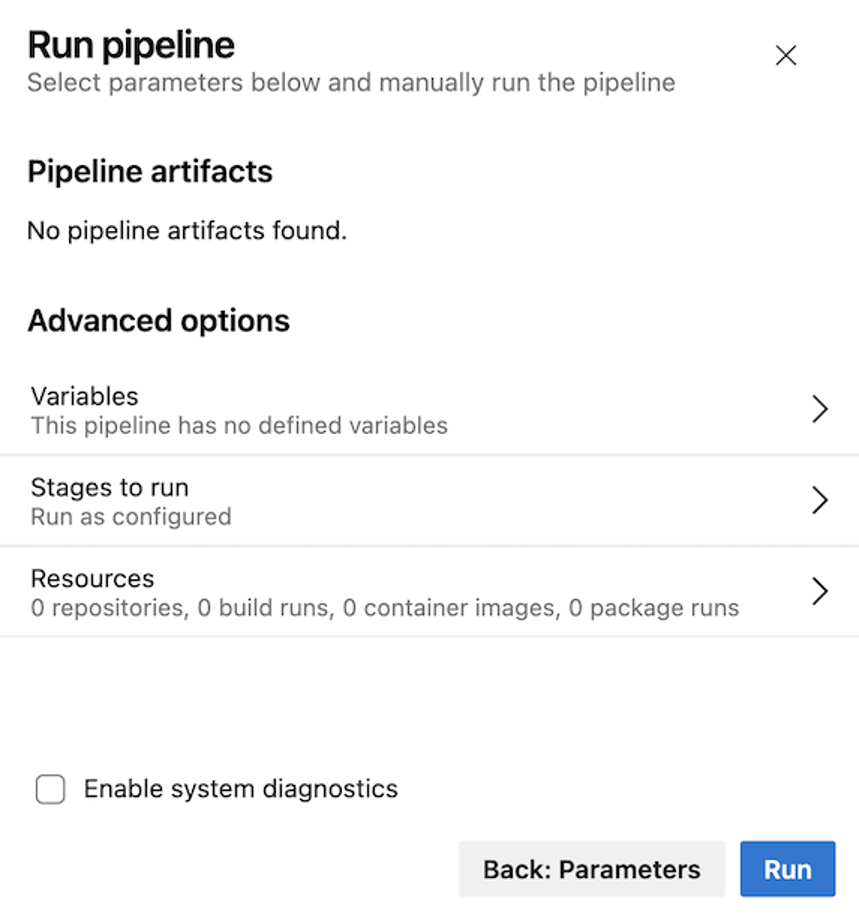
When a pipeline defines parameters but does not use pipeline artifacts, the UI clearly indicates this to avoid confusion.
When your pipeline doesn’t define parameters, the Run pipeline panel remains consistent with the current experience. When the pipeline uses pipeline artifacts, the updated panel reflects that flow, as shown below.
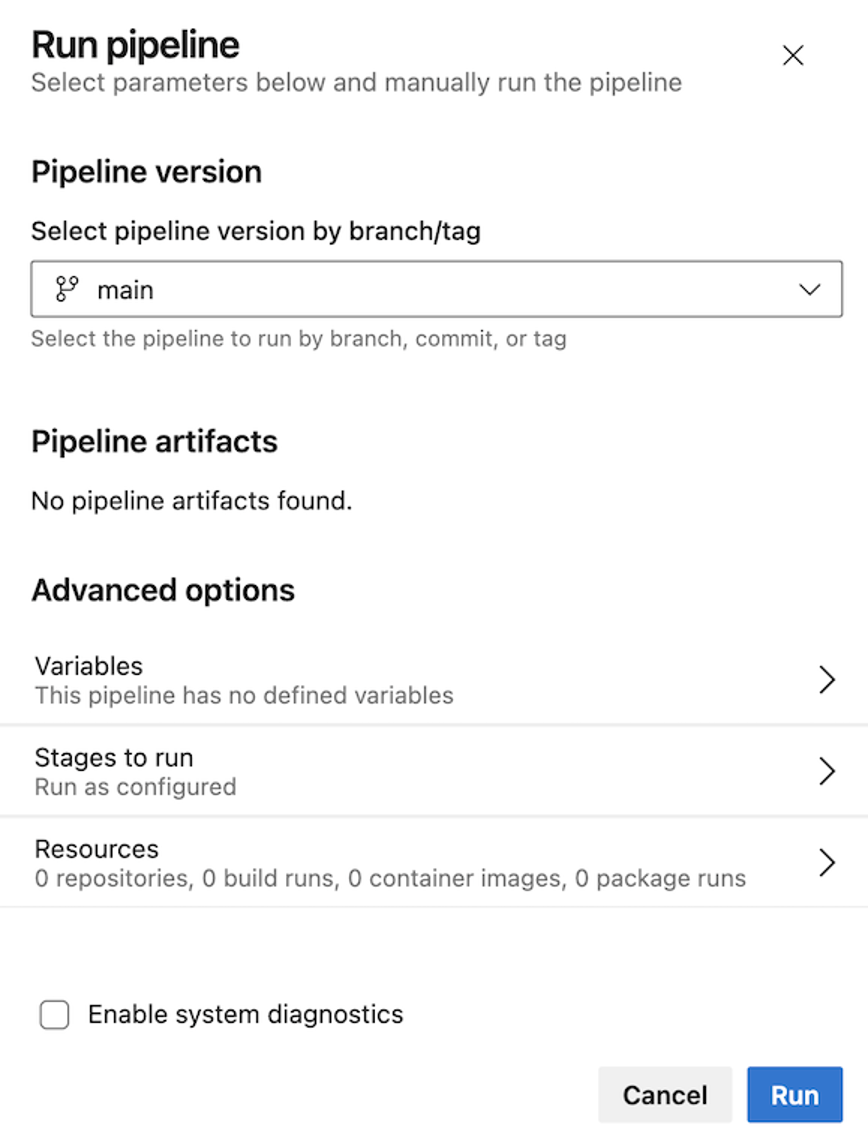
Here’s how the experience looks when your pipeline doesn’t use pipeline artifacts.
New run pipeline panel
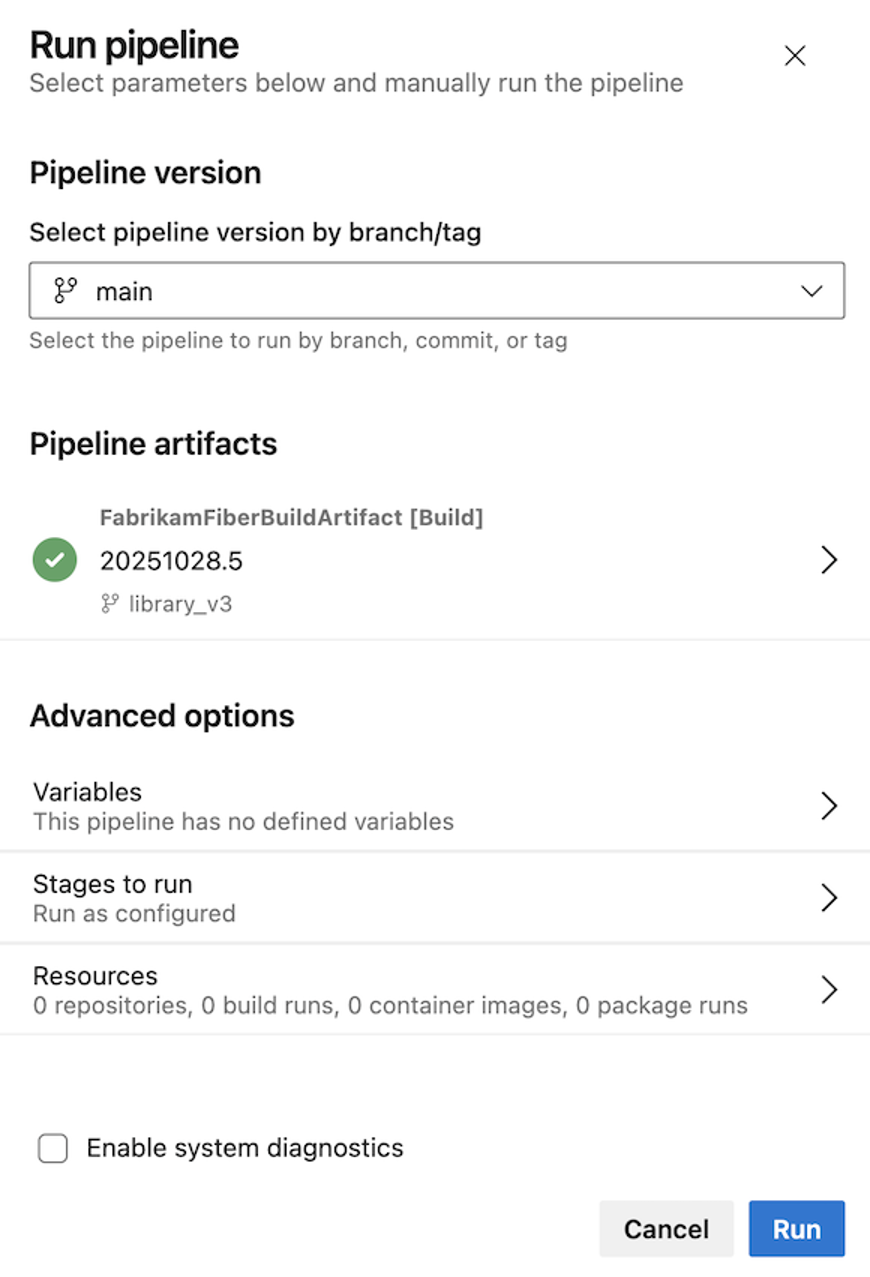
In this sprint, we've improved the security and experience of using YAML pipelines for continuous deployment (CD) scenarios. Previously, managing the pipeline artifact to deploy was tedious and error prone. It wasn't clear which run you were going to deploy by default. If you wanted to change the artifact, you couldn't select by run branch.
- Fist, the new panel lets you fill in parameters, as they may determine which pipeline artifact to deploy.
- After you click on Next:Resources, you will see which pipeline artifact has been chosen. This way, you are sure of what you're going to deploy.
- If you want to change the pipeline artifact, you can use the Branch selector to narrow down your search.
- When your pipeline defines parameters but doesn't use any artifacts, the UI will let you know that no pipeline artifacts were found.
- When your pipeline doesn't define parameters, the Run pipeline panel is one step, similar to today.
This is how it looks when the pipeline uses pipeline artifacts.
And this is how it looks when your pipeline doesn't use pipeline artifacts.
Reduce authorization timeout
Before a YAML pipeline run can access a protectable resource for the first time, such as a service connection or an agent pool, authorization is required. During the authorization process, runs are paused, which may result in many runs being temporarily halted. Once authorization is granted, all paused runs resume, which can occasionally lead to unintended effects.
To limit the number of resumed runs, we’re reducing the authorization timeout from 30 days to 7 days. Runs that are already blocked and waiting for authorization will not be affected by this change. In some cases, blocked runs may display UI irregularities, including negative timeouts.
Pipeline Parameters
When inspecting or debugging a deployment pipeline run, understanding the run’s inputs is essential. This information provides clarity on the pipeline’s behavior and helps explain the purpose of the run.
In this sprint, we've added a new Parameters panel.
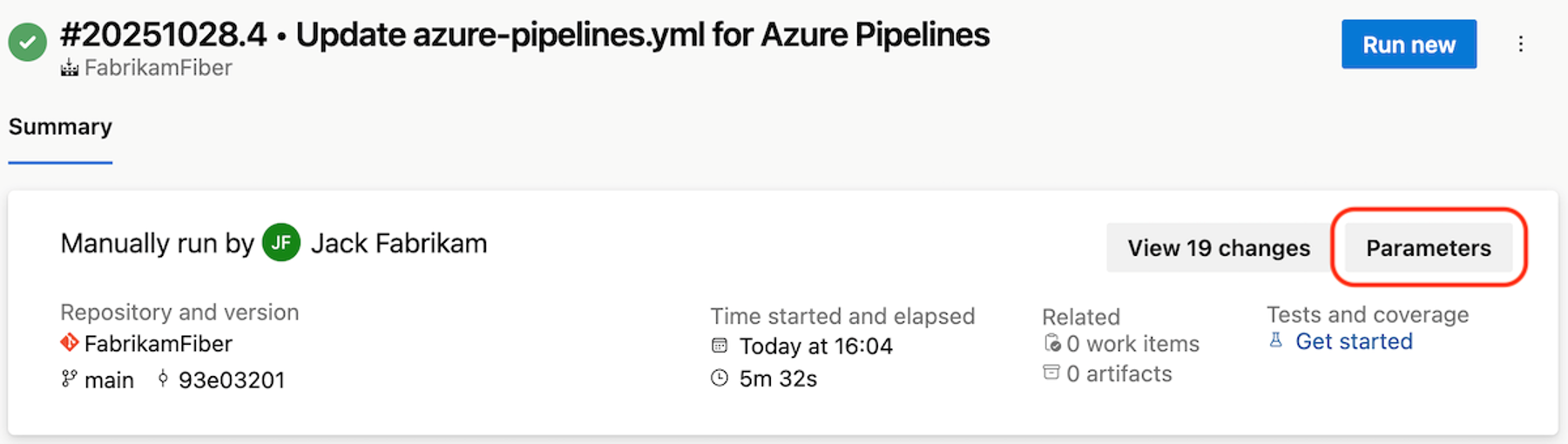
The panel’s information is populated as follows:
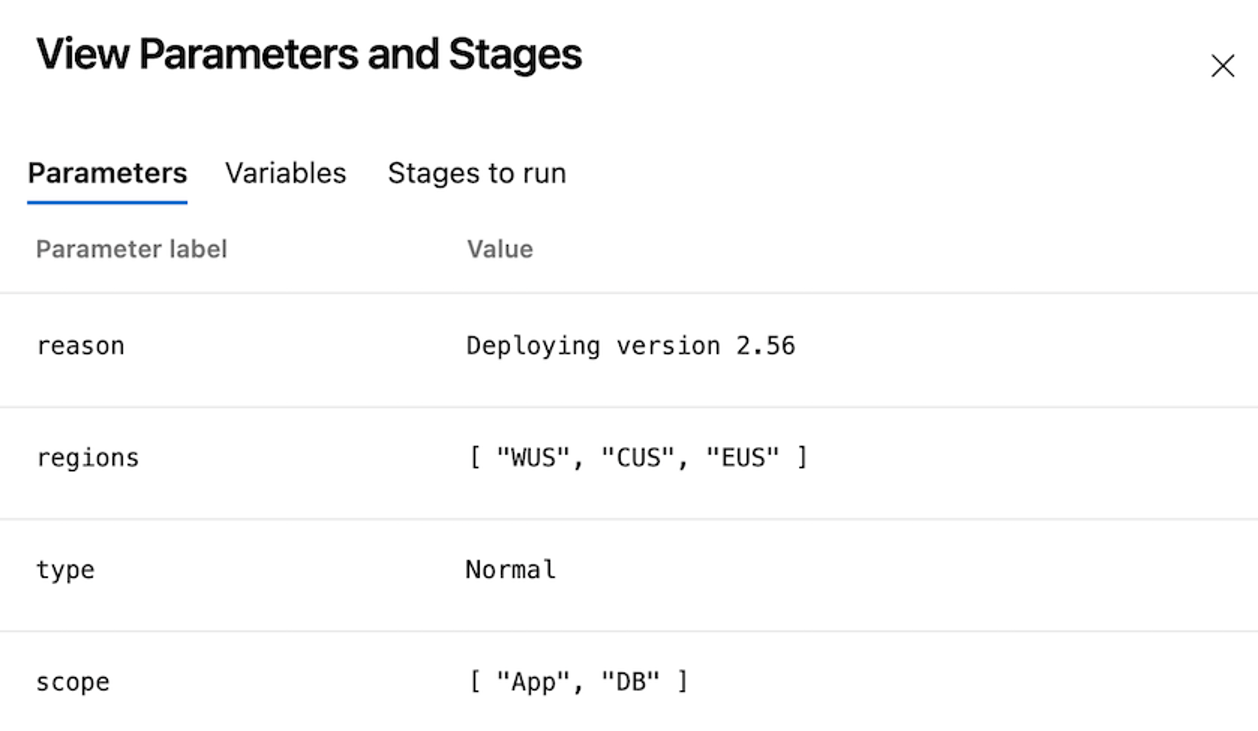
- Imagine initiating a pipeline run using the following parameters.
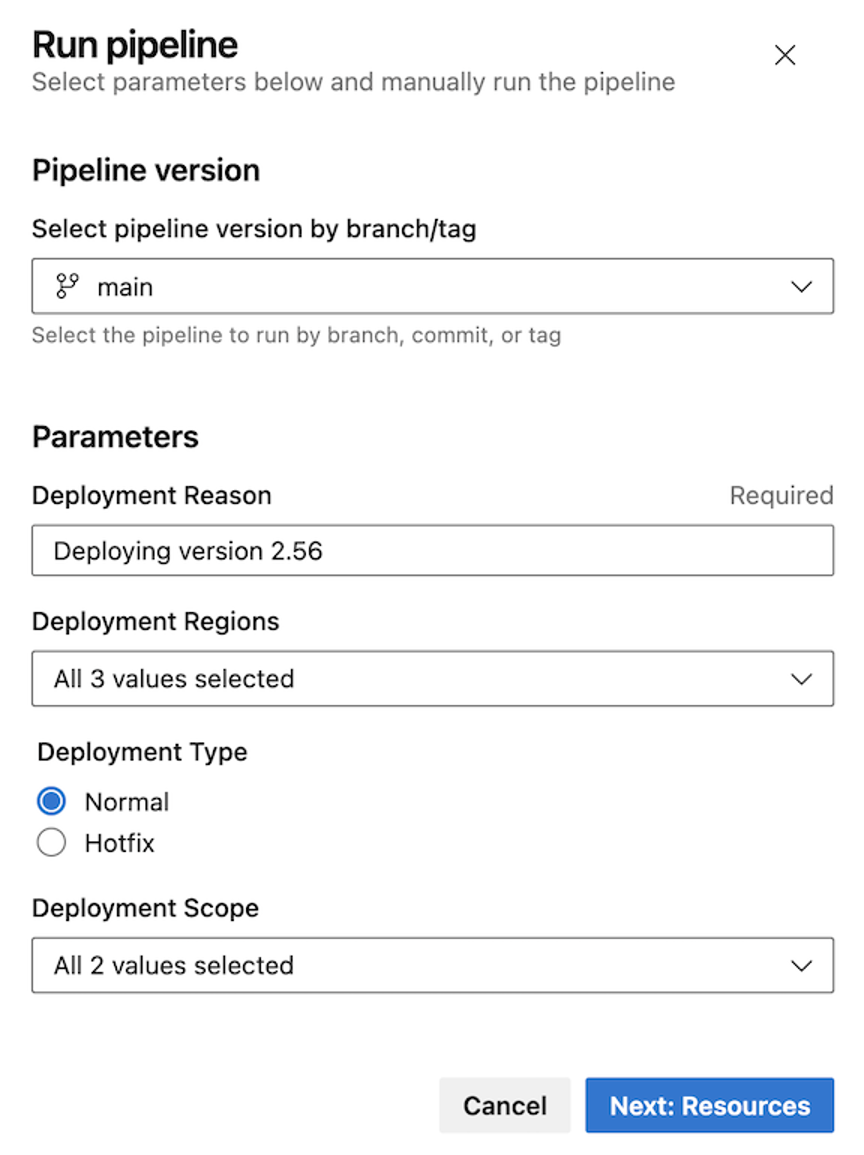
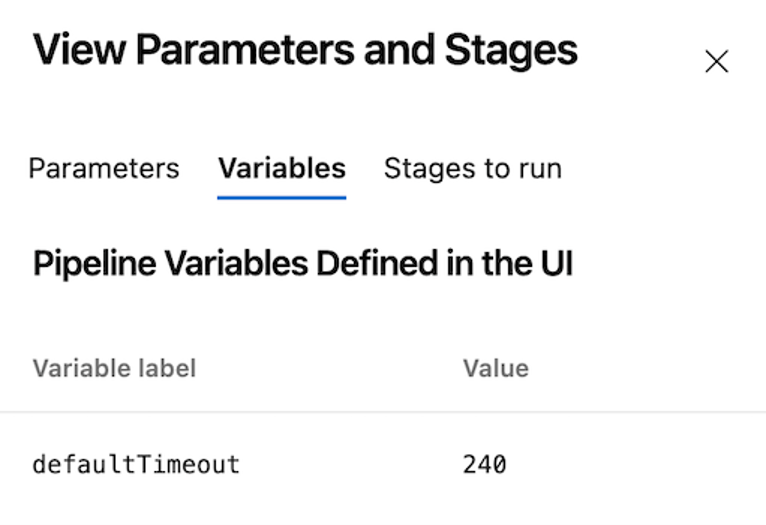
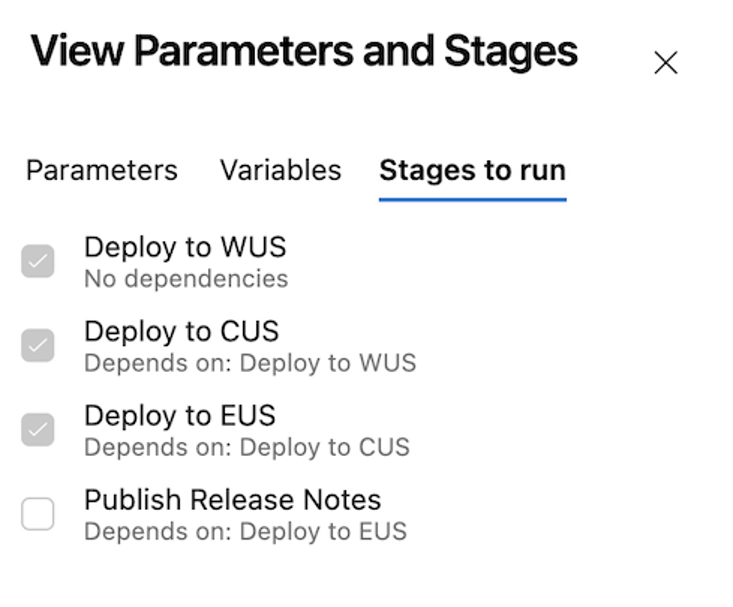
- Additionally, we change the value of a variable named defaultTimeout to 240, and deselect the last stage.
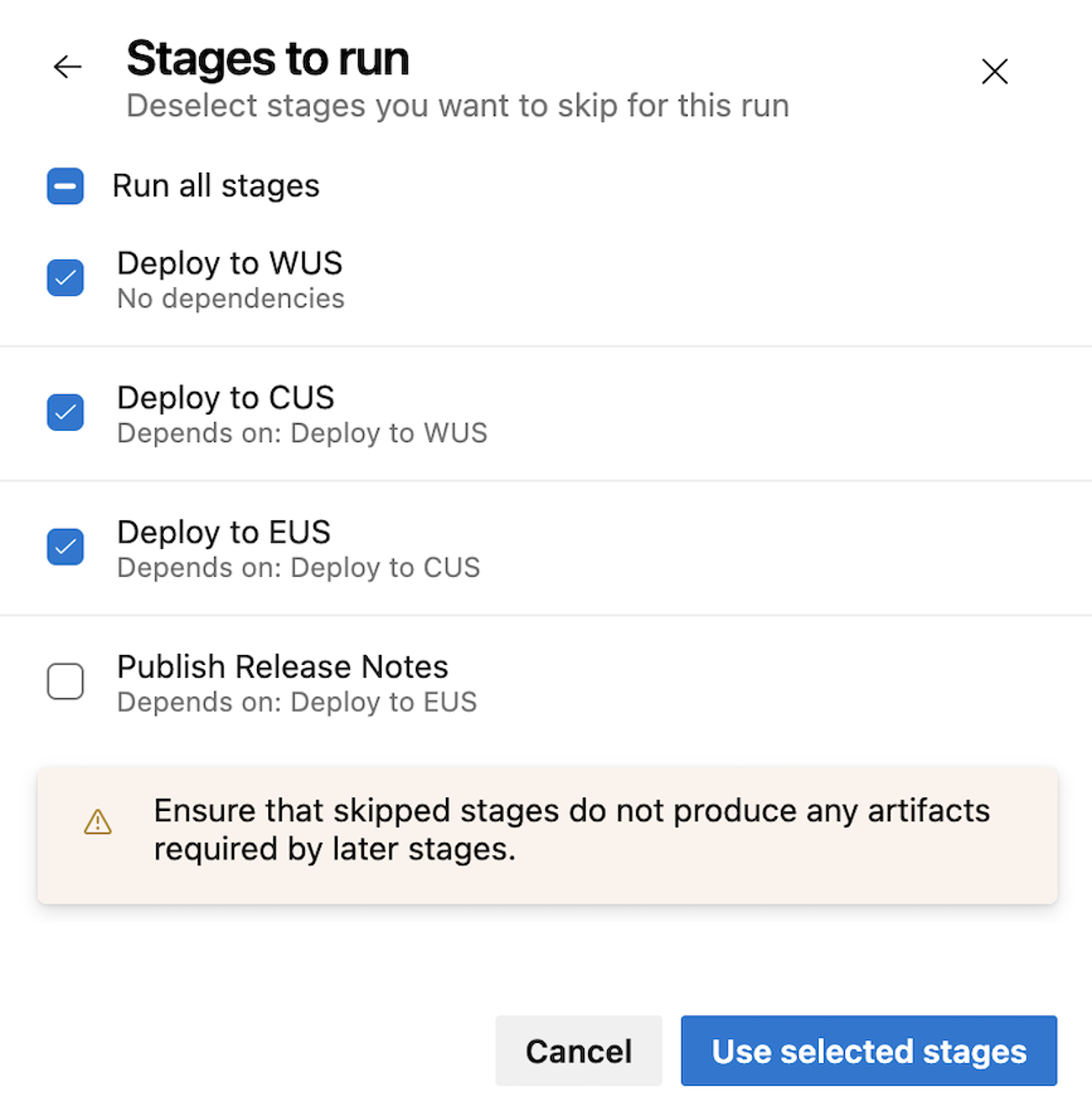
- The Parameters panel shows you the values of the pipeline parameters, the (non-secret) variables defined in the UI, and the selected stages.
Parameter values:
Variables defined in the UI:
Selected stages:
Improved secret rotation support for Azure service connection
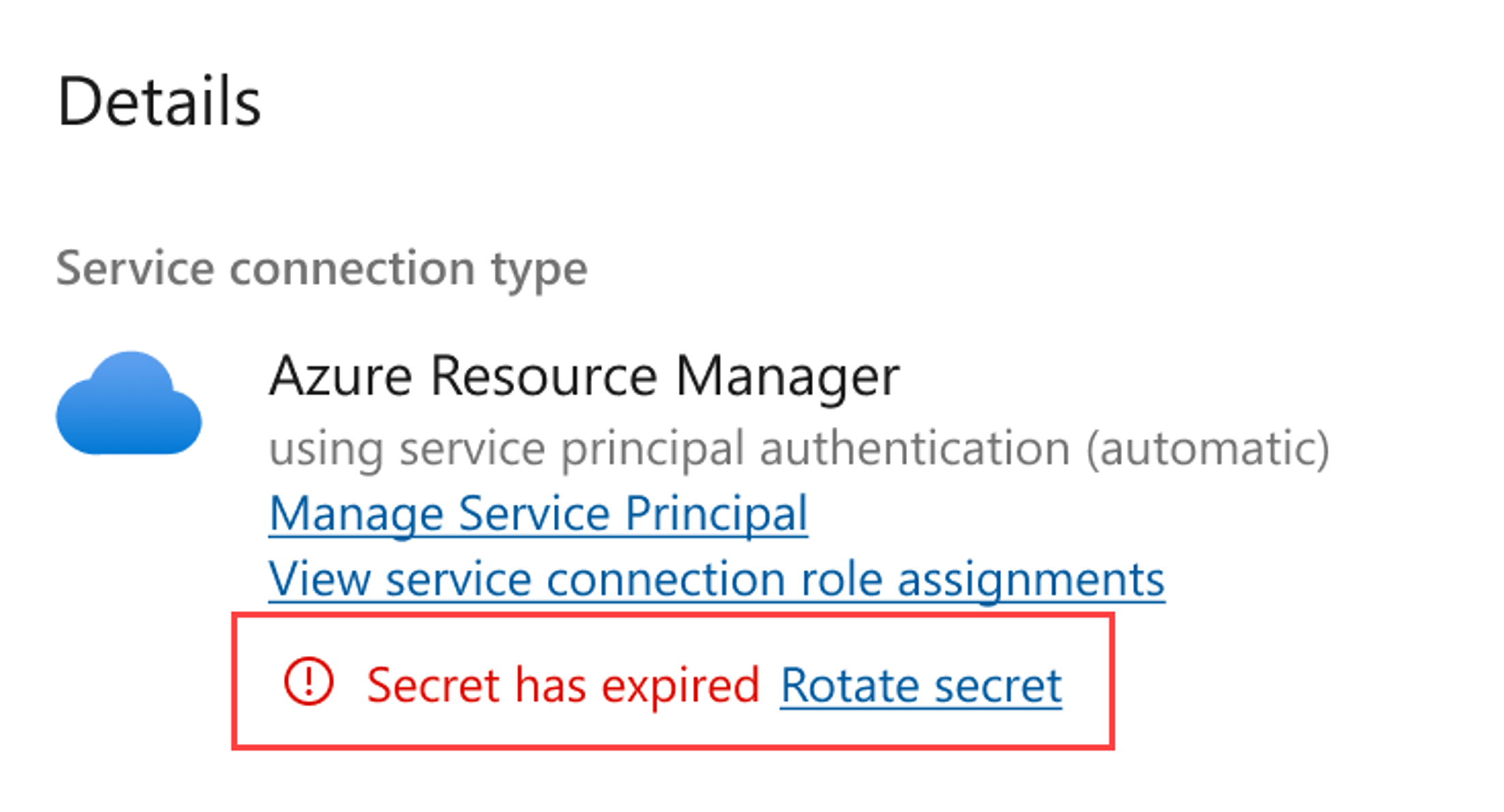
For service connections that use a service principal and Azure DevOps creates a secret, we already let you rotate the secret by updating the service connection. This was not explicitly conveyed in the configuration experience though. We have updated the experience of the Azure service connection to detect secret expiration and offer to rotate the secret:
AzureAppServiceManageV0 versioned extension support
You can now specify App Service extensions as name@version (e.g., PythonExtension@3.9.0). If a version is specified, that exact version will be installed. If you specify latest as the version, the latest available version will be installed (in case it already has the latest version, installation will be skipped). If no version is specified, the extension will only be installed if it is not already present. Examples: ExtensionsList: MyExtension@1.2.3, OtherExtension@latest, LegacyExtension.
For additional details see the AzureAppServiceManage@0 documentation.
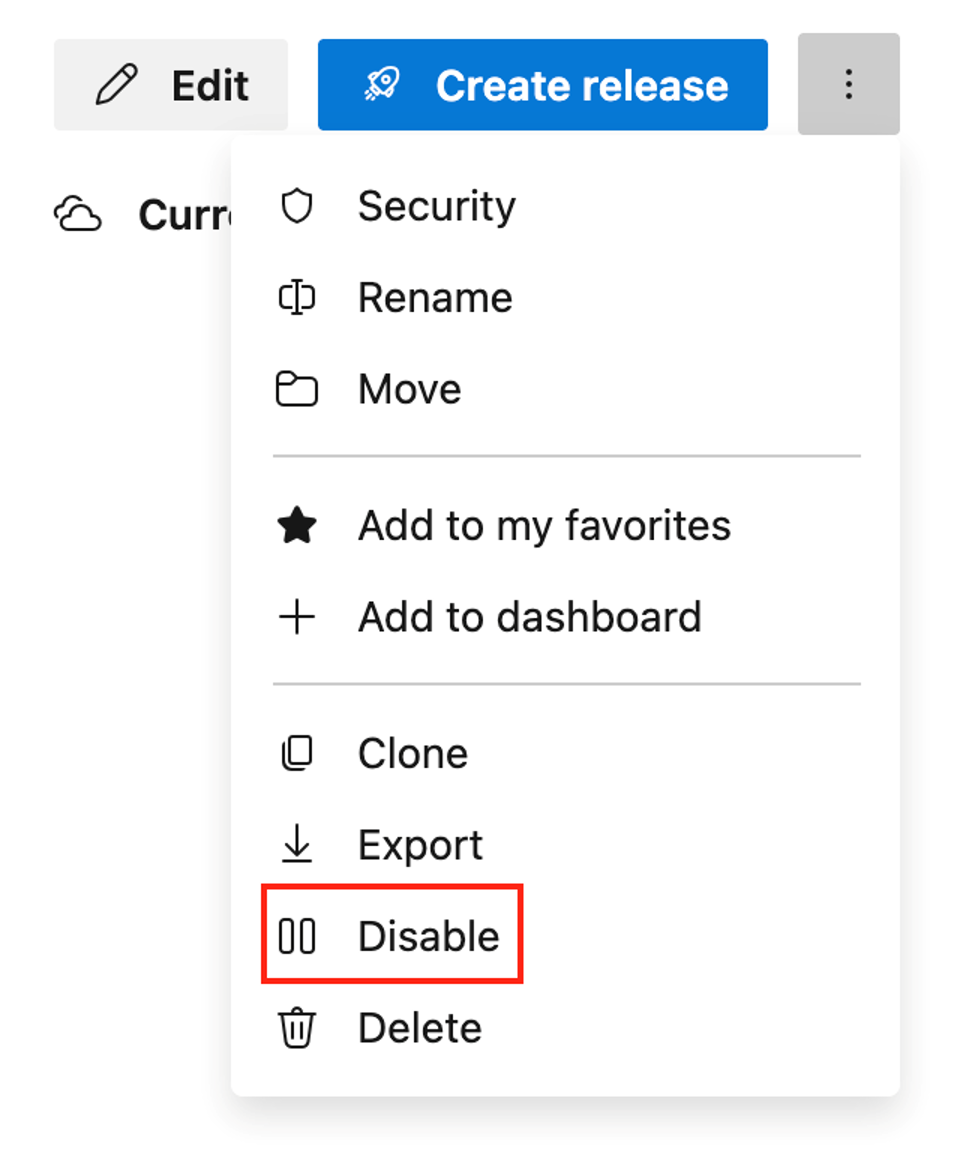
Ability to disable release pipelines
Release pipelines can now be disabled when they are no longer in use or not expected to be reused. This feature helps streamline pipeline management and reduce clutter. Disabled pipelines remain accessible and can be re-enabled at any time if needed.
New Triggers page
YAML pipelines provide you multiple powerful options to define when your pipeline should run. It's not always easy to reason if your pipeline is configured to run in response to an event, for example, a feeder pipeline completed.
With this release, were introducing a Triggers page that gives you an overview of what triggers you have defined in your pipeline.
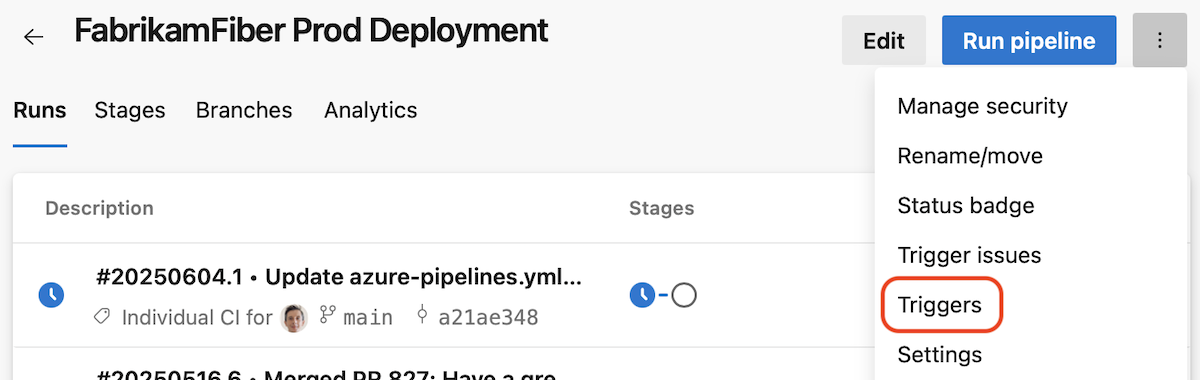
Imagine you have the following YAML pipeline defined in the main branch of a repo. Consider there's also a feature branch that has the same YAML pipeline code.
trigger:
- main
schedules:
 - cron: 0 0 * * *
 always: true
 displayName: Nightly build
 branches:
 include:
 - main
resources:
 pipelines:
 - pipeline: FabrikamFiber
 source: FabrikamFiber
 trigger: true
When you navigate to the Triggers page, you see the following
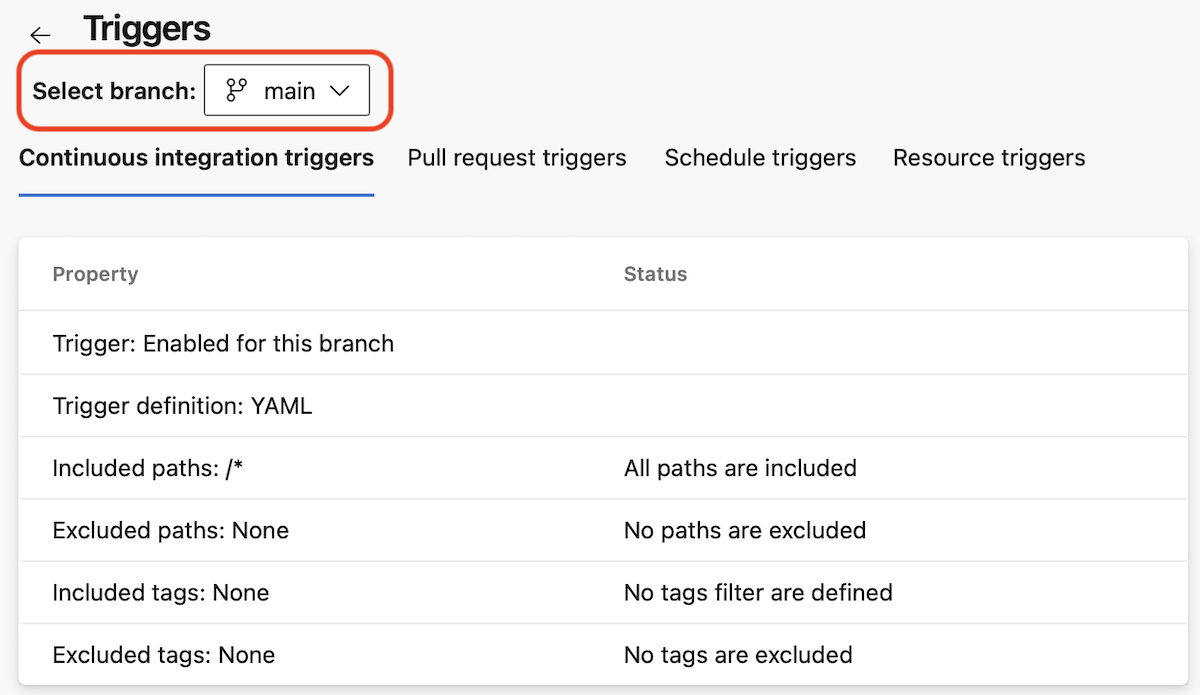
Notice the default branch of the pipeline, main, is preselected.
You see there is a Continuous integration trigger for this branch, and it's defined in the YAML file.
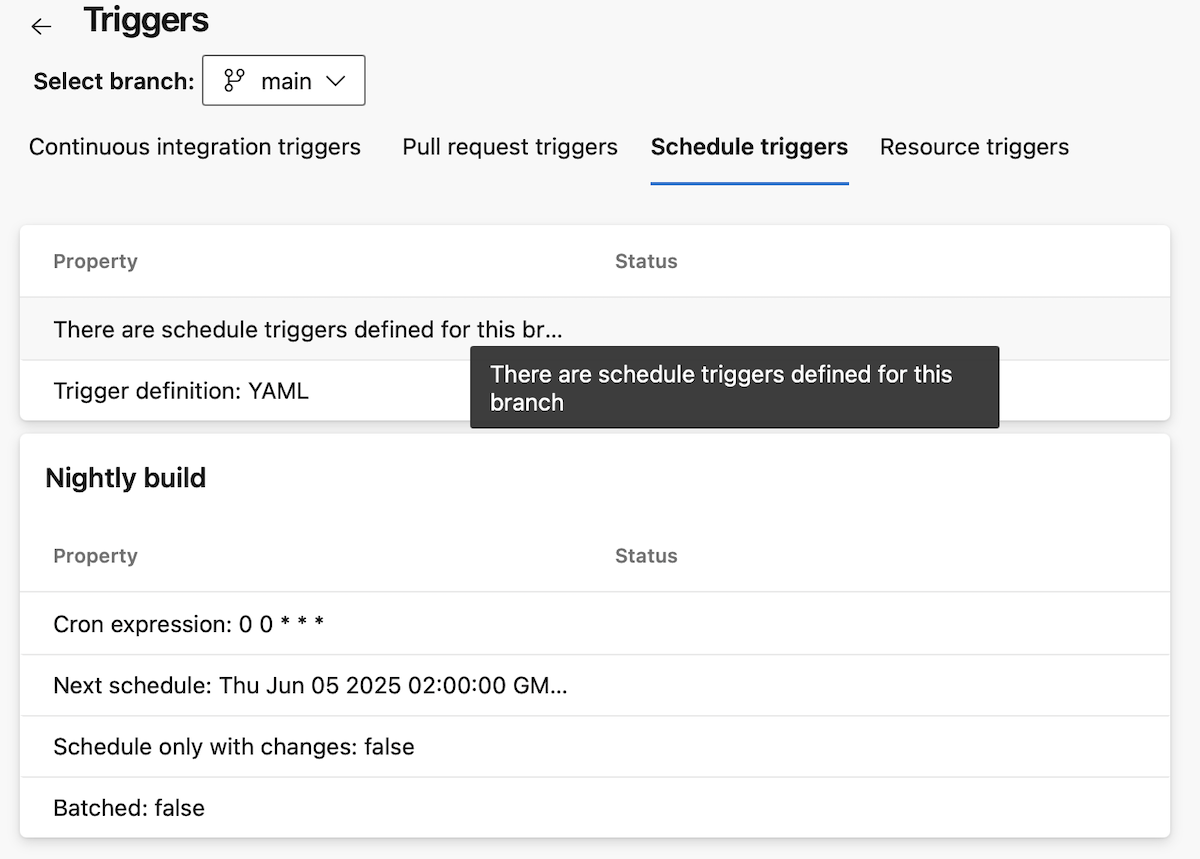
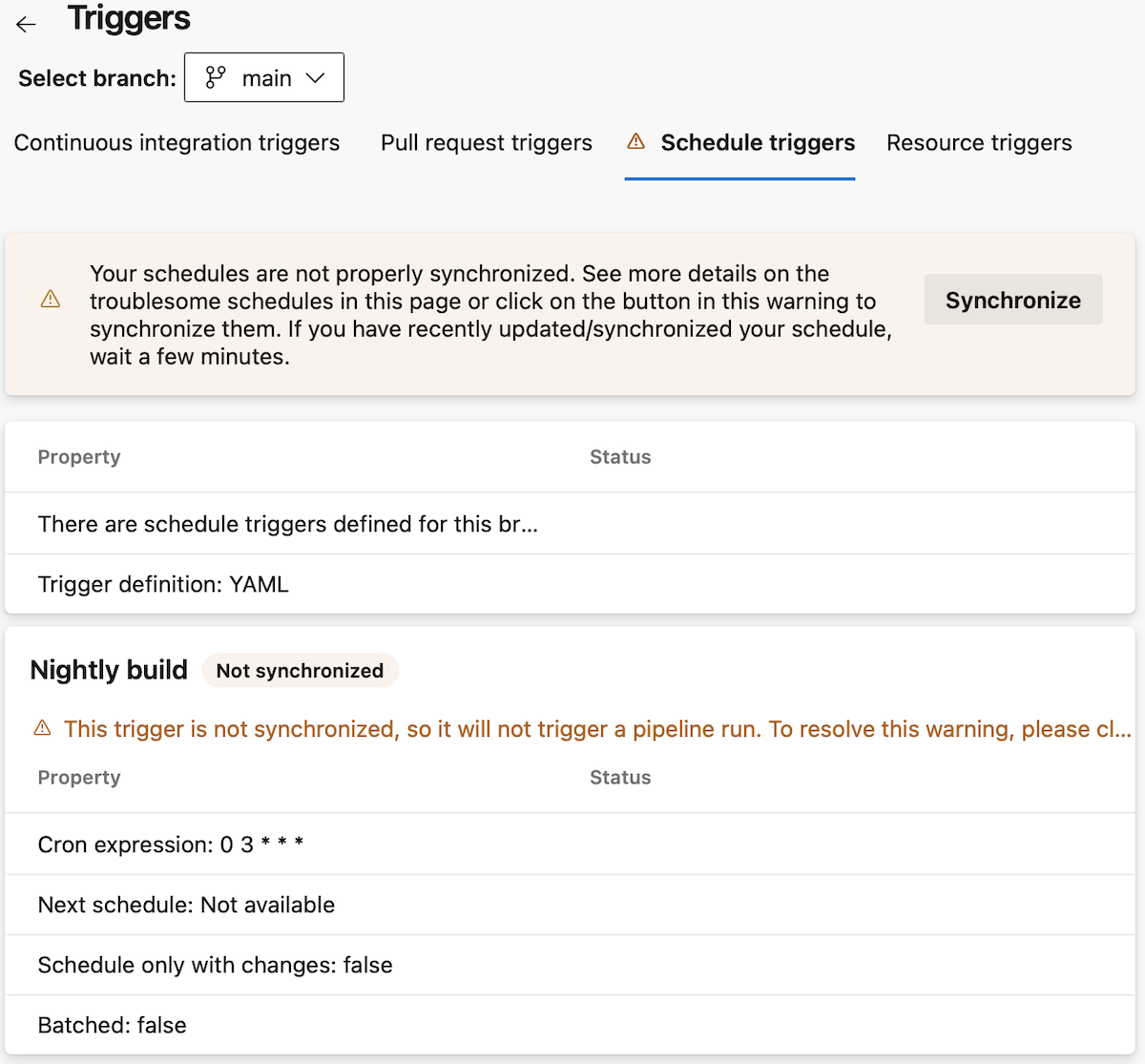
When you navigate to the Schedule triggers, you see there are triggers defined, and you can see their details.
When you navigate to the Resource triggers section, you see the defined resource triggers and their details.
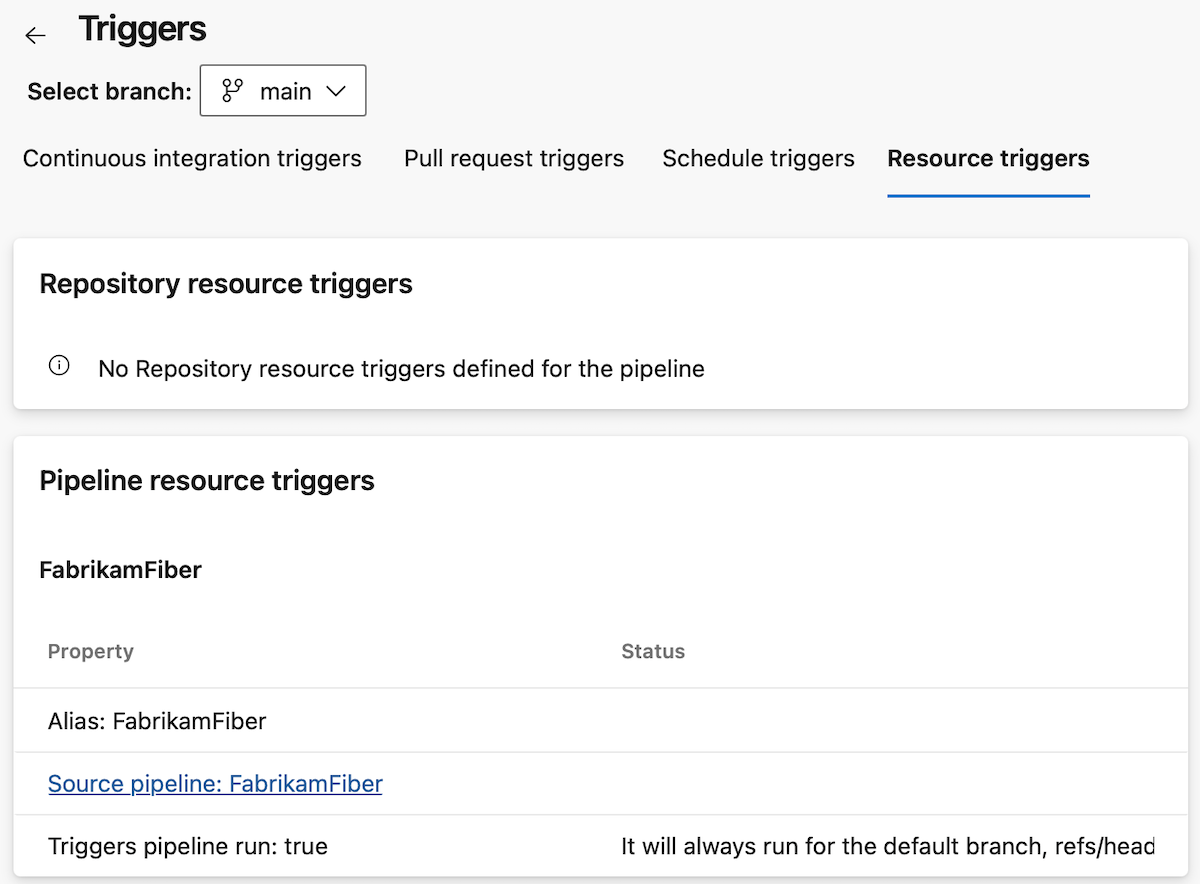
You can switch branches, from main to feature, to see what triggers you defined for the feature branch.
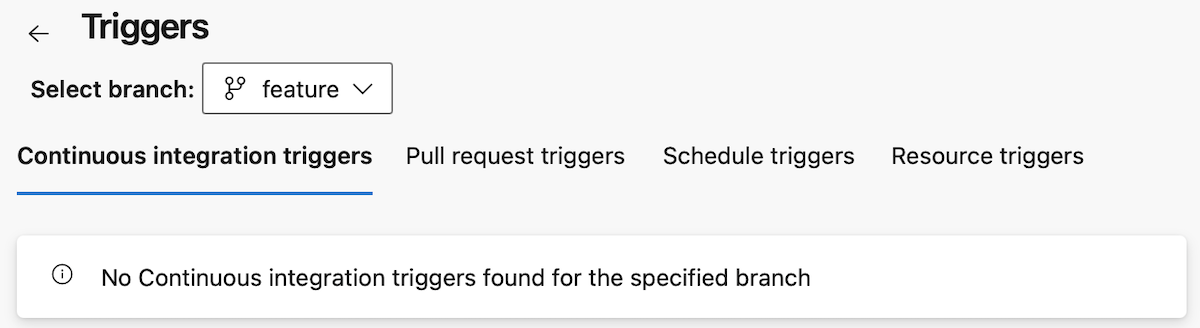
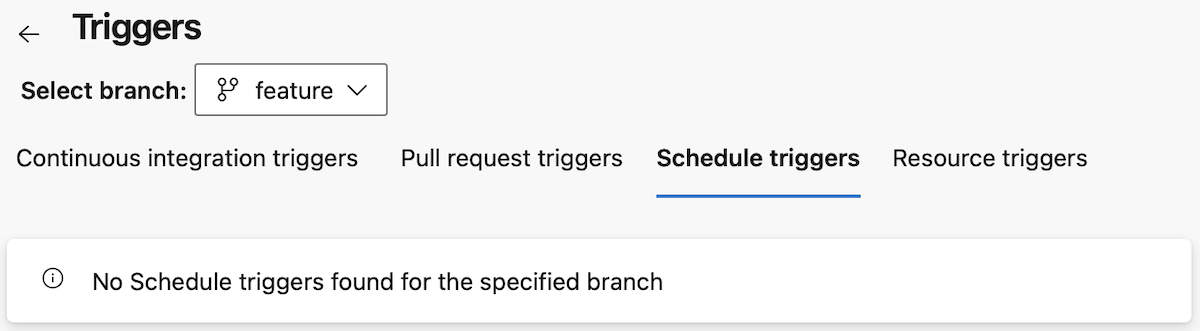
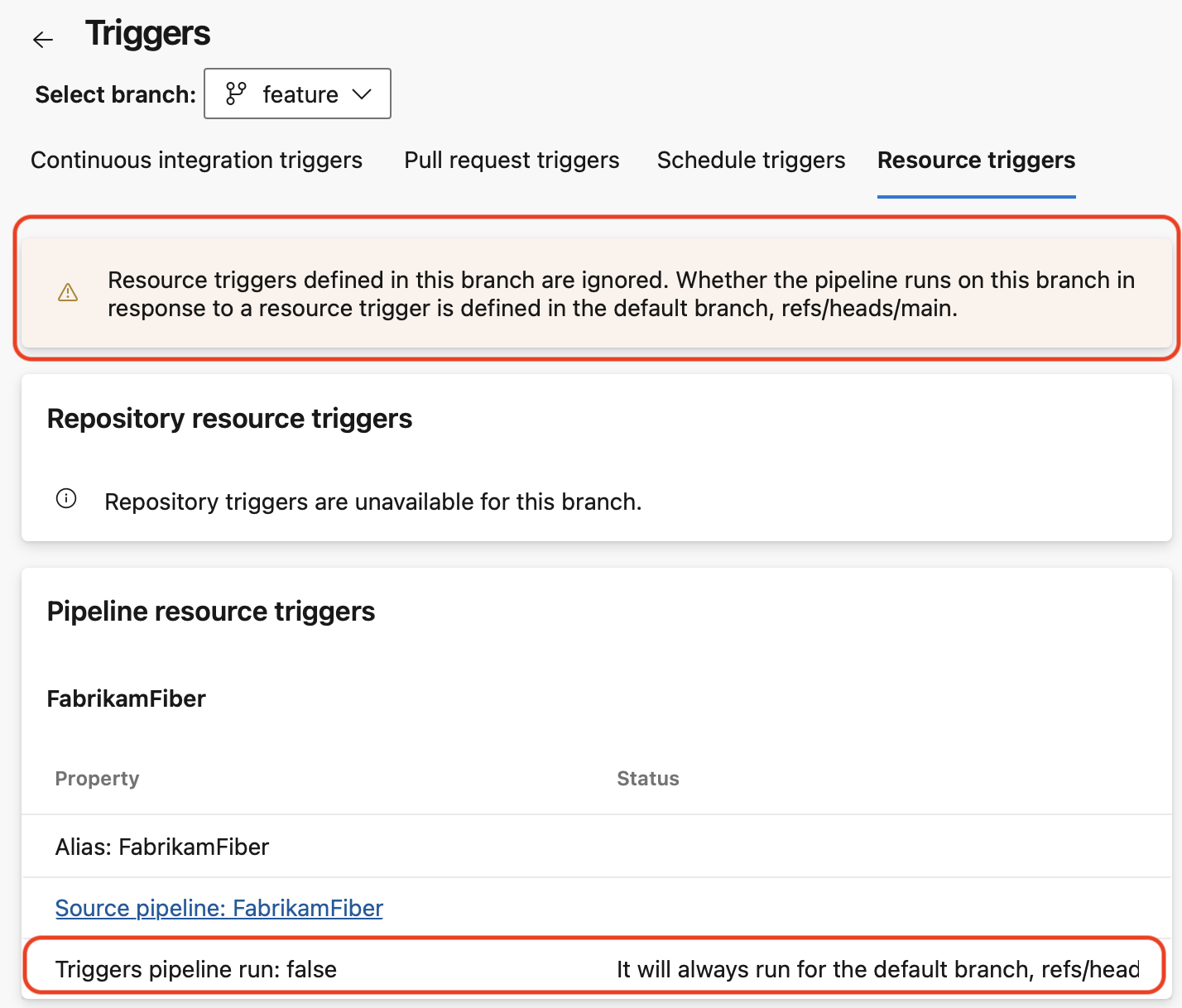
In the Resource triggers tab, when not on the default branch, you get a warning telling you the triggers defined for this branch are ignored.
When trigger definitions were not correctly processed by the system, you get a warning and indications on how to solve the problem.
StringList parameter type
One of the top requested YAML pipelines features in the Developer Community is to define parameters that contain a list of items.
Starting with this sprint, we've added a new parameter type, named StringList, that provides this capability.
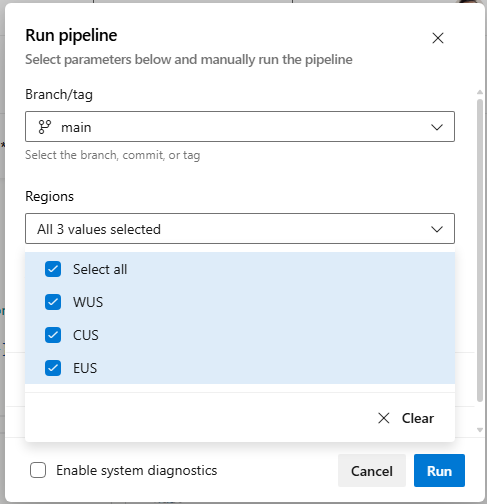
Say you want to allow those who queue pipeline runs to choose which regions they want to deploy a payload to. Now you can do this as shown in the example below.
parameters:
- name: regions
 type: stringList
 displayName: Regions
 values:
 - WUS
 - CUS
 - EUS
 default:
 - WUS
 - CUS
 - EUS

stages:
- ${{ each stage in parameters.regions}}:
 - stage: ${{stage}}
 displayName: Deploy to ${{stage}}
 jobs:
 - job:
 steps:
 - script: ./deploy ${{stage}}
When queuing this pipeline, you have the option of choosing multiple regions to deploy to, as shown in the following screenshot.
Note
The stringList data type isn't available in templates. Use the object data type in templates instead.
See the full YAML code of a pipeline run
YAML pipelines are composable. You may extend a template, to ensure your pipelines runs the necessary static analysis tools, and include templates to run common stages or jobs or tasks.
Debugging such pipelines was not easy, because you couldn't see the full YAML code it was running.
Say you have the following pipeline:
parameters:
- name: PoolName
 type: string
 default: Azure Pipelines
- name: VmImage
 type: string
 default: ubuntu latest

extends:
 template: security-enforcing-template.yml
 parameters:
 jobs:
 - template: job.monitoring.yml
 - template: job.build.yml
 parameters:
 PoolName: ${{parameters.PoolName}}
 VmImage: ${{parameters.VmImage}}
There are three templates used here. Each template may use conditional expressions based on parameter and variable values to determine the actual jobs or steps to run.
Furthermore, when looking at old pipeline runs, you don't know if the pipeline's code is the same now as when the run ran.
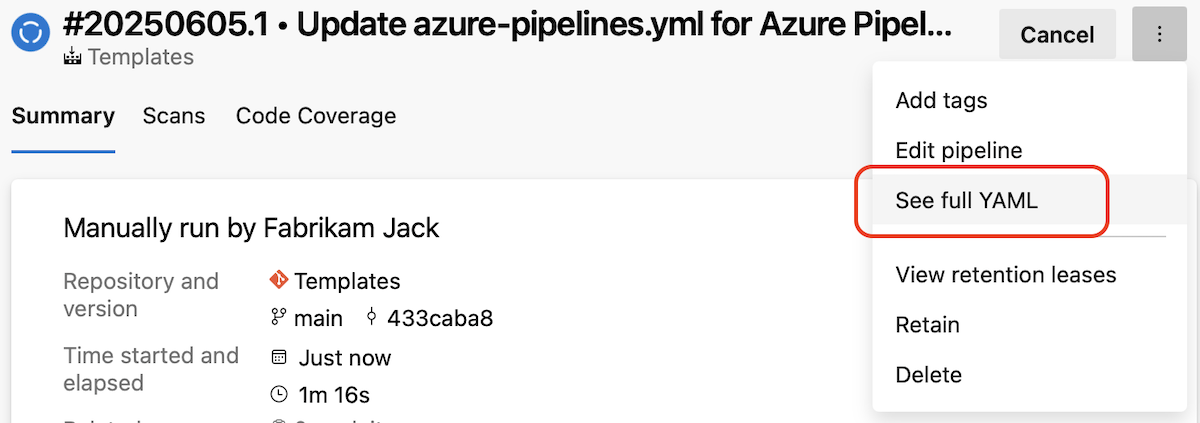
With this release, we're adding a new functionality that allows you to easily see the full YAML code of a pipeline run.
Improved visibility into YAML pipeline stage dependencies
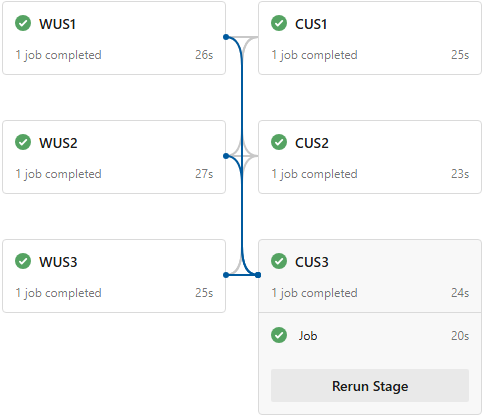
YAML pipelines provide flexibility for managing complex workflows, but visualizing stage dependencies has been a challenge—especially in multi-region deployments.
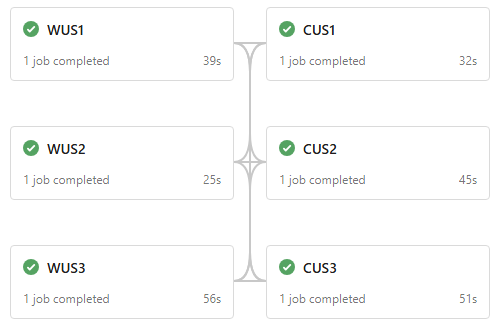
It hasn't always been clear how stages are connected. For example, determining whether CUS3 depends on WUS1 in addition to WUS2 and WUS3 has required reviewing the YAML directly.
With this release, stage dependencies are now displayed when a stage is expanded, providing immediate insight into execution order and upstream requirements.
New Agent CDN
As Edgio CDN is being retired, the domain URL owned by Edgio https://vstsagentpackage.azureedge.net will also be retired. We're adding a new domain URL https://download.agent.dev.azure.com supported by the new CDN. Be sure to add this new domain URL to your firewall allowlist. Agent package downloads for self-hosted agents will fail once the old domain URL is removed. Refer to the post for more details.
Node 16 will be removed from pipelines-* Pipeline agent packages
Agent tasks can be implemented in PowerShell or Node. The agent ships with multiple versions of Node that tasks can target.
As new Node versions are released, tasks are updated to use new Node versions. The runtimes are included with the agent.
As Node versions exit out of the upstream maintenance window, some Pipelines tasks still depend on it. Azure DevOps updates supported tasks to a supported Node version. Third party tasks may still need older Node versions to run.
To accommodate this, we have two types of Pipeline agent packages:
| Packages | Node versions | Description |
|---|---|---|
| vsts-agent-* | 6, 10, 16, 20 | Includes all Node versions that can be used as task execution handler |
| pipelines-agents-* | 20 | Includes only recent Node versions. The goal for these packages is to not include any end-of-life version of Node. |
If you want to run a task that requires the Node 16 execution handler on an agent that doesn't have Node 16 bundled, you can install the execution handler by inserting the NodeTaskRunnerInstaller@0 task in your pipeline:
steps:

- task: NodeTaskRunnerInstaller@0

inputs:

runnerVersion: 16
Pipeline Agent and Tasks upgraded to Support Node.js 24
The Pipeline Agent has been upgraded to version 270 and now supports Node.js 24. Most built-in tasks have also been updated to use Node.js 24 by default. The remaining built-in tasks will continue to use Node.js 20 for now, but they are scheduled to be upgraded to support Node.js 24 in upcoming patch releases.
VS2026 support for Tasks
Following tasks have been upgraded to support VS2026
- VsBuildV1
- MSBuildV1
- VSTestv3
- NugetCommandV2
Test Plans
New Test Run Hub
We are excited to announce that the new Test Run Hub is available for Azure DevOps server! Among others, we have included the following features and updates:
- You can now select and copy information from any page within the Test Run Hub user interface.
- For automated test runs, the stack trace component has been enhanced to provide improved readability of the full stack trace
- Images captured during test execution can now be previewed inline on each test result page
- Search functionality logic for runs using the Run Title now matches run titles that start with your search term
- Run Summary page usability and readability have been improved with updated minimum and default column width configurations
- You can now link work items to test runs across different projects
- You can now go directly from a pipeline logs to the specific run summary, saving you time and eliminating extra navigation steps
- For automated runs, all sub result attachments are now visible on each test result page, making it easier for you to review detailed outcomes
- Time and date values are now displayed according to your selected time and locale format
- Search by Run ID within a project, independent of other filters
- Copy text from any screen in the new Test Run Hub for easier sharing and productivity boost
- Optimized column widths in the test results table for improved readability
- Enhanced stack trace preview for automated runs to make analysis straight forward
- Added test Owner and Last Updated columns for better tracking
- All attachments of automated sub-runs are now available in the UI as expected
- Fixed an issue where test cases created during exploratory sessions were not correctly linked to the original test case.
Improved test case import wizard
We've improved the test case import wizard to help boost your productivity. It includes enhanced auto mapping, reusable mapping templates that can be shared across teams, and additional improvements to streamline imports. For details, see the import test cases public documentation here.
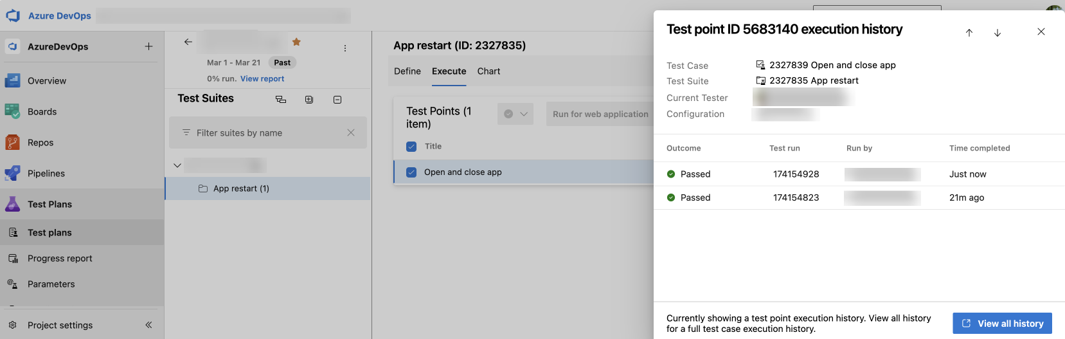
Focused test point history panel
Previously, you had no easy way to see point-specific history from the Test Plans page, making it hard to differentiate among test points in result history.
Now, you can view execution history for individual test points directly from the Test Plans page. In addition, you can select View all history to review the complete execution history for the associated test case.
Resume is now the default action for paused test cases
With the enhanced Resume Paused Test Case experience, Resume is now the default action for all paused manual test flows, making it easy to continue where you left off. If you attempt a different action, you’ll see a clear warning to help prevent accidental progress loss and ensure a smoother testing experience.
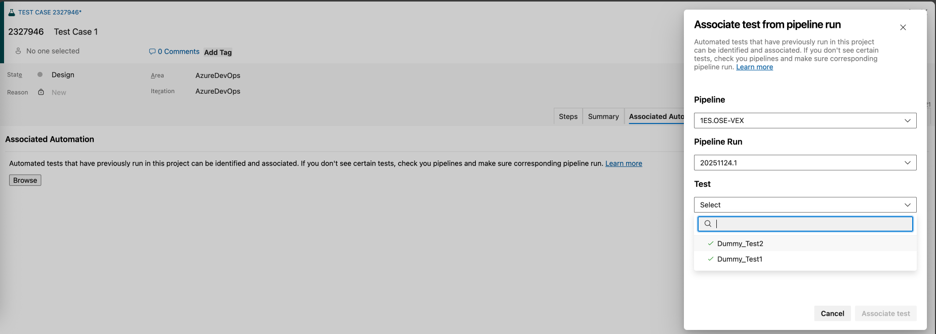
Associate test cases from work item is now generally available
We’re excited to announce that the automated test association flow introduced in our earlier blog post is now generally available. In addition to linking automated tests across languages and frameworks, you can now create the same associations directly from the test case itself, making the experience simpler, faster, and more intuitive.
Support for data-driven tests with VSTest task
We’ve added support for data driven (parameterized) tests with static inputs across MSTest, NUnit, and xUnit frameworks. In pipeline runs, each data set is now executed and reported as a distinct test attempt, providing better visibility into test coverage and execution outcomes.
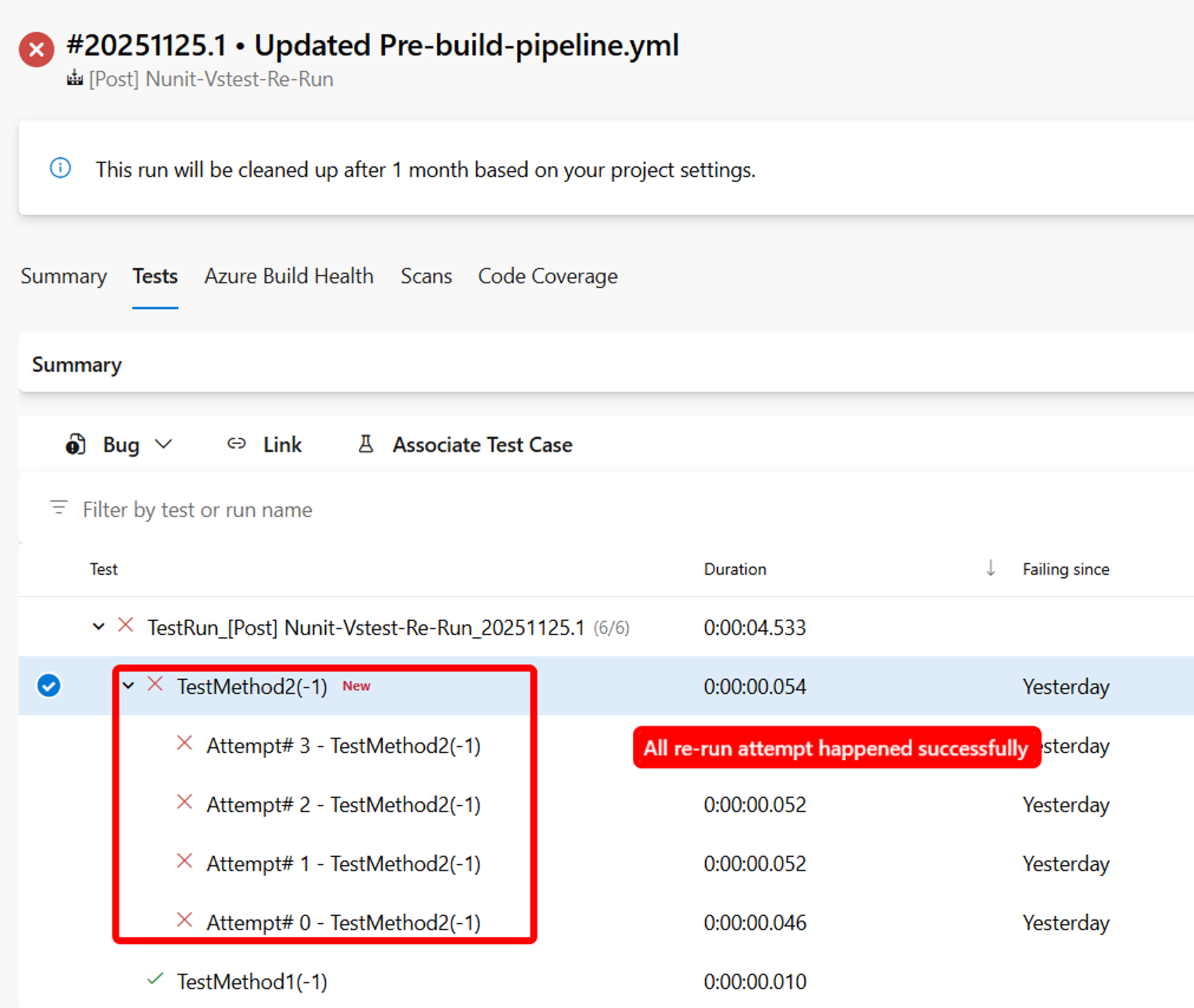
You can learn more about Visual Studio Test v3 task here.
Bug fixes and accessibility improvements
This release includes a set of targeted bug fixes and accessibility enhancements focused on improving test workflows, search reliability, and screen reader usability. These updates address issues reported by the Developer Community and make key experiences more inclusive and easier to navigate.
Addressed inconsistency in rendering inline test case images within the web test runner.
Fixed the Test Case View Linked Items Shows Random Work Items issue reported in the Developer Community.
Fixed the issue reported in the Developer Community where Test cases disappeared from the execution grid after changing their execution status while Assigned To filter is applied.
Fixed synchronization issue between Boards and associated test suites when removing test cases.
Improved the Test and Feedback Extension's error message to provide clearer guidance when no iteration is specified.
Fixed Back Button navigation in Test Plans. Resolved navigation issues by fixing the Back button functionality, enabling accurate transitions from Test Case view to Test Plan view.
Tester column renamed in test points to Current Tester. To improve clarity regarding test point assignments, the column previously labeled Tester has been renamed to Current Tester. This change is purely cosmetic and does not affect any underlying system logic or functionality.
Fixed query results pane resizing issue. Resolved a defect preventing the query and results area from being resized during requirements-based suite creation.
Fixed missing link cleanup when deleting shared steps. Resolved a defect that prevented the Related Work link from being removed when a shared step was deleted from a test case.
Fixed missing screenshots for individual steps. Resolved a defect causing inconsistent screenshot capture in individual steps when using the Test and Feedback Extension.
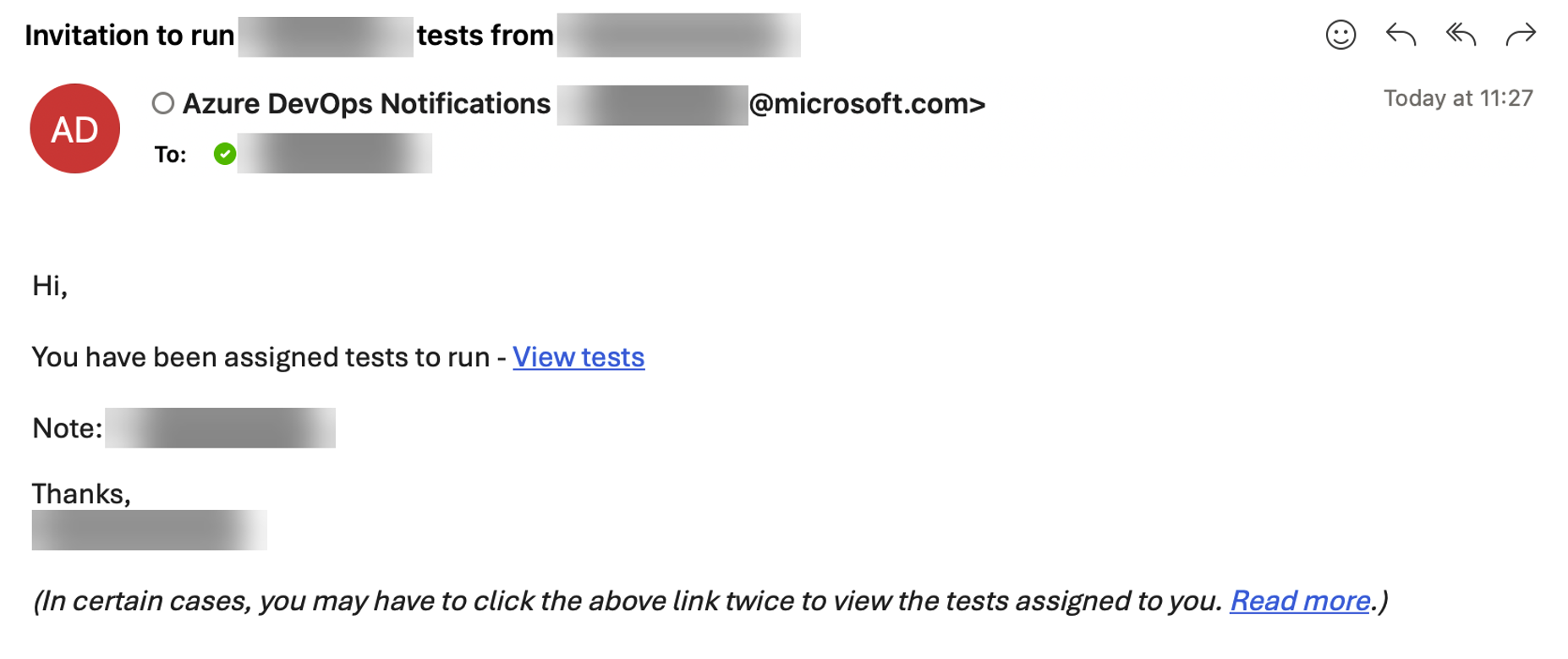
Hyperlink of the tester assignment email directs the assigned tester to the test execution page. (Used to redirect to the test definition tab).
- Imported test suites follow the set order.
- Newly imported test cases in test suites show at the bottom of the order.
- Owner search in the test run page is fixed to show the expected run results.
- Fixed issue with non-Latin characters in case exports, so that all custom field names are exported properly as seen in the UI.
Accessibility improvements
- Narrator now announces the correct number of rows and columns in the grid within the New test case pane.
- Added visual label Description to the "description" textbox in the New task pane for better screen reader support.
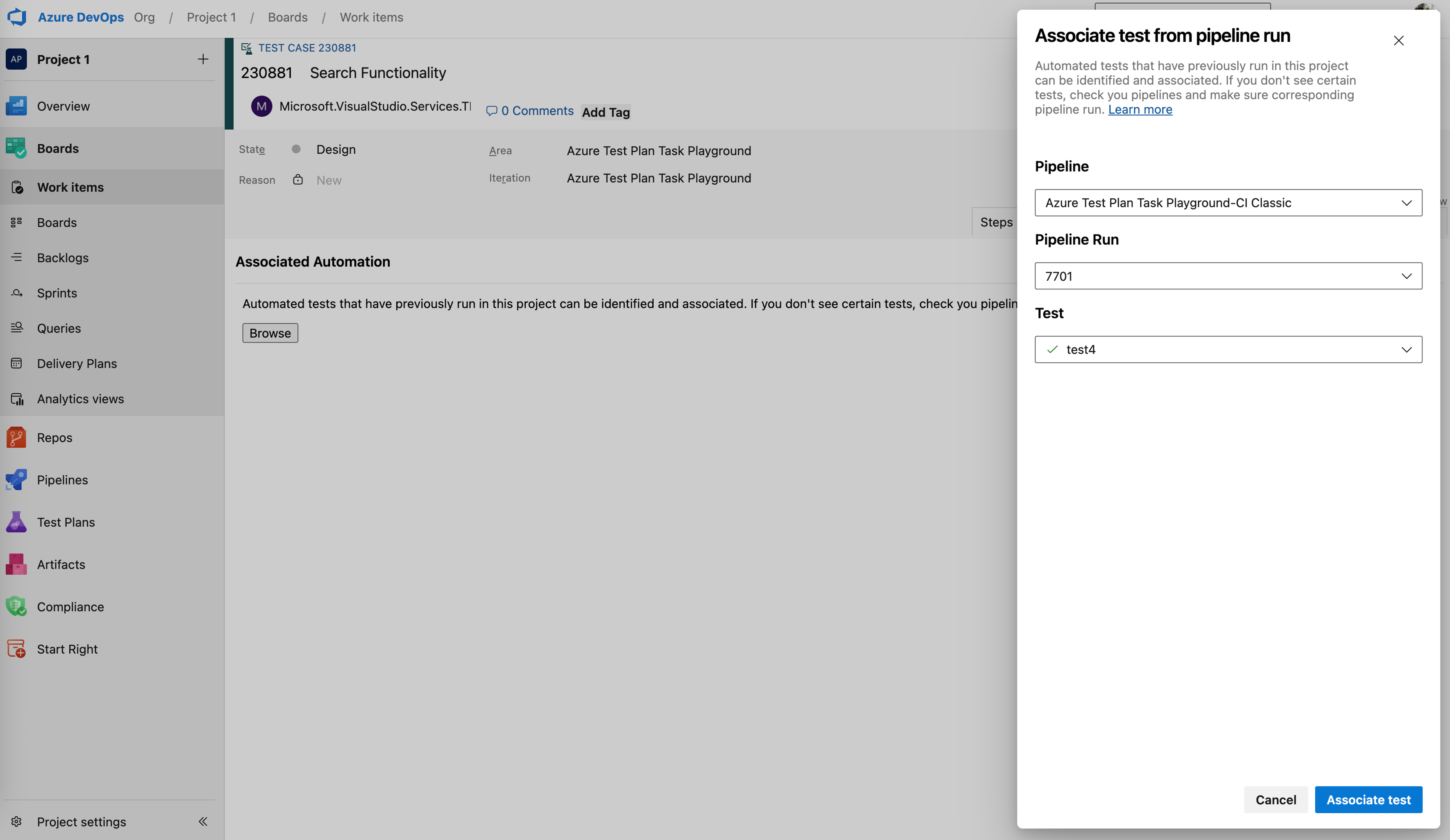
Associate automated tests to test cases
Previously, support was introduced for associating automated tests written in various languages with test cases directly from pipelines. This capability has now been extended to allow initiating the association directly from within the test case itself.
Improved tester assignment and configuration changes messaging
We've enhanced prompts and completion messages when testers or configurations are updated in test suites or cases, to provide clearer guidance and reduce the risk of losing progress on paused test points.
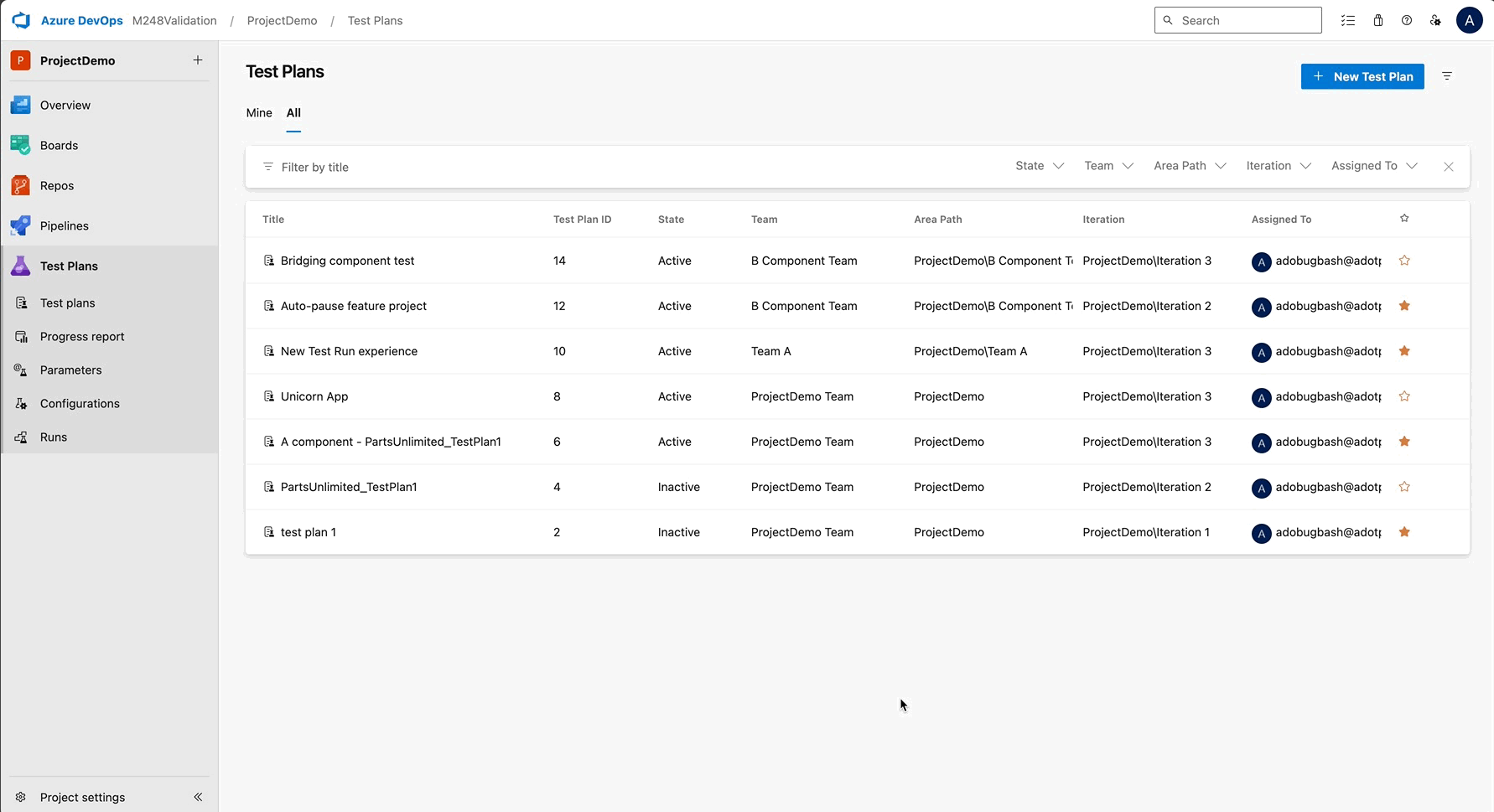
Introducing New Test Plans directory
Stay organized and save time with the New Test Plans Directory. We are introducing several enhancements to help you manage test plans more efficiently, giving you greater control over your workspace and reducing repetitive tasks.
Here’s what’s new:
- Cleaner UI Design: Navigate your test plans with ease using a modern interface that improves readability and reduces clutter, allowing you to focus on your tasks without distractions.
- Column Sorting: Find what you need faster by sorting columns based on name, status, or other key attributes. This feature helps you quickly organize and prioritize your test plans for better productivity.
- Team Filter in the All tab: Focus on what matters by filtering test plans by team, ensuring you only see relevant plans that align with your work and goals.
- Persistent Filters: Save time with persistent filters that remember your settings. When you return to the page, your previously applied filters will stay intact, providing an organized view without needing to reapply filters every time.
These updates are designed to streamline your workflow, reduce repetitive tasks, and make it easier to track and manage your test plans. Give it a try and let us know via email what you think!
Advanced Test Case result history
Easily track key test run details with new enhancements to the test case result page. You’ll see critical information like Run ID, Pipeline ID, Owner, Iteration Path, and Area Path displayed right on the page, providing a complete view of each test run at a glance.
We've added horizontal scrolling for longer values and customizable columns, allowing you to personalize your layout and keep your preferences saved at the user level. To help you move faster, Run IDs and rows are clickable, giving you quick access to the Test Run view for deeper insights. These updates aim to improve visibility, save time, and streamline your workflow, making it easier to track and manage your test runs efficiently. Give it a try and let us know via email if you have any feedback. We would love to hear from you!
View Test Case State in Execute tab
You can now add the "Test Case State column" to the Execute tab to quickly see the status of each test case. Whether it’s Approved, In Progress, or any other state, this update gives you clearer visibility into test readiness without switching browser tabs or running complex queries.
The column is optional and can be enabled via the column picker. It also aligns with the existing State filter, allowing you to filter and view test case states side by side, all in one place.
This enhancement helps ensure testers begin execution with test cases that are truly Ready or Approved, reducing the risk of running incomplete or draft items, and making your test runs more efficient from the start.
Default resume for paused test case
Quickly resume your paused test cases with a single click. We've made "Resume" the default action for paused test cases, allowing you to pick up right where you left off without extra navigation. This update makes it faster and easier to continue your work without interruption.
To further protect your progress, we're introducing a confirmation prompt to prevent accidental overwrites of paused test progress. This safeguard ensures your partially saved work stays intact, giving you peace of mind while managing your test runs. Give it a try and let us know via email what you think!
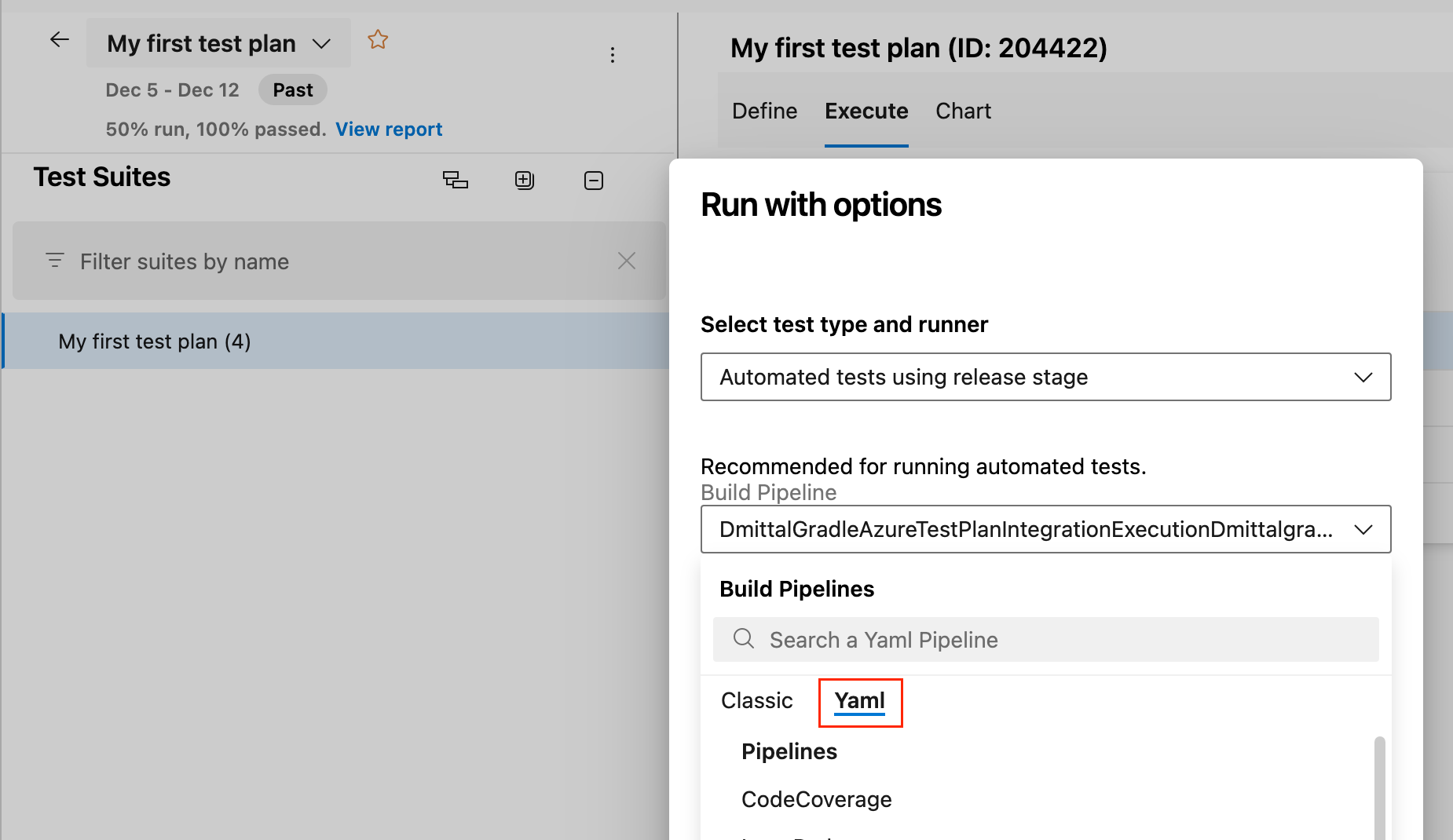
Support for YAML pipelines in Test Plans
In addition to Classic pipelines, you can now use your YAML pipelines when configuring your Test Plans or executing automated tests from Test Plans.
This request was prioritized based on the following Developer Community suggestion tickets.
- Allow YAML pipeline to use in test plan settings
- Run automated tests from Azure Test Plans using YAML pipeline
View recent test results in Test Case
We’ve added a new Recent test results section to the test case work item, making it easier to monitor test progress without switching views or navigating through test plans.
With this update, you can:
- View the top 4 most recent test results directly from the test case
- See key details at a glance: outcome, run by, configuration, and completed date
- Access the full execution history in one click for deeper analysis
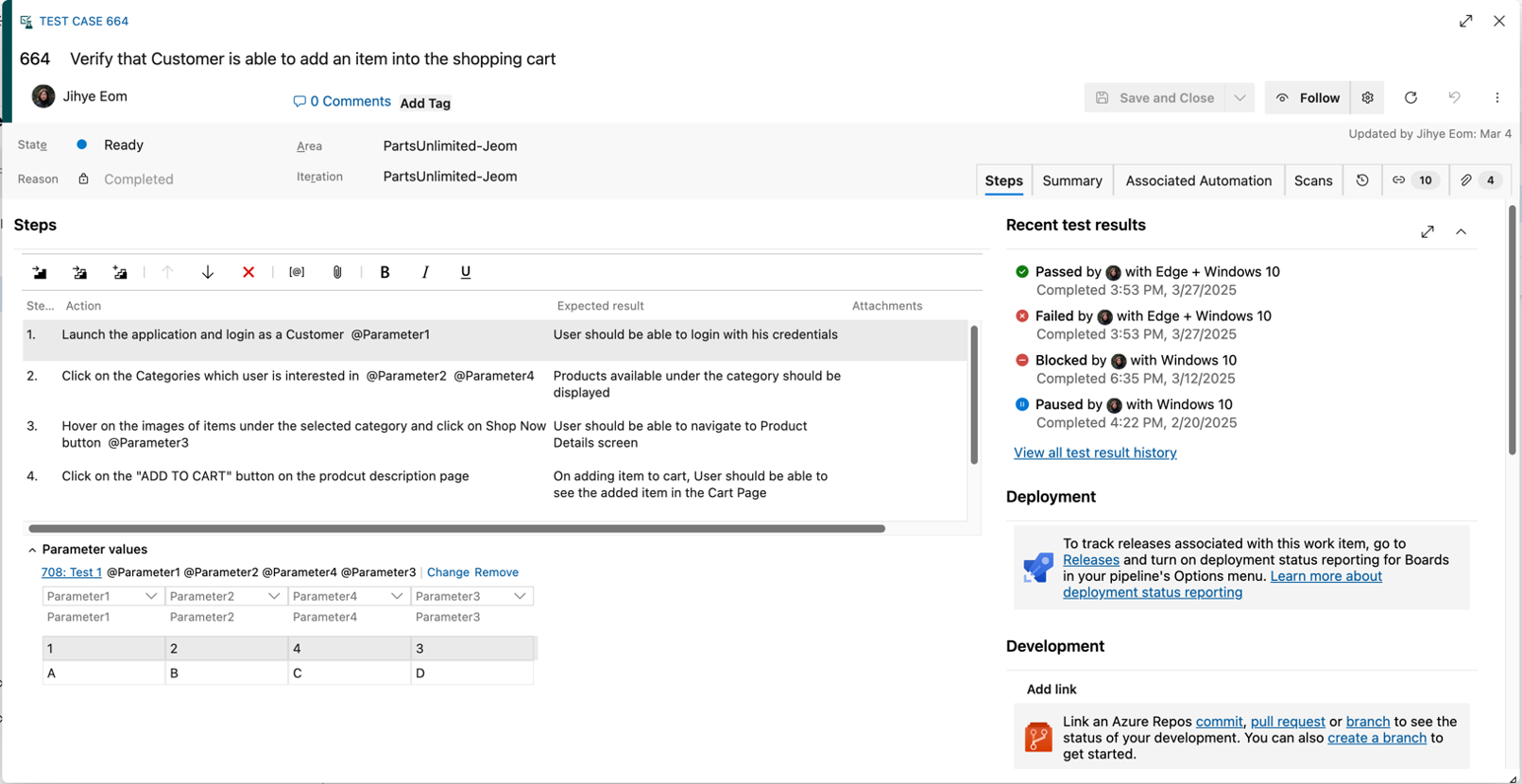
These enhancements streamline test review and support requirement-based traceability by keeping execution insights close to where your test cases live. This feature will roll out gradually and become available in the coming weeks.
Retirement of action logging and switch to screen recording
Our desktop Azure Test Runner client relies on Problem Steps Recorder (PSR), a tool introduced in Windows 7 that is now being deprecated in newer Windows versions. As a result, the action log functionality in our desktop test runner may no longer work in future updates.
To ensure uninterrupted test tracking, we recommend switching to screen recording in our web runner, Test & Feedback Extension, which provides a modern, reliable way to capture and manage test steps. If you need assistance transitioning to the Test & Feedback Extension, please reach out to our support team.
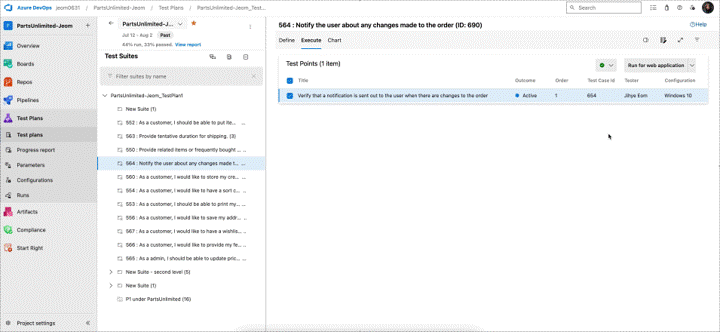
Auto-pause manual test run
Never lose progress on your test runs with auto-pause test case run. This new feature automatically pauses your test case run if your work is interrupted, ensuring that partial progress is saved without needing a manual pause. Whether you step away or close the session, you can easily resume your test case right where you left off, reducing the risk of data loss and improving your workflow. By simplifying the pause and resume process, auto-pause helps you stay focused on testing without worrying about losing your progress.
Reporting
Rollup columns data available in backlog
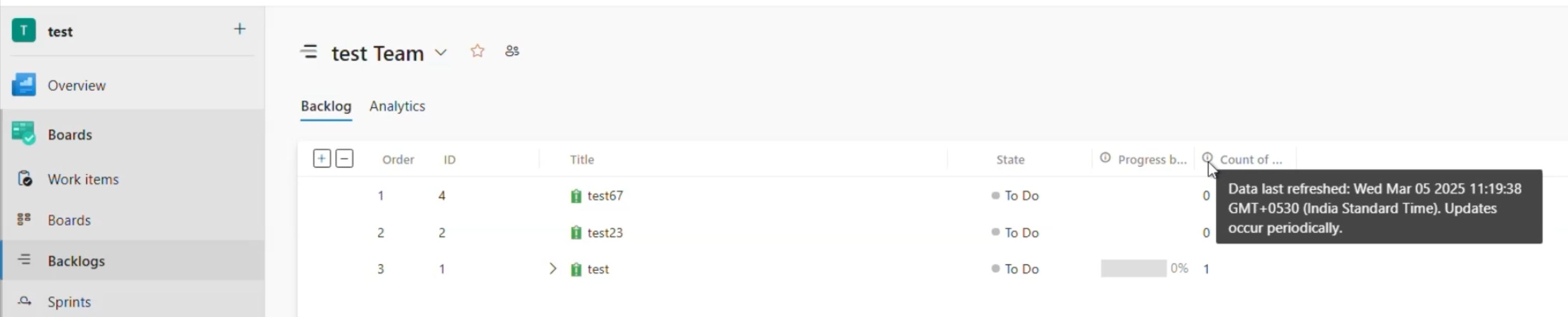
We’ve updated rollup columns to show the most recent available data. Previously, these columns could appear blank for frequently updated work items, causing confusion. You’ll also see a timestamp indicating when the data was last refreshed.
While some delay in Analytics processing is normal, these improvements aim to provide transparency and a smoother experience when working with rollup columns.