Note
Access to this page requires authorization. You can try signing in or changing directories.
Access to this page requires authorization. You can try changing directories.
Azure DevOps Services | Azure DevOps Server | Azure DevOps Server 2022
If you're experiencing issues connecting to a project in Azure DevOps, this article provides step-by-step troubleshooting guidance to resolve common connectivity and authentication problems.
Prerequisites
| Category | Requirements |
|---|---|
| Project access | Project member. |
Quick resolution steps
If you're experiencing connection issues, try these quick steps first:
- Clear your browser completely: Sign out using https://aka.ms/VsSignout, then clear all cookies (Ctrl+Shift+Delete).
- Use a private browser session: Open an incognito or InPrivate window and test access.
- Verify organization URL: Ensure you're using the correct URL format:
https://dev.azure.com/{organizationName}. - Check your account type: Verify you're signing in with the correct account type (Microsoft Entra ID vs. personal Microsoft account).
If these steps don't resolve the issue, continue with the following detailed troubleshooting sections.
Troubleshoot authentication errors
Azure DevOps supports Microsoft Entra accounts and Microsoft personal accounts for authentication. Organizations connected to Microsoft Entra ID require Microsoft Entra authentication (member or B2B guest accounts).
401 - Not Authorized errors
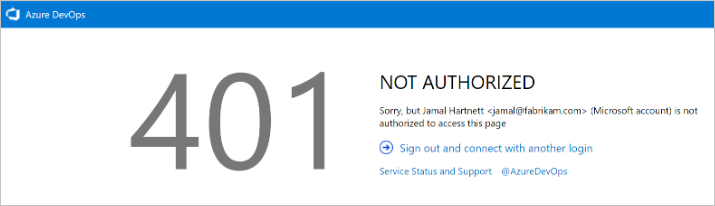
The 401 Not Authorized error is the most common sign-in issue. This error occurs when your identity lacks permissions to access the organization or specific resources. Common causes include:
- Identity not added to organization: Your account isn't listed in the organization's user directory.
- Alias vs. UPN confusion: Attempting to sign in with an alias instead of your User Principal Name (UPN).
- Insufficient project permissions: Lacking Read permissions on the target project or resource.
- Pending B2B guest invitation: Microsoft Entra B2B guest invitation isn't accepted.
- Account type mismatch: Attempting to sign in with the wrong account type when multiple accounts share the same email address.
Identity not in organization
Resolution steps:
- Contact your Azure DevOps administrator to verify your identity appears in the organization's Users list.
- For Microsoft Entra accounts: Ensure the identity in the Users list exactly matches your UPN in the Microsoft Entra tenant.
- For personal Microsoft accounts: Confirm the identity matches your primary account email.
- For B2B guests: Verify your UPN in the guest tenant matches your home tenant UPN, including exact casing.
Note
B2B guests appear in Microsoft Entra ID with UPNs formatted as {username}_{homeDomain}#EXT#@{guestDomain}. The {username}_{homeDomain} portion must match your home tenant UPN, replacing the _ with @.
UPN vs. alias sign-in issues
Azure DevOps doesn't support sign-in aliases. You must use your exact User Principal Name (UPN) for Microsoft Entra accounts or primary account for personal Microsoft accounts.
Example: If your UPN is john.doe@contoso.com but you have an alias jdoe@contoso.com, you must sign in using john.doe@contoso.com.
Resolution: Ask your administrator to add your actual UPN (john.doe@contoso.com) to the organization and always use this UPN for sign-in.
Insufficient permissions
You might have organization access but lack permissions for specific projects or resources.
Symptoms:
- Can access
https://dev.azure.com/{orgName}but nothttps://dev.azure.com/{orgName}/{projectName}. - Receive 401 errors when accessing specific work items, repositories, or pipelines.
Resolution: Contact your Azure DevOps administrator to verify you have at least Read permissions for the target resource.
B2B guest invitation issues
B2B guests must accept their Microsoft Entra tenant invitation before accessing Azure DevOps.
Resolution steps for guests:
- Check your email for the Microsoft Entra invitation.
- Select the invitation link and complete the acceptance process.
- Attempt to sign in to Azure DevOps again.
Resolution steps for tenant administrators:
- Go to https://portal.azure.com.
- Select Microsoft Entra ID > Users.
- Find the guest user and check their Overview page.
- If the B2B invitation status shows "Pending acceptance," use Resend invitation.
Account type conflicts
Organizations not connected to Microsoft Entra ID support both personal Microsoft accounts and Microsoft Entra accounts. The first account type you use establishes your identity permanently.
Resolution: If you need to change account types:
- Have your administrator remove and readd you to the organization.
- Sign in with your preferred account type when prompted.
Tip
Avoid having matching personal and Microsoft Entra accounts. Consider renaming your personal account to prevent confusion.
Troubleshoot connectivity issues
Browser-related problems
Complete sign-out and cleanup:
- Sign out completely: Go to https://aka.ms/VsSignout.
- Clear all browser data: Select Ctrl+Shift+Delete and remove:
- Cookies and site data.
- Cached images and files.
- Autofill form data.
- Clear Microsoft Edge data: Visual Studio IDE uses Microsoft Edge cookies, so clear Microsoft Edge data even if you use a different browser.
- Close all applications: Exit all browsers and Visual Studio IDE instances.
- Test with private browsing: Use an incognito or InPrivate window to test access.
Visual Studio IDE connection issues
If you're experiencing connection issues within Visual Studio:
- Remove existing connections: In Team Explorer, remove all Azure DevOps connections.
- Clear credential cache: Delete cached credentials from Windows Credential Manager.
- Restart Visual Studio: Close and reopen Visual Studio completely.
- Readd connections: Add your Azure DevOps connection again using current credentials.
Network and proxy issues
Corporate network troubleshooting:
- Test from different network: Try accessing Azure DevOps from a personal device/network.
- Check proxy settings: Verify corporate proxy allows
*.visualstudio.comand*.azure.comdomains. - Firewall configuration: Ensure firewall permits HTTPS traffic to Azure DevOps endpoints.
- VPN interference: Test with VPN disabled if applicable.
Advanced troubleshooting
Modern authentication migration
If you're using legacy authentication methods, consider migrating to modern alternatives:
- Personal Access Tokens (PATs): Migrate to Microsoft Entra OAuth applications.
- Username/password: Switch to service principals or managed identities.
- Legacy tokens: Implement Microsoft Entra authentication for better security.
Service connection authentication
For Azure DevOps service connections experiencing authentication issues:
- Refresh service principal secrets: Update expired client secrets or certificates.
- Verify permissions: Ensure service principals have appropriate Azure DevOps permissions.
- Check token expiration: Validate that authentication tokens aren't expired.
- Review audit logs: Check Microsoft Entra audit logs for authentication failures.
Use AI to troubleshoot connection issues
The following example prompt for Copilot Chat helps Copilot troubleshoot your connection and authentication errors. Copy and paste this prompt into Copilot Chat, replacing the placeholder with your specific error message or issue description.
I'm getting this Azure DevOps connection/authentication error: [PASTE YOUR ERROR MESSAGE HERE]

Can you help me troubleshoot this issue? Please provide step-by-step instructions to:
1. Identify the root cause of the connection problem
2. Fix the authentication or access issue
3. Verify I can successfully connect to my Azure DevOps project

Context: This is for connecting to an Azure DevOps organization and project. I've already tried basic troubleshooting like clearing browser cache and using a private browser session.
Copilot is powered by AI, so surprises and mistakes are possible. For more information, see Copilot general use FAQs.
Get other help
When you complete all troubleshooting steps and still can't connect:
- Collect diagnostic information: Create a browser trace of your failed sign-in attempt.
- Contact Microsoft Support: Create a support request and include:
- Detailed description of the issue.
- Steps you already attempted.
- Browser trace files.
- Screenshots of error messages.
- Community support: Search or post questions on the Azure DevOps Developer Community.