Note
Access to this page requires authorization. You can try signing in or changing directories.
Access to this page requires authorization. You can try changing directories.
Use Azure DevTest Labs environments to easily and consistently provision labs with multiple virtual machines (VMs) and platform as a service (PaaS) resources. This article describes how to create DevTest Labs environments from Azure Resource Manager (ARM) templates. Use this approach to create a lab for a multitier web application, such as a web app with a SQL database backend.
Resources in a DevTest Labs environment share the same lifecycle. You can manage them together, and track the cost of individual PaaS resources in the lab environment just as you track costs for individual VMs.
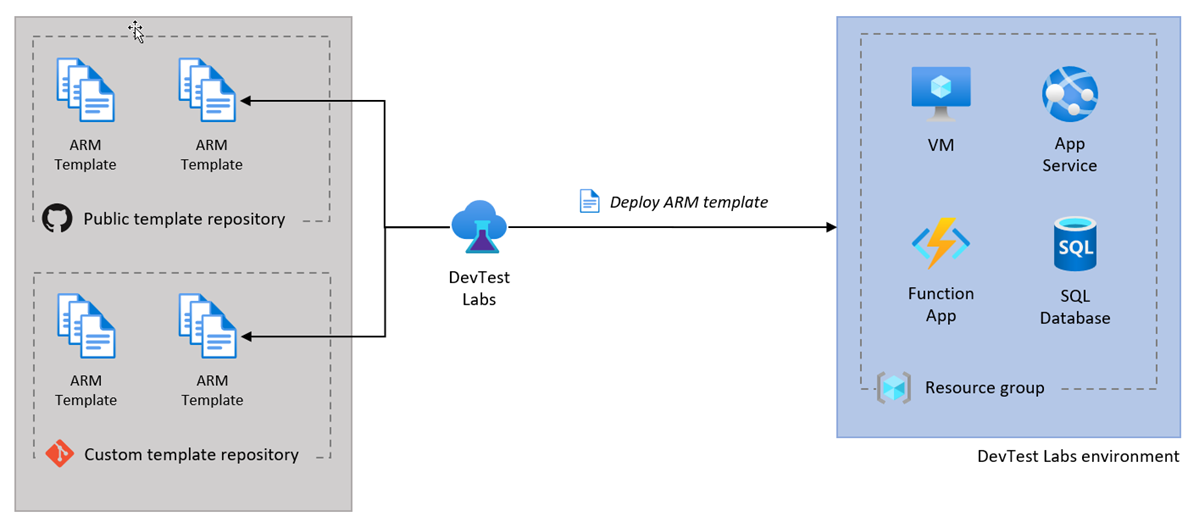
You can configure a lab to use ARM environment templates from public or private Git template repositories. The following diagram shows how DevTest Labs uses an ARM template from a public or private repository to deploy an environment containing VMs and other resources.
Prerequisites
- To add or configure template repositories for a lab, at least Contributor permissions in the lab.
- To create DevTest Labs environments from available ARM templates, at least DevTest User permissions in the lab.
- To run the PowerShell script in Automate environment creation, Azure PowerShell with the
Az.Resourcesmodule installed.
Assign subscription permissions for template deployment
If your organization requires subscription-scope permissions for delegated template management, assign the Azure Lab Services Contributor role at the subscription scope.
Important
For DevTest Labs environment creation, lab users still need at least DevTest User permissions on the lab. The Azure Lab Services Contributor role doesn't replace DevTest Labs lab-level permissions.
- In the Azure portal, open your subscription.
- Select Access control (IAM) > Add > Add role assignment.
- Search for and select Azure Lab Services Contributor.
- Select Next, choose the user, group, or service principal, and then select Review + assign.
For least-privilege access, use a custom role that includes only the permissions required by your template and lab workflow instead of broad subscription-wide rights.
The following example custom role limits access to DevTest Labs environment creation and deployment visibility. Add only the actions your template requires.
{
    "Name": "DevTest Labs Environment Template Deployer",
    "Description": "Create and read DevTest Labs environments from approved ARM templates.",
    "Actions": [
        "Microsoft.Authorization/*/read",
        "Microsoft.DevTestLab/labs/read",
        "Microsoft.DevTestLab/labs/EnsureCurrentUserProfile/action",
        "Microsoft.DevTestLab/labs/CreateEnvironment/action",
        "Microsoft.DevTestLab/labs/artifactSources/armTemplates/read",
        "Microsoft.DevTestLab/labs/policySets/EvaluatePolicies/action",
        "Microsoft.DevTestLab/labs/users/environments/read",
        "Microsoft.DevTestLab/labs/users/environments/write",
        "Microsoft.Resources/deployments/read",
        "Microsoft.Resources/deployments/operations/read",
        "Microsoft.Resources/subscriptions/resourceGroups/read"
    ],
    "NotActions": [],
    "DataActions": [],
    "NotDataActions": [],
    "AssignableScopes": [
        "/subscriptions/<subscription-id>"
    ]
}
Limitations
Environments created from ARM environment templates in DevTest Labs have the following limitations:
The autoshutdown feature for VMs isn't supported.
The following lab policies aren't enforced or evaluated:
- Number of VMs per lab user
- Number of premium VMs per user
- Number of premium disks per user
For example, even if lab policy only allows each user to create a maximum of five VMs, the user can deploy an ARM environment template that creates dozens of VMs.
Configure template repositories for labs
You can configure your lab to use ARM environment templates from the DevTest Labs public ARM template repository and from other public or private Git repositories. When you enable lab access to a template repository, lab users can quickly create environments by selecting templates in the Azure portal.
The DevTest Labs public ARM template repository includes preauthored environment templates such as Web App with SQL Database and Azure Service Fabric cluster samples. For a smooth getting-started experience with PaaS resources, the templates have minimal input parameters.
You can use the public environment templates as-is or customize them to suit your needs. You can also suggest revisions or additions to a public template by submitting a pull request against the GitHub public template repository.
You can also store environment templates in other public or private Git repositories, and add those repositories to your lab to make the templates available to all lab users. For instructions, see Store ARM templates in Git repositories and Add template repositories to labs.
Configure public environment settings
You can enable lab access to the DevTest Labs public template repository for a new or existing lab. When you enable access to the repository, you can select which environment templates to make available to lab users.
Configure public environment access for a new lab
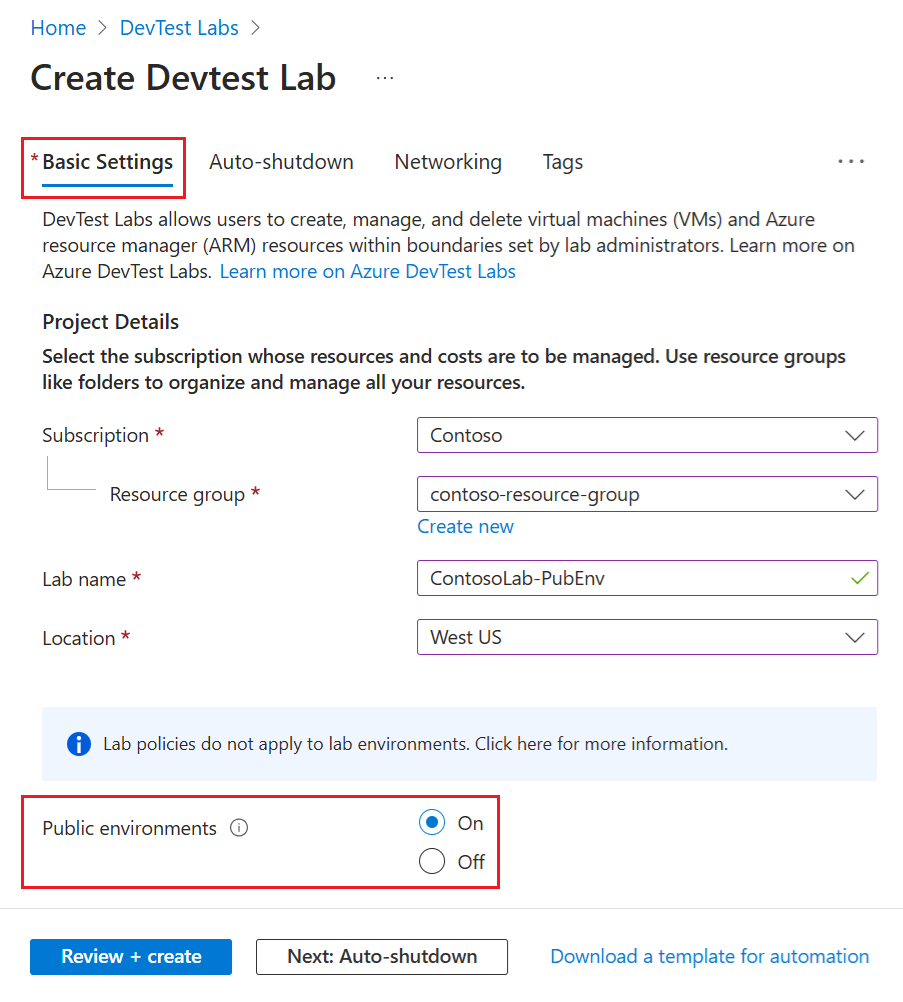
To configure public environment repository access when you create a new lab, on the Basic Settings tab, set the Public environments option to On or Off. This option is set to On by default.
Configure public environment access for an existing lab
To enable or disable public environment repository access for an existing lab:
On the Azure portal Overview page for your lab, select Configuration and policies under Settings in the left navigation menu.
On the Configuration and policies page, expand Virtual machine bases in the left menu and select Public environments.
On the Public environments page, set the Enable Public Environments for this lab option to Yes or No.
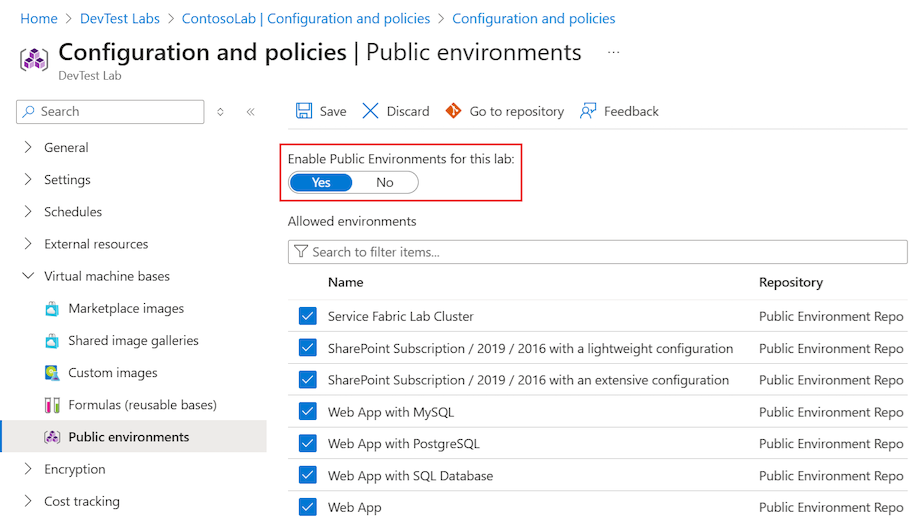
Select Save.

Select available public environment templates
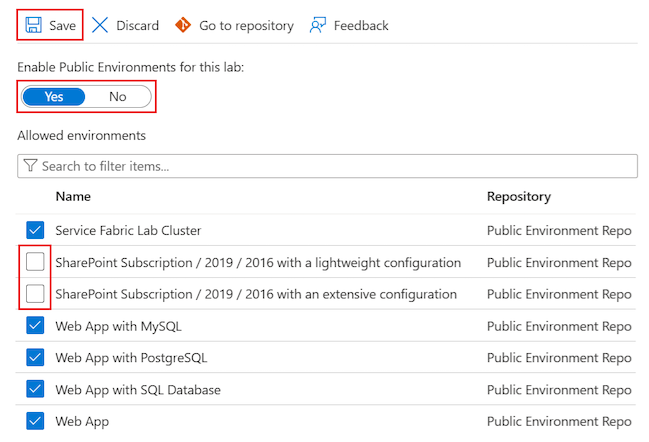
When you enable the public environment repository for a lab, all environment templates in the repository are available to your lab users by default. You can choose to disable access to selected templates. The disabled templates no longer appear in the list of environments users can create.
To disallow access to specific environment templates:
On your lab's Azure portal Configuration and policies > Virtual machine bases > Public environments page, deselect the checkboxes next to the environments you want to disable.
Select Save.
Configure environment user permissions
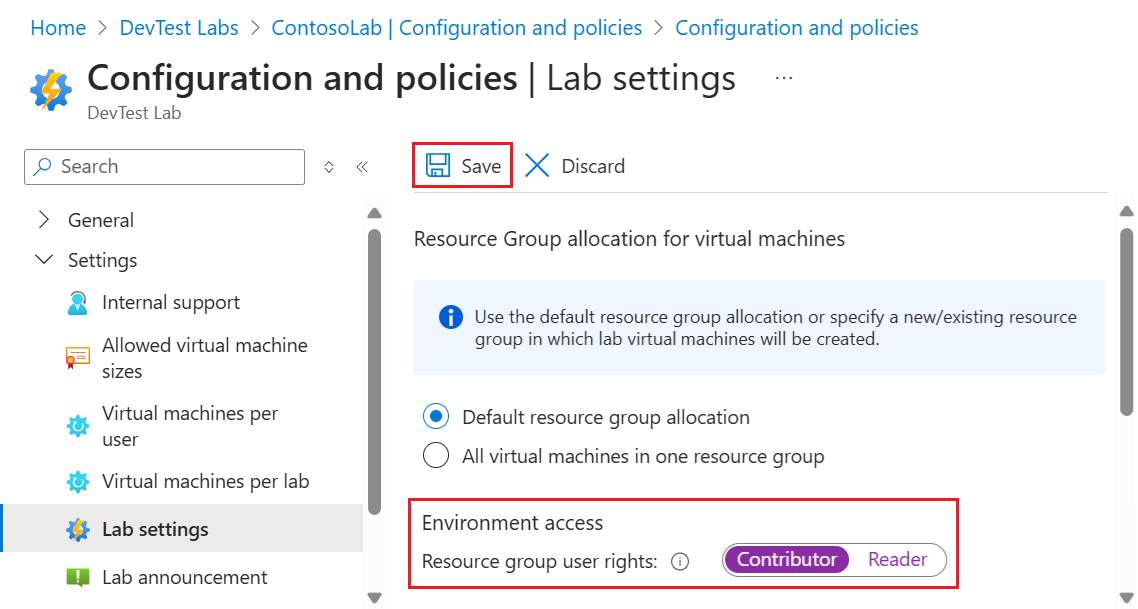
By default, lab users are assigned the Reader role in environments they create. Readers can't stop, start, or modify environment resources like SQL servers or databases. To allow lab users to edit resources in their environments, grant them the Contributor role in the resource group for their environment.
On the Azure portal Overview page for your lab, select Configuration and policies under Settings in the left navigation menu.
On the Configuration and policies page, expand Settings in the left menu and select Lab settings.
On the Lab settings page under Environment access, set the Resource group user rights option to Contributor.
Select Save.
Create environments from templates
If you configure your lab to use public or private template repositories, you can create an environment by selecting an available ARM template. Follow these steps to create an environment from a template.
On the Azure portal Overview page for your lab, select My environments under My Lab in the left navigation menu.
On the My environments page, select Add.
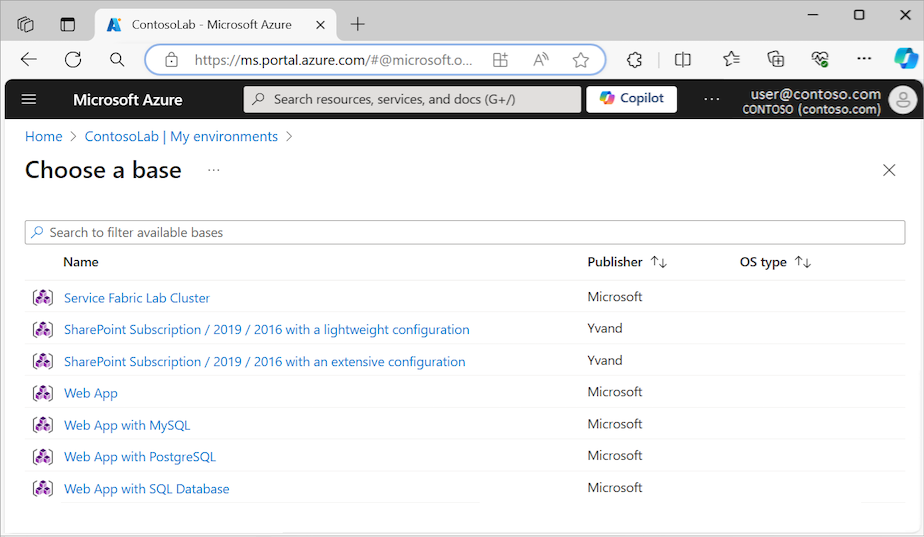
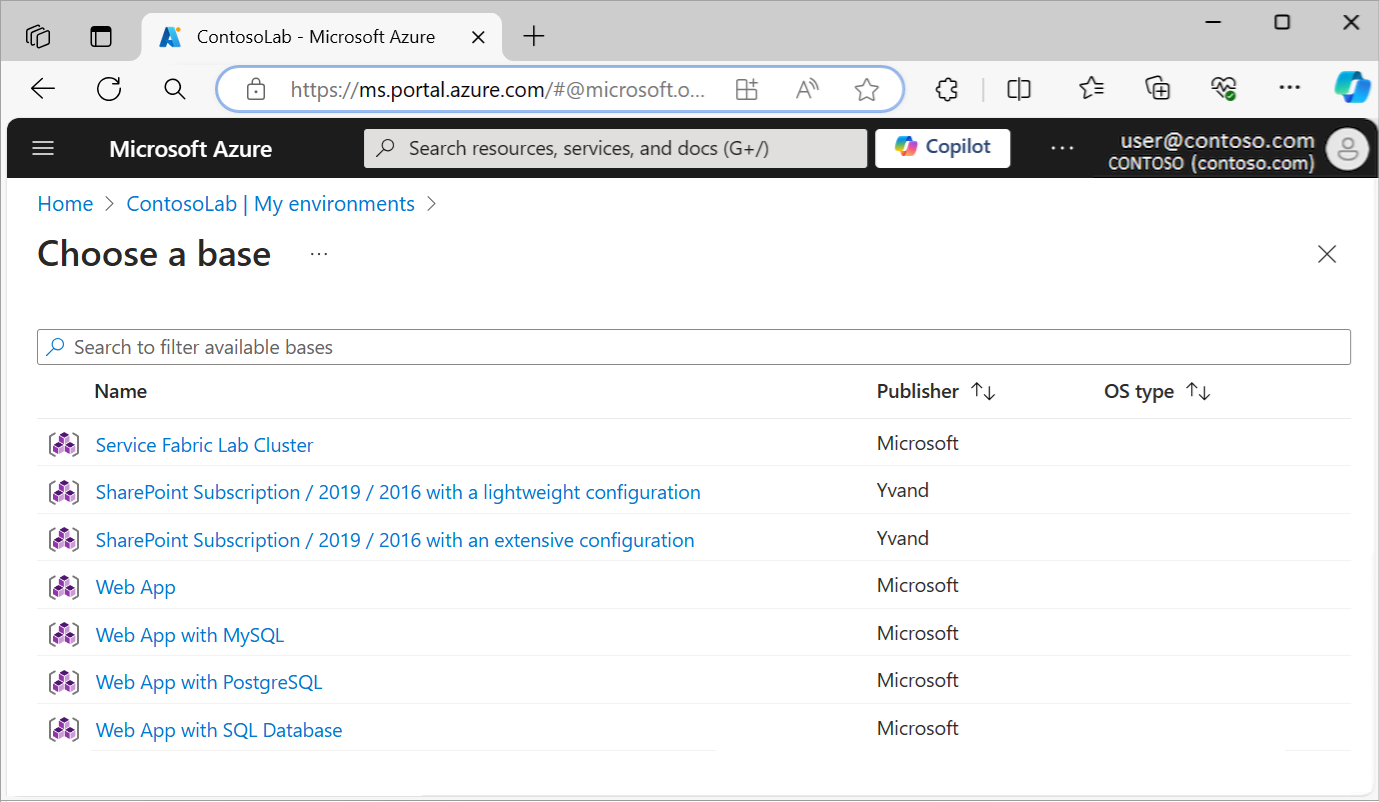
On the Choose a base page, select Web App with SQL Database.
On the Add pane, enter an Environment name and configure the other parameter settings for the web app and SQL database resources.
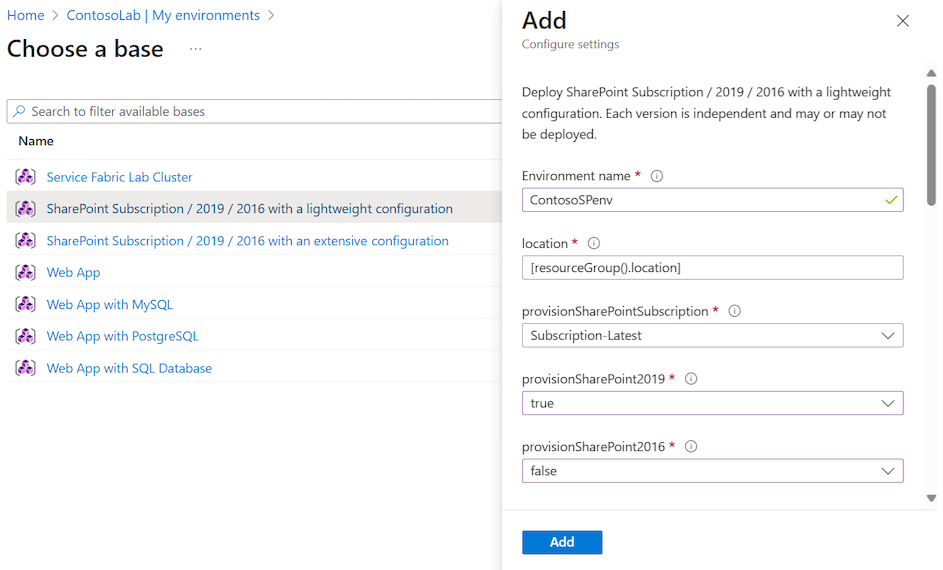
- Each ARM environment template includes unique parameters. When you add an environment, you must enter values for all required parameters, denoted by red asterisks.
- Some parameter values in an azuredeploy.parameters.json ARM template file produce blank setting fields with no default value on the Add pane. These values include
GEN-UNIQUE,GEN-UNIQUE-[N],GEN-SSH-PUB-KEY, andGEN-PASSWORD. - You can use secrets from Azure Key Vault for secure string parameters like passwords. For more information, see Store secrets in Azure Key Vault.
Select Add. The environment starts provisioning immediately.
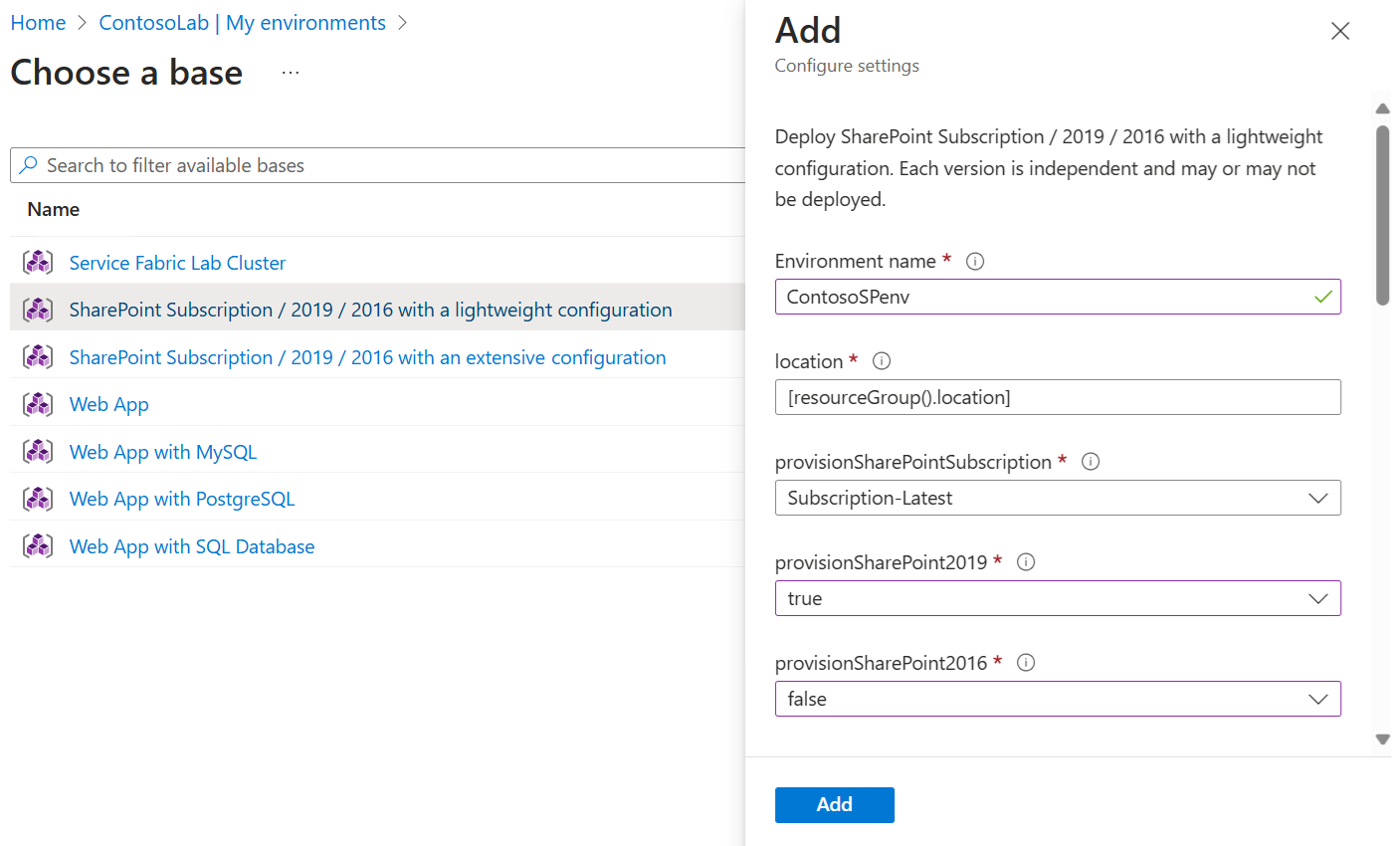
The process to provision an environment can take a long time. The total time depends on the number of service instances, VMs, and other resources that DevTest Labs creates as part of the lab environment.
You can monitor the provisioning status on the My environments page. Select Refresh on the toolbar to update the page view and check the current status. While provisioning is in progress, the environment status is Creating. After provisioning completes, the status changes to Ready.
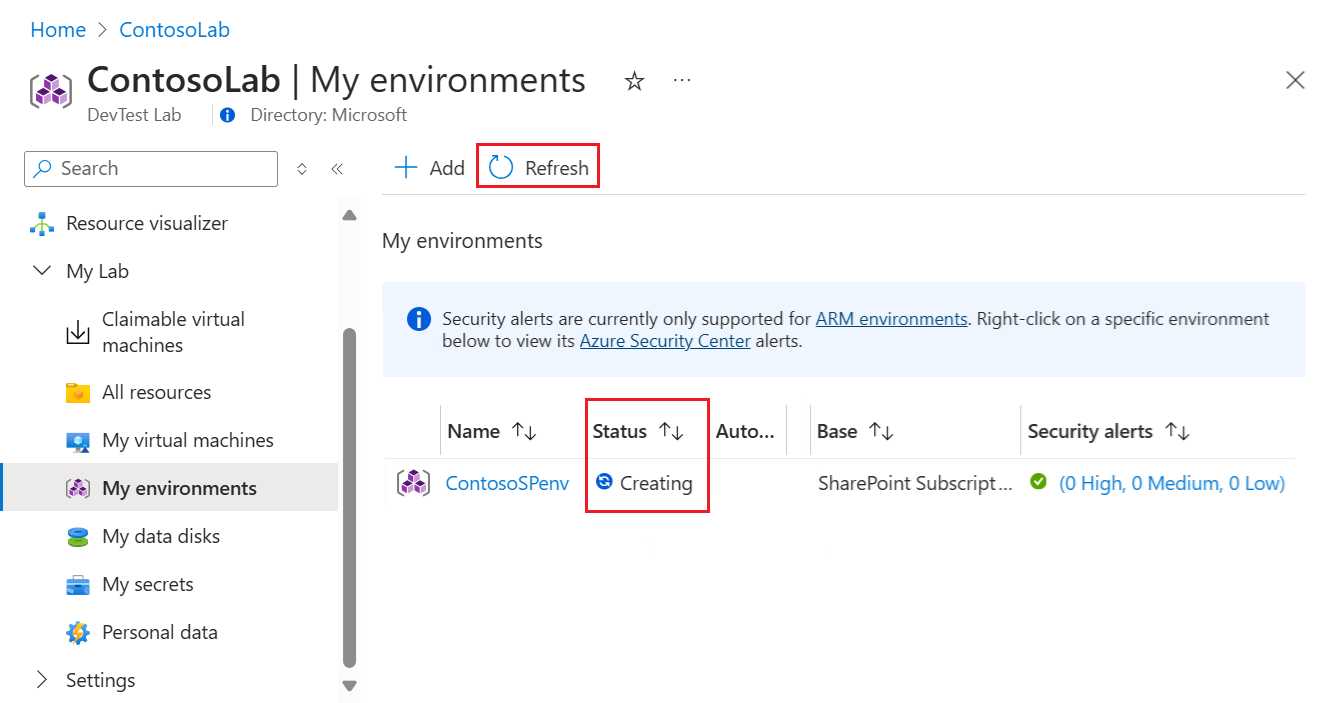
The deployment creates a new resource group to provision all the environment resources the ARM template defined. Select the environment in the My environments list to view the resource group and all resources the template created.
Select a resource in the list to see properties and available actions.
Automate environment creation
If you need to create multiple environments for development or testing scenarios, you can use Azure PowerShell or the Azure CLI to automate environment deployment from ARM templates. The following steps show how to automate ARM environment template deployment using the Azure PowerShell New-AzResource command.
You can also automate deployment by using the Azure CLI az deployment group create command. For more information, see Deploy resources with ARM templates and the Azure CLI.
Store the ARM environment template in a Git repository and add the repository to your lab.
Save the following PowerShell script to your computer as deployenv.ps1. This script calls the ARM template to create the environment in the lab.
#Requires -Module Az.Resources

[CmdletBinding()]

param (
# ID of the Azure subscription for the lab
[string] [Parameter(Mandatory=$true)] $SubscriptionId,

# Name of the lab in which to create the environment
[string] [Parameter(Mandatory=$true)] $LabName,

# Name of the template repository connected to the lab
[string] [Parameter(Mandatory=$true)] $RepositoryName,

# Name of the template (folder name in the GitHub repository)
[string] [Parameter(Mandatory=$true)] $TemplateName,

# Name of the environment to create in the lab
[string] [Parameter(Mandatory=$true)] $EnvironmentName,

# The parameters to pass to the template. Each parameter is prefixed with "-param_".
# For example, if the template has a parameter named "TestVMName" with a value of "MyVMName",
# the string in $Params is "-param_TestVMName MyVMName".
# This convention allows the script to dynamically handle different templates.
[Parameter(ValueFromRemainingArguments=$true)]
    $Params
)

# Sign in to Azure, or comment out this statement to completely automate environment creation.
Connect-AzAccount

# Select the subscription for your lab.
Set-AzContext -SubscriptionId $SubscriptionId | Out-Null

# Get the user ID to use later in the script.
$UserId = $((Get-AzADUser -UserPrincipalName ((Get-AzContext).Account).Id).Id)

# Get the lab location.
$lab = Get-AzResource -ResourceType "Microsoft.DevTestLab/labs" -Name $LabName
if ($lab -eq $null) { throw "Unable to find lab $LabName in subscription $SubscriptionId." }

# Get information about the repository connected to your lab.
$repository = Get-AzResource -ResourceGroupName $lab.ResourceGroupName `
    -ResourceType 'Microsoft.DevTestLab/labs/artifactsources' `
    -ResourceName $LabName `
    -ApiVersion 2016-05-15 `
    | Where-Object { $RepositoryName -in ($_.Name, $_.Properties.displayName) } `
    | Select-Object -First 1
if ($repository -eq $null) { throw "Unable to find repository $RepositoryName in lab $LabName." }

# Get information about the ARM template base for the environment.
$template = Get-AzResource -ResourceGroupName $lab.ResourceGroupName `
    -ResourceType "Microsoft.DevTestLab/labs/artifactSources/armTemplates" `
    -ResourceName "$LabName/$($repository.Name)" `
    -ApiVersion 2016-05-15 `
    | Where-Object { $TemplateName -in ($_.Name, $_.Properties.displayName) } `
    | Select-Object -First 1
if ($template -eq $null) { throw "Unable to find template $TemplateName in lab $LabName." }

# Build the template parameters by using parameter names and values.
$parameters = Get-Member -InputObject $template.Properties.contents.parameters -MemberType NoteProperty | Select-Object -ExpandProperty Name
$templateParameters = @()

# Extract the custom parameters from $Params and format them as name/value pairs.
$Params | ForEach-Object {
    if ($_ -match '^-param_(.*)' -and $Matches[1] -in $parameters) {
        $name = $Matches[1]
    } elseif ( $name ) {
        $templateParameters += @{ "name" = "$name"; "value" = "$_" }
        $name = $null #reset name variable
    }
}

# Create an object to hold the necessary template properties.
$templateProperties = @{ "deploymentProperties" = @{ "armTemplateId" = "$($template.ResourceId)"; "parameters" = $templateParameters }; }

# Deploy the environment in your lab by using the New-AzResource command.
New-AzResource -Location $Lab.Location `
    -ResourceGroupName $lab.ResourceGroupName `
    -Properties $templateProperties `
    -ResourceType 'Microsoft.DevTestLab/labs/users/environments' `
    -ResourceName "$LabName/$UserId/$EnvironmentName" `
    -ApiVersion '2016-05-15' -Force

Write-Output "Environment $EnvironmentName completed."
To use the script, run the following command. Update the placeholders in the command with your own lab values.
.\DeployLabEnvironment.ps1 `
    -SubscriptionId "<Subscription ID>" `
    -LabName "<LabName>" `
    -ResourceGroupName "<LabResourceGroupName>" `
    -RepositoryName "<TemplateRepoName>" `
    -TemplateName "<TemplateFolderName>" `
    -EnvironmentName "<EnvironmentName>"