Note
Access to this page requires authorization. You can try signing in or changing directories.
Access to this page requires authorization. You can try changing directories.
VisuaLeaf is a desktop GUI for MongoDB-compatible databases, with a visual query builder, an aggregation pipeline editor, a shell, and charts and dashboards. It has a dedicated Azure DocumentDB connection type.
Prerequisites
- An Azure subscription. If you don't have an Azure subscription, create a free account.
An existing Azure DocumentDB cluster
- If you don't have a cluster, create a new cluster
Network access from your development environment to the cluster. For public connections, configure firewall rules for your client IP address. For private connections, use an environment that can reach the cluster's private endpoint.
The VisuaLeaf desktop app.
A native database username and password for the cluster.
Connect by using VisuaLeaf
In the Azure portal, open your cluster and copy its connection string. The connection string has this format:
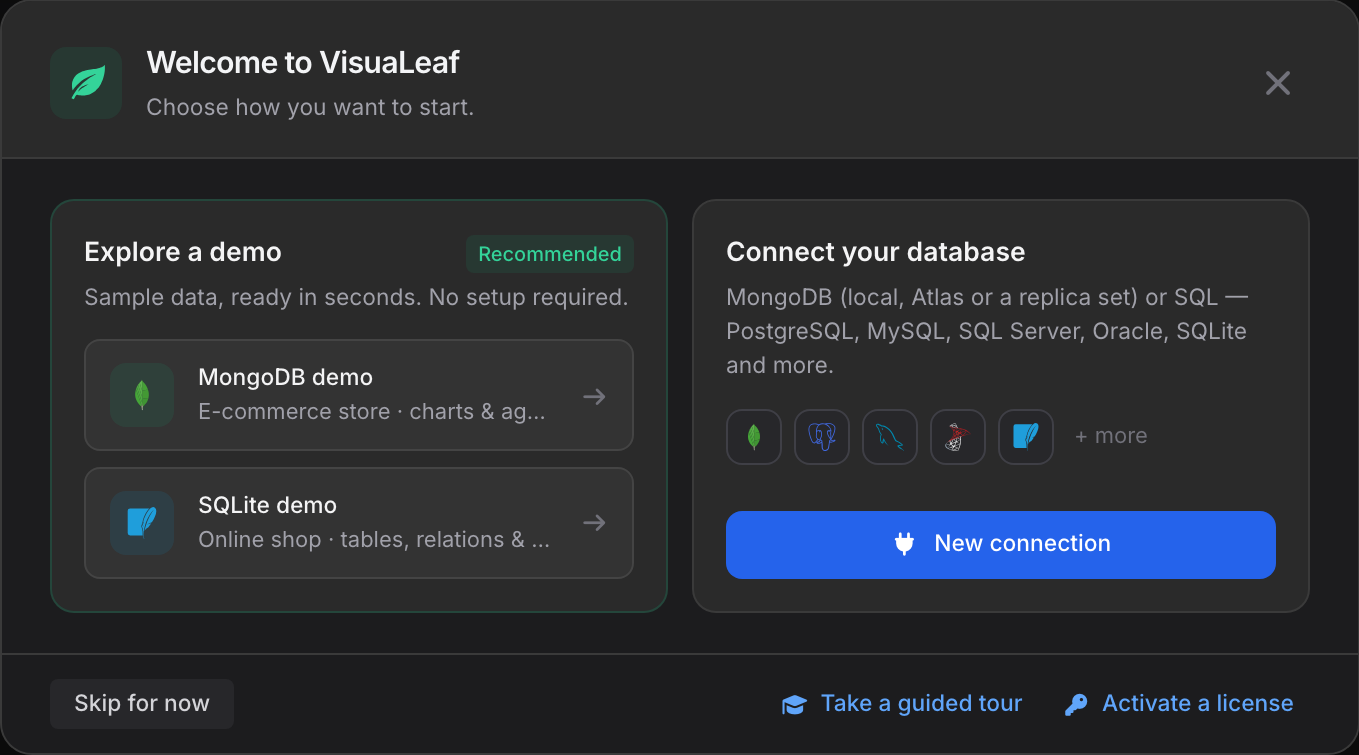
mongodb+srv://<username>:<password>@<cluster-name>.global.mongocluster.cosmos.azure.com/?tls=true&authMechanism=SCRAM-SHA-256&retrywrites=false&maxIdleTimeMS=120000Open VisuaLeaf. On the welcome screen, select New connection. You can also open the Connection Manager at any time and select New Connection.
In the Connect a database dialog, enter
documentdbin the search box, and then select the DocumentDB - Azure tile.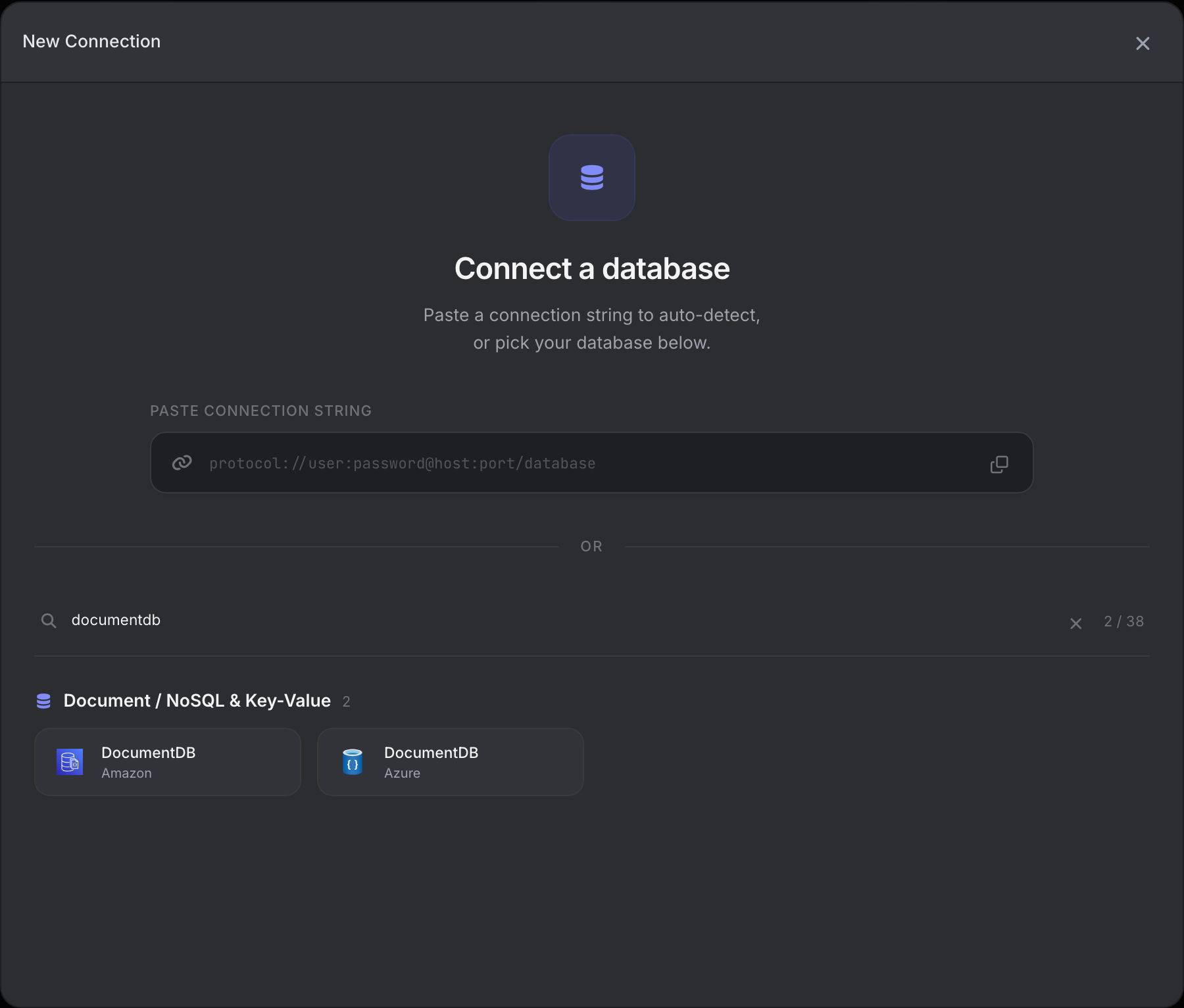
Paste your connection string into Paste Connection String and replace any username and password placeholders with your native database credentials. Percent-encode any URI-reserved characters in the username and password before inserting them into the connection string. For example, encode
@as%40,#as%23, and/as%2F. Then select Auto-Fill Form from Connection String. VisuaLeaf fills in the Server, Authentication, SSL, and Options tabs.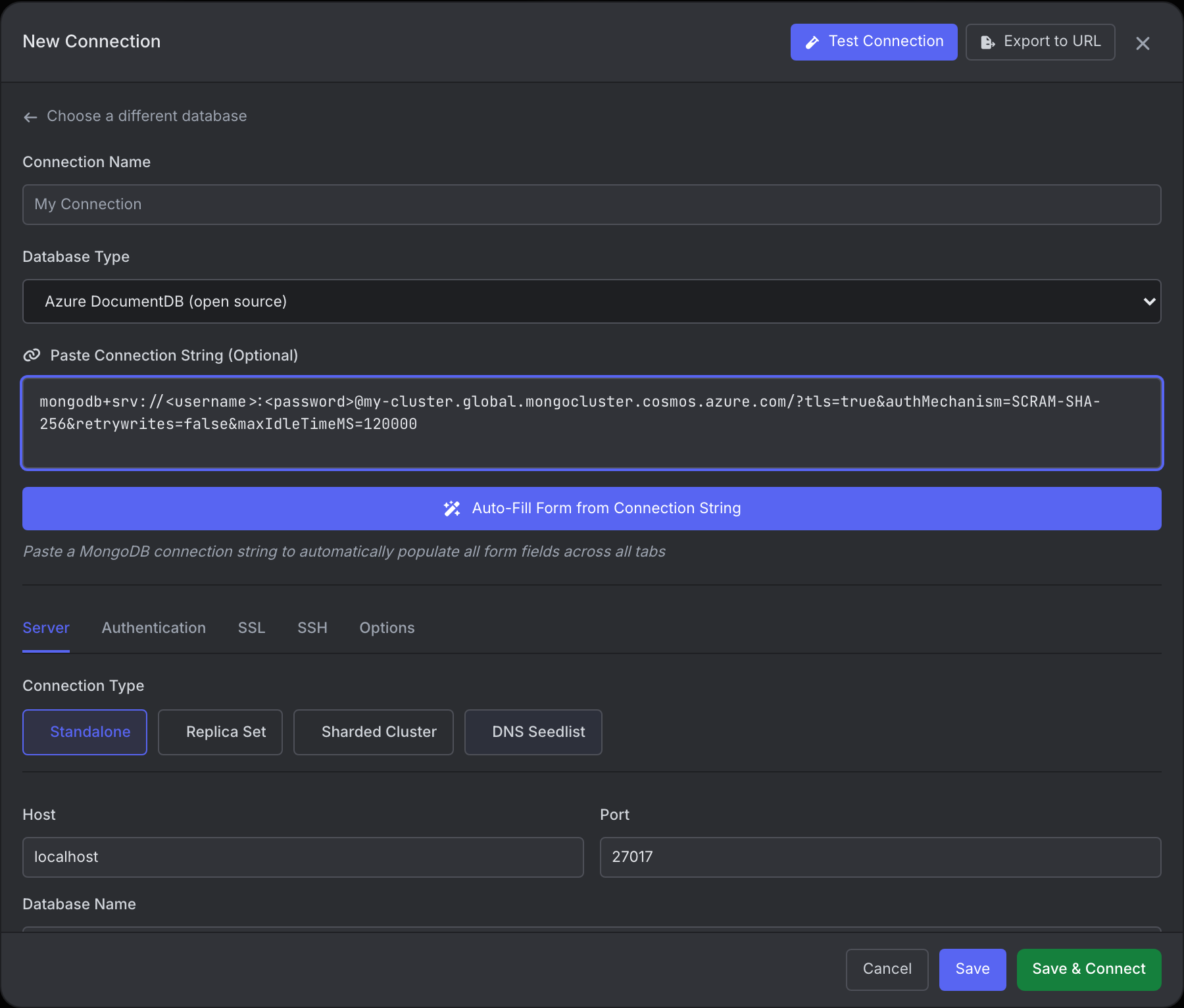
Enter a name for Connection Name, and confirm that Database Type is set to Azure DocumentDB. If it changed after auto-fill, select it again. On the Server tab, confirm that the host matches the cluster endpoint in your connection string.
On the Authentication tab, check that Authentication Mode is set to Basic (SCRAM-SHA-256) and that your username and password are filled in. If you enter credentials directly on this tab, use the original values, not the percent-encoded values.
On the SSL tab, confirm that SSL Mode is turned on. Auto-fill turns it on because the connection string contains
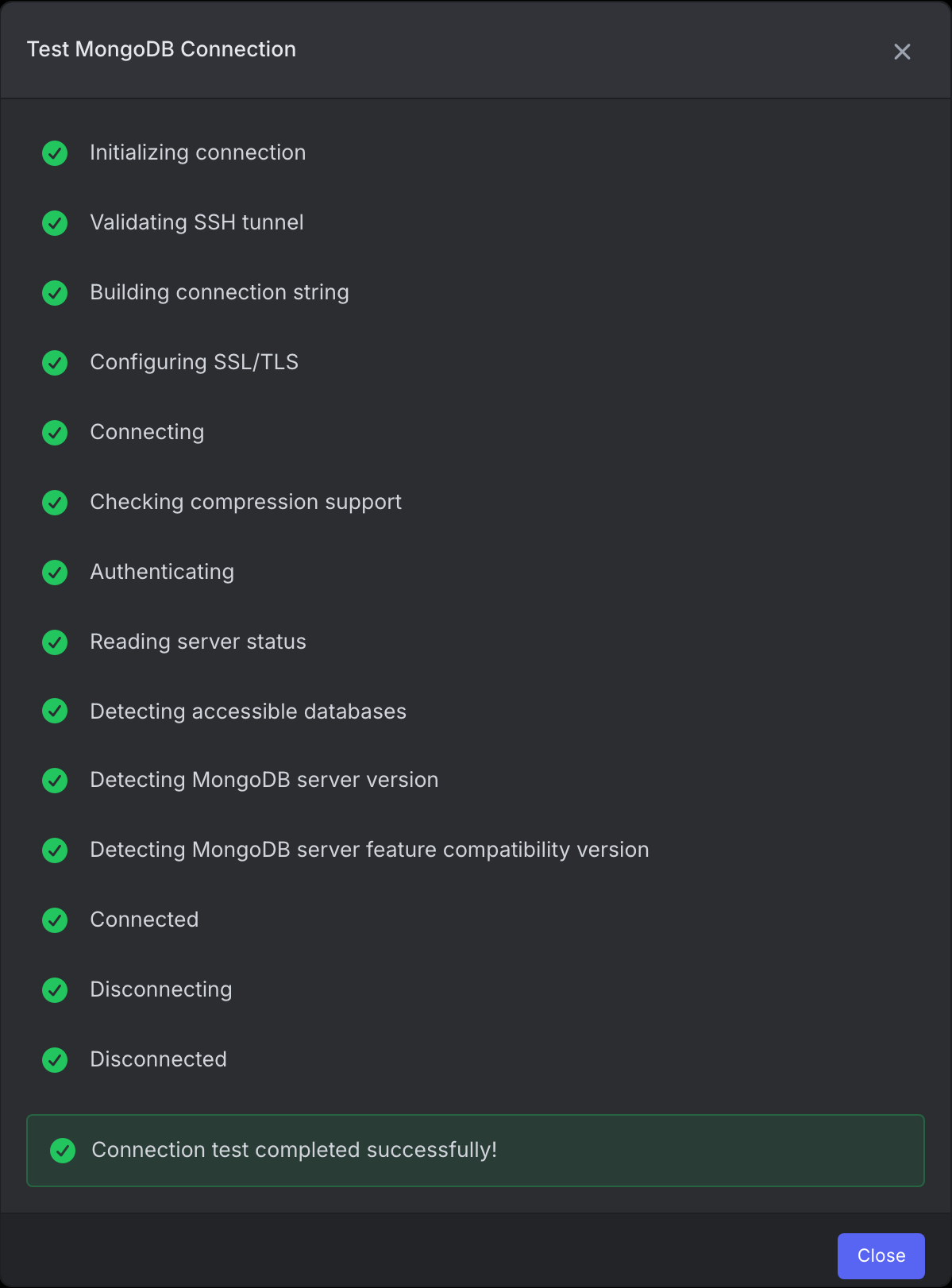
tls=true. Set SSL Certificate Config to Accept server SSL certificates trusted by the operating system to validate the server certificate.Select Test Connection to verify that you can connect. Close the test dialog, and then select Save, or Save & Connect to open the connection right away.
Explore your cluster
When your connection is open, use VisuaLeaf to explore your Azure DocumentDB cluster. Browse databases and collections, inspect documents, and build queries with the visual query builder. For more ways to work with your data, see the VisuaLeaf documentation.