Note
Access to this page requires authorization. You can try signing in or changing directories.
Access to this page requires authorization. You can try changing directories.
Work item filtering is a routing capability in the Durable Task Scheduler that delivers each work item only to the workers that declare they host the matching orchestration or activity. Production workflows often combine steps with different compute needs, such as lightweight coordination, high-scale activities, and specialized processing. Without a way to route each step independently, those steps compete for the same capacity or force you to build separate coordination infrastructure for each one.
This routing relies on a flat networking topology: every worker connects outbound to the scheduler rather than directly to other workers. As a result, the scheduler coordinates routing for you, with no service discovery, inbound ports, or dedicated communication layer to build and operate yourself.
In this article, you learn when to use work item filtering and how the scheduler routes each step to the compute that fits it.
When to use work item filtering
Work item filtering is most useful when the steps of a single workflow have different runtime requirements. Without it, every step runs on the same pool of compute, so you size the whole workflow for its most demanding step, and specialized or always-on components compete with everything else for capacity. The following scenarios show how routing each step to the compute that fits it solves that problem.
Mix always-on and scale-to-zero compute
Some parts of an application stay continuously running, while others should cost nothing when idle. By using work item filtering, you can place each step on the compute tier that fits its workload.
- Run always-on components on ready compute, like Azure Kubernetes Service (AKS), so orchestrations start immediately.
- Run bursty, event-driven components on serverless compute like Azure Container Apps or Azure Functions, which scale from zero when work arrives and back to zero when it drains.
Filtering guarantees each tier pulls only the work it hosts, so bursty components never crowd out always-on ones, and scale-to-zero compute spins up only for the activities it owns. For autoscaling details, see Configure autoscale for Azure Container Apps.
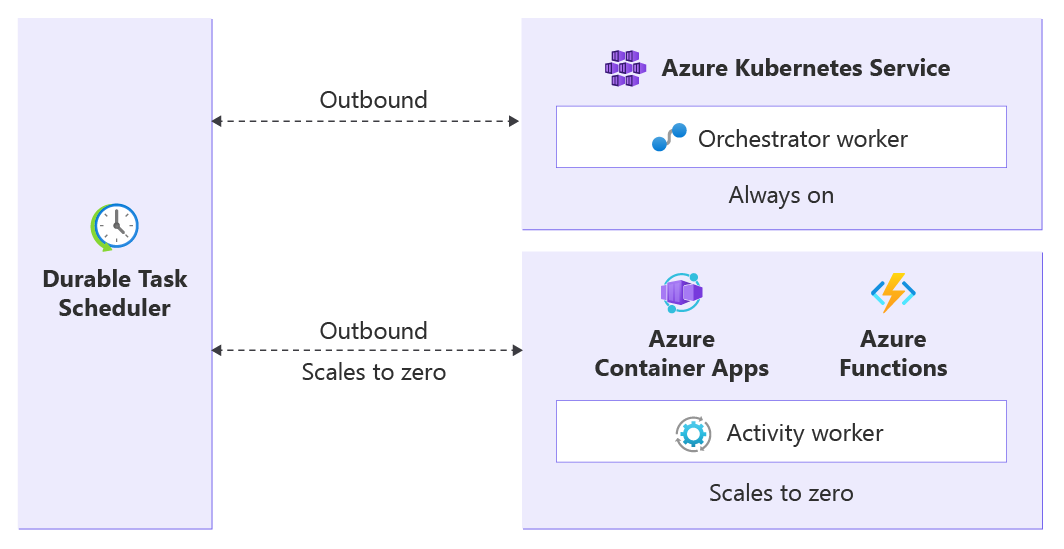
An always-on orchestrator worker on Azure Kubernetes Service and a scale-to-zero activity worker on Azure Container Apps or Azure Functions each connect outbound to the Durable Task Scheduler.
Right-size compute per activity step
When one step uses much more memory or CPU than the rest, sizing the entire deployment for that step wastes resources. Work item filtering lets you allocate resources per step within a single workflow.
- Give the demanding activity - for example, a data-aggregation step that loads a large dataset into memory - its own worker on a larger SKU, and register only that activity there.
- Run every other step on smaller, cheaper workers.
You size each worker for the work it does, instead of scaling one uniform deployment to meet the largest step's requirements.
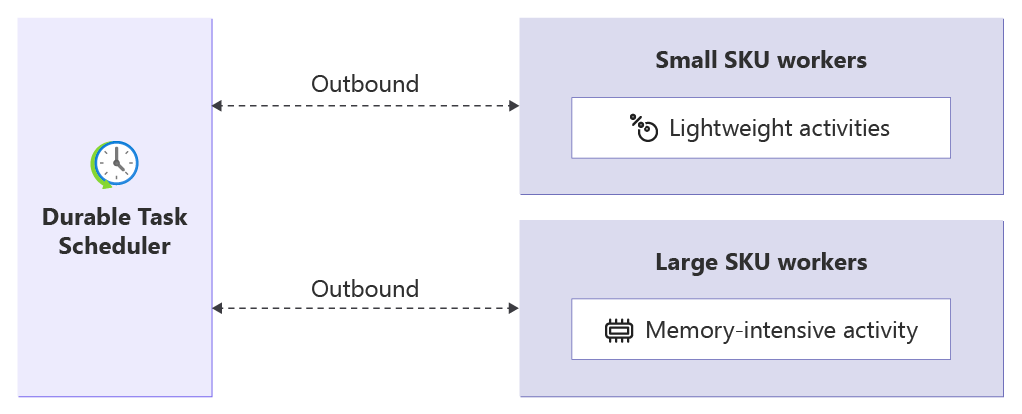
Small SKU workers handle lightweight activities and a large SKU worker handles a memory-intensive activity, with all workers routed through the Durable Task Scheduler.
Route work to specialized hardware
A single step in a workflow might need specialized hardware that the rest of the application doesn't. For example, a workflow runs primarily in Azure Functions, but one step requires a GPU to run an AI model. The scheduler dispatches that step to a worker running in Azure Container Apps on GPU-enabled infrastructure, and the workflow then continues in Azure Functions.
Deploy a GPU-backed worker that registers only the GPU activity, and keep the rest of the workflow on your standard compute. The scheduler routes each activity's work items to the worker built for it, so GPU infrastructure runs only the work that needs it.
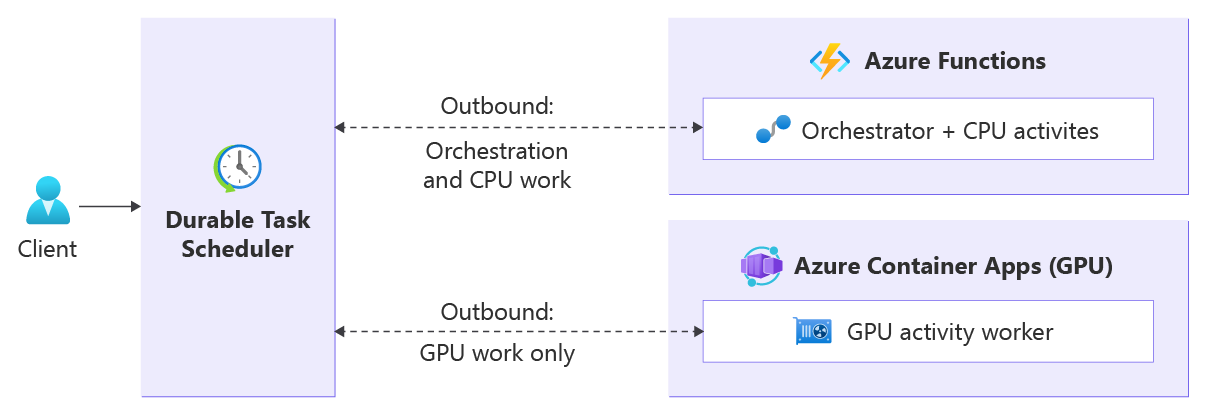
A client starts a workflow in the Durable Task Scheduler. Azure Functions handles orchestration and CPU activities, and a GPU-enabled Azure Container Apps worker handles the GPU activity.
How work item filtering works
Durable Task Scheduler breaks orchestration execution into discrete units of work called work items. Three primary types of work items exist:
- Orchestration work items: Run orchestrator code that coordinates the workflow.
- Activity work items: Run individual activity functions that perform the actual work, such as validating an order or shipping it.
- Entity work items: Run operations on durable entities that the scheduler routes by the registered entity name.
A worker is any process that connects to the scheduler to pull and execute work items. A worker can host orchestrations, activities, entities, and any combination of them.
Delivering any work item to any connected worker works well when a single worker, or a group of identical workers, registers every task in the workflow. Work item filtering gives you an alternative: you can route specific work items to specific workers. Each worker registers only the tasks it hosts, and the scheduler routes only matching work items to it.
When a worker starts, it registers its local tasks and opts in to filtering. The SDK generates a filter list from the registered tasks and sends it to the scheduler when the worker connects. The scheduler creates per-filter queues and routes each work item to the queue that matches the task type. A worker pulls only from queues that match its filters.
For example, in an order-processing workflow:
- The Orchestrator worker registers
OrderProcessingOrchestrationand receives only orchestration work items. - The Validator worker registers
ValidateOrderand receives onlyValidateOrderactivity work items. - The Shipper worker registers
ShipOrderand receives onlyShipOrderactivity work items.
Routing is strict. There's no fallback to another worker:
- If no worker registers a given task, its work items stay
Pendinguntil a matching worker connects. - The orchestration that depends on that task stays in the
Runningstate until the pending work item completes.
This strictness ensures the scheduler never hands a work item to a worker that can't process it.
Work item filtering support by Durable Task SDK
| Durable Task SDK | Work item filtering |
|---|---|
| .NET | Available |
| Java | Available |
| Python | Available |
| JavaScript | Not yet available |
| PowerShell | Not yet available |
Enable work item filtering
Each worker registers only the tasks it hosts, and the SDK uses that registration to generate the worker's work item filters. Enabling work item filtering differs slightly between SDKs.
The system automatically generates work item filters from whatever each worker registers in its task registry, so you don't need to make an explicit call.
builder.Services.AddDurableTaskWorker()
    .AddTasks(registry =>
    {
        registry.AddAllGeneratedTasks();
    })
    .UseDurableTaskScheduler(connectionString);
Note
In the .NET Durable Task SDK, the task registry automatically generates work item filters. To override the generated filters or opt out of filtering, call UseWorkItemFilters(customFilters) or UseWorkItemFilters(null), respectively.
Considerations
- Strict routing has no fallback. If no connected worker registers a task, the task's work items stay pending, and the dependent orchestration stays in the
Runningstate. Ensure at least one worker hosts every task that a workflow calls. - Registration mismatches during upgrades. When you split or rename tasks, deploy the workers that host the new tasks before scheduling orchestrations that depend on them.
- Monitor the pending backlog. Use the monitoring dashboard to watch for pending work items that indicate a missing or unhealthy worker.
- Autoscaling. When you host workers on Azure Container Apps, a KEDA (Kubernetes Event-driven Autoscaling) scale rule can scale each worker based on the backlog of the work item types it registered. For more information, see Configure autoscale for Azure Container Apps.