Note
Access to this page requires authorization. You can try signing in or changing directories.
Access to this page requires authorization. You can try changing directories.
Example templates to deploy multiple Azure Enclave resources for a sample scenario. The current templates are maintained using a Bicep file but are converted to Azure Resource Manager (ARM) templates for deployment from the portal. Both bicep and ARM formats can be published as a template spec for your workload admins too.
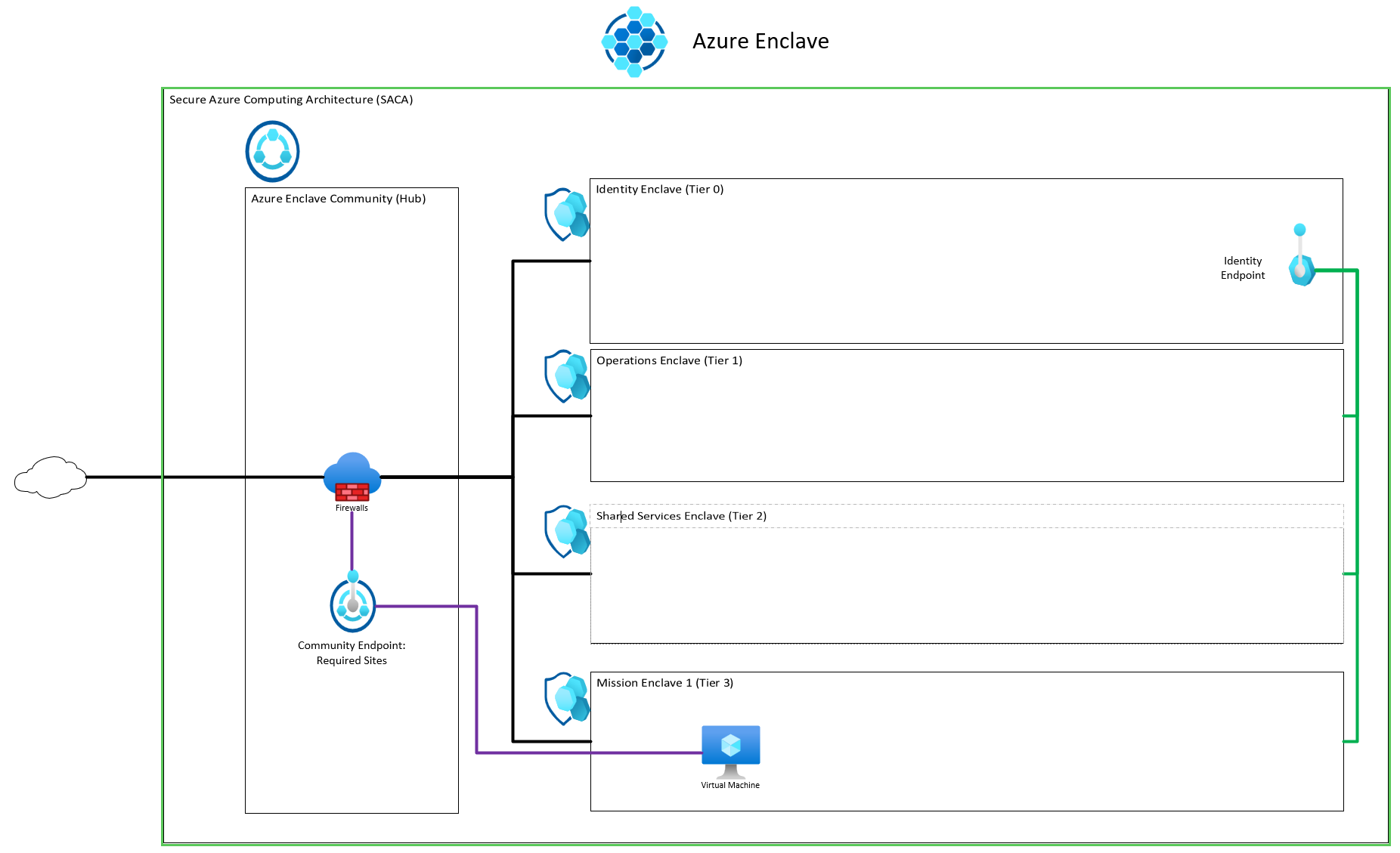
Secure Azure Computing Architecture (SACA) template
An example of how to deploy the SACA within Azure Enclave.
What gets deployed:
- One community
- Four enclaves
- Four workloads
- Five community endpoints
- One enclave endpoint
- 18 enclave connections
- One transit hub
ARM Template (easiest to deploy via Portal, PowerShell, or command line)
Bicep Template (easiest to edit and maintain, then convert to ARM template before deployment)
Deploy the template:
- Open the Azure portal and type
deployinto the top search bar and selectDeploy a Custom Template. - Select
Build your own template in the editor. - Replace the default template with the ARM template contents (for example copy the text inside the json file). See this article if you have any issues.
- Select
Save. - Select
Create NewunderResource Groupand enter the resource group name you would like to use (for example community-template-rg) for the Azure Enclave resources. - Increment
Unique Numberif previous deployments are located in the same resources group. - Review the remaining parameters but keep the default unless you would like to test a modification.
- Select
Review + Createand thenCreate.
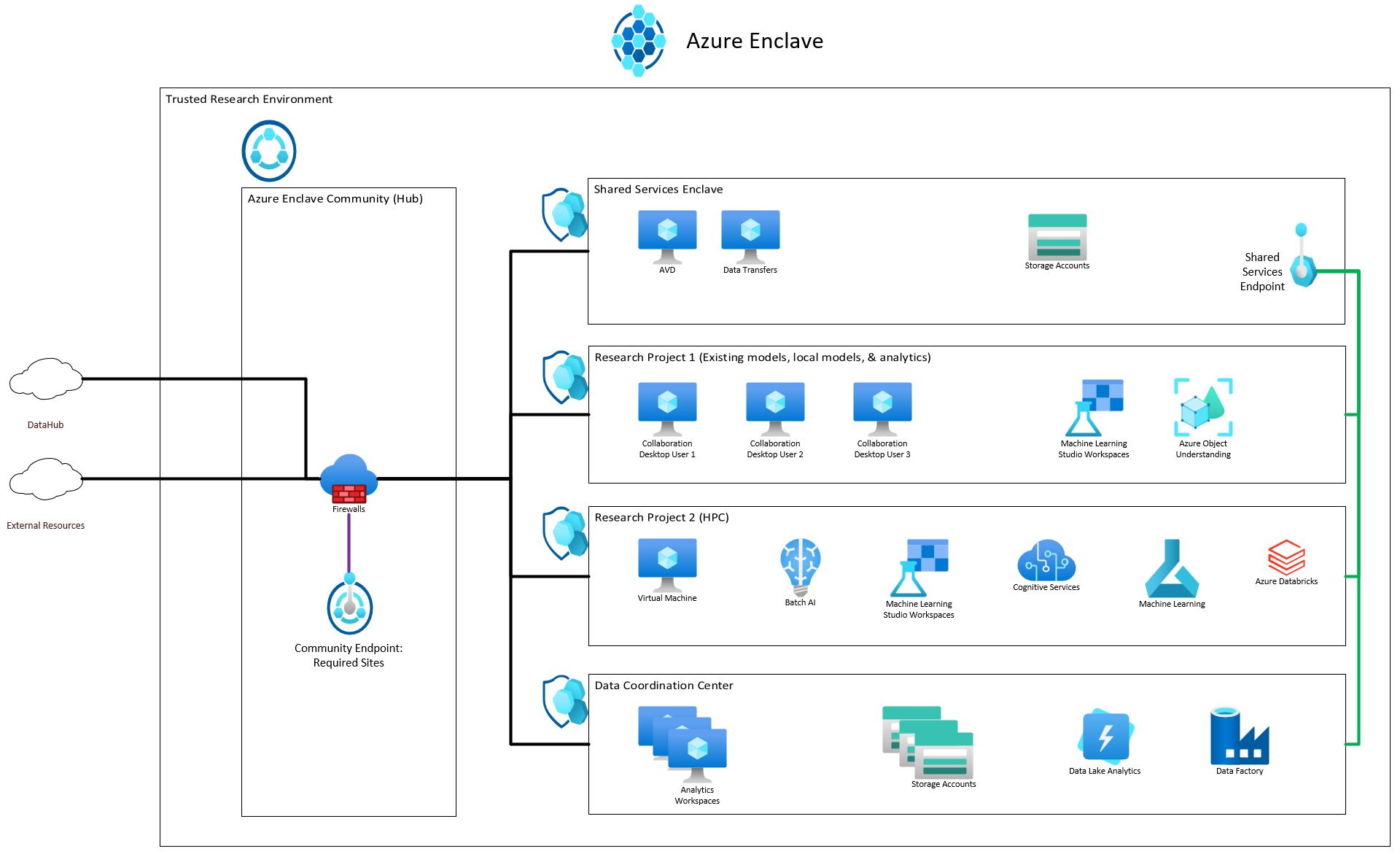
Trusted Research Environment (TRE) within Azure Enclave
What gets deployed:
- One community
- Four enclaves
- Four workloads
- Five community endpoints
- Two enclave endpoint
- 15 enclave connections
- One transit hub
ARM Template (easiest to deploy via Portal, PowerShell, or command line)
Bicep Template (easiest to edit and maintain, then convert to ARM template before deployment)
Deploy the template:
- In the Azure portal, type
deployinto the top search bar and selectDeploy a Custom Template. - Select
Build your own template in the editor. - Replace the default template with the provided template (for example, copy the text inside the json file). See this quickstart if you have any issues with the above steps.
- Select
Save. - Under
Resource Group, selectCreate Newand enter the resource group name you would like to use (for example, community-template-rg) for the Azure Enclave resources. - Optionally, Under
Unique Number, increment the number if previous deployments occurred in the same resources group. - The remaining parameters that aren't required can be left as the default unless you would like to test a modification. Keep the defaults for the first test deployment to reduce errors from template changes.
- Select
Review + Createand thenCreate.
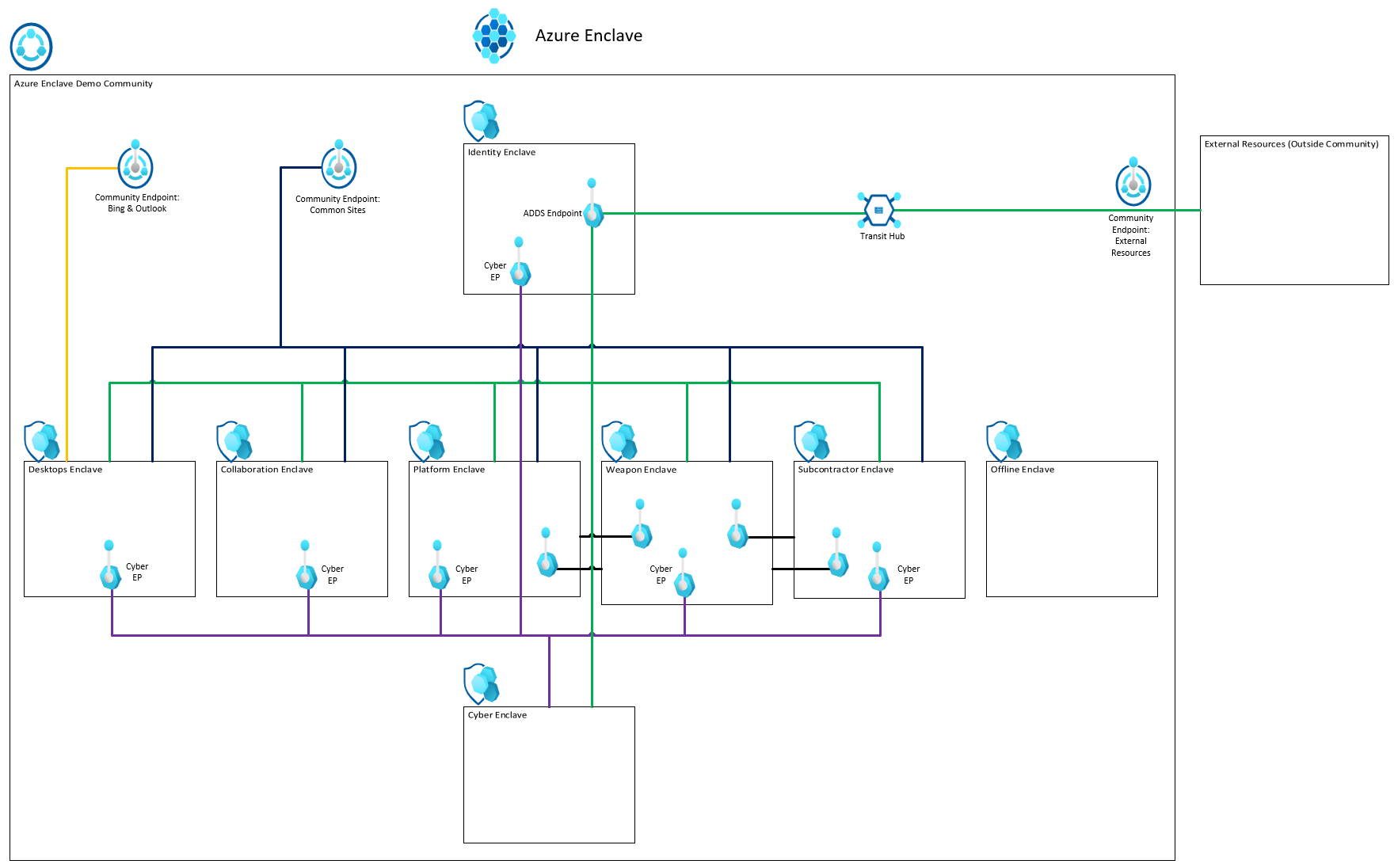
Azure Enclave demo environment template
What gets deployed:
- One community
- Eight enclaves
- Eight workloads
- Five community endpoints
- 11 enclave endpoint
- 39 enclave connections
- One transit hub
ARM Template (easiest to deploy via Portal, PowerShell, or command line)
Bicep Template (easiest to edit and maintain, then convert to ARM template before deployment)
Deploy the template:
- Open the Azure portal and type
deployinto the top search bar and selectDeploy a Custom Template. - Select
Build your own template in the editor. - Replace the default template with the ARM template contents (for example copy the text inside the json file). See this article if you have any issues with the above steps.
- Select
Save. - Select
Create NewunderResource Groupand enter the resource group name you would like to use (for example community-template-rg) for the Azure Enclave resources. - Increment
Unique Numberif previous deployments are located in the same resources group. - Review the remaining parameters but keep the default unless you would like to test a modification.
- Select
Review + Createand thenCreate.
Resource modules
You can also create the Azure Enclave resources using the resource modules in this repository.
Create template spec and deploy
- Sign in to the Azure portal, search and select the Template Specs service. Select Create template spec. In the ARM Template section upload or copy and paste the above ARM template.
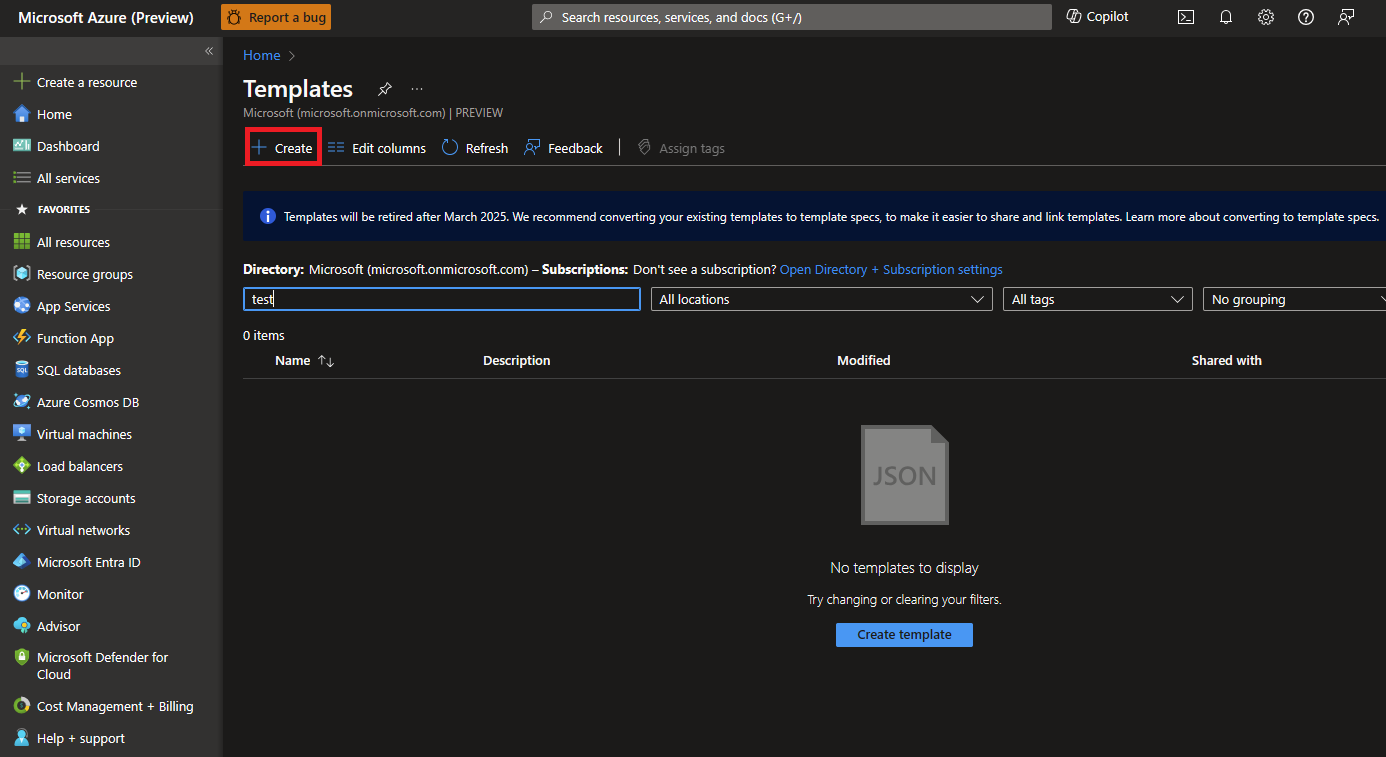
On the Basics page, leave the default values, and configure the following template parameters:
- Subscription: Select an Azure subscription.
- Resource group: Select Create new. Enter a unique name for the resource group, such as
myResourceGroup, then select OK. - Location: Select a location, such as East US.
- Community Name: Name of the Community (ex:
My-Community) - Enclave Name: Name of the enclave (ex:
My-Enclave) - Endpoint name: Name of the enclave endpoint (ex:
endpoint-bingdotcom)
Select
Review + Createand thenCreate.Once the template is created and available on the Template Specs page, select newly created ARM template and then select Deploy.
On the Deploy page for the template spec, note the default values and configure the following parameters:
- Community Name: Name of the Community (ex:
My-Community) - Enclave Name: Name of the enclave (ex:
My-Enclave) - Endpoint name: Name of the enclave endpoint (ex:
endpoint-bingdotcom)
- Community Name: Name of the Community (ex:
Select
Review + Createand thenCreate.
It can take up to 50 minutes to finish all resource creation. Wait for the deployment to be successfully completed before you take any actions within your deployed resources.
Validate the deployment
Learn more about what gets deployed in a community and what gets deployed in an enclave.
Connect to the Admin VMs
Learn more about how to access resources within your enclave from the enclave Admin VM here.
Terraform
Terraform support will start after Azure Enclave starts preview.