Note
Access to this page requires authorization. You can try signing in or changing directories.
Access to this page requires authorization. You can try changing directories.
In this how-to guide, you create an enclave endpoint in the Azure portal. Enclave endpoints define destination rules that other enclaves or transit hubs can use when creating enclave connections.
Prerequisites
- An Azure subscription. If needed, create a free Azure account.
- A community and an enclave.
Sign in to Azure
Sign in to the Azure portal.
Create endpoint
Enter
Azure Enclavein the search.Under
Services, selectAzure Enclave.In the
Azure Enclavepage, selectEnclavesin the left menu.On the
Enclavespage, select your Enclave's name to open the enclave resource.Select
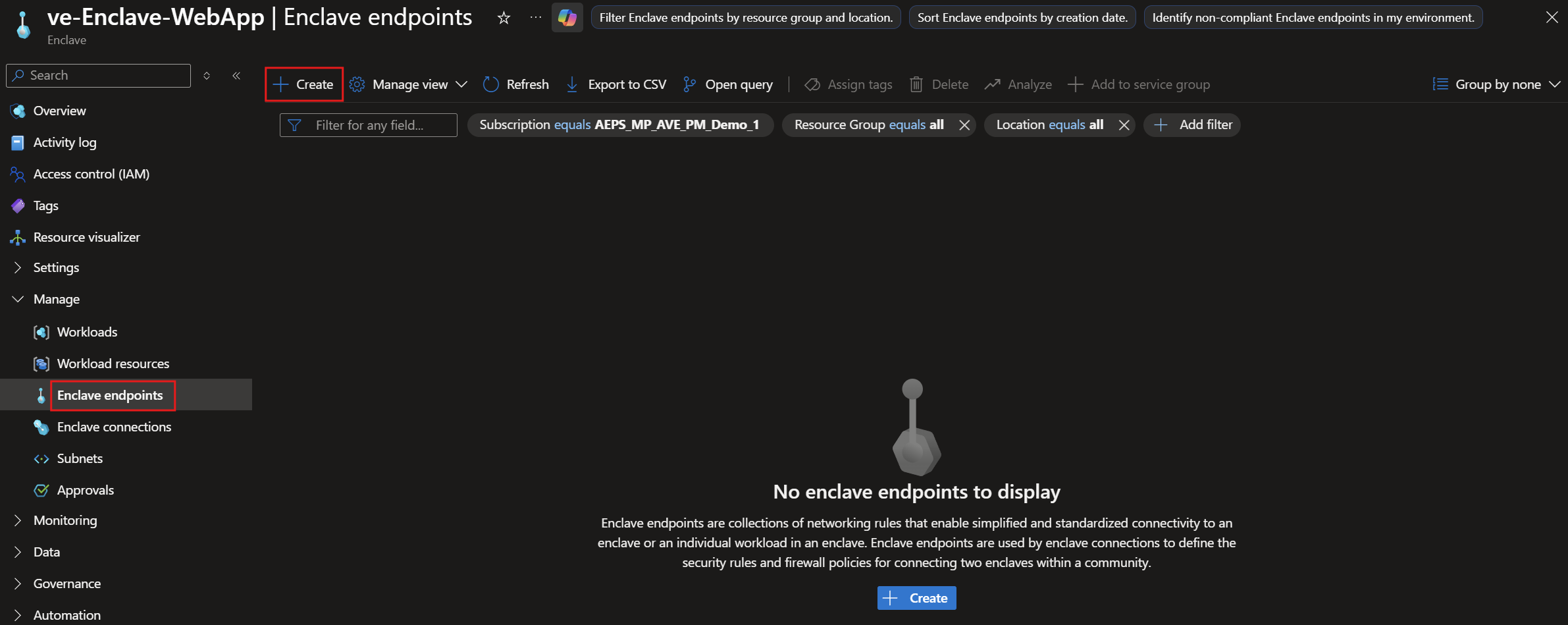
Enclave Endpointson the left navigation and then selectCreate.
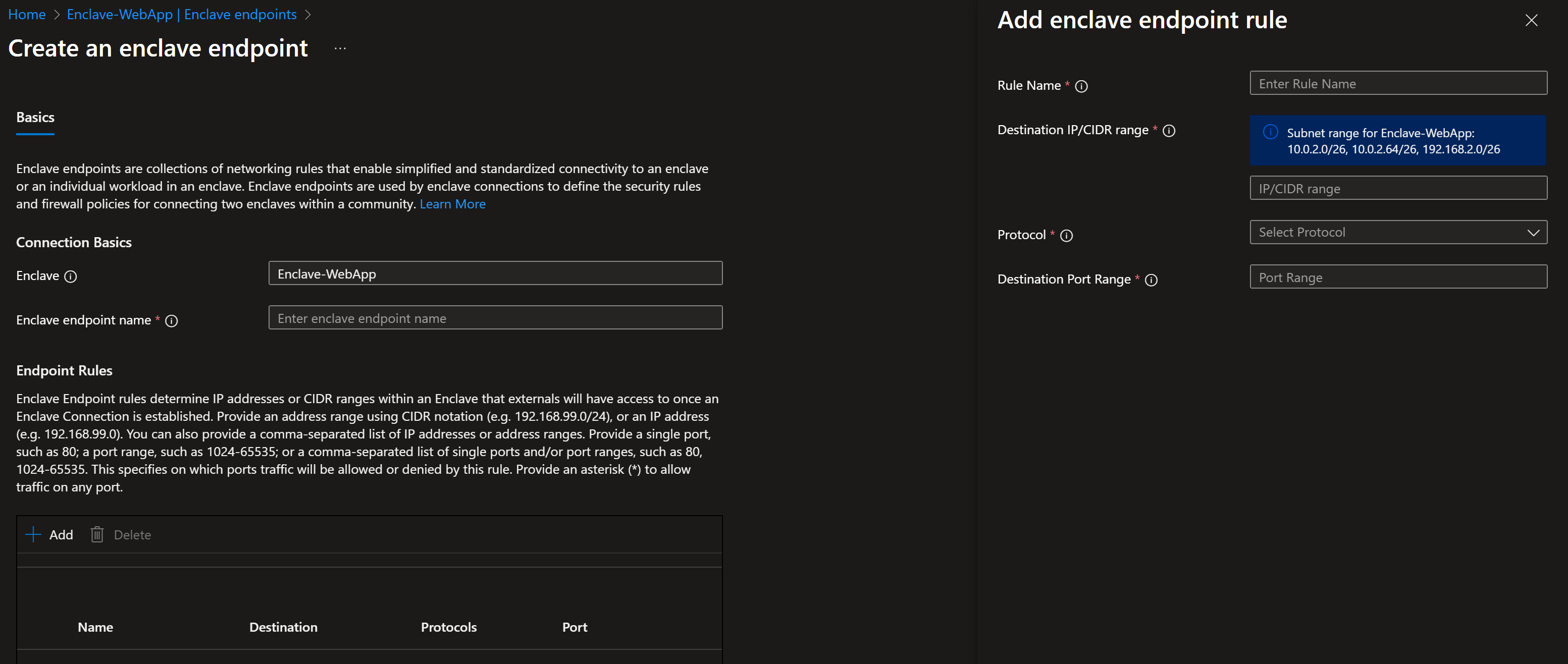
Enter the basic details for your enclave endpoint:
Enclave endpoint name: Enter a name, such asendpoint-MyService.
Under
Endpoint rules, selectAdd.Enter the
Rule Name,Destination IP addresses/CIDR range,Protocol, andDestination Port Range.For example, to allow traffic to an HTTPS server hosted on an Azure virtual machine (VM) in a workload, enter the VM private IP address or subnet IP range, such as
10.0.2.5or10.0.2.0/26, selectTCP, and enter443.
Note
Enclave endpoint rules must use destinations within enclave subnets that are protected by network security groups.
Select
Nextand enter any tags for your enclave endpoint.Select
Review + create, validate that the details for your enclave endpoint are correct, and then selectCreate.