Note
Access to this page requires authorization. You can try signing in or changing directories.
Access to this page requires authorization. You can try changing directories.
Use Azure Firewall HTTP header insertion to add or modify HTTP headers for web traffic. By customizing headers, organizations can enforce security policies, embed authentication tokens, and integrate with backend services. This feature improves security, helps with compliance, and optimizes traffic management, especially for applications that require specific headers for access or identification. Configure HTTP header insertion per application rule. When traffic matches an application rule that you configure with HTTP header insertion, Azure Firewall inserts the configured HTTP headers.
Supported scenarios and limitations
The HTTP header insertion feature is designed for specific use cases and has certain constraints.
Supported scenarios
- In the Premium SKU, this feature supports HTTP traffic and HTTPS traffic that's decrypted by using TLS inspection.
- In the Standard and Basic SKUs, this feature supports HTTP traffic.
- You can also configure this feature by using Azure Firewall Policy Draft + Deployment.
Limitations
Keep the following limitations in mind:
- You can't insert certain reserved headers as custom HTTP headers in application rules. The following table lists the reserved headers, grouped by category.
- Inserting HTTP headers can reduce the total number of rules in a rule collection group, so use HTTP header insertion thoughtfully. If you reach the JSON limit on a rule collection group, create a new rule collection group and add rules there.
| Category | Reserved headers |
|---|---|
| General and connection | host, connection, content-length, transfer-encoding, upgrade, via, te, trailer |
| Authentication and cookies | proxy-authorization, proxy-authenticate, authorization, cookie, set-cookie |
| Security | content-security-policy, strict-transport-security, x-content-type-options, x-frame-options, referrer-policy, x-xss-protection, public-key-pins, expect-ct, x-xsrf-token |
| Forwarding | x-forwarded-for, x-forwarded-proto, x-forwarded-host, x-forwarded-port, x-forwarded-scheme, forwarded |
| Other | metadata |
Configuration steps
The following sections provide step-by-step guidance for HTTP header insertion.
These steps assume you already have an existing Azure Firewall Policy (fw-policy in the following examples). If you don't have one, see Deploy and configure Azure Firewall Policy.
Note
Perform the same steps for HTTPS traffic that has TLS inspection enabled. Header names can have up to 100 characters. Header values can have up to 16K (16,000) characters. The total maximum length of HTTP headers (sum of all the HTTP Header’s Name and HTTP Header’s Value) allowed in each Application Rule is 16KB (16,384 bytes).
In the Azure portal, go to an existing firewall policy or create a new one.
Select Rules, and then select Application rules.
Create a new application rule or edit an existing one.
In the rule configuration pane, locate the HTTP Header Insertion section.
Add the required headers by specifying the header name and value. You can add multiple headers as needed.
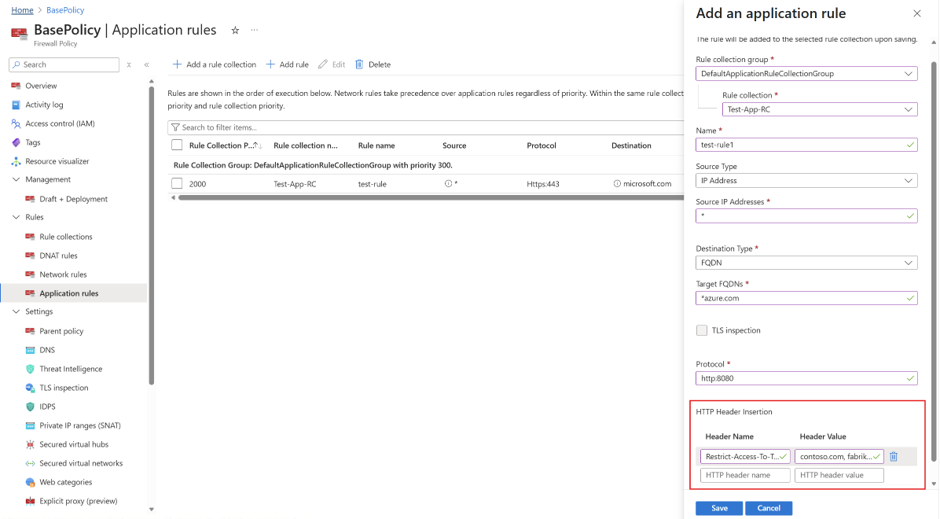
Save the rule.
To verify the headers are configured correctly, reopen the rule and confirm the HTTP Header Insertion section shows the header names and values you added.