Azure Firewall and Azure Firewall policy support IPv6. You can configure IPv6 subnets, address spaces, public IPv6 addresses, user-defined routes (UDRs), and network rules to manage IPv6 traffic. You can deploy a firewall in IPv4-only mode or in dual stack mode (IPv4 and IPv6). IPv6-only firewalls aren't supported.
This article shows you how to upgrade an existing firewall to dual stack mode and deploy a new dual stack firewall.
Supported scenarios and limitations
Azure Firewall's IPv6 support is designed for specific use cases and has certain constraints. Review the following supported scenarios and limitations before you deploy.
Supported scenarios
- Network rules: Azure Firewall fully supports IPv6 traffic in network rules. You can create rules to allow or deny IPv6 traffic.
- DNS proxy: Azure Firewall can be configured as a DNS proxy in IPv6 networks.
Note
For all outbound connections from the virtual network, Azure Firewall applies source network address translation (SNAT) by using the firewall instance's IP address. If the destination address is within the IANA-defined unique local address (ULA) range (fc00::/7), SNAT isn't applied. This behavior is by design and can't be changed.
Limitations
- Classic Azure Firewall isn't supported.
- Virtual hub (vHub) Firewall isn't supported.
- Application and DNAT rules aren't supported yet.
- Threat intelligence, IDPS, Explicit Proxy, and IP Groups based scenarios aren't supported.
- Reverting a dual stack firewall back to IPv4-only mode isn't supported. This temporary limitation will be removed when dual stack support becomes generally available.
Note
Existing features compatible with IPv4-only firewall continue to support IPv4 in dual-stack firewall as well. The preceding limitations apply only to IPv6.
Prerequisites
If you don't have an Azure subscription, create a free account to get started.
To upgrade an existing Azure Firewall from IPv4-only to dual stack mode (IPv4 and IPv6):
- Add an IPv6 address space to the virtual network.
- Add an IPv6 subnet prefix to the
AzureFirewallSubnet.
- Create a public IPv6 address.
- Add the public IPv6 address to your firewall configuration.
- Add network rules for IPv6 traffic as needed.
Important
After you upgrade a firewall to dual stack mode, you can't revert it back to IPv4-only mode. This temporary limitation will be removed when dual stack support becomes generally available.
Use the following tabs to add IPv6 support to a firewall that's already deployed.
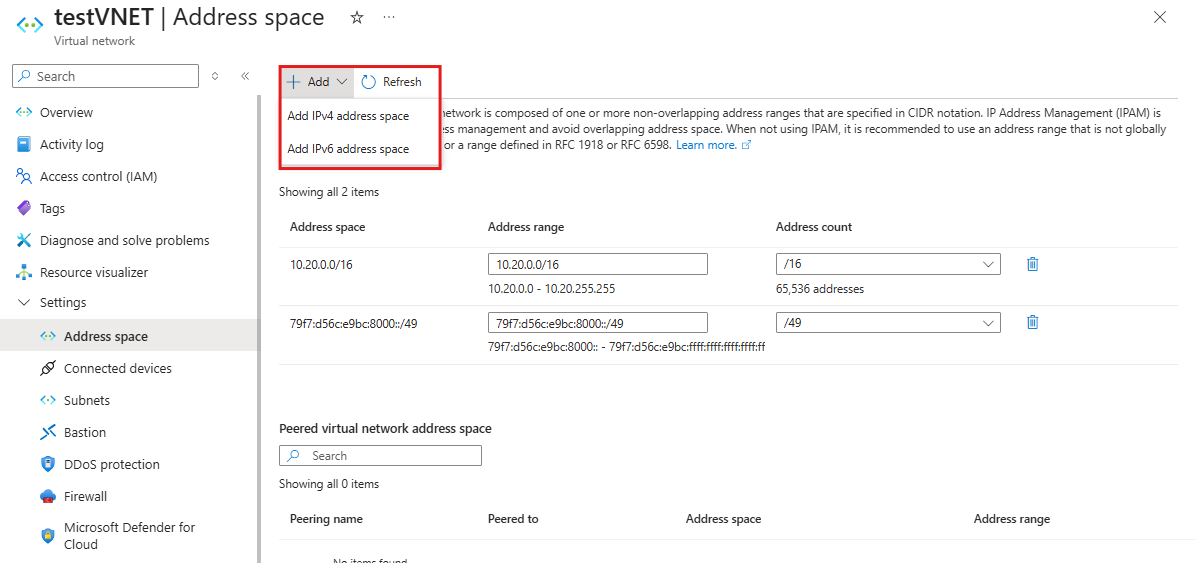
Open your virtual network in the Azure portal, select Address space, and add the IPv6 prefix (for example, 79f7:d56c:e9bc:8000::/49). Save your changes.
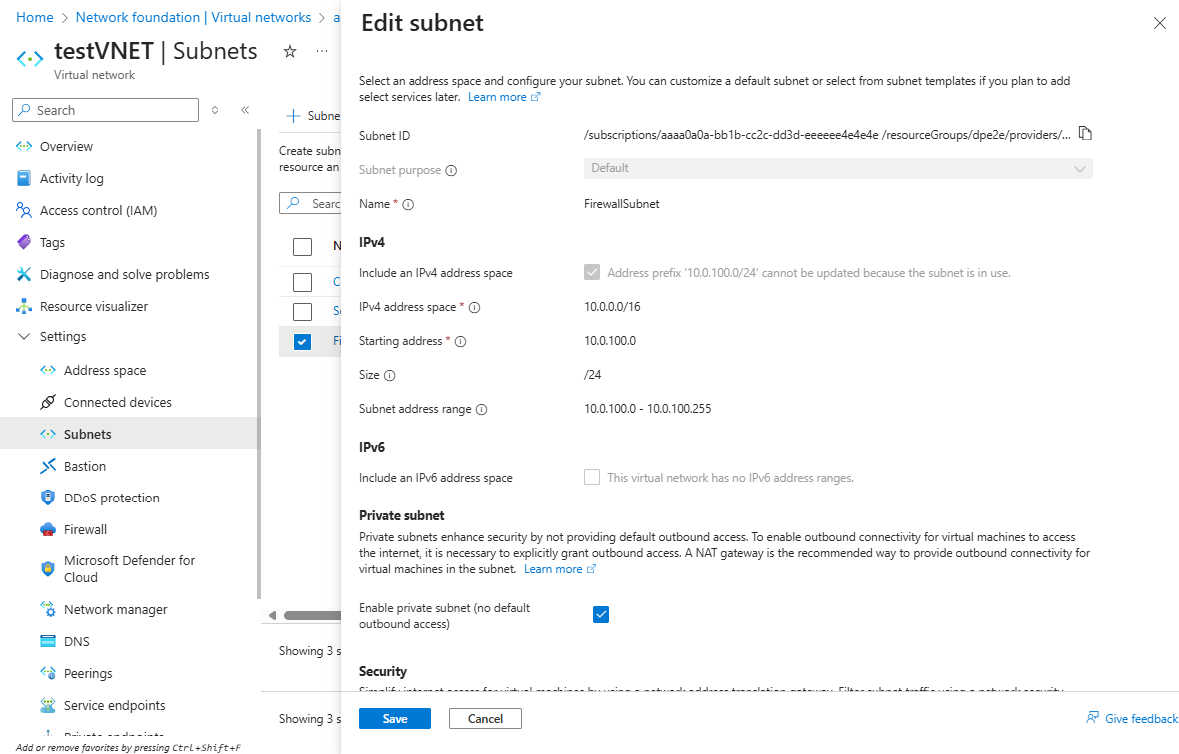
Open your virtual network, select Subnets, choose AzureFirewallSubnet, and add the IPv6 address prefix (for example, fd00:c1d0:3f1f:1::/64) alongside the existing IPv4 prefix. Save your changes.
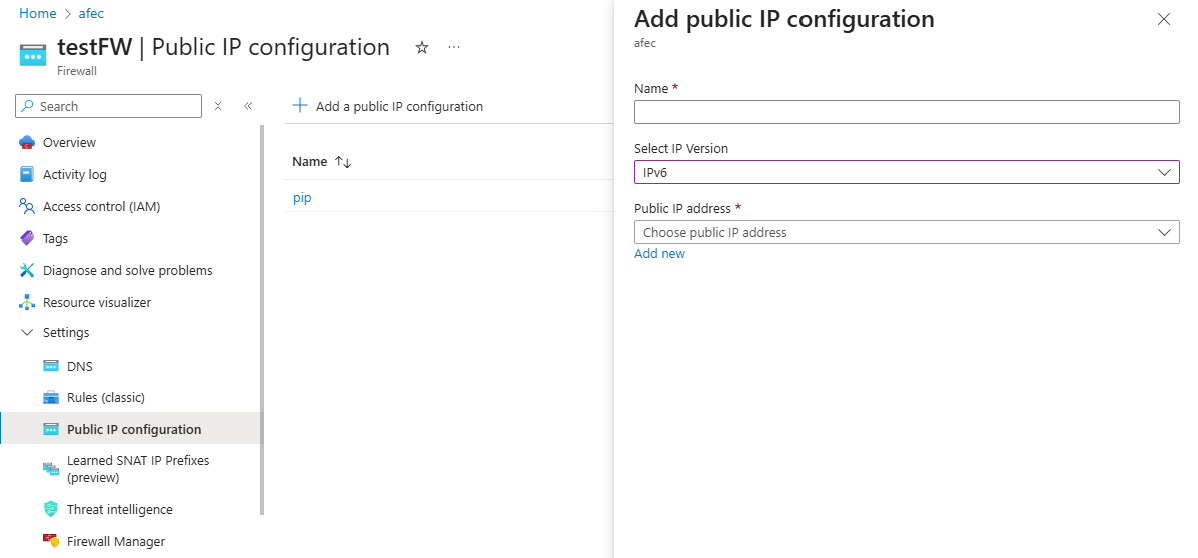
Create the public IPv6 address resource, and then attach it to the firewall configuration.
Update the virtual network (VNET) to add an IPv6 address space using Get-AzVirtualNetwork and Set-AzVirtualNetwork.
Retrieve the existing VNET:
$vnet = Get-AzVirtualNetwork -Name "test-vnet" -ResourceGroupName "test-rg"
Add the IPv6 address space:
$vnet.AddressSpace.AddressPrefixes.Add("fd00:c1d0:3f1f::/48")
$vnet | Set-AzVirtualNetwork
Update the AzureFirewallSubnet to add an IPv6 subnet prefix using Set-AzVirtualNetworkSubnetConfig.
Set-AzVirtualNetworkSubnetConfig -Name "AzureFirewallSubnet" `
    -VirtualNetwork $vnet `
    -AddressPrefix @("10.0.0.0/24", "fd00:c1d0:3f1f:1::/64")
$vnet | Set-AzVirtualNetwork
Create and attach an IPv6 public IP using New-AzPublicIpAddress and Set-AzFirewall.
$publicIpV6 = New-AzPublicIpAddress `
    -ResourceGroupName "test-rg" `
    -Location "southcentralus" `
    -Name "test-v6pip" `
    -AllocationMethod Static `
    -Sku Standard `
    -IpAddressVersion IPv6
$azFw = Get-AzFirewall -Name "test-fw" -ResourceGroupName "test-rg"
$azFw.AddPublicIpAddress($publicIpV6)
$azFw | Set-AzFirewall
Add an IPv6 address space to your existing VNET by using az network vnet update:
az network vnet update --resource-group test-rg --name test-vnet \
     --address-prefixes 10.0.0.0/16 fd00:c1d0:3f1f::/48
This command updates the virtual network to include both the original IPv4 address space and the new IPv6 address space.
Update the AzureFirewallSubnet to include an IPv6 subnet by using az network vnet subnet update:
az network vnet subnet update \
    --resource-group test-rg \
    --vnet-name test-vnet \
    --name AzureFirewallSubnet \
    --address-prefixes 10.0.0.0/24 fd00:c1d0:3f1f:1::/64
This command adds the IPv6 subnet prefix (fd00:c1d0:3f1f:1::/64) alongside the existing IPv4 prefix (10.0.0.0/24) for the Azure Firewall subnet.
Create a public IPv6 address by using az network public-ip create and attach it to the firewall by using az network firewall ip-config create:
az network public-ip create \
    --resource-group test-rg \
    --name test-v6pip \
    --location southcentralus \
    --sku Standard \
    --version IPv6 \
    --allocation-method Static \
    --zone 1 2 3

az network firewall ip-config create \
    --firewall-name test-fw \
    --name fw-ip6-config \
    --resource-group test-rg \
    --public-ip-address test-v6pip
Create a dual stack Azure Firewall
In the deployment flow for Azure Firewall, enter the IPv6 address space, enter the IPv6 subnet prefix, and add a new or existing IPv6 public IP address to the new Azure Firewall.
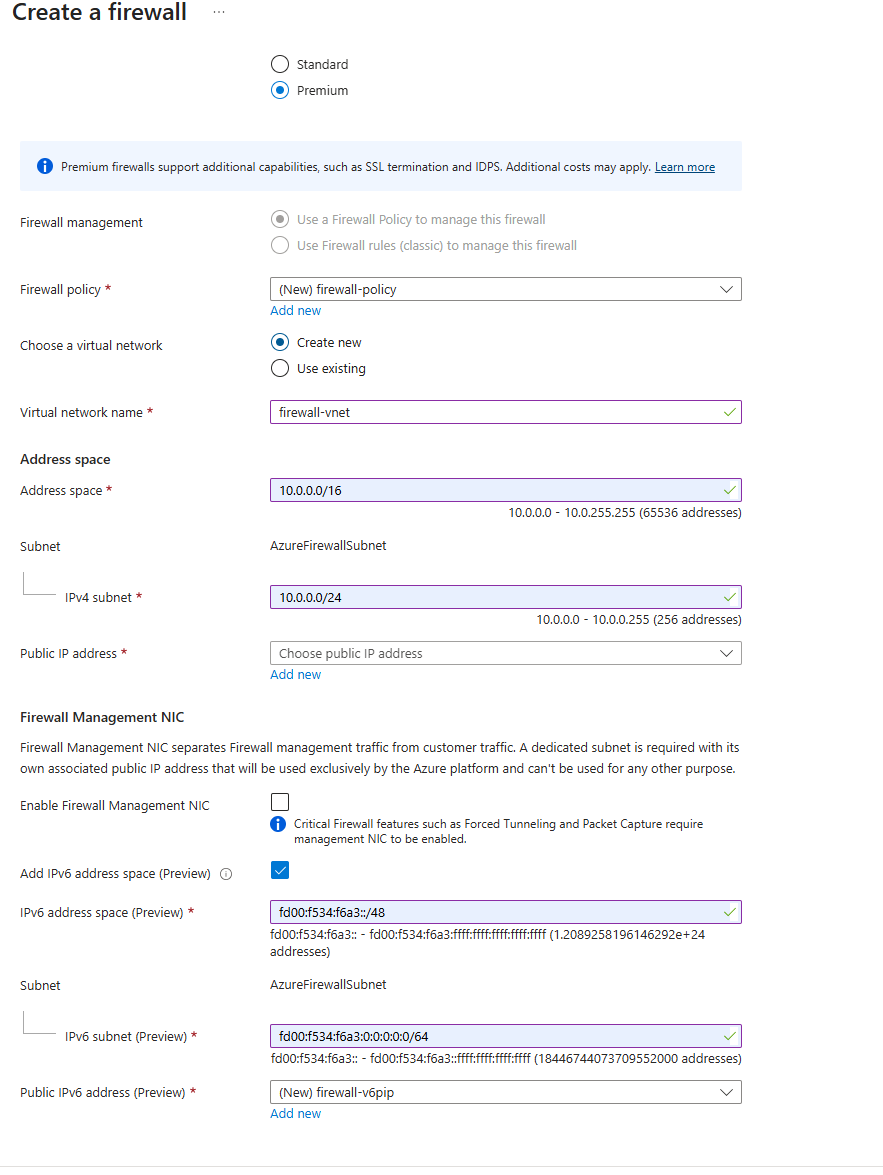
To set up a dual stack firewall by using PowerShell:
Create a resource group by using the New-AzResourceGroup cmdlet.
New-AzResourceGroup -Name "test-rg" -Location "southcentralus"
Create the firewall subnet and virtual network by using the New-AzVirtualNetworkSubnetConfig and New-AzVirtualNetwork cmdlets.
$FWsub = New-AzVirtualNetworkSubnetConfig `
    -Name "AzureFirewallSubnet" `
    -AddressPrefix @("10.0.1.0/26", "fd00:c1d0:3f1f:1::/64")

$vnet = New-AzVirtualNetwork `
    -Name "test-vnet" `
    -ResourceGroupName "test-rg" `
    -Location "southcentralus" `
    -AddressPrefix @("10.0.0.0/16", "fd00:c1d0:3f1f::/48") `
    -Subnet $FWsub
Create public IPv4 and IPv6 addresses by using the New-AzPublicIpAddress cmdlet.
$publicIpV4 = New-AzPublicIpAddress `
    -ResourceGroupName "test-rg" `
    -Location "southcentralus" `
    -Name "v4pip" `
    -AllocationMethod Static `
    -Sku Standard

$publicIpV6 = New-AzPublicIpAddress `
    -ResourceGroupName "test-rg" `
    -Location "southcentralus" `
    -Name "v6pip" `
    -AllocationMethod Static `
    -Sku Standard `
    -IpAddressVersion IPv6
Create a firewall policy by using the New-AzFirewallPolicy cmdlet.
$fwPolicy = New-AzFirewallPolicy -Name "fw-policy" -ResourceGroupName "test-rg" -Location "southcentralus" -SkuTier "Premium"
Create the dual stack firewall by using the New-AzFirewall cmdlet.
$Azfw = New-AzFirewall -Name "firewall-test" `
    -ResourceGroupName "test-rg" `
    -Location "southcentralus" `
    -VirtualNetwork $vnet `
    -PublicIpAddress @($publicIpV4, $publicIpV6) `
    -Sku AZFW_VNet `
    -SkuTier Premium `
    -FirewallPolicyId $fwPolicy.Id
To set up a dual stack firewall by using the Azure CLI:
Create a resource group by using az group create.
az group create --name test-rg --location southcentralus
Create the virtual network and firewall subnet by using az network vnet create and az network vnet subnet create.
az network vnet create --resource-group test-rg --name test-vnet --location southcentralus --address-prefixes 10.0.0.0/16 fd00:c1d0:3f1f::/48

az network vnet subnet create --resource-group test-rg --vnet-name test-vnet --name AzureFirewallSubnet --address-prefixes 10.0.0.0/24 fd00:c1d0:3f1f:1::/64
Create the IPv4 and IPv6 public IP addresses by using az network public-ip create.
az network public-ip create --resource-group test-rg --name test-v4pip --location southcentralus --sku Standard --version IPv4 --allocation-method Static --zone 1 2 3

az network public-ip create --resource-group test-rg --name test-v6pip --location southcentralus --sku Standard --version IPv6 --allocation-method Static --zone 1 2 3
Create the firewall policy by using az network firewall policy create.
az network firewall policy create --name test-fw-policy --resource-group test-rg --location southcentralus --sku Premium
Create the firewall and attach the IPv4 and IPv6 public IP addresses by using az network firewall create and az network firewall ip-config create.
az network firewall create --name test-fw --resource-group test-rg --location southcentralus --sku AZFW_VNet --tier Premium --firewall-policy test-fw-policy

az network firewall ip-config create --firewall-name test-fw --name fw-ip-config --resource-group test-rg --public-ip-address test-v4pip --vnet-name test-vnet

az network firewall ip-config create --firewall-name test-fw --name fw-ip6-config --resource-group test-rg --public-ip-address test-v6pip
Related content