Note
Access to this page requires authorization. You can try signing in or changing directories.
Access to this page requires authorization. You can try changing directories.
A firmware image is a collection of files and file systems containing software that operates hardware. Often, it includes compressed files, executables, and system files. These file systems may or may not include other file systems within each file. For example, a firmware image that’s a .zip file may include individual files such as executables within it but may also include other compressed file systems, such as a SquashFS file. You can visualize it like the following:

Each circle represents a file that may or may not have more file systems within it. The extractor repeatedly extracts each circle until there are no more circles (files) within it to be extracted.
If the large, encompassing oval represents the firmware image, the three circles within the large oval may represent individual file systems within this firmware image. The circles may even represent executables with embedded file systems within them.
Because of the complex structure of firmware images – any given layer could be an executable or a file system with another embedded executable or file system – we need a comprehensive way to present the extraction results to accurately reflect a firmware image’s structure.
How the Extractor Works
The firmware analysis extractor identifies and decompresses data found within firmware images. There are multiple types of extractors, one for each type of file. For a full list of file formats that firmware analysis supports, check Firmware analysis Frequently Asked Questions.
For example, a ZipArchive extractor would extract a ZipArchive file. The extractor extracts the image as it sits on the disk in your system, and you will need to correlate the file path to the structure of files on your build environment. When you upload your firmware images to the firmware analysis service, the extractor recursively extracts the image until it cannot extract further. This means that the original firmware image is decompressed into individual files, and each individual file is sent again to the extractor to see if they can be further decompressed. This repeats until the extractor cannot decompress further.
Sometimes, there may be numerous files concatenated into one. Extractor will identify that there are numerous files in that one file, and use the appropriate extractor to extract each file, then put each file into its own respective directory. This means that if there were four files that were compiled with GZip, and they were concatenated into one file, extractor will identify that there are four GZip files at that level of extraction. Extractor will put the first GZip file into a directory named GZipExtractor/1, the second into a directory named GZipExtractor/2, and so on.
Interpret File Paths Created by the Extractor
In the firmware analysis service, the SBOM view of the analysis results contains the file paths:

Here is an example of a file path that might be seen in analysis results, and how to visualize the path in a file-system structure:

The following file-system structure is a visual representation of the SBOM file path:

In this sample file path, a ZipArchiveExtractor extracted a ZipArchive, and it puts the contents into a directory named ZipArchiveExtractor/1. Again, the ‘1’ means that this was the first – and possibly, the only – ZipArchive file at this level of extraction. The extractor assigns a default name called zip-root to the ZipArchive file.

Note
Usually, you can assume that a subdirectory with the suffix -root is created by Extractor and does not actually exist in your environment. It is just a subdirectory created by Extractor to hold the contents of that file type.
Within zip-root is the adhoc file:
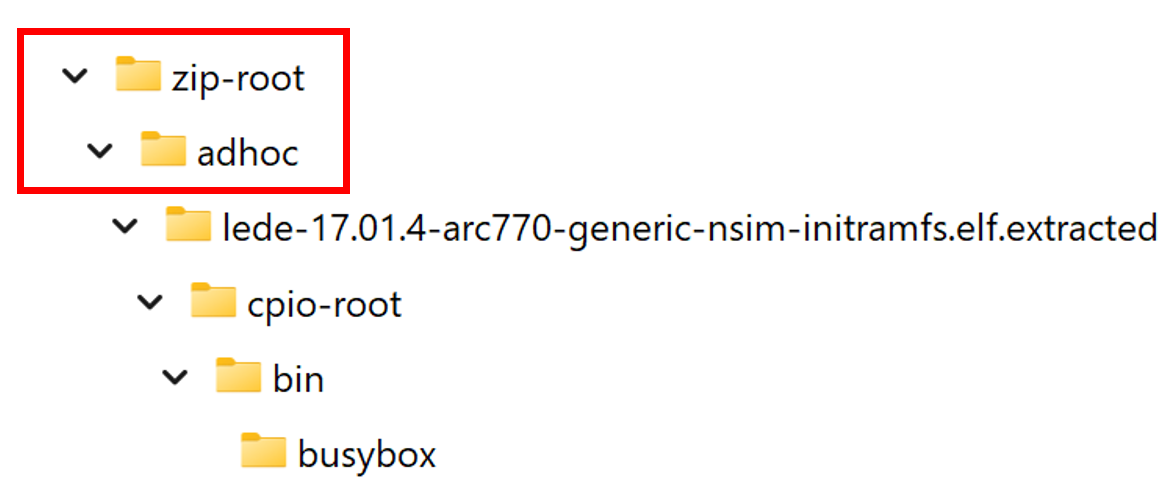
Within the adhoc file is the lede-17.01.4-arc770-generic-nsim-initramfs.elf file:

Since the lede… file ends with .extracted, this means that there is something within this .elf file that needs to be extracted further. The next extractor used was a CPIOArchiveExtractor, which means that there was a CPIOArchive file system embedded in the .elf file. The contents of the CPIOArchive file were placed in a cpio-root subdirectory:

and within the CPIOArchive file, there was a bin file, and that bin file had a file named busybox within it:

Locate the Path in your Environment
Since the first extractor that was used was a ZipArchiveExtractor, this means that everything exists in a Zip file. Locate the Zip file, and within that, the full path on your environment would be /adhoc/lede-17.01.4-arc770-generic-nsim-initramfs.elf.extracted/bin/busybox. However, assume that you can only see into the first level of extraction – the .elf file. To see further, you would need your own extractor to extract beyond the first layer. This means that, tangibly, the file path to go to would be: /adhoc/lede-17.01.4-arc770-generic-nsim-initramfs.elf.
Multiple Extractor Paths
In some cases, you may notice a (+1) or (+2) next to the file path:

When you hover over the number, you’ll see a pop-up that looks like this:

This means that the SBOM can be found at these two executable paths.
How UEFI analysis capabilities affect extractor paths
UEFI (Unified Extensible Firmware Interface) firmware differs from other firmware types in structure and content. A single UEFI firmware image can contain:
- UEFI-specific modules
- Other executable formats embedded within the firmware (for example, Linux ELF binaries)
As a result, firmware analysis results—and the extractor paths shown in the SBOM view—may include a mix of executable types within the same analysis.
For UEFI firmware, extractor path enhancements are currently provided as a Preview capability. When available, extractor paths may include:
- The UEFI module name
- GUID-based identifiers used internally by UEFI firmware
These enhancements are intended to improve clarity when correlating SBOM entries with UEFI modules. However, they may not appear for all firmware images or all modules.
Note
Because UEFI extractor path enhancements are in Preview, coverage may be incomplete. Missing module names or paths should be interpreted as unknown, not as evidence that a component is absent.
Relationship between UEFI analysis coverage and extractor paths
UEFI analysis capabilities vary by feature maturity:
- Detection of cryptographic certificates and keys embedded in UEFI firmware is Generally Available (GA)
- SBOM extraction, weakness detection, binary hardening attributes, and extractor path enhancements for UEFI firmware are currently in Preview
Because SBOM and weakness data for UEFI firmware are derived from detected components:
- CVEs may appear only for components whose versions can be confidently identified
- Some SBOM rows may have missing or partial data
- Some extractor paths may apply only to non-UEFI executables embedded within the firmware
Missing or empty values in UEFI-related rows should be interpreted as unknown, not as confirmation that a security feature is absent or a vulnerability does not exist.