Note
Access to this page requires authorization. You can try signing in or changing directories.
Access to this page requires authorization. You can try changing directories.
Important
Agent Optimizer is currently in preview. This preview is provided without a service-level agreement, and we don't recommend it for production workloads. Certain features might not be supported or might have constrained capabilities. For more information, see Supplemental Terms of Use for Microsoft Azure Previews.
In this quickstart, use the optimization wizard in the Foundry portal to improve a prompt agent's instructions, function-calling tool descriptions, and model selection. Select an agent version, dataset, and evaluators, run the optimizer, and compare the generated candidates with the baseline.
If you don't have an Azure subscription, create a free account.
Prerequisites
Before you begin, you need:
- A Microsoft Foundry project with a deployed prompt agent. To create one, see Quickstart: Create a prompt agent.
- An evaluation model and a supported optimization model deployed in the project. For supported models, see Models.
- A dataset source: agent traces, an evaluation dataset registered in the project, or a JSONL dataset to upload. The dataset must use the column names required by the selected evaluators because the wizard doesn't support column mapping.
Open the optimization wizard

- Go to the Foundry portal and open your project.
- Select Agents, and then select the prompt agent you want to optimize.
- Select the Optimize tab.
- Select Create optimization run.
Select the optimization target
The target defines the prompt-agent version and candidate models to evaluate.
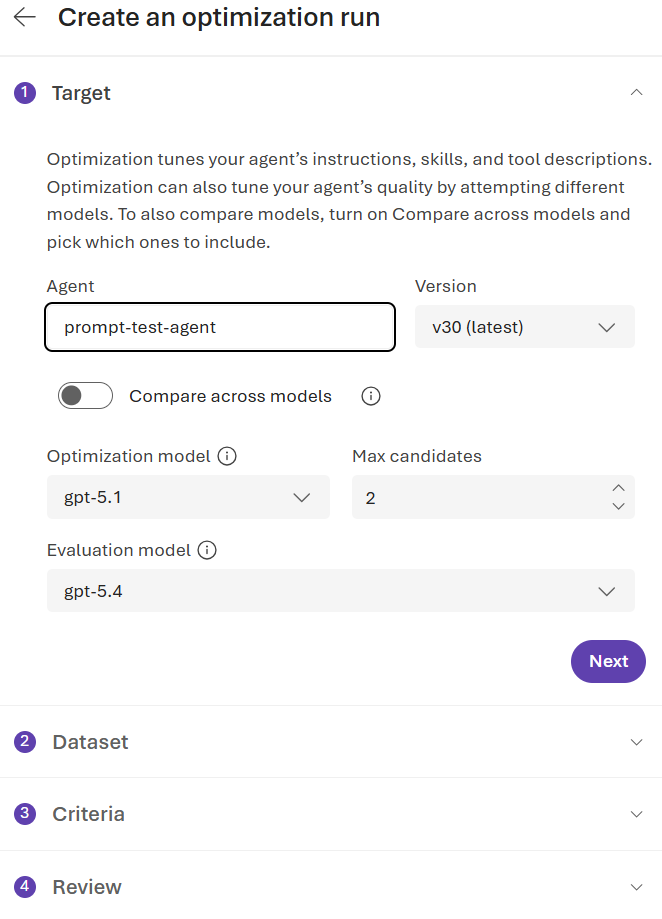
- In the Target step, select the agent version to use as the baseline. The latest version is selected by default.
- Select the optimization model, maximum number of candidates, and evaluation model.
- To evaluate candidates across multiple model deployments, turn on Compare across models, and then select the models to include.
- Continue to the Dataset step.
The optimizer can generate candidates that improve the agent's instructions, function-calling tool descriptions, or model selection. Other tool types aren't supported for tool-description optimization.
Important
A prompt agent's function-calling tools execute on the client side. The optimizer can improve the tool and parameter descriptions that guide function calls, but it can't execute or evaluate the tools during tool-description optimization.
Select an evaluation dataset
The optimizer uses the same dataset to score the baseline and each generated candidate.
In the Dataset step, choose one of these options:
- Generate a dataset from agent traces.
- Select an existing dataset registered in the project.
- Upload a new dataset from your device.
Preview the dataset and confirm that it contains the columns required by your evaluators.
Continue to the Criteria step.
Use representative tasks, including common requests, edge cases, and behaviors you want the optimizer to preserve or improve.
Select evaluation criteria
Evaluators define how the optimizer scores each response.
In the Criteria step, select one or more evaluators:
- Select built-in evaluators and configure any required parameters.
- Select an existing custom evaluator.
- Create a custom rubric evaluator, and then select it.
Confirm that each evaluator is compatible with the dataset schema.
Continue to the Review step.
Review and submit the run
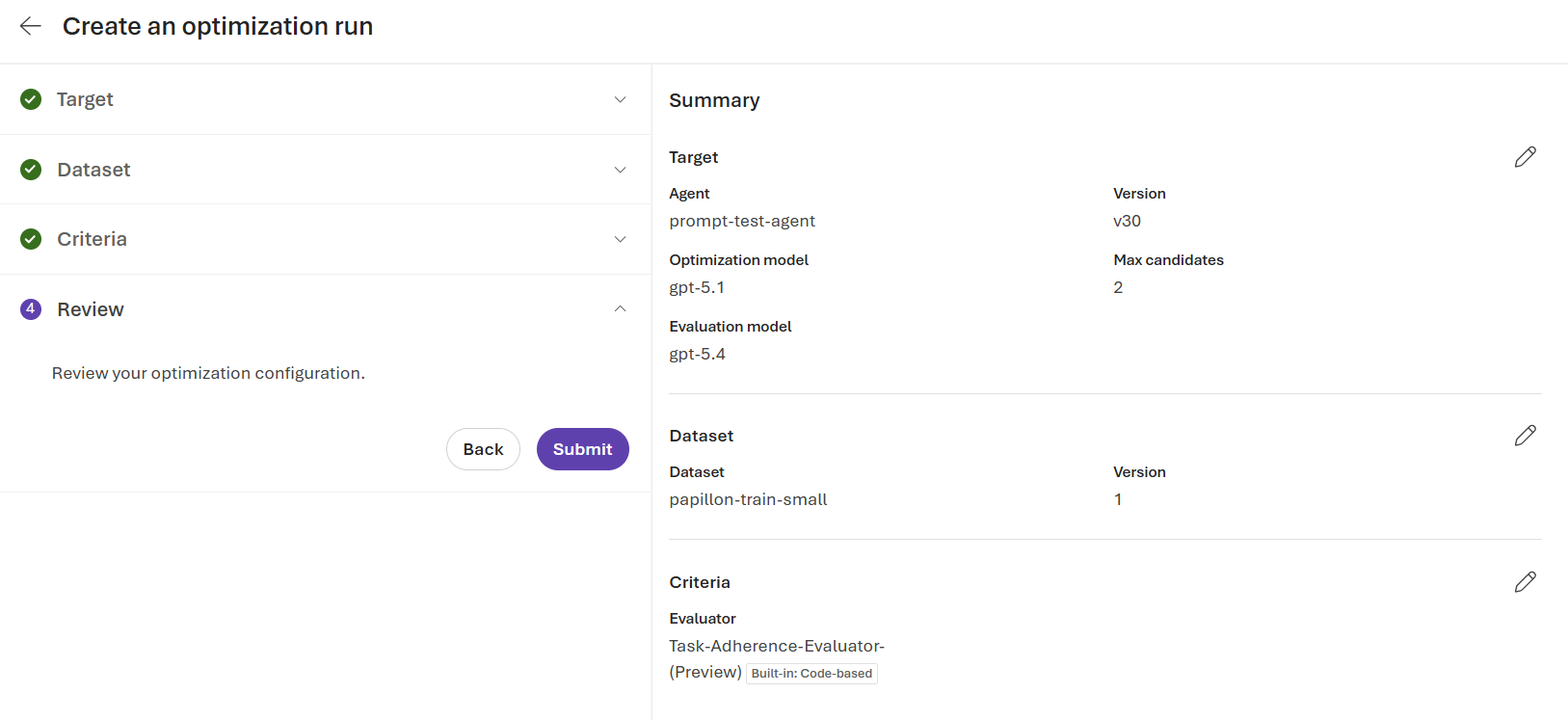
- On the Review step, verify the agent and version, dataset, evaluators, evaluator configurations, and candidate models.
- Select Submit.
- Wait for the optimization run to finish. The run appears in the Optimization runs list with its current status.
Run time depends on the dataset size, number of candidates, and selected models.
Compare the results
- When the run succeeds, select it under Optimization runs.
- Compare each candidate's score with the baseline score.
- Review the before-and-after instruction changes.
- Inspect the per-evaluator scores and, if you selected multiple models, compare the results for each model.
- Select the candidate that provides a meaningful quality improvement without an unacceptable increase in token usage or cost.
If every candidate scores lower than the baseline, keep the current agent. Revise the dataset, evaluators, or optimization settings before you run the optimizer again.
Promote a candidate
Promote the selected candidate to create a new version of the prompt agent.
- On the completed run page, select Promote candidate.
- In Promote candidate as new agent version, select the candidate to promote.
- Review the current active version and the selected candidate's score improvement over the baseline.
- Select Promote to agent version.
The promotion creates a new agent version with the candidate's optimized configuration. If the agent is pinned to a specific version, the new version doesn't receive traffic until you set it as the active version in the agent's details.
What you learned
In this quickstart, you:
- Started a prompt-agent optimization run in the Foundry portal.
- Selected a dataset, evaluators, and candidate models.
- Compared optimized candidates with the prompt-agent baseline.
- Promoted the selected candidate to a new prompt-agent version.