Use this article to create a project in Microsoft Foundry and confirm that your environment is ready. Projects organize agents, evaluations, and files as you build stateful apps and explore new ideas.
If your organization requires customized Azure configurations like alternative names, security controls, or cost tags, you might need to use the Azure portal or template options to comply with your organization's Azure Policy requirements.
As you set up a project, the Microsoft Foundry Skill can help prepare your environment and complete related agent, evaluation, and file workflows.
Prerequisites
-
An Azure account with an active subscription. If you don't have one, create a free Azure account, which includes a free trial subscription.
If you're creating the project for yourself:
- Access to a role that allows you to create a Foundry resource, such as Foundry Account Owner or Foundry Owner on the subscription or resource group. For more information about permissions, see Role-based access control for Microsoft Foundry.
Important
The Foundry RBAC roles were recently renamed. Foundry User, Foundry Owner, Foundry Account Owner, and Foundry Project Manager were previously named Azure AI User, Azure AI Owner, Azure AI Account Owner, and Azure AI Project Manager. You might still see the previous names in some places while the rename rolls out. The role IDs and core permissions are unchanged by the rename.
If you're creating the project for a team:
- Access to a role that allows you to complete role assignments, such as Owner. For more information about permissions, see Role-based access control for Microsoft Foundry.
- A list of user email addresses or Microsoft Entra security group IDs for team members who need access.
Use the following tabs to select the method you want to use to create a Foundry project:
- No other prerequisites necessary when using the portal.
Set up your development environment.
Run az login or az login --use-device-code in your environment before running code.
Install packages: pip install azure-identity "azure-mgmt-cognitiveservices>=13.7.0". If you're in a notebook cell, use %pip install instead.
Use pip show azure-mgmt-cognitiveservices to check that your version is 13.7 or greater.
Quick validation: Before creating a project, verify your SDK and authentication by testing the client:
from azure.identity import DefaultAzureCredential
from azure.mgmt.cognitiveservices import CognitiveServicesManagementClient

# Test authentication by instantiating the client
credential = DefaultAzureCredential()
subscription_id = "<your-subscription-id>"  # Replace with your subscription ID
client = CognitiveServicesManagementClient(credential, subscription_id)
print("✓ Authentication successful! Ready to create a project.")
Start your script with the following code to create the client connection and variables used throughout this article. This example creates the project in East US:
from azure.identity import DefaultAzureCredential
from azure.mgmt.cognitiveservices import CognitiveServicesManagementClient

subscription_id = 'your-subscription-id'
resource_group_name = 'your-resource-group-name'
foundry_resource_name = 'your-foundry-resource-name'
foundry_project_name = 'your-foundry-project-name'
location = 'eastus'

client = CognitiveServicesManagementClient(
    credential=DefaultAzureCredential(),
    subscription_id=subscription_id,
    api_version="2025-04-01-preview"
)
(Optional) If you have multiple accounts, add the tenant ID of the Microsoft Entra ID you want to use into DefaultAzureCredential:
DefaultAzureCredential(interactive_browser_tenant_id="<TENANT_ID>")
- Install the Azure CLI.
- Set the default value for
subscription.
# Set your default subscription
az account set --subscription "{subscription-name}"
Create a Foundry project
Use one of the following methods.
These steps provide a way to create a new Azure resource with basic default settings.
To create a Foundry project, follow these steps:
-
Sign in to Microsoft Foundry. Make sure the New Foundry toggle is on. These steps refer to Foundry (new).

The project you're working on appears in the upper-left corner.
To create a new project, select the project name, and then select Create new project.
Give your project a name and select Create project. Or see the next section for advanced options.
Advanced options
You create a Foundry project on a Foundry resource. The portal automatically creates this resource when you create the project. Select an existing Resource group to use, or leave the default to create a new resource group.
Tip
Especially for getting started, create a new resource group for your project. The resource group makes it easy to manage the project and all its resources together.
Select a Location or use the default. The location is the region where the project resources are hosted.
Select Create. You see the progress of resource creation. The project is created when the process is complete.
To create a Foundry project:
Add the following code to create a Foundry project by using the variables and client connection from the prerequisites section.
# Create resource
resource = client.accounts.begin_create(
    resource_group_name=resource_group_name,
    account_name=foundry_resource_name,
    account={
        "location": location,
        "kind": "AIServices",
        "sku": {"name": "S0",},
        "identity": {"type": "SystemAssigned"},
        "properties": {
            "allowProjectManagement": True,
            "customSubDomainName": foundry_resource_name
        }
    }
)

# Wait for the resource creation to complete
resource_result = resource.result()

# Create default project
project = client.projects.begin_create(
    resource_group_name=resource_group_name,
    account_name=foundry_resource_name,
    project_name=foundry_project_name,
    project={
        "location": location,
        "identity": {
            "type": "SystemAssigned"
        },
        "properties": {}
    }
)
References: CognitiveServicesManagementClient.
Note
These steps require the Azure CLI version 2.80.0 or later and the Contributor or Owner role on the resource group. Run az version to check your version and az upgrade if you need a newer one. Run az login to sign in before you start. For supported regions, see Region support.
Create a resource group or use an existing one. For example, create my-foundry-rg in eastus:
az group create --name my-foundry-rg --location eastus
Verify that the resource group exists:
az group show --name my-foundry-rg --query properties.provisioningState --output tsv
The output shows Succeeded.
Create the Foundry resource with project management enabled. For example, create my-foundry-resource in the my-foundry-rg resource group:
az cognitiveservices account create \
    --name my-foundry-resource \
    --resource-group my-foundry-rg \
    --kind AIServices \
    --sku S0 \
    --location eastus \
    --custom-domain my-foundry-resource \
    --assign-identity \
    --allow-project-management true
Use these values:
| Parameter |
Purpose |
--assign-identity |
Creates the managed identity that project management requires. Without it, project creation fails with an error that a managed identity must be enabled on the resource. |
--allow-project-management |
Enables project management. You can't change this setting after you create the resource. |
--custom-domain |
Must be globally unique. If my-foundry-resource is taken, the command fails with CustomDomainInUse. Choose a different name and run the command again. |
Create a project. For example, create my-foundry-project in the my-foundry-resource:
az cognitiveservices account project create \
    --name my-foundry-resource \
    --resource-group my-foundry-rg \
    --project-name my-foundry-project \
    --location eastus
Verify that the resource is provisioned:
az cognitiveservices account show \
    --name my-foundry-resource \
    --resource-group my-foundry-rg \
    --query properties.provisioningState --output tsv
The output should show Succeeded. If the output shows a different state, check your permissions, region availability, and resource quotas. For more help, see Create a multi-service resource.
Verify the project was created:
az cognitiveservices account project show \
    --name my-foundry-resource \
    --resource-group my-foundry-rg \
    --project-name my-foundry-project \
    --query properties.provisioningState --output tsv
The output should show Succeeded. If the command fails with a message that a managed identity must be enabled, confirm that you created the resource with --assign-identity.
Reference: az cognitiveservices account project
If your project runs agents, you can declare the Azure resources that store agent state, vector data, and files. Set these resources on the Foundry account to establish defaults for every project it contains, then let each project inherit the defaults or override an individual store.
Two points affect how you plan the deployment:
- Inheritance: A project inherits each setting it doesn't set itself. A GET on the project returns the effective configuration, which combines inherited account values with any project overrides. Changing the account defaults later doesn't update existing projects.
- Authorization: For capability settings requests, the caller needs Storage Blob Data Contributor on the referenced Azure Storage account and Cosmos DB Operator on the referenced Azure Cosmos DB account. Azure AI Search doesn't require a caller role. Configure runtime access for the project managed identity separately.
For settings, permissions, and Bicep examples, see Configure agent capability settings.
Create multiple projects on the same resource
Create multiple Foundry projects on an existing Foundry resource to enable team collaboration and shared resource access including security, deployments, and connected tools. This setup is ideal in restricted Azure subscriptions where developers need self-serve exploration ability within the setup of a preconfigured environment.
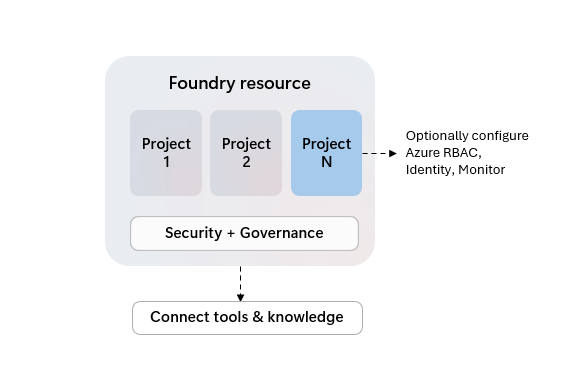
Foundry projects as Azure child resources may get assigned their own access controls, but share common settings such as network security, deployments, and Azure tool integration from their parent resource.
While not all Foundry capabilities support organizing work in projects yet, your resource's first "default" project is more powerful. You can identify it by the tag "default" in UX experiences and the resource property "is_default" when using code options.
| Feature |
Default project |
Other projects |
| Model inference |
✅ |
✅ |
| Playgrounds |
✅ |
✅ |
| Agents |
✅ |
✅ |
| Evaluations |
✅ |
✅ |
| Tracing |
✅ |
✅ |
| Datasets |
✅ |
✅ |
| Indexes |
✅ |
✅ |
| Foundry SDK and API |
✅ |
✅ |
| Content understanding |
✅ |
✅ |
| OpenAI SDK and API |
✅ |
Responses, Files, Conversations |
| OpenAI Batch, Fine-tuning, Stored completions |
✅ |
- |
| Language fine-tuning |
✅ |
✅ |
| Speech fine-tuning |
✅ |
- |
| Connections |
✅ |
✅ |
To add a project to a Foundry resource:
- Select Manage in the upper-right navigation.
- Select Resource details in the left pane.
- Select Add project.
Add this code to your script to create a new project on your existing resource:
# Create additional project
new_project_name = 'your-new-project-name'

project = client.projects.begin_create(
    resource_group_name=resource_group_name,
    account_name=foundry_resource_name,
    project_name=new_project_name,
    project={
        "location": location,
        "identity": {
            "type": "SystemAssigned"
        },
        "properties": {}
    }
)
To add a new project to my-foundry-resource:
 az cognitiveservices account project create \
 --name my-foundry-resource \
 --resource-group my-foundry-rg \
 --project-name {new_project_name} \
 --location eastus
If you delete your Foundry resource's default project, the next project created will become the default project.
View project settings
On the Home project page, you see the project endpoint and API key for the project. You don't need the API key if you use Microsoft Entra ID authentication.
# Get project
project = client.projects.get(
    resource_group_name=resource_group_name,
    account_name=foundry_resource_name,
    project_name=foundry_project_name
)
print(project)
References: CognitiveServicesManagementClient.
To view settings for the project, use the az cognitiveservices account project show command. For example:
az cognitiveservices account project show \
--name my-foundry-resource \
--resource-group my-foundry-rg \
--project-name my-foundry-project
Grant access to team members
If you created the project for a team, assign the Foundry User role to team members so they can use the project and its resources. This role provides the minimum permissions needed to build and test AI applications. For other roles you might need to assign, see Role-based access control for Microsoft Foundry.
Important
The Foundry RBAC roles were recently renamed. Foundry User, Foundry Owner, Foundry Account Owner, and Foundry Project Manager were previously named Azure AI User, Azure AI Owner, Azure AI Account Owner, and Azure AI Project Manager. You might still see the previous names in some places while the rename rolls out. The role IDs and core permissions are unchanged by the rename.
- In the Foundry portal, select Manage in the upper-right navigation.
- Select Project details in the left pane.
- Select the Users tab.
- Select Add user in the upper right.
- Enter the email address of the team member.
- Select Add.
Repeat these steps for each team member or security group.
Tip
To add multiple users at once, use a Microsoft Entra security group instead of individual email addresses.
Use the Azure CLI or Foundry portal to manage role assignments. The Python SDK doesn't support role assignment operations.
Get the project's resource ID:
PROJECT_ID=$(az cognitiveservices account project show \
    --name my-foundry-resource \
    --resource-group my-foundry-rg \
    --project-name my-foundry-project \
    --query id -o tsv)
Assign the Foundry User role to a team member:
Important
The Foundry RBAC roles were recently renamed. Foundry User, Foundry Owner, Foundry Account Owner, and Foundry Project Manager were previously named Azure AI User, Azure AI Owner, Azure AI Account Owner, and Azure AI Project Manager. You might still see the previous names in some places while the rename rolls out. The role IDs and core permissions are unchanged by the rename.
az role assignment create \
    --role "53ca6127-db72-4b80-b1b0-d745d6d5456d" \
    --assignee "user@contoso.com" \
    --assignee-principal-type User \
    --scope $PROJECT_ID
Note
Because the Foundry RBAC roles were recently renamed, use the role definition ID (GUID) instead of the role name in your code to avoid issues during the rename rollout:
- Foundry User:
53ca6127-db72-4b80-b1b0-d745d6d5456d
- Foundry Owner:
c883944f-8b7b-4483-af10-35834be79c4a
- Foundry Account Owner:
e47c6f54-e4a2-4754-9501-8e0985b135e1
- Foundry Project Manager:
eadc314b-1a2d-4efa-be10-5d325db5065e
To add a security group instead of an individual user:
az role assignment create \
    --role "53ca6127-db72-4b80-b1b0-d745d6d5456d" \
    --assignee-object-id "<security-group-object-id>" \
    --assignee-principal-type Group \
    --scope $PROJECT_ID
Verify the role assignment:
az role assignment list \
    --scope $PROJECT_ID \
    --role "53ca6127-db72-4b80-b1b0-d745d6d5456d" \
    --output table
Reference: az role assignment
Verify team member access
Ask a team member to verify their access by signing in to Microsoft Foundry and selecting the project from the project list.
If the team member can't access the project, verify that the role assignment completed successfully. Check that you used the correct email address or security group ID. Make sure the team member's Azure account is in the same Microsoft Entra tenant.
Delete projects
Important
Use with caution. You can't recover a project after it's deleted.
- Sign in to Microsoft Foundry. Make sure the New Foundry toggle is on. These steps refer to Foundry (new).
- In the upper-right navigation, select Manage.
- In the left pane, select Project details.
- In the upper right, select the trash can icon to delete the project.
This code uses the variables and client connection from the prerequisites. To delete a single project:
client.projects.begin_delete(
    resource_group_name, foundry_resource_name, foundry_project_name
)
References: CognitiveServicesManagementClient.
Delete a Foundry resource and all of its projects:
# Delete projects
projects = client.projects.list(resource_group_name, foundry_resource_name)

for project in projects:
    print("Deleting project:", project.name)
    client.projects.begin_delete(resource_group_name, foundry_resource_name,
        project_name=project.name.split('/')[-1]
    ).wait()

# Delete resource
print("Deleting resource:", foundry_resource_name)
client.accounts.begin_delete(resource_group_name, foundry_resource_name).wait()
References: CognitiveServicesManagementClient.
Run the following command:
az cognitiveservices account project delete \
--name my-foundry-resource \
--resource-group my-foundry-rg \
--project-name my-foundry-project
To verify deletion, run az cognitiveservices account project show with the same resource and project names. The command returns a resource-not-found error.
References: az cognitiveservices account project delete.
Related content