Note
Access to this page requires authorization. You can try signing in or changing directories.
Access to this page requires authorization. You can try changing directories.
Use Azure Policy to control which models a developer can include in a model router deployment in Microsoft Foundry. Model router honors the same built-in Foundry model deployment policy that governs standard model deployments, but it applies the policy to the model subset that a developer can select during model router configuration. This deploy-time enforcement gives platform administrators a single, policy-driven way to keep model router deployments compliant across the portal, the API, the CLI, and Azure Resource Manager (ARM) templates.
This article shows IT admins how to assign a policy that governs model router, and shows developers what to expect when they deploy model router in a project where a policy is active.
Prerequisites
An Azure account with an active subscription. If you don't have one, create a free Azure account.
A Foundry resource in a region that supports model router. To learn more, see Use model router for Microsoft Foundry.
Permissions to assign Azure Policy. To create and assign policies, you must be an Owner or Resource Policy Contributor at the subscription or resource group level.
Familiarity with Azure Policy. To learn more, see What is Azure Policy?.
How model router honors Azure Policy
When an Azure Policy that restricts approved models is active at the subscription or resource group scope, model router enforces the policy at deploy time on every surface:
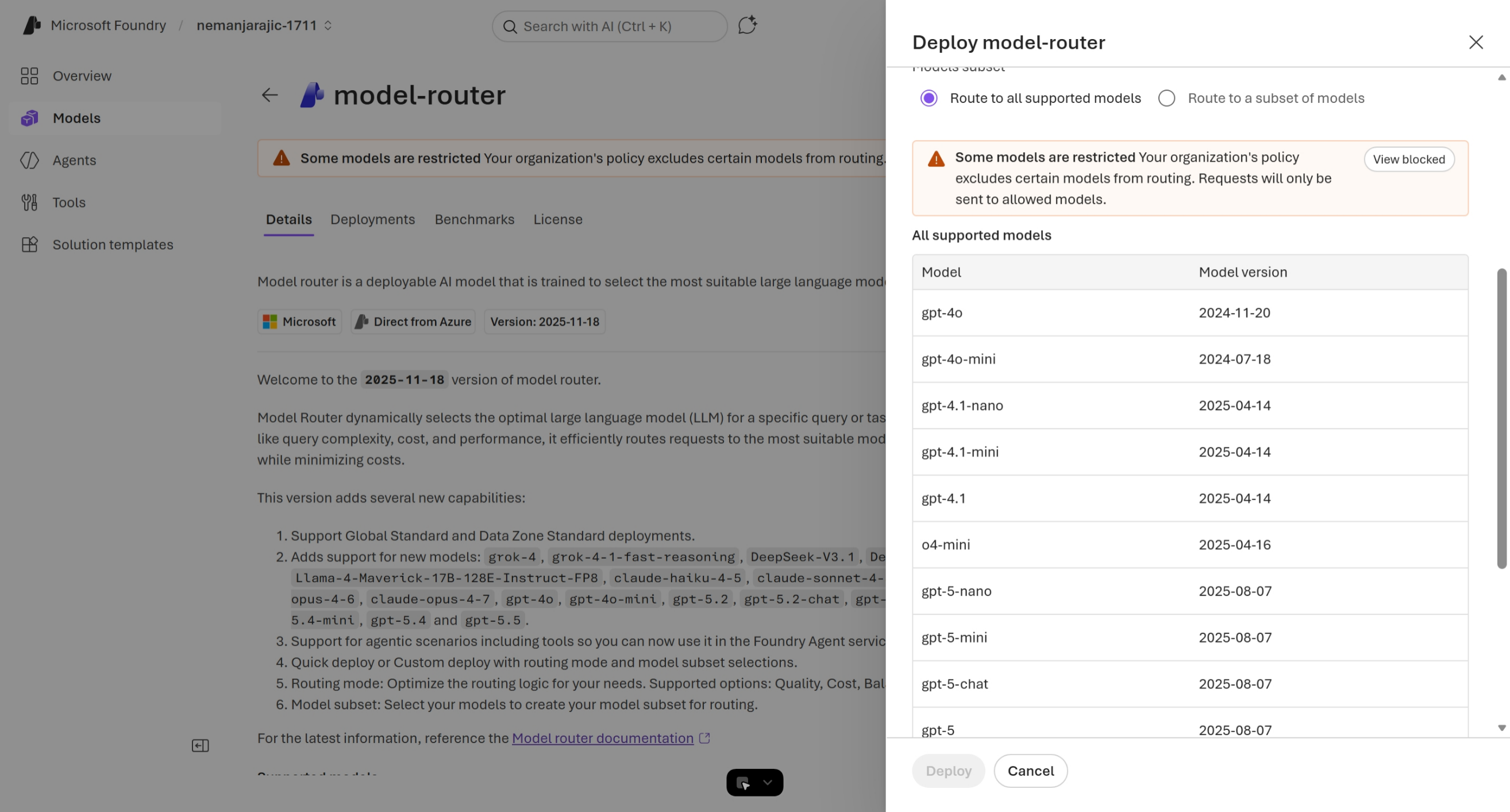
- Foundry portal: The model subset selector lists all model router supported models, but checkboxes for unapproved models are disabled. A banner explains that selections are governed by Azure Policy.
- REST API, Azure CLI, and ARM templates: A model router deployment that includes an unapproved model is rejected with a policy violation. The behavior is consistent with the portal: the same policy decision applies regardless of how the deployment is created.
- Existing (brownfield) deployments: When you update or assign a policy, Azure Policy reevaluates existing model router deployments and surfaces noncompliant deployments in the Compliance dashboard. You can then remediate by removing the noncompliant deployment or by updating the model subset.
Model discoverability is preserved. Unapproved models remain visible in the model subset list so developers can see the full set of supported models and request approval through their administrator if they need a model that isn't on the allowed list.
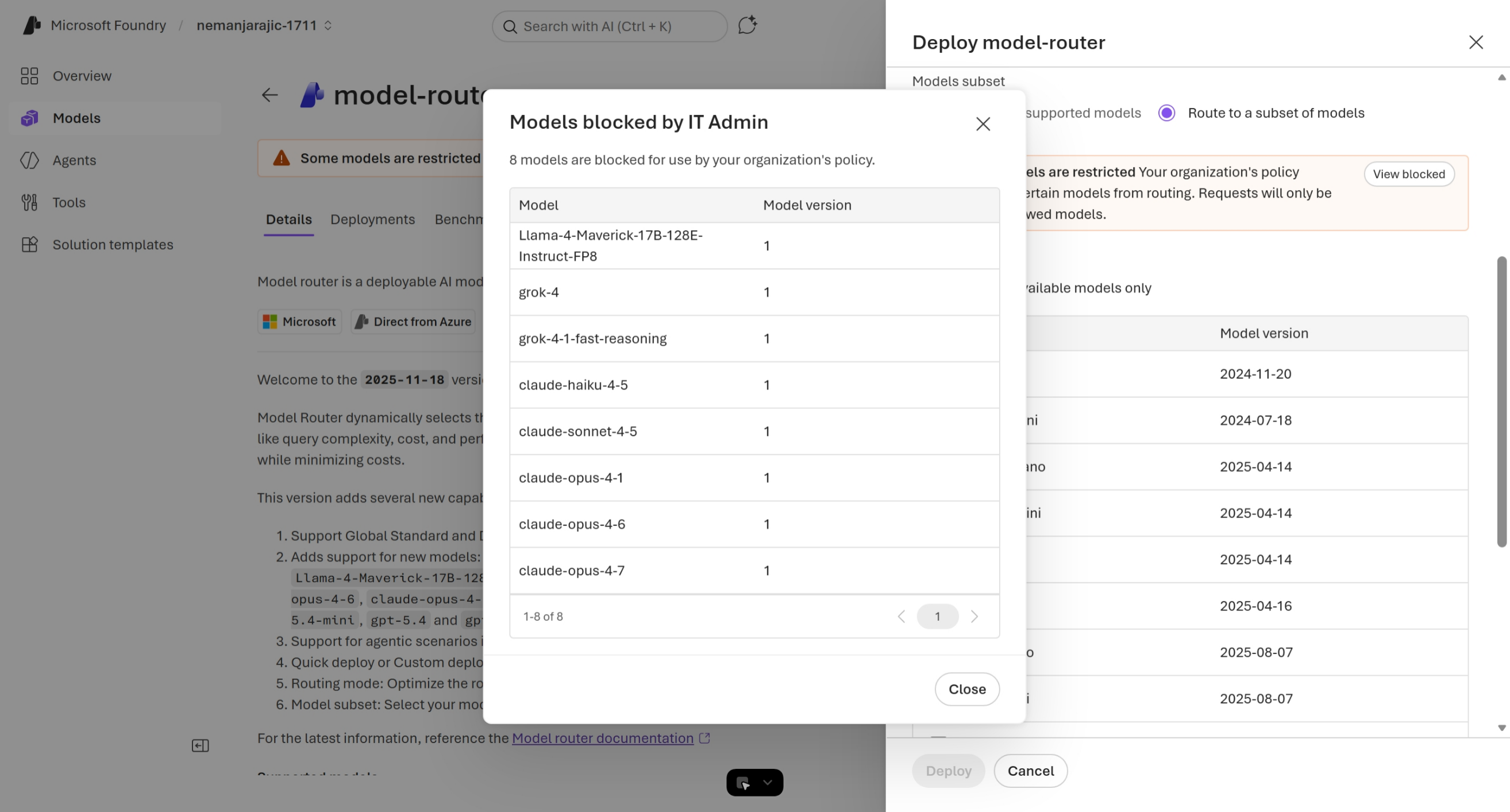
The following screenshot shows the deployment pane in the Foundry portal when a policy is active. The restriction banner explains that the organization's policy excludes certain models from routing, and developers can select View blocked to see which models are blocked.
Assign a policy that governs model router
Model router uses the same built-in Foundry policy that governs other model deployments: Cognitive Services Deployments should only use approved Registry Models. To assign or update the policy, follow the steps in Built-in policy for model deployment. The publisher names and asset IDs that you allow apply to model router selections automatically. No separate policy definition is required.
Tip
Scope the policy to the resource group or subscription that contains your Foundry resources. The model subset selector evaluates the policy at the scope where the Foundry resource is created.
After you assign the policy, allow up to 15 minutes for the assignment to propagate before you test it on a model router deployment.
Deploy model router with a policy in effect
The following sections describe what a developer experiences when a policy that restricts approved models is active.
Foundry portal
In the Foundry portal, open your project and go to the model catalog.
Find
model-routerin the Models list and select Deploy.When a policy is active, a restriction banner appears at the top of the model details page. The banner tells you that your organization's policy excludes certain models from routing.
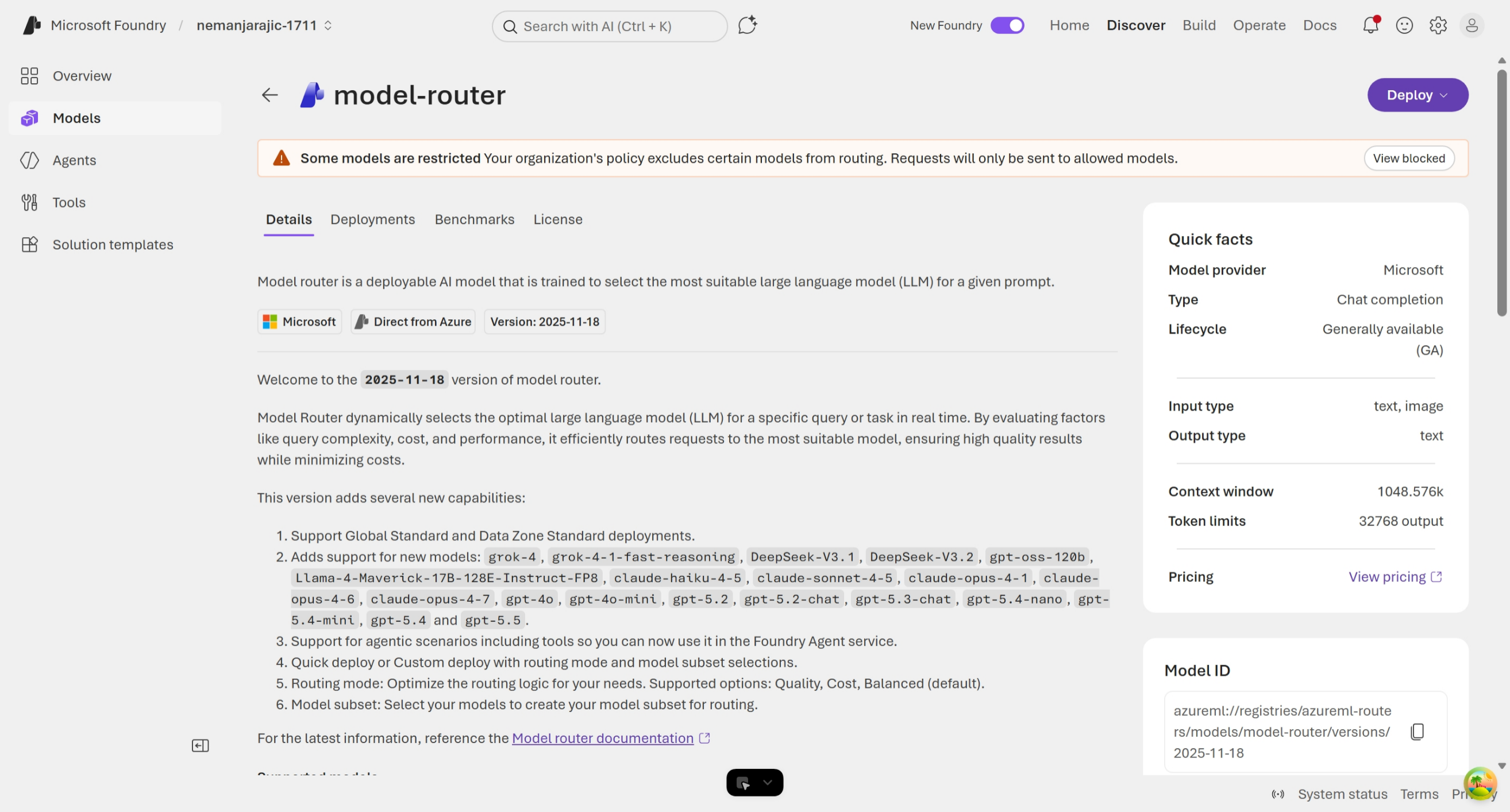
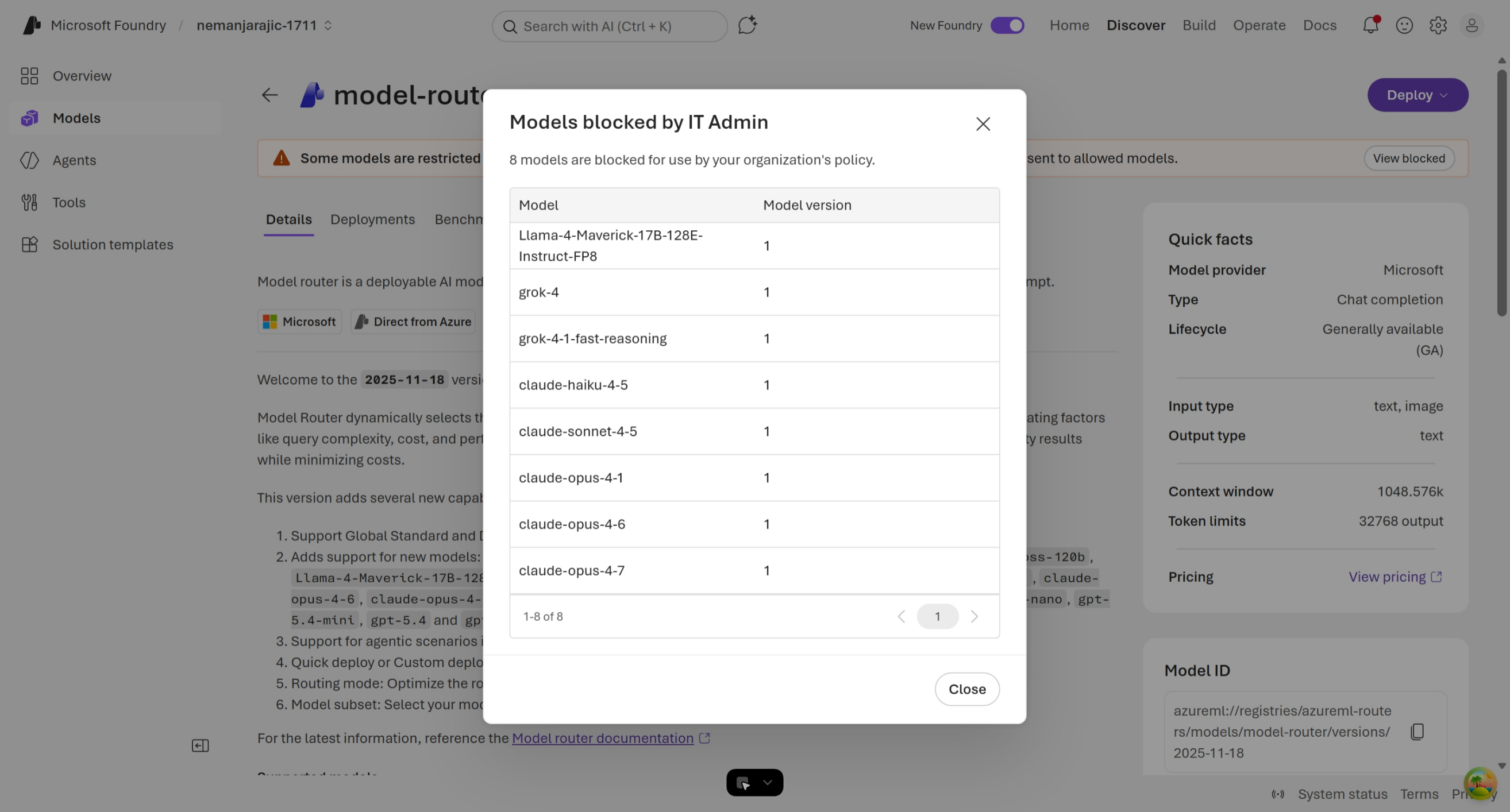
To preview which models are excluded, select View blocked. The Models blocked by IT Admin dialog lists the models that your organization's policy excludes from routing.
In the deployment pane, choose Custom settings to expand model subset configuration.
In the Models subset section, select Route to a subset of models.
When a policy is active, an informational banner appears at the top of the model list that tells you the selection is governed by your organization's Azure Policy. The banner asks you to contact your IT administrator to request changes.
Select from the enabled (approved) models. Unapproved models remain visible but their checkboxes are disabled.
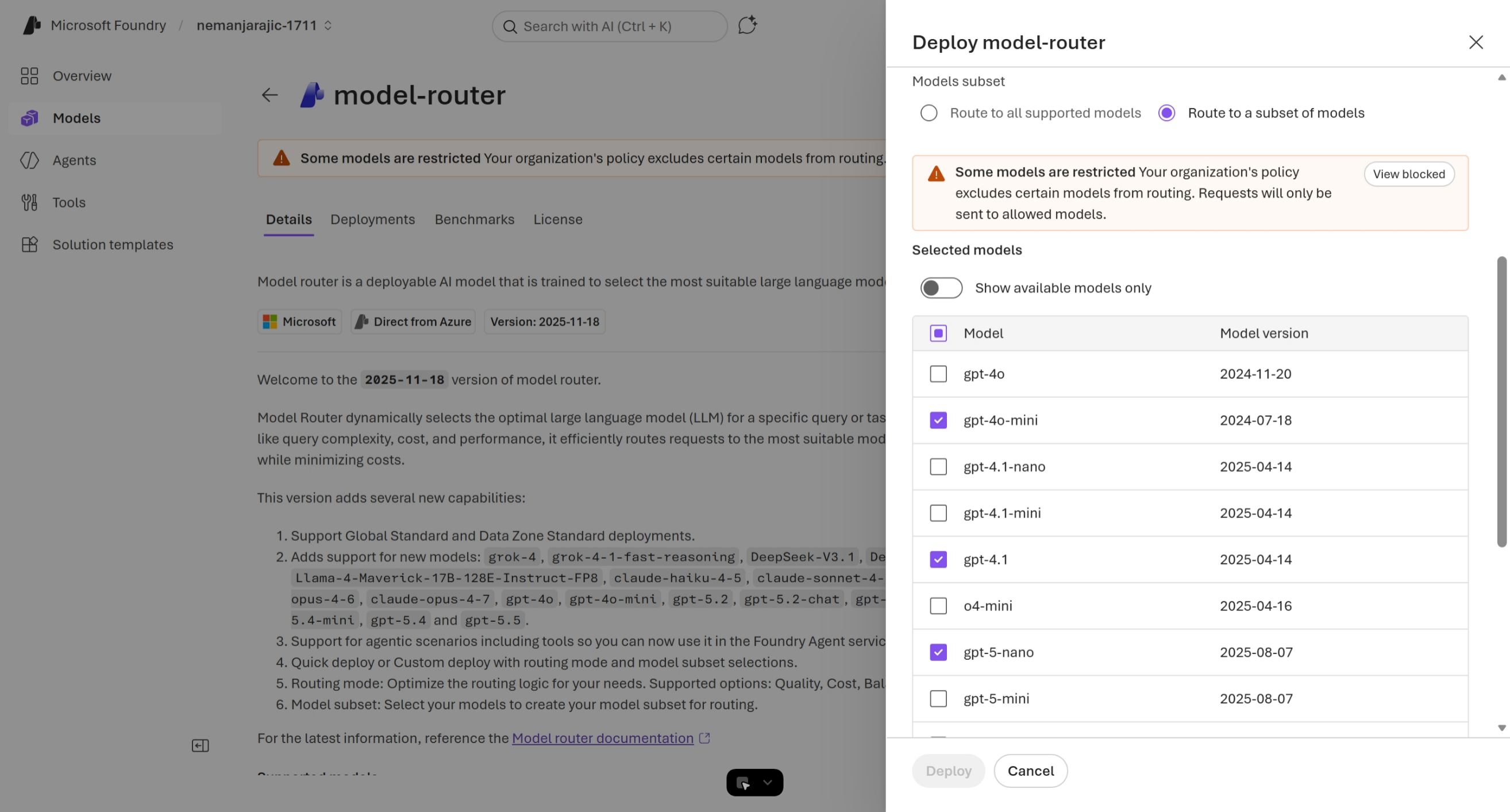
To review the full list of blocked models from the deployment pane, select View blocked in the restriction banner.
Select Deploy. The deployment uses the compliant model subset.
For the full deployment walkthrough that doesn't include policy steps, see Use model router for Microsoft Foundry.
REST API, Azure CLI, and ARM templates
When you create a model router deployment from outside the portal, Azure Policy is evaluated on the control plane. If the deployment request includes a model that isn't on the allowed list, the request is rejected with a policy violation response, and no model router deployment is created.
To stay compliant on the command line:
Identify the approved model asset IDs and publisher names from the policy assignment, or from your IT administrator.
When you author the request body for the model router deployment, include only those approved models in the model subset.
Submit the deployment by using the REST API examples in Use model router for Microsoft Foundry.
If the request fails, inspect the response message to see which model triggered the policy. Update the request body to remove the noncompliant model and resubmit.
Audit existing model router deployments
When you assign a new policy, or when you update an existing policy to disallow a model that's already in use, Azure Policy reevaluates existing model router deployments at the next compliance evaluation cycle. Use the following steps to find and remediate noncompliant deployments:
From the Azure portal, select Policy.
Select Compliance and find your policy assignment. Noncompliant model router deployments appear in the Resource compliance view.
For each noncompliant deployment, choose one of the following remediation paths:
- Update the model router deployment to remove the disallowed model from the model subset.
- Delete the model router deployment and create a new one that uses only approved models.
Compliance results can take up to 24 hours to appear after a policy change. To force evaluation sooner, trigger an on-demand evaluation scan.
Troubleshoot
| Symptom | Cause | Resolution |
|---|---|---|
| Model subset checkboxes are unexpectedly disabled in the Foundry portal | A policy assignment at the subscription or resource group scope restricts the affected models. | Check the banner at the top of the model subset list. Contact your IT administrator to request a model approval or a policy update. |
| API or CLI deployment fails with a policy violation, but the same models work in the portal for a different project | The policy assignment scope or parameters differ between projects. | Compare the policy assignment scope and the Allowed Asset Ids parameter values for both projects in the Policy > Assignments view. |
| Approved model is blocked unexpectedly | The model asset ID or publisher name in the policy parameters doesn't exactly match the model. | Asset IDs and publisher names are case-sensitive. Compare the parameter values against the model card in the model catalog. |
| Compliance dashboard doesn't show a recent change | Compliance evaluation hasn't completed yet. | Wait for the next evaluation cycle (up to 24 hours) or trigger an on-demand evaluation scan. |
| Policy banner doesn't appear in the model subset selector | The policy assignment hasn't propagated, or no policy is assigned at the resource scope. | Allow up to 15 minutes for a new assignment to propagate. Verify that an assignment exists at the subscription or resource group scope. |