Note
Access to this page requires authorization. You can try signing in or changing directories.
Access to this page requires authorization. You can try changing directories.
Note
Hosted agents and tracing are currently in preview.
In this quickstart, you view end-to-end traces for the hosted agent you deployed in Deploy your first hosted agent. You invoke your agent to generate trace data and review traces in the Foundry portal.
The hosting libraries (azure-ai-agentserver-responses and azure-ai-agentserver-invocations) smoothly integrate the Microsoft OpenTelemetry distro, which provides out-of-the-box instrumentation for Microsoft Agent Framework and LangChain, and exports traces to Application Insights. In addition, Foundry Agent Service emits server-side telemetry for agent invocation automatically—no code changes required.
Tracing gives you visibility into how your agent handles each request so you can debug issues, monitor latency, and understand agent behavior before releasing changes to users.
Prerequisites
Before you begin, you need:
A deployed, invokable hosted agent from Deploy your first hosted agent, and the
azdproject directory you created in that quickstart.The Foundry User role on the Foundry resource.
To use the UI path, access to the Foundry portal. For the azd path, see the next requirements.
Azure Developer CLI (AZD) 1.25.3 or later with the
azd microsoft.foundryextension:azd ext install microsoft.foundryAn authenticated
azdsession. Check your status withazd auth status, and runazd auth loginif you're not signed in.Important
The Foundry RBAC roles were recently renamed. Foundry User, Foundry Owner, Foundry Account Owner, and Foundry Project Manager were previously named Azure AI User, Azure AI Owner, Azure AI Account Owner, and Azure AI Project Manager. You might still see the previous names in some places while the rename rolls out. The role IDs and core permissions are unchanged by the rename.
An Azure Monitor Application Insights resource connected to your Foundry project. To set it up, see Set up tracing in Microsoft Foundry.
The Log Analytics Reader role on the Application Insights resource connected to your project.
Step 1: Invoke your agent
Generate trace data by sending a request to your deployed agent.
From your azd project directory, send a test prompt:
azd ai agent invoke "Summarize the benefits of distributed tracing for AI agents."
You should see a response within a few seconds.
Each invocation generates a complete trace. For richer traces, send prompts that trigger tool calls or multi-turn reasoning.
Step 2: View traces in the Foundry portal
Traces can be viewed in the Foundry portal after invocation.
- In the Foundry portal, open your project.
- In the left navigation, select Agents.
- At the top, select Traces.
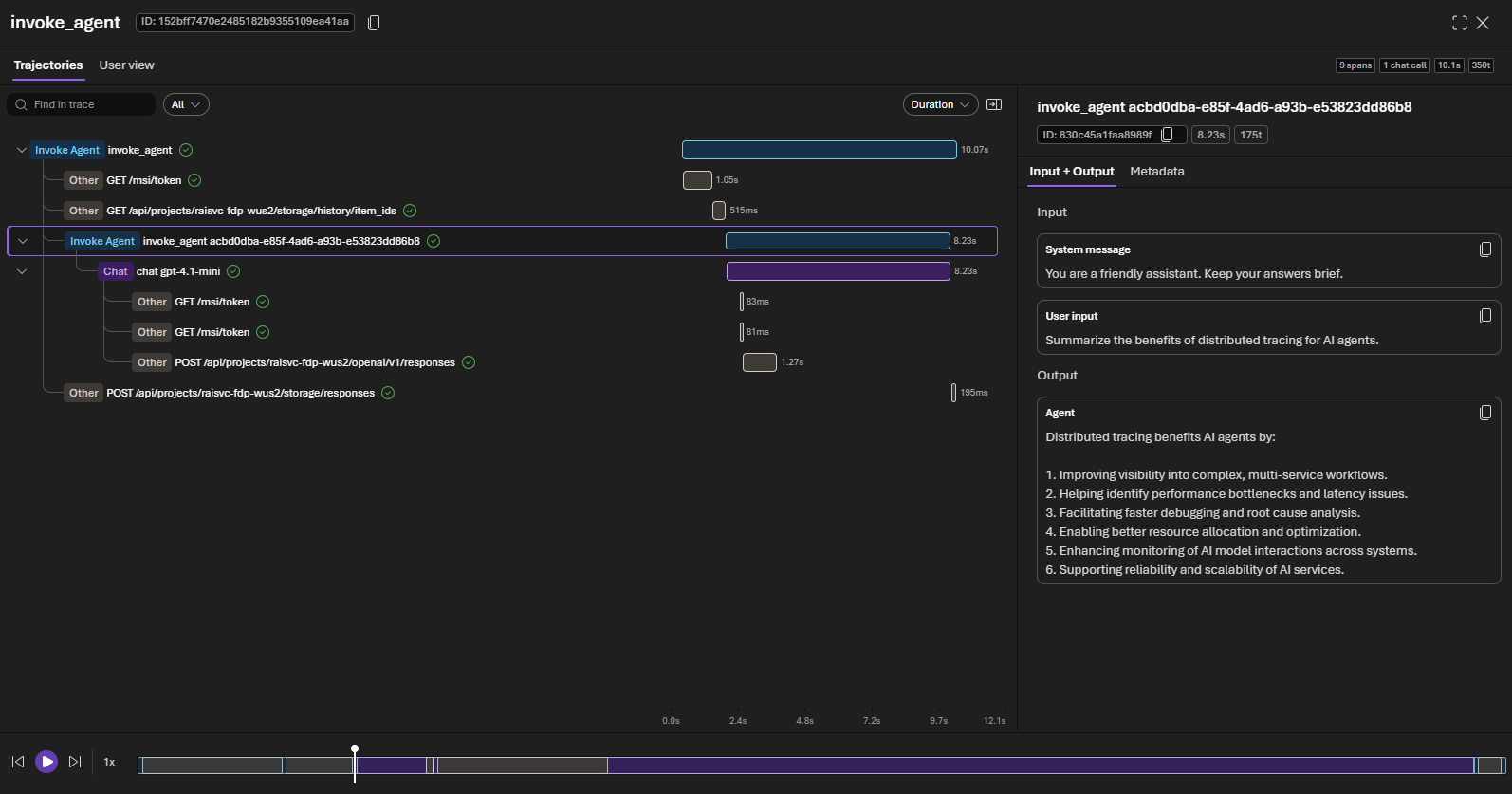
- Find your trace in the list. You can search by Trace ID, Response ID, or filter by time range.
Trajectory
User view
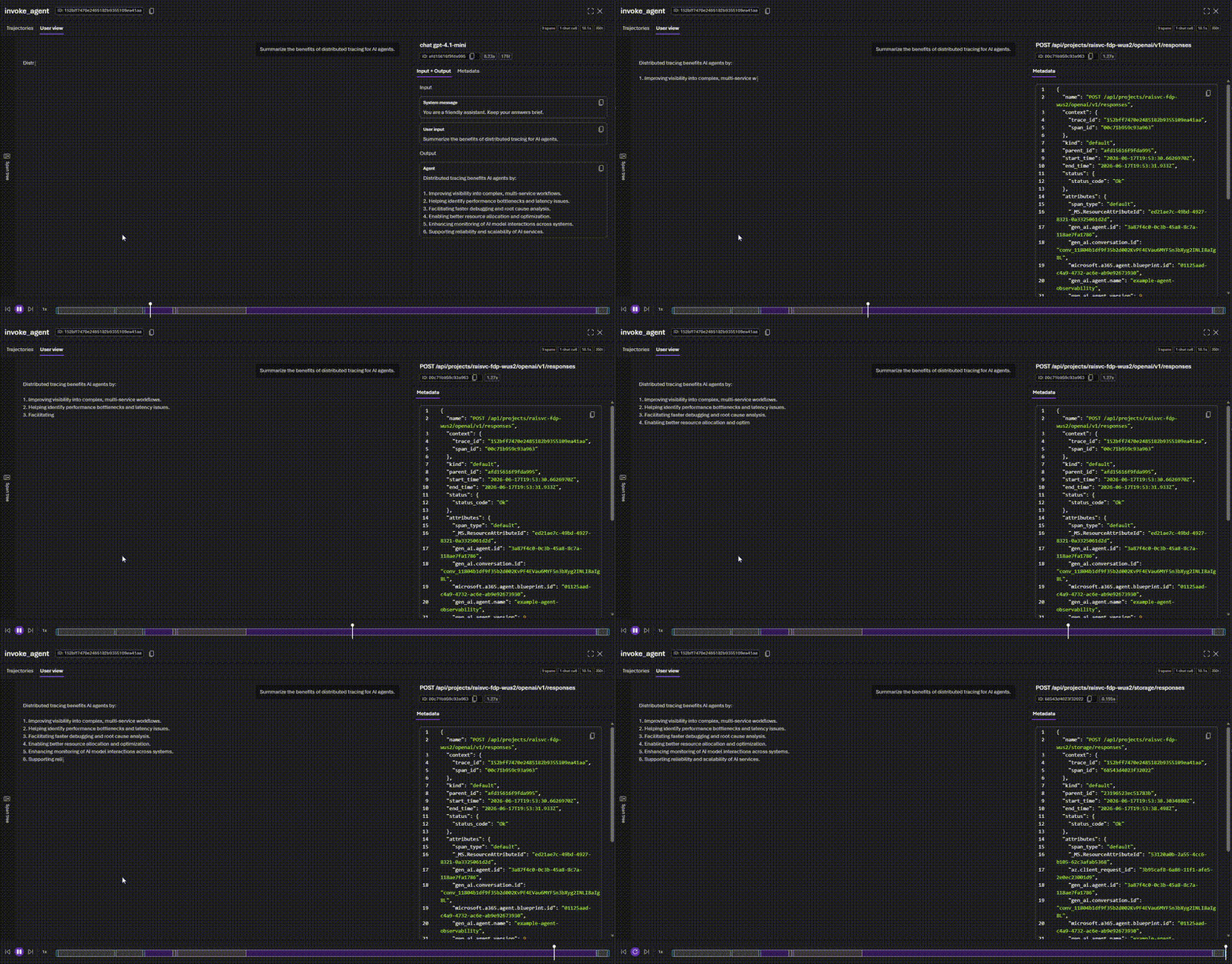
Tip
If your agent uses Microsoft Agent Framework, it emits its own OpenTelemetry spans automatically. These spans appear as children of the hosting layer spans, giving you a complete trace tree from the HTTP request through agent orchestration to individual tool calls and LLM interactions.
Clean up resources
Tracing data is stored in Application Insights and follows your workspace's data retention settings. No additional resources are created in this quickstart. To remove everything you created across this and the previous quickstart, run azd down from your agent project directory.
Warning
azd down permanently deletes every resource in the resource group, including the Foundry project, model deployments, Application Insights, and the hosted agent.
Troubleshooting
| Issue | Solution |
|---|---|
| Not using Foundry hosted agents and traces aren't showing | This quickstart covers hosted agents only. For tracing agents hosted outside of Foundry, see Register an external agent. |
| No traces appear after invoking agent | Confirm Application Insights is connected to your Foundry project. If it isn't enabled, see Set up tracing in Microsoft Foundry. Verify the agent responded successfully with azd ai agent invoke. |
| Traces appear but spans are missing input/output data attributes | Enable content recording by setting the environment variable OTEL_INSTRUMENTATION_GENAI_CAPTURE_MESSAGE_CONTENT=true in your agent configuration. |
AuthorizationFailed when viewing traces |
You need the Log Analytics Reader role on the Application Insights resource. |
| Traces appear but are missing tool call spans | Verify your agent defines tools and the model invokes them during the request. If using Microsoft Agent Framework, confirm tools are registered with the Agent constructor via the tools parameter. See Add tools to your agent. |
AuthenticationError or DefaultAzureCredential failure |
Refresh credentials with azd auth logout and then azd auth login. |
What you learned
In this quickstart, you:
- Learned that hosting libraries integrate the Microsoft OpenTelemetry distro for out-of-the-box instrumentation.
- Invoked your deployed agent to generate trace data.
- Viewed end-to-end traces in the Foundry portal.
Next steps
- Set up tracing in Microsoft Foundry for detailed tracing configuration.
- Configure tracing for AI agent frameworks to instrument LangChain and other frameworks.
- Monitor AI agents with the Agent Monitoring Dashboard for production monitoring.