Note
Access to this page requires authorization. You can try signing in or changing directories.
Access to this page requires authorization. You can try changing directories.
Applies to: ✔️ Front Door Standard ✔️ Front Door Premium
Azure Front Door caches assets until their time-to-live (TTL) expires. When a client requests an asset with an expired TTL, Azure Front Door retrieves and caches a new copy of the asset to serve the request.
To ensure users always get the latest assets, version your assets for each update and publish them with new URLs. Azure Front Door then fetches the new assets on subsequent client requests.
When you update your application or need to quickly remove incorrect content, purge cached content from all point-of-presence (PoP) locations. This action forces Azure Front Door to fetch fresh content from your origin.
Prerequisites
An Azure account with an active subscription. Create an account for free.
Review Caching with Azure Front Door to understand how caching works.
An Azure Front Door profile. For more information, see Create an Azure Front Door.
Sign in to the Azure portal and open your Azure Front Door profile.
An Azure Front Door profile. For more information, see Create an Azure Front Door.
Azure Cloud Shell or Azure PowerShell.
The steps in this article run the Azure PowerShell cmdlets interactively in Azure Cloud Shell. To run the cmdlets in the Cloud Shell, select Open Cloud Shell at the upper-right corner of a code block. Select Copy to copy the code and then paste it into Cloud Shell to run it. You can also run the Cloud Shell from within the Azure portal.
You can also install Azure PowerShell locally to run the cmdlets. If you run PowerShell locally, sign in to Azure using the Connect-AzAccount cmdlet.
An Azure Front Door profile. For more information, see Create an Azure Front Door.
Azure Cloud Shell or Azure CLI.
The steps in this article run the Azure CLI commands interactively in Azure Cloud Shell. To run the commands in the Cloud Shell, select Open Cloud Shell at the upper-right corner of a code block. Select Copy to copy the code, and paste it into Cloud Shell to run it. You can also run the Cloud Shell from within the Azure portal.
You can also install Azure CLI locally to run the commands. If you run Azure CLI locally, sign in to Azure using the az login command.
Purge cache
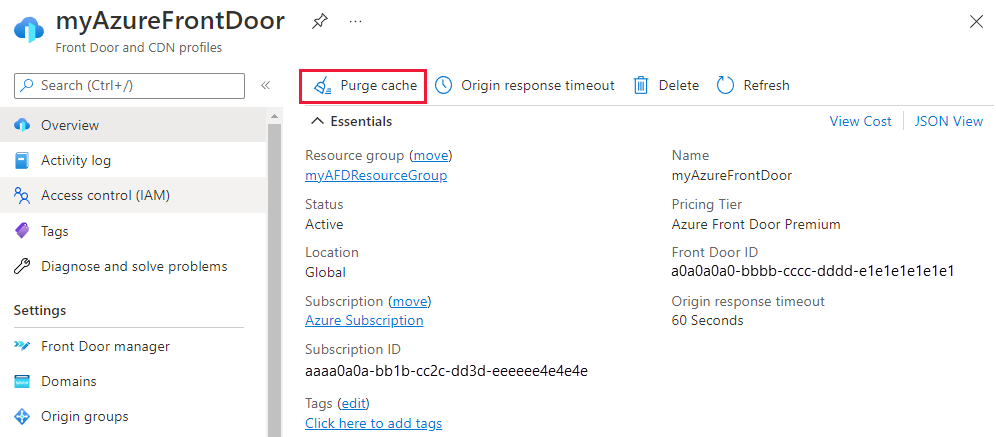
Go to the overview page of your Azure Front Door profile and select Purge cache.
Choose an endpoint, and then select the domain or subdomain that you want to purge from Front Door POPs. You can select multiple domains or subdomains.
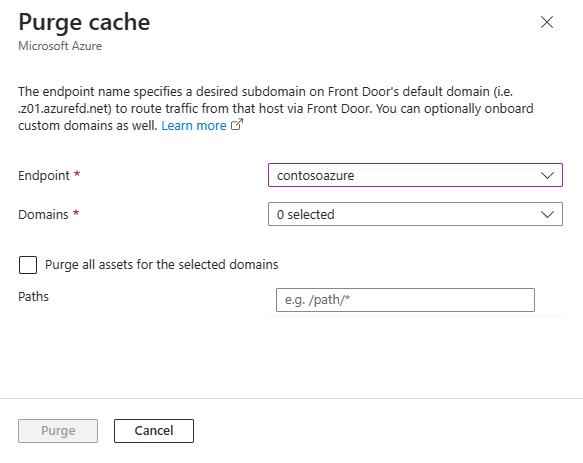
To clear all assets, select Purge all assets for the selected domains. Otherwise, enter the Paths of each asset you want to purge.
Run Clear-AzFrontDoorCdnEndpointContent to purge cache by specifying parameters such as:
- Resource group name.
- Azure Front Door profile name within the resource group.
- Endpoints with assets to purge.
- Domains and subdomains with assets to purge.
Clear-AzFrontDoorCdnEndpointContent `
    -ResourceGroupName myRGFD `
    -ProfileName contosoafd `
    -EndpointName myendpoint `
    -Domain www.contoso.com `
    -ContentPath /scripts/*
Run az afd endpoint purge with the necessary parameters to purge cache:
- Resource group name
- Azure Front Door profile name within the resource group
- Endpoints with assets to purge
- Domains and subdomains with assets to purge
az afd endpoint purge \
    --resource-group myRGFD \
    --profile-name contosoafd \
    --endpoint-name myendpoint \
    --domains www.contoso.com \
    --content-paths '/scripts/*'
Supported path formats
- Single path purge: Purge one asset by specifying its full path without protocol and domain, including file extension. For example,
/pictures/strasbourg.png. - Root domain purge: Purge the root of the endpoint with
/*in the path.
Important
Cache purge for wildcard domains isn't supported directly. Specify subdomains for wildcard domains. For example, for *.contoso.com, specify subdomains such as dev.contoso.com or test.contoso.com. For more information, see Wildcard domains in Azure Front Door.
Cache purges on Azure Front Door are case-insensitive and query-string agnostic. Purging a URL purges all query-string variations of that URL.
Note
Cache purging can take up to 10 minutes to propagate across all Azure Front Door POP locations.