Note
Access to this page requires authorization. You can try signing in or changing directories.
Access to this page requires authorization. You can try changing directories.
Security baseline remediation in Azure Machine Configuration lets you audit operating system settings and continuously correct configuration drift for selected settings. You can customize a baseline to match your organization's requirements, choose which settings to remediate, and target remediation to specific machine locations.
Baseline remediation extends the customizable security baseline experience for Azure virtual machines and Azure Arc-enabled servers. You can maintain compliance visibility across the scope of an Azure Policy assignment while introducing configuration changes in selected locations.
In this article, you configure a baseline, enable targeted remediation, and review the results.
Note
Security baseline remediation is in public preview and is available in all Azure public cloud regions.
How baseline remediation works
Azure Policy assigns your customized baseline to machines in scope. The Machine Configuration agent evaluates the included settings and reports compliance. For machines eligible for remediation, the agent also applies the desired values for settings marked Remediate and corrects subsequent drift.
Remediation requires three explicit choices:
| Control | Required configuration | Behavior without opt-in |
|---|---|---|
| Policy effect | Set Effect to DeployIfNotExists. |
The default AuditIfNotExists effect audits without changing machine settings. |
| Setting mode | Set Mode to Remediate for each supported setting you want to configure. | Settings in Audit mode are evaluated without being changed. |
| Machine locations | Select the target locations in Remediation Locations (RemediationLocations). |
An empty location list leaves machines audit-only. Machines outside the selected locations also remain audit-only. |
All three controls must permit remediation before a setting can be changed. Policy scope, exclusions, and exemptions still apply, and the machine must meet the Machine Configuration prerequisites.
You can combine Audit and Remediate settings in the same baseline. Excluding a setting removes it from the baseline rather than leaving it in audit mode.
For example, you can assign a customized baseline across a subscription, mark selected settings as Remediate, and choose one location for an initial rollout. Machines in that location can receive configuration changes for those settings. Machines in other locations continue to be audited against the same desired values.
Important
Existing machines require an Azure Policy remediation task to enable baseline remediation. Selecting a matching location and setting the effect to DeployIfNotExists isn't sufficient by itself. See Remediate existing machines.
Supported baselines and settings
Public preview includes remediation for selected settings in these baseline families:
| Baseline family | Platform |
|---|---|
| Azure Security Baseline for Windows | Windows |
| Azure Security Baseline for Linux | Linux |
| Center for Internet Security (CIS) Benchmarks for Linux | Linux |
| Defense Information Systems Agency (DISA) Security Technical Implementation Guide (STIG) baselines for Linux | Linux |
Not every setting supports remediation. Use the baseline catalog in the Azure portal to review the available operating systems, baseline versions, and settings that offer Remediate mode. Leave settings that don't support remediation in Audit mode, or exclude them.
The operating systems available for a particular baseline can differ from the broader Machine Configuration supported operating systems. Select a baseline that matches your target machines.
Prerequisites
Before you begin:
- Ensure your target machines meet the Machine Configuration prerequisites.
- For Azure virtual machines, deploy the Deploy prerequisites to enable Guest Configuration policies on virtual machines initiative. It configures the required Machine Configuration extension and system-assigned managed identity. Complete prerequisite remediation for existing VMs before enabling baseline remediation.
- For machines outside Azure, onboard them to Azure Arc-enabled servers. Machine Configuration is included in the Azure Connected Machine agent.
- Ensure you have permissions to assign Azure policies, create remediation tasks, and grant the roles required by the policy assignment's managed identity.
The policy assignment's managed identity authorizes deployment of Azure resources during remediation. It is separate from the machine's identity. Confirm that it has the roles specified by the policy definition. For more information, see Azure Policy remediation access control.
Customize a baseline
In the Azure portal, open Policy and select Machine Configuration.
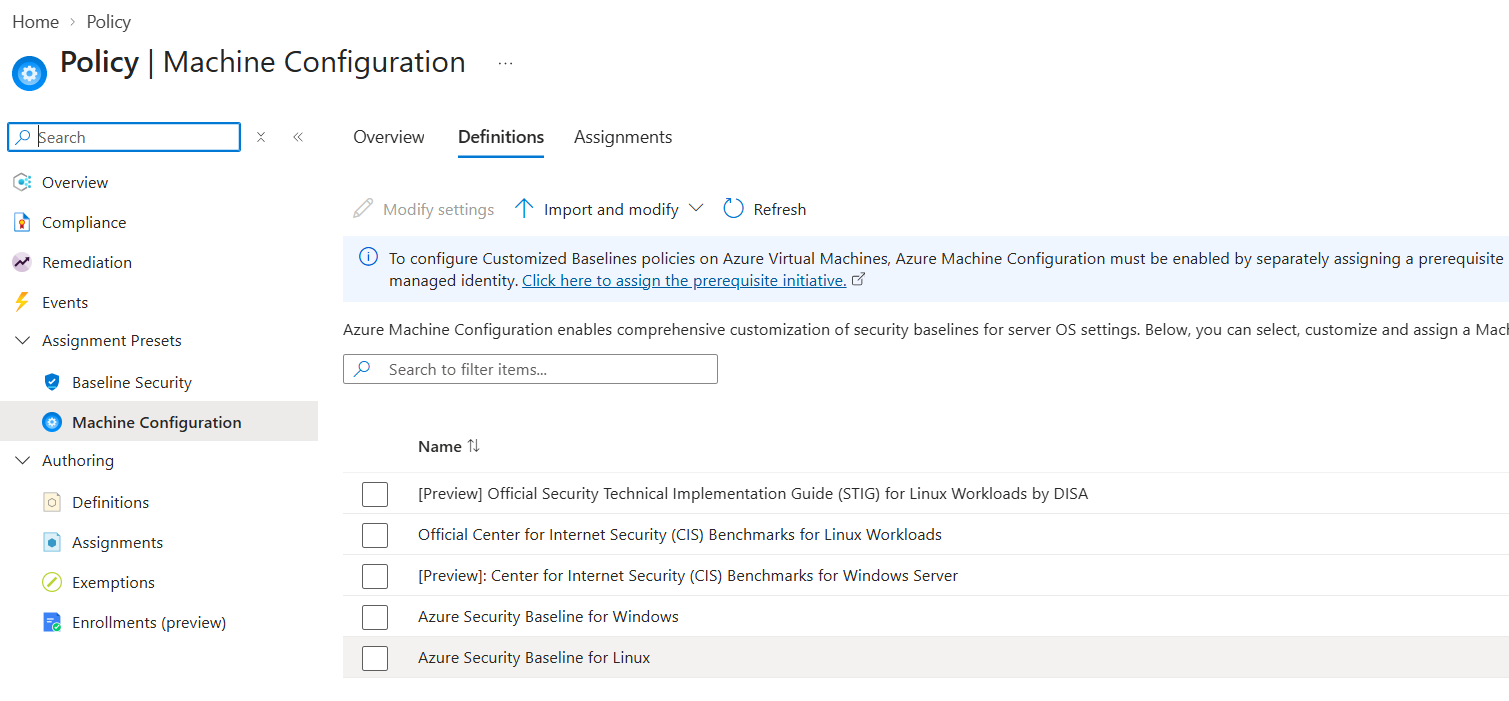
Open the security baseline catalog and select the baseline you want to customize.
Select Modify Settings.
Where the baseline offers operating system and version selection, select the operating systems and baseline versions that match your machines. The selection experience supports up to 10 operating systems.
Review the baseline settings. Include the settings you want to evaluate, clear the checkboxes for settings you want to exclude, and customize the parameter values to match your requirements.
In the Mode column, select Remediate for each supported setting you want Machine Configuration to maintain. Leave other included settings in Audit mode.
Select Next and review the baseline summary, including the customized values, excluded settings, and setting modes.
Select Create policy assignment.
For details about setting selection and parameter values, see Customize security baseline parameters.
Assign the baseline with remediation enabled
In the policy assignment wizard, select the scope that contains your target machines and enter an assignment name.
On the Parameters tab, verify that the assignment uses your customized baseline settings.
Set Effect to
DeployIfNotExists.In Remediation Locations, select the locations containing the machines you want to remediate. Machines in scope but outside these locations remain audit-only.

Configure the assignment's managed identity and verify the required role assignments under Managed Identity.
If the wizard offers Create a remediation task and you want to include existing machines, select it. Otherwise, create a task after the assignment is created, as described in the next section.
Review the assignment and select Create.
The location selected for a policy assignment's managed identity doesn't determine which machines receive baseline remediation. Use Remediation Locations to choose the target machine locations.
New machines are evaluated automatically when they are created under an applicable DeployIfNotExists assignment. They receive audit or remediation behavior based on the configured controls and don't require a separate remediation task.
Remediate existing machines
Existing machines stay in audit mode until a remediation task processes the assignment, even when their locations are included in Remediation Locations. The task triggers calculation of the applicable Machine Configuration assignment type.
If you didn't create a remediation task during policy assignment:
- In the Azure portal, open Policy and select Remediation.
- On Policies to remediate, locate your baseline assignment and select it to open the remediation task page.
- Review the task scope and resources. Confirm that the policy assignment's managed identity has the required permissions.
- Create the remediation task and monitor its deployment results.
You can also create a task from the assignment's compliance page. For the complete workflow and task options, see Create an Azure Policy remediation task.
The remediation task enables the applicable assignment on existing machines. The Machine Configuration agent then downloads and runs the baseline. A completed Azure Policy remediation task isn't, by itself, confirmation that every operating system setting is compliant.
Review compliance and remediation results
Review results in Azure Policy Compliance or in the machine's Guest Assignments view. You can also inspect Machine Configuration results through Azure Resource Graph.
Verify that the intended machines receive remediation and that settings marked Audit continue to be evaluated without configuration changes. Review per-setting results to identify settings that remain noncompliant.
After a remediation task changes an assignment's type, Azure Resource Graph can temporarily show an empty assignmentReport. The agent must download the updated assignment, run it, and report the new results. Allow up to 60 minutes for the updated report to appear; this is an expected preview behavior.
Subsequent compliance evaluation follows the Machine Configuration evaluation schedule. An on-demand Azure Policy evaluation reads the latest reported state; it doesn't force the agent to run the baseline immediately.
Change remediation locations
To expand or reduce the locations targeted for remediation:
- Edit the baseline policy assignment.
- Update Remediation Locations (
RemediationLocations) and save the assignment. - Create another remediation task to recalculate the applicable assignment type on existing machines.
- Review the task results and updated machine compliance reports.
Important
During public preview, changing RemediationLocations doesn't automatically update the type of existing remediation assignments. Run another remediation task after changing the parameter. Don't assume that removing a location immediately stops remediation on existing machines.
Configuration changes aren't automatically reversed
Stopping remediation doesn't restore a machine's previous configuration. Values already applied remain in place. If you need to restore earlier values, manage that configuration change separately.
When changing the locations targeted for remediation, follow the location update procedure and verify the resulting assignments before assuming that machines have returned to audit-only behavior.