Note
Access to this page requires authorization. You can try signing in or changing directories.
Access to this page requires authorization. You can try changing directories.
This article describes how to enable or disable high availability (HA) on your Azure HorizonDB cluster by using the Azure portal.
The high-availability feature enhances reliability and fault tolerance by deploying physically isolated primary and standby compute replicas across different availability zones within the same Azure region. This zone-level separation ensures that your database remains resilient to infrastructure failures, such as zone outages, and enabling automatic failover to the standby replica when needed.
High availability can be configured either during the initial creation of your Azure HorizonDB instance or enabled later on an existing instance. This flexibility allows you to align availability settings with your workload requirements, ensuring minimal downtime and improved business continuity without requiring application-level changes.
Enable high availability for existing servers
You can enable high availability on an existing Azure HorizonDB instance at any time. When you enable high availability, the service creates a standby compute replica that mirrors your primary server.
Using the Azure portal:
Select your Azure HorizonDB cluster.
On the left menu, in the Settings section, select High availability.
You have two options:
- Disabled - High availability isn't configured.
- Zone redundant - Replica in a different availability zone - a stand by compute replica is provisioned in a different availability zone.
Select the Zone redundant - Replica in a different availability zone option.
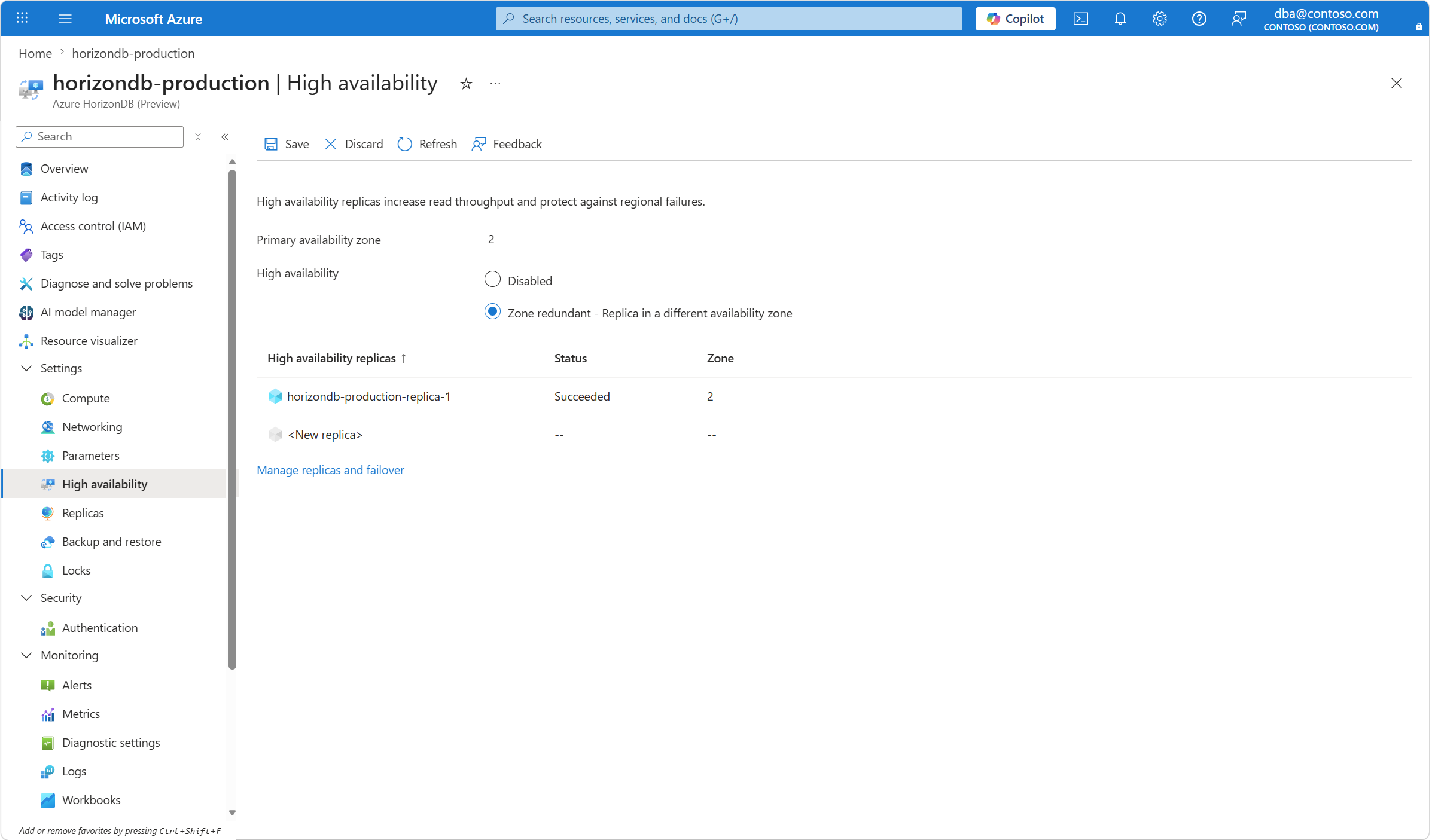
When you're done configuring the settings, select Save to apply the changes.
A deployment starts. When it finishes, a notification shows that you successfully enabled high availability.
Enable High Availability during server provisioning
You can configure high availability when you first create your Azure HorizonDB instance. By enabling high availability during provisioning, you deploy a standby replica alongside your primary server, so you get immediate protection against zone or server failures.
Using the Azure portal:
Select Azure HorizonDB (Preview) service and select Create.
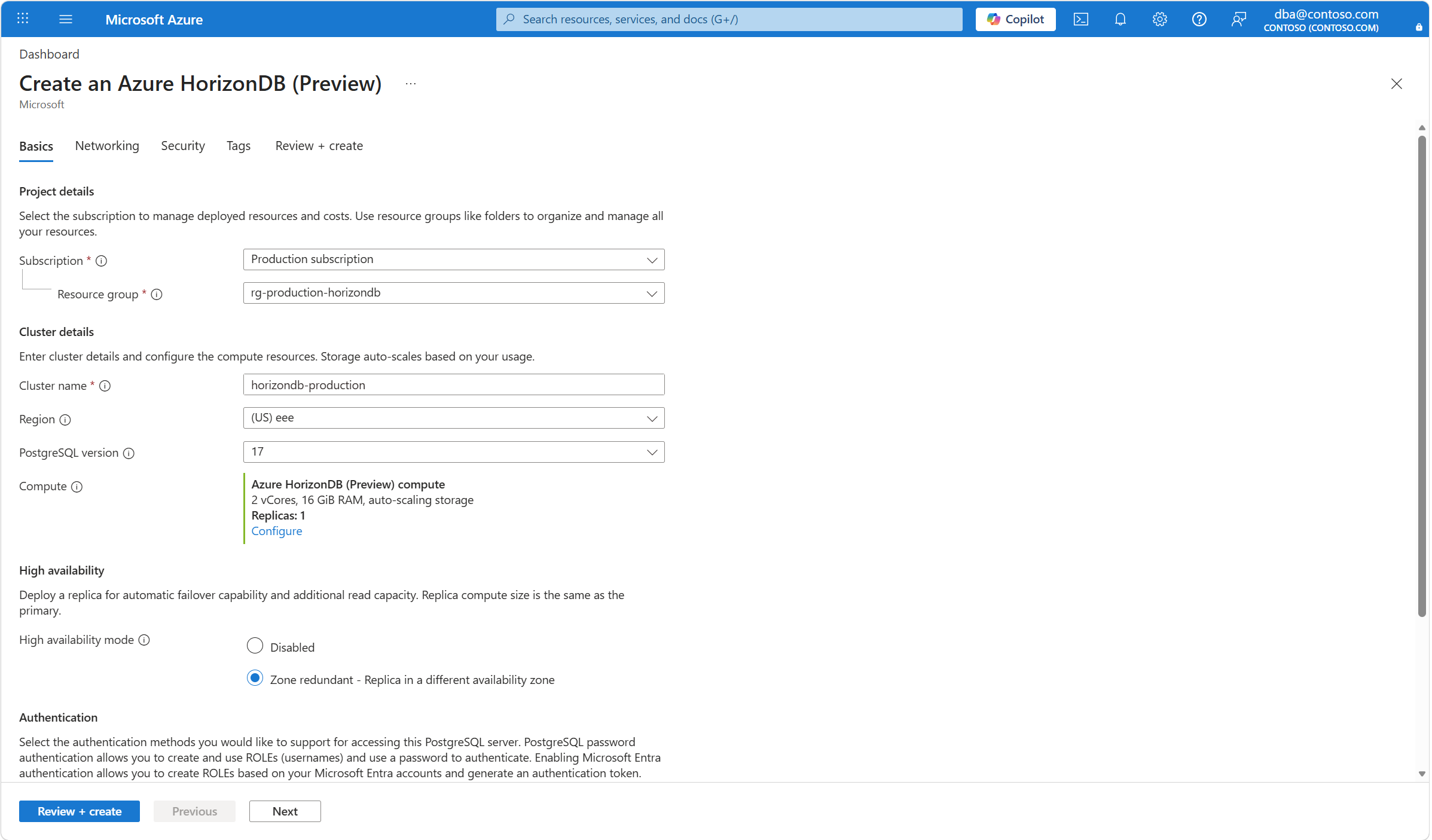
Provide your resource group and cluster name and go to High availability section.
You have two high availability mode choices:
- Disabled - High availability isn't configured.
- Zone redundant - Replica in a different availability zone - a stand-by compute replica is provisioned in a different availability zone.
Select the Zone redundant - Replica in a different availability zone option.
When you're done configuring the settings, select Review + create to review the changes then select create.
A deployment starts. Deployment begins. After completion, a notification confirms that the HorizonDB cluster has been successfully created with high availability enabled.
