Note
Access to this page requires authorization. You can try signing in or changing directories.
Access to this page requires authorization. You can try changing directories.
This article describes how to perform planned and forced failover in Azure HorizonDB. Failover operations switch the primary database server to a standby replica to maintain availability during planned maintenance or unexpected outages. During a failover, client connections are briefly interrupted while the service redirects traffic to the new primary server. Applications should implement retry logic to handle transient connectivity interruption.
Azure HorizonDB supports both planned and unplanned failover when high availability (HA) and replicas are configured. The service also provides automatic endpoint redirection to minimize application disruption.
Planned Failover - Planned failover occurs during scheduled operations, such as periodic software updates or minor version upgrades. You can also initiate a planned failover to move the primary server to a preferred availability zone. When HA is enabled, Azure HorizonDB first applies these operations to the standby replica while applications continue to connect to the primary server. The service then switches roles to complete the operation.
Unplanned Failover - Unplanned failover occurs due to unexpected events such as hardware failures, network issues, or software defects. If the primary database server becomes unavailable, Azure HorizonDB automatically fails over to a standby replica and endpoints are automatically redirected allowing client operations to resume with minimal interruption.
Forced Failover - You can use a forced failover to test failover scenarios and simulate an unplanned outage while your production workload is running. This approach helps you evaluate application downtime and recovery behavior. You can also initiate a forced failover if the primary server becomes unresponsive.
What happens during failover
During a failover:
- Azure HorizonDB promotes the standby replica to primary.
- The service automatically redirects client connections to the new primary endpoint.
- Existing connections are dropped and must reconnect.
- No changes to connection strings are required.
When to use each failover option
| Failover type | Use case |
|---|---|
| Planned failover | Scheduled maintenance, compute scaling, zone rebalancing, controlled testing |
| Forced failover | Disaster recovery testing or when the primary becomes unresponsive |
Important
Failover causes a brief interruption in connectivity. Ensure your application implements retry logic.
The overall end-to-end operation time, as reported on the portal, might be longer than the actual downtime that the application experiences. You should measure the downtime from the application's perspective.
Initiate a planned failover
Follow these steps to perform a planned failover from your primary server to the standby server in Azure HorizonDB.
Initiating this operation prepares the standby server and then performs the failover. This failover operation provides the least downtime, because it performs a graceful failover to the standby server. It's useful for situations like bringing the primary server back to your preferred availability zone after an unexpected failover.
In the Azure portal, select your Azure HorizonDB cluster that has high availability enabled.
On the left menu, in the Settings section, select High availability.
Select Manage replicas and failover.
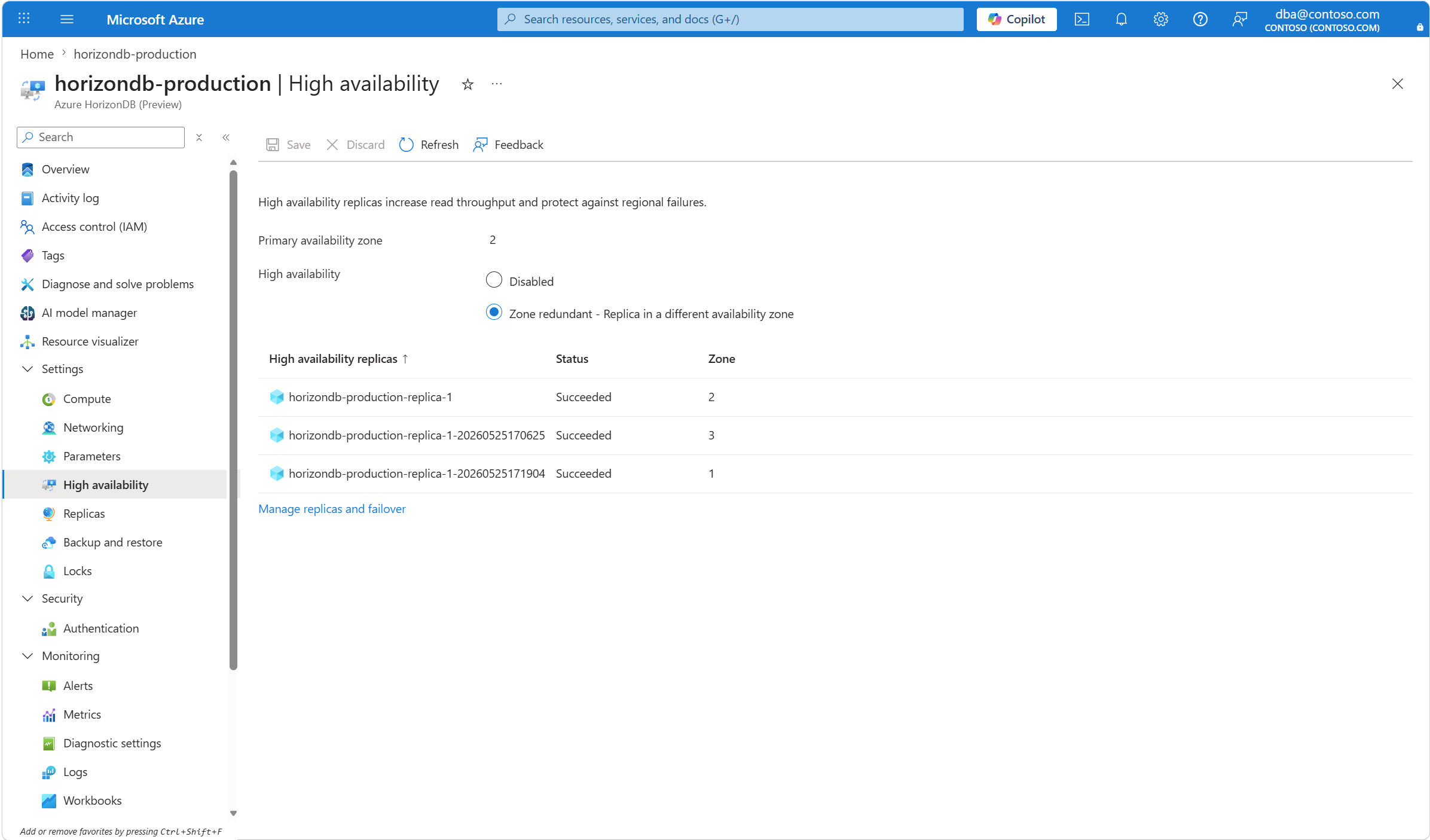
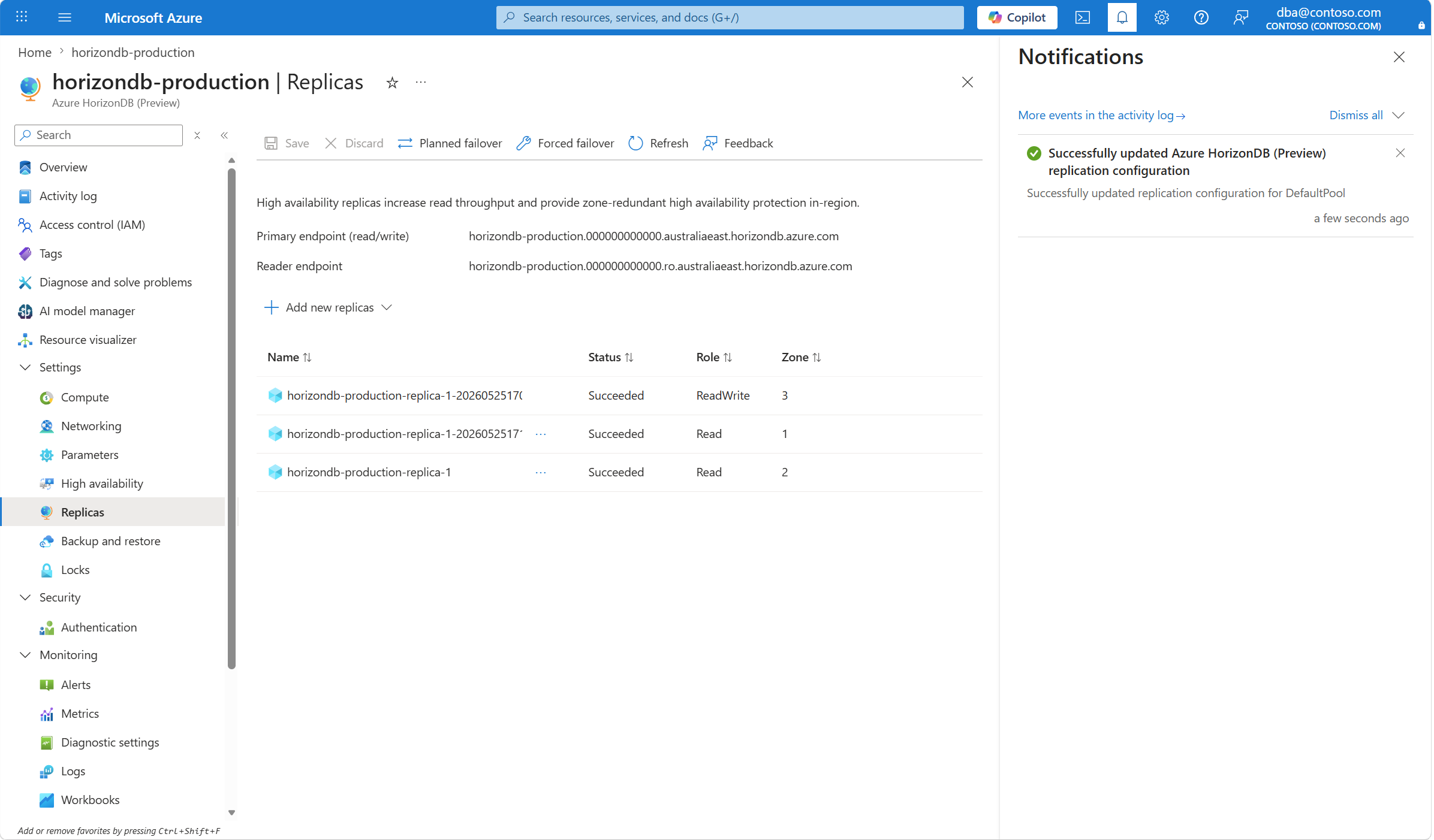
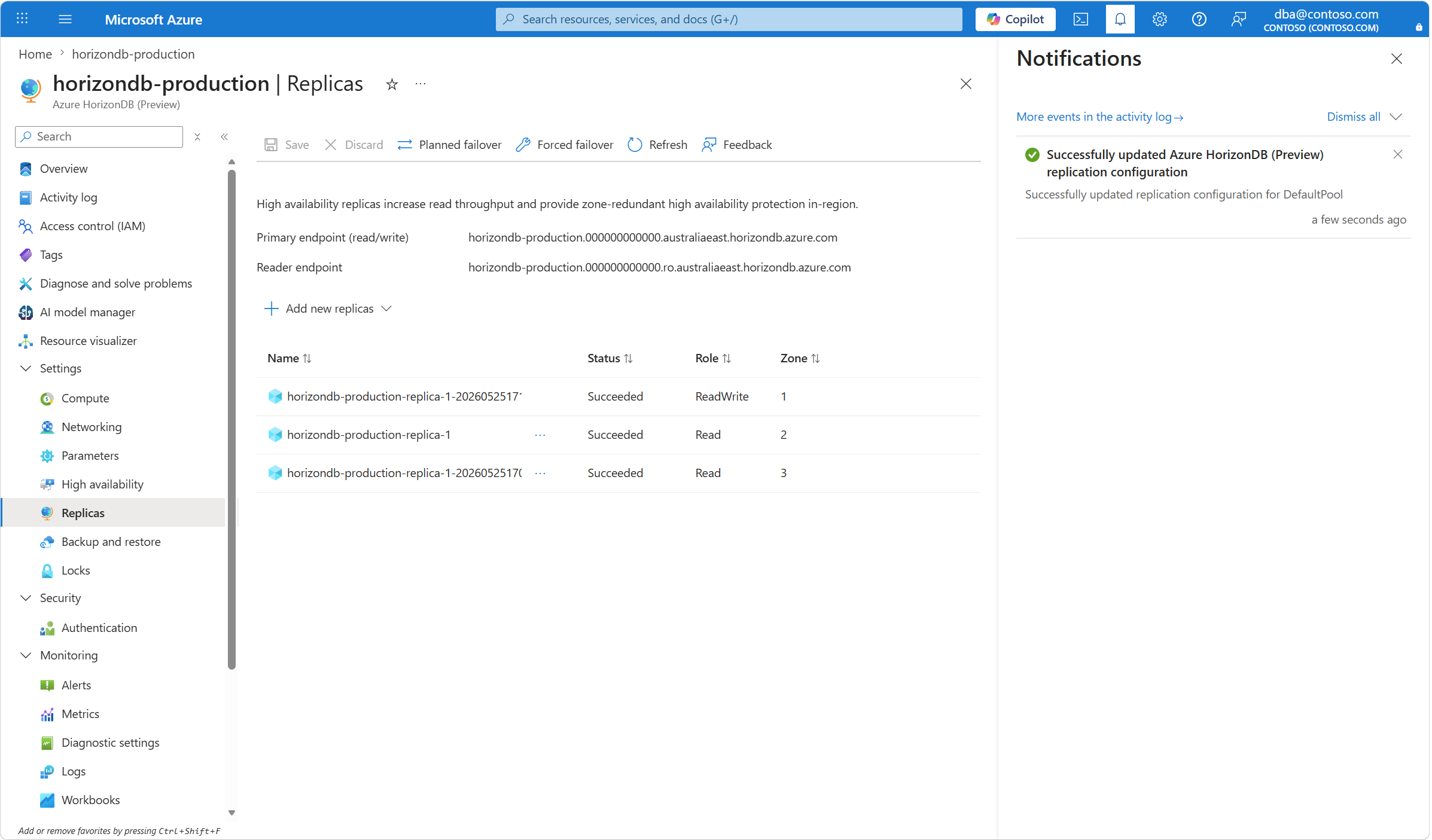
Note the replicas assigned to Primary endpoint (read/write) and Reader endpoint. Additionally, note the Zone values assigned to ReadWrite and Read Roles.
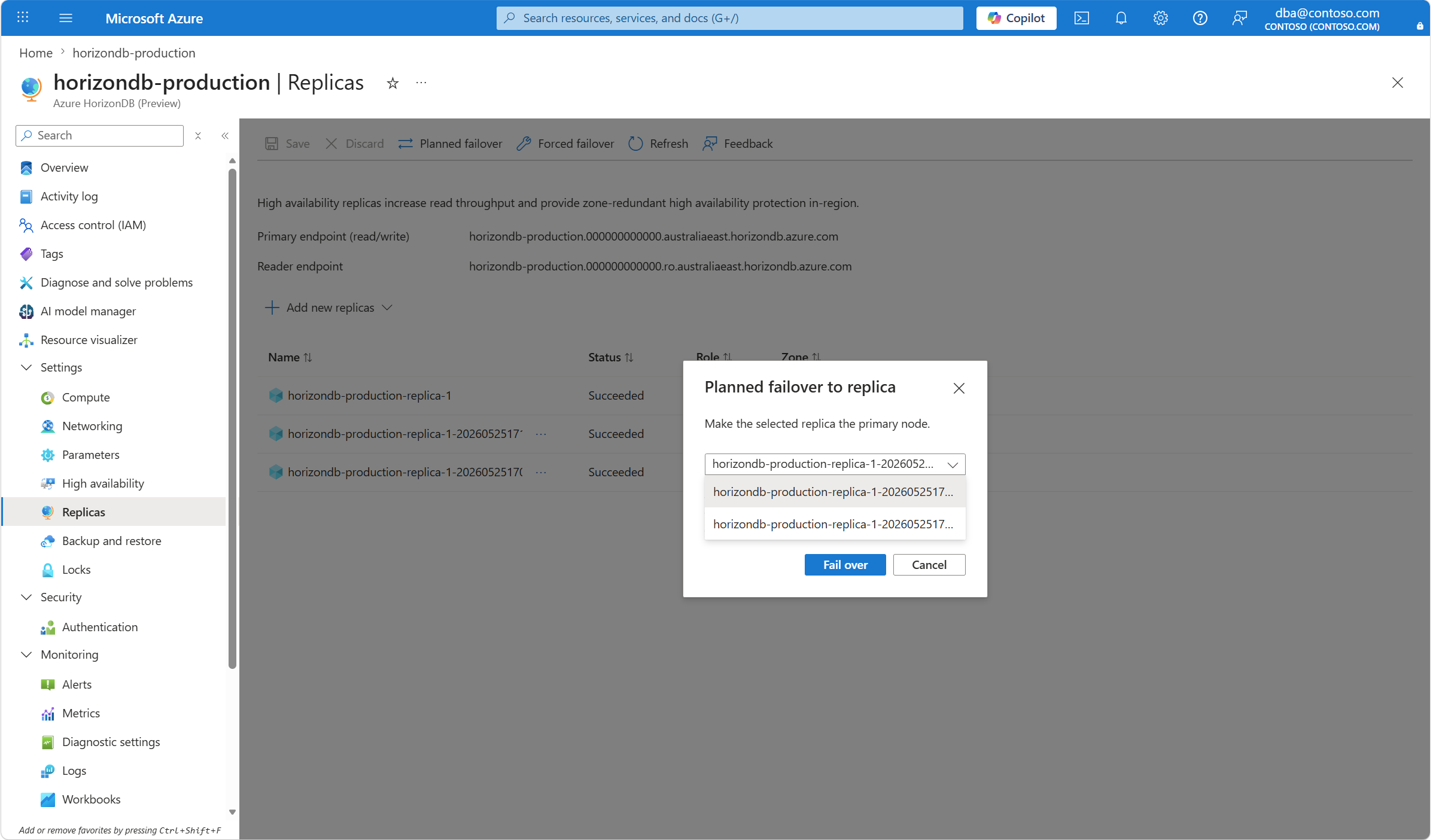
Select Planned failover to start the planned failover procedure. A dialog box opens and you can choose the desired replica to fail over. If you decide to proceed, select fail over. Note the database cluster remains unavailable until the failover is complete.
A notification appears to indicate that the failover is in progress.
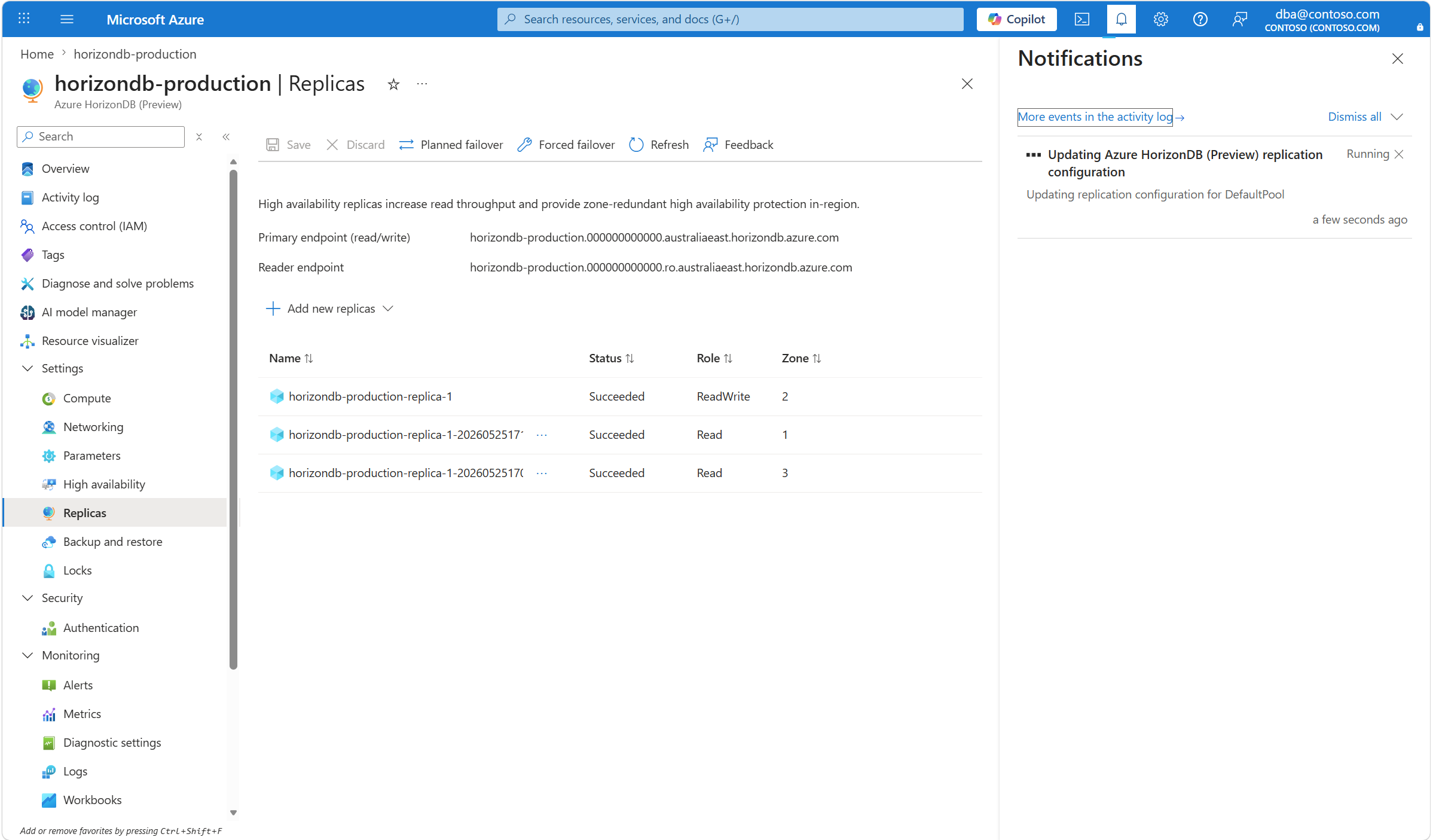
After the operation completes, the replica becomes the primary server. You can validate and confirm that Primary endpoint (read/write), Reader endpoint, and Zone values assigned to ReadWrite and Read Role are now reversed.
Initiate a forced failover
Follow these steps to force a failover of your primary server to the standby server in Azure HorizonDB.
When you initiate a forced failover, the primary server immediately goes down and triggers a failover to the standby server. Initiating a forced failover is useful when you want to test how a failover caused by an unplanned outage would affect your workload.
In the Azure portal, select your Azure HorizonDB cluster that has high availability enabled.
On the left menu, in the Settings section, select High availability.
Select Manage replicas and failover.
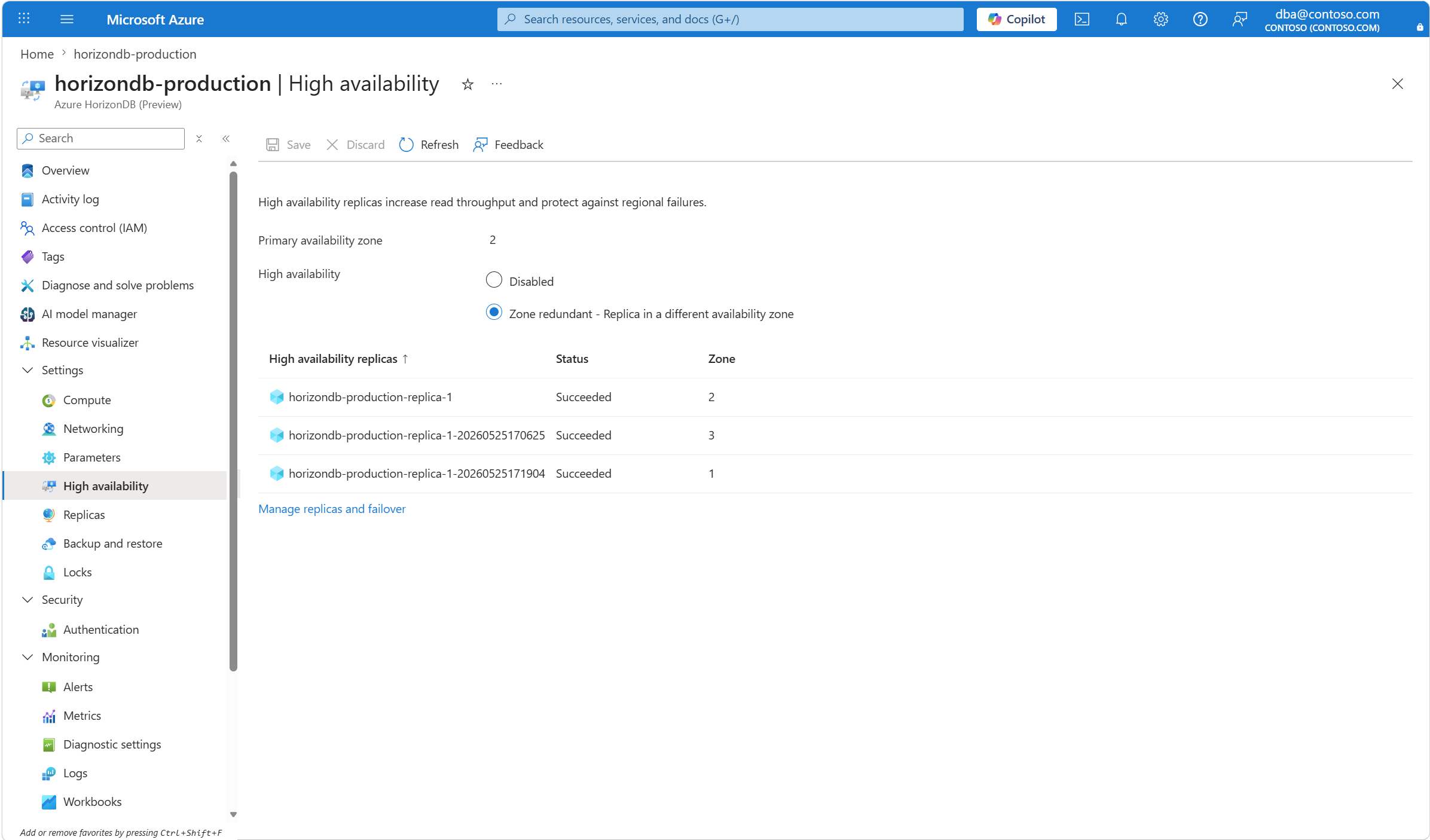
Note the replicas assigned to Primary endpoint (read/write) and Reader endpoint. Additionally, note the Zone values assigned to ReadWrite and Read Roles.
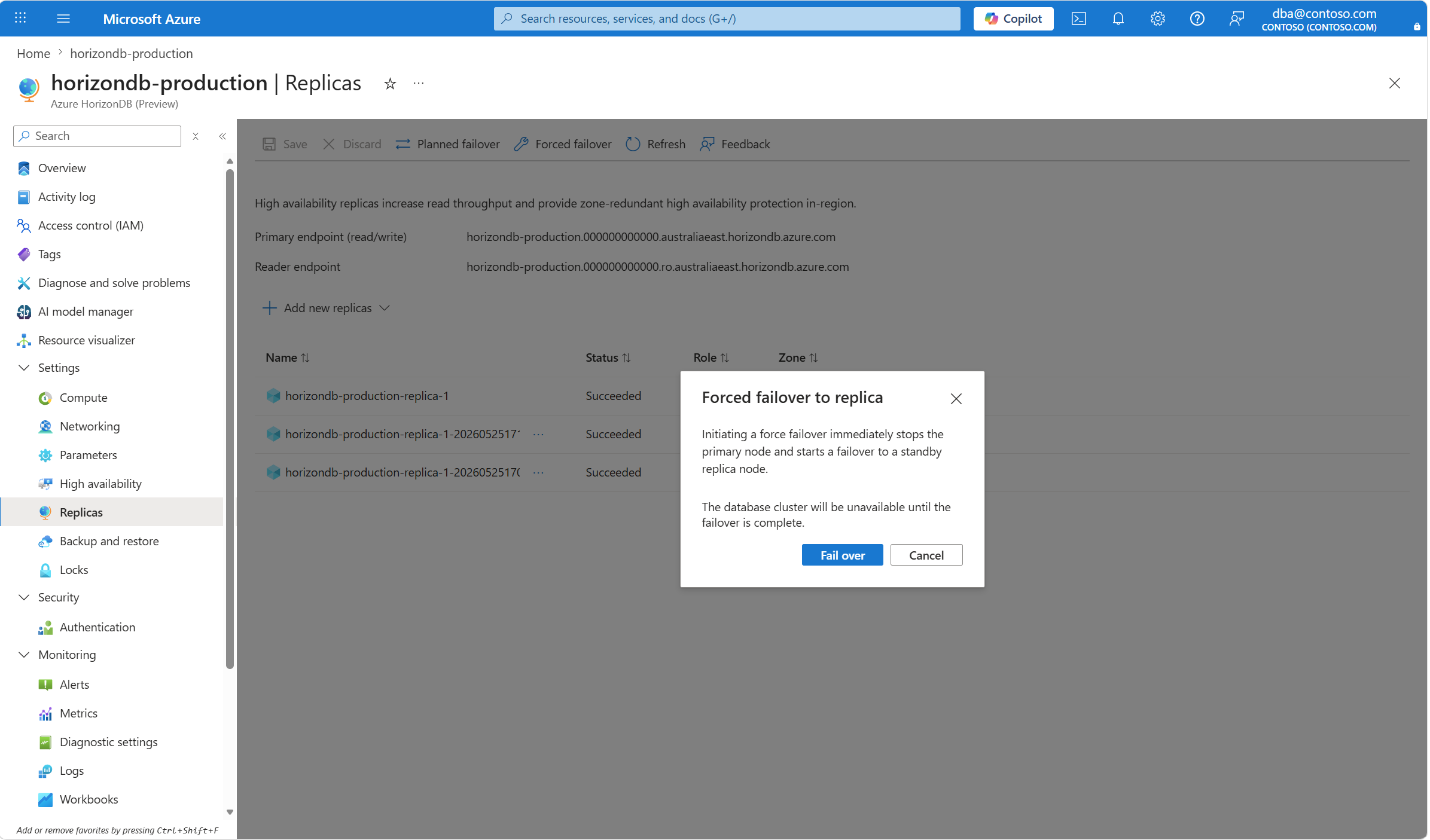
Select Forced failover to start the forced failover procedure. A dialog box opens with the message stating Initiating a force failover immediately stops the primary node and starts a failover to a standby replica node. Select fail over. Note the database cluster remains unavailable until the failover is complete.
A notification appears to indicate that the failover is in progress.
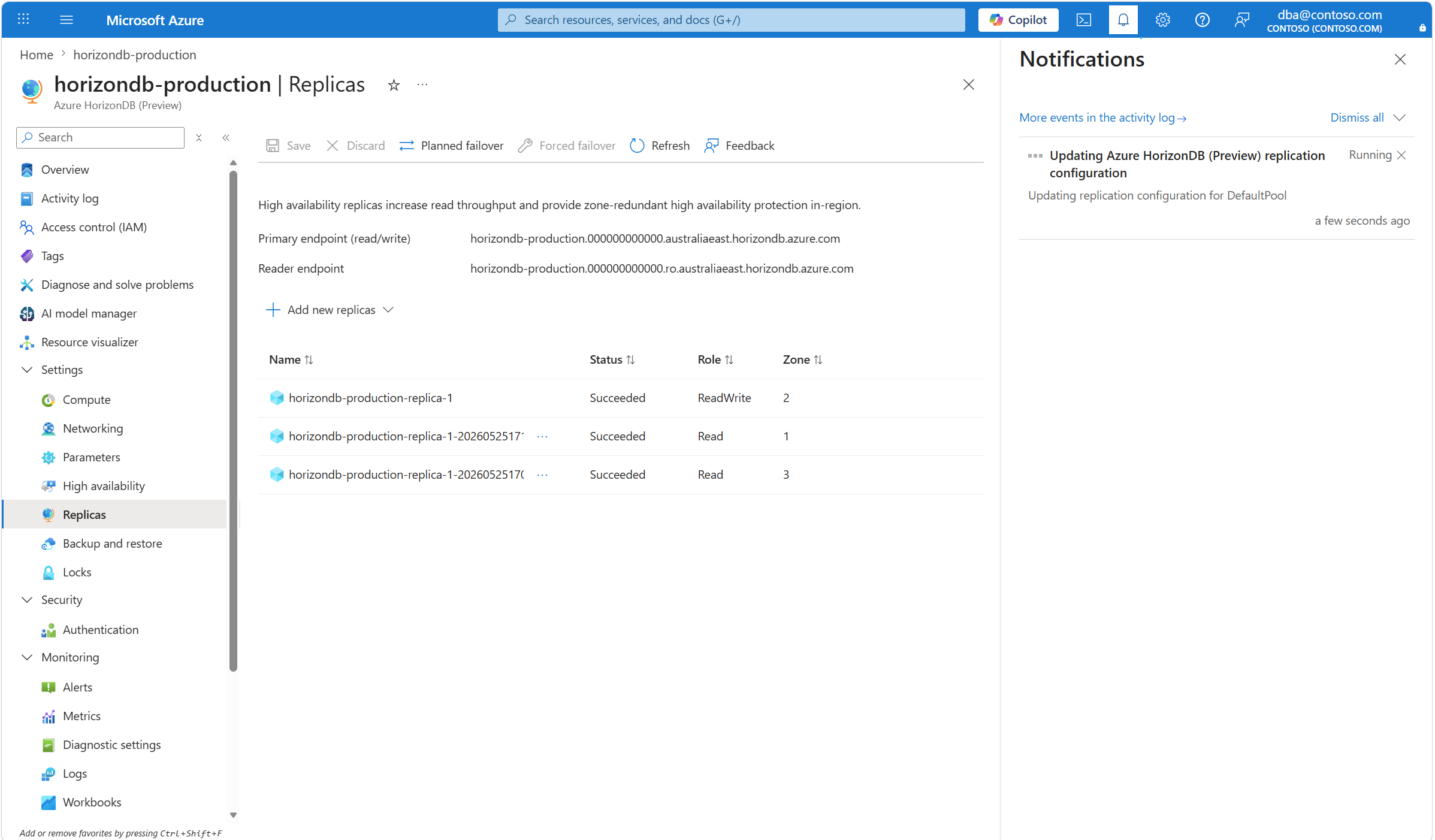
After the operation completes, the replica becomes the primary server. You can validate and confirm that Primary endpoint (read/write), Reader endpoint, and Zone values assigned to ReadWrite and Read Role are now reversed.