Note
Access to this page requires authorization. You can try signing in or changing directories.
Access to this page requires authorization. You can try changing directories.
Use pg_dump to extract a PostgreSQL database into a dump file. The method you use to restore the database depends on the format of the dump you choose. If you use the plain format (which is the default -Fp, so you don't need to specify a specific option), restore the database by using psql because it outputs a plain text file. For the other three dump methods - custom, directory, and tar - use pg_restore.
Important
The instructions and commands in this article are designed to be executed in bash terminals. This requirement includes environments such as Windows Subsystem for Linux (WSL), Azure Cloud Shell, and other bash-compatible interfaces. To follow the steps and execute the commands in this guide, use a bash terminal. Using a different type of terminal or shell environment might result in differences in command behavior and might not produce the intended outcomes.
In this article, you focus on the plain (default) and directory formats. The directory format is useful because it allows you to use multiple cores for processing, which can significantly enhance efficiency, especially for large databases.
The Azure portal streamlines this process via the Connect page by offering preconfigured commands that are tailored to your server, with values substituted with your user data. The Connect blade is only available for Azure HorizonDB. Here's how you can use this feature:
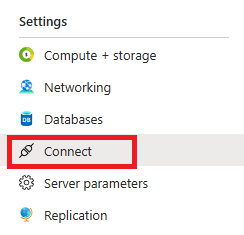
Access Azure portal: First, go to the Azure portal and choose the Connect page.
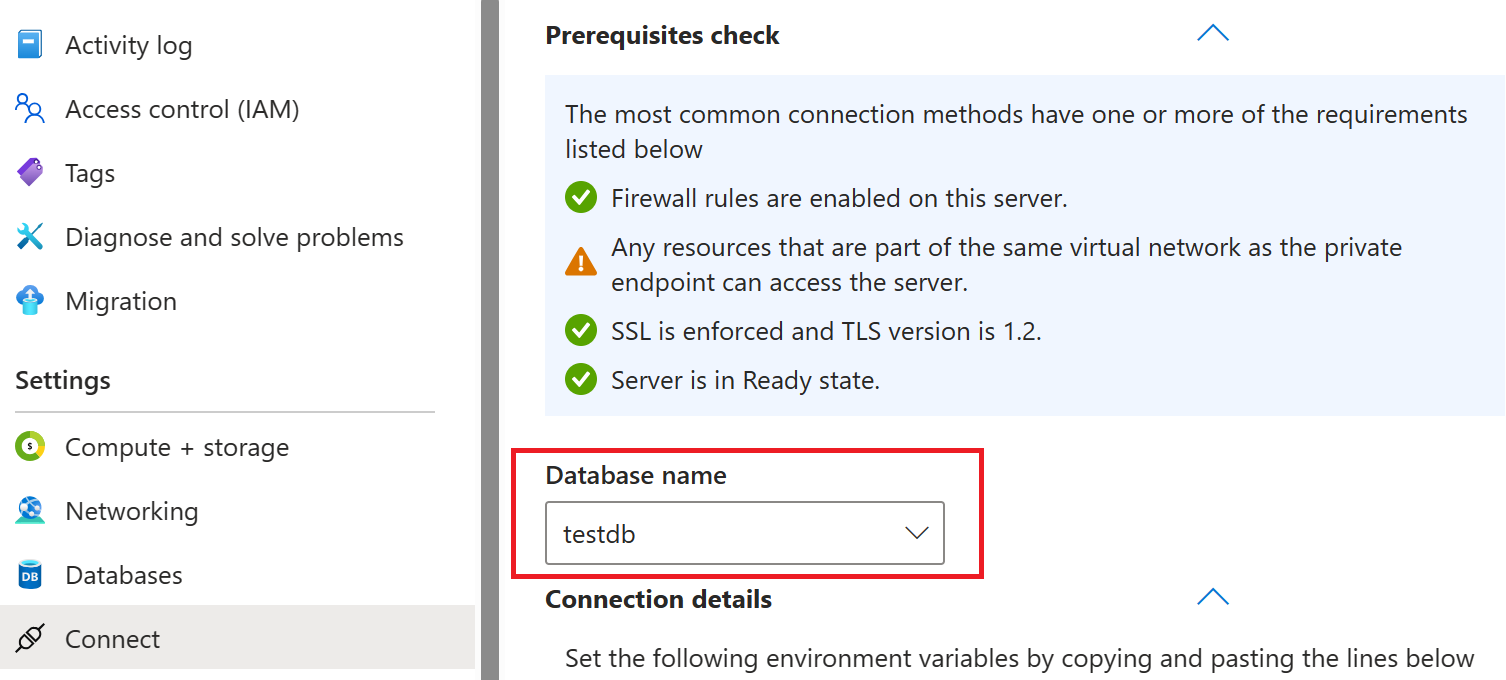
Select your database: In the Connect page, you find a dropdown list of your databases. Select the database you want to perform a dump from.
Choose the appropriate method: Depending on your database size, choose between two methods:
pg_dumpandpsql- using singular text file: Ideal for smaller databases, this option uses a single text file for the dump and restore process.pg_dump&pg_restore- using multiple cores: For larger databases, this method is more efficient as it uses multiple cores to handle the dump and restore process.
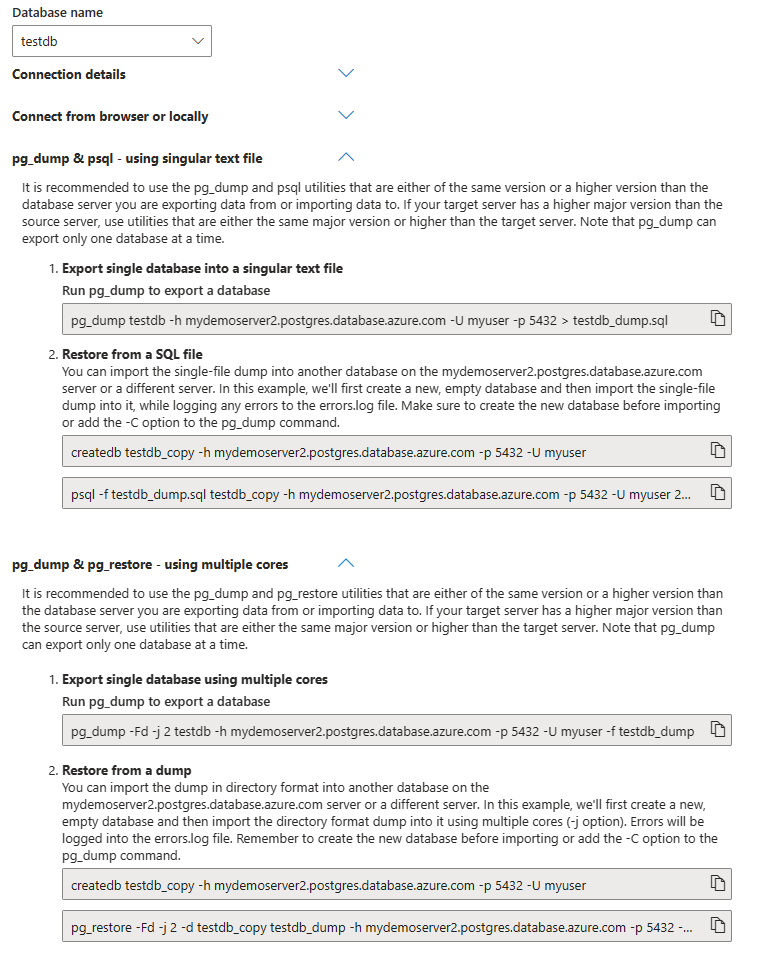
Copy and paste commands: The portal provides you with ready to use
pg_dumpandpsqlorpg_restorecommands. These commands come with values already substituted according to the server and database you've chosen. Copy and paste these commands.
Prerequisites
Note
Because pg_dump, psql, pg_restore and pg_dumpall utilities all rely on libpq, you can use any of the supported environment variables it offers, or you can use the password file to avoid being prompted for the password every time you run any of these commands.
To step through this how-to guide, you need:
- pg_dump, psql, pg_restore and pg_dumpall in case you want to migrate with roles and permissions, command-line utilities installed.
- Decide on the location for the dump: Choose the place you want to perform the dump from. It can be done from various locations, such as a separate VM, cloud shell (where the command-line utilities are already installed, but might not be in the appropriate version, so always check the version using, for instance,
psql --version), or your own laptop. Always keep in mind the distance and latency between the PostgreSQL server and the location from which you're running the dump or restore.
Important
It's essential to use the pg_dump, psql, pg_restore and pg_dumpall utilities that are either of the same major version or a higher major version than the database server you're exporting data from or importing data to. Failing to do so might result in unsuccessful data migration. If your target server has a higher major version than the source server, use utilities that are either the same major version or higher than the target server.
Note
It's important to be aware that pg_dump can export only one database at a time. This limitation applies regardless of the method you have chosen, whether it's using a singular file or multiple cores.
Dump users and roles with pg_dumpall -r
pg_dump is used to extract a PostgreSQL database into a dump file. However, it's crucial to understand that pg_dump doesn't dump roles or users definitions, as these are considered global objects within the PostgreSQL environment. For a comprehensive migration, including users and roles, you need to use pg_dumpall -r.
This command allows you to capture all role and user information from your PostgreSQL environment. If you're migrating within databases on the same server, please feel free to skip this step and move to the Create a new database section.
pg_dumpall -r -h <server name> -U <user name> > roles.sql
For example, if you have a server named mydemoserver and a user named myuser run the following command:
pg_dumpall -r -h mydemoserver.f90ac0bff9db.australiaeast.horizondb.azure.com -U myuser > roles.sql
Dump roles
In a HorizonDB environment, enhanced security measures mean users don't have access to the pg_authid table, which is where role passwords are stored. This restriction affects how you perform a roles dump, as the standard pg_dumpall -r command attempts to access this table for passwords and fail due to lack of permission.
When dumping roles from a HorizonDB server, it's crucial to include the --no-role-passwords option in your pg_dumpall command. This option prevents pg_dumpall from attempting to access the pg_authid table, which it can't read due to security restrictions.
To successfully dump roles from a HorizonDB server, use the following command:
pg_dumpall -r --no-role-passwords -h <server name> -U <user name> > roles.sql
For example, if you have a server named mydemoserver, a user named myuser, run the following command:
pg_dumpall -r --no-role-passwords -h mydemoserver.f90ac0bff9db.australiaeast.horizondb.azure.com -U myuser > roles.sql
Clean up the roles dump
When migrating the output file roles.sql might include certain roles and attributes that aren't applicable or permissible in the new environment. Here's what you need to consider:
- Removing attributes that can be set only by superusers: If migrating to an environment where you don't have superuser privileges, remove attributes like
NOSUPERUSERandNOBYPASSRLSfrom the roles dump.
Use the following sed command to clean up your roles dump:
sed -i '/azure_superuser/d; /azure_pg_admin/d; /azuresu/d; /^CREATE ROLE replication/d; /^ALTER ROLE replication/d; /^ALTER ROLE/ {s/NOSUPERUSER//; s/NOBYPASSRLS//;}' roles.sql
This command deletes lines containing azure_superuser, azure_pg_admin, azuresu, lines starting with CREATE ROLE replication and ALTER ROLE replication, and removes the NOSUPERUSER and NOBYPASSRLS attributes from ALTER ROLE statements.
Create a dump file that contains the data to be loaded
To export your existing PostgreSQL database on-premises or in a VM to an sql script file, run the following command in your existing environment:
pg_dump <database name> -h <server name> -U <user name> > <database name>_dump.sql
For example, if you have a server named mydemoserver, a user named myuser and a database called testdb, run the following command:
pg_dump testdb -h mydemoserver.f90ac0bff9db.australiaeast.horizondb.azure.com -U myuser > testdb_dump.sql
Restore the data into the target database
Restore roles and users
Before restoring your database objects, make sure you have properly dumped and cleaned up the roles. If you're migrating within databases on the same server, both dumping the roles and restoring them might not be necessary. However, for migrations across different servers or environments, this step is crucial.
To restore the roles and users into the target database, use the following command:
psql -f roles.sql -h <server_name> -U <user_name>
Replace <server_name> with the name of your target server and <user_name> with your username. This command uses the psql utility to execute the SQL commands contained in the roles.sql file, effectively restoring the roles and users to your target database.
For example, if you have a server named mydemoserver, a user named myuser, run the following command:
psql -f roles.sql -h mydemoserver.f90ac0bff9db.australiaeast.horizondb.azure.com -U myuser
Note
If you already have users with the same names on your on-premises server from which you're migrating, and your target server, be aware that this restoration process might change the passwords for these roles. Consequently, any subsequent commands you need to execute might require the updated passwords.
Create a new database
Before restoring your database, you might need to create a new, empty database. To do this, user that you're using must have the CREATEDB permission. Here are two commonly used methods:
Using
createdbutility Thecreatedbprogram allows for database creation directly from the bash command line, without the need to log into PostgreSQL or leave the operating system environment. For instance:createdb <new database name> -h <server name> -U <user name>For example, if you have a server named
mydemoserver, a user namedmyuserand the new database you want to create istestdb_copy, run the following command:createdb testdb_copy -h mydemoserver.f90ac0bff9db.australiaeast.horizondb.azure.com -U myuserUsing SQL command To create a database using a SQL command, you'll need to connect to your PostgreSQL server via a command line interface or a database management tool. Once connected, you can use the following SQL command to create a new database:
CREATE DATABASE <new database name>;
Replace <new database name> with the name you wish to give your new database. For example, to create a database named testdb_copy, the command would be:
CREATE DATABASE testdb_copy;
Restore the dump
After you've created the target database, you can restore the data into this database from the dump file. During the restoration, log any errors to an errors.log file and check its content for any errors after the restore is done.
psql -f <database name>_dump.sql <new database name> -h <server name> -U <user name> 2> errors.log
For example, if you have a server named mydemoserver, a user named myuser and a new database called testdb_copy, run the following command:
psql -f testdb_dump.sql testdb_copy -h mydemoserver.f90ac0bff9db.australiaeast.horizondb.azure.com -U myuser 2> errors.log
Post-restoration check
After the restoration process is complete, it's important to review the errors.log file for any errors that might have occurred. This step is crucial for ensuring the integrity and completeness of the restored data. Address any issues found in the log file to maintain the reliability of your database.
Optimize the migration process
When working with large databases, the dump and restore process can be lengthy and might require optimization to ensure efficiency and reliability. It's important to be aware of the various factors that can impact the performance of these operations and to take steps to optimize them.