Note
Access to this page requires authorization. You can try signing in or changing directories.
Access to this page requires authorization. You can try changing directories.
Use Azure Private Link to create private endpoints for your Azure HorizonDB cluster. A private endpoint brings the cluster into your virtual network. Clients connect to a private IP address, and their traffic to the cluster travels over the Microsoft backbone network, not the public internet.
This article explains how private endpoints work with Azure HorizonDB, how to create one, and how to manage its connection to your cluster.
Private endpoints
A private endpoint is a network interface that gets a private IP address from a subnet in your virtual network. Any client that can route to that subnet can use the private endpoint to reach the resource behind it. For more information, see What is a private endpoint?.
For Azure HorizonDB, a private endpoint targets:
- One specific cluster. A private endpoint provides access to a single cluster, not to the Azure HorizonDB service as a whole. You can create several private endpoints for the same cluster, for example, one in each virtual network or subnet that hosts clients.
- One endpoint within that cluster. The read-write endpoint is scoped to the cluster, and the read-only endpoint is scoped to the cluster's pool. Each endpoint is a separate Private Link subresource, identified by a group ID, and a private endpoint connects to only one of them. To reach both the cluster's read-write endpoint and the pool's read-only endpoint privately, create two private endpoints.
The following table lists the group ID of each endpoint:
| Endpoint | Group ID |
|---|---|
| Read-write | The cluster's name. |
| Read-only | The pool's name, such as defaultpool. |
Clusters created through the Azure portal get the default pool, defaultpool, automatically. The cluster must have an active pool before a private endpoint connection can be approved, either automatically or manually. Without a pool, you can create a connection only with manual approval, and it stays Pending. An attempt to approve it fails with error code PrivateEndpointRequiresPool and this message:
A private endpoint connection cannot be approved because the cluster has no pools. Add a pool to the cluster first. Until then, connections can only be created with manual approval and remain pending.
Each endpoint has its own fully qualified domain name (FQDN) and IP address. Clients use the same FQDNs whether they connect through public access or through a private endpoint. For the FQDN formats, see Private Link and DNS.
Key benefits of Private Link
Private endpoints give your Azure HorizonDB cluster the following benefits:
- Private access: Applications connect to the cluster through a private IP address in their virtual network.
- Traffic on the Microsoft backbone: Traffic between clients and the cluster doesn't cross the public internet.
- Peered and on-premises networks: Clients in peered virtual networks can reach the cluster, and so can on-premises clients that connect over a VPN or Azure ExpressRoute private peering. Configure routing and DNS for each of these networks.
- Protection against data exfiltration: A private endpoint connects to a specific endpoint within one Azure HorizonDB cluster. It doesn't provide access to other clusters through that connection, which reduces the risk of data exfiltration.
- Cross-region, cross-subscription, and cross-tenant connectivity: The private endpoint and the cluster can be in different Azure regions, subscriptions, or Microsoft Entra tenants. The private endpoint must be in the same region and subscription as its virtual network.
Private endpoints and public access
Creating a private endpoint doesn't disable public access to your cluster. While public access is enabled, clients can still connect through the cluster's public endpoint from any IP address that the cluster's firewall rules allow. You manage firewall rules separately from private endpoints.
To allow connections only through private endpoints, set the cluster's properties.network.publicAccess property to Disabled. For the request format, see Clusters - Update in the Azure HorizonDB REST API reference.
Prerequisites
To create a private endpoint, you need:
- An Azure HorizonDB cluster that finished deploying and has an active pool. Clusters created through the Azure portal include a default pool automatically. If you create the cluster another way, make sure that it has a pool before you create a private endpoint connection with automatic approval or approve a pending connection.
- The cluster's resource ID, if the cluster is in a subscription or tenant that you can't access. Ask whoever manages the cluster for its resource ID, and confirm the target endpoint: the cluster's read-write endpoint or the pool's read-only endpoint.
- A virtual network and a subnet for the private endpoint.
- Permission to create the private endpoint in the resource group that you choose (
Microsoft.Network/privateEndpoints/write), and to join the subnet (Microsoft.Network/virtualNetworks/subnets/join/action). Built-in roles such as Network Contributor include both. - The
Microsoft.HorizonDb/clusters/privateEndpointConnectionsApproval/actionpermission on the cluster, if you want your connection approved automatically. Otherwise, someone with theMicrosoft.HorizonDb/clusters/privateEndpointConnections/writepermission on the cluster must approve it. - If you use Azure private DNS zones, the
Microsoft.Network/privateDnsZones/writepermission on the resource group to create a zone. To link a zone to your virtual network, you needMicrosoft.Network/privateDnsZones/virtualNetworkLinks/writeon the zone andMicrosoft.Network/virtualNetworks/join/actionon the virtual network.
For the permissions that each task needs, see Azure RBAC permissions for Azure Private Link.
Create a private endpoint
Create private endpoints after the cluster finishes deploying. Each private endpoint reaches either the read-write endpoint or the read-only endpoint, so create one for each endpoint that your clients use.
To create a private endpoint in the Azure portal:
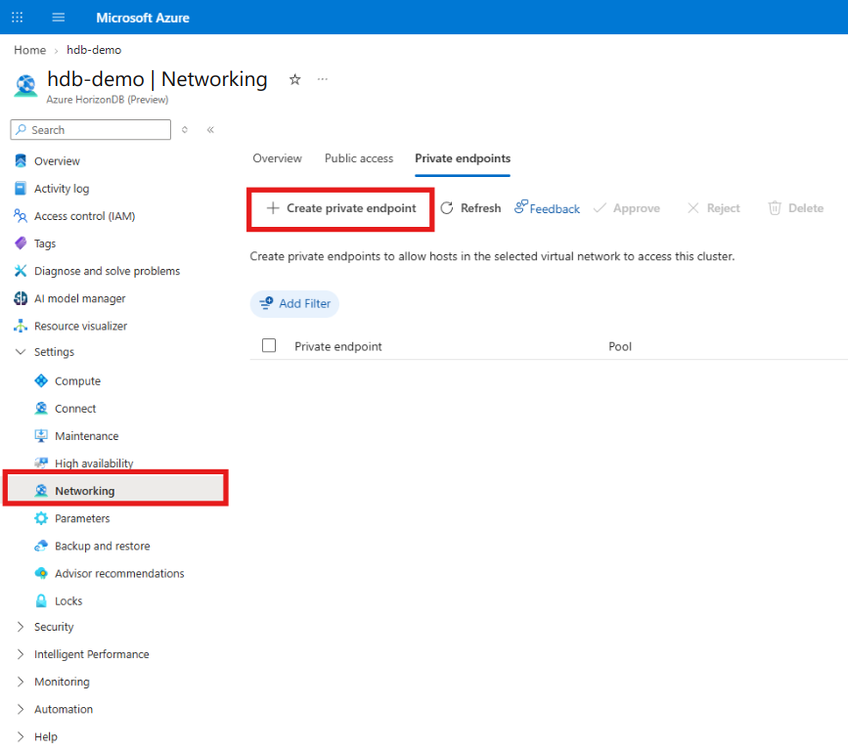
Select your Azure HorizonDB cluster.
In the resource menu, under Settings, select Networking.
Select the Private endpoints tab, and then select Create private endpoint.
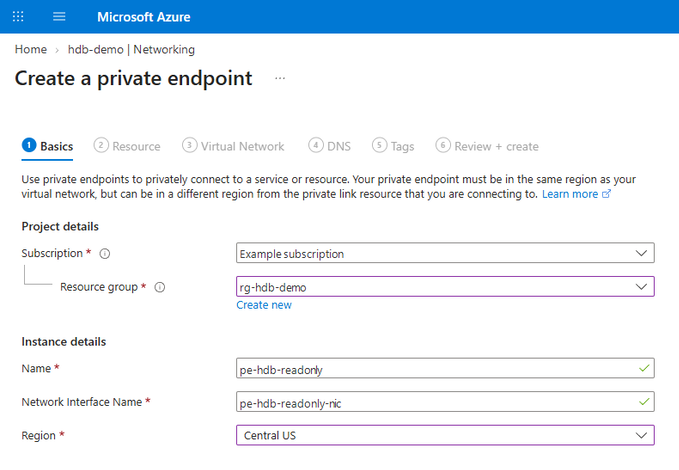
On the Basics tab, select the subscription and resource group, enter names for the private endpoint and its network interface, and select a region. The region must match the region of your virtual network.
On the Resource tab, confirm that your Azure HorizonDB cluster is the target resource. For Target sub-resource, select the group ID of the endpoint that you want to reach. Select the cluster's name for the read-write endpoint, or the pool's name, such as
defaultpool, for the read-only endpoint.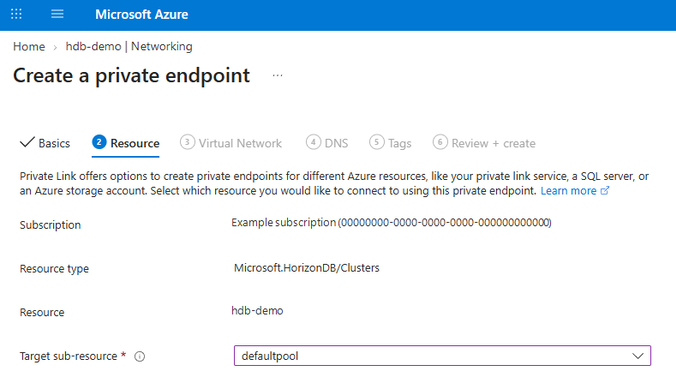
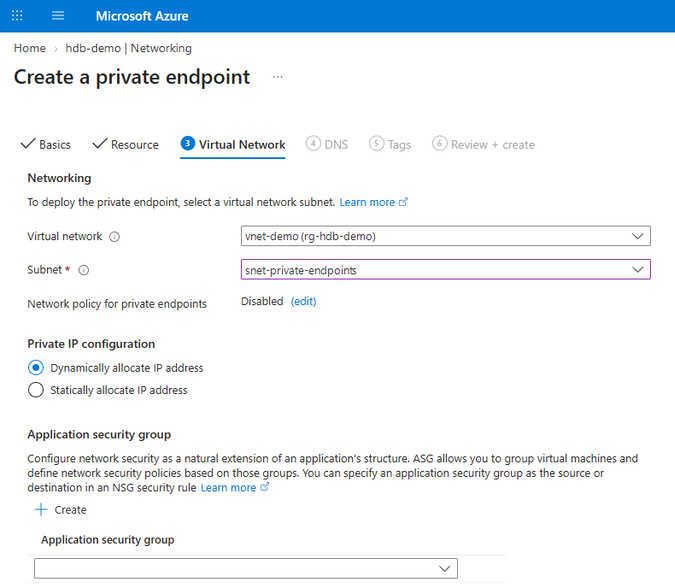
On the Virtual Network tab, select the virtual network and subnet, and choose dynamic or static allocation for the private IP address.
On the DNS tab, choose whether to integrate the private endpoint with a private DNS zone. If you select Yes, verify that the private DNS zone is
privatelink.horizondb.azure.com, and select the subscription and resource group for the zone. For more information, see Private Link and DNS.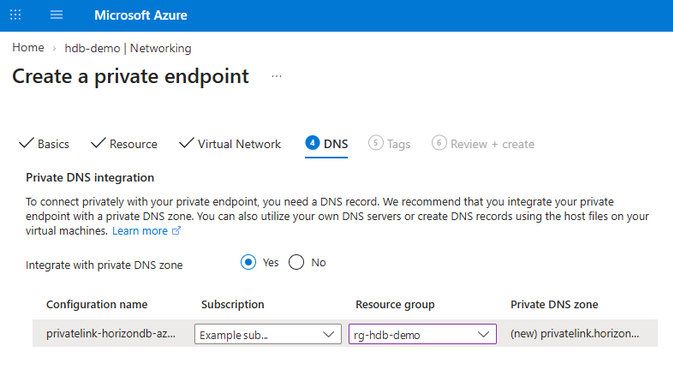
Optionally, add tags. Then select Review + create, review your settings, and select Create.
When the deployment finishes, go back to the cluster's Networking page, and check the state of the new connection on the Private endpoints tab.
To reach the other endpoint too, repeat these steps. Use a different name for the private endpoint, and for Target sub-resource, select the other group ID.
To use other tools, see these references:
- Azure Resource Manager (ARM) templates, Bicep, and Terraform: Microsoft.HorizonDb/clusters/privateEndpointConnections for the connections on the cluster, and Microsoft.Network/privateEndpoints for the private endpoint itself.
- REST API and Azure SDKs: Private Endpoint Connections. Each operation includes HTTP and SDK samples.
- Azure CLI: az horizondb private-endpoint-connection for the connections on the cluster. To create the private endpoint itself, run az horizondb private-link-resource list to find the group ID of the endpoint that you want to reach, and then run az network private-endpoint create.
If you don't use the Azure portal, set up DNS yourself, as described in Configure a private DNS zone.
Manage private endpoint connections
After a private endpoint for your cluster finishes provisioning, a private endpoint connection appears on the cluster. If provisioning fails, the connection might not appear. To manage connections in the Azure portal, go to your cluster, select Networking, and then select the Private endpoints tab. Use Approve, Reject, and Delete to manage each connection, and Refresh to update the list.
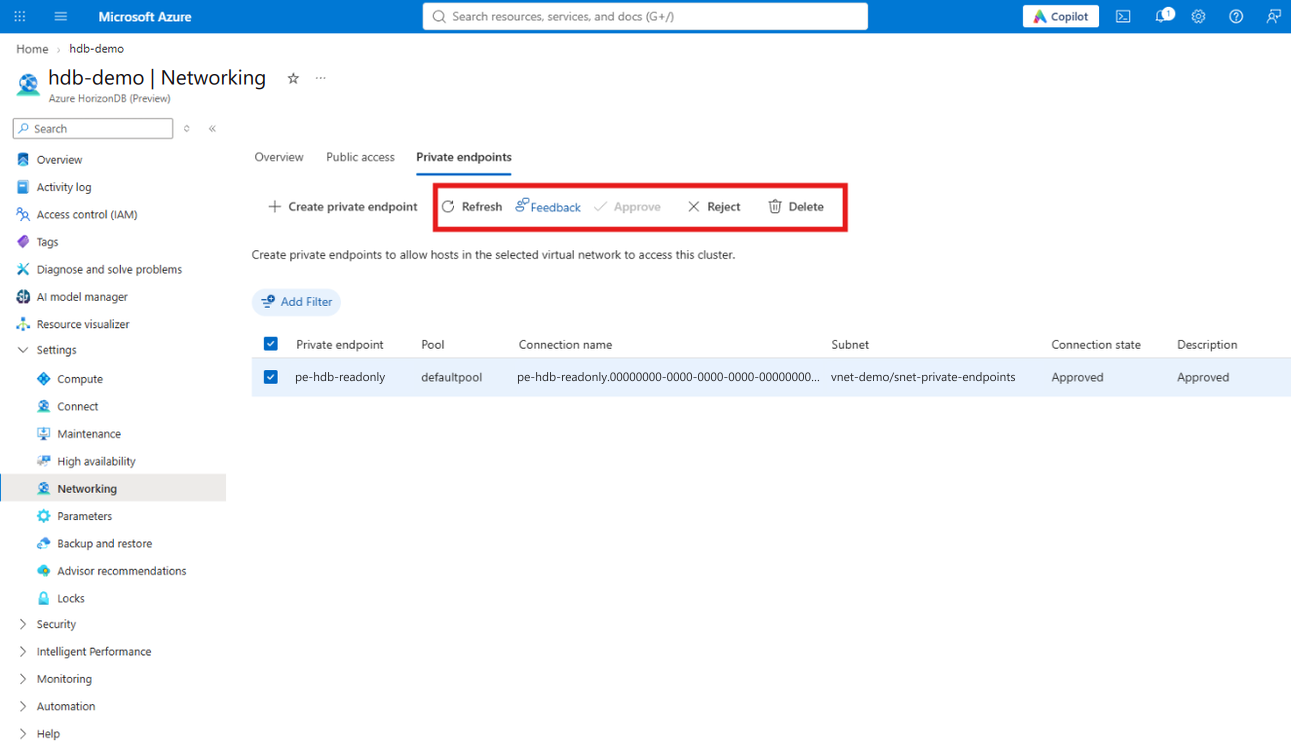
For the connection states that the API defines, see Private Endpoint Connections in the Azure HorizonDB REST API reference.
Approve or reject a connection
If you have permission to approve private endpoint connections on the cluster when you create the private endpoint, Azure HorizonDB approves the connection automatically. Otherwise, the connection stays Pending until someone with permission to approve or reject private endpoint connections on the cluster takes action.
The cluster must have an active pool before you create a private endpoint with automatic approval. Otherwise, private endpoint provisioning fails.
The az horizondb commands are part of the Azure CLI extension for Azure HorizonDB. To approve or reject a connection by using the Azure CLI, first use az horizondb private-endpoint-connection list to find the connection's name. Then use az horizondb private-endpoint-connection approve or az horizondb private-endpoint-connection reject. Both commands require a description.
az horizondb private-endpoint-connection approve \
  --resource-group <resource_group> \
  --cluster-name <cluster> \
  --name <connection> \
  --description "<reason>"
az horizondb private-endpoint-connection reject \
  --resource-group <resource_group> \
  --cluster-name <cluster> \
  --name <connection> \
  --description "<reason>"
Delete a connection or a private endpoint
To delete a connection, select Delete in the Azure portal, or use az horizondb private-endpoint-connection delete. Deleting a connection doesn't delete your private endpoint resource (Microsoft.Network/privateEndpoints). To remove the private endpoint too, delete it separately, for example by using az network private-endpoint delete.
When you delete a connection, the state of the connection on your private endpoint changes to Disconnected. A disconnected private endpoint can't connect to the cluster again. To restore access, delete the private endpoint, and then create a new one.
When you delete a private endpoint resource, Azure HorizonDB also removes its connection from the cluster.
When you delete the pool
When you delete the pool, every private endpoint connection on the cluster automatically changes to Disconnected.
To re-create the connections after the cluster has a pool again, delete each disconnected private endpoint, and then create a new one, as described in Create a private endpoint. Set up DNS for each new private endpoint. For the read-only endpoint, use the new pool's name as the group ID. If the new pool's name is different from the deleted pool's name, connect clients to the new pool's read-only FQDN.
Private Link and DNS
Always connect to your cluster by its FQDN, not by an IP address. Clients use the same FQDNs for public access and for private endpoints. Both FQDNs are on the cluster's Overview page in the Azure portal.
In public DNS, each FQDN is an alias (CNAME record) for a name in the privatelink.horizondb.azure.com zone. For clients that connect through private endpoints, each name must resolve to the private IP address of its own private endpoint. Use a private DNS zone named privatelink.horizondb.azure.com with an A record for each endpoint:
| Endpoint | FQDN | A record in the private DNS zone |
|---|---|---|
| Read-write | <cluster>.rw.<cluster_id>.<region>.horizondb.azure.com |
rw.<cluster_id>.<region> |
| Read-only | <pool>.<cluster>.ro.<cluster_id>.<region>.horizondb.azure.com |
<pool>.ro.<cluster_id>.<region> |
In these names, <pool> is the pool's name, such as defaultpool. The <cluster_id> value is the identifier that follows rw or ro in the FQDN, not the cluster's Azure resource ID.
Azure Private DNS provides name resolution within a virtual network, without a custom DNS server. When you integrate a private endpoint with a private DNS zone, Azure creates the A record for the endpoint that the private endpoint reaches. Link the zone to each virtual network that hosts clients.
Don't connect two private endpoints for the same endpoint to the same private DNS zone, for example, one in each of two virtual networks that can't reach each other. Both use the same A record name, so the second private endpoint replaces the first one's record, and some clients resolve an address they can't reach. Use a separate privatelink.horizondb.azure.com zone for each of those virtual networks, or route all their clients to one private endpoint. The read-write and read-only endpoints can share a zone, because their A records have different names. For more information, see Azure Private Endpoint private DNS zone values.
If your clients use custom DNS servers or connect from on-premises networks, configure DNS forwarding so that they can resolve names in the private DNS zone. For more information, see Azure private endpoint DNS integration and What is Azure DNS Private Resolver?.
Configure a private DNS zone
If you created the private endpoint by using the Azure CLI or an ARM template, use the Azure CLI to set up the private DNS zone. If the virtual network already has a link to a privatelink.horizondb.azure.com zone, skip the first two steps.
Use the az network private-dns zone create command to create the zone.
az network private-dns zone create \
  --resource-group <zone_resource_group> \
  --name privatelink.horizondb.azure.com
Use the az network private-dns link vnet create command to link the zone to the virtual network that hosts clients. Repeat this step for each virtual network that hosts clients. If a virtual network is in a different resource group or subscription from the zone, use the virtual network's resource ID for
--virtual-network.az network private-dns link vnet create \ --resource-group <zone_resource_group> \ --zone-name privatelink.horizondb.azure.com \ --name <link> \ --virtual-network <virtual_network> \ --registration-enabled falseUse the az network private-endpoint dns-zone-group create command to connect the private endpoint to the zone. Azure then creates and updates its A record for you. Run the command for each private endpoint. For
--resource-group, use the private endpoint's resource group. If the zone is in a different resource group or subscription from the private endpoint, use the zone's resource ID for--private-dns-zone. If the private endpoint isn't in your current Azure CLI subscription, add--subscriptionwith the private endpoint's subscription.az network private-endpoint dns-zone-group create \ --resource-group <private_endpoint_resource_group> \ --endpoint-name <private_endpoint> \ --name <zone_group> \ --private-dns-zone privatelink.horizondb.azure.com \ --zone-name horizondbUse the az network private-dns record-set a list command to check the records. For
--resource-group, use the resource group that contains the zone. The command's default table output doesn't include IP addresses, so the--queryparameter selects each record's name and IP address. The output includesrw.<cluster_id>.<region>for the read-write endpoint and<pool>.ro.<cluster_id>.<region>for the read-only endpoint, each with the private IP address of its private endpoint. If you created a private endpoint for only one endpoint, only its record appears.az network private-dns record-set a list \ --resource-group <zone_resource_group> \ --zone-name privatelink.horizondb.azure.com \ --query "[].{Name:name, IPv4Address:aRecords[0].ipv4Address}" \ --output table
Troubleshoot
If a client can't connect through a private endpoint, check the following areas:
Connection state: Check that the connection is
Approved. If it'sRejected, someone with permission to approve private endpoint connections on the cluster can approve it. If your private endpoint showsDisconnected, someone deleted its connection or the cluster's pool. Delete the private endpoint, and then create a new one. For more information, see Delete a connection or a private endpoint and When you delete the pool.Group ID: A private endpoint reaches only the endpoint that its group ID identifies: the cluster's name for the read-write endpoint, or the pool's name for the read-only endpoint. If a client reaches one endpoint but not the other, check that you created a private endpoint for each one.
Pool: If approval fails with HTTP status code 409 (Conflict) and error code
PrivateEndpointRequiresPool, the cluster has no pool. Wait until the cluster has a pool that finished deploying, and then approve the connection again.Private IP address: Check that the private endpoint's network interface has the private IP address that you expect.
DNS resolution: From the client's network, resolve the FQDN that the client connects to, either the read-write endpoint or the read-only endpoint. Check that it returns the private IP address of the matching private endpoint. If it returns a public IP address, check that the client's network uses a private DNS zone named
privatelink.horizondb.azure.com, and that the zone has an A record for that endpoint. Both FQDNs are on the cluster's Overview page in the Azure portal.nslookup <cluster_fqdn>Routing: Check that the client's network can route traffic to the private endpoint's subnet. Look for route tables or network virtual appliances that redirect or block the traffic.
Network security groups: Review the effective security rules for both the client's subnet and the private endpoint's subnet. Network security group rules and user-defined routes apply to private endpoints only when you enable network policies on the subnet. For more information, see Manage network policies for private endpoints.
For more help, see Troubleshoot Azure Private Endpoint connectivity problems and Troubleshoot a private endpoint connection stuck in the Pending state.
Limitations and considerations
- Each private endpoint reaches one endpoint, either the read-write endpoint or the read-only endpoint. To reach both privately, create two private endpoints.
- The cluster must have an active pool before you can create a private endpoint connection with automatic approval or approve a pending one.
- Azure networking limits apply, such as the maximum number of private endpoints per virtual network. For more information, see Azure networking limits.
Frequently asked questions
Does one private endpoint cover both the read-write and read-only endpoints?
No. Each private endpoint reaches one endpoint. For the read-write endpoint, use the cluster's name as the group ID. For the read-only endpoint, use the pool's name, such as defaultpool. To reach both endpoints privately, create one private endpoint for each.
Can the private endpoint and the cluster be in different regions, subscriptions, or tenants?
Yes. The private endpoint must be in the same region and subscription as its virtual network, but the cluster can be in a different region, subscription, or Microsoft Entra tenant. If you can't access the cluster, create the private endpoint by using the cluster's resource ID, and ask someone with permission to approve private endpoint connections on the cluster to approve the connection.
Which regions support private endpoints?
Private endpoints are available in every region where Azure HorizonDB is available. For the list of regions, see Azure regions.
Does creating a private endpoint disable public access?
No. Creating a private endpoint doesn't disable public access. While public access is enabled, clients can still connect through the public endpoint from IP addresses that the cluster's firewall rules allow. To allow connections only through private endpoints, set the cluster's properties.network.publicAccess property to Disabled. For more information, see Private endpoints and public access.
Does a private endpoint connection need approval?
It depends on your permissions. If you have permission to approve private endpoint connections on the cluster, Azure HorizonDB approves the connection automatically. Otherwise, the connection stays Pending until someone with the required approval permission approves it. In both cases, the cluster must have an active pool.
How can I confirm that a client uses the private endpoint?
From the client's network, resolve the FQDN that the client connects to, and check that it returns the private endpoint's private IP address. Then connect by using that FQDN.