Note
Access to this page requires authorization. You can try signing in or changing directories.
Access to this page requires authorization. You can try changing directories.
Use a custom parameter group when you want to manage your own Azure HorizonDB settings or assign the same configuration to multiple compute pools.
Before you begin
The parameter group and target compute pools must be in the same subscription and region and use the same PostgreSQL major version. They can belong to different resource groups. For parameter group requirements and when changes take effect, see Parameter groups in Azure HorizonDB.
New compute pools start with a default parameter group. At general availability (GA), create the compute pool first, then assign a custom parameter group. You can't select a custom parameter group during cluster or compute pool creation.
Find and review parameter groups
In the Azure portal, open your Azure HorizonDB cluster.
Under Settings, select Parameters.
Select View all parameter groups.
Use the filters and search box to find the parameter group. If it's missing, check the selected subscription and resource group filters.
Select the parameter group to open Overview.
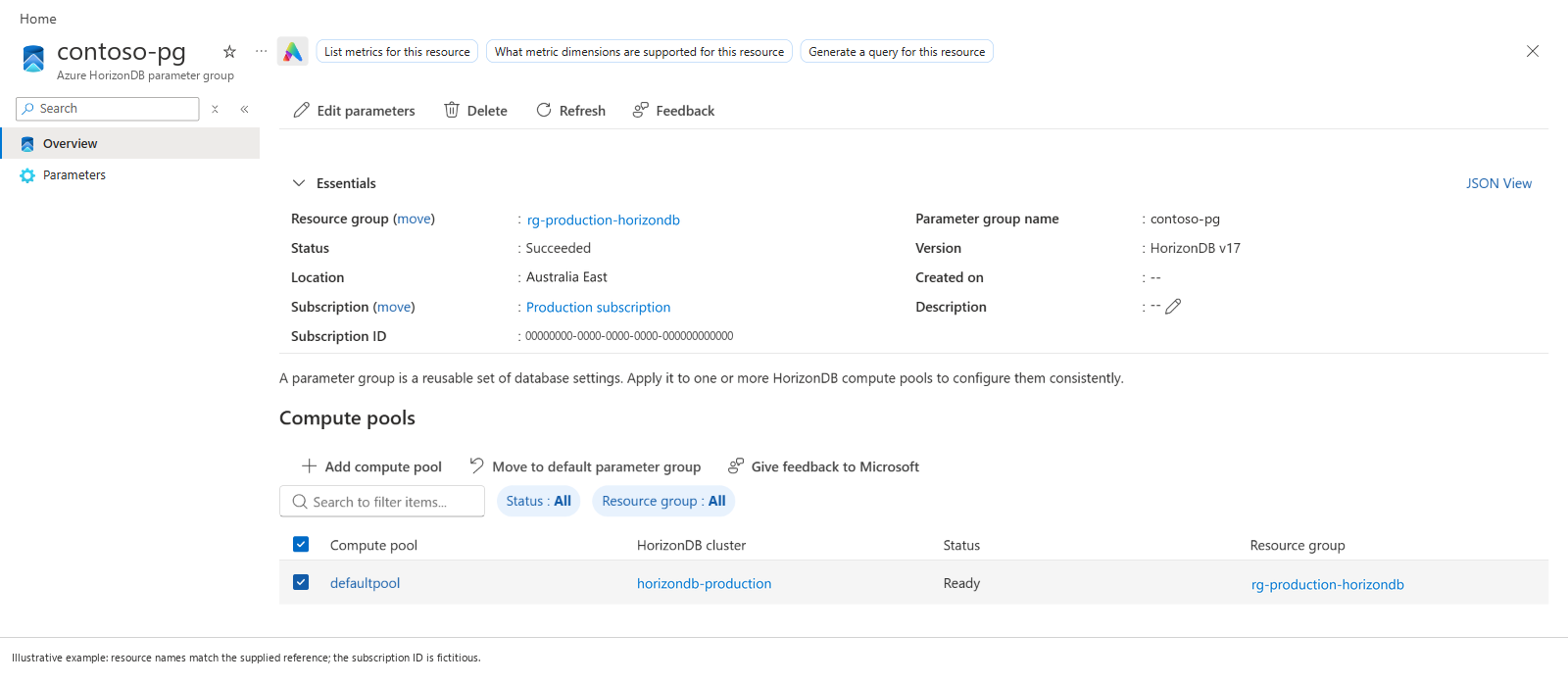
Review the parameter group's resource group, region, PostgreSQL version, description, and status. Version identifies the PostgreSQL engine version, not a history of saved parameter changes.
View a compute pool's parameter group
In the Azure portal, open your Azure HorizonDB cluster.
Under Settings, select Parameters.
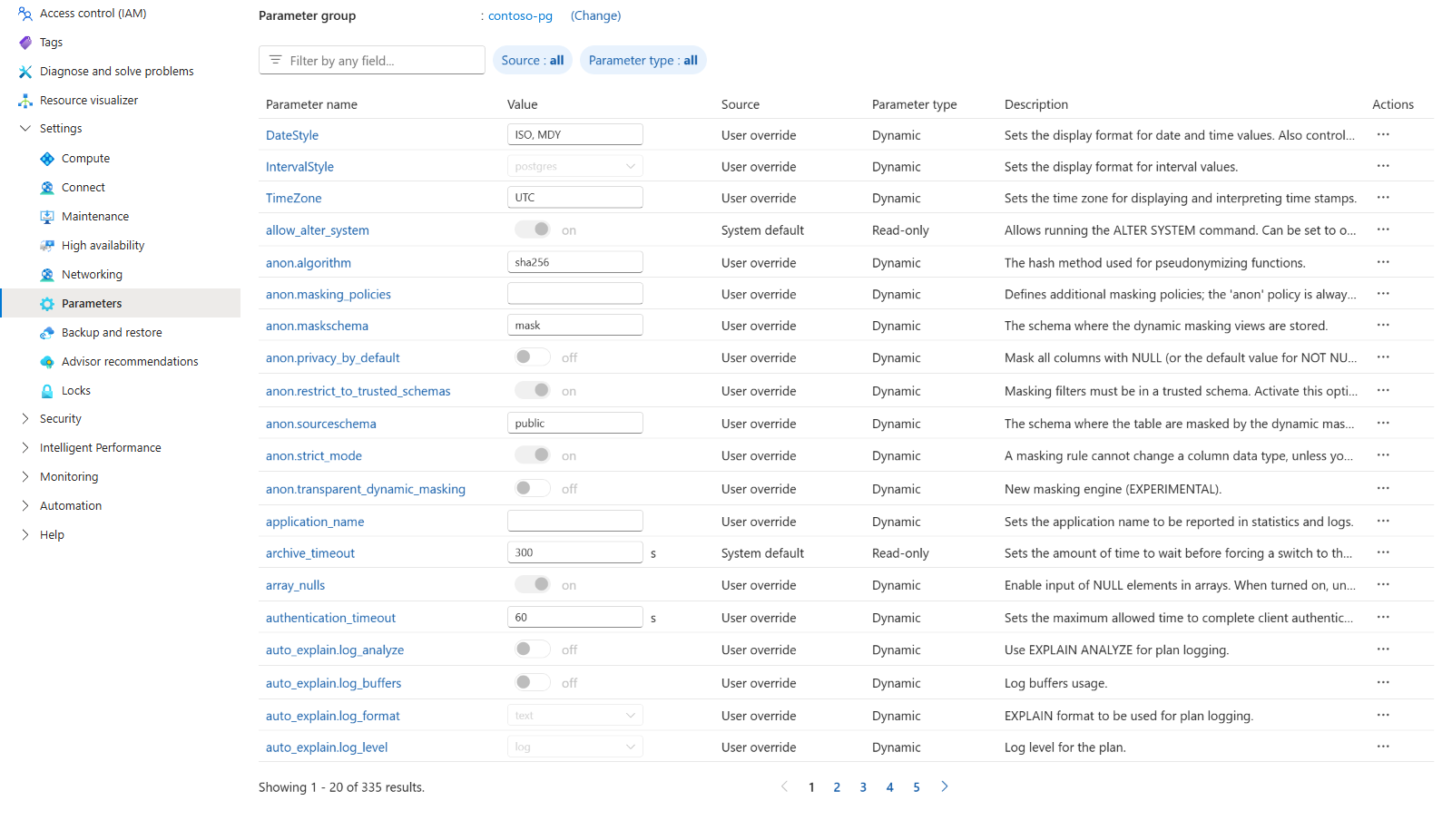
Check Parameter group above the parameter list. The table shows the parameters and configured values for that group.
Note
Compute pools in the same cluster can use different parameter groups. For pool-specific confirmation, select Settings > Compute, select the pool, and open Configure. Check Parameter group under Parameters, then close the page without changing any values.
For PostgreSQL 17, default_pg17 is the read-only default parameter group. To use different values, create a custom parameter group and assign it to the compute pool. To inspect parameter values, see List and filter parameters.
Create a custom parameter group
On the cluster's Parameters page, select Create parameter group.
You can also select View all parameter groups, and then select Create.
Enter the parameter group details:
Setting Description Subscription Select your Azure subscription. Resource group Select an existing resource group, or select Create new to create one. Parameter group name Enter a name such as contoso-pg. The name must be unique within the resource group and subscription.Region Select the same region as the target compute pools. Description Optionally describe the purpose of the parameter group. PostgreSQL version Use the same PostgreSQL major version as the target compute pools. If you start from a cluster, this value can already be set and unavailable to change. Starting parameter values Select the default parameter group for that PostgreSQL version to start with the service defaults. The parameter group can be in a different resource group from the cluster.
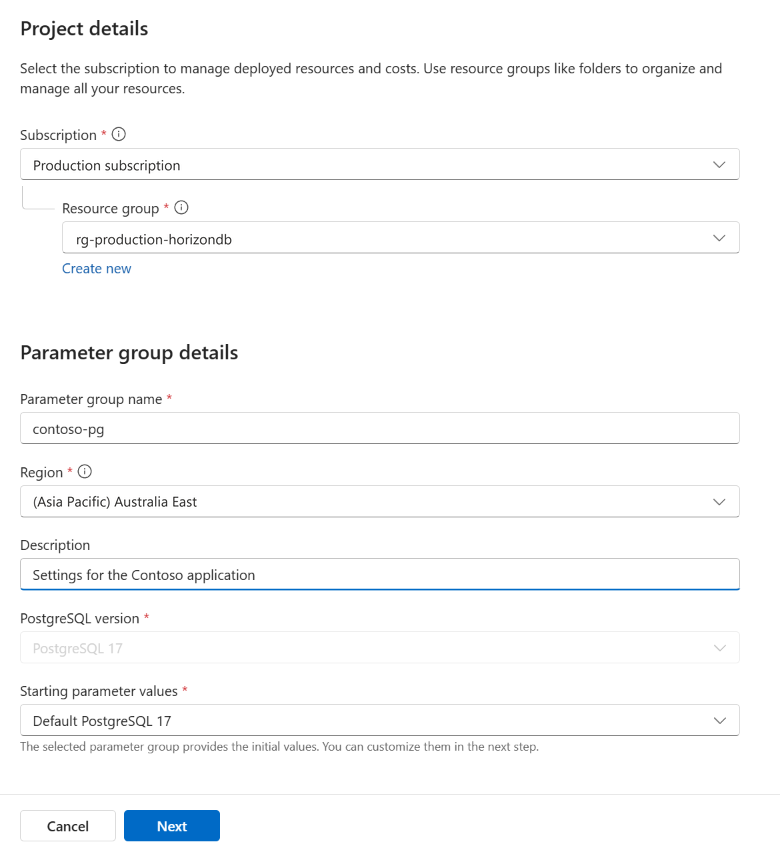
Select Next.
Use Filter for any field... to find the parameters you want to change, and enter their values.
Check Parameter type and the description for each setting. You can't edit read-only parameters. Static changes require a compute pool restart.
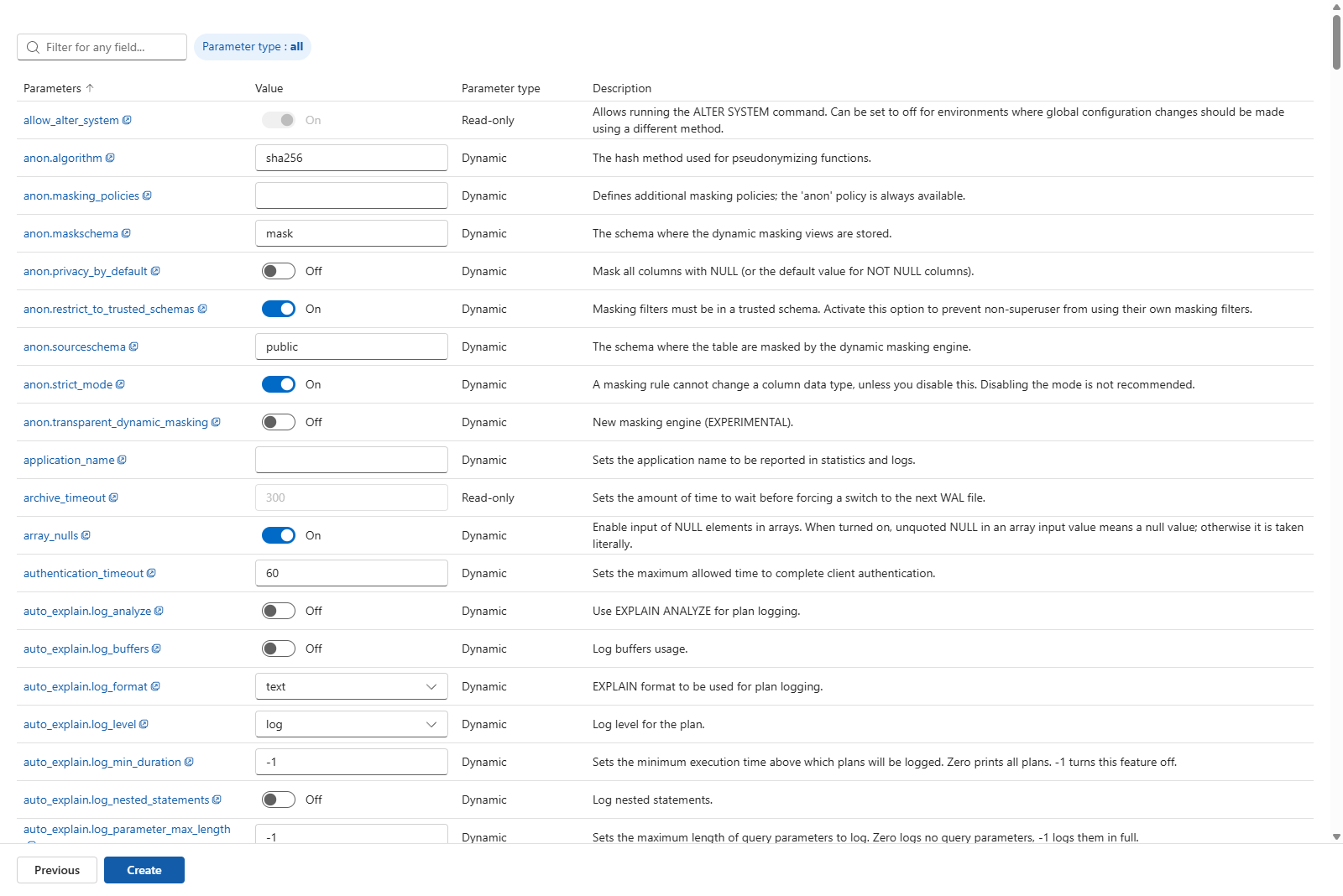
Select Create. When deployment finishes, select Go to resource.
On the parameter group page, check that Status is Succeeded.
The parameter group is ready to use, but it doesn't change any compute pool until you assign it.
View assigned compute pools
- Find and open the parameter group.
- On Overview, select Refresh and review Compute pools.
- Use the search box and filters to narrow the results. Check the pool name, parent cluster, resource group, and status to identify each assignment.
An empty list is expected for a newly created parameter group with no assignments. Clear filters and refresh before concluding that no compute pools use the parameter group.
Check this list before editing or deleting a parameter group. Editing affects every assigned compute pool. Use a separate custom parameter group if one compute pool needs different values.
Assign a parameter group to multiple pools
Under Compute pools, select Add compute pool.
Select the checkboxes for the compute pools that should use the parameter group. Use Parent cluster and Resource group to distinguish compute pools with the same name. Select at least one compute pool to enable Add.
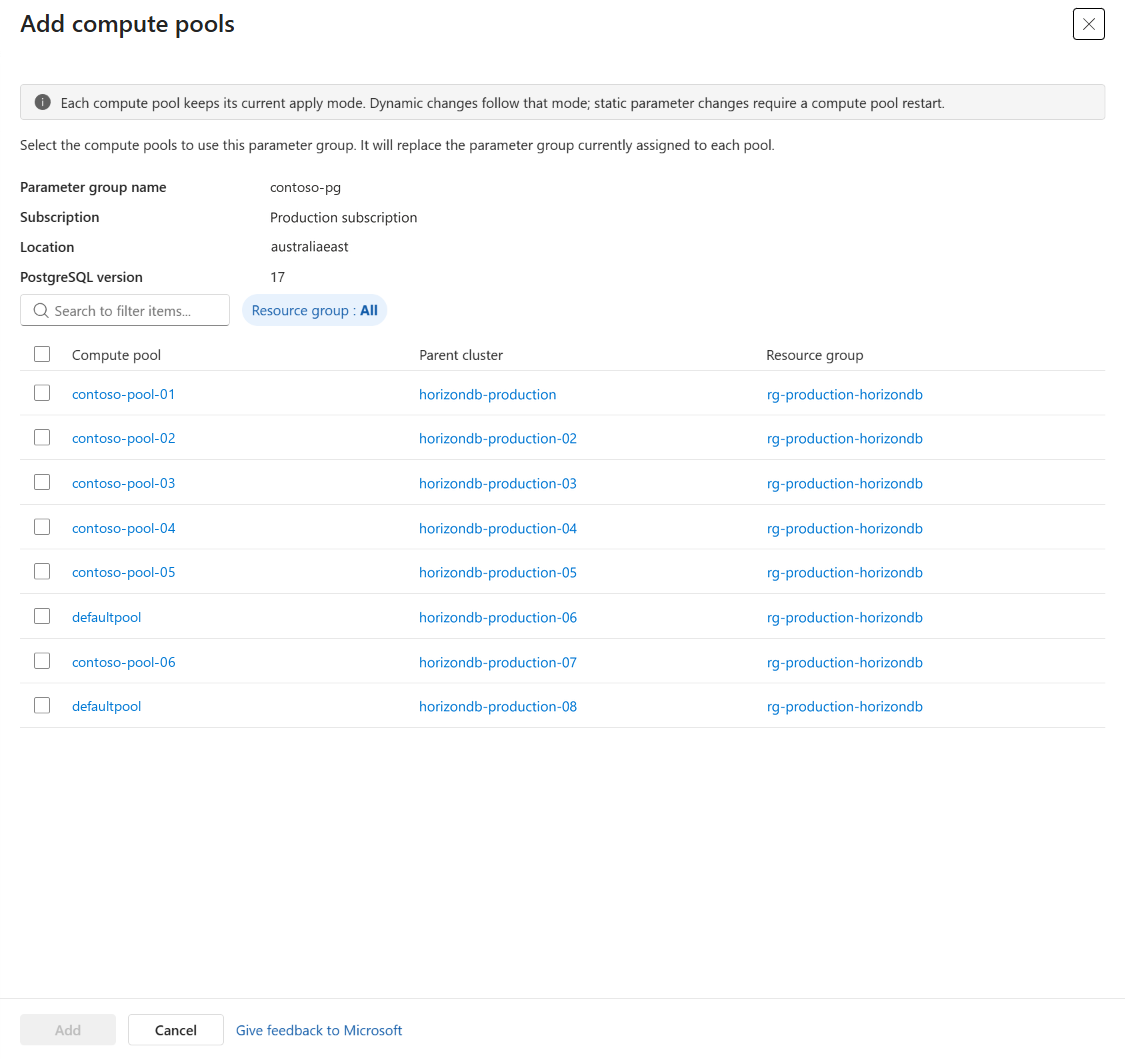
Select Add and wait for the assignments to finish.
Return to the parameter group's Overview page and select Refresh. Check that the selected pools appear under Compute pools.
Add compute pool assigns an existing pool; it doesn't create a new one or change its existing apply method. A successful assignment doesn't prove that every configured value is in use. Apply and verify the changes on each selected pool.
Edit a custom parameter group
Before saving, review the assigned compute pools to understand the impact of the update.
Warning
If you change a restart-required (static) parameter, selecting Save immediately starts an automatic restart of every assigned compute pool that needs one. The restarts interrupt database connections. Choose a suitable time before saving.
Select Edit parameters.
Find the parameter you want to change and enter its value. Use the information icon next to a value to check its allowed values.
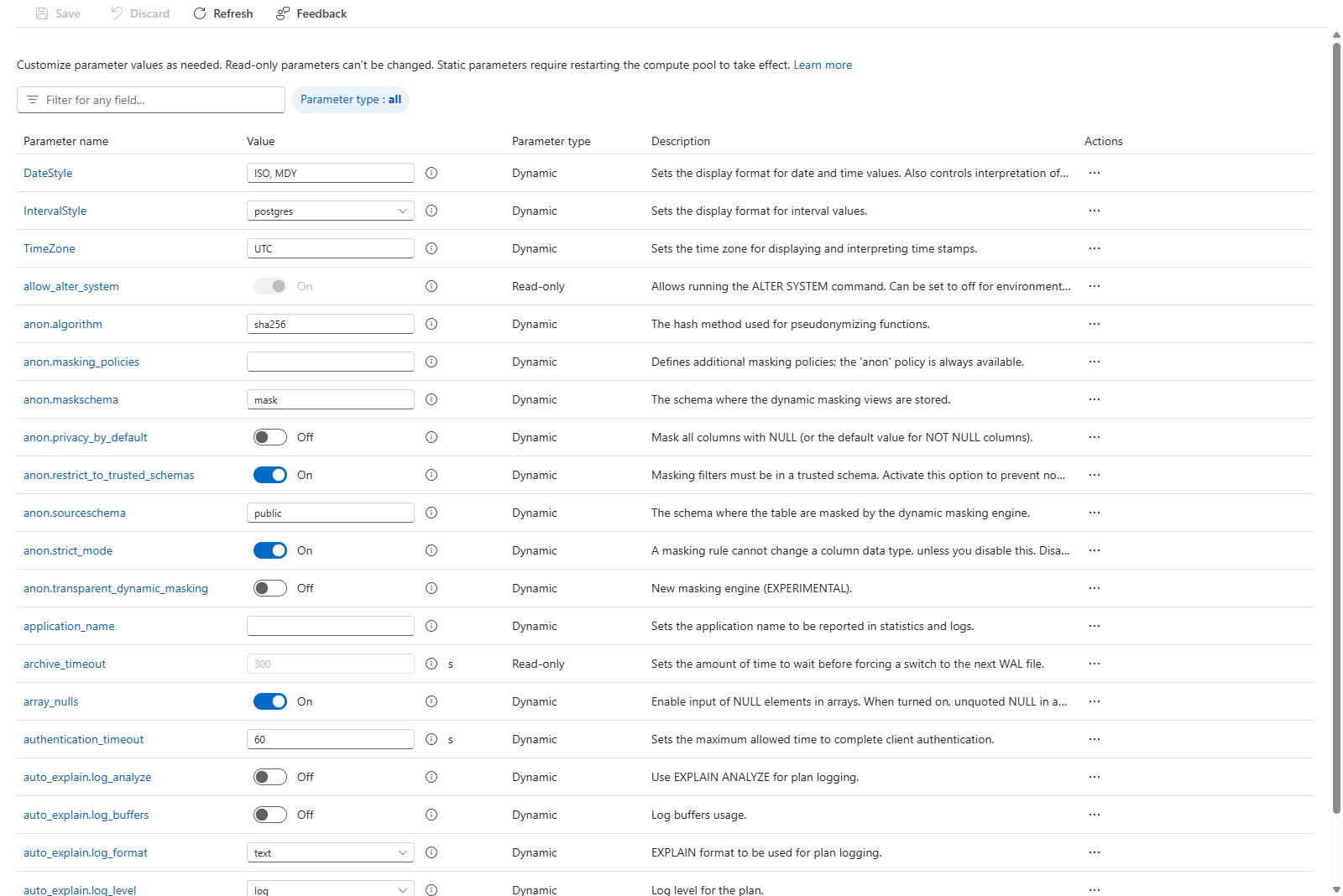
Save and Discard are unavailable until you make a change.
Select Save and wait for the update to finish. If you changed a restart-required parameter, wait for the automatic restarts to finish.
Apply and verify the changes on each affected pool.
To open an assigned custom parameter group from a cluster, select its name or Edit parameter group on the cluster's Parameters page.
Apply mode at general availability
At GA, parameter-group updates use Immediately. You don't select an apply mode when editing a parameter group. Leave the Apply method field on Compute > Configure unchanged.
Dynamic parameter edits apply immediately without a restart. If an edited parameter requires a restart, Azure HorizonDB starts that restart automatically and immediately. The new value takes effect when the restart finishes.
To change a pool's parameter group, use Assign a parameter group to multiple pools or Return a compute pool to its default parameter group.
Return a compute pool to its default parameter group
You can move one or more compute pools from a custom parameter group's Overview page to the default parameter group.
Before switching, check whether applications or extensions depend on the custom parameter group's settings. Reassignment changes only the selected compute pools. It doesn't edit the custom parameter group or change its other assignments.
On Overview, under Compute pools, select the checkboxes for the pools you want to move.
Select Move to default parameter group. The command is unavailable until you select a pool.
In Move compute pools to default, review the default parameter group shown. For example, the dialog shows HorizonDB default v17 for PostgreSQL 17.
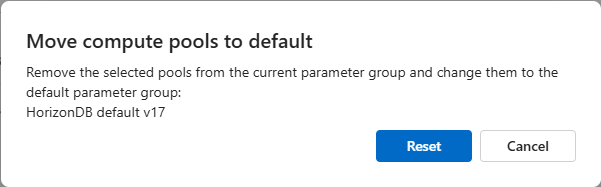
Select Reset to confirm, or Cancel to leave the assignments unchanged.
Wait for the operation to finish, then refresh Overview. Check that the selected compute pools no longer appear under the custom parameter group's Compute pools.
Check each pool's assigned parameter group, then apply and verify the changes.
Assigning the default parameter group doesn't remove database, role, session, or client overrides, and it doesn't uninstall extensions. Each compute pool must always use a parameter group.
Apply and verify parameter changes
Check the intended pool's assignment after refreshing the portal. Review the configured parameter values in the portal.
Apply changes for the operation you performed:
- Restart-required parameter edit: Wait for the automatic restart to finish on every affected pool. You don't need to start another restart for the same edit.
- Parameter group assignment or return to default: Retain the pool's existing configuration. Use the pool's Restart operation when required to apply pending assignment changes.
- Dynamic-only parameter edit: Changes apply immediately without a restart.
For manual restarts, choose a suitable time because the restart interrupts database connections.
For a setting exposed by PostgreSQL or a loaded extension, connect to the affected pool using a fresh connection after any required restart finishes. Run this read-only query, replacing the example parameter with the one you changed.
SELECT name, setting, unit, source, pending_restart
FROM pg_settings
WHERE name = 'log_min_duration_statement';
If the query returns no rows, check the parameter name, PostgreSQL version, and whether the extension that defines the setting is loaded. An empty result doesn't confirm that the change took effect.
For a returned row, compare setting and unit with the value you configured. Check the effective value on each affected pool.
For service-managed settings that aren't PostgreSQL configuration parameters, check the saved value in the assigned parameter group and confirm that the pool's update or restart has finished. Use the feature's documented checks, where available, to verify its behavior. The SQL query doesn't verify these settings, and a successful save alone doesn't prove that a setting is active.
For pending changes that need a manual restart, use Restart, not stop/start or scheduled maintenance. For a parameter returned by the query, pending_restart being false doesn't replace checking its effective value.
If a PostgreSQL value doesn't match, use a fresh connection and check for database, role, session, or client settings that override it.
Delete an unused parameter group
Deletion is irreversible. Before deleting a custom parameter group, reassign every compute pool that uses it.
- Find and open the custom parameter group and check Compute pools.
- Move the selected pools to their default parameter group, or assign them to another compatible custom parameter group.
- Apply and verify the new settings on each pool.
- Refresh the parameter group's Overview page and check that no compute pools remain assigned.
- Select Delete and confirm the deletion.
- Wait for the operation to finish. Refresh the parameter group list and check that the parameter group no longer appears.
You can't delete a parameter group while compute pools still use it. If deletion is blocked, clear filters and refresh Compute pools, finish reassigning the remaining compute pools, and retry. Deleting an unused parameter group doesn't delete its former compute pools or clusters.
Troubleshoot parameter group changes
| If you see this | Try this |
|---|---|
| You can't choose a custom parameter group while creating a cluster or pool. | Create the pool with its default parameter group, then assign a custom parameter group after creation. |
| A parameter group or compute pool isn't listed. | Check the subscription, region, PostgreSQL major version, search filters, and access to both resources. |
| You can't edit a default parameter group. | Create and assign a custom parameter group to manage your own values. |
| Move to default parameter group is disabled. | Select at least one compute pool's checkbox under Compute pools on the custom parameter group's Overview page. |
| A saved value hasn't taken effect. | Check that the update and any required restart have finished. Check the intended pool's parameter group assignment and verify the effective value in a fresh PostgreSQL connection. |
| You're looking for an apply-mode choice when editing a parameter group. | At GA, parameter-group updates use Immediately. No mode selection is required, and you don't change the pool's Compute > Configure field for this workflow. |
| An automatic restart reports a failure. | Check the affected compute pool's status and reported error. Resolve the failure before verifying the effective values. |
| You can't delete a parameter group. | Assign each remaining compute pool to its default parameter group or another compatible custom parameter group, then retry. |