Note
Access to this page requires authorization. You can try signing in or changing directories.
Access to this page requires authorization. You can try changing directories.
This article provides step-by-step instructions to configure data encryption at rest for an Azure HorizonDB cluster.
Important
Select either service-managed keys or customer-managed keys when you create the cluster. You can't change the encryption mode after cluster creation.
In this article, you learn how to create a new Azure HorizonDB cluster and configure its data encryption at rest options. For an existing cluster that uses customer-managed keys, you can:
- Select a different user-assigned managed identity to access the customer-managed key.
- Rotate the customer-managed key.
For more information about encryption architecture, requirements, rotation, and limitations, see Data encryption.
Prerequisites
To complete the steps in this article, you need:
- An Azure subscription.
- Permission to create and update Azure HorizonDB clusters.
- For the CLI procedures, the HorizonDB Azure CLI extension. Install it by running
az extension add --name horizondb.
Customer-managed key prerequisites
To use customer-managed keys, you also need:
- An Azure Key Vault with soft delete and purge protection enabled.
- A supported 4,096-bit RSA or RSA-HSM key.
- A user-assigned managed identity with permission to access the customer-managed key, see Customer-managed key requirements.
Create an Azure HorizonDB cluster with service-managed keys
Use the Azure portal:
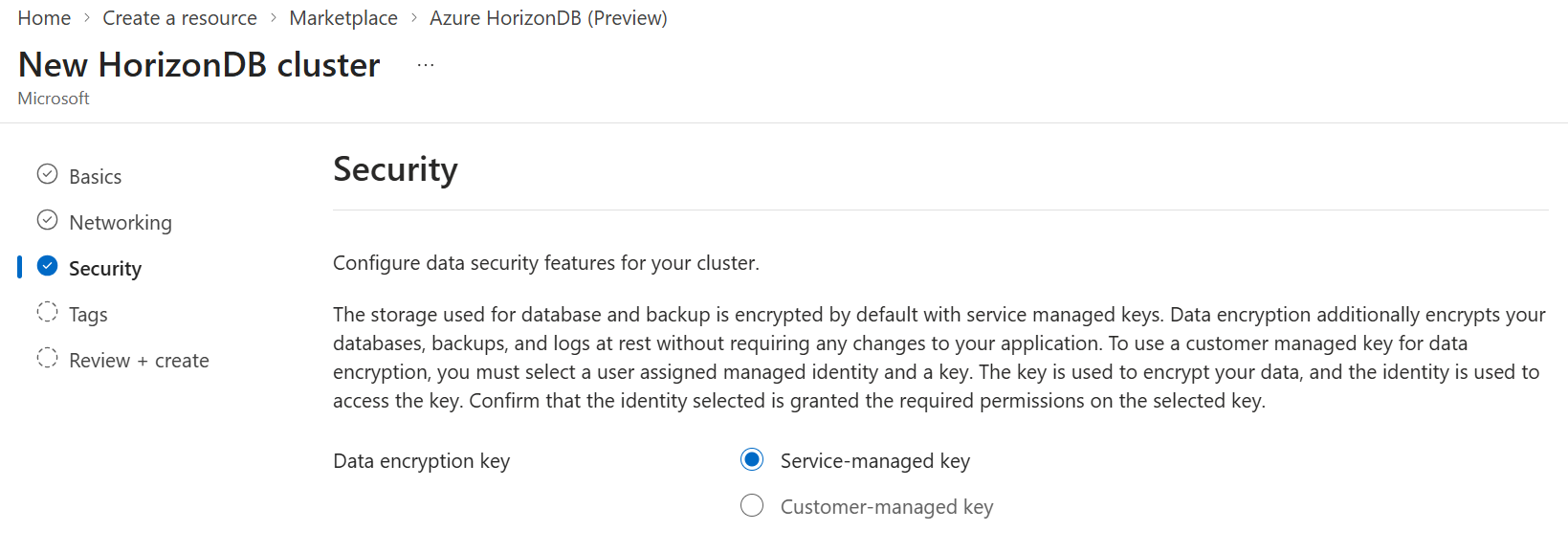
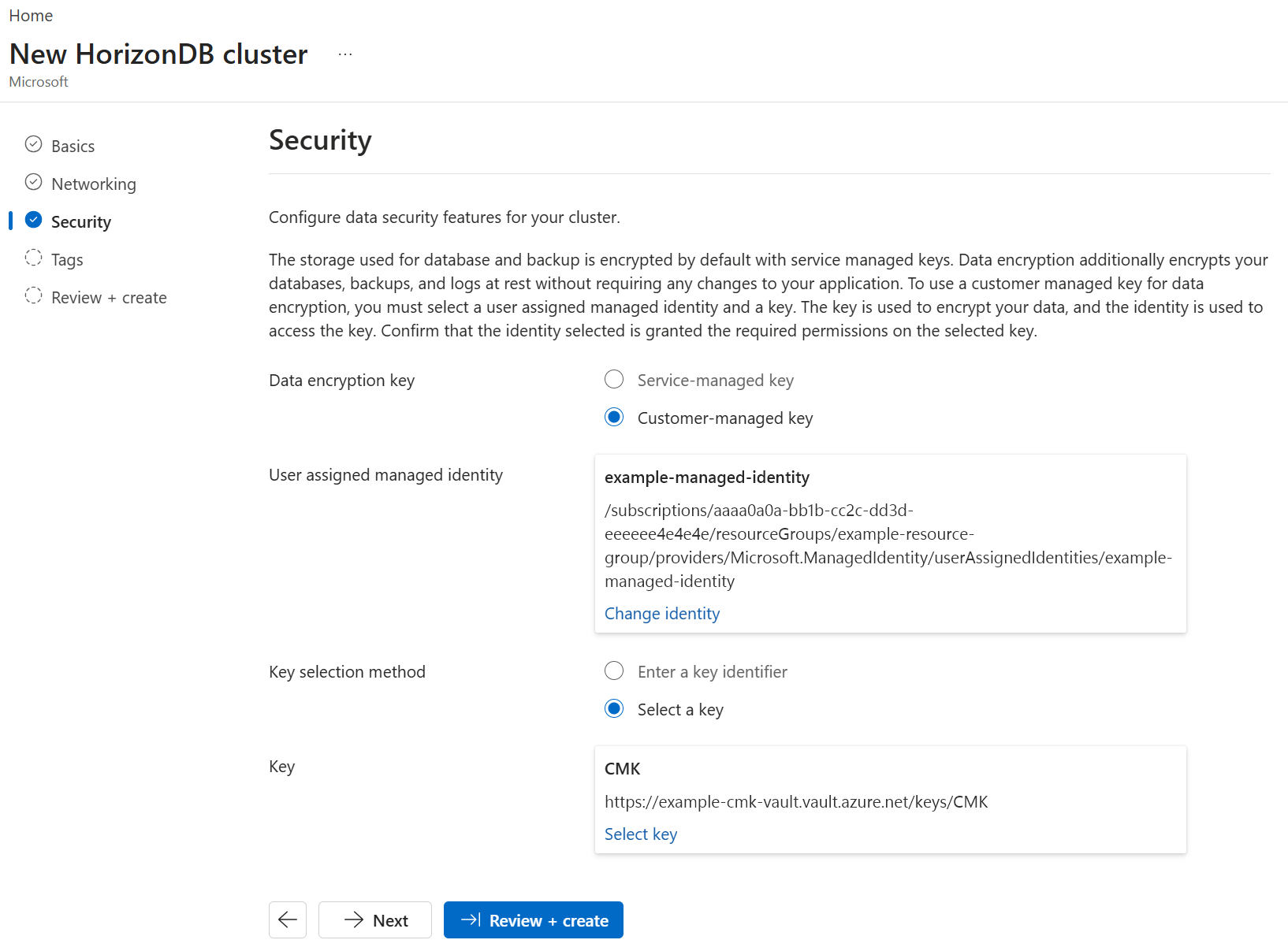
When you create a new Azure HorizonDB cluster, configure data encryption at rest in the Security tab. For Data encryption key, select the Service-managed key option.
Create an Azure HorizonDB cluster with customer-managed keys
Use the Azure portal:
When you create a new Azure HorizonDB cluster, configure data encryption in the Security tab. For Data encryption key, select the Customer-managed key.
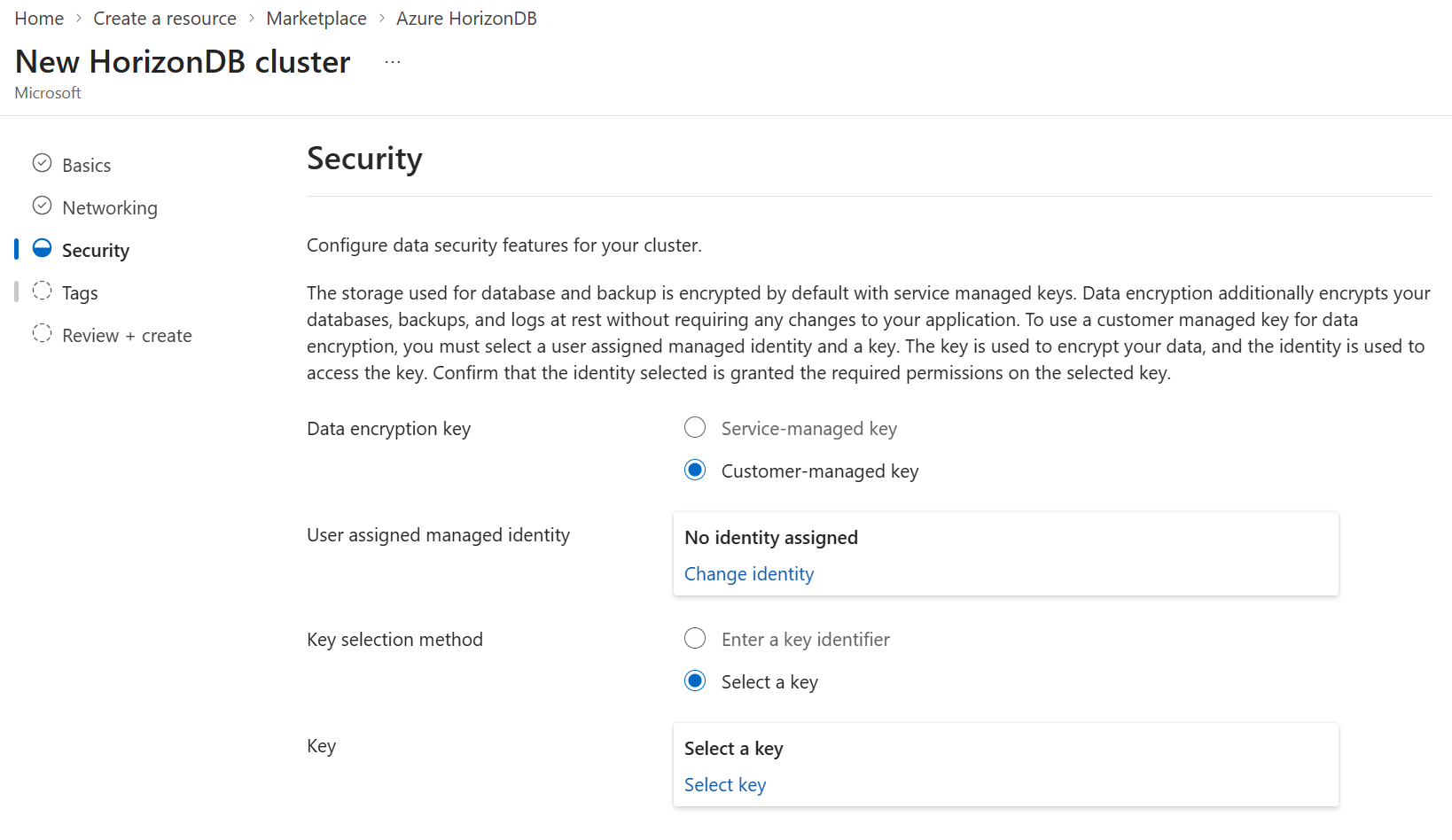
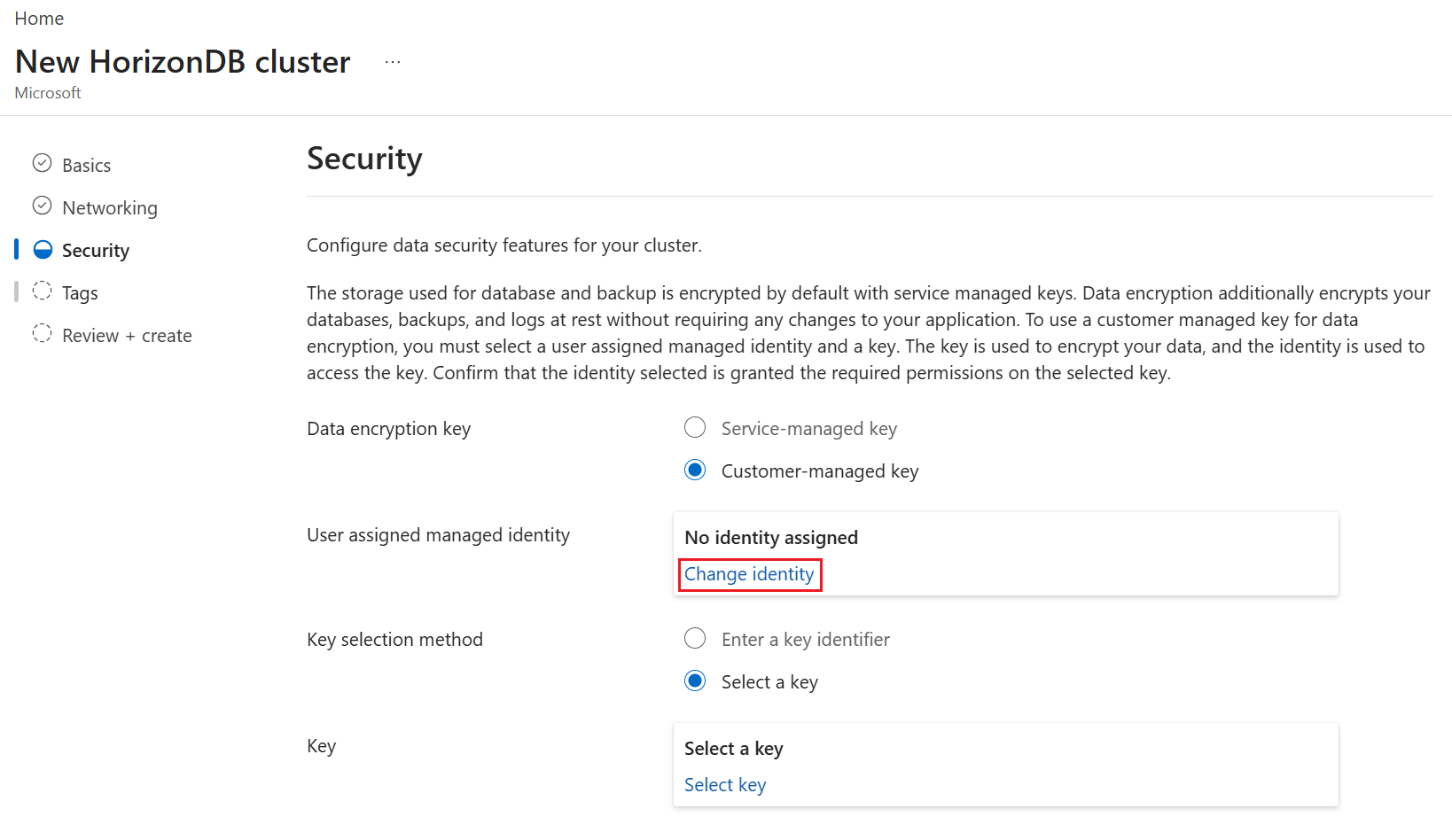
In User-assigned managed identity, select Change identity.
From the list of user-assigned managed identities, select the one you want your Azure HorizonDB cluster to use to access the customer-managed key stored in an Azure Key Vault.
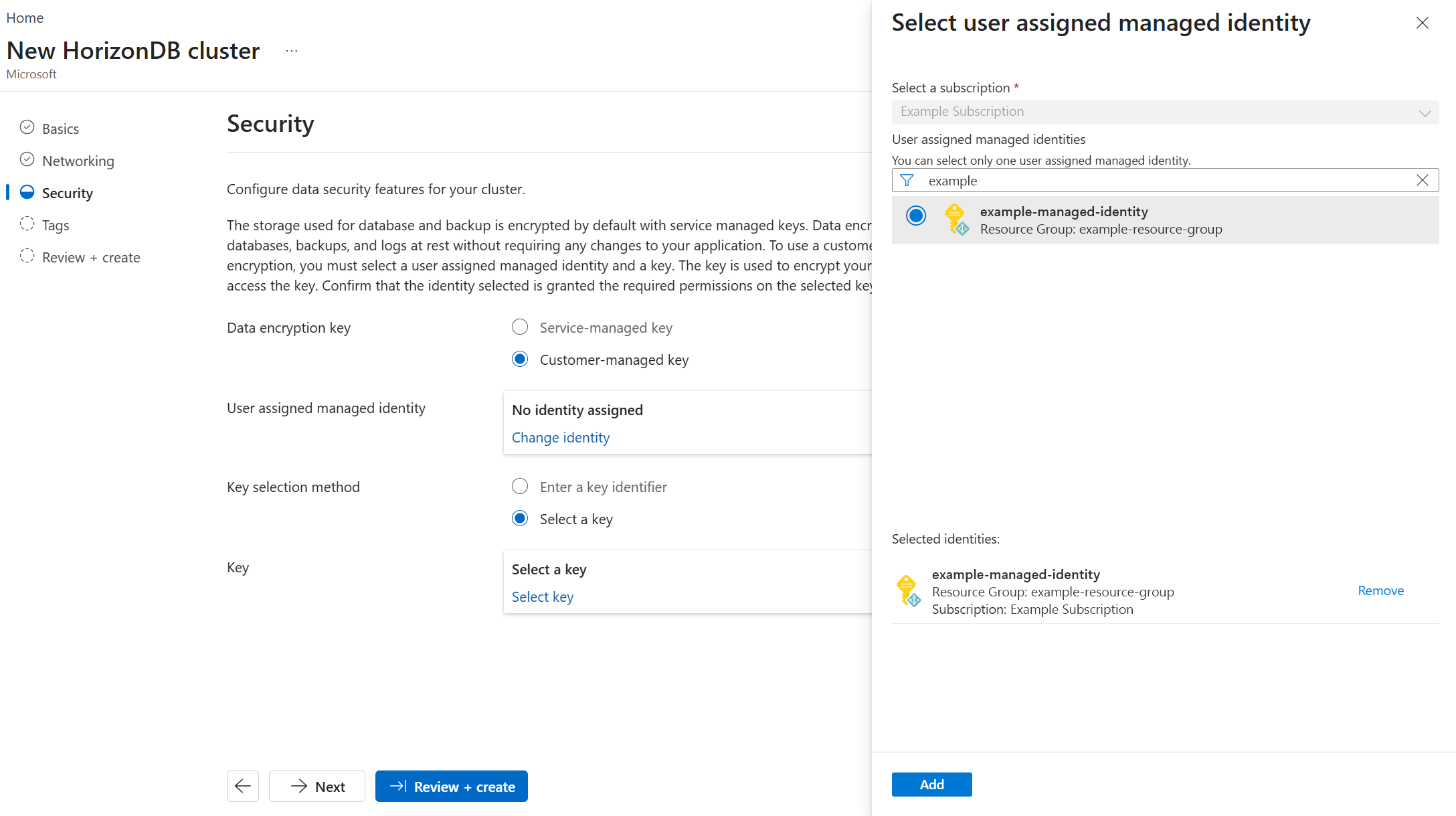
Select Add.
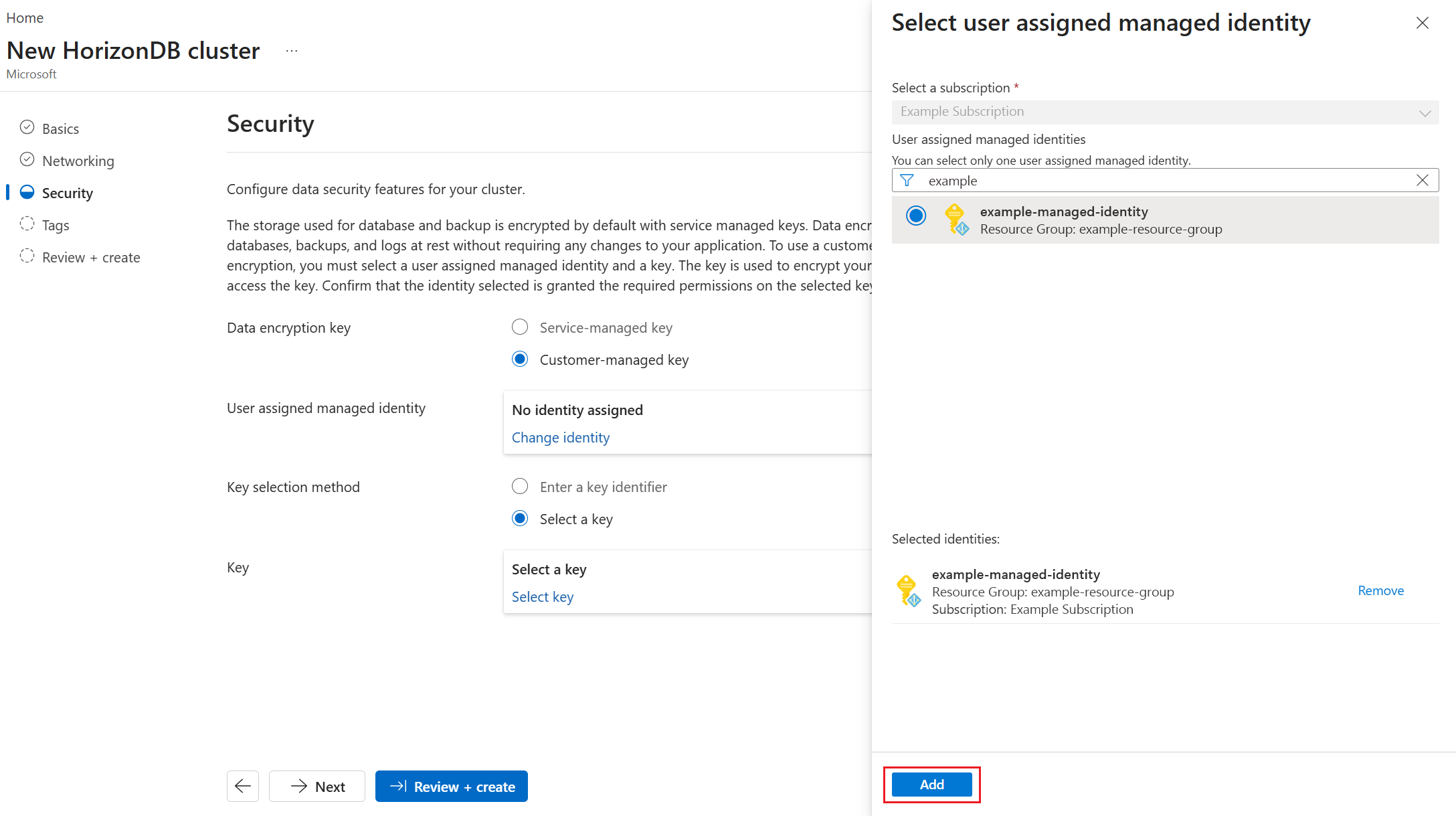
Select Select key.
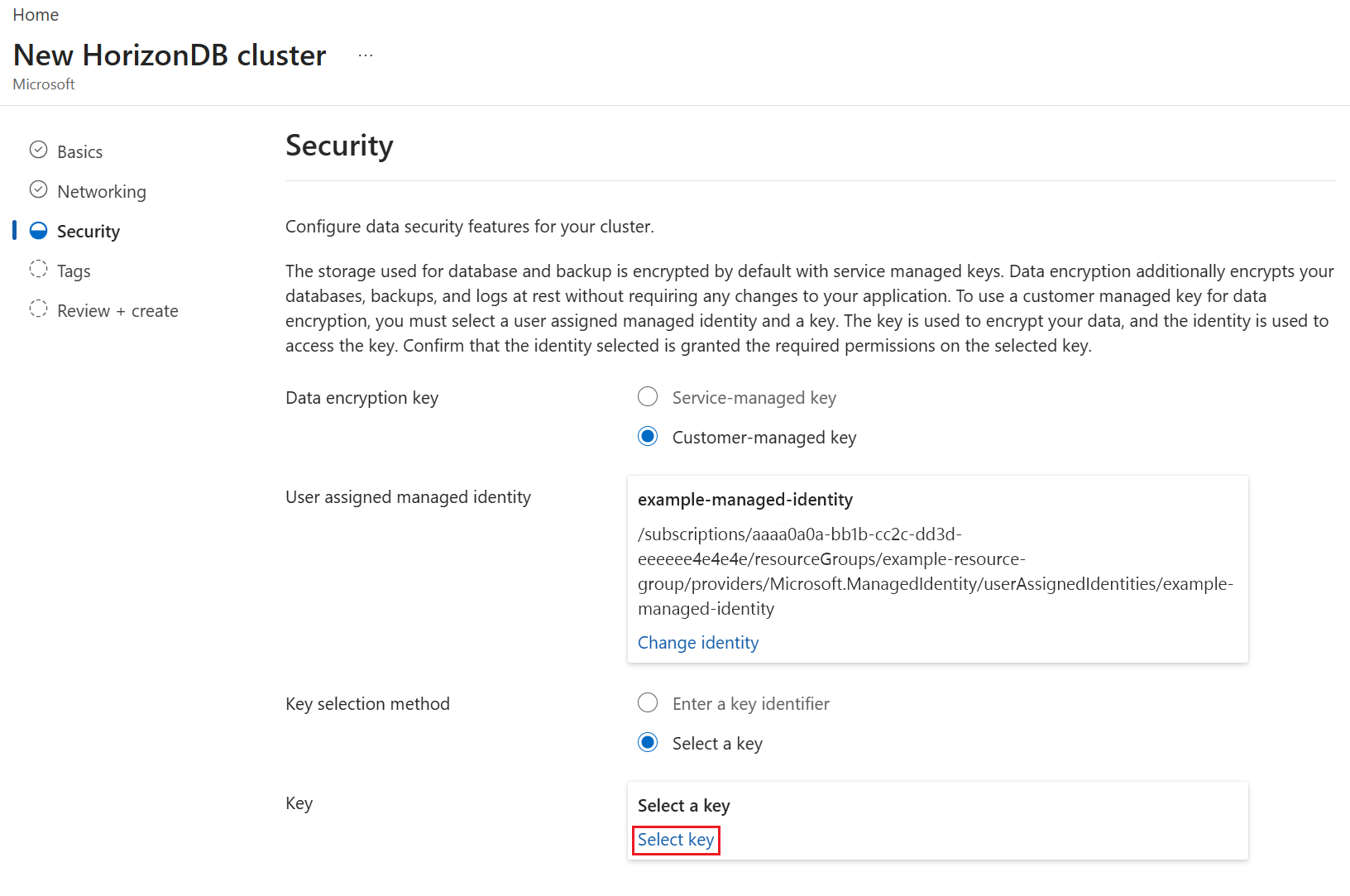
The key store that contains the customer-managed key must exist in the same subscription as the Azure HorizonDB cluster.
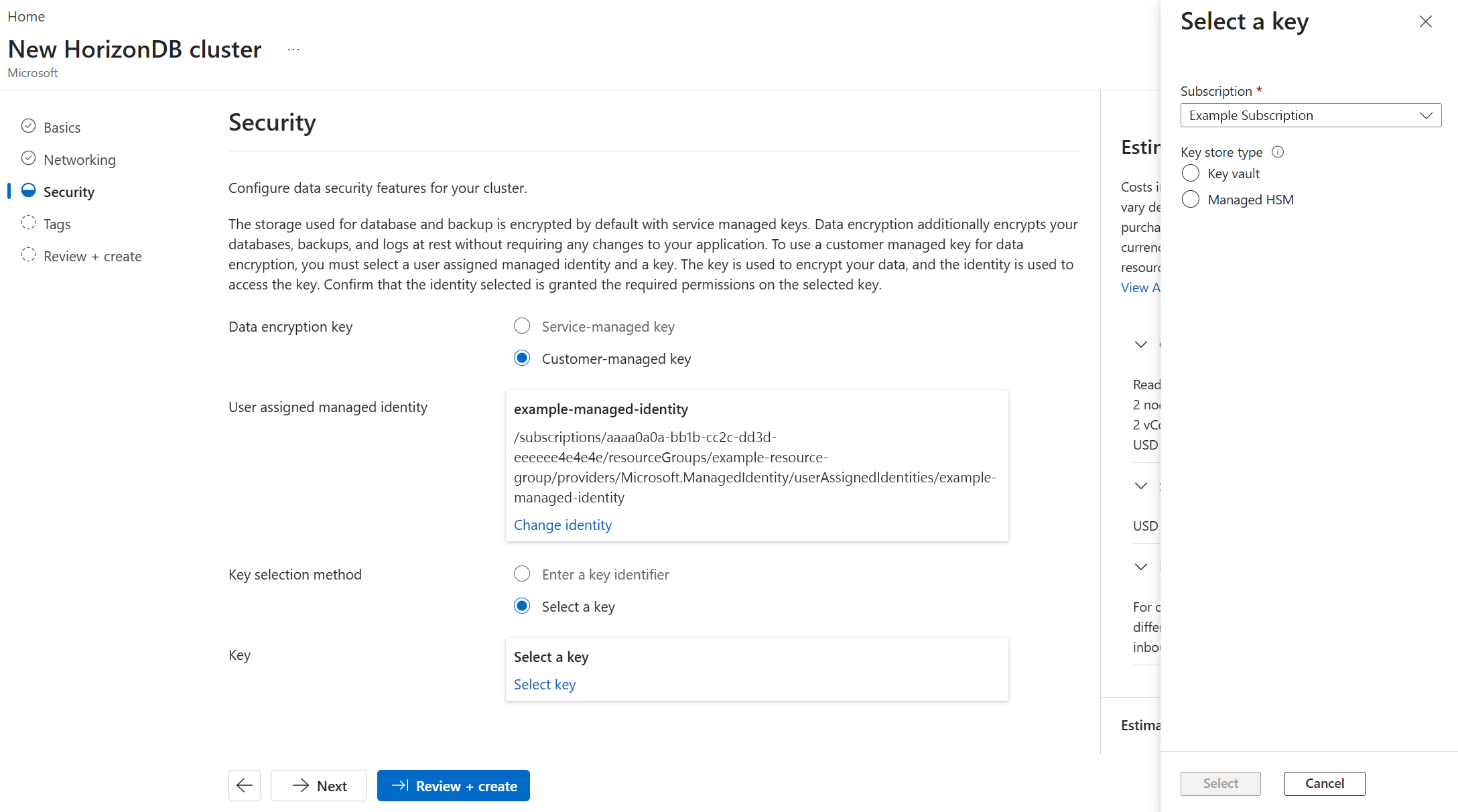
In Key store type, select the type of key store in which you plan to store the customer-managed key. In this example, choose Key vault.
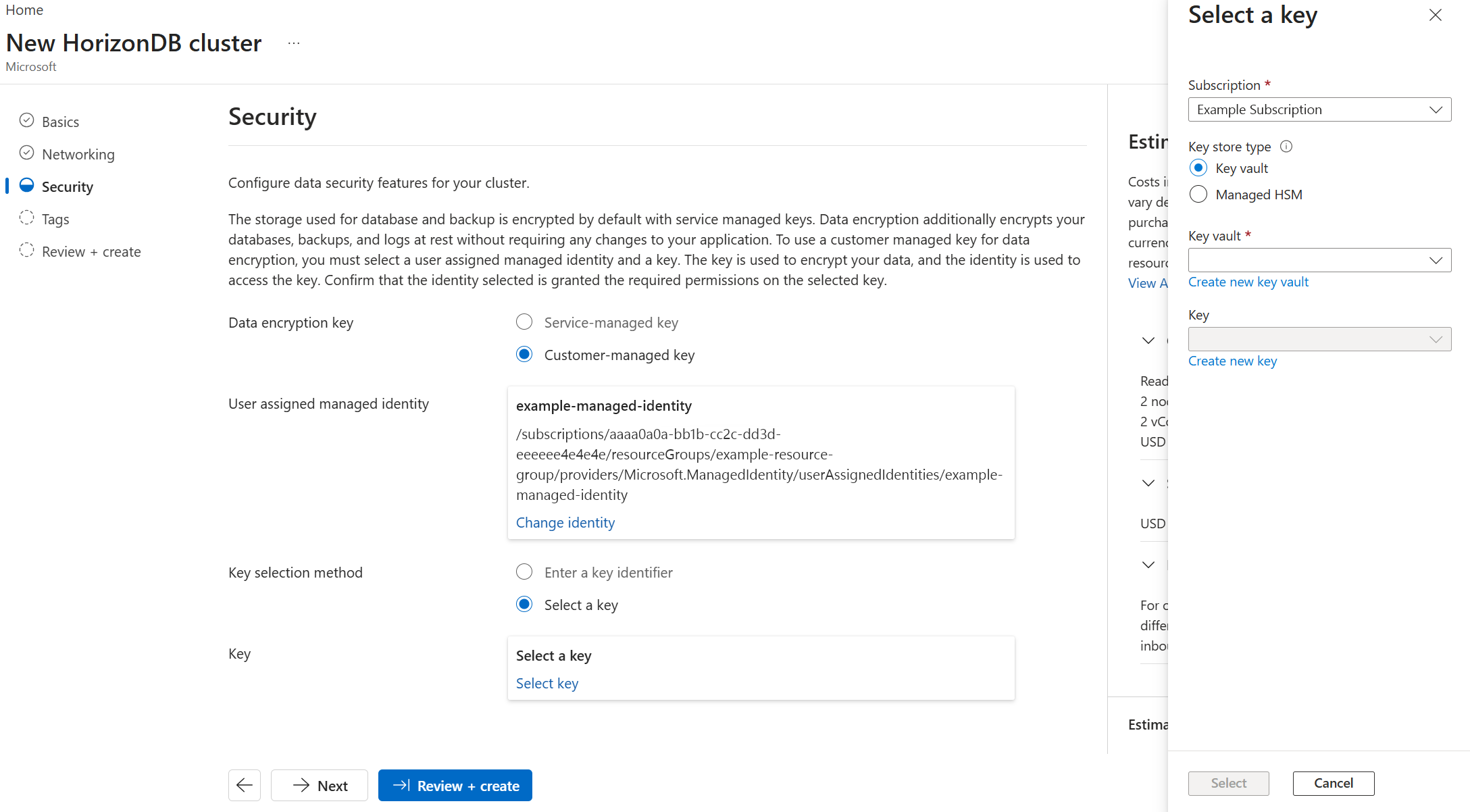
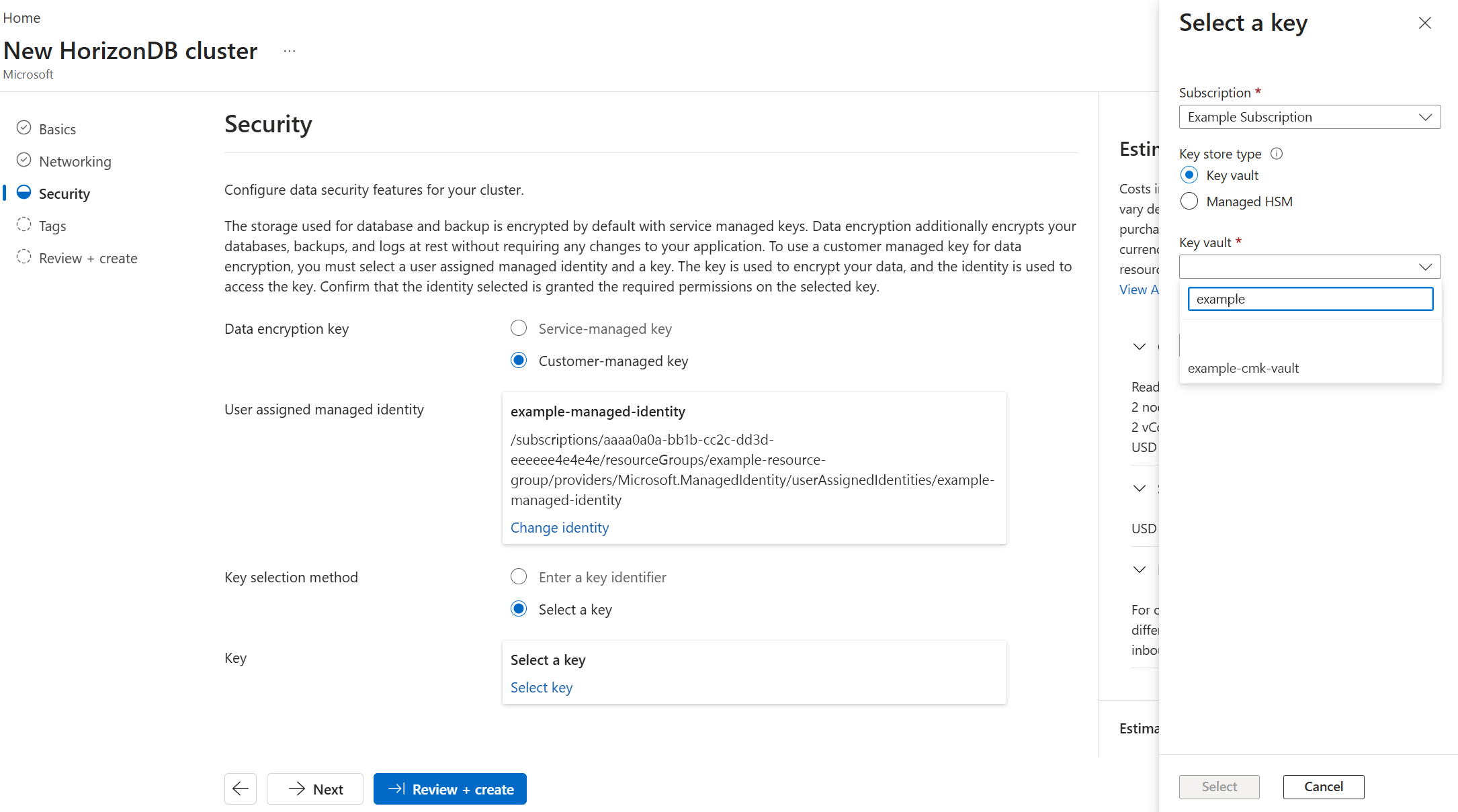
Expand Key vault, and select the instance where the customer-managed key exists.
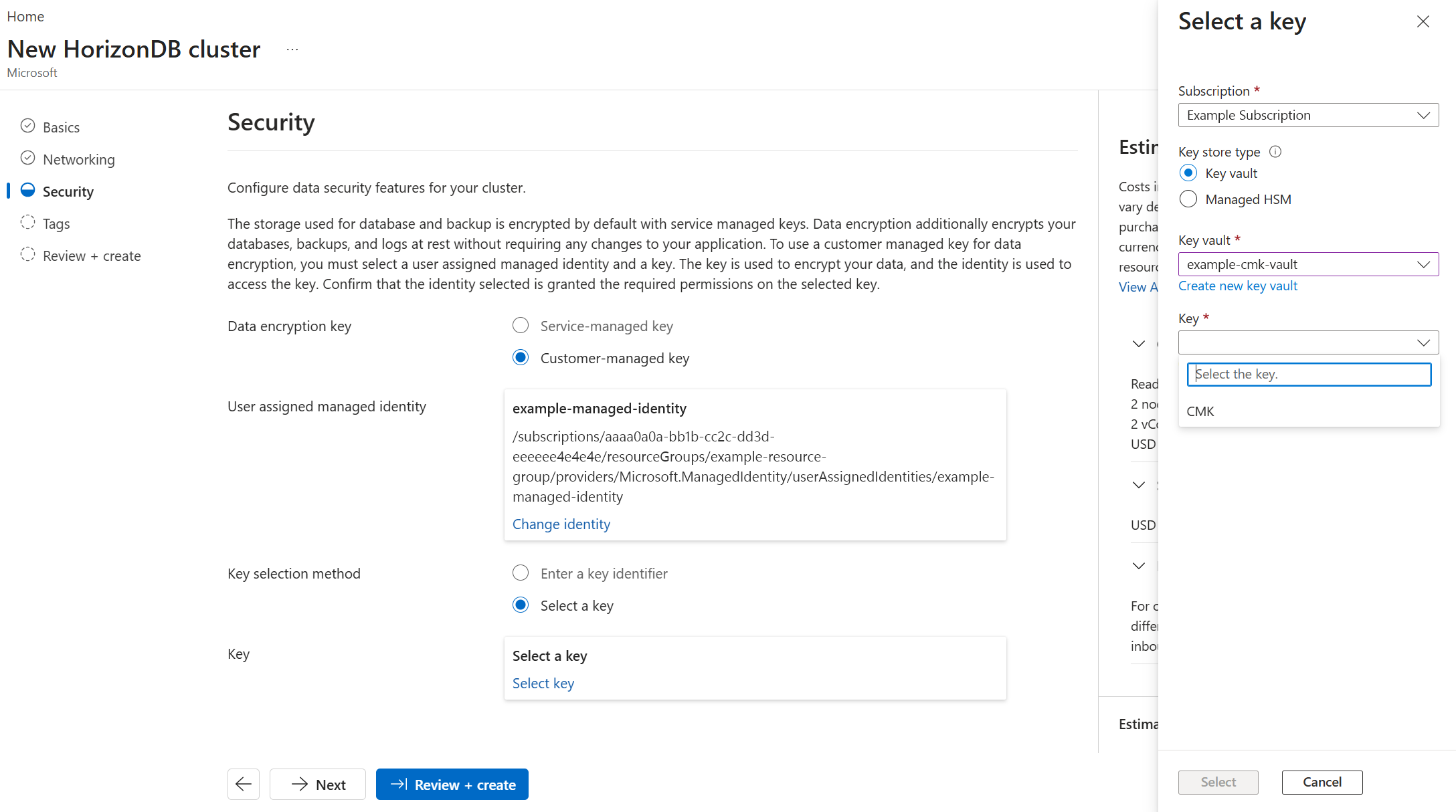
Expand Key, and select the key. Azure HorizonDB uses its versionless key URI, so you don't select a key version.
Select Select.
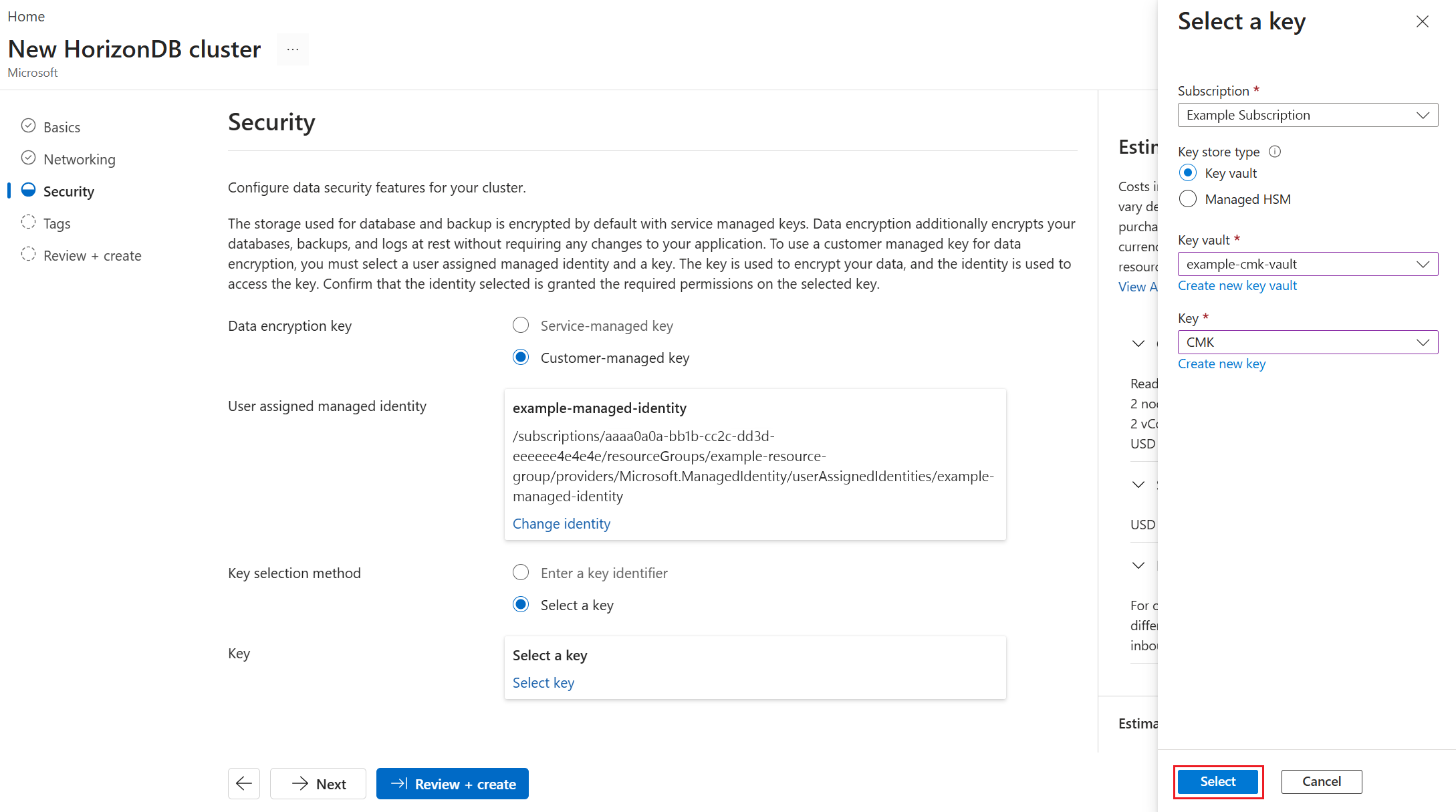
Configure all other settings of the new Azure HorizonDB cluster and select Review + create.
Update customer-managed key settings
For an Azure HorizonDB cluster that uses customer-managed keys, you can change the key, the user-assigned managed identity used to access it, or both. You can't change the Azure HorizonDB cluster from customer-managed keys to service-managed keys.
Use the Azure portal:
Select your Azure HorizonDB cluster.
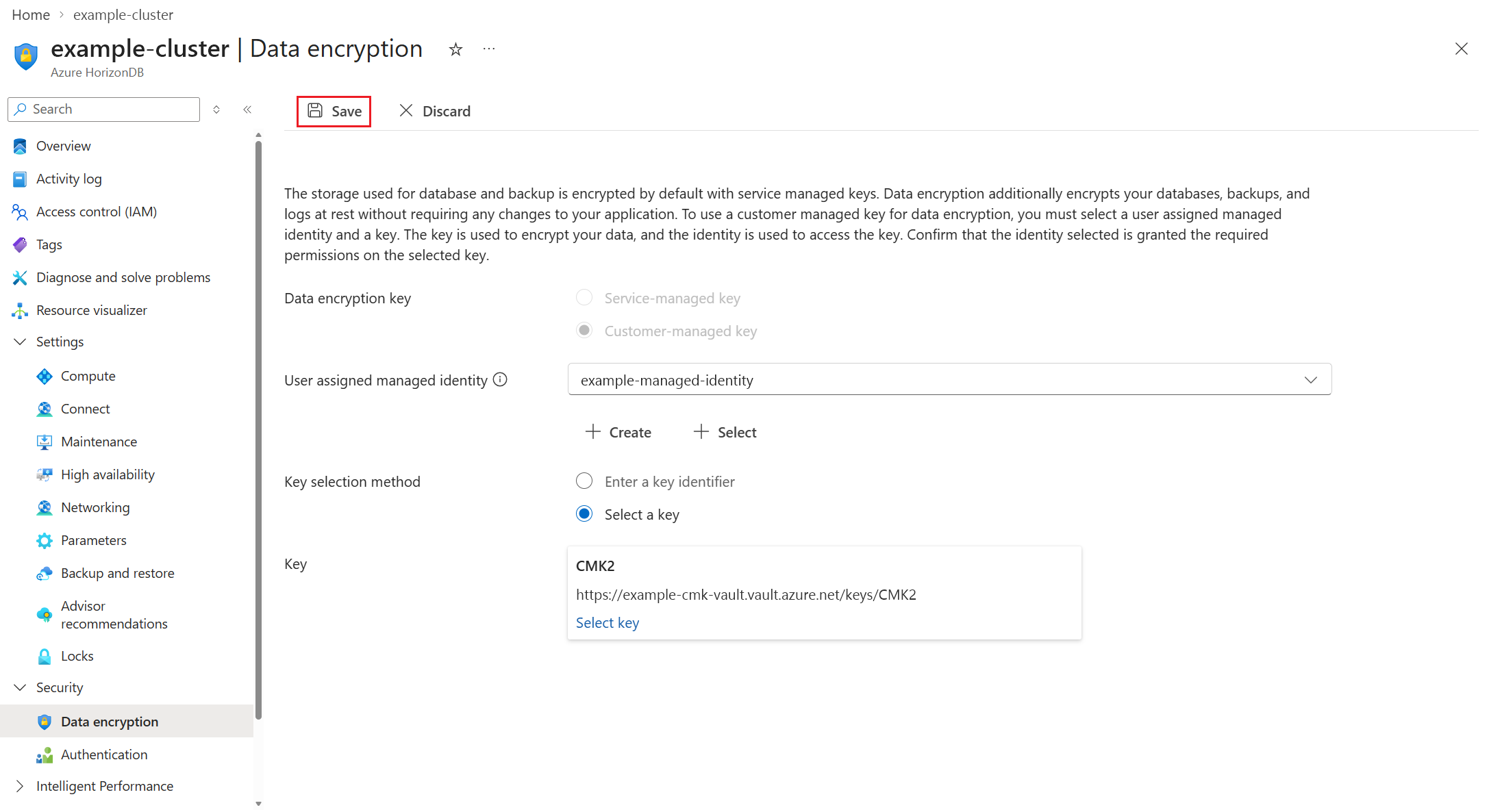
In the resource menu, under the Security section, select Data encryption.
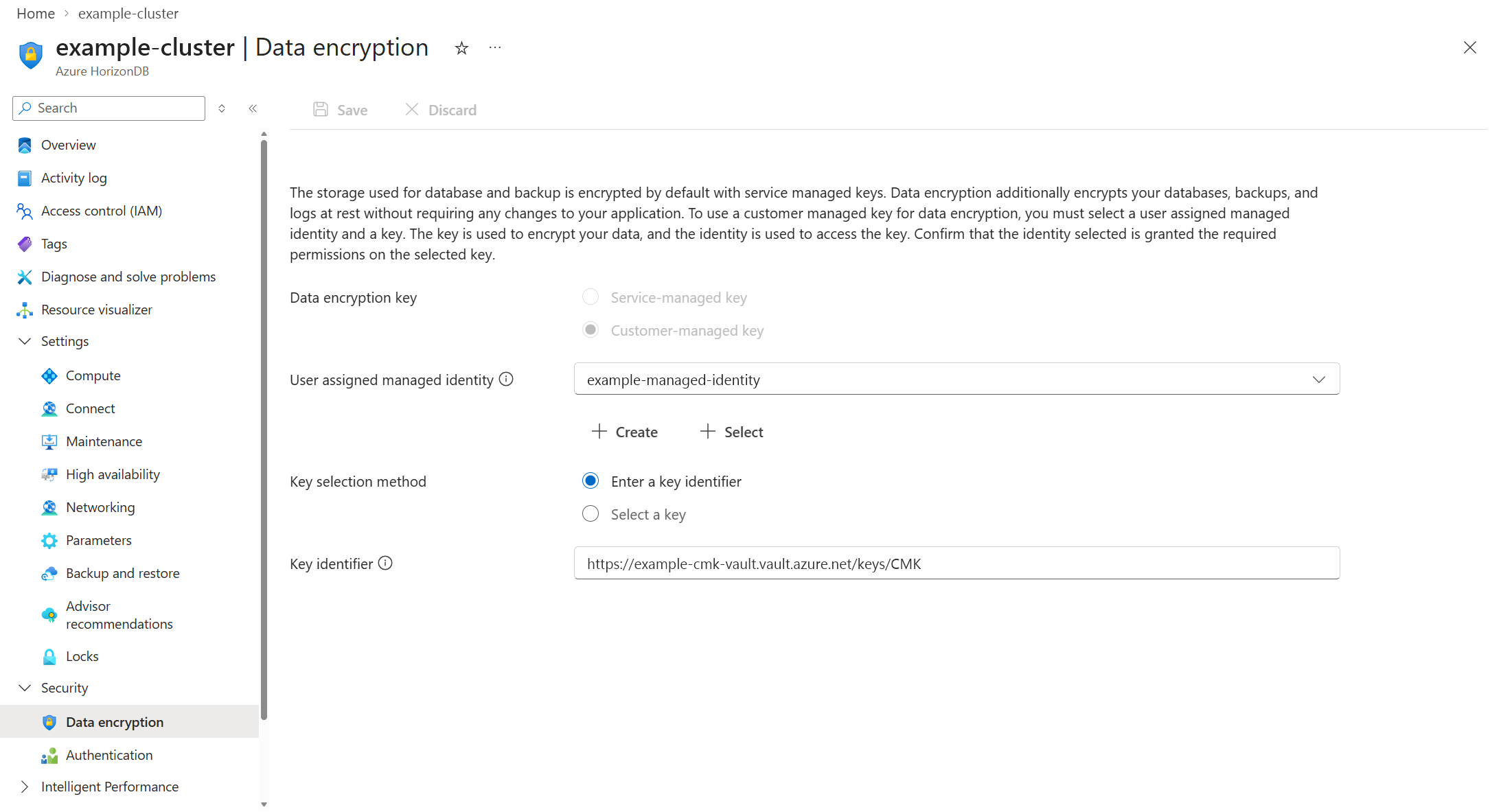
To change the user-assigned managed identity that the Azure HorizonDB cluster uses to access the key store, expand the User-assigned managed identity list, and select any of the available identities. The list shows only the user-assigned managed identities assigned to the cluster. Although it's not required, to maintain regional resiliency, select user-assigned managed identities in the same region as your Azure HorizonDB cluster.
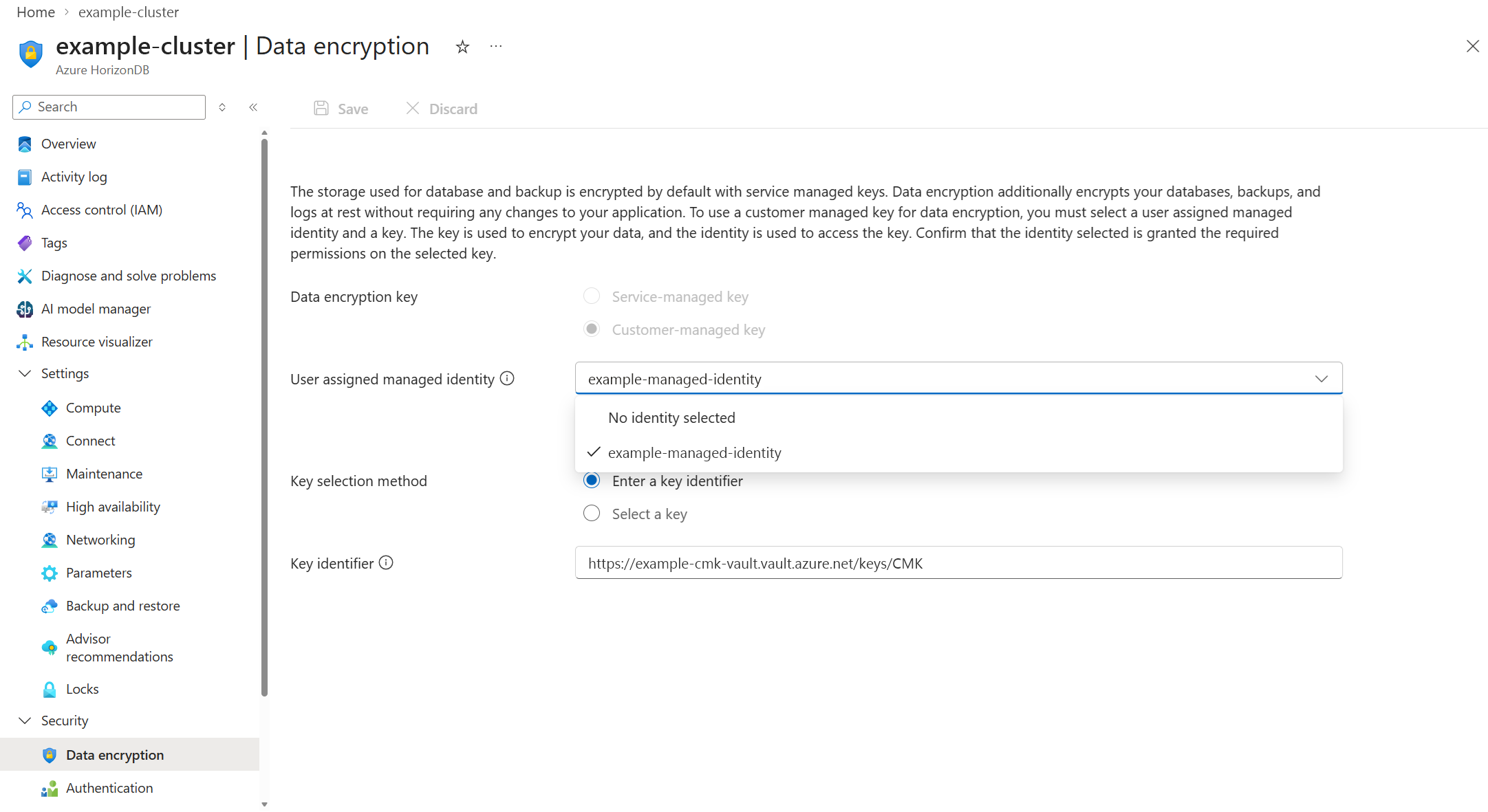
If the user-assigned managed identity that you want to use to access the customer-managed key isn't assigned to your Azure HorizonDB cluster, and it doesn't exist as an Azure resource with its corresponding object in Microsoft Entra ID, create it by selecting Create.
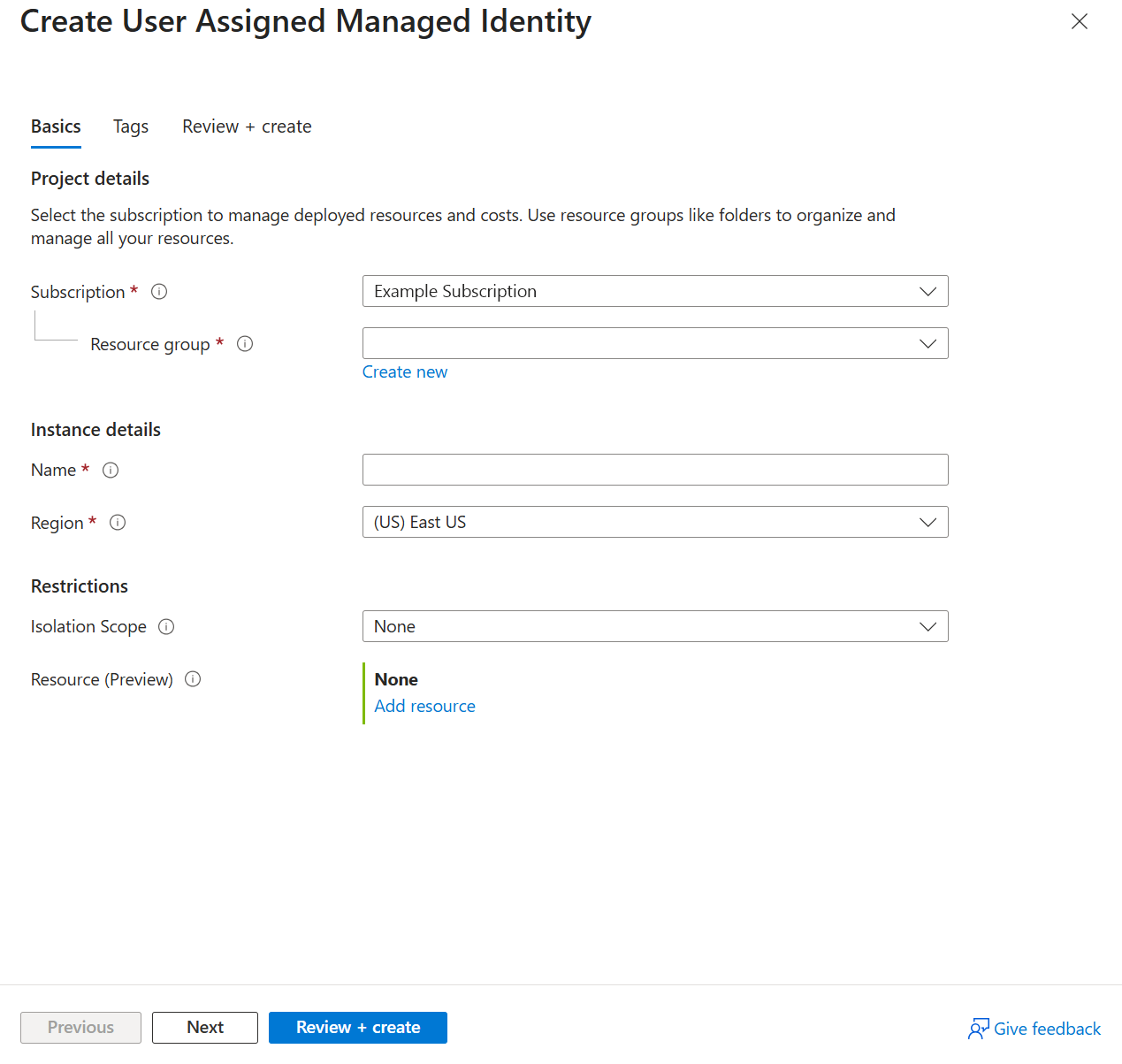
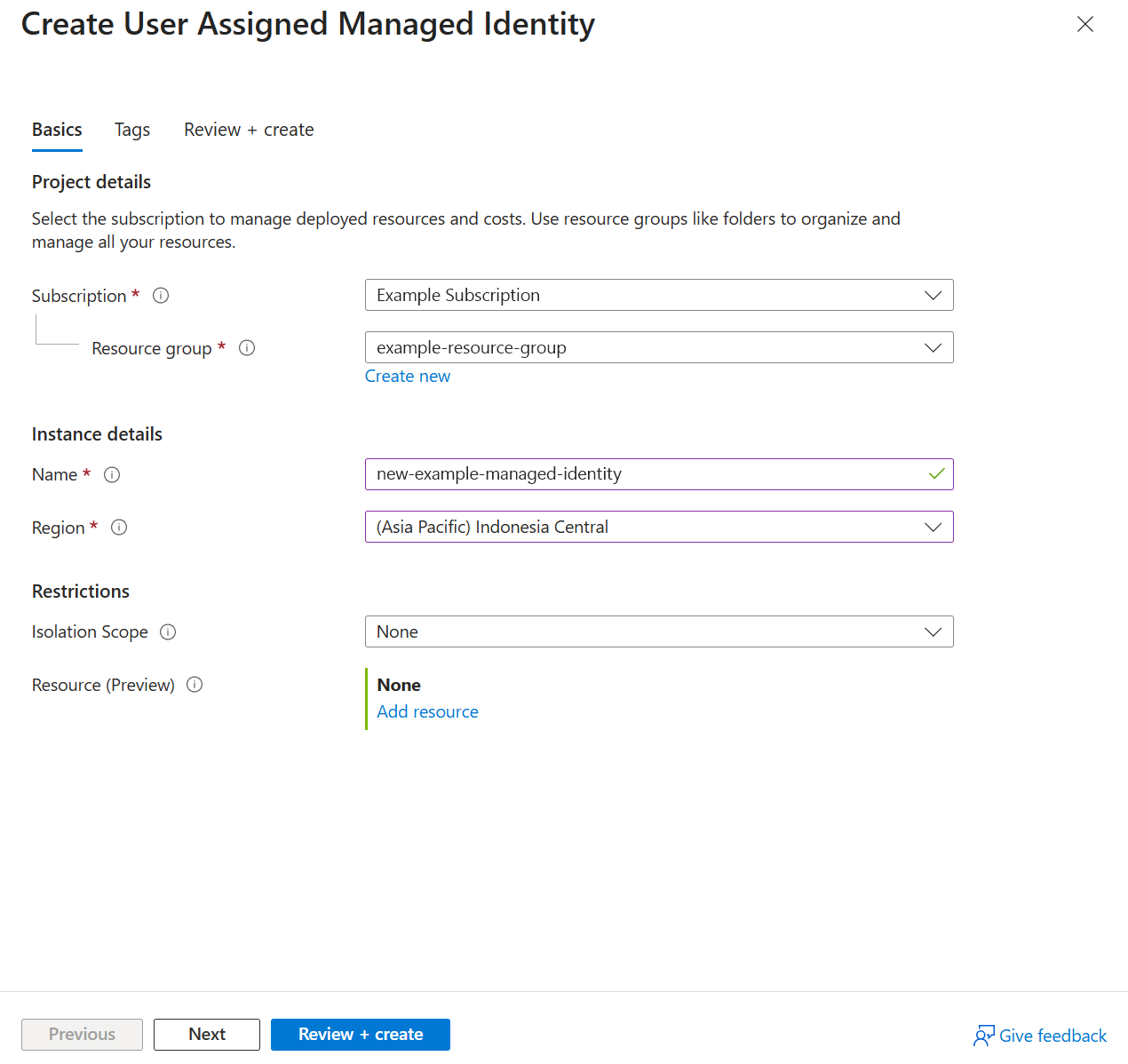
In the Create User-Assigned Managed Identity panel, enter the details of the user-assigned managed identity that you want to create, and automatically assign it to your Azure HorizonDB cluster to access the customer-managed key.
If the user-assigned managed identity that you want to use to access the customer-managed key isn't assigned to your Azure HorizonDB cluster, but it exists as an Azure resource with its corresponding object in Microsoft Entra ID, assign it by selecting Select.
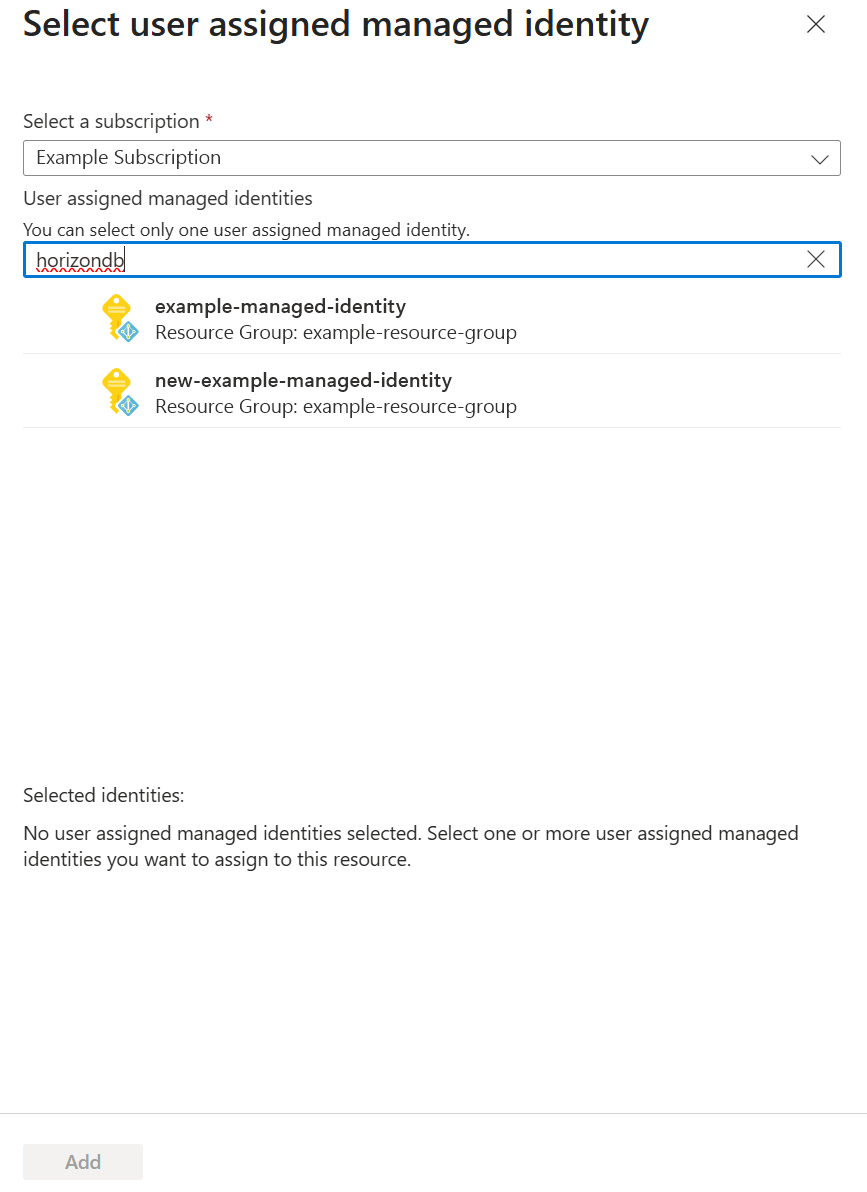
From the list of user-assigned managed identities, select the one you want your Azure HorizonDB cluster to use to access the customer-managed key stored in an Azure Key Vault.
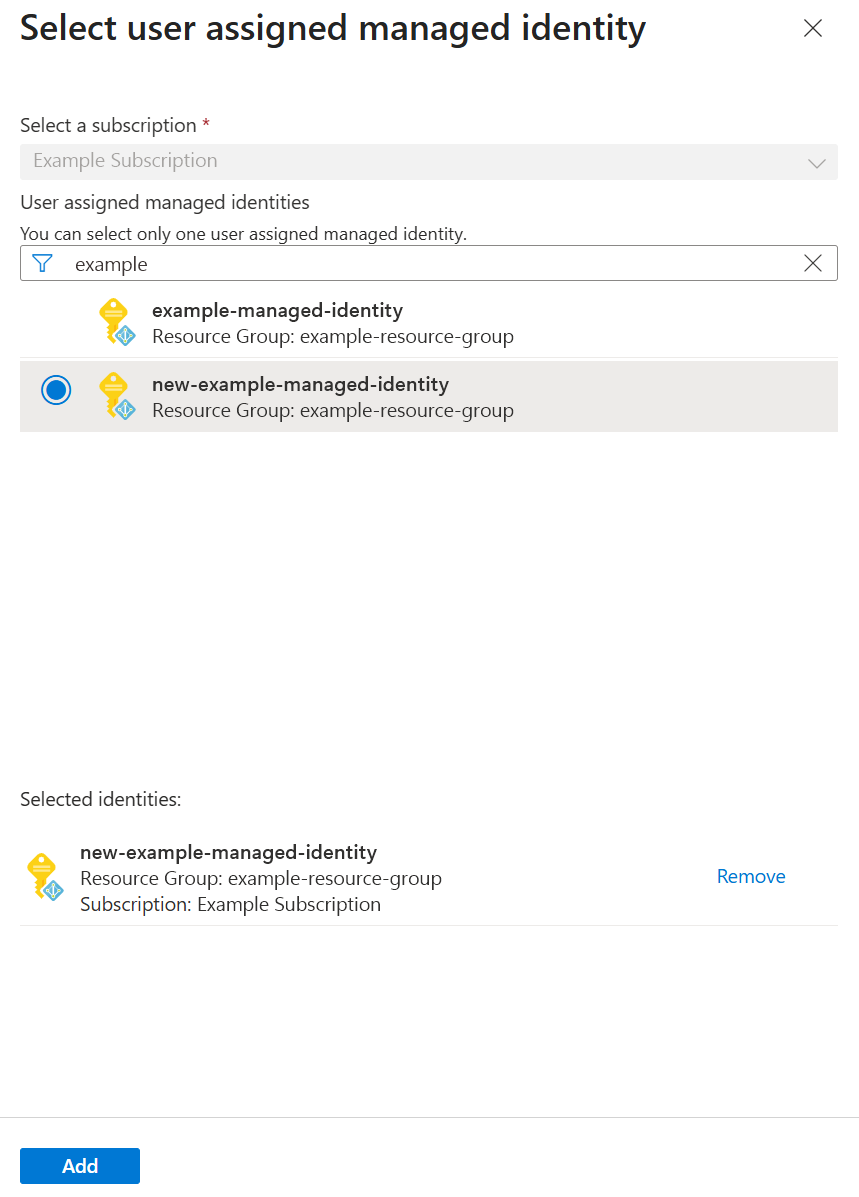
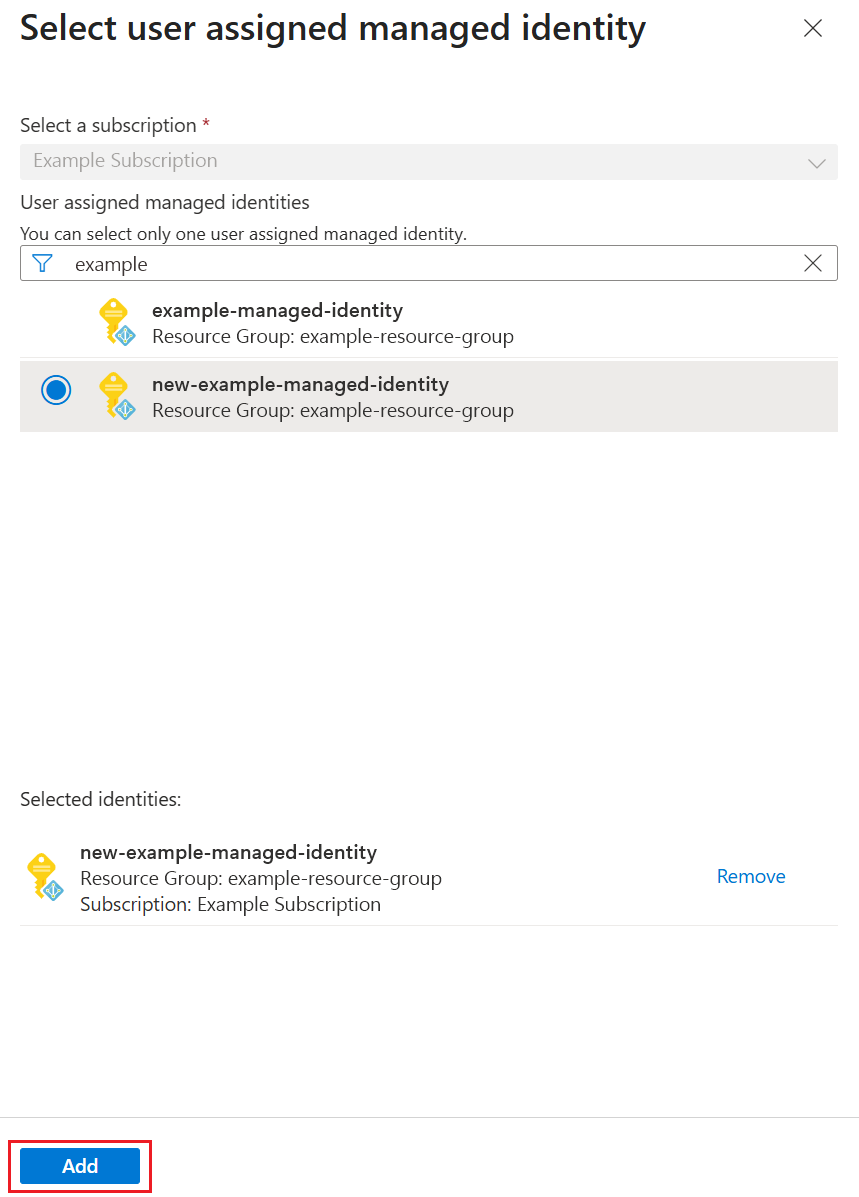
Select Add.
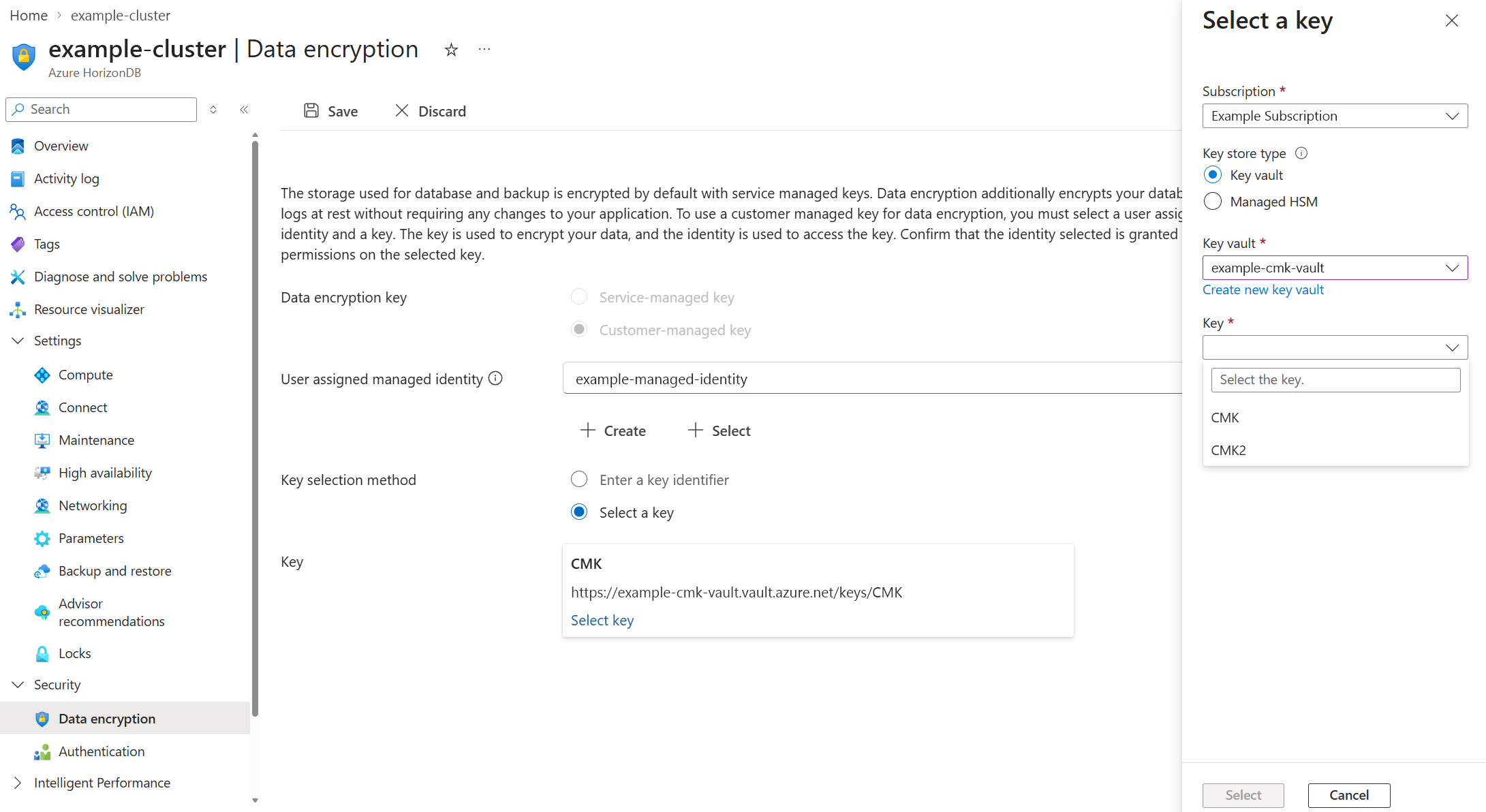
If your account has permission to read keys from the key store, choose Select a key under Key selection method, and then select Select key.
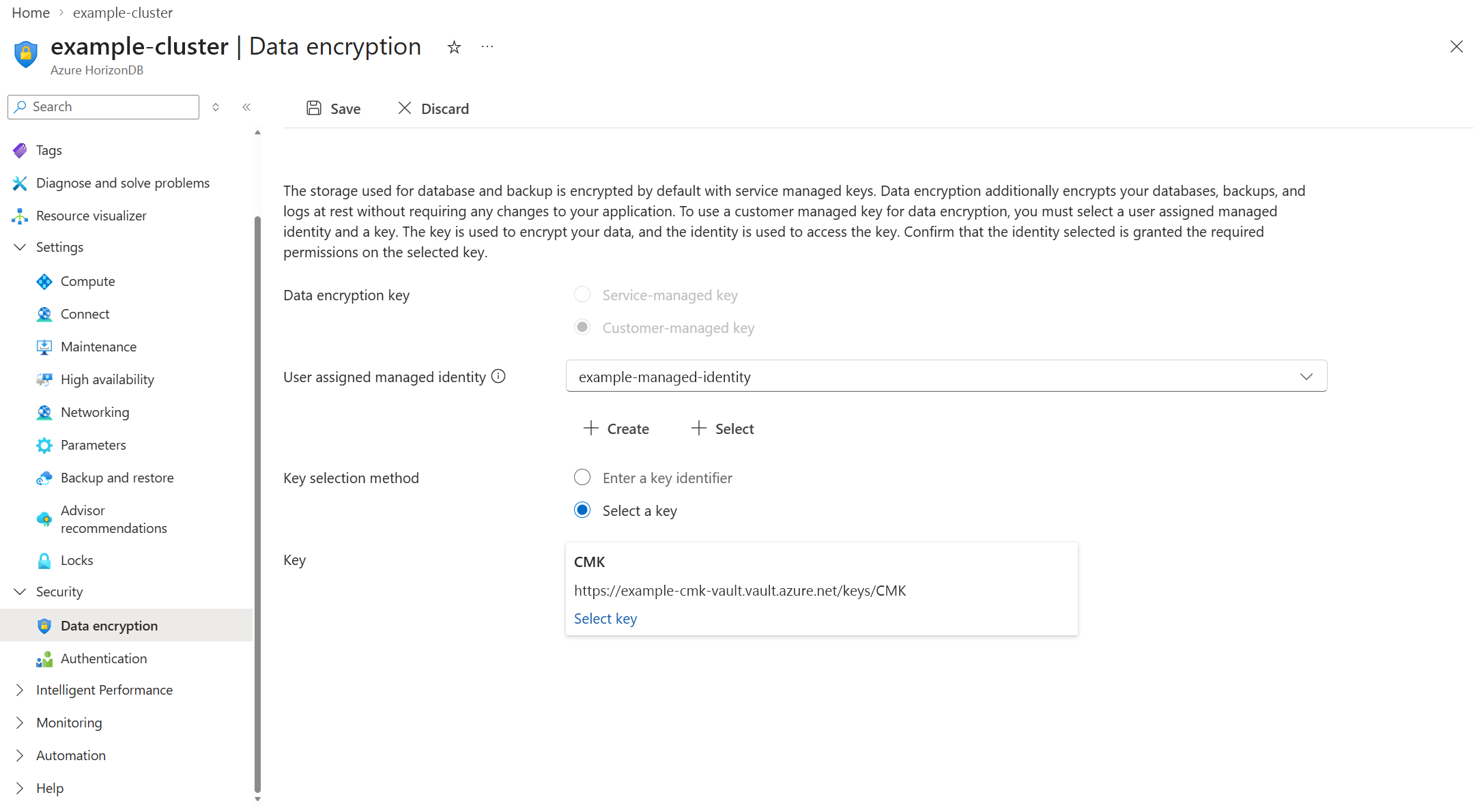
Subscription displays the subscription containing the Azure HorizonDB cluster. The key store that contains the customer-managed key must exist in the same subscription as the Azure HorizonDB cluster.
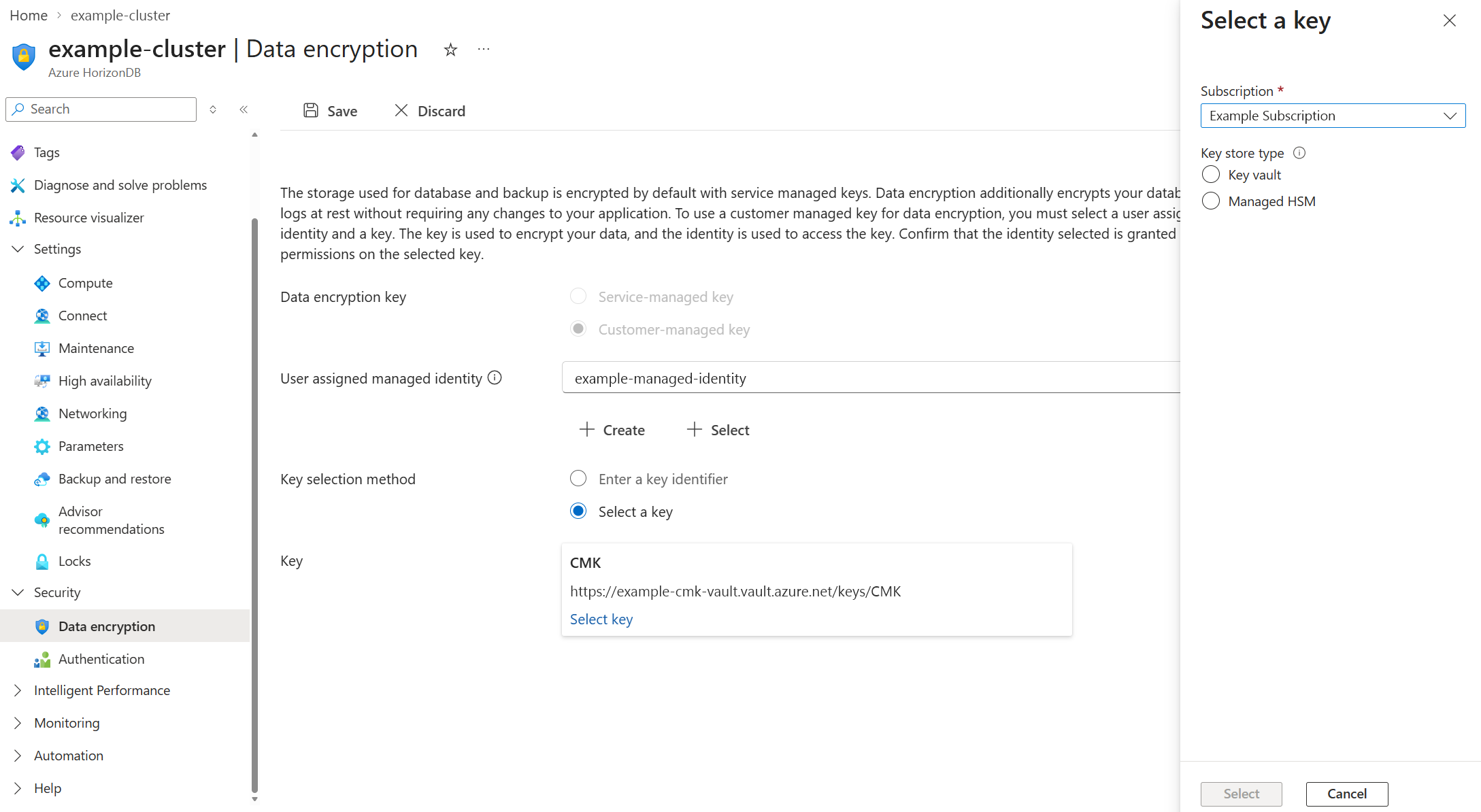
In Key store type, select the type of key store in which you plan to store the customer-managed key. In this example, choose Key vault.
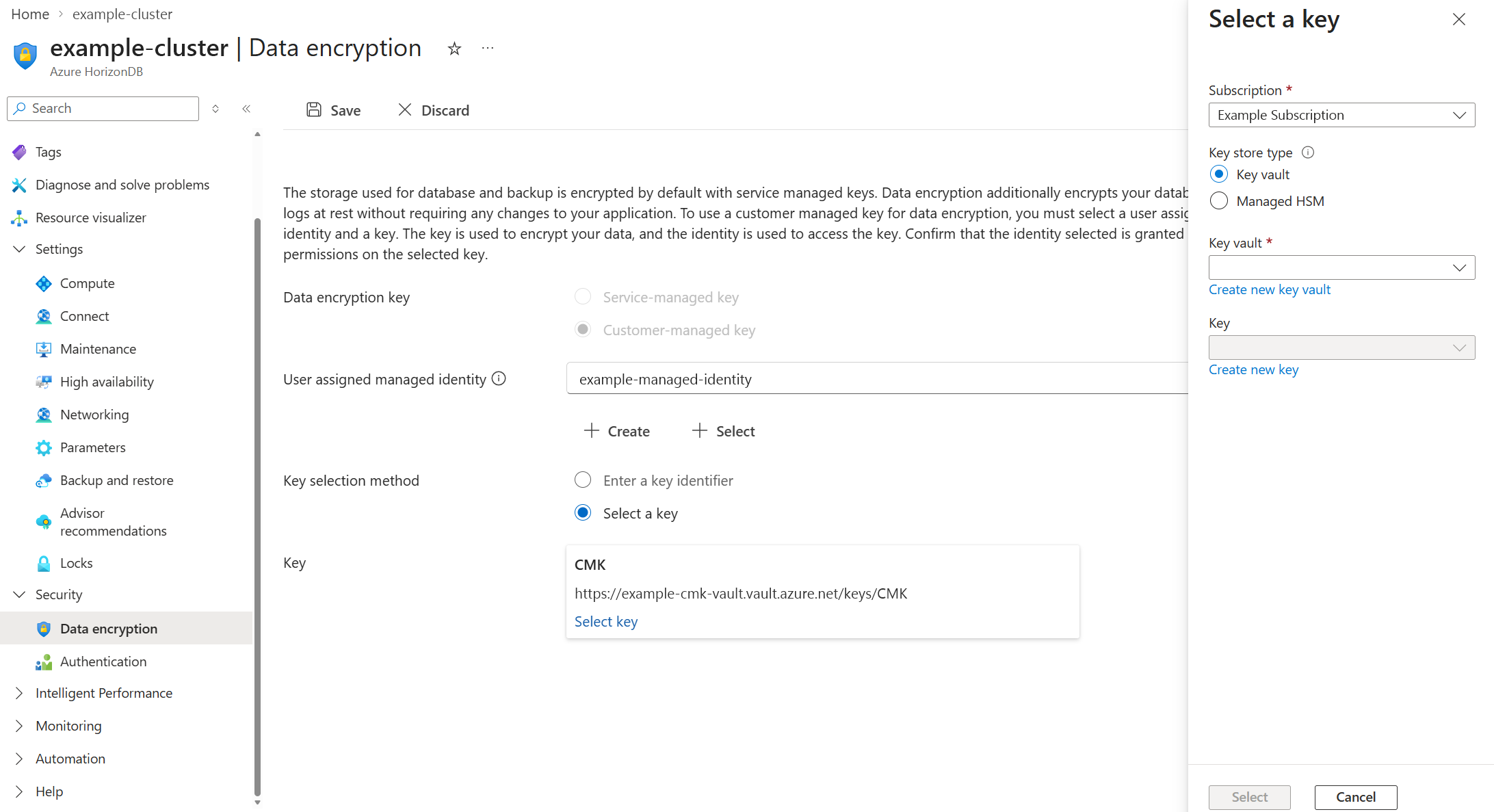
Expand Key vault, and select the instance where the customer-managed key exists.
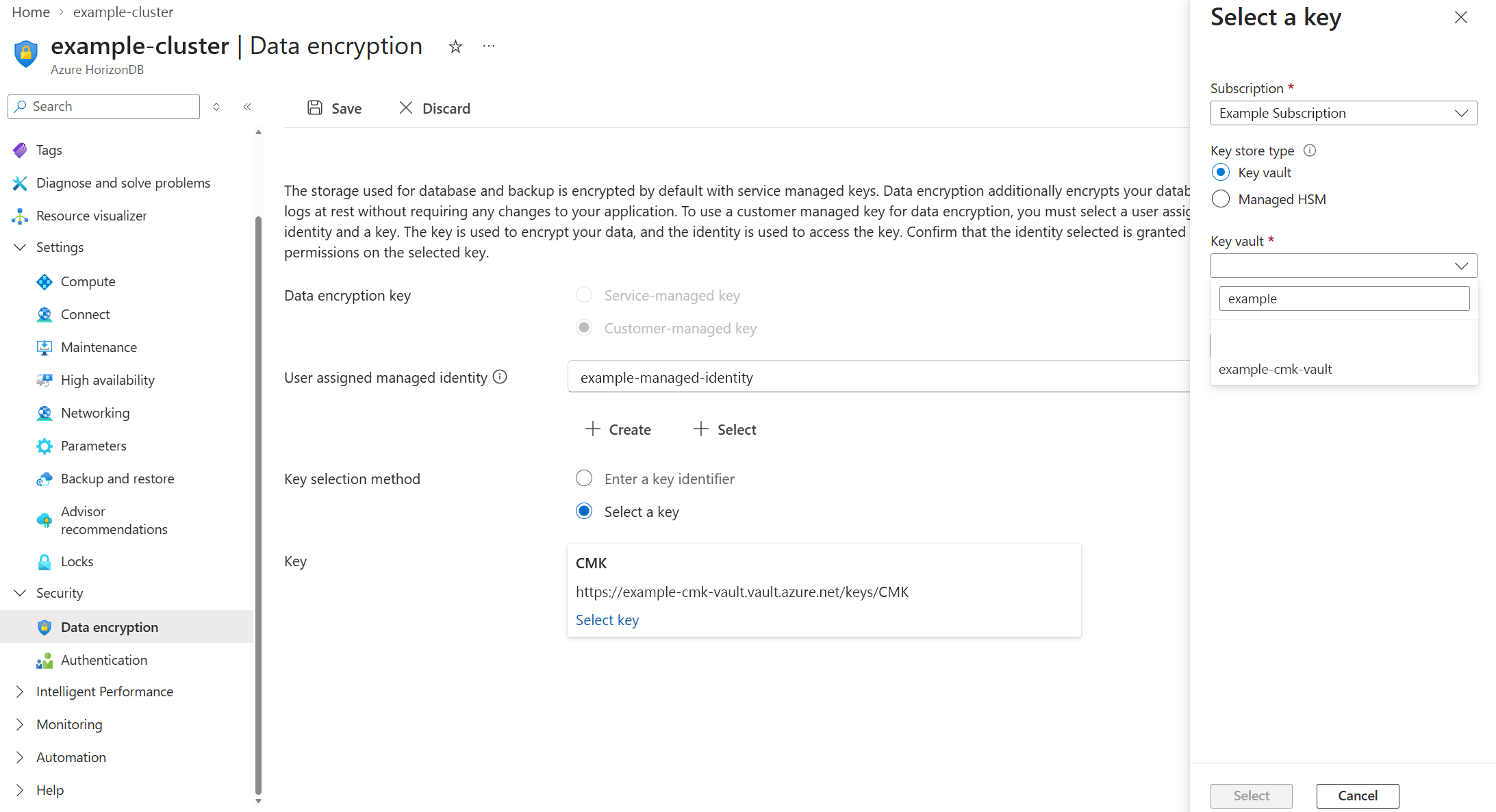
Expand Key, and select the key. Azure HorizonDB uses its versionless key URI, so you don't select a key version.
Select Select.
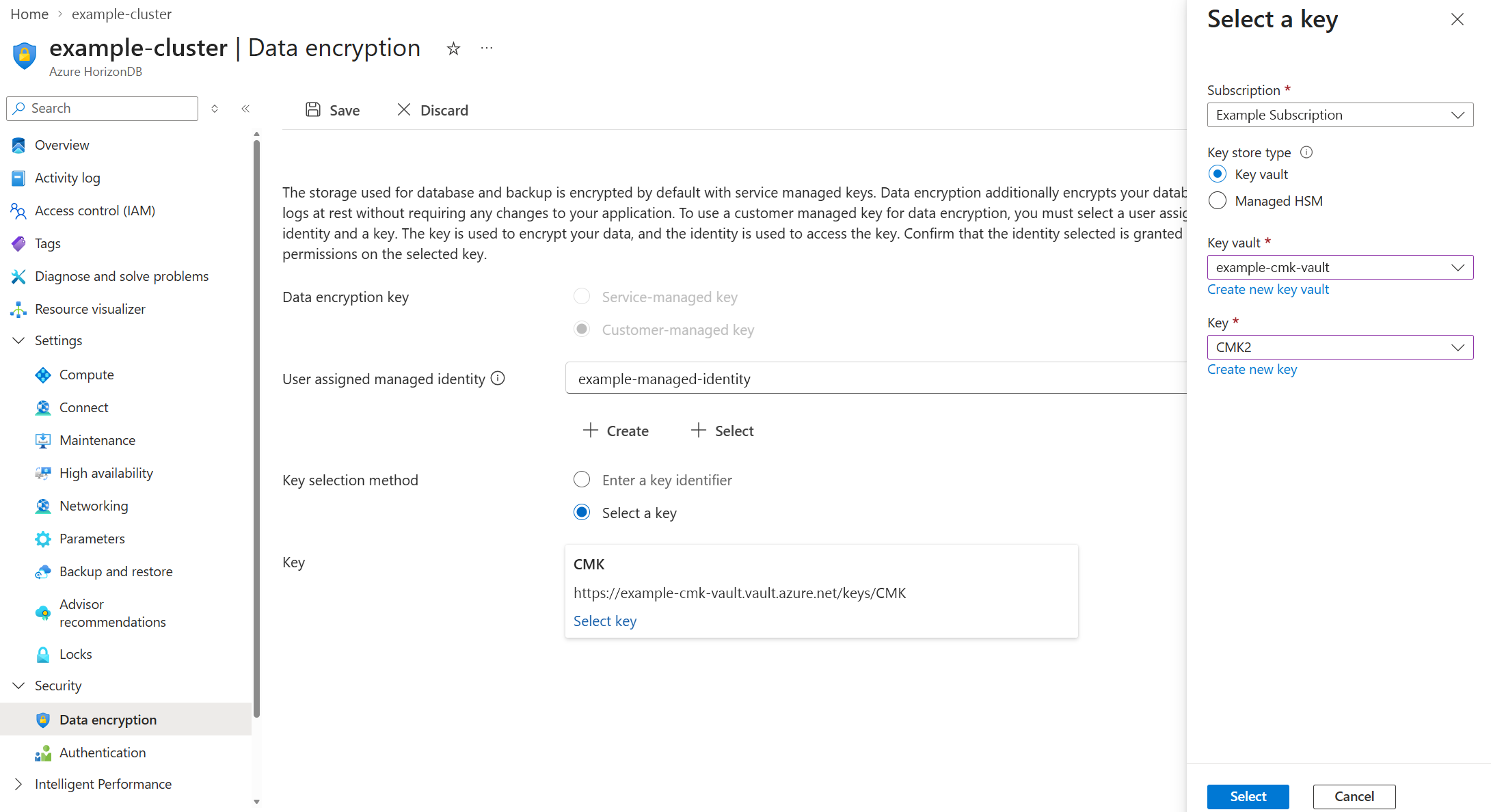
When you're satisfied with the changes, select Save.