Note
Access to this page requires authorization. You can try signing in or changing directories.
Access to this page requires authorization. You can try changing directories.
This article provides step-by-step instructions to reset the administrator password in Azure HorizonDB.
Steps to reset administrator password
Using the Azure portal:
Select your Azure HorizonDB cluster.
In the resource menu, select Overview.
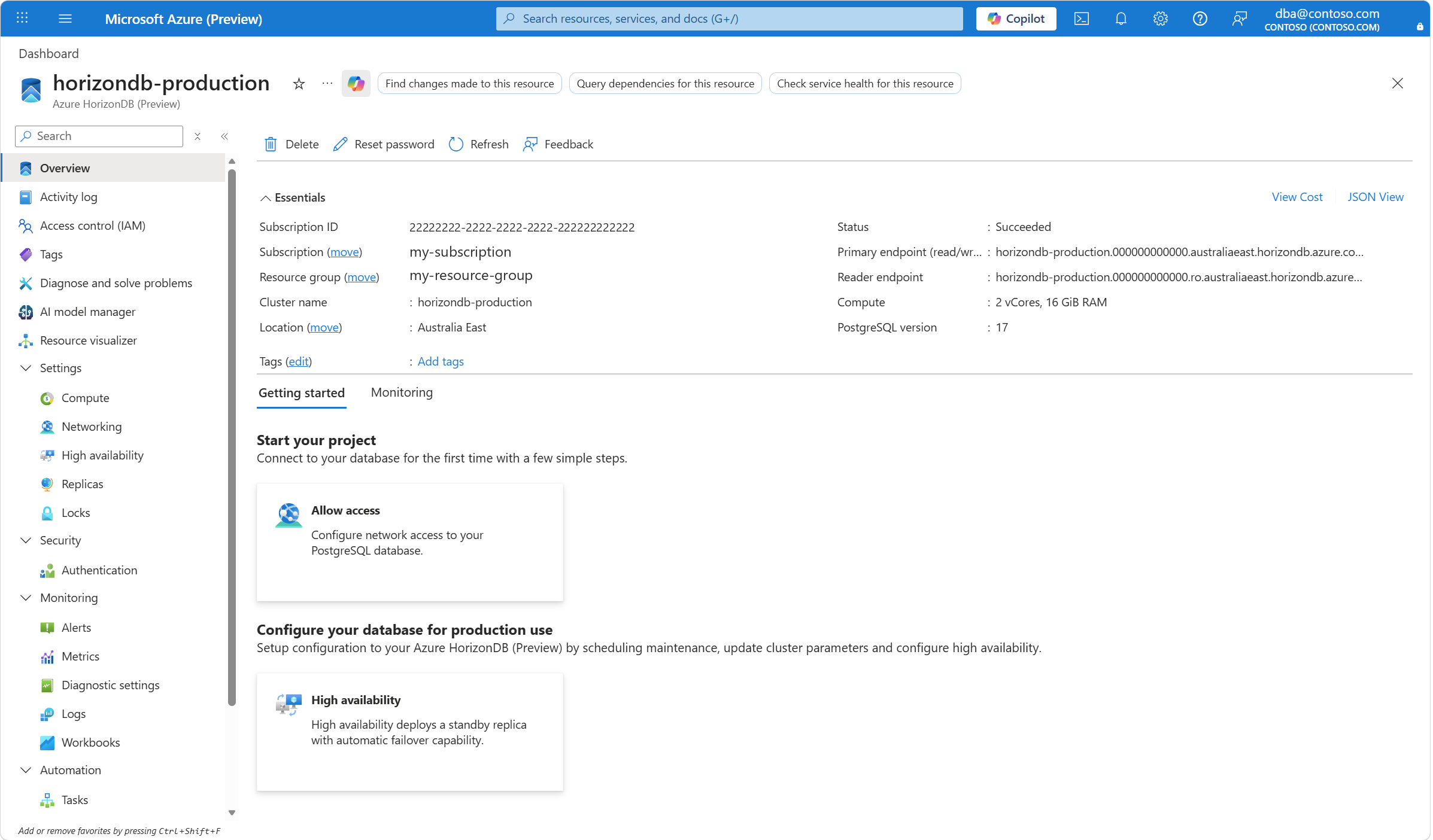
The status of the Azure HorizonDB cluster must be Ready for the Reset password button to be enabled on the toolbar.
Authentication method must include PostgreSQL authentication. In other words Authentication method must be set to either PostgreSQL authentication only or PostgreSQL and Microsoft Entra authentication for the Reset password button to be enabled on the toolbar. To check the Authentication method go to the resource menu and under the Security section select Authentication.
Select the Reset password button. In the Reset admin password panel, enter the new password in the Password text box and confirm it in the Confirm password text box.
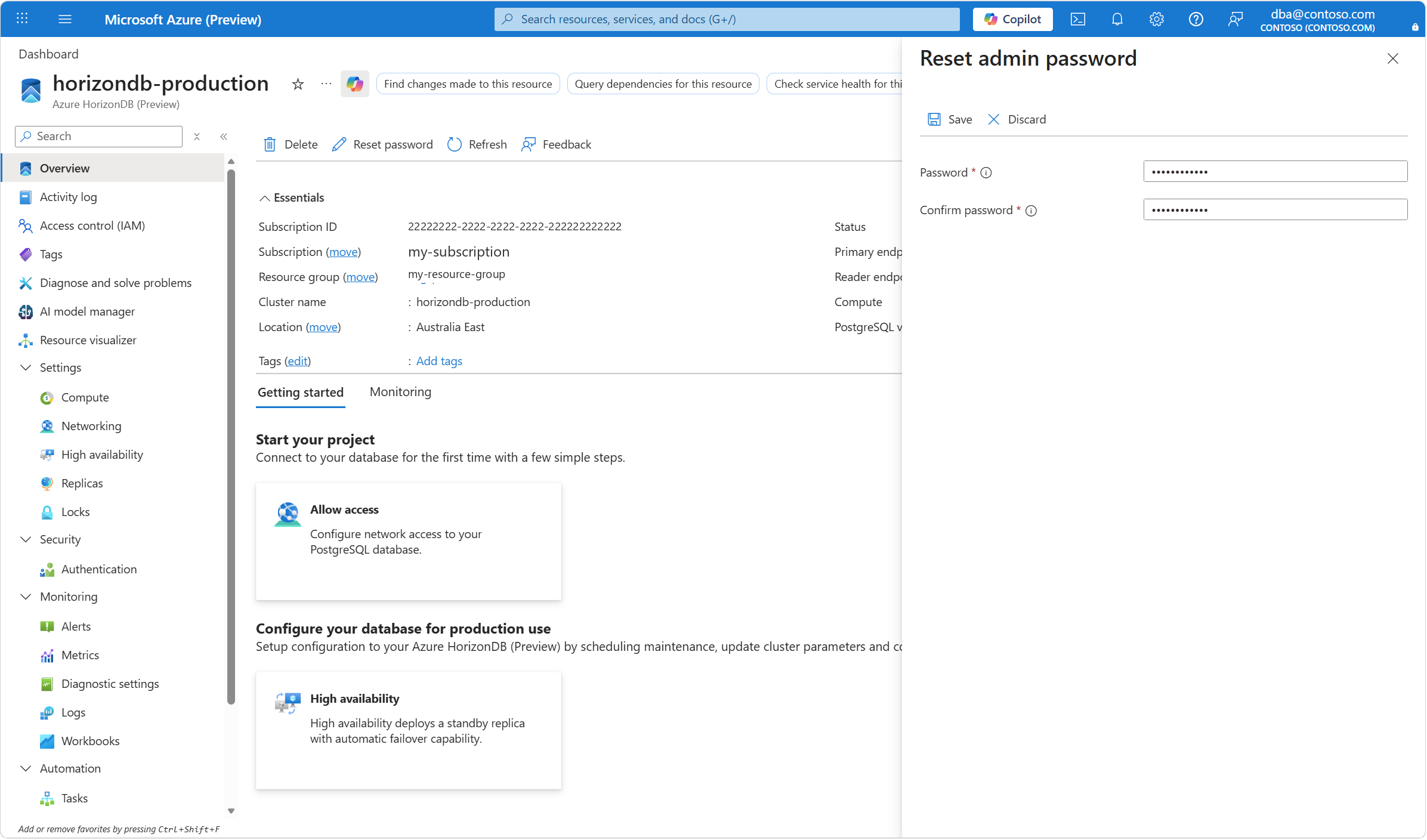
Select Save.
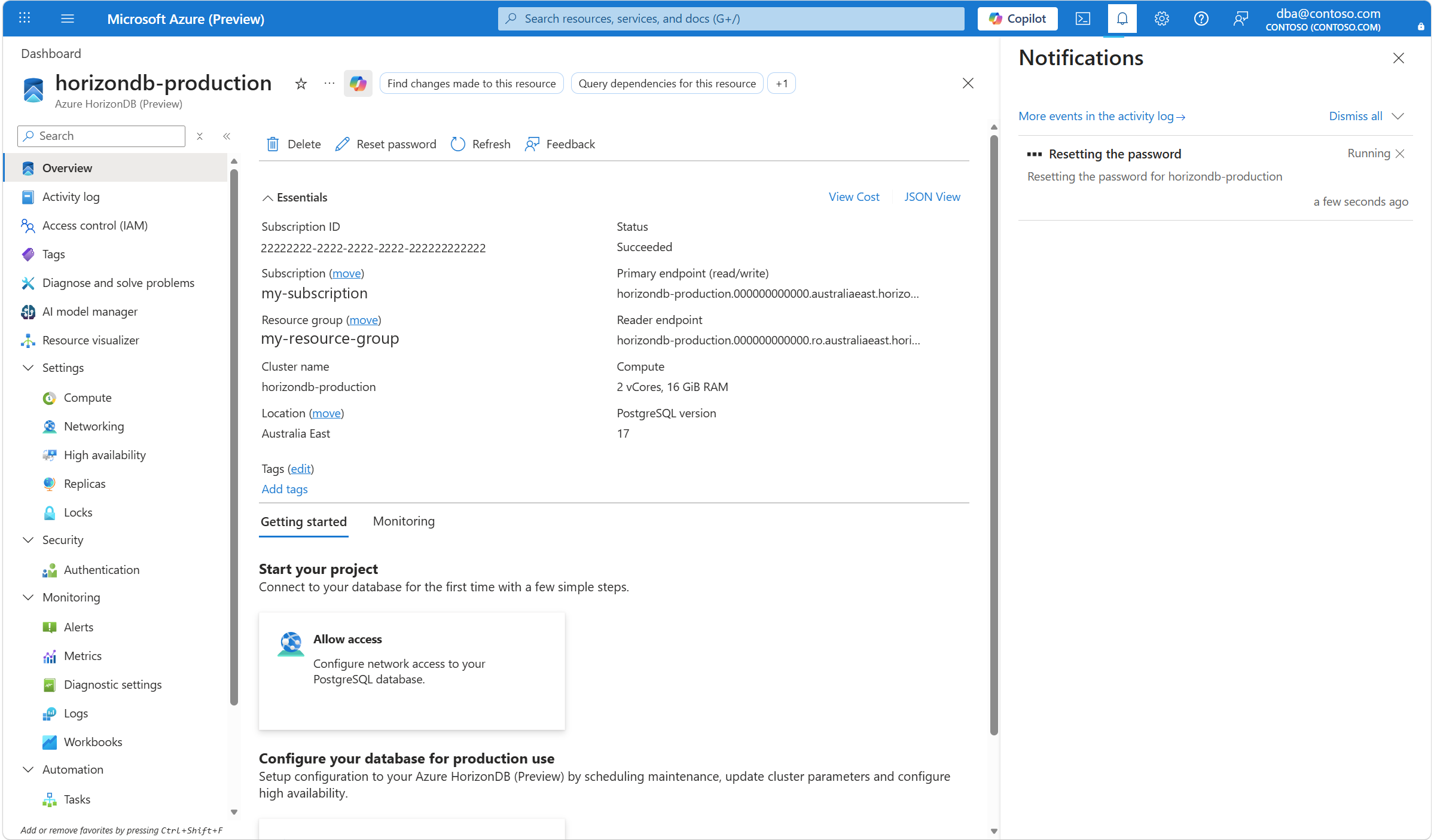
A notification informs you that the password of the server administrator is being reset.
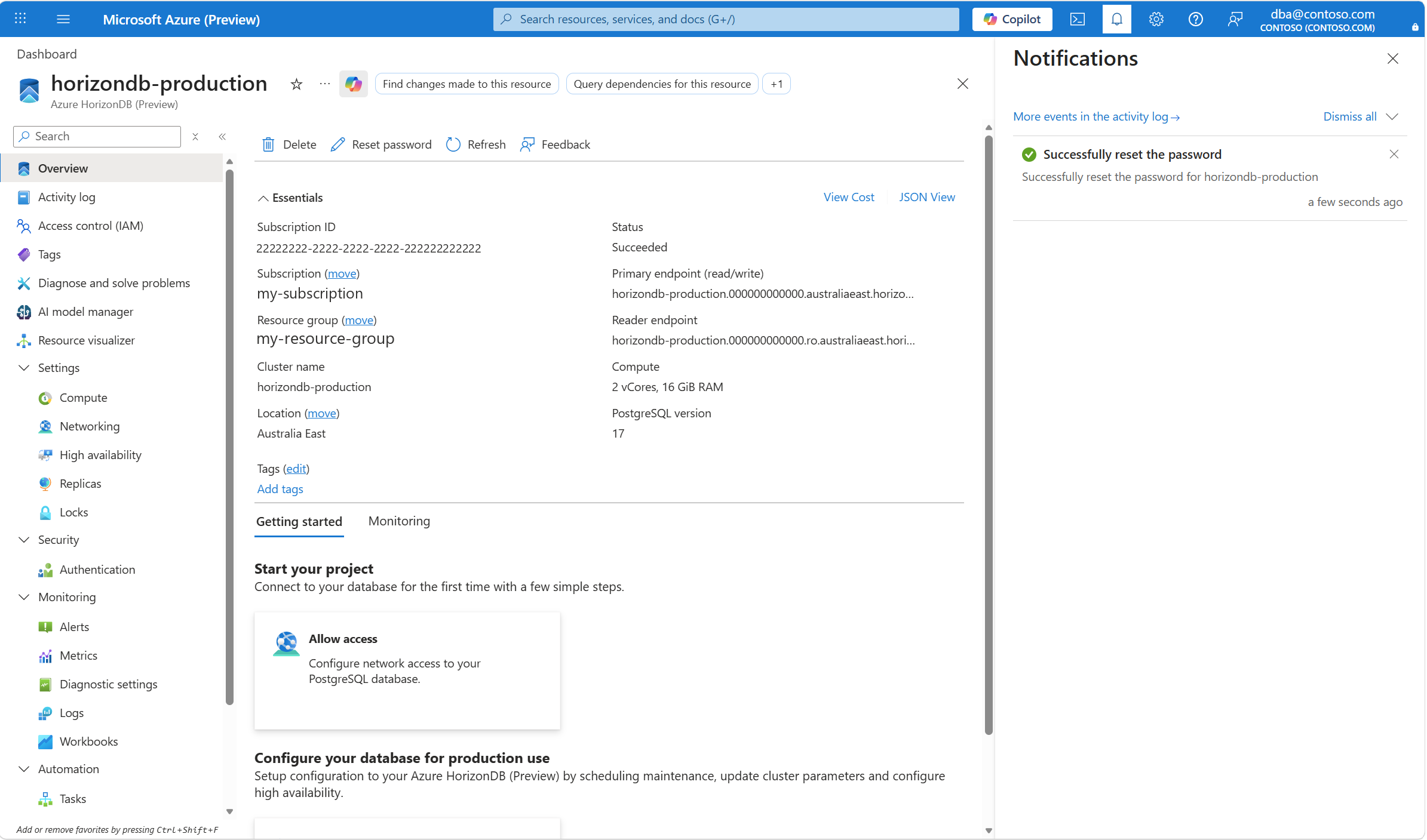
When the process completes, a notification informs you that the password was successfully reset.